Shoporama Templates
Below is information as to how you develop Shoporama themes
Navigation
Overview
Generally speaking, a Shoporama theme consists of a series of HTML files located in a folder on our FTP server. The template language used in the individual files is Smarty, as mentioned below.
In the individual templates, there is access to a range of objects and methods. You can read more about them in our Template API.
Contact us at support@shoporama.dk if you have any questions.
Development environment
To make the development of Shoporama themes easier and faster, we have developed Hackorama - a local development environment that simulates Shoporama's production environment.
Hackorama makes it possible to develop and test your themes locally without having to deploy to production. This gives you faster feedback and a more efficient development process.
Functions
- Local API data retrieval with caching system
- Smarty 4 template engine with the same delimiters as Shoporama
- Wrapper classes that mimic Shoporama's "Safe*" classes
- Automatic image scaling and caching
- Simulated customer login and checkout flow
- Debug tools and logging
Get started
Follow these steps to get started with Hackorama:
# 1. Klon repository
git clone https://github.com/blinksbjerg/hackorama.git
cd hackorama

# 2. Konfigurer din API-nøgle i setup.php
# Rediger setup.php og indsæt din Shoporama API-nøgle

# 3. Start lokal PHP server
php -S localhost:8080

# 4. Åbn din browser
# Naviger til http://localhost:8080
Example: Testing product display
Here's an example of how you can test your product display in Hackorama:
# I din template fil (f.eks. product.html)
<div class="product-detail">
    <h1><{$product->getName()|escape}></h1>
    <div class="price">
        <{$product->getPrice()|currency}>
    </div>
    <div class="description">
        <{$product->getDescription()}>
    </div>
</div>

# Test i Hackorama ved at navigere til:
# http://localhost:8080/product?id=123
Tip: Hackorama includes the Alaska2 theme as an example. You can use this as a starting point for your own theme or as a reference for best practices.
Note: Hackorama is not a 1:1 copy of Shoporama's production environment. It supports the basic features needed for local theme development, but not all advanced features are implemented. This is designed to give you a fast and efficient development environment for the most common use cases.
Read more about Hackorama and see the full documentation on GitHub.
Smarty
The engine of our templating system is based on Smarty.
For backward compatibility reasons, we have version 2.6 installed, but we no longer maintain it, and we recommend that everyone use version 4.x. You can set the version in the store settings.
Please note that this documentation only applies to version 4.x.
The difference between standard Smarty and ours is that we use <{ and }> as delimiters. In other words,
the syntax is:
<h1>Velkommen til <{$webshop->getName()|escape}></h1>Tips
Check content
If you're unsure what a variable is,
or what a function returns, you can run it through var_dump. If you have an
object, you'll always be able to see which methods are available in our Template API.
You use var_dump in the following way:
<{$order|var_dump}>Check objects
In some cases, it is important to ensure that if you use a variable as an object, it is also
an object. Otherwise, the template will not work. We define some global variables, such as $product,
$webshop, and others. For these variables, it is not necessary. You can check this in one of the following ways:
<{* Typisk tilstrækkelig *}>
<{if $profile}>
    <{$profile->getName()}>
<{/if}>

<{* Lidt grundigere *}>
<{if is_object($profile)}>
    <{$profile->getName()}>
<{/if}>

<{* Meget grundig *}>
<{if is_a($profile, "SafeProfile")}>
    <{$profile->getName()}>
<{/if}>
Fejlfinding
If you want to see which variables are available on the page you're developing, you can set Smarty to debug mode and view the variables in a new window. Insert the following code into your template:
<{debug}>
Dive deeper into Smarty4 here: Smarty 4 Documentation.
Available features and modifiers
In Shoporama, you have access to a selected set of Smarty modifiers and features that are approved for security reasons:
Modifiers
String manipulation
|strip_tags - Fjerner HTML tags|substr:start:length - Udtrækker del af streng|trim - Fjerner whitespace|ucfirst - Stort begyndelsesbogstavArrays og tal
|implode:"," - Samler array til streng|explode:"," - Deler streng til array|count - Tæller elementer|floor - Runder ned|strlen - Længde af strengDato og andet
|strtotime - Konverterer dato til timestamp|md5 - MD5 hashFunktioner i conditionals
Validering
isset($var) - Tjekker om variabel er satis_array($var) - Tjekker om det er et arrayis_object($var) - Tjekker om det er et objektintval($var) - Konverterer til heltalArrays og templates
in_array($needle, $haystack) - Søger i arraytemplate_exists('file.html') - Tjekker om template findesEksempel:
<{if in_array($product->getProductId(), $featured_ids) && isset($show_badge)}>
    Featured
<{/if}>
File structure
You'll receive FTP access to your store, and you'll need to place your theme in the root of your library. The folder name is the name of the theme.
getMenu()You are generally free to name the files in /{name}/templates as you wish. However, there are a few exceptions:
/{navn}/templates/global.html
The main page that contains the structure for the entire store. The actual content
is inserted where this template displays <{$contents}>, which is a
special variable that comes from the index.html file below. In other words, a very simple
global.html file might look like this:
<!DOCTYPE html>
<html>
<head>
    <title><{$webshop->getName()|escape}></title>
</head>

<body>

    <nav>
        <!-- Din navigation -->
    </nav>

    <div>
        <{$contents}>
    </div>

</body>

</html>
/{navn}/templates/index.html
This template is used to display the content of whatever you're viewing. That is, a product, a landing page, or the shopping cart, etc. Here's a suggestion for what it might look like:
<{if $inc}>

    <{include file=$inc}>

<{elseif $category}>

    <{include file="category.html"}>

<{elseif $landing_page}>

    <{include file="landing_page.html"}>

<{elseif $product}>

    <{include file="product.html"}>

<{elseif $page}>

    <{include file="page.html"}>

<{elseif $blog_post}>

    <{include file="blog_post.html"}>

<{/if}>
/{navn}/templates/printed_invoice.html
Used from admin if you want to print a delivery note. The content of the order will always be in the $order variable.
/{navn}/templates/mails
If you want to send your customers an email some time after they have made a purchase.
$products
$order
Email that can be automatically sent if the customer has entered their email address but has not checked out.
$basket_url
$basket
Email that can be sent if an item is back in stock and the customer has signed up.
$product
Email to dropshipping supplier.
$products
$order
The invoice for the order.
$order
Email if the order is credited.
$order
Email sent when the order is shipped.
$order
Email sent when the order is ready for pickup in store.
$order
Email sent when the order is picked up from the store.
$order
If the customer has completed an order, but has not completed the payment.
$payment_url
$order
Email that can be sent to the customer if you want reviews.
$order
Email with link to reset password. To get the URL, use $customer->getTokenUrl().
$customer
Welcome email if the customer creates an account in the shop.
$customer
Email sent to the customer if the points expire.
$customer
$points_to_expire
$points_expire_date
Email sent to the customer when they create a return via the return center.
$order_return
Email sent to the customer with return label (PDF or QR code). If the store owner has enabled GLS QR code return labels, the QR code can be displayed inline in the email with $order->getGlsReturnQr() which returns the path to the QR code image (or null).
$order
$order->getGlsReturnQr()
Mail der sendes til kunden når en returnering godkendes som tilgodebevis i stedet for refundering. Indeholder gavekortkoden, beløbet og udløbsdatoen. Sendes kun hvis butiksejeren har aktiveret "Tilbyd tilgodebevis" i returcenteret, og kunden har valgt det.
$order_return
$voucher->getCode()
$voucher->getPriceDiscount()
$voucher->getExpires()
Confirmation sent to the customer when a return is approved and the amount is refunded to the card (regular refund, or the profit from a cheaper exchange where the customer chose money back).
$order_return
$amount
Email sent to the customer when they create an exchange via the return center, confirming that the exchange request has been received. Falls back to return_received.html if the theme does not have it.
$order_return
Sent upon approval of an exchange that is more expensive than the returned item. Includes a payment link for the difference.
$order_return
$order
$payment_url
Sent upon approval of a cheaper exchange where the customer has chosen to receive the excess amount as a voucher. Contains the gift card code. Falls back to return_voucher.html if the theme does not have it.
$order_return
$voucher->getCode()
$voucher->getPriceDiscount()
Kvittering der sendes til kunden når vedkommende fortryder et køb via den digitale fortrydelsesfunktion (varigt medium, lovkrav). Findes i temaet ved siden af withdrawal.html.
$order
$reason
$withdrawal_time
Kvittering der sendes til kunden når en ordres status ændres til "Annulleret". Annulleringsmails er slået fra som standard og skal aktiveres per webshop under Indstillinger → Mails (samme indstilling styrer både kunde-kvitteringen og butikkens notifikation, så masse-/auto-annullering ikke spammer). Kunde-mailen sendes desuden kun hvis skabelonen findes i temaet.
$order
$reason
$cancellation_time
General information about the structure of mail templates
By default, all email templates are divided into two parts: one part for the subject line and the other
part for the body. The template is divided by checking whether the variable $subject is
set. If it is, the template returns the subject. Otherwise, it returns the content. Example:
<{if $subject}>

    Emnet på mailen

<{else}>

    Indholdet af mailen

<{/if}>
However, with the exception of the two emails, invoice.html and
invoice_dropshipping.html, where the subject line is controlled via the admin
admin and not via the template.
Images, stylesheets, etc. in the theme
You can place your images, stylesheets, etc., wherever you like, but we recommend that you use a structure such as
/{name}/images and /{name}/css. When referencing the files, you must use the variable
$theme_url, which contains the theme’s URL. Note that this may change, so you cannot always
enter the URL manually in your theme. However, the variable will always work. If you want to link to the image
/{name}/images/img.gif, you should therefore write
<img src="<{$theme_url}>/images/img.gif">.
Extensions
Shoporama contains several different data types, such as products and categories. These data types include some
predefined fields, such as title, description, and price. It is possible to extend the most common data types
with your own fields. Extensions must be placed in the theme in the file /{name}/extensions/{datatype}.json, where
the possible data types are product, landing_page, category, static_page,
and blog_post.
The json-file must contain an array of groups. Each group contains a row of fields. The format is as this:
name
string
Group field name
description
string
Longer description
fields
array
Array of fields
Field properties:
title
The title of the field
description
Longer description if relevant.
id
ID to fetch value with
type
One of the following types:
options
Values whose type is either list or multi. The format is
"options": {
    "foo": "Foo",
    "bar": "Bar",
    "baz": "Baz"
}
placeholder
Optional placeholder
default
Default value
searchable
Valgfri bool. Kun for product-udvidelser. Tekstfelter (text, string, longtext, richtext, wysiwyg, list, multi) indekseres automatisk i produktsøgningen, så fx forfatternavn eller varegruppe kan findes. Sæt "searchable": false for at holde et felt ude af søgningen. Felter uden flaget kommer med (bagudkompatibelt).
repeater
Used to create repeating groups of fields that the customer can add/remove dynamically. Repeater items can be dragged and dropped to change the order. Requires a fields array that defines the sub-fields.
Extra properties:
field_title- Name of individual item (e.g. "Feature", "Slide", "Point")fields- Array of sub-fields (supports: text, richtext, longtext, number, image)
decimal, link and references
"decimal" is a number with decimal places, including negative numbers (while"number" refers only to integers starting from 0). "link" is an address (https://..., /path, mailto:, or tel:). These reference types point to other content in the store and are stored as IDs:product/products,category/categories, andcontent_entry/content_entries (posts from a content type). In the admin panel, they can be selected using a search.
Additional property:
content_type- Only content_entry/content_entries: the key for the content type that the field points to, e.g., "recipe"
Below is an example of json in the file extensions/product.json:
[
    {
        "name": "Billeder",
        "description": "Her kan du tilføje billeder",
        "fields": [
            {
                "title": "Et enkelt billede",
                "id": "my-image",
                "type": "image"
            },
            {
                "title": "En serie af billeder",
                "id": "my-images",
                "type": "images"
            }
        ]
    },
    {
        "name": "Indstillinger",
        "description": "Herunder kan du indstille diverse",
        "fields": [
            {
                "title": "my-setting",
                "description": "Vælg flere ..",
                "id": "tags",
                "type": "multi",
                "options": {
                    "foo": "Foo",
                    "bar": "Bar",
                    "baz": "Baz"
                }
            }
        ]
    },
    {
        "name": "Features",
        "description": "Produktfeatures med ikoner",
        "fields": [
            {
                "title": "Features",
                "id": "features",
                "type": "repeater",
                "field_title": "Feature",
                "description": "Tilføj features for produktet",
                "fields": [
                    {
                        "id": "title",
                        "type": "text",
                        "title": "Overskrift",
                        "placeholder": "Fx: Vandtæt"
                    },
                    {
                        "id": "description",
                        "type": "longtext",
                        "title": "Beskrivelse"
                    },
                    {
                        "id": "icon",
                        "type": "image",
                        "title": "Ikon"
                    }
                ]
            }
        ]
    }
]
Will produce this interface:
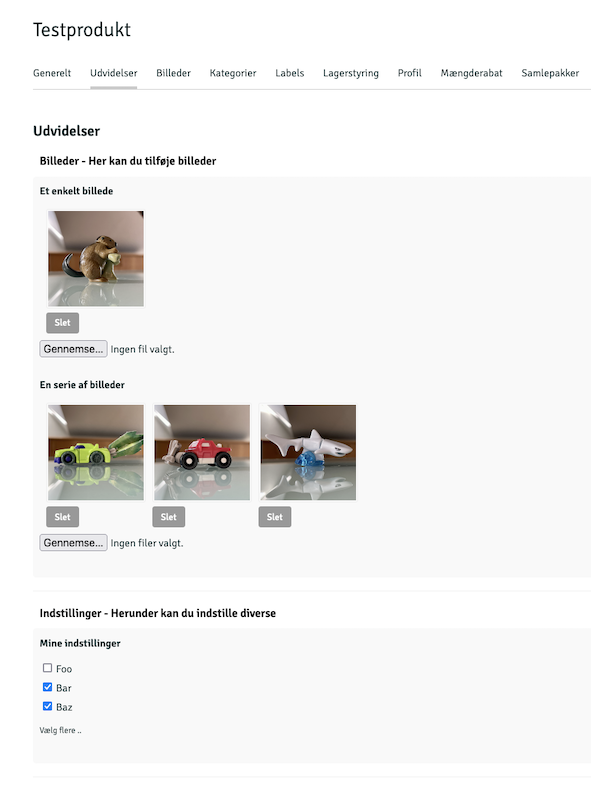
For data types that support extensions, the values must be retrieved using the getExtensionValue('ID') method,
where ID is the ID from the JSON file. Depending on the field's data type, the content may be returned as text, an array, or an object.
Ex.:
Materiale: <{$product->getExtensionValue('materiale')}>
Or:
<{if $img = $product->getExtensionValue('img')}>
    <{$img->getSrc(50, 50, 'fit')}>
<{/if}>
Or if you want to loop images:
<{foreach $product->getExtensionValue('my-images') as $image}>
    <img src="<{$image->getSrc(50, 50, 'box')}>">
<{/foreach}>
For repeater fields you can loop through items. Image fields in repeaters are returned as Image objects:
<{foreach $product->getExtensionValue('features') as $feature}>
    <div class="feature">
        <{if $feature.icon}>
            <img src="<{$feature.icon->getSrc(64, 64, 'box')}>" alt="">
        <{/if}>
        <h3><{$feature.title|escape}></h3>
        <div><{$feature.description|escape|nl2br}></div>
    </div>
<{/foreach}>
For date and datetime fields, the value can be used directly or formatted with Smarty's date_format:
<{* Date felt - vis kun dato *}>
Lanceringsdato: <{$product->getExtensionValue('publishdate')|date_format:'%d/%m/%Y'}>

<{* Datetime felt - vis dato og tid *}>
Publiceringsdato: <{$product->getExtensionValue('publishdatetime')|date_format:'%d/%m/%Y kl. %H:%M'}>

<{* Tjek om produktet skal vises baseret på dato *}>
<{if $launch_date = $product->getExtensionValue('publishdate')}>
    <{if $launch_date|strtotime <= $smarty.now}>
        <!-- Produktet er lanceret -->
    <{/if}>
<{/if}>

<{* Sammenlign datoer *}>
<{if $product->getExtensionValue('publishdatetime')|strtotime > $smarty.now}>
    Kommer snart: <{$product->getExtensionValue('publishdatetime')|date_format:'%d. %B %Y'}>
<{/if}>
Reference fields return the objects directly: a single field returns an object (or null), and a plural field returns a list. Only visible content is included (products and categories that are online, posts that are online), in the order they were selected in the admin panel:
<{* Udvidelse på blogindlæg: {"id": "opskrift", "type": "content_entry", "content_type": "opskrift"} *}>
<{if $opskrift = $blog_post->getExtensionValue('opskrift')}>
    <a href="<{$opskrift->getUrl()}>"><{$opskrift->getTitle()|escape}></a>
<{/if}>

<{* products giver en liste af produkter *}>
<{foreach $product->getExtensionValue('tilbehoer') as $p}>
    <a href="<{$p->getUrl()}>"><{$p->getName()|escape}></a>
<{/foreach}>
Content Types
Under Content → Content Types, the store owner can create new content types—such as Recipes, Hotels, or Retailers—with the fields required for each type. Each type gets its own menu item where entries are created. The types are stored in the store and not in the theme, so they are retained when you switch themes. The fields have the same types as the extensions mentioned above.
The theme only recognizes the type's key, such as " recipe." The key is specified for the type in the admin panel and cannot be changed, so the store owner can rename the type without breaking the theme. Field values are retrieved using the field's key.
<{* De 6 første opskrifter i admin-rækkefølge *}>
<{foreach $webshop->getContentEntries('opskrift', 6) as $opskrift}>
    <article>
        <{if $image = $opskrift->getImage()}>
            <img src="<{$image->getSrc(400, 300, 'box')}>" alt="">
        <{/if}>
        <h3><a href="<{$opskrift->getUrl()}>"><{$opskrift->getTitle()|escape}></a></h3>
        <p><{$opskrift->getValue('tilberedningstid')}> min. · <{$opskrift->getLabel('svaerhedsgrad')}></p>
    </article>
<{/foreach}>

<{* Én bestemt post ud fra slug eller id *}>
<{if $hotel = $webshop->getContentEntry('hotel', 'strandhotellet')}>
    <{$hotel->getTitle()|escape}>: <{$hotel->getValue('stjerner')}> stjerner
<{/if}>
The type is defined in the admin panel, so the theme must always handle situations where the type or a field is missing: use an `if` statement to check before using a value. All methods are described under SafeContentEntry, SafeContentType, and SafeWebshop in the class documentation. The most important ones:
| $webshop->getContentEntries(type, limit, offset, sort) | Posts that are online. Sort by weight (order in the admin panel), title, newest, oldest, updated, or field:key |
| $webshop->getContentEntry(type, slug) | One record based on slug or ID, or null |
| $webshop->getContentType(type) | The type with getName(), getNameSingular(), getUrl(), and getEntryCount() |
| $entry->getValue(nøgle) | Field value. Images are SafeImage, references are objects, yes/no are true/false, and multiple selections are a list |
| $entry->getLabel(nøgle) | Value as display text: the name of the selected item in a drop-down list, Yes/No, dates such as 12/24/2026 |
| $entry->getFields() | All filled-in fields are listed with key, title, type, value, and label for generic display. Repeated rows also have sub_fields |
| $entry->getImages() / getImage() | Post's Photo Gallery / First Photo |
| $entry->getUrl() | The URL of the post's own page, or null if the type does not have its own URL |
Dedicated pages for the entries
If the shop owner enables "Custom URL" for the type, each post gets a page at /prefix/slug and the type gets an overview page at /prefix, e.g., /recipes/rhubarb-trifle and /recipes. The pages are displayed via $inc just like the other pages, using these templates:
content_opskrift.html(the type's key) or the genericcontent_entry.htmlfor an entry. Variables:$content_entry,$content_type, and$breadcrumbscontent_opskrift_list.htmlor the genericcontent_list.htmlfor the overview. Variables:$content_entries,$content_type,$pager, and$breadcrumbs
If the theme does not include any of the templates, the URL returns a 404 error, and the shop owner receives a notification in the admin panel. Shoporama’s default themes include the generic templates. The title, description, canonical tag, and noindex attribute are set the same way as on other pages, and the entries are included in sitemap.xml.
The Page Designer
A field of type `content_type` in a section appears in the Page Builder as a list of the store's content types, and the value is the type's key. The default themes include a "Content Items" section that displays items from a selected type:
{"id": "content_type", "type": "content_type", "title": "Indholdstype"}

<{if $section.content_type}>
    <{foreach $webshop->getContentEntries($section.content_type, $section.max) as $entry}>
        ...
    <{/foreach}>
<{/if}>
Page types with their own URL can also be designed in the Page Designer, just like blog posts. The page types are named content_entry:<key> (the entries, either specific entries or all of them) and content_list:<key> (the list). In sections.json, the theme specifies the sections under content_entry and content_list. A list for a specific type, such as content_entry:recipe, takes precedence over the general one. The templates display the blocks using $page_blocks_top and $page_blocks_bottom (or $page_blocks, if the theme does not split them up):
{
    "content_entry": ["hero", "text", "product-list"],
    "content_list": ["hero", "text"]
}
Global variables
$webshop
A general object that contains the online store, but also includes several functions for retrieving
various data from the store. Learn more about the Webshop object.
Example of how $webshop is used to retrieve a list of categories:
<{foreach $webshop->getCategories() as $category}>
    <{$category->getName()|escape}>
<{/foreach}>
$webshop->getNewsletters()
Extract the shop's publicly shared newsletters and build an archive. Each item is a SafeNewsletterCampaign object with methods such as getTitle(), getDate(), getExcerpt(), getImage(), getUrl(), and getContent(). Use $webshop->getLatestNewsletter() to link to the latest newsletter. The store must have “Show public newsletter archive” enabled under Newsletter.
<{if $webshop->hasNewsletters()}>
    <{foreach $webshop->getNewsletters(12) as $nl}>
        <a href="<{$nl->getUrl()}>">
            <{if $nl->getImage()}><img src="<{$nl->getImage()|escape}>" alt=""><{/if}>
            <time><{$nl->getDate()|date_format:"%d. %B %Y"}></time>
            <h3><{$nl->getTitle()|escape}></h3>
            <p><{$nl->getExcerpt()|escape}></p>
        </a>
    <{/foreach}>
<{/if}>
$product
Product object if you see a product page
$category
Category-object if a category is shown
$landing_page
Dynamic category-object if a dynamic category is shown
$page
Object for static page.
$blog_post
Blog post object if you are looking at a blog post
$inc
The name of the special - non-dynamic, page being executed. The values for this can be return.html,
order-return.html,
return-exchange.html,
return_received.html,
return_label.html,
return_voucher.html,
also.html,
search.html,
basket.html,
address.html,
shipping.html,
approve.html,
payment.html,
thanks.html,
order.html,
product_review.html,
subscription.html,
blog.html,
user-sign-up.html,
user-sign-in.html,
user-sign-out.html,
user-edit.html,
user-reset-password.html,
user-profile.html,
user-orders.html,
user-points.html,
user-subscriptions.html,
user-change-card.html,
404.html,
410.html.
When we validate the content, you can use the code below to control the display in an include file:
<{if $inc}>
    <{include file=$inc}>
<{/if}>
$shipping
Selected shipping method
$pager_array
Paginates if the current page contains pagination. The array contains the following elements:
max,
current,
total,
url, and
first_url.
$pager
Pager object
$current_url
The absolute URL of the current page. On a country's own domain, it is the country's address (see Languages and Countries).
$language
The language code displayed on the page, e.g., "da " or "sv." This applies only to shops with countries. $webshop->getLanguageCode() works for all shops (see Languages and Countries).
$top_url
Relative URL to the current page.
$get
An array with all GET variables. Among other things, the system sets:
$get.payment_cancelled— set when payment is canceled/fails$get.not_found— set when an order is not found (returns)$get.wrong_voucher— set when an invalid discount code is used$get.delivery_country— entered on the address page when the country does not ship to the selected destination country (see Languages and Countries)
$post
An array with all POST variables.
$cookie
An array with all COOKIE variables.
$user_id
The ID of the store owner who is logged into the admin panel. This variable is set if you follow a link to the store from the admin panel.
$customer
Customer object if the customer is logged in to the shop.
$remote_addr
The IP address of the customer viewing the page.
$admin_url
URL to Shoporama admin
$selected_payment_gateway
The ID of the selected payment gateway.
$join_mailinglist
An indicator indicating whether the customer has marked that they want to sign up for the newsletter.
$basket_url
URL to the basket and its contents.
$products_matches
IDs of products that have matched a discount or promotion
$campaign_ids
IDs of campaigns if the products in the cart match a campaign.
$campaigns
If there are active campaigns.
$campaign_discount
The discount from the active campaigns.
$campaign_matches
An array of products that match a campaign. If there are no products, the variable is null.
$unpaid_order
If the customer has an unpaid order.
$unpaid_recurring_order
Unpaid subscription.
$basket
The content of the cart as an array, where the individual elements are the products in the cart, with the values:
.id
unique id on the line
.product_id
The ID of the product
.in_stock
true/false if the product is in stock
.product
the product
.attributes
the product's attributes
.own_id
the item number
.amount
the quantity in the cart
.comment
evt. kommentar - optional comment
.bundle
array of the product if the product is a bundle
Example of how the above is used:
<{foreach $basket as $row}>
    <{if $image = $row.product->getImage()}>
        <img src="<{$image->getSrc(50, 50, 'box')|escape}>">
    <{/if}>

    <{$row.amount}> x <{$row.product->getName()|escape}>

    i alt

    <{$row.product->getRealPrice($row.amount, $row.attributes)|number_format:2:",":"."}>
    <{$webshop->getCurrency()}>

<{/foreach}>
Check the Template API to see which methods are available on the various objects.
$subscriptions
Basket subscriptions. Works in the same way as $basket
$price
The subtotal of the cart's contents. That is, without shipping.
$shipping_price
The shipping cost of the cart.
$total_price
Total price of the content in the cart.
$vat
The VAT on the contents of the cart.
$deposits
The deposit for each deposit type (array containing name, units, unit_amount, and total). Display the rows between the subtotal and the total—the amount is already included in $total_price. See also $deposit_total. On order pages, use $order->getDepositLines() and $order->getDepositTotal(), and for each product, use $product->getDepositTotal($amount, $attributes) to display a “+ deposit” hint next to the price.
On product pages: $product->hasDeposit() indicates whether the product has a deposit; $product->getDepositCount($attributes) returns the number of deposit units per sales unit (taking variant overrides into account); and $product->getDepositType() returns the deposit type (or null) along with getName(), getAmount() (including tax), getAmountExVat($vat_pct), and getVatShare($vat_pct). On the return status page, $order_return->getDepositRefunds() returns the deposit lines in the return. The lines from ` getDepositLines() ` are standard order line objects (`getName()`, `getAmount()`, `getPrice($quantity)`) and are filtered from ` $order->getOrderProducts()`, so existing themes will still display correct totals without any changes.
$product->getPricePerUnit()
Unit price for a "kr/each" hint below the price (e.g., 4.11 kr/each). The store fills in $product->getUnitAmount() (number of base units in the package, e.g., 24 or 0.5) and $product->getUnitLabel() (the unit as free text: pcs, L, kg, etc.) for each product. getPricePerUnit() returns the customer-facing price divided by the unit (taking into account promotions, VAT display, customer group, and vouchers)—or null if the product has no unit price. For B2B themes that display prices excluding VAT, use getPricePerUnitExVat().
The built-in themes automatically display the line on product cards and product pages via components/price.html with the include parameter unit_price=true. The calculation is based on the displayed price, so the unit price always follows the main price. It is not displayed for products with variant prices (hasAttributePrice()), as it would otherwise be ambiguous.
$basket_weight
The total weight of the curve (for e.g. shipping).
$total_amount
Total number of products in the curve.
$voucher
The discount code if there is one.
$voucher_discount
The discount from the discount code.
$shipping_country
The selected delivery country.
$nofollow
Indicates whether nofollow is set on the page.
$meta_title
The title of the page.
$meta_description
Description of the page.
$canonical
URL of the page's canonical.
$session_order
Array containing the billing address. Contains the following fields:
name, company_name, vat_number, address, address2, zipcode,
city, email, phone, ean_number, comments
$session_del
Array containing the shipping address. Contains the following fields:
name, company_name, address,
address2, zipcode, city
$session_extra
Array with extra fields on the order. If a field is POSTed with
extra[test]=123, then $session_extra.test will be 123, and it will be saved on the order.
$use_points
Number of points the customer has entered that they want to use on the order.
$point_discount
How many DKK (or other currency) the used points (from $use_points) correspond to.
$earns
How many points the customer earns by completing the order.
Template functions
The following are the Shoporama-specific features that can be used in templates:
Template language support
You can build language support into your templates. You wrap the text in a <{t}> block, and then the store owner can edit it under Design → Texts and translate it into the language of each of the store’s countries under Web Store → Translations (see Languages and Countries). The text appears in the admin panel the first time the template is rendered, and for stores with multiple countries, the theme’s files are also parsed in advance. Example:
<{t}>Din kurv<{/t}>
Please note that if you change the text in your template files, the new text will appear in the admin panel as a new text entry. There are no IDs or names; it is the content itself that makes the text unique.
You can set the "section" attribute on the block to divide your text into more manageable
sections. You can also add a hint if you want to display a hint in the admin panel when the text is being edited:
<{t section="basket" hint="Bruger i overskriften"}>Din kurv<{/t}>
If you have variable content that you want to include without the value appearing in the admin panel, you can use the following syntax:
<{t amount=$total_amount price=$total_price|number_format:2:$webshop->getDecimalSeparator():$webshop->getThousandSeparator() currency=$webshop->getCurrency() hint="Til kurven"}>Du har {amount} ting til {price} {currency} i kurven.<{/t}>
Write values as placeholders as shown above, and never as a variable within the text itself. The text between the tags is key, so a variable in the text turns each value into a new piece of text. The same applies to spaces and line breaks within the text, so write it on a single line.
If it fits better into your structure, you can also use `t` as a modifier for
your variables/functions:
<{$title = "Min titel her"}>
<{$title|t}>
The above will display the following in admin:
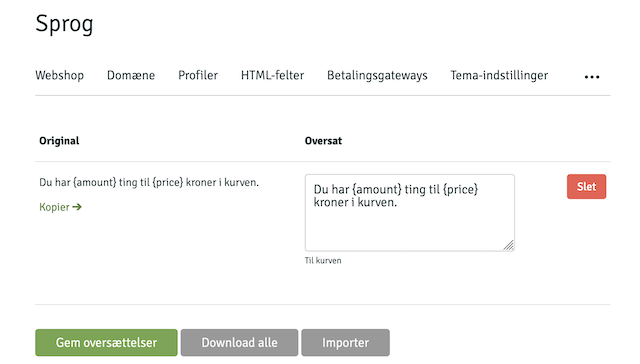
Arguments
Section for partitioning in admin
Hint used in admin as help text
Template caching
If a template contains a lot of resource-intensive calls that don’t need to be updated in real time—such as
product variants, the menu, or the category overview—Shoporama includes a caching feature that
can make the store run significantly faster. The functions used are `cache ` and `get_cache`, respectively.
First, it marks the section to be cached, and later retrieves the cached data. Example:
<{get_cache name="my_cache" ttl=3600 assign="c"}>

<{if $c}>

    Fra cache: <{$c}>

<{else}>

    Live:

    <{cache name="my_cache"}>
        <{$smarty.now}>
    <{/cache}>

<{/if}>
The cache function wraps the content and assigns it the name specified in ` name`.
When the content needs to be retrieved, ` get_cache` is used, which takes the arguments `name`, as
used previously, and `ttl`, which specifies in seconds how old the content may be. If the argument is omitted,
the default is one hour.
Arguments
Used to specify the name of the cached item. It is possible to use dynamic names from variables.
Cache content retrieval
Function that returns the cached content from the cache function.
Arguments
The name of the cached item used in cache.
Time To Live. Number of seconds the cache is allowed to remain valid for.
The name of the variable to which the content should be assigned.
Theme settings
You can add some general settings to themes by adding a
theme_settings.json file to the root of the theme, resulting in something like the following:
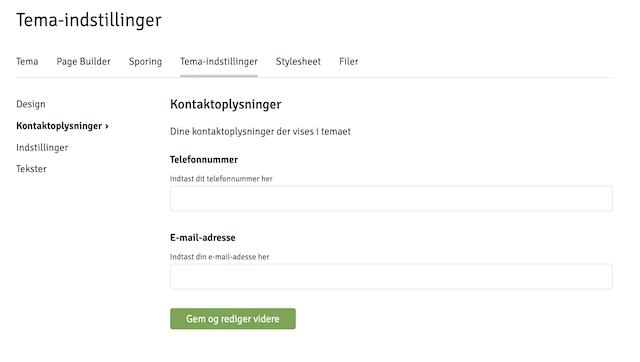
The structure is as follows:
info
The name of the theme
string
features
Array of features the theme contains. Only used for viewing in admin. Only useful if the theme is general and multiple users can select it. For example ["Feature A", "Feature B", "Feature C"]
array
demo
URL to possible demo page
string
split_blocks
If set to true, the page designer divides the blocks into two zones: above and below the main content of the page. The merchant can drag blocks between the two zones in the admin. In the theme templates, $page_blocks_top and $page_blocks_bottom are used to position the blocks correctly. Without this setting, all blocks are displayed in a single list. Recommended for themes where Page Designer blocks need to be placed both above and below the main content (product info, category list, etc.).
boolean
accordion
If set to true, the settings are displayed in an accordion layout instead of the classic card layout with sidebar. The accordion layout includes a search function that makes it easy to find specific settings and remembers which sections are open via localStorage. Recommended for themes with many settings.
boolean
smarty_version
Specifies which Smarty version your theme is built for. If this field is set, the theme takes control: Shoporama automatically synchronizes the store’s Smarty version when the theme is changed, and the selection is locked in the store owner’s settings so that the theme and engine always match. Valid values are currently 2 and 4, and the value must correspond to the version folder where the theme is located (e.g., 4 for a theme in user_templates/4/). An invalid or unsupported value is ignored, and the shop owner’s manual selection is retained. If the field is omitted, the behavior remains unchanged.
integer
countries
Set to true when the theme is ready for countries: all text appears in <{t}>, and amounts are displayed in the country's currency and number format. If set to false, Webshop → Countries displays the warning "The theme is not ready for countries." If the key is missing in a custom theme, Countries displays “Check the theme before activating a country.” The key does not change how the store functions. See Languages and Countries.
boolean
text_language
The language in which the theme’s <{t}> texts are written, as a language code (e.g., da, en, de, sv, or nb). The default is da. If the texts are written in English ("en," as in Delaware), an English-speaking country will display the theme’s original text rather than the store’s Danish translation from Design → Texts, unless the text has been translated into English under Translations.
string
settings
Array of editable fields
array
.path
ID of fields included in the variable as the first element when retrieving the value. If path is set to design, the values will be in $settings.design.{field name}
string
.name
Name displayed in admin
string
.description
Description shown in admin
string
.fields
The individual fields that can be edited by the user
array
.path
The ID for when to retrieve the value. If path is set to color and the parent field was design, the field can be retrieved via $settings.design.color
string
.name
Name displayed in admin
string
.description
Description shown in admin
string
.default
Default value. If the field is empty, this value will be used.
string
.type
The type of the field. The valid types are: image, color, string, text, bool, wysiwyg, and list. text is a multi-line textarea without rich text editor.
string
.values
Values if type is set to list. Formater er følgende:
[
    {
        "name": "cheese",
        "value": "Ost"
    },
    {
        "name": "ham",
        "value": "Skinke"
    }
]
array
Example of file contents
{
    "info": "Mit tema",
    "smarty_version": 4,
    "split_blocks": true,
    "accordion": true,
    "settings": [
        {
            "path": "design",
            "name": "Design",
            "description": "Indstillinger for dit design",
            "fields": [
                {
                    "path": "logo",
                    "name": "Toplogo",
                    "description": "Upload dit logo her",
                    "type": "image"
                },
                {
                    "path": "background_color",
                    "name": "Baggrundsfarve",
                    "description": "Baggrundsfarven på shoppen",
                    "type": "color"
                },
                {
                    "path": "size",
                    "name": "Bredde",
                    "description": "Bredden på siden",
                    "type": "list",
                    "values": [
                        {
                            "name": "Afgrænset",
                            "value": "boxed"
                        },
                        {
                            "name": "Fuld bredde",
                            "value": "fullwidth"
                        }
                    ]
                }
            ]
        },
        {
            "path": "contact",
            "name": "Kontaktoplysninger",
            "description": "Dine kontaktoplysninger der vises i temaet",
            "fields": [
                {
                    "path": "mail",
                    "name": "E-mail-adresse",
                    "description": "Indtast din e-mail-adresse her",
                    "type": "string"
                }
            ]
        },
    ]
}
Both "info " and " settings " must be included; otherwise, the admin won't recognize the format and won't display the settings.
Settings configured via the REST API (PUT /theme-settings) or by an AI assistant are validated against this specific file: only fields declared here can be set; boolean, color, and list values must be valid; image fields must point to an image in the store’s image archive; and scripts and other dangerous HTML are removed from text fields. If even one value is invalid, nothing is saved. If the theme does not have a` theme_settings.json` file, settings cannot be set via the API.
Color schemes
If your theme uses color fields in theme_settings.json, you can offer predefined color schemes by adding a color_scheme.json file in the theme root. When the file is found, an additional menu item "Color schemes" appears under Design in the admin, where the store owner can select a color scheme with one click.
Color schemes only save the color fields defined in the file - all other theme settings remain untouched.
groups
Array of groups that control how the color fields are visually organized in the admin. Each group has a label (display text) and a fields array with field references in the format element.name - similar to path in theme_settings.json.
array
schemes
Array of color schemes. Each scheme has:
id— Unique ID (used internally to remember selected schema)name— Name displayed in admindescription— Short descriptioncolors— Object with color values. The keys use theelement.name notation, e.g."theme.primary": "#111827". A scheme does not need to contain all color fields - only the specified colors are updated.
array
Example of color_scheme.json
{
    "groups": [
        {
            "label": "Grundfarver",
            "fields": ["theme.primary", "theme.action", "theme.background"]
        },
        {
            "label": "Sektioner",
            "fields": ["theme.header_bg", "theme.footer_bg"]
        }
    ],
    "schemes": [
        {
            "id": "default",
            "name": "Standard",
            "description": "Det klassiske look.",
            "colors": {
                "theme.primary": "#111827",
                "theme.action": "#2563eb",
                "theme.background": "#ffffff",
                "theme.header_bg": "#ffffff",
                "theme.footer_bg": "#111827"
            }
        },
        {
            "id": "warm",
            "name": "Varm",
            "description": "Varme jordtoner.",
            "colors": {
                "theme.primary": "#292524",
                "theme.action": "#c2410c",
                "theme.background": "#fffbeb",
                "theme.header_bg": "#fef3c7",
                "theme.footer_bg": "#292524"
            }
        }
    ]
}
Translations (long/)
All text in your templates is wrapped in <{t}>...<{/t}>. The first time a page is displayed, each string is detected and added to the store owner’s text list under Design → Texts, where it can be edited. The downside is that the strings only appear as pages are visited, and the store owner must edit everything from scratch. For stores with multiple countries, Shoporama also scans the theme’s files when a country is activated, when Translations is opened, and when automatic translation is running.
By placing a "lang" folder in the root directory of your theme, you can provide pre-translated strings that are automatically populated when the theme is activated. This way, the store owner has all the strings available from the start and doesn't have to translate them manually.
Folder Structure
{navn}/
  langs/
    da.json
    de.json
    no.json
    sv.json
There is no en.json file —the theme's default text is written in English directly within <{t}>, so English stores do not need translations. If you write the text in a language other than Danish, specify it using "text_language" in theme_settings.json.
JSON format
Each file is divided into sections (typically the filename where the text is used). Under each section, the key is the original <{t}> string, and the value is the translation. The section becomes the "Section" filter in the text list.
{
    "product.html": {
        "Add to cart": "Læg i kurv",
        "Sold out": "Udsolgt"
    },
    "basket.html": {
        "Checkout": "Gå til betaling"
    },
    "404.html": {
        "We could not find what you were looking for": "Vi kunne ikke finde det, du søgte"
    }
}
Important: The key must exactly match the <{t}> string (leading and trailing spaces are ignored). If it does not match character for character, the translation will not be used when displaying the text.
How Imports Work
- The import runs automatically when the theme is activated on a store.
- The file is selected based on the store's language: a Danish store gets
da.json, a German store getsde.json, and so on. Swedish is accepted as bothsv.jsonandse.json. - All entries are created in the text list, even if the translation is empty—so the store owner can see the entire list from the start.
- Only empty fields are filled in. If the store owner has already edited a text, their version is retained—the import never overwrites it.
- The import only populates the store's own language. The languages for the store's countries are translated under Web Store → Translations (see Languages and Countries).
Languages and Countries
With Countries (Webshop → Countries), a store can sell in multiple countries with its own language, currency, and address—either as a subpath on the store’s domain (e.g., /se) or on a separate domain. The same theme is used in all countries, unless the store owner chooses a separate theme for each country. A step-by-step guide with a checklist is available in “Prepare Your Theme for Multiple Languages and Countries.”
Shoporama handles that itself
- Links in the final HTML (
href,action, andformaction),as well as "url" and URLs in JSON-LD, will be assigned the country's address, including links written directly as/basket. Files, images, and feeds will remain unchanged, and redirects will stay within the country. <html lang>andand:locale(if the theme has tagged it) retrieve the country's language, and hreflang links are inserted for all language versions of the page, plusx-defaultfor the main country. A page that hasn’t been translated yet is displayed in Danish and is set to “noindex” in that country.- The text and URLs of Safe objects have been translated: products, categories, pages, blog posts, menus, filters, shipping and payment methods, countries, customer fields, and the text fields in the theme settings (the types
string,text, andwysiwyg). If a translation is missing, the Danish text will be displayed. - All product prices are already in the local currency (exchange rate, price adjustment, sales tax, and rounding), and
$webshop->getCurrency()returns the local currency. Never perform currency conversions yourself in the theme. - Ajax calls from a page in a specific country, the page cache, and fragments in
<{cache}>follow that country. Order emails are generated in the country where the order was placed, so the text, currency, and number format in the email templates follow the order.
That's what the theme is supposed to do
- All visible text within
<{t}>or"..."|t, including emails, the checkout page, and attributes. Values are included as placeholders (see Template Functions). "countries": trueand, if applicable,"text_language"in theme_settings.json once the theme is ready.- The currency using
$webshop->getCurrency()(or$webshop->getCountryCurrency(), which is only populated when the country sells in its own currency, in themes with a fixed text such as "kr."), and amounts from orders using$order->getCurrency(), also in the order history and emails. - Number formatting using
getDecimalSeparator()andgetThousandSeparator(). - A language selector using
$webshop->getCountrySites(). - Delivery country from
$webshop->getDeliveryCountries()and a message at$get.delivery_country. - No custom hreflang links (Shoporama doesn't remove them), and no addresses built in JavaScript (they don't include the country path).
Amounts and Number Formats
<{$decimal = $webshop->getDecimalSeparator()}>
<{$thousand = $webshop->getThousandSeparator()}>

<{$product->getPrice()|number_format:2:$decimal:$thousand}> <{$webshop->getCurrency()|escape}>

<{* Beløb fra en ordre: ordrens valuta *}>
<{if $order}>
    <{$order->getTotalPrice()|number_format:2:$decimal:$thousand}> <{$order->getCurrency()|escape}>
<{/if}>
getDecimalSeparator($default = ",") and getThousandSeparator($default = ".") return the characters used in the country where the page or email is displayed (e.g., period and comma in the UK, comma and hard space in Sweden and Finland), and otherwise your argument. The format follows the country, not the language. In JavaScript, for example, $webshop->getLocale() returns en-GB for a country and the store’s own locale, such as da-DK, for the main country.
Language Selector
<{$country_sites = $webshop->getCountrySites()}>
<{if $country_sites}>
    <nav aria-label="<{t}>Vælg sprog<{/t}>">
        <{foreach $country_sites as $country_site}>
            <a href="<{$country_site.url|escape}>" hreflang="<{$country_site.hreflang|escape}>" lang="<{$country_site.language|escape}>"<{if $country_site.current}> aria-current="true"<{/if}>><{$country_site.label|escape}></a>
        <{/foreach}>
    </nav>
<{/if}>
The list includes the main country and the active countries, and is empty when there are fewer than two. Each item includes, among other things, label (the name of the language in that language, e.g., Svenska), url, address, hreflang (e.g., sv-SE), language, code, country, current, main, and translated. If the URL points to a different domain, it goes through a redirect page that carries over the shopping cart. Always set ` hreflang ` on the link. Links with ` hreflang ` or ` data-country-keep ` are not redirected to the country where the customer is located. See Montana’s ` components/country-selector.html ` and ` components/country-switch.html`.
Country of Origin
<{if $get.delivery_country}>
    <p><{t}>Vi leverer ikke til det valgte land. Vælg en leveringsadresse i et af de lande, vi leverer til.<{/t}></p>
<{/if}>

<select name="del_country_id">
    <option value=""><{t}>Vælg land<{/t}></option>
    <{foreach $webshop->getDeliveryCountries() as $country}>
        <option value="<{$country->getCountryId()}>"<{if $session_del.country_id == $country->getCountryId()}> selected<{/if}>><{$country->getName()|escape}></option>
    <{/foreach}>
</select>
Only the shipping address is restricted. The country for the billing address (order_country_id) is selected from $webshop->getCountries(), which contains all countries available in the store. If the country does not ship to the selected shipping country, Shoporama redirects the customer back to /address?delivery_country=1.
Test a country that is not active
An admin who can edit the store can view a country before it’s active: click the “View Web Store” eye icon in the admin panel and open the country’s path, e.g., /se/. The pages will be set to noindex. The language selector and hreflang tags only display active countries, so they can only be tested once at least one country is active. If the countries are on their own domains, you must be logged in to that country’s domain. The domain is entered, and free SSL is ordered, on the country’s page in the admin panel.
Other new methods and variables: $webshop->getLanguageCode() returns the page's language (e.g., sv) for the <html lang> attribute, even for shops without a country. $language does the same, but is set only for shops with a country, and $current_url is the country's address on its own domain. See the methods in the Template API.
Page designer
The Page Designer is a tool for building content using sections based on JSON files. These sections can
be placed on different pages in the online store. The pages on which they can be placed are defined in the file
/{name}/components/sections.json. The content of each section is defined in its own file, which
is located in /{name}/components/sections/{section}.json.
If you have followed the steps above, the "Design " link at the top of the admin panel will automatically take you to the Page Designer:
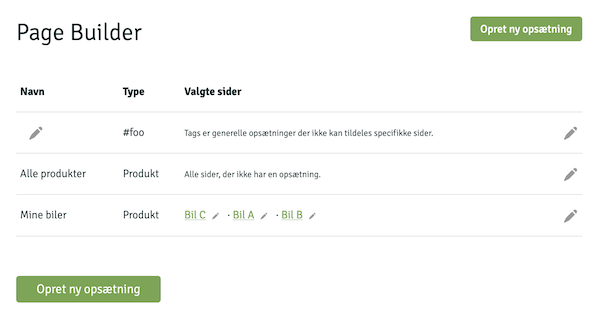
The structure in the construction of sections is as follows:
/{navn}/components/sections.json
File: sections.json
Contains a list of page types and an array of permitted sections. In addition to page types, you can also use custom tags.
{
    "Sidetype": ["sektionA", "sektionB"]
}
The following types of pages exist:
product
Product pages
category
Categories
landing_page
Dynamic categories
static_page
Pages
blog_post
Blog post
basket
The basket
address
Address page
shipping
Shipping page
approve
Approval page
thanks
Takkesiden, som kunden typisk ser efter ordren er gennemført. Understøtter mersalg efter køb (se nedenfor).
upsell-order
Endpoint til mersalg efter køb. Modtager kundens valg fra takkesiden og opretter en ny ordre med samme oplysninger som den netop gennemførte, og sender kunden direkte til betaling.
search
Search result page
also
The upsell page, which can be used if you show an upsell page after the customer has added products to the cart
order
Order page, which displays the contents of the order via a link
#tags
Optional tags you create yourself
An example of a sections.json file, where the user can add the
" slider," " photos," and "quiz" sections to landing pages, but
only the "slider" section to product pages, and where an "about" section must be inserted
in the #footer, would look like this:
{
    "landing_page": ["slider", "photos", "quiz"],
    "product":      ["slider"],
    "#footer":      ["about"]
}
/{navn}/components/tags.json
File: tags.json
#footer that you can display at the bottom of the store,
or a #xmas layout that you only use in December. The format for tags.json is:
{
    "tag1": "Beskrivelse ...",
    "tag2": "Beskrivelse ...",
    "tag3": "Beskrivelse ..."
}
The individual tags automatically appear in the admin when the user creates a new configuration.
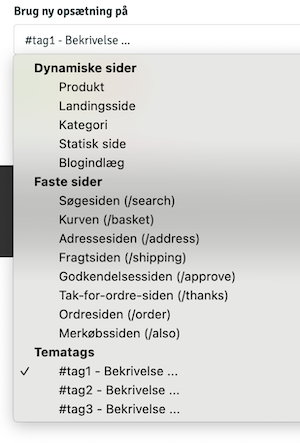
To extract the content of tags into the theme, use the
getBlocks() function as follows:
<{if $blocks = $webshop->getBlocks("#foo")}>
    <{foreach $blocks as $block=>$elements}>
        [...]
    <{/foreach}>
<{/if}>
/{navn}/components/sections
Library: sections
“slider,” its content must be located in
/{name}/components/sections/slider.json. The structure of the files is as follows title
Field: title
The name displayed in admin
description
Field: description
Description shown in admin
preview_svg
Field: preview_svg
Optional. Inline SVG markup displayed as wireframe preview in admin when user selects section. Use currentColor with opacity for automatic dark/light mode compatibility. ViewBox is 0 0 0 200 80.
"preview_svg": "<rect x='0' y='0' width='200' height='80' rx='4' fill='currentColor' opacity='0.08'/><rect x='55' y='30' width='90' height='8' rx='2' fill='currentColor' opacity='0.25'/>"
fields
Field: fields
An array of fields
Properties for array elements:
.id
The ID of the field. Used when the content is looped through in the theme.
string.type
Content type. Valid types are:
list,
text,
integer,
image,
images,
video,
bool,
richtext,
longtext,
repeater,
product,
category, and
landing_page
.options
Only used for fields of type list and it contains a series of options such as
[...]
"options": {
    "hat": "Hat",
    "glasses": "Briller",
    "beard": "Skæg"
},
[...]
.title
The title of the field
string.description
Description of the field
string.max
Maximum number of fields that can be added
int.required
If the field is required
bool.placeholder
Placeholder for admin
string.default
Optional default value for the field
string.fields
Only used if the type is repeater and can contain the same fields as sections. A simplified example of a slider repeater could be:
[...]
"type": "repeater",
"fields": [
    {
        "id": "headline",
        "type": "text",
        "title": "Overskrift"
    },
    {
        "id": "img",
        "type": "image",
        "title": "Billedet"
    }
]
[...]
.field_title
Only used if the type is repeater and contains the name of the individual elements in the repeater
Views
There are various strategies for extracting data. As a starting point, there will be a
$page_blocks on the pages that match a configuration. You can loop through it, or the content
can be extracted using $webshop->getBlocks('#foo').
Alternatively, the content can be accessed using the section name.
As a general rule, we recommend placing the display of each section in separate files, such as
/{name}/templates/sections/{section}.html. This makes it easy to loop through $page_blocks
and include the correct display as follows:
<{if $page_blocks}>

    <{foreach $page_blocks as $section}>
        <{$type = $section._type}>

        <{if $webshop->templateExists("sections/$type.html")}>

            <{include file="sections/$type.html"}>

        <{/if}>

    <{/foreach}>

<{/if}>
Note that the row type is in the variable _type
We refer to the section below as " images "—the content is therefore located in
/{name}/components/sections/images.json.
{
    "title": "Overskrift og billeder",
    "fields": [
        {
            "id": "headline",
            "type": "text",
            "title": "Overskrift"
        },
        {
            "id": "images",
            "type": "images",
            "title": "Billeder"
        }
    ]
}
It will produce the following interface in admin

To extract the content using the method described above,
/{name}/templates/sections/images.html can contain the following:
<h1><{$section.headline|escape}></h1>

<{foreach $section.images as $image}>
    <img src="<{$image->getSrc(150, 150, 'box')}>">
<{/foreach}>
When it comes to data types, it's important to pay attention to what each field contains. They can be either
a string, an array, or an object. In other words, you should do something like this:
[...]
<{foreach $section as $name=>$val}>
    <{if is_array($val)}>
        Repeater or array of images
    <{elseif is_object($val)}>
        An image
    <{else}>
        Text, number or such
    <{/if}>
<{/foreach}>
[...]
The video field type allows the customer to upload or select a background video directly in the page designer (e.g. for a hero section). The video is saved raw and unscaled in the shop's public files and the field returns a string with the URL of the video. Supported formats are mp4 and webm. Use an image field in the same section as items that are displayed while the video loads. Recommend the customer a short, compressed loop (preferably under 5 MB).
<{if $section.video}>
    <video class="w-full h-full object-cover" autoplay muted loop playsinline<{if $section.image}> poster="<{$section.image->getSrc(1600, 900, 'fit', 'webp')}>"<{/if}>>
        <source src="<{$section.video|escape}>">
    </video>
<{elseif $section.image}>
    ... show background image ...
<{/if}>
If you use the types `product`, `category`, or ` landing_page `, the selected ID
in the theme is returned, and you must retrieve the object yourself using the methods `$webshop->getProductById(id)`,
$webshop->getCategory(id), or $webshop->getLandingPage(id). For example:
[...]
<{if $product = $webshop->getProductById($section.product_id)}>
    <{$product->getName()|escape}>
<{/if}>
[...]
Note that you can always use `var_dump` to check the contents of the variable and
that way loop through it correctly.
Views
Based on the structure mentioned earlier, the individual views are reviewed below. To understand the individual objects and the methods available, we recommend consulting our Template API.
Download our Alaska theme to see examples of the different views.
Products
The product view can be located in product.html, but this is optional. It is always index.html that
handles the individual views. However, we recommend using this structure. To determine whether a product view is being rendered, the system checks
whether $product is present.
Add to cart
Products are added to the cart by making a POST request to any page—typically just the page you are already
viewing—with the arguments product_id, attributes[{attribut_id}]={attribut_value_id}, and
amount. The attribute should only be added if products have variants.
A simple example of how to add products to basket may be:
<form action="" method="post">
    <input type="hidden" name="product_id" value="<{$product->getProductId()}>"/>
    <input type="number" name="amount" value="1" min="1"/>
    <input type="submit" value="Læg i kurv">
</form>
With variants
<form action="" method="post">
    <input type="hidden" name="product_id" value="<{$product->getProductId()}>"/>

    <{foreach $product->getProfile()->getAttributeList() as $attribute}>
        <{if $attribute->getIsVariant() && $attribute->getDataType() == "valuelist"}>
            <select name="attributes[<{$attribute->getAttributeId()}>]">
                <{foreach $attribute->getValues() as $value}>
                    <option value="<{$value->getAttributeValueId()}>">
                        <{$attribute->getName()|escape}>: <{$value->getVal()|escape}>
                    </option>
                <{/foreach}>
            </select>
        <{/if}>
    <{/foreach}>

    <input type="number" name="amount" value="1" min="1"/>
    <input type="submit" value="Læg i kurv">
</form>
The above can of course be made more complicated if you wish to display stock availability, bundled packages, etc.
Shared Values
The store owner can create shared values (e.g., Small, Medium, Large) and link the profile values to them so that the same value applies across all profiles. $webshop->getSharedValues() returns the store’s shared values in the shop owner’s order as an array, where each entry has an id, value, and num_value. A profile value has a getAttributeSharedValueId() method that returns the ID of the shared value or null. The ID can be used with shared_values on /ajax:
<{* Links til /ajax (JSON) med alle produkter i hver delt værdi, uanset profil *}>
<ul>
    <{foreach $webshop->getSharedValues() as $shared_value}>
        <li><a href="/ajax?shared_values=<{$shared_value.id}>"><{$shared_value.value|escape}></a></li>
    <{/foreach}>
</ul>

<{* Er en variantværdi koblet til en delt værdi? *}>
<{foreach $attribute->getValues() as $value}>
    <{if $value->getAttributeSharedValueId()}>
        <a href="/ajax?shared_values=<{$value->getAttributeSharedValueId()}>"><{$value->getVal()|escape}></a>
    <{/if}>
<{/foreach}>
Dynamic categories
Landing pages contain a $landingpage as well as $products, which is an array of
products to be displayed on the page.
If a pager is needed it will be included this way
<{if $pager}>
    <{$pager->render()}>
<{/if}>
Categories
Categories contain a $category as well as $products, which is an array of
products to be displayed on the page.
If a pager is needed it will be included this way
<{if $pager}>
    <{$pager->render()}>
<{/if}>
Pages
Static pages will contain a $page.
Blog
The blog can be divided into two pages: blog.html and blog_post.html, where the first can retrieve a
list of blog posts via:
<{$blog_posts = $webshop->getBlogPosts()}>
Viewing the individual blog posts is through the variable $blog_post
If the list of blogposts is from a category there will be a $category available at the category.
Product reviews
In product_review.html, you have access to $order, which is the customer’s order. You can only review
products you have purchased. Based on the order, you can retrieve the products using $order->getReviewProducts(), which returns each item once, even if it appears on multiple order lines (e.g., in two colors). The fields are named after the item’s ID, so using $order->getOrderProducts() would cause the empty fields on the last line to overwrite the customer’s responses. To save
the product reviews, you must make a POST request to the same page with the following content:
<{if $order}>
    <{if $get.voted}>
        Tak!
    <{else}>
        <form action="" method="post" enctype="multipart/form-data">
            <{foreach $order->getReviewProducts() as $product}>
                <{$product->getName()|escape}>
                Stjerner:
                <input type="number" min="1" max="5" name="rating[<{$product->getProductId()}>]">
                Anmeldelse
                <textarea name="description[<{$product->getProductId()}>]"></textarea>
                Billeder (valgfrit)
                <input type="file" multiple accept="image/jpeg,image/png,image/webp,image/gif" name="review_images[<{$product->getProductId()}>][]">
            <{/foreach}>
            <input type="submit" value="Skriv anmeldelse"/>
        </form>
    <{/if}>
<{/if}>
$get.voted is set to true when the customer has written a review.
The customer can attach up to 5 images per item in the ` review_images[item_id][]` field. The form must have ` enctype="multipart/form-data"`. The images must be JPEG, PNG, WebP, or GIF files no larger than 10 MB, and the item must have a rating from 1 to 5. If one or more images could not be saved, $get.images_failed contains the number. If the entire submission was too large for the server, the customer is redirected back to the form with $get.review_error set to too_large. Phone images take up a lot of space, so the built-in themes scale them down in the browser before the form is submitted.
The images are displayed using $review->getImages(), which returns a list of images. The list is empty until the review is approved, and if the store has disabled the display of images for that review:
<{foreach $product->getProductReviews() as $review}>
    <p><{$review->getDescription()|escape}></p>
    <{foreach $review->getImages() as $image}>
        <a href="<{$image->getSrc(1600, 1600)}>">
            <img src="<{$image->getSrc(160, 160, 'box')}>" alt="" loading="lazy">
        </a>
    <{/foreach}>
<{/foreach}>
To link to the review page from your order use $order->getReviewUrl().
Search
The search works by making a GET request to /search, where the argument
?search= must be your search term. For example:
<form action="/search">
    <input type="text" name="search" value="<{$get.search|escape}>"/>
    <input type="submit" value="Søg"/>
</form>
Searches are performed across products, categories, blog posts, and landing pages. To display the results, you must therefore consider the following four variables:
$products, $categories, $blog_posts, $pages, and $landing_pages.
If searching in static pages is to be enabled, it must be activated in the admin.
Wish List
If your customers can log in to your store, you can let them create wish lists. They can create as many wish lists as they want, and each wish list has a name, a description, and a list of products. The wish list itself has a public URL so your customers can share a link.
The wishlist uses the following templates:
wishlist.html
/wishlist
The page with the public wish list.
$wishlist that contains the wish list. See methods here.
user-wishlists.html
/user-wishlists
The page with the user's wishlists. Requires login.
$customer->getWishlists() to extract wishlists.
user-wishlist.html
/user-wishlist
The page used to edit the wishlist and products.
$wishlist that contains the wish list. See methods here.
To create a wish list, a POST request must be sent from user-wishlists.html with the "name" field and
an optional " description" field. For example:
<form action="" method="post">
    Navn
    <input type="text" name="name">

    Beskrivelse
    <textarea name="description"></textarea>

    <input type="submit" value="Opret">
</form>
Please note that you can use the methods $wishlist->getRemoteUrl() and $wishlist->getEditUrl() to
create links for viewing and editing wish lists.
In the user-wishlist.html file, where the wish list is edited, the name and description must be sent as
name, description, and status, which can be either active or closed.
The products themselves, their quantities, and any comments must be sent as an array in the following format:
wishlist_product[{id}][name] = 'navn'
wishlist_product[{id}][comments] = 'kommentar'
wishlist_product[{id}][remove] = '1' // kun hvis produktet skal fjernes
Example code:
<{foreach $wishlist->getWishlistProducts() as $wp}>
    <{* Fordi der er forskel på produkter og ønskelisteprodukter }*>
    <{$product = $wp->getProduct()}>

    <input type="checkbox" name="wishlist_product[<{$wp->getWishlistProductId()}>][remove]" value="1">

    <a href="<{$product->getUrl()|escape}>"><{$product->getName()|escape}></a>

    <{if $variant = $wp->getVariantValue()}>
        <{$wp->getVariantName()|escape}>: <{$variant|escape}>
    <{/if}>

    <input type="number" name="wishlist_product[<{$wp->getWishlistProductId()}>][amount]" value="<{$wp->getAmount()}>">

    <textarea name="wishlist_product[<{$wp->getWishlistProductId()}>][comments]"><{$wp->getComments()|escape}></textarea>

<{/foreach}>
If a variable named "edit" is submitted, the page will return to the same edit page. Otherwise,
the user will be redirected to the wish list overview. To delete the wish list, a variable named
"remove" must be submitted. For example:
<input type="submit" name="remove" value="Slet" onclick="return confirm('Er du sikker?');">
To add products to a wish list from the store, you can make a POST request from any page using the fields
wishlist_id, product_id, and an optional attribute_value_id if the product has variants.
Ex.:
<{if $product && $customer}>

    <{if $wishlists = $customer->getWishlists()}>

        <form action="" method="post">
            <input type="hidden" name="product_id" value="<{$product->getProductId()}>"/>

            <label>Vælg ønskeliste:</label>
            <select name="wishlist_id">
                <{foreach $wishlists as $wishlist}>
                    <option value="<{$wishlist->getWishlistId()}>">
                        <{$wishlist->getName()|escape}>
                    </option>
                <{/foreach}>
            </select>

            <{if $variant = $product->getVariant()}>
                <label>Vælg variant:</label>

                <select name="attribute_value_id">
                    <{foreach $variant->getValues() as $value}>
                        <option value="<{$value->getAttributeValueId()}>">
                            <{$variant->getName()|escape}>: <{$value->getVal()|escape}>
                        </option>
                    <{/foreach}>
                </select>
            <{/if}>

            <input type="submit" value="Tilføj til ønskeliste">
        </form>

    <{/if}>

<{/if}>
Return center
The Returns Center allows your customers to create returns on their own. It must be enabled under the store settings. Once a customer has created a return, it must be approved in the admin panel, and a credit memo will be generated.
The return center uses the following templates:
return.html
Template: return.html
/return
The page where the return is created
Relevant variables:
$order containing the order the customer wants to return. See methods here.
$offer_store_credit er sat (1) hvis butiksejeren tilbyder tilgodebevis i stedet for refundering. Vis i så fald et felt <input type="checkbox" name="return_as_credit" value="1">, hvor kunden kan vælge tilgodebevis for hele returneringen. $credit_free_label er sat (1) hvis tilgodebevis også giver gratis returlabel — brug det til en passende tekst ved valget.
$offer_exchange is set (1) if the store owner offers exchanges. In this case, display a button <button type="submit" name="exchange" value="1" formnovalidate> that redirects the customer to the exchange wizard at /return-exchange (template return-exchange.html). Use the same return[$line] checkboxes to select items as for a regular return.
$offer_exchange will also be 0 if the store owner has enabled " Only one exchange per order " under Orders → Returns Center, and the order is already part of an exchange chain. The theme must therefore ALWAYS check $offer_exchange before displaying the exchange button and never hardcode it. Otherwise, the customer will see a button that is rejected on the server side. If you want to display an explanation instead of the button, use $order->hasExchange() (the order is part of an exchange chain) and $order->isExchangeOrder() (the order IS the result of an exchange). Check isExchangeOrder() FIRST, since both are true for an exchange order:
<{if $offer_exchange}>
    <button type="submit" name="exchange" value="1" formnovalidate>Ombyt valgte</button>
<{elseif $order->isExchangeOrder()}>
    <p>Denne ordre er allerede en ombytning, og der kan kun byttes én gang.</p>
<{elseif $order->hasExchange()}>
    <p>Du har allerede oprettet en ombytning på denne ordre.</p>
<{/if}>
The standard return function is not affected by this setting, so the return button must always be displayed.
The return-exchange.html wizard gets $order, $return_value (for live calculation) and $exchange_lines (array per unit with line, order_product_id, name, product_id, attribute_name and variants with attribute_value_id/name/cnt/effective_price). It records confirm=1, op[$line], exchange_product[$line] and exchange_attr[$line][$attribute_id] (+ optional refund_surplus). Search via /ajax_search?include_variants=1&term=.... Write the interactivity in pure JavaScript (Alpine cannot be assumed loaded) and gate stock count on $settings.product.show_stock_count. See Montana for reference.
order-return.html
Template: order-return.html
/order-return
The page where the return is subsequently displayed
Relevant variables:
$order_return with the return. See methods here.
$order_return->getOrder()->getGlsReturnQr() returns the path to the GLS return QR code image (or null if there is no QR code).
If the return is an exchange($order_return->getExchange() = 1), then show the exchange statement instead of the regular refund: getExchangeReturnValue() (return value), getExchangeTotal() (the new items), getExchangeDifference() (positive = customer pays, negative = customer gets return), getRefundSurplus(), and getOrderReturnExchanges() (the requested new items, each with getProduct()/getAttributeLabels()/getUnitPrice()).
return_received.html
Template: return_received.html
Email sent to the customer when they create a return
Relevant variables:
$order_return with the return. See methods here.
There are two ways for a customer to access the returns page. One is by entering the order number and email address
associated with their order. The other is by following a direct link. The direct link is retrieved from the order using
$order->getReturnUrl(). For example
<{if $webshop->useReturnCenter() && !$order->getIsCreditNote()}>
    <a href="<{$order->getReturnUrl()|escape}>">Retuner varer</a>
<{/if}>
As shown in the example, it’s a good idea to check that the order isn’t a credit memo and to verify whether the online store has enabled
the returns center. The example can be used anywhere there is a $order. For example, in the customer’s own order summary or in emails.
If you do not use a login, or if you want customers to be able to search for their order in some other way, you must implement a search feature on return.html
using the order number and email address. The fields ` webshop_order_id ` and `email` must be
POSTed to /return. If the order is found, the customer is redirected to the return process; if not,
$get.not_found will be set, and you can display an error message in the theme. A minimal form might look like this:
<{if $get.not_found}>
    <p>Der blev ikke fundet nogen ordre.</p>
<{/if}>

<h1>Returcenter</h1>

<form method="post" action="">
    <input type="number" name="webshop_order_id" placeholder="Ordrenummer">
    <input type="email" name="email" placeholder="E-mail-adresse">

    <input type="submit" value="Søg">
</form>
Creation of return
In the return.html file, a list of order lines must be displayed, and the customer can select which products to
return and, if applicable, why. Unlike standard order views, the returns list must contain one line per order line.
<form action="" method="post">
    <{$line = 0}>

    <!-- Looper ordrelinjerne igennem -->
    <{foreach $order->getOrderProducts() as $product}>

        <!-- getReturned() returnerer antallet der tidligere er returneret -->
        <{$returned = $product->getReturned()}>

        <!-- Løkke for hver antal -->
        <{section name="i" loop=$product->getAmount()}>
            <{$line = $line+1}>

            <!-- Viser ikke flere end det er muligt at returnere -->
            <{if $line - $returned > 0}>

                <{$product->getName()|escape}>

                <{if $attributes = $product->getAttributes()}>
                    <{foreach $attributes as $attribute}>
                        <{$attribute.name}>: <{$attribute.val}>
                    <{/foreach}>
                <{/if}>

                <!-- Check hvilken pris der skal vises -->
                <{if $webshop->getUseCalculatedUnitPrice()}>
                    <{$webshop->getCurrency()}> <{$product->getCalculatedUnitPrice()|number_format:2:",":"."}>
                <{else}>
                    <{$webshop->getCurrency()}> <{$product->getUnitPrice()|number_format:2:",":"."}>
                <{/if}>

                <!-- Checkbox og en grund -->
                <input type="checkbox" name="return[<{$line}>]" value="<{$product->getOrderProductId()}>">Vælg
                <input type="text" name="reason[<{$line}>]" placeholder="Evt. årsag til returnering"/>

            <{/if}>
        <{/section}>

     <{/foreach}>
</form>
In the admin panel, you can specify a fixed shipping method and price. If this has been done, the shipping method is retrieved via
$webshop->getReturnShipping($country_id), and if the price is fixed, it is retrieved via
$webshop->getReturnShippingPrice($country_id). For example:
<{if $return_shipping = $webshop->getReturnShipping($order->getDelCountryId())}>
    Varer skal returneres via <{$return_shipping->getName()|escape}>.

    <{if $price = $webshop->getReturnShippingPrice($order->getDelCountryId())}>
        Prisen er <{$price|number_format:2:",":"."}>
    <{else}>
        Prisen er <{$return_shipping->getCost()|number_format:2:",":"."}>
    <{/if}>
<{else}>
    <!-- Vis en liste over shoppens almindelige leveringsmetoder her -->
<{/if}>
The selected delivery method, if optional, should be sent as shipping_id.
Display of return
Once the return is created, it appears in order-return.html, which contains a $order_return
with the relevant methods.
Digital fortrydelse
The digital cancellation feature is available at /withdrawal and allows the customer to
exercise their right of cancellation online (a legal requirement under the Consumer Contracts Act). It is a legal
declaration of intent (“I am canceling order #1234”) and is separate from the returns center, which handles the actual
return of goods. The feature works for all stores, but only themes that have a withdrawal.html
file can display it —if the file is missing, a standard 404 error is returned.
The store can disable this feature in the theme settings via the boolean field
checkout.disable_withdrawal. If it is disabled, all "Cancel Purchase" links are hidden
($order->isWithinWithdrawalPeriod() returns false), and the entire
/withdrawal route returns a 404 error.
The deadline is 14 days plus 3 days of shipping time from when the order was shipped or picked up. If the store
offers a longer right of withdrawal, the deadline can be extended using the string field `checkout.withdrawal_days`
(e.g., 90). Numbers less than 14 are ignored. $order->getWithdrawalDays() returns the
current deadline in days (at least 14), so you can display it in the text on the cancellation page.
Flow og variabler
The entire two-step flow is contained in a single file, withdrawal.html. The controller sets the variable
$step, which you use to branch the flow:
lookup— kunden er kommet uden token og skal finde sin ordre (felternewebshop_order_id+email)start— ordren vises sammen med en valgfri begrundelse og en "Fortryd købet"-knap (POSTwithdraw=1)confirm— bekræftelsestrin med en "Bekræft fortrydelse"-knap (POSTconfirm=1)receipt— kvittering efter at fortrydelsen er registreretexpired— ordren er uden for fortrydelsesfristen (eller annulleret/krediteret) og kan ikke fortrydes. Trinnet vises både når kunden åbner et gammelt link, og når et POST-forsøg afvises — så en forældet eller manipuleret token-URL ikke kan registrere en fortrydelse efter fristen
In the " start," " confirm," " receipt," and " expired" steps, you have access to
$order (a SafeOrder). In the "lookup" step,
you can display an error using $get.not_found. A completed reason is stored in $reason.
<{if $step == "receipt"}>
    <h1>Din fortrydelse er registreret</h1>
    <p>Ordre #<{$order->getWebshopOrderId()}></p>

<{elseif $step == "confirm"}>
    <form method="post">
        <input type="hidden" name="reason" value="<{$reason|escape}>">
        <button type="submit" name="confirm" value="1">Bekræft fortrydelse</button>
    </form>

<{elseif $step == "start"}>
    <form method="post">
        <textarea name="reason"><{$reason|escape}></textarea>
        <button type="submit" name="withdraw" value="1">Fortryd købet</button>
    </form>

<{elseif $step == "expired"}>
    <h1>Fortrydelsesfristen er udløbet</h1>
    <p>Ordre #<{$order->getWebshopOrderId()}></p>

<{else}>
    <!-- lookup: kunden finder sin ordre uden token -->
    <form method="post">
        <input type="text" name="webshop_order_id" required>
        <input type="email" name="email" required>
        <button type="submit">Fortsæt</button>
    </form>
<{/if}>
Link til fortrydelse
Use $order->getWithdrawalUrl() to create a token link for a specific order (e.g., in
order.html or on the "My Account" page). The link works without logging in. If you want a general link
(e.g., in the footer), simply point to /withdrawal —this will take the customer to the lookup step.
<a href="<{$order->getWithdrawalUrl()|escape}>">Fortryd købet</a>

<!-- eller et generelt link, fx i footeren -->
<a href="/withdrawal">Fortryd købet</a>
Digitalt indhold
If the order contains digital content that the customer has already downloaded, the right of withdrawal for those
items may have expired. You can display an informational note on the confirmation step using
$order->hasDownloadedDigitalContent() (returnstrue/false)—this
does not prevent the cancellation, but informs the customer.
Kvitterings-mail
When the customer confirms, a receipt is sent via the email template `mails/withdrawal_received.html`
(durable medium, legal requirement). It has access to $order (SafeOrder), $reason, and
$withdrawal_time. If the template is missing, no receipt will be sent—so be sure to include it in the theme alongside
the withdrawal.html file itself.
Legal Requirements for This Topic (Consumer Contracts Act, effective June 19, 2026)
Shoporama's default themes meet the requirements below. If you have your own theme that is sold to consumers, you must add them yourself:
- Link on all pages (Section 20a): The feature must be prominently displayed and easily accessible throughout the entire period. Place a link to
/withdrawalin the footer, visible without having to expand anything. Hide it when$settings.checkout.disable_withdrawalis set. - Name, order, and email (Section 20a, paragraph 2): Display
$order->getOrderName(),$order->getWebshopOrderId(), and$order->getEmail()("The receipt will be sent to") on the"Start" and"Confirm" steps. The button onthe"confirm" page must be labeled "Confirm Cancellation" or something similarly unambiguous. - Exempt Items Before Purchase (Section 8, Paragraph 1, Item 12): Display
$product->getWithdrawalExemptText()on the product page when$product->isWithdrawalExempt()is true, and list the exempt items at checkout based on$basket[i].product. - Digital content (Section 18(2)(13)): If an item in the shopping cart has
getWithdrawalExemptReason() == 'digital_content', the customer must check a required box to indicate consent and acknowledgment that the right of withdrawal is waived. - Order Confirmation (Section 13): List
$order->getWithdrawalExemptProducts()(array withname,amount,reason, andtext) inmails/invoice.html, and display the link$order->getWithdrawalUrl()when$order->isWithinWithdrawalPeriod()is true. - Notice Prior to Purchase (Section 8(1)(11)): State during checkout—for example, when the customer accepts the terms and conditions—that the customer may cancel the order online via the link in the footer or in the order confirmation.
<!-- produktside -->
<{if $product->isWithdrawalExempt()}>
    <p class="notice"><{$product->getWithdrawalExemptText()|escape}></p>
<{/if}>

<!-- checkout, ved accept af handelsbetingelser -->
<{$has_digital_content = false}>
<{section name="w" loop=$basket}>
    <{if $basket[w].product && $basket[w].product->isWithdrawalExempt()}>
        <p><{$basket[w].product->getName()|escape}>: <{$basket[w].product->getWithdrawalExemptText()|escape}></p>
        <{if $basket[w].product->getWithdrawalExemptReason() == 'digital_content'}><{$has_digital_content = true}><{/if}>
    <{/if}>
<{/section}>
<{if $has_digital_content}>
    <label><input type="checkbox" name="digital_content_consent" value="1" required>
        Jeg giver samtykke til, at leveringen af det digitale indhold begynder med det samme, og jeg anerkender, at jeg dermed mister min fortrydelsesret.</label>
<{/if}>
/also
also.html is our upsell page. By default, you have access to $product, and based on that,
you can make suggestions to the customer. For example, it might be useful to use $product->getRelatedProducts(),
$product->getAlsoBought(), or $webshop->getPopularProducts().
404
Only used to show 404 pages
410
Only used to show 410 pages
Captcha
A CAPTCHA is automatically displayed when you try to subscribe to the newsletter or post comments. This is to prevent
spam. You can design the CAPTCHA page yourself in captcha.html, and it must contain at least the following:
<form action="" method="post">
    <{$form}>

    <{if $error}>Fejl i koden<{/if}>

    <img src="<{$imgstr}>">

    Skriv indholdet at ovenstående felt:
    <input type="text" name="c">

    <input type="submit" value="OK">
</form>
Sign Up for the Newsletter
Any form in the store that is submitted via POST and includes an email address and the mailing list set to 1
subscribes the customer to the store’s newsletter. This applies, for example, to the checkout page (address.html), profile creation (user-sign-up.html),
"Notify me when this item is in stock," and a sign-up form at the bottom of the page. The sign-up is sent to the newsletter service the shop has
set up (e.g., Klaviyo, Mailchimp, or Brevo), or to Shoporama’s own newsletter. At the same time, consent is stored along with the time and IP address.
Always use a checkbox that the customer checks themselves, so that the registration is based on active consent:
<label>
    <input type="checkbox" name="mailinglist" value="1">
    Tilmeld mig nyhedsbrevet
</label>
Log In
It is possible to allow customers to log in to the store. If a user is logged in, there will be a
$customer variable containing information about the user. All pages that allow editing, logging in, etc., must
submit data via POST to the page itself.
/user-edit.html
Uset to edit customer data. It is possible to add fields to the customer. View more under this table.
company
vat_number
name
email
phone
address
zipcode
city
country_id
pass1
pass2
/user-orders.html
Customer's previous orders
$my_orders
/user-points.html
Customer's point
$my_points
/user-profile.html
Showing customer data
$customer
/user-reset-password.html
Used to reset password
email
password
/user-sign-in.html
Login page. Use redir if the customer shall be redirectet to a certain URL after login.
email
password
redir
/user-sign-up.html
A form used to sign up.
If the mailing list is set to 1, the customer will also be subscribed to the store's newsletter. Use a checkbox so the customer can give their consent. See "Newsletter Subscription."
name
email
phone
address
zipcode
city
company
vat_number
country_id
mailinglist
Custom fields for customers
In admin it is possible to define custom fields for users. These fields are edited this way:
<{foreach $webshop->getCustomerFields() as $field}>
    <{if $field->getType() == "list"}>
        <{$field->getName()|escape}>
        <select name="field[<{$field->getCustomerFieldId()}>]">
            <{foreach $field->getValues() as $value}>
                <option <{if $field->getVal() == $value}>selected="selected"<{/if}> value="<{$value|escape}>">
                    <{$value|escape}>
                </option>
            <{/foreach}>
        </select>
    <{elseif $field->getType() == "string"}>
        <{$field->getName()|escape}>
        <input type="text" name="field[<{$field->getCustomerFieldId()}>]" value="<{$field->getVal()|escape}>">
    <{/if}>
<{/foreach}>
Loyalty programme
The loyalty program allows your customers to earn and redeem points when they place orders. The setup is managed under Customers > Loyalty Program.
You can use the methods below to check whether the store has activated the loyalty program, whether the customer is logged in, and whether they have earned points they can use:
<{if $webshop->hasLoyaltyProgram() && $customer && $customer->getActivePoints()}>
    [Visning af point m.m.]
<{/if}>
To show how many points the customer has earned, as well as how many they can use on the current order, you can use the following code example:
Du har optjent <{$customer->getActivePoints()|number_format:0:",":"."}> point.

<{if $points = $customer->getPointsAvailable()}>
    Du kan bruge <{$points|number_format:0:",":"."}> point på denne ordre.
<{else}>
    Du har ingen optjente point du kan bruge på denne ordre.
<{/if}>
The field you POST to the cart that specifies how many points the customer wants to use should be named ` use_points` and can
look like this:
<input type="number" name="use_points" value="<{$use_points}>" min="0" max="<{$customer->getPointsAvailable()}>"/>
You can use $earns to see how much the customer earns on the order:
Du optjener <{$earns|number_format:0:",":"."}> point på denne ordre.
You can use the example below to describe your loyalty program:
Du optjener <{$webshop->getLoyaltyProgramBasePoints()|number_format:0:",":"."}> point hver
gang du køber for 1 <{$webshop->getCurrency()}>. Når du betaler med point svarer
<{$webshop->getLoyaltyProgramBaseCost()|number_format:0:",":"."}> point til 1 <{$webshop->getCurrency()}>.
If you want to create a page with a points overview, you can use user-points.html, where you can loop through $my_points
and display the content. Take a look at the SafePoint class to see which methods are available.
Tip: You can style your order overview by using the following CSS classes: points_used, points_earned, and has_profile.
Check-out
Simply put, the checkout flow is a series of HTML pages, each of which contains a form that submits
some data to itself, and if the "next" field is set, Shoporama will redirect to the next page in the flow. Typically,
you would set the “Next” button to name="next". You can always link to previous pages in the flow. Once the customer has
entered their information, it is stored in two arrays: $session_order and $session_del. For example,
$session_order.name.
basket.html
File Name: basket.html
Shows basket content. Simpel example of how to use $basket
<{foreach $basket as $line}>
    <{$line.amount}> x <{$line.product->getName()}>

    <{foreach $line.attributes as $a}>
        <{$a.name|escape}>: <{$a.value|escape}>
    <{/foreach}>
<{/foreach}>
To change the quantity, it should be POST'ed in the following way.
[...]
<input name="amount[<{$line.id}>]" value="<{$line.amount}>" />
[...]
To add a discount code, you need to POST a voucher with the discount code. If the discount code is invalid, $get.wrong_voucher will be present in the template.
The delivery country can be changed by POSTing a del_country_id with the ID of the delivery country.
If the customer is redirected back to the cart from a later step in the checkout process, $get.check_fail is set. The built-in themes only display a neutral message when check_fail == "1" (the cart could not be validated). Keep any message generic, such as “Something went wrong, please try again,” and never reveal to the customer why a purchase was stopped: some rejections are intentionally silent for fraud protection (e.g., blacklist). Therefore, do not distinguish between the individual values of ` check_fail ` in customer-facing text.
Relevant variables/parameters in the form:
$basket
$voucher
$voucher_discount
$campaign_ids
$campaign_discount
$price
$shipping_price
$total_price
$vat
address.html
File Name: address.html
The page where you enter the shipping information.
If the mailing list is set to 1, the customer is subscribed to the newsletter.
If ` create_profile ` is set to 1, a profile is created for the customer so they can log in later.
Relevant variables/parameters in the form:
order_country_id
order_name
order_company_name
vat_number
ean_number
order_address
order_zipcode
order_city
email
phone
comments
del_name
del_company_name
del_address
del_zipcode
del_city
del_country_id
mailinglist
create_profile
shipping.html
File Name: shipping.html
Used to select a shipping method.
The individual shipping methods can be retrieved using $webshop->getShippings().
To save a shipping method, you must send a POST request with a `shipping_id` containing the ID of that shipping method. If the shipping method is associated with a pickup location, you can retrieve it using `$shipping->getDeliveryShops()`. You can select a pickup location as follows:
[...]
<{if $shipping->getModule()}>
    <select name="shop">
        <{foreach $shipping->getDeliveryShops() as $shop}>
            <option value="<{$shop.number}>">
                <{$shop.name|escape}>
                <{$shop.street|escape}>
                <{$shop.zip|escape}>
                <{$shop.city|escape}>
            </option>
        <{/foreach}>
    </select>
<{/if}>
[...]
Relevant variables/parameters in the form:
shipping_id
shop
approve.html
File Name: approve.html
Confirmation page. Used to display the order.
If the store has multiple payment gateways, they can be selected on this page. They are retrieved via $webshop->getPaymentGateways() and submitted via payment_gateway_id to switch between them.
Relevant variables/parameters in the form:
$basket
$shipping
payment_gateway_id
thanks.html
File Name: thanks.html
Thank you page. Used to display the completed order.
Relevant variables/parameters in the form:
$order
Mersalg efter køb (upsell)
Mersalg efter køb viser foreslåede produkter på takkesiden (thanks.html), efter kunden har gennemført sit køb. Kunden kan tilføje et eller flere produkter med ét klik, og der oprettes en ny ordre med samme adresse, fragt, og betalingsmetode som det netop gennemførte køb. Produkterne og indstillingerne styres af butiksejeren i admin under Produkter → Mersalg efter køb.
Funktionen er allerede indbygget i temaerne Montana, Delaware, og DelawareDK. Bruger du et eget tema, kan du selv tilføje den. Backend gør alt arbejdet (udvælgelse af produkter, ordreoprettelse, betaling, lager, jura) — dit tema skal blot vise produkterne og sende kundens valg til endpointet /upsell-order. Nedenfor er kontrakten og et komplet eksempel.
Variabler på takkesiden
Når mersalg er aktivt og ordren er bekræftet, assigner Shoporama disse variabler til thanks.html (de er kun sat, når der er noget at vise):
$upsell_products— array af SafeProduct. Allerede filtreret server-side (ekskluderer netop købte produkter og samlepakker, respekterer "Kun simple produkter", og fylder op med bedst solgte).$upsell_order_id— den netop gennemførte ordres webshop_order_id (sendes med som skjult felt).$upsell_chk— sikkerhedstoken (md5 af e-mail), der verificerer ejerskab af ordren.$upsell_order_time— ordrens tidspunkt (unix). Brug den til at forankre en nedtælling, så den ikke nulstilles ved reload.$upsell_free_shipping— 1 hvis der er gratis fragt på mersalgsordren, ellers 0.$settings.checkout_upsell.*— temaindstillingerne (se nedenfor).
Temaindstillinger (theme_settings.json)
Tilføj en checkout_upsell-gruppe til dit temas theme_settings.json, så butiksejeren kan styre overskrift, intro, og nedtælling. Brug kun understøttede felttyper (string, textarea, bool — IKKE number):
{
  "path": "checkout_upsell",
  "name": "Checkout: Mersalg",
  "fields": [
    { "path": "title",            "name": "Overskrift",                       "type": "string" },
    { "path": "intro",            "name": "Intro-tekst",                      "type": "textarea" },
    { "path": "enable_countdown", "name": "Vis nedtælling",                   "type": "bool" },
    { "path": "countdown_minutes","name": "Nedtælling (minutter)",            "type": "string" },
    { "path": "countdown_text",   "name": "Nedtællingstekst ({time})",        "type": "string" }
  ]
}
Endpoint: POST /upsell-order
Hele sektionen er ét <form method="post" action="/upsell-order"> (ingen nestede forms). Felterne:
order_id+chk— skjulte felter med $upsell_order_id og $upsell_chk (verificerer ejerskab).terms— obligatorisk afkrydsning (accept af handelsbetingelser). Påkrævet server-side.buy_single— ét product_id (køb af ét produkt). Knappens name/value.product_ids[]— flere product_id'er (multi-køb via afkrydsning + en "Køb valgte"-knap med name="buy_selected").attributes[product_id][attribute_id]— valgt attribut-værdi-id for variant-produkter (fra en select pr. variant-attribut).
Backend opretter ordren og redirecter selv til betaling. Du skal IKKE selv håndtere adresse, fragt, pris eller betaling.
Eksempel: minimal partial
Et komplet, fungerende udgangspunkt. Inkludér den i thanks.html med <{include file="partials/checkout.upsell.html"}>. Simple produkter får en "Køb og betal"-knap; variant-produkter får en variant-vælger (samlepakker er allerede filtreret fra server-side). Knapteksten skal signalere betalingsforpligtelse (jura).
<{* Vises kun når butiksejeren har aktiveret mersalg i admin — backend sætter $upsell_products derefter *}>
<{if $upsell_products && $upsell_order_id}>
  <section data-upsell-order-time="<{$upsell_order_time}>"
    <{if $settings.checkout_upsell.enable_countdown && $settings.checkout_upsell.countdown_minutes}>data-upsell-countdown="<{$settings.checkout_upsell.countdown_minutes}>"<{/if}>>

    <h2><{if $settings.checkout_upsell.title}><{$settings.checkout_upsell.title|escape}><{else}><{t}>Glemte du noget?<{/t}><{/if}></h2>
    <{if $settings.checkout_upsell.intro || $upsell_free_shipping}>
      <p><{if $settings.checkout_upsell.intro}><{$settings.checkout_upsell.intro|escape}> <{/if}><{if $upsell_free_shipping}><{t}>Fri fragt på det, du tilføjer her.<{/t}><{/if}></p>
    <{/if}>

    <form method="post" action="/upsell-order" data-upsell-form>
      <input type="hidden" name="order_id" value="<{$upsell_order_id}>">
      <input type="hidden" name="chk" value="<{$upsell_chk}>">

      <{foreach from=$upsell_products item=p}>
        <div data-upsell-item>
          <{include file="components/product-card.html" product=$p show_add_to_cart="false"}>

          <{if $p->hasVariants()}>
            <{$prof = $p->getProfile()}>
            <{if $prof}><{foreach from=$prof->getAttributeList() item=attr}>
              <{if $attr->getIsVariant() && $attr->getDataType() == "valuelist"}>
                <select name="attributes[<{$p->getProductId()}>][<{$attr->getAttributeId()}>]" data-upsell-variant>
                  <option value=""><{t}>Vælg<{/t}> <{$attr->getName()|escape}></option>
                  <{foreach from=$attr->getValues() item=val}>
                    <option value="<{$val->getAttributeValueId()}>"><{$val->getVal()|escape}></option>
                  <{/foreach}>
                </select>
              <{/if}>
            <{/foreach}><{/if}>
          <{/if}>

          <button type="submit" name="buy_single" value="<{$p->getProductId()}>" data-upsell-buy><{t}>Køb og betal<{/t}></button>

          <label><input type="checkbox" name="product_ids[]" value="<{$p->getProductId()}>" data-upsell-checkbox> <{t}>Vælg til samlet køb<{/t}></label>
          <label><input type="checkbox" name="terms" value="1" required> <{t}>Accepter handelsbetingelser<{/t}></label>
        </div>
      <{/foreach}>

      <button type="submit" name="buy_selected" value="1" data-upsell-multi><{t}>Køb og betal valgte<{/t}></button>
    </form>
  </section>
<{/if}>
Vigtige noter
- Varianter og samlepakker: Et produkt kan kun ét-klik-bestilles hvis det er simpelt. Tjek
$p->hasVariants()og vis en variant-vælger (select pr. variant-attribut) for variant-produkter. Samlepakker er allerede fjernet fra$upsell_productsserver-side, så du behøver ikke håndtere dem. - Handelsbetingelser: Terms-feltet er obligatorisk (kortindløser-krav). Knapteksten skal signalere betalingsforpligtelse, fx "Køb og betal" — ikke bare "Tilføj".
- Nedtælling: Forankr den til
$upsell_order_time(ordretid + minutter), ikke til "nu", så den ikke nulstilles ved reload. Det er rent visuelt — backend bestemmer reelt om ordren kan oprettes. - Produktkort: Inkludér
components/product-card.htmlmedshow_add_to_cart="false", så kortets egen "læg i kurv" ikke renderer en form inde i upsell-formularen. - JS (valgfrit, anbefales): Aktivér "Køb"-knappen først når variant er valgt og terms er accepteret, og spær knapperne ved indsendelse mod dobbeltklik. Se Montana/Delaware-temaerne for et færdigt eksempel.
B2B
A theme can run in B2B mode: prices are displayed excluding VAT (with an optional VAT toggle), the store may require a login, and customers can be offered quick reordering and company management. Shoporama Core knows nothing about B2B —the theme activates and manages everything itself, so you’re free to build your own B2B theme without hard-coded theme name detection. The built-in MontanaB2B is the reference implementation.
The pricing logic itself (customer groups, fixed group prices, volume discounts, brand access, VIES-validated reverse charge) is managed by the store owner in the admin panel and via the backend. Your theme simply needs to call getRealPrice() as usual—it automatically returns the correct price for the logged-in customer. The rest of this section covers the theme primitives that make a theme B2B-ready.
Enable B2B mode ($b2b)
Set $b2b to true at the top of index.html (the theme's entry template). The variable is available in all templates and controls the display of prices excluding VAT and the B2B UI. A B2C theme does not set it—in that case, it is falsy, and everything behaves as usual.
<{* index.html — dette tema er kodet som B2B *}>
<{$b2b = true}>
Login barrier (soft gate)
If you want to require a login to view the store, display the login template instead of the content when the customer is not logged in—except on the auth pages (login/create/reset/token), so they can access the site. Do this in index.html. Login is handled at /user-sign-in, so have the login form submit to that URL (not to the current page); Shoporama will then redirect the customer back via the referrer.
<{$auth_page = ($inc == 'user-sign-in.html' || $inc == 'user-sign-up.html' || $inc == 'user-reset-password.html' || $inc == 'user-token.html')}>

<{if !$customer && !$auth_page}>
    <{include file="user-sign-in.html"}>
<{elseif $inc}>
    <{include file=$inc}>
<{elseif $product}>
    <{include file="product.html" product=$product}>
    <{* ... øvrige content-grene (kategori, forside, side ...) *}>
<{/if}>
Assets, AJAX requests, and payment callbacks never reach index.html (they are handled earlier in Shoporama), so the login wall does not affect them. A guest only sees the login template—the content templates and their headers are never rendered for a guest.
Custom storefront routes (storefront_routes)
If your theme offers additional pages such as quick order or company administration, declare their routes in theme_settings.json using `grandefront_routes`. Shoporama will then make those routes valid for your theme. This covers template routes (e.g., user-order → user-order.html), plain JSON endpoints without a template (e.g., user-order-search), and redirect routes (e.g., user-company-login-as).
{
  "info": "Mit B2B-tema",
  "storefront_routes": [
    "user-order",
    "user-order-search",
    "user-company",
    "user-company-login-as",
    "user-company-switch-back"
  ]
}
Declare only the routes that your theme actually uses. Routes that a theme does not declare are invalid (404)—so two themes cannot conflict over the same route name.
Prices exclude VAT + VAT varies
getRealPrice() ALWAYS returns the price including tax (the order calculations remain unchanged)—the "excluding tax" display is purely cosmetic. Calculate a tax factor and divide the displayed price by it:
<{$b2b_factor = 1}>
<{if $b2b}><{$b2b_factor = 1 + ($product->getProductVat() / 100)}><{/if}>

<{$price = $product->getRealPrice() / $b2b_factor}>  <{* pris ekskl. moms til visning *}>
An optional VAT toggle lets the customer switch between exclusive and inclusive prices without reloading the page. Enable it with a boolean theme setting ($settings.product.enable_vat_toggle) and display both values for each amount in a .vat-num element(format the numbers with number_format as usual). The built-in JavaScript in MontanaB2B’s `partials/assets.html` toggles the display on all `.vat-num` elements, switches between `.vat-suffix-excl` and `.vat-suffix-incl`, and stores the selection in `localStorage ` (`vatMode`, default: excl.):
<{$vt_on = ($b2b && $settings.product.enable_vat_toggle)}>

<span class="vat-num"<{if $vt_on}> data-excl="<{$price}>" data-incl="<{$price*$b2b_factor}>"<{/if}>><{$price}></span>

<{* Suffiks der følger skifteren *}>
<span class="vat-suffix-excl"><{t}>ekskl. moms<{/t}></span>
<span class="vat-suffix-incl" style="display:none"><{t}>inkl. moms<{/t}></span>

<{* Skifte-knapper et centralt sted, fx i headeren *}>
<div data-vat-toggle>
  <button data-vat-mode="excl"><{t}>Ekskl. moms<{/t}></button>
  <button data-vat-mode="incl"><{t}>Inkl. moms<{/t}></button>
</div>
ALWAYS calculate both the price excluding and including tax from getRealPrice() using the VAT factor (as above) so that they are consistent—even for group prices. DO NOT use getRealPriceExVat() for display; it does not support group prices and would display an incorrect "excl." price for group customers.
Group Rates
Customer-specific prices (fixed group prices, volume discounts, brand discounts) are automatically applied by getRealPrice() for the logged-in customer—your theme does not need to do anything special. Prices respect the customer group’s brand access: a product from a brand that the group is not allowed to purchase will display the regular price and cannot be added to the cart. Simply display getRealPrice() as you normally would.
Reorder CSV in order email
If your theme has a quick order page (user-order in storefront_routes), Shoporama automatically attaches a reorder CSV (product code;quantity) to the order confirmation email for registered customers. Display a note about this in your mails/order_sent.html file —only when a CSV is actually attached—using the $has_reorder_csv variable. If you want to disable the attachment, set the following in theme_settings.json:
{
  "order_mail_reorder_csv": false
}
Product Filtering
Shoporama can provide faceted filtering on category pages, search pages, and dedicated filter pages. The shop owner builds the filter themselves in the admin panel under Design → Filter, and the theme renders it as a standard GET form. Filtering occurs on the server side, so it works without JavaScript, and the customer’s selections are reflected in the URL.
Enable it in your theme
Set `supports_filters` in `theme_settings.json`. Without it, the "Design → Filter" menu item won't appear at all, and the shop owner won't be able to create a filter. This flag is your promise that the theme will actually render `$facets` where it displays products:
{
  "info": "Mit tema",
  "supports_filters": true
}
The flag doesn't specify WHICH facet types the theme can display, nor is it supposed to. All facets have the same structure—name, options, number—so a new facet type in Shoporama will work in your theme without you having to change anything.
Variables
If there is a filter for the page being rendered, Shoporama assigns these variables. If there is no filter, $facets is empty, and your template should behave as before.
| Variable | Content |
|---|---|
$facets | The facets in the shop owner's order. Each has a slug, name, param, multi, and options, where each option has a value, name, count, and selected. |
$filter_active | Use this when the customer has made a selection. Use it to hide content that is NOT filtered—such as popular items or the subcategory grid—so that it doesn't look like search results. |
$active_filters | The selected filters, each with a group, a name, and a ready-to-use URL that removes exactly that selection. |
$filter_base_url | The form's action. |
$filter_clear_url | Clears all facets but retains the sorting and search terms. |
$filter_hidden_args | Parameters that must be preserved after a form submission (sorting, search terms). Output them as hidden fields in the form. |
Render the facets
The control type is determined by the facet's FORM and not by its type. If multiple options can be selected, they are checkboxes in an array. If there is only one option, only one checkbox is correct, so the customer can uncheck it again. Multiple options without multiple selection are a radio button group:
<{if $facets}>
<form method="get" action="<{$filter_base_url|escape}>">

    <{foreach $filter_hidden_args as $arg_name => $arg_value}>
        <{if $arg_value !== "" && $arg_value !== null}>
            <input type="hidden" name="<{$arg_name|escape}>" value="<{$arg_value|escape}>">
        <{/if}>
    <{/foreach}>

    <{foreach $facets as $facet}>
        <fieldset>
            <legend><{$facet.name|escape}></legend>
            <{$option_count = $facet.options|@count}>
            <{foreach $facet.options as $option}>
                <label>
                    <{if $facet.multi}>
                        <input type="checkbox" name="<{$facet.param|escape}>[]" value="<{$option.value|escape}>"<{if $option.selected}> checked<{/if}>>
                    <{elseif $option_count == 1}>
                        <input type="checkbox" name="<{$facet.param|escape}>" value="<{$option.value|escape}>"<{if $option.selected}> checked<{/if}>>
                    <{else}>
                        <input type="radio" name="<{$facet.param|escape}>" value="<{$option.value|escape}>"<{if $option.selected}> checked<{/if}>>
                    <{/if}>
                    <span><{$option.name|escape}></span>
                    <span><{$option.count}></span>
                </label>
            <{/foreach}>
        </fieldset>
    <{/foreach}>

    <button type="submit"><{t}>Vis resultater<{/t}></button>
</form>
<{/if}>
The selected filters are typically displayed as clickable labels above the results. Each one is simply a link:
<{foreach $active_filters as $chip}>
    <a href="<{$chip.url|escape}>"><{$chip.group|escape}>: <{$chip.name|escape}> ×</a>
<{/foreach}>
<{if $active_filters}><a href="<{$filter_clear_url|escape}>"><{t}>Ryd alle<{/t}></a><{/if}>
Shared values. If the values in an attribute group are linked to shared values (e.g., Small, Medium, Large), they are grouped under the shared value’s name, so that “Medium” appears only once and displays products from all profiles. Shared values from attributes in other profiles that share values with the group’s attributes are automatically included in the group (only the shared values, not their regular ones). The theme doesn’t need to do anything: these are still just options on the facet. See also ` shared_values ` under Ajax.
Intervals. If the store owner has enabled "Show as intervals" for an attribute group, the options will be numerical intervals (e.g., "Less than 250 bar," "400 bar and up") instead of individual values. ` value ` is the interval’s slug, and the rest is the same as before, so the theme doesn’t need to do anything.
The Filter Page
If the shop owner provides the filter with a URL, it gets its own page at /filter/<slug>, and Shoporama includes filter.html from your theme. It looks like a category page without a category: it receives $products, $pager, $count, and the same filter variables, plus $filter_name. If your theme does not have a filter.html file, do not assign an address to filters.
Don't forget the pager. If you build pager URLs yourself, they must include the filter parameters; otherwise, the customer will lose their filter on page 2. Shoporama includes them in the pager that's assigned, so use that instead of building your own links.
Ajax
Shoporama has two built-in AJAX calls. One can retrieve products in various ways (filtering), and the other is a general, simple search that searches products, categories, and landing pages.
Filtering
The filtering is located in the file /ajax which is located at the root of all shops.
atags
A list of tags on the attribute values, attribute values are settings on the attributes on the products' profiles. the values on atags must be separated by commas, but allow groupings separated by pipe as a logical OR.
ajax?atags=female,black|white
product_ids
List of product IDs separated by pipe.
ajax?product_ids=1|2|3|4
price_range
Returns products that are within a price range. The amounts should be separated by a pipe.
ajax?price_range=100|200
categories
A pipe-separated list of categories the products should be in. If the argument exclude=1 is set, a list of products that do not have the categories is returned.
ajax?categories=5|9|2
ajax?categories=5|9|2&exclude=1
sort
Sort order. The values popular, weight, name, price, created can be set. Whether the sort order should be ascending or descending is specified by setting sort_order to either asc (ascending) or desc (descending ).
ajax?sort=price&sort_order=desc
attribute_values
A list of IDs of the attribute values that the products should have. The list is separated by pipe. If the argument exclude=1 is set, a list of products that do not match is returned.
ajax?attribute_values=9|8|12
suppliers
Pipe-separated list of supplier IDs.
ajax?suppliers=8|2
landing_pages
Girl-separated list of IDs for landing pages the products should appear on.
ajax?landing_pages=5|24
extension.{id}
If the theme uses extended fields, products can be extracted based on them. Absolute searches are made, so the fields that make the most sense to use are bool, multi, number, and list. Pipe-separated values can be used if the products need to match just one of the values.
ajax?extension.foo=1&extension.tags=foo|bar
attribute_tags_in_stock
List of tags for attribute values that should be in stock. The list can be piped separated.
ajax?attribute_tags_in_stock=foo|bar
attribute_tags
List of tags to be placed on the products. The list can be pipe-separated.
ajax?attribute_tags=foo|bar
shared_values
IDs for shared values (e.g., Small, Medium, Large) that the store owner creates under Product Profiles → Shared Values. Returns products with that shared value regardless of which profile they use, so “Medium” finds both T-shirts and pants. | means “or,” and , means “and.” The example returns products with IDs 2 or 3 and ID 5. It matches both variant values and regular attribute values in the product’s current profile. Invalid IDs return no products. The IDs can be found via $webshop->getSharedValues() or meta.shared_values.
ajax?shared_values=2|3,5
shared_values_in_stock
Same as `shared_values` and with the same syntax, but only includes variants that are in stock with that value. For regular attribute values, the product must be in stock (or allow negative stock levels). If both are set, only `shared_values_in_stock` is used.
ajax?shared_values_in_stock=2|3,5
attribute_tag
Same as attribute_tags however just an single tag
ajax?attribute_tag=foo
force_categories
A pipe-separated list of categori IDs that must be set on all products.
ajax?force_categories=5|9|2
limit
Maximum number of products to be returned. The highest allowed value is 1,000; values higher than that are automatically truncated (to avoid loading the entire catalog into memory in a single call). Instead, retrieve the data multiple times using an offset.
ajax?limit=10
offset
Starting position in relation to where in the list of products you wish to retrieve from.
ajax?offset=100&limit=10
meta
Pipe-separated list of extra fields you wish to see on the products in the result. If you set meta=_all, all will be returned.
ajax?meta=foo|bar
ajax?meta=_all
only_in_stock_variants
Set to 1 or 0 depending on whether each product in the result should only include variants that are in stock. Default is 0.
ajax?only_in_stock_variants=1
include_meta
Set to 1 or 0 depending on whether you want an extra meta field in the result that contains descriptions of the products in the result. This is information about which attributes, categories, and brands are present. Default is 0.
Each value in ` meta.attributes ` has the ` attribute_shared_value_id ` field (the ID of the shared value, or null). In addition, there is `meta.shared_values`: a list of the shared values used by the products in the results, sorted by the store owner’s order, each with ` attribute_shared_value_id`, `value`, `num_value`, `weight`, and `attribute_value_ids` (the profile values it covers). `num_value ` is a number representing the start of the value, e.g., 400 for "400 bar," otherwise null.
ajax?include_meta=1
include_pagination
Set to 1 or 0 depending on whether you want an extra pagination field in the result containing paging information. The fields in the array are offset, limit, count, total. Default setting is 0.
ajax?include_pagination=1
include_similar
Set to 1 or 0 depending on whether each product should include its similar products—for example, the other colors when each color is its own product. The default is 0, and omitting this parameter leaves the result unchanged.
Each product has two fields: `similar_products `, which contains `product_id`, `name`, `url`, `thumbnail`, `in_stock `, and `attributes` for each similar product; and `attributes`, which contains the product’s own attributes, so that the card’s own color is also known. Only similar products that are online are included—up to 25 per product and in the order they appear on the product page in the admin panel. The product itself is not included.
An attribute has attribute_id, attribute_name, attribute_tag, purpose (the purpose from the profile, e.g., color), attribute_value_id, value, and value_tag. Variants and customer input are not included. For example, add the hex code as a tag to each color value, and it will appear in ` value_tag`.
ajax?categories=12&include_similar=1
"attributes": [
    {"attribute_id": 120, "attribute_name": "Farve",
     "attribute_tag": "farve", "purpose": "color",
     "attribute_value_id": 801, "value": "Hvid",
     "value_tag": "#ffffff"}
],
"similar_products": [
    {
        "product_id": 1043,
        "name": "Original T-shirt | Sort",
        "url": "https://example.com/original-t-shirt-sort",
        "thumbnail": "https://example.com/cache/.../fit-200x200x90.png",
        "in_stock": true,
        "attributes": [
            {"attribute_id": 120, "attribute_name": "Farve",
             "attribute_tag": "farve", "purpose": "color",
             "attribute_value_id": 802, "value": "Sort",
             "value_tag": "#000000"}
        ]
    }
]
Med attributes får du kun de attributter, temaet bruger, både på produktet og på hvert lignende produkt. Det gør svaret meget mindre, når profilen har mange attributter. Angiv id'er eller tags adskilt med komma eller |. Et tag rammer attributten i alle profiler, et id kun i én. Uden parameteren kommer alle med. Den virker kun sammen med include_similar.
ajax?categories=12&include_similar=1&attributes=farve,color_hex
pretty
Set to 1 or 0 depending on whether the json response should be formatted nicely or not.
ajax?pretty=1
The response from /ajax is an array in the following format:
[
    {
        "product_id": 139735,
        "own_id": "skunumme",
        "name": "Produktnavn",
        "supplier_id": 0,
        "supplier_name": "",
        "category_ids": [
            3661,
            2113,
            2106,
            1973
        ],
        "category_names": [
            "Bob",
            "Forside",
            "Ged",
            "Giraf"
        ],
        "description": "<p>...</p>",
        "list_description": "",
        "profile_name": "Default m. variant",
        "allow_negative_stock": 1,
        "brand_name": "TESTBRAND",
        "sale_price": 0,
        "real_price": 80,
        "price": 80,
        "price_dk": "80,00",
        "approx_shipping": 0,
        "delivery_time": "",
        "delivery_time_not_in_stock": "",
        "url": "https://example.com/produkt",
        "stock": 0,
        "attr_stock": null,
        "variant_stock": [
            {
                "attribute_id": 2740,
                "attribute_value_id": 16287,
                "name": "S",
                "weight": 10,
                "cnt": 4
            },
            {
                "attribute_id": 2740,
                "attribute_value_id": 16289,
                "name": "L",
                "weight": 30,
                "cnt": 9
            }
        ],
        "stock_string_da": "Nej",
        "avg_rating": null,
        "thumbnail": "https://example.com/cache/1/9/6/9/bob-fit-200x200x90.png",
        "meta_values": [
            null
        ],
        "online_since": 1651685711,
        "has_campaigns": true,
        "campaign_info": [
            {
                "name": "Bob",
                "price_model": "cheapest_free",
                "min_product_count": 4,
                "price": 0,
                "percent": 0,
                "created": "2023-02-01 14:55:47",
                "expires": null
            }
        ]
    }
]
For performance reasons, we cache the response from the Ajax file, but in a test environment, you can add "rebuild=1" as
an argument to force the page to be rebuilt. We recommend that you do not do this in a production environment, as it can significantly slow down the page.
Search
The /ajax_search page contains a general search function for products, categories, and landing pages. It can be used, for example,
for autocomplete in a search field. It takes the following arguments:
term
Keyword
ajax_search?term=ostemad
limit
Maximum results
ajax_search?term=ostemad&limit=25
include
A comma-separated list of data types you want to search. The values can be products, categories, blog_posts, pages, and landing_pages.
ajax_search?term=ostemad&include=products,categories
Hvert resultat har et type-felt du kan gruppere eller ikonsætte efter. Værdierne er product, category, landing_page, blog_post, og page. Bemærk at statiske sider frem til august 2026 fejlagtigt blev returneret som blog_post — matcher dit tema på den værdi for at vise sider, skal det rettes til page.
pretty
Set to 1 or 0 depending on whether the JSON response should be formatted nicely or not.
ajax_search?term=ostemad&pretty=1
sort
Sort the product results by one of the theme's extended fields (defined in extensions/product.json). Prefix with - for descending order. The value of the sorted field is included in each product object so it can be displayed in e.g. an autocomplete dropdown. Fields not defined by the theme are ignored - so unknown field names cannot be used to probe data.
ajax_search?term=harry&sort=-release_date
Result is an array in this format:
[
    {
        "name": "Produkt et",
        "supplier": "",
        "description": "<p>...</p>",
        "price": 80,
        "sale_price": null,
        "normal_price": 80,
        "currency": "DKK",
        "price_dk": "80,00",
        "url": "https://example.com/produkt-et",
        "stock": 0,
        "stock_string_da": "Nej",
        "review_avg": 0,
        "thumbnail": "https://example.com/cache/1/9/8/4/box-100x100x90.png",
        "type": "product",
        "variants": [],
        "categories": [
            {
                "category_id": 12,
                "parent_id": null,
                "name": "Frokost",
                "url": "https://example.com/frokost"
            }
        ]
    },
    {
        "name": "Produkt to",
        "supplier": "",
        "description": "<p>...</p>",
        "price": 80,
        "sale_price": null,
        "normal_price": 80,
        "currency": "DKK",
        "price_dk": "80,00",
        "url": "https://example.com/produkt-to",
        "stock": 0,
        "stock_string_da": "Nej",
        "review_avg": 0,
        "thumbnail": "https://example.com/cache/1/9/6/9/bob-box-100x100x90.png",
        "type": "product",
        "variants": [],
        "categories": [
            {
                "category_id": 12,
                "parent_id": null,
                "name": "Frokost",
                "url": "https://example.com/frokost"
            },
            {
                "category_id": 17,
                "parent_id": 12,
                "name": "Smørrebrød",
                "url": "https://example.com/smoerrebroed"
            }
        ]
    }
]
Tracking
Der findes to generationer af tracking i Shoporama, og det er vigtigt at kende forskellen som temaudvikler.
Indbygget sporing (temaet skal intet gøre)
Shoporamas indbyggede sporingsmodul (Webshop → Sporing i admin) injiceres server-side uden om temaet. Som temaudvikler skal du ikke tilføje partials, scripts eller dataLayer-kode for at understøtte det. Modulet sender automatisk e-handels-events (view_item, view_item_list, search, add_to_cart, view_cart, begin_checkout-trinene og purchase) til de annonceplatforme shoppen har aktiveret, og produkt-id'et i alle events matcher automatisk shoppens Google Shopping-feed, så katalogmatch hos Meta og Google virker uden temaets medvirken.
Eget dataLayer i temaet (ældre mønster)
Shops med egen Google Tag Manager-opsætning kan pushe events fra temaet via en datalayer-partial (typisk partials/datalayer.html), gated på shoppens gamle tracking-flag ($webshop->getEnableTracking()). Bruger du det mønster, er der to faldgruber:
1. Byg aldrig produkt-id'er i hånden. Brug getTrackingId() på produktet, så id'et altid matcher shoppens feed (numerisk produkt-id, varianter som produktid:variantid, eller SKU for shops med lands-/sprogfeeds):
<{* Produkt uden variant *}>
'item_id': '<{$product->getTrackingId()}>'

<{* Produkt med valgt variant *}>
'item_id': '<{$product->getTrackingId(null, $attribute_value_id)}>'
Ældre datalayer-partials sammensætter variant-id'er i omvendt rækkefølge (variantværdi:produktid) på produktvisninger. Det matcher hverken feedet eller købs-events, og det ødelægger katalogmatch. Skift til getTrackingId() i stedet for at sammensætte id'et selv.
2. Beskyt konverteringskode mod dobbelt-fyring. Kvitteringssiden kan genindlæses, så konverterings-snippets på thanks-siden skal gates på ordrens tracking-flag:
<{if $order && !$order->getTrackingCalled()}>
    <!-- konverterings-scripts/pixels her -->
    <{$order->setTrackingCalled()}>
<{/if}>
Se den fulde guide med GTM-opsætning, triggers og custom events i Implement tracking in a Shoporama theme.