Save hours on bookkeeping with Shoporama’s e-conomic app
e-conomic is Denmark’s most widely used accounting system for small and medium-sized businesses. If you run an online store and manually enter orders into e-conomic, you’re likely spending 2 to 10 hours a week on it. An online store with e-conomic integration eliminates this entirely: orders are automatically transferred as invoices, customers are created as accounts receivable, and sales tax is posted correctly regardless of which country the customer is purchasing from.
Shoporama’s e-conomic integration is an official app that you install from the Shoporama App Store. This means setup is simple, updates happen automatically, and you can get started in under 10 minutes if you already have an e-conomic account.
How the e-conomic app works
The app runs via e-conomic’s REST API and is powered by webhooks from your Shoporama store. This means that orders are transferred in real time, not in a nightly batch.
- A customer places an order on your online store
- You’ve chosen whether the transfer should occur upon order creation, payment, or shipment
- When the trigger event occurs, Shoporama sends the order to e-conomic
- The customer is created as a customer (if not already in the system), with address, phone number, email, and CVR/EAN
- The invoice is created with item lines, discounts, and shipping as separate lines
- The correct VAT zone is automatically set based on the customer’s country and B2B/B2C status
- If you’ve selected auto-posting, the invoice is posted immediately
You have the same accounting data in e-conomic as in Shoporama, but you haven’t spent a single second manually transferring it.
What do you get as a store owner?
- Real-time transfer. Orders appear in e-conomic within seconds of the trigger time. No waiting, no nightly batches.
- Automatically correct VAT. Shoporama sets the correct VAT zone on the invoice based on the customer’s country of delivery, B2B/B2C status (CVR/EAN), and your own country of origin. Domestic sales, EU B2B with reverse charge, OSS sales to EU private customers, and exports are all handled automatically.
- Automatic customer creation. New customers are created as customers in e-conomic with their address, phone number, email, and CVR/EAN. Existing customers are recognized based on your chosen strategy (phone number, customer number, or other).
- Discounts as separate line items. Gift cards, promotional discounts, and redeemed loyalty points are shown separately on the invoice, ensuring your accounting is transparent and accurate.
- Private vs. business as separate customer groups. You can select different customer groups for B2C and B2B, making your reporting in e-conomic more precise.
- Invoice layout based on order type. Choose different invoice layouts and payment terms for orders paid by card versus B2B orders invoiced via EAN.
- Auto-posting (optional). Have invoices posted automatically when they’re imported, or leave them as drafts if you want to review them first.
- Order labels. Each order is automatically assigned a label (e-conomic-ok, e-conomic-pending, or e-conomic-failed), so you can easily filter and view the status of your transfers.
How to Get Started
- Create an e-conomic agreement if you don’t already have one.
- Generate an API key in e-conomic (under Settings and Extensions in the e-conomic admin).
- Go to Apps in your Shoporama admin and find the e-conomic app.
- Click Install and enter your API key.
- Select your country, product group, customer groups, and when orders should be transferred (creation, payment, or shipment).
- Test with a single order before going live.
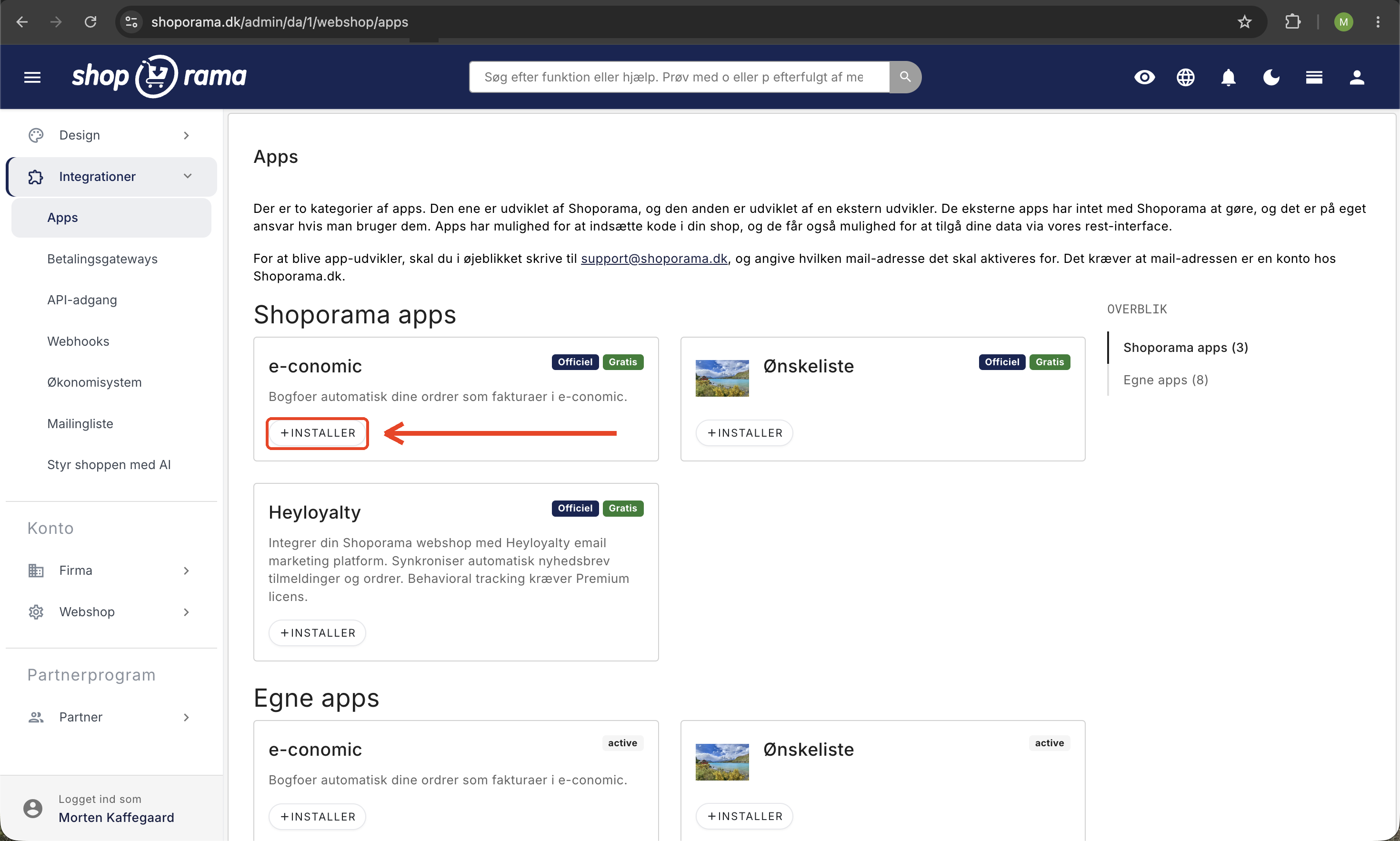
We have a detailed guide for setting up the e-conomic integration and a separate guide on how the integration works. If you run into any issues, we also have a troubleshooting guide. Need help? Email support@shoporama.dk.
Also read about Shoporama’s accounting integrations for a complete overview of the feature and how it fits into the rest of the platform.
What You Need to Know
The e-conomic app is powerful and simple, but there are a few things you should know:
- Inventory isn’t synced. The new e-conomic app transfers orders and customers, but not inventory or products. Inventory is managed exclusively in Shoporama. If you need consolidated inventory across channels, this must be handled outside the integration.
- Credit memos are not transferred automatically. When you credit an order in Shoporama, you must manually create the corresponding credit memo in e-conomic. See also our article on credit memos and refunds. If automatic credit memos are critical for you, a webshop with Dinero is an alternative.
- One-way sync. Data flows from Shoporama to e-conomic, not the other way around. If you mark an invoice as paid in e-conomic, the order is not updated in Shoporama.
- Rate limits. For very large batches (e.g., when transferring many historical orders), e-conomic may limit incoming API calls. This does not affect normal operations.
Frequently Asked Questions About e-conomic in the Webshop
What is the difference between e-conomic and Dinero on Shoporama?
Both are fully supported via the app system. e-conomic offers more configuration options for B2B, customer groups, invoice layouts, and payment terms. Dinero is easier to set up and automatically transfers credit memos. See our Dinero page for a comparison.
Do I need to be an accountant to set up the app?
No. If you’re familiar with e-conomic, you can install the app yourself. If you’re unsure about product groups or VAT zones, it’s a good idea to involve your accountant in the setup. Our support team is also happy to help.
What happens if I delete an order in Shoporama after it’s been transferred?
The invoice that has already been transferred remains in e-conomic. You’ll need to handle it there yourself (typically by creating a credit memo or canceling the invoice). Shoporama does not delete invoices in e-conomic.
Can I choose which orders are transferred?
Yes. You can choose whether the transfer should occur when an order is created, paid, or shipped. You can also manually re-trigger an order transfer via order labels in the Shoporama admin.
What happens to orders from before the app was installed?
They are not transferred automatically. If you want historical orders in e-conomic, you can manually mark them as “e-conomic-pending” using labels so they are transferred in the same way as new orders.
What should I do if the API key expires or becomes invalid?
Generate a new API key in e-conomic and update the app in the Shoporama admin panel. It takes 2 minutes. We recommend setting up a notification so you’ll be alerted if transfers start failing.
Can I have multiple online stores on the same e-conomic account?
Yes. Each online store installs the app separately with its own API key (or the same one, if you prefer). Make sure to set up customer groups and product codes properly so you can distinguish revenue between stores.
Will I be notified if a transfer fails?
Yes. Failed transfers are marked with the label “e-conomic-failed” on the order. You can filter the order list by this label to see exactly which orders are having issues.
How secure is it to store the API key in Shoporama?
The API key is stored in encrypted form in Shoporama’s system and is used solely for communication with e-conomic. You can revoke the key in e-conomic at any time if you wish to disconnect the integration.
Ready to integrate your online store with e-conomic?
An online store with e-conomic is the easiest way to automate your accounting and invoicing. If you have 50 orders or more per month, the integration pays for itself in less than half a year just through the time you save.
Start a free Shoporama trial and see for yourself how easy it is to get an online store with e-conomic integration up and running. No commitment, no sign-up, no credit card required. Need help with setup? Email support@shoporama.dk.