Email templates in your theme
Overview of all email templates in Shoporama themes. Learn what each template does, when it's sent, and what variables you can use to customize your emails.
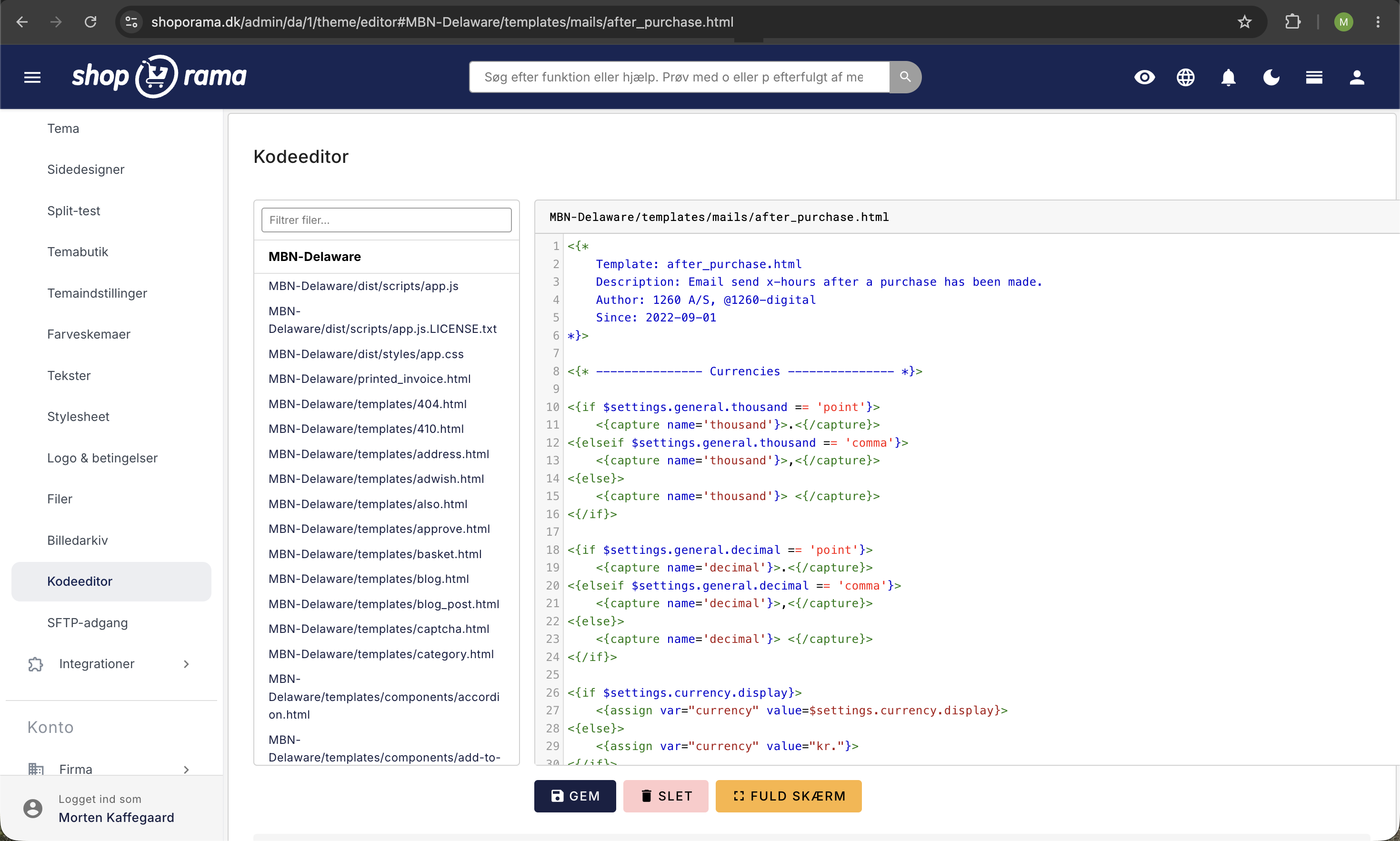
Shoporama themes include a number of email templates that control the automated emails your online store sends. All templates are located in the `templates/mails/` folder within your theme and use Smarty as the template language.
Shoporama’s standard Smarty 4 themes (Delaware, DelawareDK, Alaska2, California, Montana, Washington) provide email templates, but not all themes include all templates. If a template is missing from your theme, you can copy it from one of the other default themes.
Tip
You can set the subject line for the order confirmation and the order shipped email under Webstore → General in the Orders tab, without editing the templates. In the Delaware and DelawareDK themes, you can also edit the subject and text for individual emails under Design → Theme Settings.
Preview and Send a Test Email
Before editing your template, or to see how an email will look after your changes, you can preview and send test emails directly from the admin panel under Webshop → Email Test.
- Select a template from the left column (e.g., invoice.html or basket_mail.html) to view the email with random test data in a preview
- Enter an email address and click " Send Test Email " to receive the email in your own inbox
- Reload the page to get new random data—such as a different order or a different customer—so you can verify that the layout remains consistent regardless of the content
If you want to translate or modify the built-in text in the email, you’ll find it under Design → Texts. Search the Mail section to find the strings that the template uses via <{t section="Mail"}>.
Order-related emails
| Template | When is it sent? | Key variables |
|---|---|---|
| invoice.html | Order confirmation. Sent immediately after the customer has placed an order | $order, $webshop, $webshop->getCompany() |
| order_sent.html | When the order status changes to "Shipped," including track & trace | $order, $order->getTrackingUrl() |
| order_ready_for_pickup.html | When the order is ready for pickup | $order, $pickup_name, $pickup_address |
| order_picked_up.html | When the order has been picked up | $order, $webshop->getCompany() |
| order_credit.html | When a credit memo is created | $order, $order->getPublicUrl() |
| payment_mail.html | Payment link. Sent when the order is pending payment | $order, $payment_url |
| return_label.html | When a return label is generated (PDF attached) | $order |
| return_received.html | When returned items are received | $order, $order_return |
| invoice_dropshipping.html | Sent to the supplier for dropshipping orders | $order, $webshop |
Marketing emails
| Template | When is it sent? | Key variables |
|---|---|---|
| basket_mail.html | Abandoned cart email. Sent automatically X hours after the customer abandons the cart | $basket, $basket_url |
| after_purchase.html | Follow-up email with product recommendations. Sent X hours after purchase, provided the order has been paid for and shipped by that time | $order, $webshop->getAfterPurchase($products) |
| product_review_mail.html | Request for a product review. Sent X hours after the order is marked as Shipped | $order, $order->getPublicUrl('product_review') |
Inventory emails
| Template | When is it sent? | Key variables |
|---|---|---|
| in_stock_mail.html | When a sold-out product becomes available again (the customer has subscribed) | $product, $variant_name |
| out_of_stock_mail.html | When a product goes out of stock (sent to the store owner) | $product |
Customer emails
| Template | When is it sent? | Key variables |
|---|---|---|
| user-welcome-mail.html | When a new customer account is created | $customer, $customer->getTokenUrl() |
| user-reset-password-mail.html | When the customer requests a new password | $customer, $customer->getTokenUrl() |
| user-points-expires-mail.html | When the customer's loyalty points are about to expire | $customer, $points_to_expire, $points_expire_date |
Shared include files
The templates use shared includes for layout and reusable blocks:
- email.wrapper.start.html / email.wrapper.end.html: HTML wrapper with logo and footer
- email.order.details.html: Billing and shipping addresses
- email.order.products.html: Product list with images, SKUs, and prices
- email.order.recommendations.html: Product recommendations
- email.basket.products.html: Cart items for abandoned cart emails
- email.order.terms.html: Terms of Service and Privacy Policy
Customization without editing templates
Some settings can be customized directly in the admin panel:
- Subject line for order confirmation/invoice and for the order shipped email: Webstore → General, the Orders tab.
- When emails are sent, e.g., post-purchase emails and notification emails: Webshop → General, the Emails tab.
- Subject and text for each email (Delaware and DelawareDK only): Design → Theme Settings, the Emails section (in Delaware Emails).
- Logo: Delaware and DelawareDK use the Logo URL field under Design → Theme Settings. The other built-in themes use the logo from Design → Logo & Terms.
Global variables
You can use these variables in all email templates:
$webshop->getName()                   The name of the online store
$webshop->getUrl()                    The URL of the online store
$webshop->getLogo()                   The logo from Design → Logo & Terms
$webshop->getCompany()->getName()     Company name (also getAddress(), getZipcode(),
                                      getCity(), getPhone(), and getEmail())
In Delaware and DelawareDK, the templates retrieve company information, currency, separators, and the logo from the theme settings. In the other themes, these variables are empty:
$settings.company.name          Company name
$settings.company.phone         Phone number
$settings.company.email         Email
$settings.company.address       Address
$settings.company.zipcode       ZIP code
$settings.company.city          City
$settings.company.vat           Business registration number

$settings.currency.display      Currency symbol (e.g., "kr.")
$settings.general.thousand      Thousands separator
$settings.general.decimal       Decimal separator

$settings.theme.logo_url        URL to the company logo
Customization Tips
- Use UTM codes on links in your emails so you can measure their effectiveness in Google Analytics
- You can use Smarty logic for dynamic content; for example, write “Have a great weekend” on Fridays using <{if $smarty.now|date_format:'%u' == 5}>
- Always start by copying templates from a standard theme. They already contain responsive HTML and all necessary variables
- Test your emails primarily via Webshop → Email Test, where you can preview and send a test email with a single click. As a backup, you can always place a real test order and go through the entire process if you want to test the full interaction with the payment gateway and shipping provider
Frequently Asked Questions
How can I see what an email looks like without placing a real order?
Go to Webshop → Email Test, select the desired template in the left column, and view the email directly in the preview. You can also send it to your own inbox to see how it looks in a real email program.
Can I translate the text in the emails without editing the template?
Yes. The built-in text is wrapped in <{t section="Mail"}> and can be translated under Design → Texts in the Mail section. This is the recommended way to change the wording.
What test data is used when I preview an email?
Shoporama selects random data from your online store, such as an existing order or customer. If you reload the page, you’ll see a new random combination. This allows you to check whether the layout works regardless of the number of items, the length of product names, and so on.
Why aren’t my customers receiving a specific email?
The email is only sent if the template exists in your theme. If it’s missing, you can copy it from another default theme and place it in the `templates/mails/` folder of your own theme. Some emails also need to be enabled under Webshop → General in the Emails tab.
Do I still need to place a test order if I have Mail Test?
For daily checks and previews, Mail Test is the fastest option. If you want to test the full workflow—including the payment gateway, shipping setup, and status changes—you can place a real test order. The two methods complement each other.
Can I send a test email to a colleague or a customer?
Yes. Just enter the desired email address in the field. The test email feature has a reasonable rate limit, so it cannot be misused for mass mailings.
Do you need help customizing your email templates? Contact us at support@shoporama.dk.
Related articles
Change the content of your emails
Guide to customize the content of the automatic emails your Shoporama webshop sends, either via admin or theme templates.
Which templates are used for which emails?
Complete overview of all email templates in Shoporama - order confirmations, abandoned baskets, return labels, product reviews and much more.
Implement Theme Builder in your theme
Guide to implementing Shoporama's Theme Builder in your theme so the merchant can build pages visually.