Create more users in your shop
A guide to creating multiple user logins for your Shoporama admin panel and assigning each user a role that determines what they can do.
You can create multiple users in your Shoporama store so that colleagues, business partners, or a web designer can log in with their own login credentials. Each user is assigned a role that determines what they can do in the admin panel.
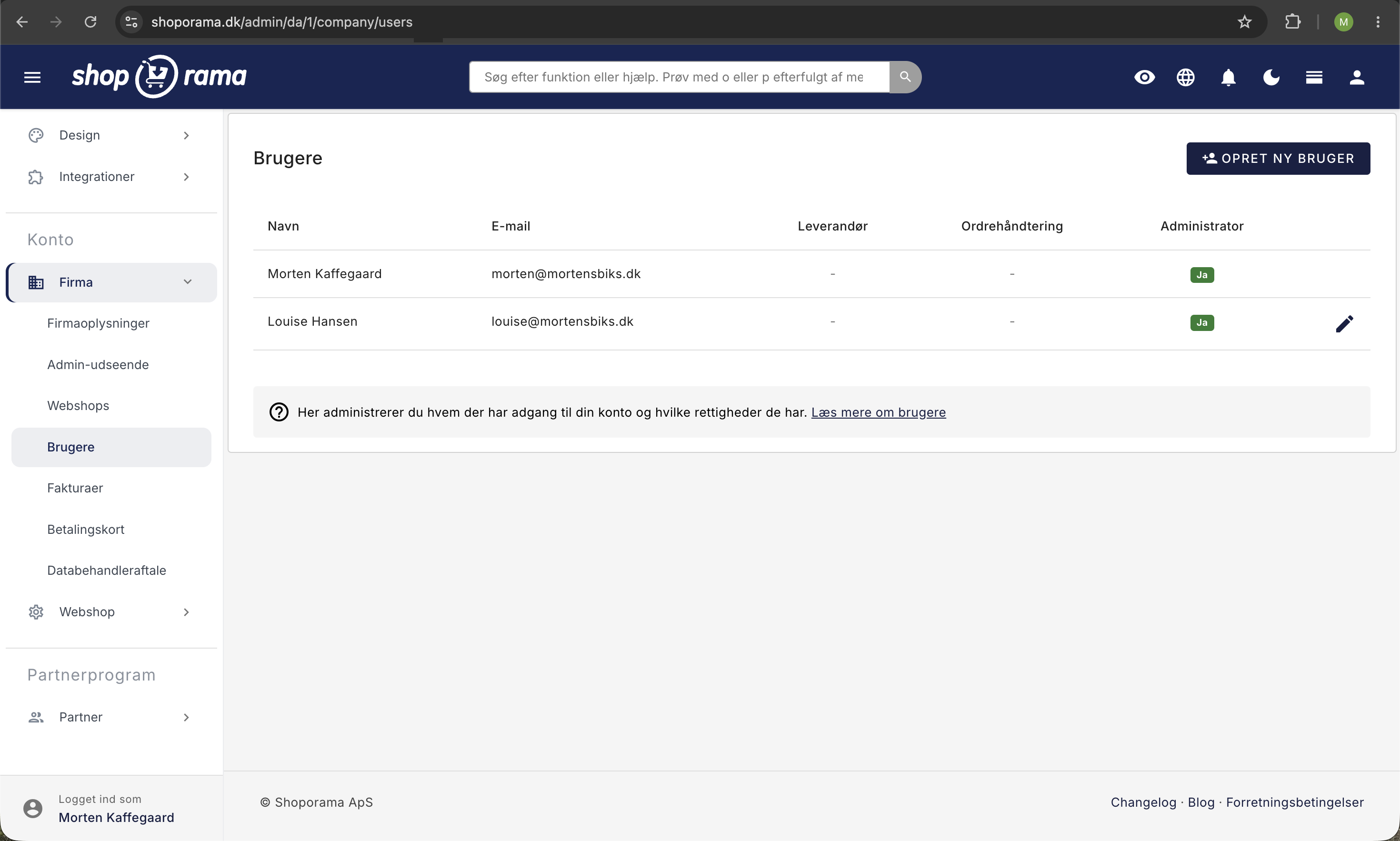
How to Create a New User
Only a company administrator can create, edit, and delete users. You can read more about company administrators further down.
- Go to " Company " in the left-hand menu and click " Users"
- Click " Create New User " in the top-right corner
- Fill in the Name and Email Address
- Enable “Company Administrator” if you want the user to be able to manage users, online stores, and payment cards; view the activity log; and close or reset the online store. This grants the user Full Access, locks the matrix, and skips the next two steps. Otherwise, leave the toggle turned off
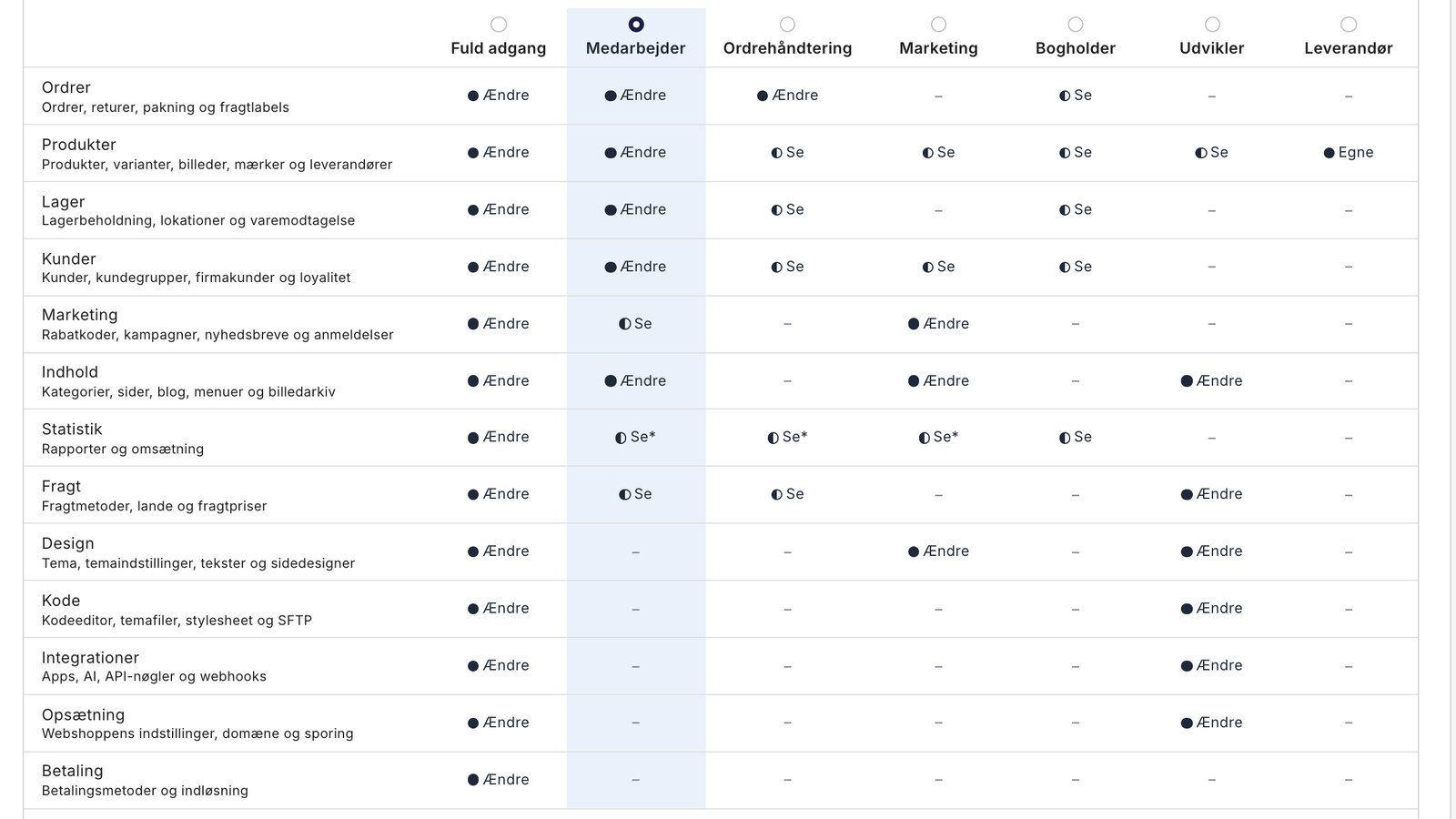
- Select the user’s role in the role matrix under “Role and Permissions” by clicking in the role column. “Full Access” is selected by default
- Check the optional selections at the bottom of the column that the user should have in addition to the role
- If the company has multiple online stores, uncheck the boxes under “Online Stores” for the stores to which the user should not have access
- Click Create User
If the email address is new to Shoporama, the new user will receive an invitation via email with the subject line “Welcome to Shoporama!” The user clicks “Choose Password” in the email and selects a password of at least 10 characters. The link is valid for 7 days and can only be used once. You will never see the user’s password, and you must not share it with anyone. Once the password has been chosen, the user logs in with their email address.
If you select the “Supplier” role, you’ll be taken directly to the “Supplier Setup” page, where you’ll select the supplier and categories. See the section on suppliers below.
Select the Correct Role
The role matrix displays the roles as columns and the online store’s areas as rows, such as Orders, Products, Inventory, and Customers. The cells show what the role can do in each area:
- Edit: Can create and edit
- View: Can view data in the area but cannot edit it or access the settings
- View*, same as View, but requires the Turnover and Statistics add-on
- Own, only their own products (the Supplier role)
- – (a dash), no access
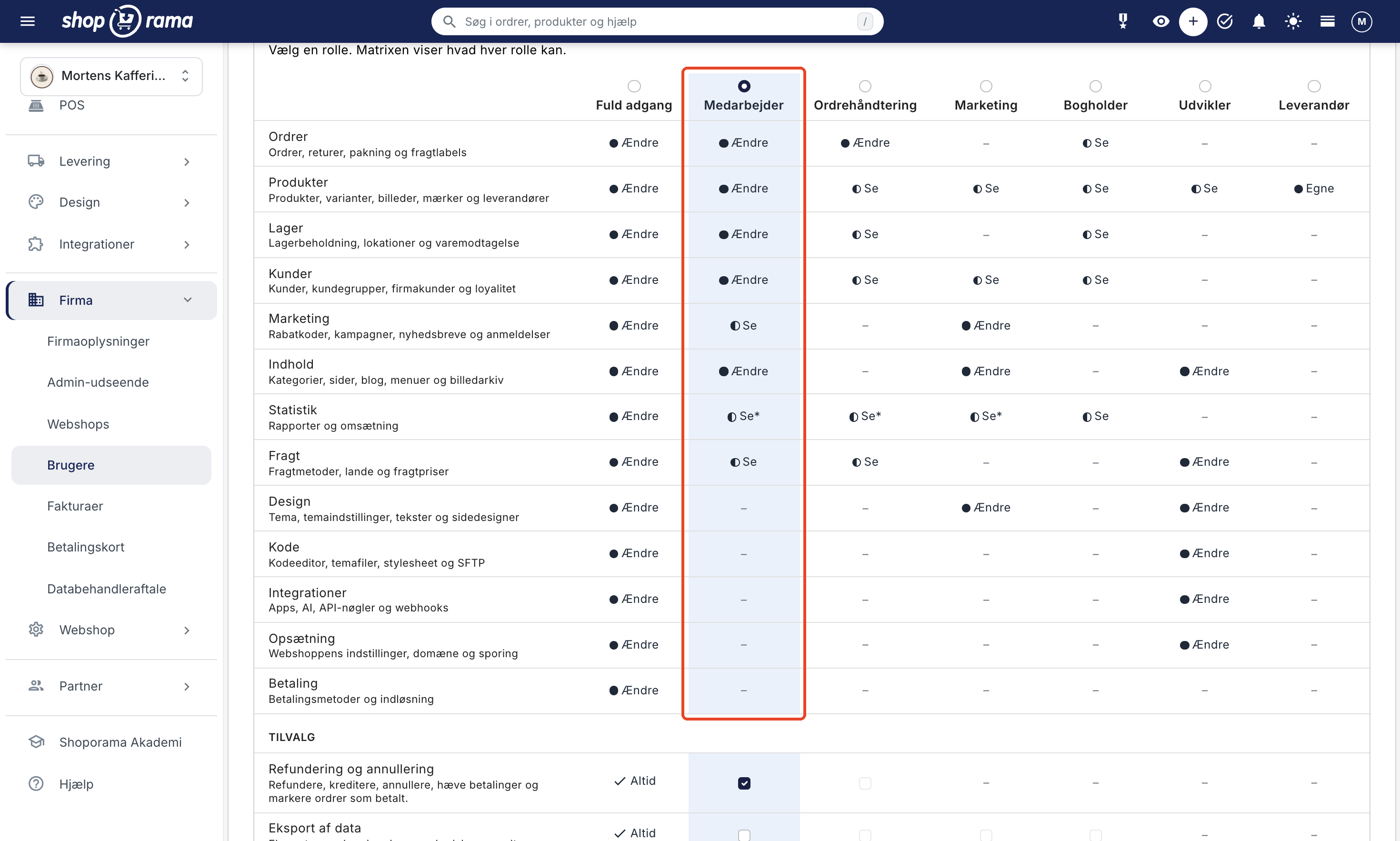
You can choose from seven roles:
- Full Access: everything in the online store, including payments, design, and integrations. This role always includes all five add-ons
- Employee: Creates and edits products, orders, customers, inventory, and content such as categories, pages, and the blog. Can view discount codes, promotions, newsletters, and shipping, but does not have access to settings, payment, design, and integrations
- Order Processing: Processes, packs, and ships orders and manages the order queue and returns. Can view products, customers, and inventory, but cannot edit them
- Marketing: discount codes, promotions, newsletters, reviews, content, and design. Can view products and customers but does not have access to orders
- Bookkeeper: Can view orders, products, inventory, customers, statistics, and Shoporama invoices, but cannot make any changes
- Developer: themes, design, code, content, shipping, online store settings, and integrations. Can view products but does not have access to orders, customers, or payments. Suitable for a web designer or agency
- Supplier: Creates and edits their own products, including images and variants. Does not have access to orders, customers, or other suppliers’ products
If you hover your mouse over a role’s name in the matrix, you’ll see the role’s description. For a detailed breakdown of what each role can do, see the article on roles and permissions.
Optional Features
The optional features are five sensitive permissions that you can grant in addition to the role. They are listed at the bottom of the matrix, and you can only check them off in the column for the selected role:
- Refunds and cancellations: issue refunds, issue credits, cancel orders, reverse payments, and mark orders as paid
- Data export: export orders, customers, and newsletter subscribers
- Cost prices and markup: view and edit cost prices, markup, and inventory value
- Revenue and statistics: view revenue on the front page and in the statistics
- Deletion and bulk import: delete products, orders, and customers, and import in bulk
If “Always” is shown in the cell, the role always has that option selected; a line through it means the role cannot have that option. On the “Create User” screen, no options are pre-selected.
Company Administrator
Company Administrator is not a role in the online store, but a contact associated with the user, replacing the previous “Administrator” checkbox. Only a company administrator can:
- create, edit, and delete users and assign their roles
- add and remove online stores and change the pricing model under Company → Online Stores
- manage payment cards under Company → Payment Cards
- view the activity log using the Activity Log button at the top of Company → Users
- close and reset the online store
When you make a user a company administrator, that user gains full access to the online stores they have access to, and the access matrix is locked to Full Access. The company must always have at least one company administrator, so the last one cannot be removed or lose contact.
Other users with Full Access can still view the user list, company information, and Shoporama invoices, but they cannot create or edit users.
Multiple Online Stores in the Same Company
If the company has multiple online stores, the “Create User” screen displays the “Online Stores” tab, where all online stores are preselected. The user is assigned the same role and the same add-ons in all selected online stores.
If the user needs a different role in one of the online stores, click the user’s name in the user list afterward. Under “Online Stores” in “Edit User,” click “Different Role per Online Store ” and select the role for each online store. Then click Save. “Same role as above” refers to the role from the matrix. The add-ons are the same across all online stores if the role is eligible for them.
Suppliers
The “Supplier” role is for a supplier who creates and maintains their own products in your store. When you create a user with the “Supplier” role, you’ll be taken directly to the “Supplier Setup” page. In the Supplier card, select the supplier to which the user’s products belong in the “Create products as” field. Always select a supplier, because only once a supplier is selected will the user be restricted to products from their own supplier. If the supplier is not in the list, create it first under Products → Suppliers. If the store does not yet have any suppliers, the page will display the link “Create a Supplier.”
In the “Categories” tab, you can select categories. When the supplier saves a product, the product can only be added to the selected categories. If you select none, there are no restrictions. Finally, click Save. You can later access this page via the “Supplier Setup” link in the user list or the “Select Supplier and Categories” option on the “Edit User” page.
If the supplier is to be assigned a different role later, first uncheck the boxes under “Categories” and click “Save.” A user with selected categories cannot use Claude, even with “Full Access.”
Edit a user later
If you just want to see what a user can do, click the user’s role in the user list. It shows what the user can do in each area and which optional features the user has.
Click the user’s name in the user list to open Edit User. Here you can change the name, role, add-ons, company administrator, and access to web stores. Then click Save. You cannot edit the email address here. The user can edit it themselves under " Your Account." You cannot edit your own user account from the user list.
Login and Security
The “Login and Security” tab in “Edit User” shows when the user last logged in, whether the user has set a password, and whether two-factor authentication is enabled via an app or SMS. The “View User Actions ” link in the Activity Log row opens the activity log so you can view only the user’s actions. From this tab, you can also assist the user:
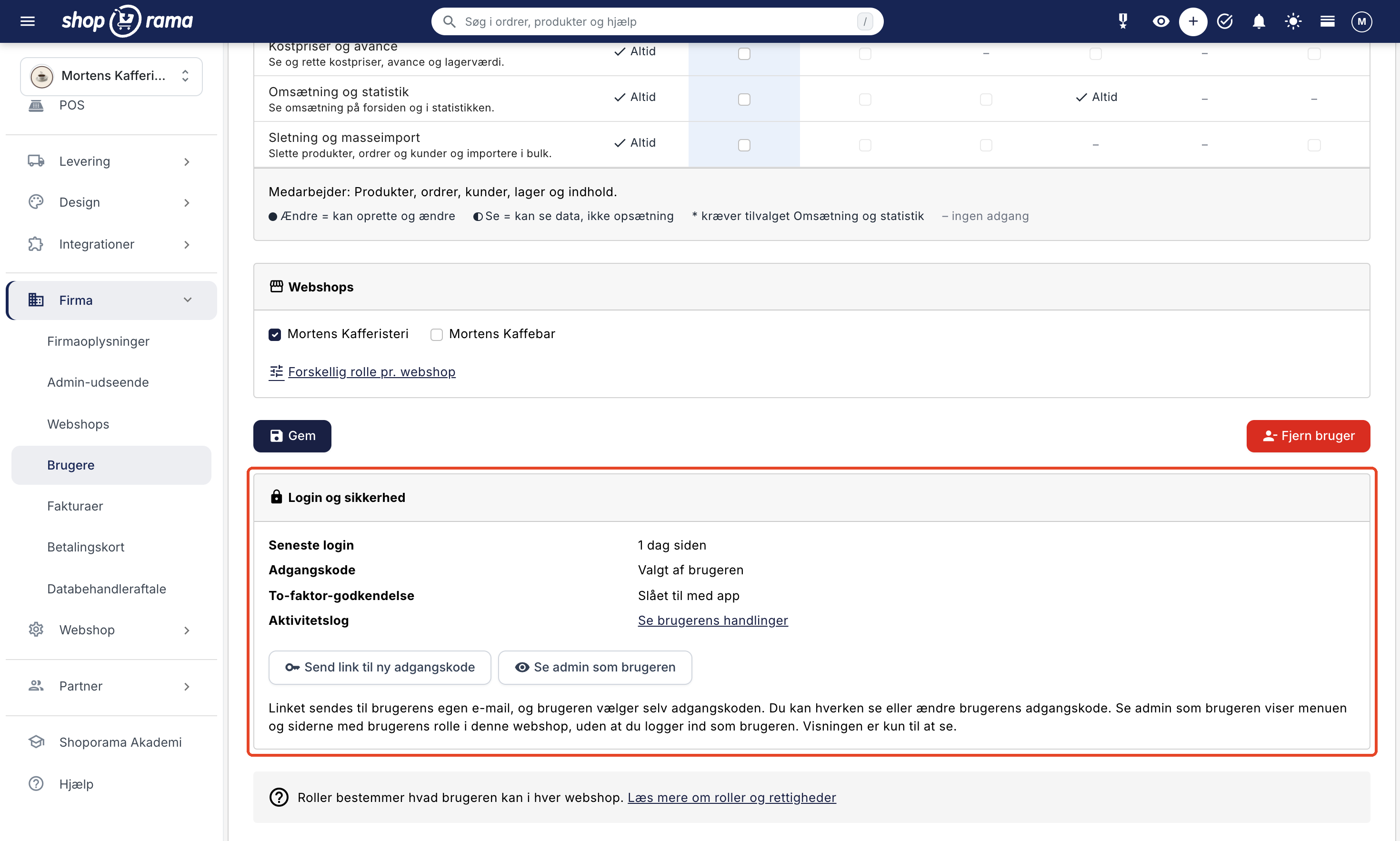
- "Resend Invitation" appears if the user has neither chosen a password nor logged in, for example, because the invitation has expired. The user will receive a new invitation that is valid for 7 days
- "Send link to new password " appears when the user has a password. The user receives an email with a link that is valid for 24 hours. The current password remains valid until the user has chosen a new one
- If the user has enabled SMS authentication, a link cannot be sent for security reasons. In that case, the user must contact Shoporama’s support
- "View Admin " shows the admin interfaceas the user sees it, based on the user’s role; see below
The link is always sent to the user’s own email address, and a new link replaces the previous one. You cannot view or change the user’s password, and the user enables two-factor authentication themselves under “Authenticator” in the profile menu in the top-right corner; see “Your Account.” If you’ve just sent a link, you’ll need to wait a few minutes before you can send a new one. Both invitations and links appear in the activity log.
If the user is also part of another company, the card does not display the most recent login, password, or two-factor authentication, and there are no buttons to send an invitation or a link for a new password. Instead, it states that the user can choose a new password themselves using the “Forgot your password?” link on the login page. “View as admin” and “View user actions” are still available, and in the user list, the “Last login” column displays a dash for that user.
View as Admin
If you want to see what a user sees, click “ View admin as user.” You’ll then see the menu, the homepage, and the pages with the user’s role and add-ons in the online store you’re currently in. You’re not logged in as the user, and at the top it says, for example, “You’re viewing as Sofie Lund with the role Employee. This view is for demonstration purposes only.”
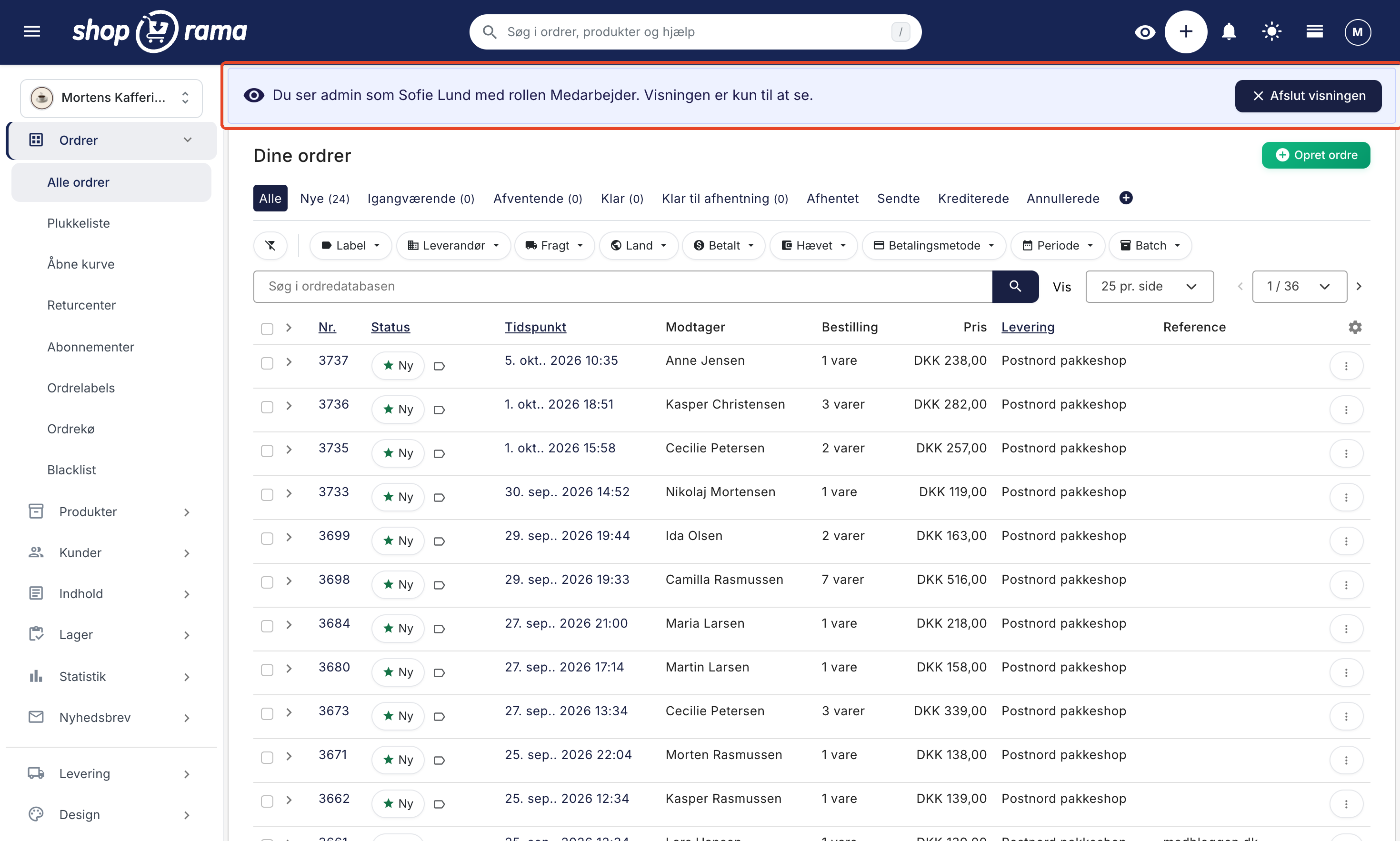
- The menu is exactly what the user sees, but this view is for viewing only. If you try to save, create something, or perform an action, the “No Access” page will appear
- Click “End View” at the top to return to the user. If you switch online stores, the view will also end
- Only a company administrator with full access to the online store can use this button, and only for active users with access to the online store you’re currently in
- This is recorded in the activity log when the view is started and ended
Claude and API Keys
If a user wants to connect Claude to the store, they do so by logging in with their own Shoporama login. The connection applies to the entire store, and you control what Claude is allowed to do for each area under AI Tools.
- Only users with the Full Access role can connect Claude. The same applies to AI Tools and to approving or undoing changes made by Claude. Users who have had categories selected under Vendor Setup cannot use Claude either
- If a user with a Claude connection is assigned a role other than “Full Access,” the store will reject Claude’s actions from that point on
- Once you’ve assigned a role to a user, the connections that user has created via “Sign in with Shoporama”—such as the POS app and the scanner app—will be limited to the capabilities of that role. If you want an app to have full access, connect it to a user with “Full Access”
- When you remove a user, all connections that the user has created via “Sign In with Shoporama”—such as Claude, the POS app, and the scanner app—are revoked
- API keys created by a user with Full Access under Integrations → API Access belong to the store and are not deleted when you remove the user. You must delete them yourself if they are no longer needed. A key created by a user with a different role—such as Developer—has no more permissions than the role itself and is revoked when you remove the user. If an integration needs to retrieve orders, for example, the key must therefore be created by a user with Full Access
Best Practices
- Assign each user the role that matches their tasks, and only the permissions the user needs
- Create separate logins for each person; do not share a single login
- Only designate those who need to manage users, online stores, and payment cards—or who need to be able to close the online store—as company administrators
- Remove users who no longer need access
Tip
Separate user accounts provide traceability. As a company administrator, you can use the Activity Log button at the top of Company → Users to see, for example, who has changed roles, refunded orders, or deleted products.
Frequently Asked Questions
What happens to the users I already have?
As a general rule, you don’t need to do anything, and users will retain the access they currently have, with one exception: only company administrators can now close or reset the online store. Users without special permissions have been assigned the “Full Access” role and can do the same things as before. The former “Administrator” checkbox is now called “Company Administrator.” Users with “Order Management” or “Supplier” have been assigned the role of the same name, and “Admin” functions for them as before until you select or change their role. If a user had both roles, it will say “Order Management + Supplier.” That combination does not exist as a role, so in this case, you should open the user’s profile and select the appropriate role.
Why can’t I create new users?
Only company administrators can create and edit users. If you have Full Access, you can go to Company → Users to see who the company administrators are. They’ll have “Company Administrator” next to their role, and if you select “Company Administrator” in the “All Roles” filter, you’ll only see them. Ask one of them to create the user or to make you a company administrator.
The new user hasn’t received an email. What should I do?
Ask the user to check their spam folder for the email with the subject “Welcome to Shoporama!” If the email is missing or the link has expired after 7 days, open the user’s profile under Company → Users and click “Resend invitation” in the “Login and Security” tab. The email is only sent when the email address is new to Shoporama. If the person already has a Shoporama login—for example, from another online store—that login will grant access to your store without an email, and the person can log in using their current password. If they’ve forgotten it, they can click “Forgot your password? ” on the login page.
Can I reset a user’s password?
You cannot choose a new password for the user yourself, but you can send the user a link to choose a new one if the user is only associated with your company. Open the user’s profile under Company → Users, and click “Send link for new password” in the “Login and Security” card. The link is valid for 24 hours. The user can also click “Forgot your password? ” on the login page. If the user has enabled two-factor authentication with the Authenticator app, they’ll still need to enter the code to log in. With SMS authentication, a link cannot be sent, and the user must contact Shoporama support.
What role should my web designer have?
Select the “Developer” role. This allows the web designer to work on the theme, design, code, content, and setup without seeing orders, customers, revenue, or payment settings. Apps can only be installed, and Claude can only be connected, by a user with “Full Access.” If the developer creates API keys for an integration, those keys have no more permissions than the role itself, and they stop working when you remove the developer.
Can my bookkeeper have access without being able to make any changes?
Yes, select the Bookkeeper role. The bookkeeper can view orders, customers, statistics, revenue, and Shoporama invoices under Company → Invoices, but cannot save changes. If the bookkeeper also needs to view cost prices and profit margins, check the “Cost Prices and Profit Margins” option. If the bookkeeper needs to be able to export orders and customers as a CSV file, also check the “Data Export” option.
Can an employee pack and ship orders without being able to issue refunds?
Yes. Assign the user the “Order Processing” role and leave the “Refunds and Cancellations” option unchecked. This allows the user to process, pack, and ship orders, but not to issue refunds, issue credit memos, cancel orders, or mark orders as paid. The user also cannot approve returns in the Returns Center, as an approved return creates a credit memo. The same applies to the “Employee” role without this option selected.
Can a freelancer work with newsletters and discount codes without seeing the revenue?
Partially. The “Marketing” role provides access to discount codes, campaigns, newsletters, content, and design. If the “Revenue and Statistics” add-on is turned off, revenue will not be displayed on the dashboard or in the statistics. However, the freelancer can still view the revenue from each newsletter and each split test. The role can also view products and customers, and the customer list shows how much each customer has spent.
Can I decide for myself what a role is allowed to do?
No. The roles are fixed, so you cannot create your own roles or change what a role covers. You can customize them using the five add-ons when the role is eligible for them. Choose the role that grants the least access but still covers the user’s tasks.
What happens to users when I create a new online store?
All of the company’s users will have access to the new online store. If you’ve assigned a role to a user, that user will have the role selected in the matrix in the new online store as well. Therefore, review the users under Company → Users afterward. If a user should not have access to the new online store, open the user’s profile, uncheck the box next to the online store under “Online Stores,” and click Save.
Need help? Contact us at support@shoporama.dk.
Related articles
Remove a user from your shop
Guide to removing a user from your business in Shoporama admin.
Multiple recipients on the contact form
Learn how to send the contact form to multiple recipients by adding user IDs as a hidden field.
Create an additional webshop
Guide to creating an additional online store under the same login in Shoporama.
Roles and Permissions: Give Each User the Right Access
See what the seven roles and five optional features provide access to, which role is best suited for whom, and what only the company administrator...
Activity Log: See who has done what in the admin panel
The activity log shows who has refunded, exported, deleted, imported, or changed access permissions in the administration system, and when. See...
Related features
Roles for your team: Decide who has what permissions in the admin panel
New in Shoporama: Assign the packer, the bookkeeper, and the web agency their own roles in the admin panel, and decide who is allowed to issue...
A Tour of the Admin Panel: Finding Your Way Around Shoporama
Navigate through Shoporama's admin area: the menu, search bar, notifications, dashboard, "Customize View," and the difference between Webstore and...
User Roles
User roles group permissions under a single name, so each user has only the access required for their tasks. See what the seven standard roles in...
More users
Assign each employee their own user account and a fixed role so they have only the access required for their tasks. Unlimited users on Pro and...