Remove a user from your shop
Guide to removing a user from your business in Shoporama admin.
You can remove users who no longer need access to your store's admin panel. This could be, for example, a former employee or a business partner.
How to remove a user
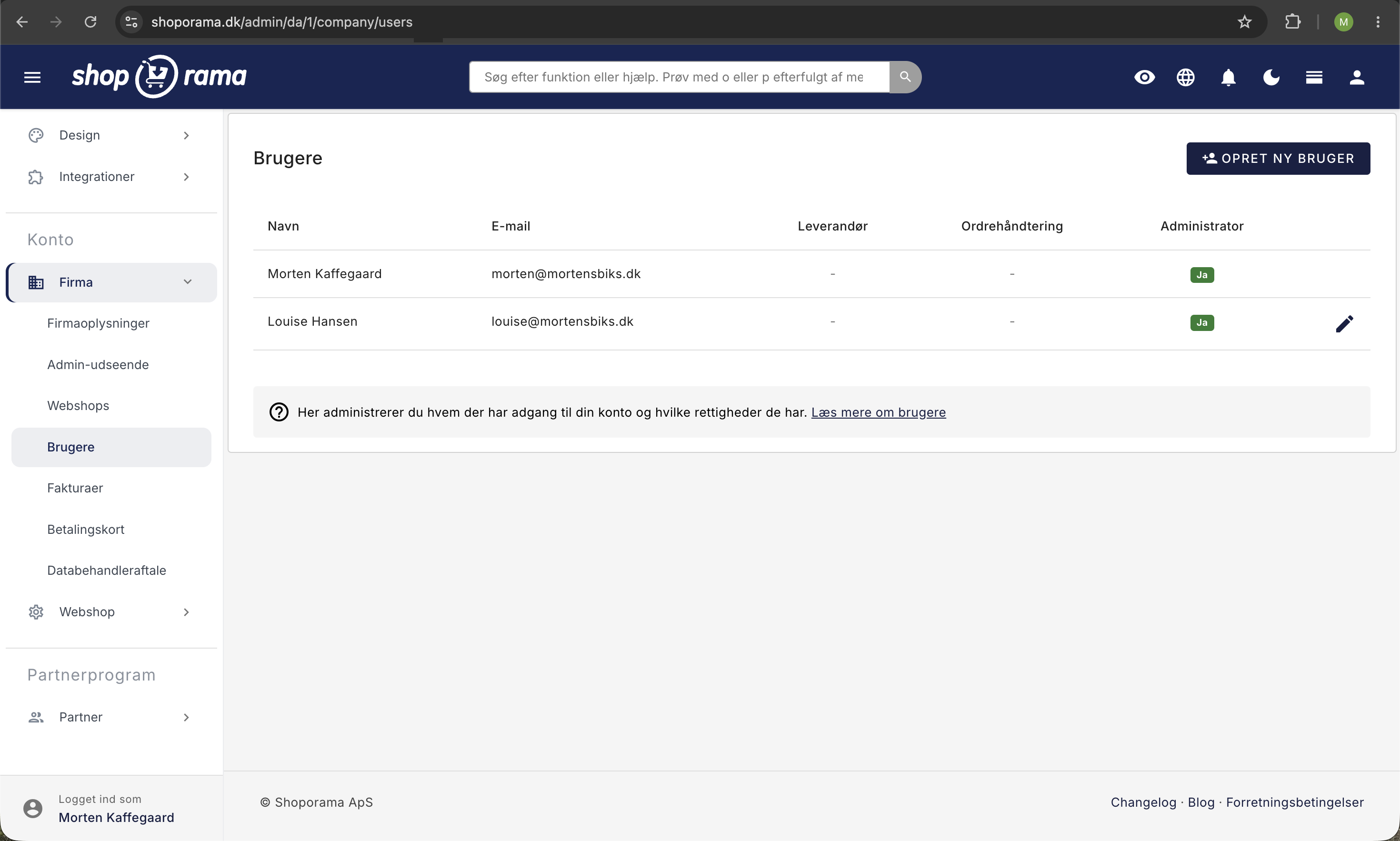
- Go to Account → Company → Users in the menu
- Find the user you want to remove
- Click the pencil icon (Edit) next to the user, and then click the Remove User button
- Confirm the deletion
What happens?
When you remove a user:
- The user loses all access to your store’s admin panel
- The user’s actions and history are retained (orders they’ve processed, etc.)
- The user cannot be restored: you must create a new user if they are to have access again
- All connections the user has established to the store via “Sign in with Shoporama” will be revoked and will stop working. This applies, for example, to Claude, the POS app, and the scanner app
- API keys under Integrations → API Access will not be deleted, because they belong to the store and not to the user
The same applies if you only remove the user’s access to one of your stores: the user’s connections to that specific store will stop working.
If the user has known or created an API key themselves—for example, for an integration or a script—you must delete it manually under Integrations → API Access and, if necessary, create a new one for the integration. Read more in Find or Create an API Key.
Note
You cannot remove the primary owner of the shop. If you want to transfer ownership, please contact support@shoporama.dk.
See also: Create additional users in your store.
Need help? Contact us at support@shoporama.dk.
Related articles
Which user receives system emails?
Guide to view and change which user receives system emails from Shoporama.
Create more users in your shop
Guide to creating multiple user logins for your Shoporama admin.
View emails sent to a customer from your shop
Guide to see which emails a customer has received in connection with an order.