Unsold Products: Find Your Dead Stock
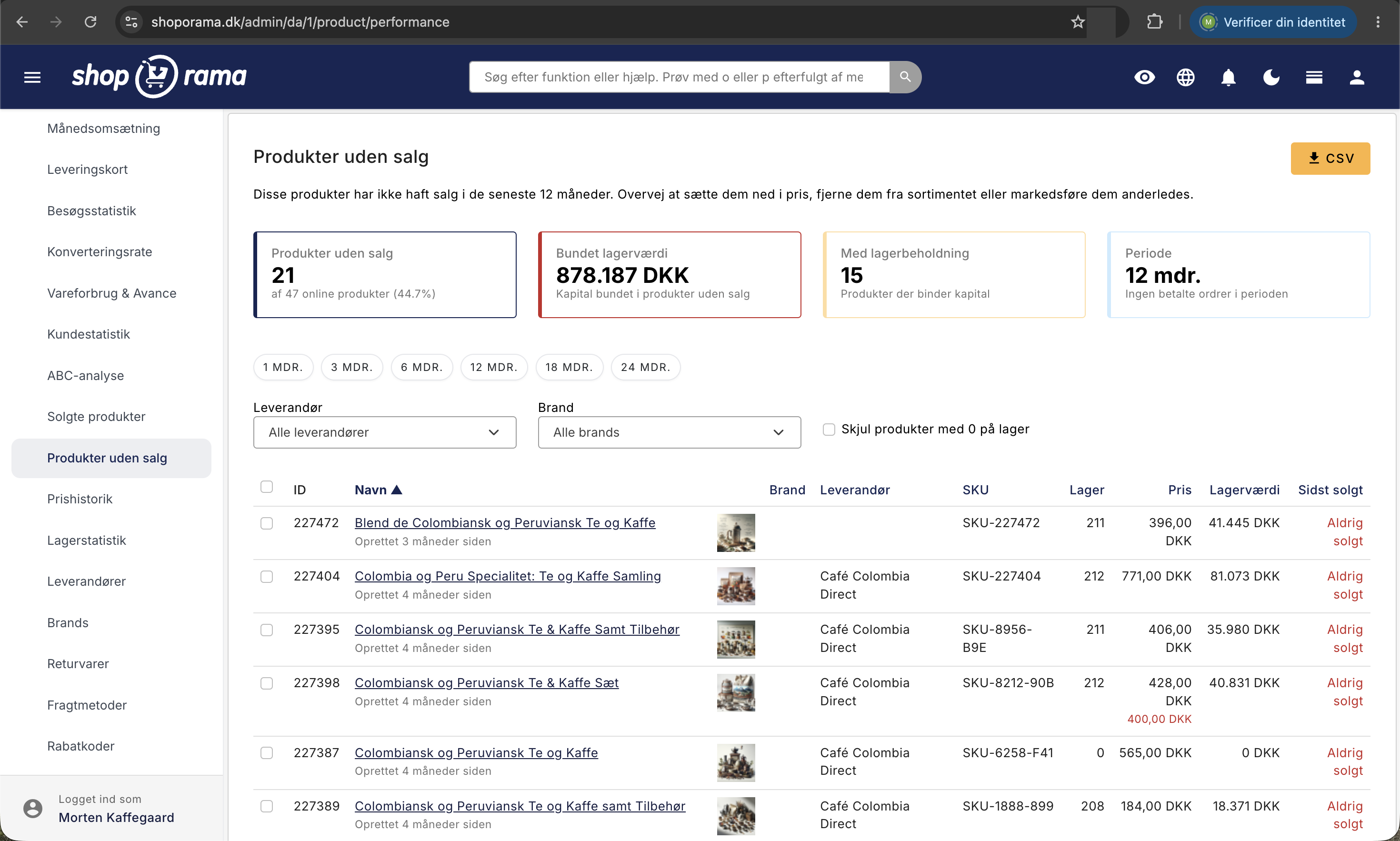
"Products with No Sales" shows the items in your online store that haven't had a single paid order during the selected time period, how much capital they tie up, and what you can do about them.
Nogle varer sælger sig selv. Andre står bare på hylden, optager plads, og binder penge, du kunne have brugt bedre. Siden Produkter uden salg finder dem for dig: de produkter der er online i din shop, men som ikke har haft en eneste betalt ordre i den periode du vælger. Branchen kalder dem gerne døde varer eller dead stock, og de er sjældent gratis at have stående.
Hvor finder du siden
Siden ligger i menuen til venstre under Statistik → Produkter uden salg. Den åbner med en periode på 12 måneder, og du skifter periode med knapperne under nøgletallene. Der er intet at sætte op: tallene beregnes ud fra dine ordrer og dit lager, hver gang du åbner siden.
Hvad siden måler
Et produkt kommer på listen, hvis to ting er sande: det er sat online i din shop, og det har ikke haft et eneste salg i den valgte periode. Spillereglerne er værd at kende, så du ikke drager forkerte konklusioner:
- Kun produkter der er online. Varer i papirkurven og varer, du allerede har sat offline, står ikke på listen.
- Kun betalte ordrer tæller som salg. Er en ordre ikke markeret som betalt, tæller den ikke med. Det er den hyppigste årsag til at et produkt ser inaktivt ud, selvom det ikke er.
- Annullerede ordrer tæller ikke. Ordrer med status Ny, Afventer, Igang, Klar, Klar til afhentning, Afhentet, Sendt, eller Kreditnota tæller med. Annulleret gør ikke.
- Returordrer giver ikke et nyt salg. En retur- eller kreditordre oprettet ud fra en eksisterende ordre markerer ikke produktet som solgt.
- Varianter tæller samlet. Sælger du én størrelse af en t-shirt, regnes hele produktet som solgt.
De fire nøgletal øverst
- Produkter uden salg viser antallet på listen og andelen af dine online produkter. Står der 21 af 47 (44,7 %), er næsten halvdelen af sortimentet inaktivt.
- Bundet lagerværdi er kapitalen i de usolgte varer, altså lager ganget med kostpris.
- Med lagerbeholdning viser hvor mange af de usolgte produkter der faktisk har varer på lager. Et usolgt produkt uden lager koster ikke penge, kun opmærksomhed.
- Periode minder dig om hvilket vindue du kigger på.
Antallet fortæller hvor rodet dit sortiment er. Den bundne lagerværdi fortæller hvad det koster dig. Handl på værdien først.
Perioden: fra 1 til 24 måneder
Med knapperne over filtrene vælger du 1, 3, 6, 12, 18, eller 24 måneder. Perioden regnes bagud fra i dag og ikke fra årets start.
- 1 til 3 måneder passer til hurtigt omsættelige varer. Her er tre måneder uden salg allerede et advarselssignal.
- 6 måneder er en god arbejdsperiode for de fleste sortimenter.
- 12 måneder er standarden og den fair vurdering for sæsonvarer. Et juleprodukt der ikke har solgt i et helt år, har haft sin chance.
- 18 til 24 måneder bruger du til den hårde oprydning.
Et godt trick er at starte på 24 måneder, tage de værste, og derefter arbejde dig ned til 12 og 6 måneder over de næste kvartaler.
Filtrér listen
Under periodeknapperne kan du snævre listen ind. Den opdaterer sig selv med det samme:
- Leverandør viser kun varer fra én leverandør. Det er guld værd før et forhandlingsmøde, hvor du kan lægge ud med, at der står 40 varer til 180.000 kroner fra netop dem, som ikke har solgt i et år.
- Brand viser kun ét mærke, så du kan se om et helt brand er kørt træt, eller om det bare er enkelte varenumre.
- Skjul produkter med 0 på lager fjerner de varer, du ikke har hjemme, så du kun ser den kapital, der rent faktisk er bundet.
Kolonnerne i tabellen
Tabellen viser 50 produkter ad gangen. Du kan sortere efter Navn, Brand, Leverandør, SKU, Lager, Pris, Lagerværdi, og Sidst solgt ved at klikke på overskriften. En pil viser retningen, og et nyt klik vender sorteringen.
- ID er produktets interne nummer i Shoporama. Det er det, du bruger, hvis du skal slå varen op i en import- eller eksportfil.
- Navn linker til produktets redigeringsside. Under navnet står Oprettet som relativ tid, for eksempel "4 måneder siden". Hold musen over for den præcise dato.
- Billede viser hovedbilledet. Er feltet tomt, har varen slet ikke noget billede, og så har du måske allerede forklaringen på det manglende salg.
- Brand, Leverandør, og SKU viser varens tilknytninger og dit eget varenummer.
- Lager er den samlede beholdning for produktet inklusive alle varianter.
- Pris er varens almindelige pris, og en eventuel tilbudspris står med rødt lige under. Er en vare allerede sat ned og stadig ikke sælger, er prisen sjældent problemet.
- Lagerværdi er Lager ganget med produktets kostpris, altså den kapital netop den vare binder.
- Sidst solgt viser som relativ tid, hvornår varen sidst blev solgt, uanset hvor langt tilbage det er. Hold musen over for den præcise dato. Har varen aldrig haft en betalt ordre, står der Aldrig solgt med rødt.
Forskellen mellem "solgt for 14 måneder siden" og "Aldrig solgt" er større end den ser ud. Den første vare har bevist at den kan sælges. Den anden har aldrig fundet en køber.
Lagerværdi står som 0, hvis produktet ikke har en kostpris. Kostpriser angives altid uden moms, og du kan udfylde de manglende samlet. Læs mere i Kostpriser og lagerværdi, eller slå begreberne op under kostpris og lagerværdi.
Markér, eksportér, og handl
Hver række har en afkrydsningsboks, og boksen i tabelhovedet markerer alle rækker på siden. Genvejen Cmd + A på Mac eller Ctrl + A på Windows gør det samme. Med produkter markeret har du to knapper under listen:
- Vis i produktoversigten åbner produktoversigten med præcis de markerede varer. Derfra kan du markere dem igen og bruge masseværktøjerne, for eksempel Prisændringer, hvor du sætter en tilbudspris på dem alle på én gang.
- Sæt offline tager de markerede produkter af webshoppen efter en bekræftelse. De bliver ikke slettet, kun skjult for kunderne, og de forsvinder samtidig fra listen, der jo kun viser online produkter.
Øverst til højre henter CSV-knappen hele listen ned som regneark, ikke kun de 50 du ser. Filen følger dine filtre og din sortering og indeholder produkt-id, navn, SKU, brand, leverandør, pris, lager, kostpris, bundet lagerværdi, dato for sidste salg, antal dage siden sidste salg, og oprettelsesdato.
Sådan bruger du listen i praksis
- Sortér efter Lagerværdi, faldende. Start ved pengene. De ti dyreste varer frigør mest kapital hurtigst.
- Skjul produkter med 0 på lager. Varer uden lager koster dig ikke kapital og kan vente.
- Tjek Oprettet. Er varen to måneder gammel, har den ikke haft en fair chance. Lad den være, og kig igen om et kvartal.
- Find årsagen, før du sætter prisen ned. Et prisnedslag på en vare ingen kan finde, er spildte penge.
- Beslut og udfør. Enten markedsføring, en tilbudspris eller en kampagne, eller udfasning med Sæt offline. Tag beslutningen nu, ikke om tre måneder.
- Gentag hvert kvartal. Vanen holder sortimentet skarpt, meget bedre end en stor oprydning hvert andet år.
Regnestykket er ofte overraskende. Har du 300.000 kroner bundet i varer, der ikke har solgt i et år, og frigør du halvdelen med et udsalg, har du 150.000 kroner til varer, du ved sælger. Det er billigere end at låne pengene, og det giver plads på lageret.
Er listen tom, får du beskeden "Godt gået! Alle dine online produkter har haft salg inden for de seneste 12 måneder", hvor tallet følger den periode, du har valgt. Det er sjældnere end du tror.
Sådan hænger siden sammen med de andre analyser
- ABC-analyse rangerer de produkter der faktisk sælger, og finder dine C-varer. Denne side finder dem der slet ikke sælger.
- Vareforbrug & Avance viser din dækningsgrad måned for måned, så du kan følge hvad et udsalg koster dig i avance.
- Solgte produkter er spejlbilledet: salget per vare i en periode sammen med aktuelt lager, så du ved hvad du skal købe mere ind af.
- Salgsstatistik for et produkt viser ét produkts salg over tid. Klik på navnet i listen, derefter på Salgsstatistik øverst på redigeringssiden, og vælg Hele perioden. Så ser du, hvornår en vare der tidligere har solgt, gik i stå.
- Lagerstatistik giver det samlede lageroverblik, herunder bundet kapital på tværs af hele lageret.
Til dig der er teknisk
CSV-filen hedder produkter-uden-salg.csv, er semikolonsepareret i UTF-8 med byte order mark, så danske tegn åbner korrekt i Excel, og har engelske kolonneoverskrifter. Den indeholder op til 10.000 produkter. Perioden er et rullende vindue fra det øjeblik du åbner siden og ikke hele kalendermåneder.
Ofte stillede spørgsmål
Hvad er forskellen på denne side og ABC-analysen?
ABC-analysen rangerer de produkter der sælger, efter hvor meget de bidrager til omsætningen. Denne side viser de varer der slet ikke har solgt, og som derfor aldrig dukker op i en salgsrapport.
Hvorfor står en vare på listen, selvom jeg har solgt den for nylig?
Siden tæller kun betalte ordrer. Er ordren ikke markeret som betalt, for eksempel en fakturaordre der afventer betaling, tæller salget ikke med. Det samme gælder annullerede ordrer og returordrer oprettet ud fra en eksisterende ordre.
Hvorfor viser Lagerværdi 0 kroner, når jeg har varer på lager?
Fordi produktet ikke har en kostpris. Lagerværdien er antallet på lager ganget med kostprisen, og uden kostpris bliver resultatet nul. Udfylder du de manglende kostpriser, bliver både lagerværdien her og din avanceberegning retvisende.
Er lagerværdien med eller uden moms, og kan jeg bruge tallet i mit regnskab?
Uden moms, for kostpriser angives altid uden moms i Shoporama. Tallet er et godt udgangspunkt for en snak med revisor om nedskrivning af ukurante varer, men det er ikke i sig selv en regnskabspostering.
Hvad sker der præcis, når jeg trykker Sæt offline?
De markerede produkter bliver taget af webshoppen, så kunderne ikke længere kan se eller købe dem. Du bliver bedt om at bekræfte først. Produkterne slettes ikke, og lager, priser, tekster, og billeder er urørte. Du kan sætte dem online igen fra produktoversigten.
Tæller varianter og flere lagerlokationer med i lagertallet?
Lager-kolonnen viser den samlede beholdning for produktet på tværs af alle varianter, og tallet er ikke opdelt på lagerlokationer. På salgssiden gælder det samme: sælger du bare én variant, regnes hele produktet som solgt og ryger af listen.
Kan jeg få hele listen ud i Excel?
Ja, klik på CSV-knappen øverst til højre. Filen indeholder hele listen og ikke kun den side du kigger på, og den følger dine filtre og din sortering.
Skal jeg altid fjerne de produkter der ikke sælger?
Nej. Tjek først om varen overhovedet er til at finde. Mangler den billede, ligger den i en kategori ingen besøger, eller har den aldrig været nævnt i et nyhedsbrev, er det synligheden og ikke produktet der er problemet.
Hvorfor er mine helt nye produkter med på listen?
Fordi de endnu ikke har solgt noget. Derfor står oprettelsesdatoen under produktnavnet. Er varen kun få uger eller måneder gammel, så lad den være og kig igen ved næste gennemgang.
Hvor ofte bør jeg kigge på siden?
En gang i kvartalet passer de fleste. Har du sæsonvarer, er det oplagt lige efter sæsonen, mens du stadig kan nå at sætte et udsalg i gang. Sælger du hurtigt omsættelige varer, kan en månedlig gennemgang med perioden sat til 3 måneder give bedre mening.
Har du spørgsmål til Produkter uden salg eller de øvrige statistikker, er du velkommen til at skrive til os på support@shoporama.dk.
Related articles
Cost Prices and Inventory Value
Fill in any missing cost prices to get a more accurate inventory value and profit margin. Guide to the Cost Prices page.
Campaigns
Learn how to create promotions in Shoporama that automatically give your customers a discount. Choose from five promotion types: fixed price,...
ABC analysis: Find out which products make you money
Learn how to use ABC analysis to prioritize your assortment, optimize your inventory and focus on the products that actually drive your business.
Cost of Goods Sold & Profitability: Understand your online store's break-even point
Cost of Sales & Profit gives you an overview of your profit margin per month. Learn how to use the numbers to make better decisions on pricing,...
Products Sold: Sales Report and Reorder
The "Product Sales" report shows your sales by product for a selected time period, along with current inventory and sales rate, so you can plan...
Warehouse statistics - overview of your warehouse
Stock statistics give you a complete overview of your stock situation - from tied up capital in dead stock to products that are running low.
Build your own feeds
Guide to building your own product feeds in CSV, XML or JSON format with Shoporama's custom feed feature.