Campaigns
Learn how to create promotions in Shoporama that automatically give your customers a discount. Choose from five promotion types: fixed price, cheapest free, percentage discount, amount-based discount or combination discount.
With campaigns in Shoporama, you can set up automatic discounts that are activated when customers meet certain conditions. Unlike discount codes, campaigns do not require a code—the discount is triggered automatically when the customer has the right products in their cart.
Promotion Types
Shoporama supports five types of promotions:
- Fixed Price — Set a total price when the customer buys a specific number of items. For example, “3 T-shirts for 500 kr.”
- BuyOne, Get the Cheapest One Free — The cheapest item is free when the customer buys a specific number. For example, “Buy 2, get the cheapest one free.”
- Percentage discount — Offer a percentage discount on selected products. For example, “20% off the entire category.”
- Amount-Based Discount — A percentage discount that is triggered when the cart total (including tax) reaches a specific threshold. For example, “Spend at least 500 kr. and get 10% off.”
- Combination discount — Purchasing one item triggers a discount on another. You specify a list of qualifying items and a list of discounted items. For example, “Buy a scooter and get 25% off helmets.” You can also set a minimum purchase amount so that the discount is only applied to purchases over a certain amount.
Amount-Based Discount — How It Works
The amount-based discount is triggered when the customer has added items totaling a specific amount to the cart. You specify two fields:
- Minimum purchase — the amount (including tax) the cart must reach to trigger the discount. This amount matches what the customer sees in the cart, making it easy to communicate.
- Percentage discount — the percentage discount applied once the threshold is reached.
If you do not select any products, categories, or landing pages, the threshold applies to the entire cart. For example, if you select only the Fashion category, only items from Fashion count toward the qualification, and only items from Fashion receive the discount.
You can choose to exclude sale items from both the qualification and the discount, so items that are already on sale won’t count toward the discount.
Combination Discount — How It Works
A combination discount consists of two lists:
- Trigger items — the item (or category) the customer must purchase to trigger the discount.
- Discounted items — the item (or category) that receives the percentage discount when a qualifying item is in the cart.
Both lists can refer to specific products or entire categories. You also set a percentage discount that applies to all discount items in the cart, as long as there is at least one qualifying item in the cart.
A product cannot be both a trigger item and a discounted item in the same campaign. Shoporama automatically checks for overlaps when you save, and if the product falls under a shared category, the cart calculation excludes it as a trigger item.
As with amount-based discounts, you can exclude sale items so that discounted items that are already on sale do not receive a double discount.
You can also set an optional amount limit on the combination discount. This means the discount is only triggered when the qualifying items in the cart reach a specific amount (including tax). If you leave the list of qualifying items blank, the entire cart—excluding the discounted items—counts toward the limit. This makes it easy to create the classic “free gift basket with purchases over 250 kr.” offer: set the amount limit to 250, select the gift basket as the discounted item, and set the percentage discount to 100.
Read our blog about amount-based discounts and combination discounts for specific use cases and inspiration.
Create a campaign
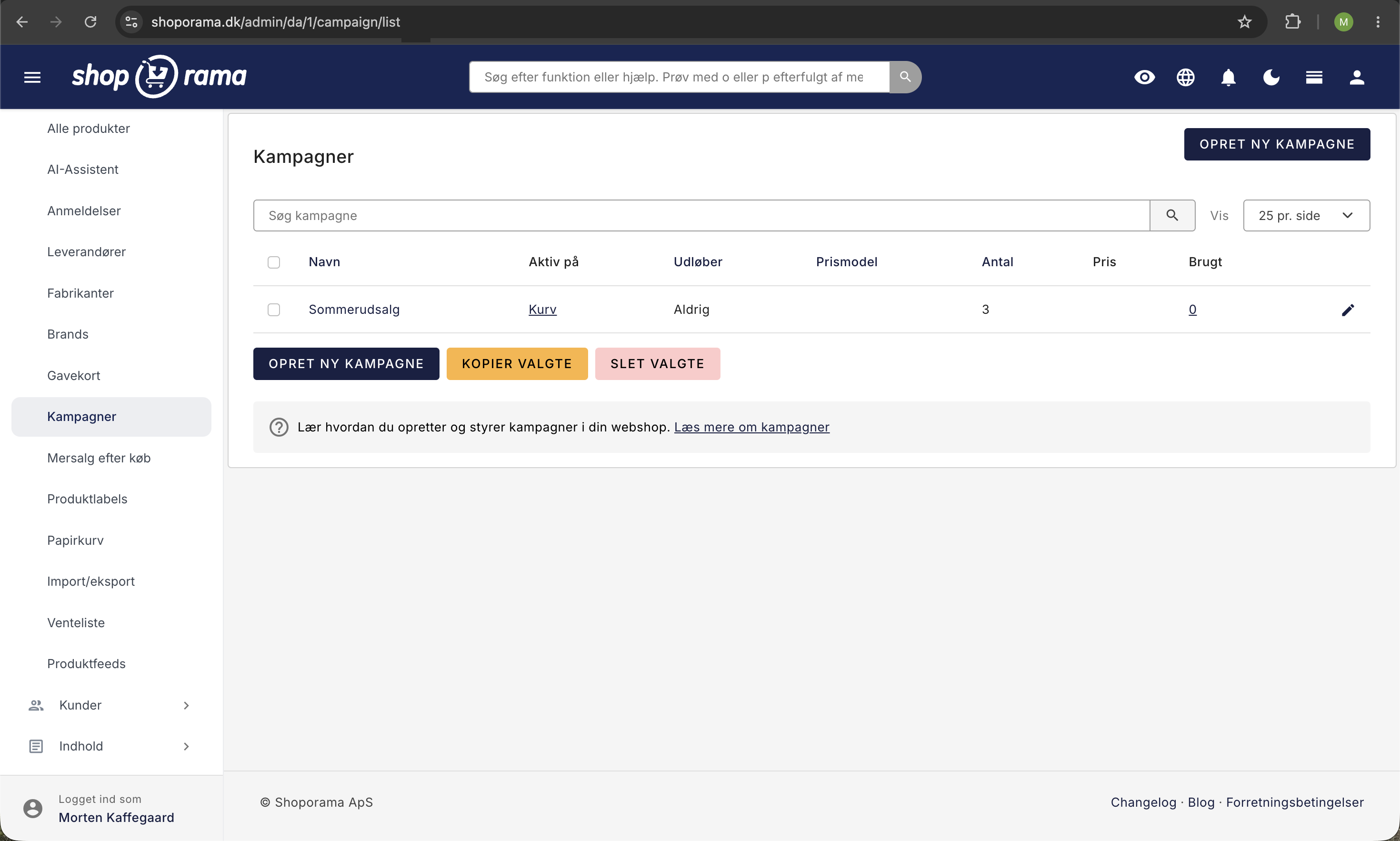
- Go to Campaigns in the admin panel
- Click Create New Campaign
- Give the campaign a name (displayed to customers)
- Select a campaign type: fixed price, buy one get one free, percentage discount, amount-based discount, or combination discount
- Fill in the fields for the selected type—quantity and price/percentage for the first three, amount and percentage for amount-based discount, qualifying items and discounted items for combination discount
- If desired, add a description explaining the offer
- Optionally, set a start date (“Valid from”) and an end date
- Save the campaign
Targeting
You determine which products the campaign applies to by linking:
- Specific products — Select the specific products included in the campaign
- Categories — All products in the selected categories are automatically included
- Landing pages — All products displayed on the selected landing pages are included
For a combination discount, you create both a list of qualifying items and a list of discounted items. Both lists can consist of specific products and/or categories.
Note: A product can only be included in one campaign at a time. If a product is already associated with another campaign, it cannot be selected.
Start and end dates
You decide exactly when a campaign should be active. A campaign can run indefinitely or have a start date, an end date, or both.
- Valid from — select “immediately” or set a future date and time. This allows you to create the campaign now and have it go live automatically on the start date. Until then, the campaign is inactive in the store, so customers won’t see it yet.
- Expires — select “never,” or set a date and time for when the campaign should end. Expired campaigns still appear in the overview but are no longer active.
For example: If you want to offer a 15% discount only from July 15–17, you can create the campaign right now, set “Valid from” to July 15, and “Expires” to July 17 at 11:59 PM. The discount will then be activated and deactivated completely automatically, without you having to remember to do anything on the actual days. Campaigns with a future start date are marked with a blue “Scheduled” label in the campaign overview.
Campaign Image
You can upload an image or banner for the campaign that will be displayed in the online store. This can be used to visually highlight the offer for customers.
Display in the online store
When a campaign is active, it is automatically displayed to customers:
- On the product page — The customer sees the campaign’s name, description, and savings
- In product lists — Products with active campaigns are marked with a campaign indicator
- In the cart — The discount is calculated and displayed automatically when the conditions are met
Campaigns and Discount Codes
Campaigns can be used in conjunction with discount codes. The campaign discount is applied to the associated products, while the discount code may apply to the other items in the cart. The two systems complement each other.
Statistics
In the promotion overview, you can see how many times each promotion has been used. Click on the number to view the specific orders that used the promotion.
If you have any questions about promotions, feel free to contact us at support@shoporama.dk.
Related articles
Stepper discount on products
Here's how to set up volume discounts so customers get a better unit price when they buy multiple units of the same product. This is set up for...
Unsubscribe links in automatic emails
Give your customers the option to unsubscribe from automatic follow-up emails after purchases and product reviews - with a simple link in the email.
AI assistant in the text editor
Learn how to use Shoporama's built-in AI assistant to generate product texts, image descriptions and text suggestions.
Related features
Advanced campaigns - tailored offers for your customers
Create campaigns with volume discounts, percentage discounts and cheapest-free. Link to products, categories and landing pages. Limited-time offers...
New promotion types: Amount-based discount and Combination discount
Shoporama has two new automatic promotion types: amount-based discount for purchases of X amount and combination discount (buy A, get discount on...
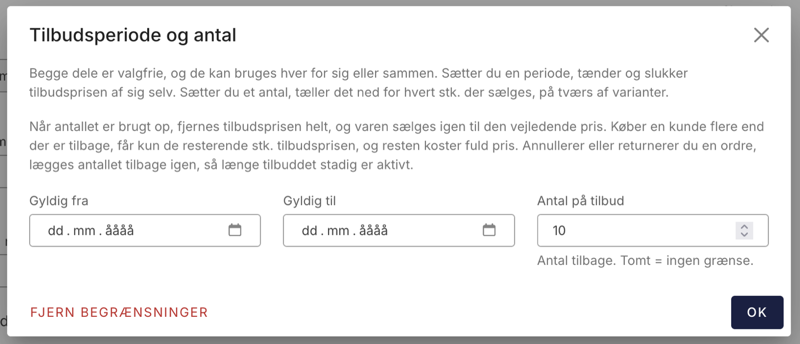
Now your offer can also stop at a certain number
Set a limit on the number of items sold at the sale price. When that number reaches zero, Shoporama automatically ends the sale. That's how the...
Loss leader
A loss leader is a product sold below cost to attract customers. Learn about the strategy, the risks and when it makes sense for your online store.
Theme Settings in Delaware: Store and Products
An explanation of all fields in Delaware's store and product theme settings: colors, badges, value propositions, filters, categories, product...