Navision is now called Business Central
Navision is a financial and business management system that was developed in Denmark and later renamed Microsoft Dynamics NAV. In 2018, its successor, Microsoft Dynamics 365 Business Central, was released. Many people still refer to it as Navision or NAV, both for the older installations and for Business Central, which is why many search for a “Navision online store” when they mean an online store that can integrate with their financial system.
For the online store, it’s important to make this distinction. An older Navision or NAV installation and Business Central Online are two different things, and this determines how the online store can be integrated. You can read a brief overview of the system in the glossary under “Business Central.”
What is the difference between Navision and Business Central?
Business Central is the latest generation of the same system. The differences that matter for an online store are primarily these:
| Navision and Dynamics NAV | Business Central Online | |
|---|---|---|
| Where it runs | Typically on your own server or with a hosting partner | In Microsoft’s cloud |
| Operation and Updates | Your responsibility, often in collaboration with a partner | Microsoft handles operations and updates |
| Integrations | Built for your own installation | Via Microsoft’s API with login through your Microsoft account |
| Shoporama’s Business Central app | Does not work | Works |
Business Central is also available on-premises, meaning on your own server. Shoporama’s app only works with the online version.
Therefore, the Business Central online web store app is required
Shoporama’s app communicates with Business Central through Microsoft’s cloud API and logs in via your Microsoft account after an administrator has granted permission. This method is only available for Business Central Online. The app therefore cannot be connected to:
- Navision
- Microsoft Dynamics NAV, regardless of version
- Business Central on-premises, i.e., Business Central on your own server
If you’re transitioning from Navision to Business Central Online, you can set up the app as soon as the migration is complete. The app logs into Business Central as a program and does not use one of your user licenses.
How to Connect the Web Store to Business Central
Once you’re on Business Central Online, set up the connection in five steps:
- Install the app. Go to Integrations, Apps in Shoporama, and click Install for Microsoft Dynamics 365 Business Central.
- Connect to Microsoft. Click Connect to Business Central, and have an administrator on your Microsoft account sign in and grant consent.
- Set up the app in Business Central. Search for Microsoft Entra apps in Business Central, set up the app using the client ID shown in the app’s settings, and grant it the D365 BUS FULL ACCESS permission set. Set Status to Enabled.
- Set up the customers. Create a one-time customer template under API Setup so that new customers are assigned their accounting groups, or group private customers under a single customer.
- Select the company, accounts, and contra accounts in the app, then click Save. Test with a single order.
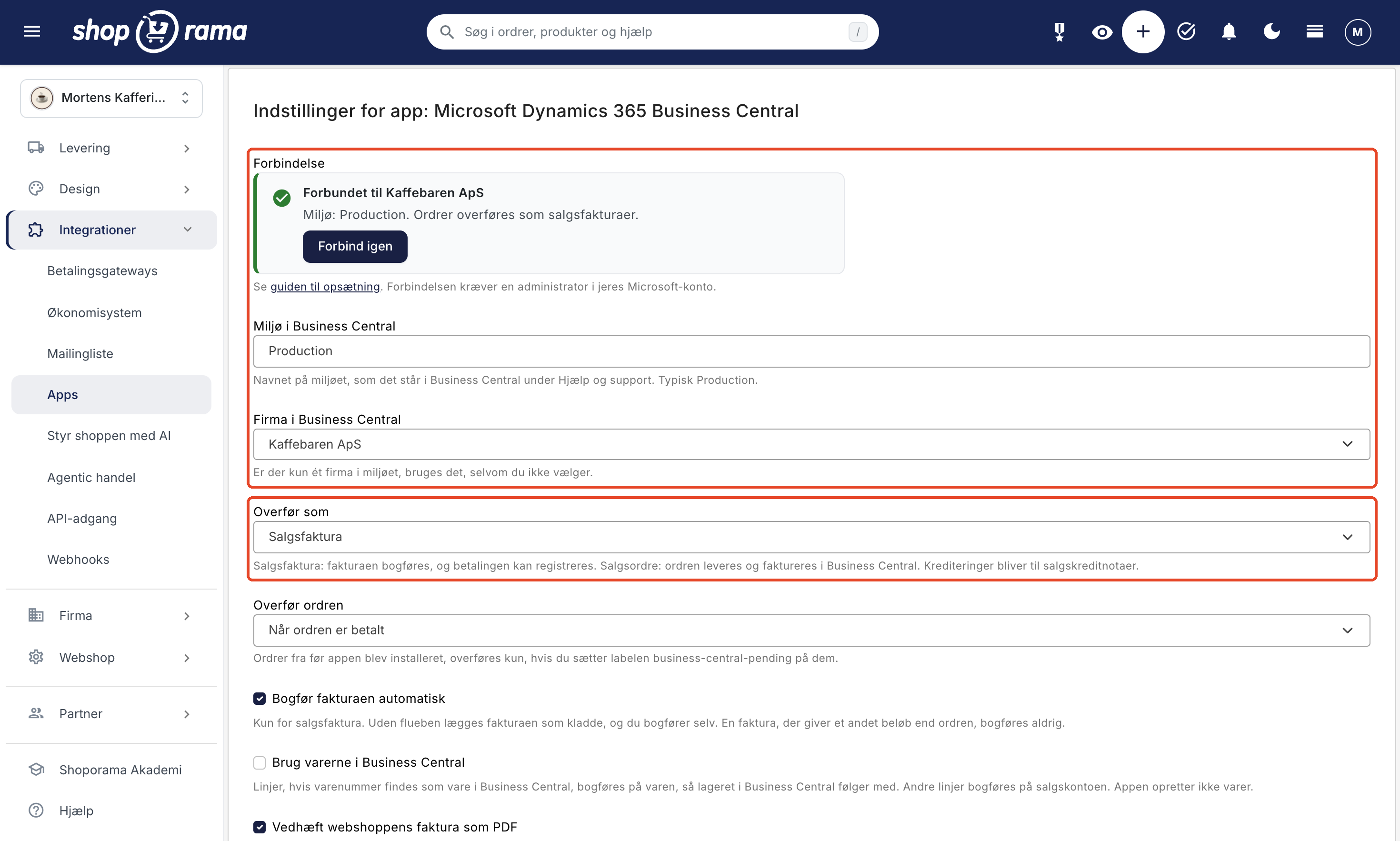
Your Business Central partner can assist with the steps within Business Central. The complete guide is available in “Set Up Business Central Integration.”
This sends the order from the online store to Business Central
- Sales invoice or sales order. By default, the order becomes a posted sales invoice. If you ship from Business Central, it can instead become a sales order.
- The customer. The customer is identified by email or created as a new customer; for businesses, this includes the CVR number.
- Items, shipping, and discounts are listed on separate lines, and with “Use Items in Business Central,” the sale is posted to your inventory.
- VAT. Each line is assigned a VAT group, and each new customer is assigned a VAT region; Business Central calculates the VAT.
- Payments for paid orders are recorded and reconciled with the sales invoice, with a contra account for each payment method.
- The online store’s invoice is attached to the sales invoice as a PDF, and the order number is listed in the “External Document No.” field.
- Credits are converted into sales credit memos.
Learn more at “Web Store with Business Central,” and if you sell to resellers, see “B2B Web Store with Business Central.”
Are you in the middle of switching from Navision?
A transition from Navision to Business Central takes time, but the online store doesn’t have to wait for it.
- The online store can continue to operate in the meantime. Until Business Central Online is ready, you’ll post the online store’s orders just as you do today. Install the app once you’ve completed the migration.
- You decide when the transition takes place. Orders placed before the app was installed will only be transferred if you apply the “business-central-pending” label to them. Choose a cutoff date together with your accountant so that no order is posted twice. How to use labels: Order labels.
- Test in a sandbox. The app can be connected to a sandbox environment in Business Central before you go live in Production. Use test orders, because an order that has been transferred to the sandbox will not be transferred again when you switch to Production.
- Chart of Accounts and VAT Setup. The app uses your chart of accounts, VAT groups, and VAT regions in Business Central. Agree with your partner on which accounts and groups the online store’s sales should be posted to, and have the customer template created.
- Keep the item numbers. If the items in Business Central have the same numbers as in the online store, sales can be posted to the items so that inventory in Business Central is updated accordingly. The item number is also called an SKU.
- Are you also switching online stores? See the guide on migrating your online store to Shoporama or the DanDomain alternative. Orders you import from your previous online store will not be sent to Business Central.
When does Microsoft’s support for Navision end?
It depends on the version. According to Microsoft’s lifecycle page, extended support for Dynamics NAV 2018 ends in January 2028 and for Dynamics NAV 2017 in January 2027. Dynamics NAV 2016 has been out of support since April 2026. You can view the dates on Microsoft’s lifecycle page for Dynamics NAV 2018, and your partner can tell you which version you’re running.
Frequently Asked Questions About Navision and the Web Store
What is the difference between Navision and Business Central?
Business Central is the successor to Navision and Dynamics NAV. Navision and NAV typically run on your own server or with a hosting partner, while Business Central Online runs in Microsoft’s cloud, where Microsoft handles operations and updates. Integrations with Business Central Online are handled through Microsoft’s API and login.
What is Navision called today?
Navision was renamed Microsoft Dynamics NAV, and its successor is called Microsoft Dynamics 365 Business Central. Many people still refer to both the older installations and Business Central as Navision or NAV.
Does Shoporama’s app work with Navision or Dynamics NAV?
No. The app communicates with the Business Central Online API and logs in via Microsoft, and there is no such integration available for Navision or Dynamics NAV. If you’re in the process of migrating to Business Central Online, you can set up the app once the migration is complete.
Does the app work with Business Central on-premises?
No, only with Business Central Online. If you’re running Business Central on your own server, the app cannot connect.
Does the online store have to wait until we’re on Business Central Online?
No. The online store can run, and you can post orders just as you do today. Once Business Central Online is ready, you’ll install the app. Orders placed before installation will only be transferred if you apply the “business-central-pending” label to them, so you decide when the transition takes place.
Can we use our item numbers from Navision?
Yes, if the items in Business Central have the same numbers as in the online store. The app will then post the sales for those items when “Use Items in Business Central” is enabled, and variants can be matched using the item number and variant code separated by a hyphen. The app does not create items; they must already exist in Business Central.
When will Microsoft stop supporting Navision?
It depends on the version. According to Microsoft’s lifecycle page, extended support for Dynamics NAV 2018 ends in January 2028 and for NAV 2017 in January 2027, while NAV 2016 has been out of support since April 2026. Your partner can tell you which version you’re running.
How much does it cost to connect the online store to Business Central?
The app is free in Shoporama. You’ll need to arrange the Business Central licenses and assistance with the migration from Navision directly with Microsoft or your partner. The app does not use any of your Business Central user licenses.
Ready to connect your online store to Business Central?
If you’re on Business Central Online, you can install the app for free under Integrations > Apps in Shoporama. If you’re still on Navision, the online store can easily run while you’re migrating, and the app can be set up afterward. If you’re not a customer yet, you can create a web store and try it out for yourself—all accounting integrations are listed under Accounting Programs. Need help? Email support@shoporama.dk.