Business Orders Directly in Business Central
Resellers and other business customers want to place orders whenever it’s convenient for them—even in the evenings and on weekends. With a B2B web store in Shoporama, they place orders themselves, and with the free Business Central app, the order is automatically imported into Business Central without anyone having to re-enter it. By default, it becomes a posted sales invoice on the company’s own customer account. If you ship from a warehouse managed in Business Central, it can instead become a sales order.
You manage the B2B sales themselves—such as customer group pricing, corporate accounts, and invoice purchases—in Shoporama. The app ensures that the order is transferred correctly to Business Central with the company name, CVR number, VAT, and payment status. It works with Business Central Online.
It transfers the business order to Business Central
- The company as the customer. An order counts as a business order when it includes a CVR or VAT number, an EAN number, or a company name. The app searches for the customer by email. If it isn’t found, a new customer is created as a company with a company name, address, phone number, email, CVR number, and VAT region.
- Recognized by the CVR number. If the app has encountered the company before, it also recognizes it by the CVR number. If a colleague places an order using a different email address, the order will therefore be assigned to the same customer as long as the CVR number is listed on the order.
- Delivery address. If the goods are to be delivered to a location other than the company’s address, the delivery address appears on the invoice along with the email and phone number.
- The order number. The online store’s order number is listed under “External Document No.,” and the note on the order in Shoporama displays the invoice number in Business Central, so you can cross-reference between the two.
- Prices from the online store. The line items inherit the price from the order, even when the customer has received a customer group price or volume discount, and shipping and discounts are listed on separate lines.
- Items under your item numbers. With “Use Items in Business Central,” the line items are posted to your items when the item numbers match, so inventory in Business Central tracks sales.
Invoice purchases and EAN: an open item you need to follow up on
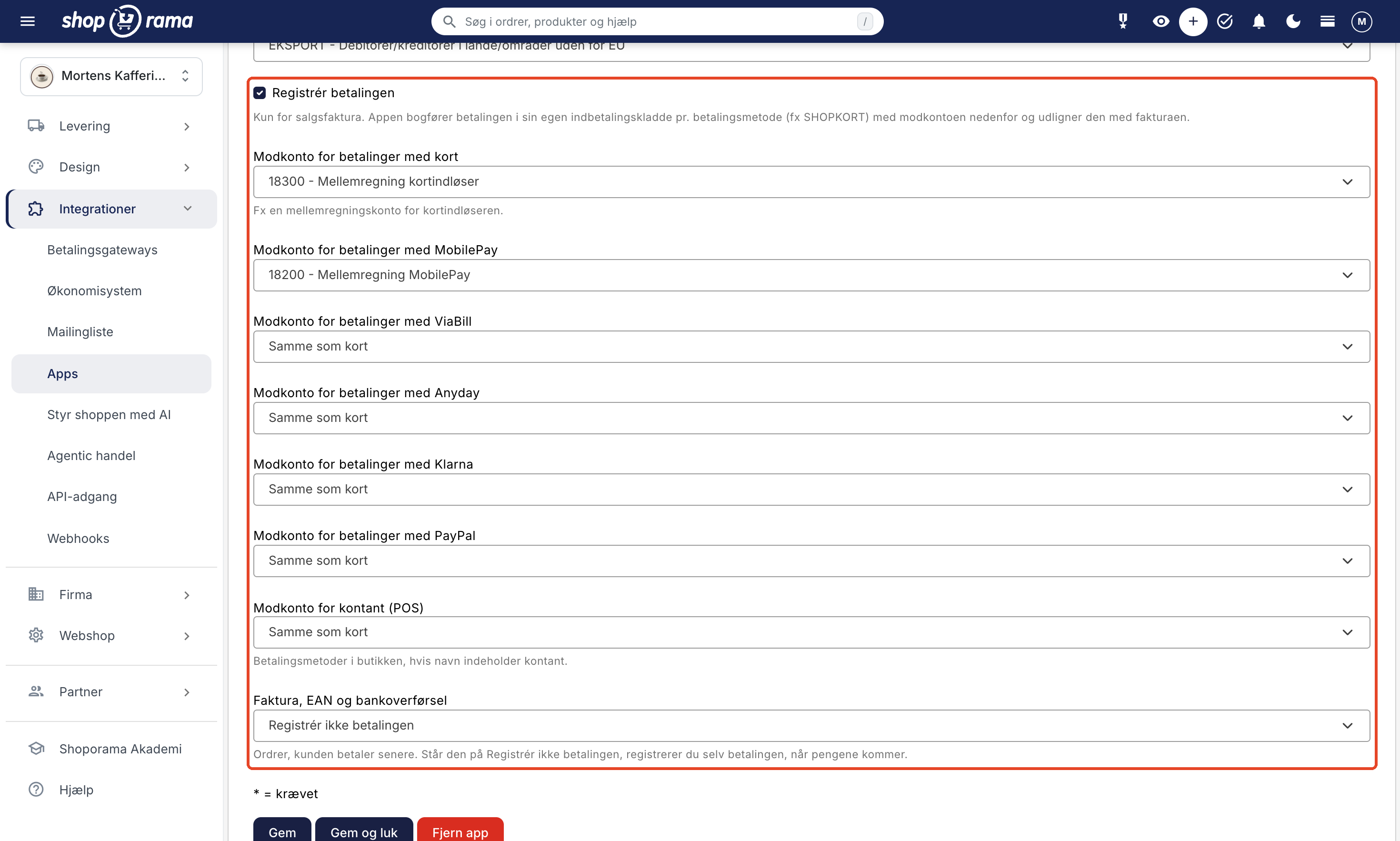
If a business customer pays by invoice, with an EAN number, or via bank transfer, the funds have not yet been received when the order is transferred. Therefore, by default, “Invoice,” “EAN,” and “Bank Transfer” are set to “Do not post the payment.” The sales invoice is posted but remains open on the customer’s account in Business Central. You record the payment when the funds are received and follow up on overdue invoices, just as you do with your other customers.
If “Transfer the Order” is set to the default option, “When the order is paid,” the invoice will not be transferred until it is marked as paid in Shoporama. If you want the invoice to appear in Business Central before the customer has paid, select “When the order is shipped” under “Transfer the Order.”
If the company pays by card or MobilePay, the payment is recorded as with other orders using the contra account you’ve selected for the payment method, and the invoice is marked as paid.
The EAN number is not included because it cannot be assigned to the customer via Business Central’s API. If you send EAN invoices from Business Central, the customer must have the EAN number as the GLN number in Business Central, and you must add it yourself. To learn how customers pay with EAN in the online store, see “Set Up EAN Payment as a Payment Method.”
Sales to Businesses in the EU and Outside the EU
If you sell to businesses in other EU countries, Shoporama checks the VAT number in the EU’s VIES registry, and the transaction is processed without VAT under the reverse charge mechanism. Read more in “Reverse Charge and VIES Validation.” In Business Central, a new customer is assigned the VAT region for EU businesses (e.g., EU), and the sales can be posted to a separate account under “Sales to Businesses in the EU.” Orders without VAT to countries outside the EU are assigned the VAT region for exports (e.g., EXPORT) and the account “Sales Outside the EU.”
The line items retain the VAT group with VAT when the item normally includes Danish VAT, and it is the customer’s VAT region that specifies 0%. Business Central then places the sale in the correct fields on the VAT return. Business Central calculates the VAT based on your VAT accounting setup, and the app subsequently verifies the amounts and VAT against the order.
If the VAT number was invalid and the online store therefore charged VAT, the customer is treated as a Danish customer, so Business Central applies the same VAT rate as the order. If you sell in a foreign currency, the invoice is issued in the order’s currency, and you record the payment yourself in Business Central.
Sales Order When Inventory Is Shipped from Business Central
If you manage inventory and shipping in Business Central, the order can be transferred as a sales order instead of an invoice. Select Sales Order under Transfer as, and optionally select When the order is created under Transfer the order; this ensures the order is ready as soon as the retailer places it. You fulfill and invoice the sales order in Business Central as usual, and with “Use items in Business Central,” the line items will be populated with your products.
For sales orders, the app does not record any payment and does not attach a PDF. If you credit an order that was transferred as a sales order, the credit memo is saved as a draft so you can post it once the goods have been returned. Business Central cannot create return orders from external sources.
The B2B Web Store: Prices, Company Accounts, and Reordering in Shoporama
You manage prices, product assortment, and customers in the online store via Shoporama, and the app forwards the orders. This also means that prices and inventory are not retrieved from Business Central.
- Closed-access reseller store. With the B2B theme, only logged-in customers can view the product range and prices, and prices are displayed excluding VAT.
- Customer groups with their own prices. Discounts per group, fixed special prices per item, and volume discounts. See Customer Groups and B2B Prices.
- Company accounts with multiple users. Multiple buyers from the same company under a single account, each with their own role. See Company Accounts with Multiple Users and Roles.
- Quick reorder. The customer searches by item number, uploads a file with item numbers and quantities, or reorders from a previous order. See Quick Reorder for Business Customers.
- Invoice purchases and minimum order value per store or per customer group.
The complete overview is available in the B2B Webshop and in B2B Sales in Shoporama. If inventory or prices need to be sourced from Business Central, a different solution is required, such as via Shoporama’s REST API.
How to Get Started
- Install and connect the app. Go to Integrations, Apps in Shoporama, install Microsoft Dynamics 365 Business Central, and click Connect to Business Central. An administrator in your Microsoft account must grant consent.
- Create the app in Business Central under Microsoft Entra applications with the D365 BUS FULL ACCESS permission set, and set Status to Enabled.
- Create a customer template under API Setup in Business Central so that new company customers are assigned their accounting groups.
- Select the setup. Select Sales Invoice or Sales Order, sales accounts, tax regions, and contra accounts, and leave Invoice, EAN, and Bank Transfer set to “Do not record the payment.”
- Test with a business order, and check the customer in Business Central and the note on the order in Shoporama.
The full guide is available in “Set Up Business Central Integration,” and information on what else the app can do is available on the “Web Store with Business Central” page.
What You Need to Know Before You Get Started
- Prices and inventory do not come from Business Central. You manage customer prices and inventory in the online store via Shoporama.
- Existing customers are identified by email. Business Central cannot search by CVR number, so a company that already existed in Business Central before you started using the app will only be recognized if the customer has the same email address as in the online store. Otherwise, a new customer will be created.
- Blocked customers are not used. If the customer with that email address is blocked in Business Central, the app creates a new one.
- The EAN number is not included. It must be listed as the GLN number for the customer in Business Central if you send EAN invoices from there.
- OSS orders are created as drafts. Orders to private customers in other EU countries with a VAT rate other than 25% are created as drafts so that you can select the VAT groups yourself in Business Central.
- Business Central Online only. The app does not work with Business Central on-premises, Dynamics NAV, or Navision. See the Navision web store.
Frequently Asked Questions About the B2B Web Store with Business Central
Is the CVR number transferred to Business Central?
Yes. When the app creates a new customer for a company, the company name and CVR number are included—or the VAT number, if it’s a foreign company. An existing customer retains its own information.
How does the app recognize a company that has made a purchase before?
First, by the email address. If the app has encountered the company before, it also recognizes it by the CVR number, so a colleague with a different email address will be assigned to the same customer when the CVR number is listed on the order. Business Central cannot search by CVR number, so a company that existed in Business Central before you started using the app is identified solely by email.
When does an order count as a business order?
When the order includes a CVR number, a VAT number, an EAN number, or a company name. In that case, the company will always have its own customer record, even if you group private customers under a single customer record.
What happens to orders on an invoice or with an EAN number?
The sales invoice is posted, but by default, the payment is not recorded, so the invoice remains open under the customer in Business Central. You record the payment when the funds are received and follow up on overdue invoices as usual. With the default setting “When the order is paid,” the order is transferred only after it is marked as paid in Shoporama; therefore, select “When the order is shipped” if you want the invoice to be transferred earlier.
Is the EAN number transferred to Business Central?
No. It cannot be added to the customer record via Business Central’s API. If you send EAN invoices from Business Central, the customer must have the EAN number as the GLN number, and you must add this yourself in Business Central.
Can retailers see their own prices from Business Central in the online store?
No. The app does not retrieve prices from Business Central. You manage B2B prices in Shoporama using customer groups: discounts per group, fixed special prices, and volume discounts. The price on the order is the one that appears on the sales invoice.
Can we sell without VAT to businesses in other EU countries?
Yes. Shoporama verifies the VAT number in the EU’s VIES register, and the order is VAT-exempt under the reverse charge mechanism. In Business Central, a new customer is assigned the VAT category for EU businesses, and the sale can be assigned its own account. Business Central calculates the VAT, and the app verifies the amount against the order.
Can we have both individual and business customers in the same online store?
Yes. Private customers can each have their own customer account or be grouped under a single fixed customer account, such as “Webshop Customers.” Businesses always get their own customer account.
Can the order be converted into a sales order so that the warehouse ships from Business Central?
Yes. Select “Sales Order” under “Transfer As.” The order is transferred as a sales order, which you fulfill and invoice in Business Central, and with “Use Items in Business Central,” the line items will display your products. The app does not record any payments on sales orders.
What happens when a business customer returns items?
If you credit the order in Shoporama, it becomes a sales credit memo in Business Central. If the order was transferred as a sales order, the credit memo is created as a draft, so you can post it once the goods have been returned. Business Central cannot create return orders from external sources, so you’ll need to create them yourself.
Ready for B2B sales with Business Central?
If you have a Shoporama online store, you can install the Business Central app for free under Integrations, Apps. If you’re not a customer yet, you can set up an online store and try out the B2B features yourself. If you prefer to invoice in Uniconta, see B2B Online Store with Uniconta. Need help? Email support@shoporama.dk.