Color Schemes: Switch Between Multiple Color Palettes
Change the entire color scheme of your online store with a single click. Learn how to use color schemes, why this menu option is only available in certain themes, and how it works with Theme Settings.
A color scheme is a pre-designed color palette for your online store. Instead of entering individual colors one field at a time, you select a scheme, click Save, and your entire store gets a fresh new look. Buttons, the header, menu, footer, and USP bar all change together, so the colors still coordinate afterward.
Colors are one of the most affordable elements you can tweak. You can give your store a seasonal makeover for Christmas, try out a more subdued look, or match the store to your logo without hiring a developer. And if you change your mind, just click the old scheme again.
Where to Find Color Schemes
You’ll find the page under Store, Design, Color Schemes, right below Theme Settings in the Design menu.
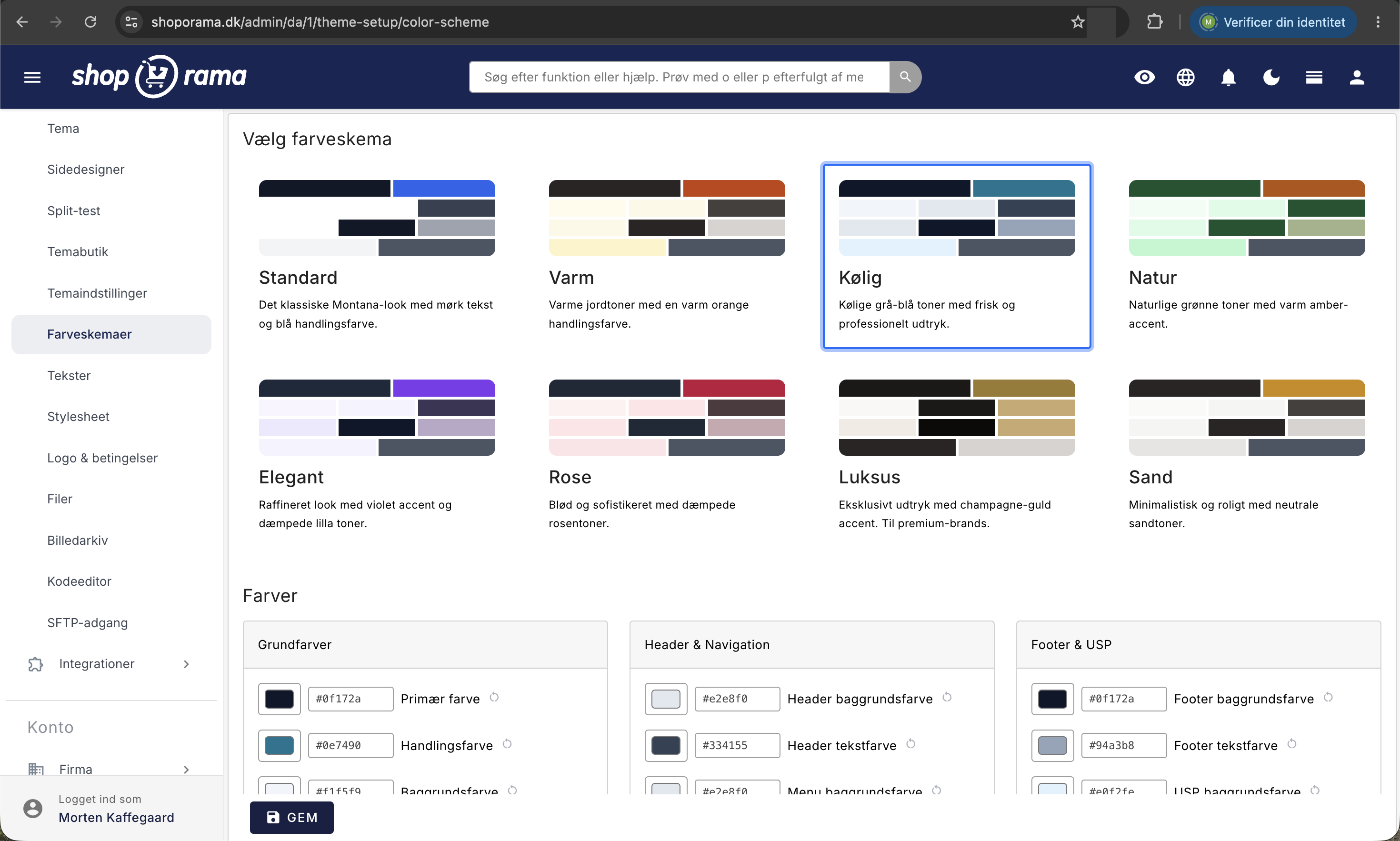
The page opens with the heading “Select Color Scheme” and a gallery of cards. Each card displays a strip of color swatches, the scheme’s name, and a brief description. Further down is the “Colors” section with the individual color fields, and at the very bottom is a Save button that follows as you scroll.
Can’t find the menu item? Then your theme doesn’t support color schemes
Here’s the most important thing to know before you start searching in vain: Color schemes only appear in the menu if the theme your store is currently running has built-in color schemes. If it doesn’t, the menu item won’t be there at all, and if you go directly to the URL, you’ll be redirected to Theme Settings.
Technically, this requires that the theme contain a file named color_scheme.json in its root folder—that is, in the same location as the theme’s other configuration file , theme_settings.json. If the file isn’t there, or if it lacks the list of color schemes, there will be no menu item.
Among Shoporama’s built-in themes, Montana and MontanaB2B include color schemes. If you’re using a different theme—such as Delaware—or a theme a developer has built for you, you’ll instead set the colors individually under Theme Settings. If you want color schemes in your own theme, your developer can add the file.
How to change a color scheme
- Go to Store, Design, Color Schemes.
- Browse through the gallery. The currently selected scheme is marked with a blue border around the card.
- Click on the card you want to use. The color fields further down will immediately fill with the scheme’s colors, so you can see the exact color codes before you save.
- If you want to adjust a single color, do so now (see the next section).
- Click Save at the bottom. Cmd+S on Mac or Ctrl+S on Windows does the same thing.
Nothing happens in the store until you click Save, so feel free to click around between the color schemes. Once you’ve saved, the store’s cache is automatically cleared. If you’re still seeing the old colors, perform a hard refresh (Cmd+Shift+R or Ctrl+F5), as the browser may hold onto the old version for a moment.
What does a color scheme contain?
A scheme consists of a name, a brief description of the style, and a color for each of the color roles the theme uses. The color swatches on the palette show them all, and if you hover your mouse over a swatch, you can see which role it fills.
Montana offers eight color schemes: Standard, Warm, Cool, Nature, Elegant, Rose, Luxury, and Sand. The colors are divided into three groups:
- Base Colors: Primary Color (text, headings, and dark elements), Action Color (buttons, links, and calls to action), and Background Color.
- Header & Navigation: Header background color, Header text color, and Menu background color.
- Footer & USP: Footer background color, Footer text color, USP background color, and USP text color.
A color scheme controls only colors. Font, corner rounding, spacing between sections, logo, and favicon are part of Theme Settings and remain unchanged when you switch schemes.
Fine-tune the colors yourself
Under “Colors,” each color is listed in its own field with two options: a color picker you can click and navigate, and a small text field for the hexadecimal color code—the kind that looks like #2563eb. The two fields work in tandem, so use whichever one you’re most comfortable with. If the theme has defined a default color for the field, there’s a small circular arrow icon on the right that resets the color to that value. The icon only changes the field, so remember to click Save afterward.
One detail worth knowing: if you select a color scheme and then change a single color, the card will remain highlighted. The highlight indicates which color scheme you last used as a starting point, not that the colors are identical to the scheme. If you want to return to the blank scheme, just click the card again.
Here’s how it works with Theme Settings
The two pages use the same colors. The Color Scheme page is a shortcut that only displays the colors and applies them all at once, while Store, Design, Theme Settings contains everything else: text, images, features, and other design choices. In Montana, the colors are located in the Theme & Colors section.
If you change a color in one place, you’ll see it updated in the other, and the value you saved last is the one that applies. If you switch color schemes, you’ll only overwrite the colors included in that scheme.
Here’s how it works with your own stylesheet
If you or your developer have added custom CSS under Store, Design, Stylesheet, it will be loaded after the theme’s own CSS. Your own code therefore takes precedence over the theme. This is useful when you want to make a specific adjustment, but it’s also the typical reason why, if you switch color schemes, the buttons or header might retain their old color: the color is hardcoded somewhere in your own stylesheet. Remove the hard-coded color there, and the element will once again retrieve the color from the theme.
Tips before you click Save
- Check the contrast. The colors in the built-in schemes are designed to ensure the text is readable. If you’re mixing colors yourself, make sure light text doesn’t end up on a light background. This affects both conversion rates and accessibility.
- Go through the shopping cart and checkout process. The call-to-action color is used on the “Add to Cart” button and the payment buttons, so click through the entire process once afterward, including on mobile.
- Don’t forget your images. The header, footer, and menu are included in the template, but banners and campaign graphics are not. If you have graphics with the old color embedded, they’ll need to be redesigned.
- Write down the old color codes. If you’ve fine-tuned colors yourself over time, copy the codes somewhere before you select a new color scheme. There’s no undo button or history on the page.
If you’re completely new to this, you’ll actually encounter the color schemes right in the setup wizard. After the step where you choose a theme, the “Colors” step appears immediately, featuring the same gallery. If you choose a theme without color schemes, this step is skipped.
For the Tech-Savvy
This section is only relevant if you’re building or maintaining your own theme.
To display “Color Schemes” in the menu, the theme must contain a `color_scheme.json` file in its root folder. The file must be valid JSON and contain a list of schemes. If the file or key is missing, the menu item will not appear, and the page will redirect the user to Theme Settings.
{
  "groups": [
    {
      "label": "Primary Colors",
      "fields": ["theme.primary", "theme.action", "theme.background"]
    }
  ],
  "schemes": [
    {
      "id": "default",
      "name": "Default",
      "description": "Brief description of the scheme.",
      "colors": {
        "theme.primary": "#111827",
        "theme.action": "#2563eb",
        "theme.background": "#ffffff"
      }
    }
  ]
}
The keys follow the format section.field and must correspond to fields of type color in the theme’s theme_settings.json. The name of each field and the value behind the reset icon are also retrieved from there, so a field without a corresponding definition is displayed with its raw key and without the option to reset. `groups ` controls how the fields are grouped into columns, and `schemes ` controls the cards in the gallery, where the color swatches are rendered based on the `colors` in the scheme.
When the user saves, the colors are written as standard theme settings, while the scheme’s ID is saved separately, solely so that the correct card can be selected next time. Your theme should therefore only deal with the theme settings, not the scheme ID. Montana converts them into CSS variables in :root, including --color-primary and --color-action. This approach is worth emulating, as it ensures that a theme change takes effect everywhere without requiring any changes to the HTML code itself. If you need to link to files in the theme, see “Link to stylesheet, etc.”
Frequently Asked Questions
I don’t see “Color Schemes” in the menu at all. Is this something I have to buy?
No, it’s free. This option only appears if your current theme has built-in color schemes, and by no means do all themes have them. If you’re using a theme without this feature, you can set the colors under Store, Design, Theme Settings instead. You can see which theme your store is using under Store, Design, Theme.
How can I see which scheme is currently selected?
The selected scheme is highlighted with a blue border around the card. If you’ve subsequently adjusted a color manually, the card remains highlighted to show what you started with. To revert to the original scheme, click the card again and save.
Do I need to know CSS to use this?
No. Just click a card and press Save. If you want to fine-tune it, you can use the color picker and select the color you want without knowing a single color code. The text field next to it is only for those who have been given a code.
Can I undo it if I think it looks bad?
There’s no “Undo” button, but you can always click the old theme and save it again. If you’ve customized individual colors yourself, copy the codes first, because they’ll be overwritten when you select a new theme. The circular arrow icon next to each field resets the color to the theme’s default, if the theme has one defined.
Does the color scheme apply to all my online stores?
No. The selection applies to each individual online store, so if you have multiple stores, you’ll need to choose a color scheme for each one. This is handy if you’re running multiple brands on the same platform and want to keep them visually distinct.
Can I schedule a Christmas color scheme that automatically reverts afterward?
Not for the color schemes themselves. You’ll need to switch schemes manually. If you need something that turns on and off on specific dates, you can look at stylesheet variants under Store, Design, Stylesheet, which can be scheduled and tested against each other.
Will a new color scheme change my invoices and order confirmations?
The print-friendly invoice has its own fixed layout and isn’t affected. In Montana, some of the email templates use your primary color on the buttons, so they’ll partially follow the new scheme. Send yourself a test email if it’s important that everything works together.
I’ve saved the changes, but the store looks the same. What should I do?
First, try a hard refresh in your browser, as it may still be loading the old version of the page. If a specific element still isn’t changing, it’s usually because your custom CSS under Design > Stylesheet is locking the color in place.
What happens to my colors if I switch themes later?
The colors are saved as theme settings, and a new theme may use different fields. Therefore, change the theme first, and then go through the Color Schemes or Theme Settings afterward. If the new theme doesn’t have any color schemes, the menu item will disappear again.
If you have any questions or are unable to get the colors to apply, feel free to email support@shoporama.dk.
Related articles
The Delaware Theme: Configuration and Customization
A complete guide to Delaware and DelawareDK on your Shoporama online store: theme settings, footer, mega menu, colors, payment icons, Trustpilot,...
Menus and navigation
Learn how to create and edit menus in your online store. This guide covers menu item types, hierarchy, placements, drag-and-drop sorting, and how...
Link to stylesheet and other files in your theme
Guide to linking to stylesheets, JavaScript and other files from your Shoporama theme.
What themes are there on Shoporama?
Complete overview of all free themes on Shoporama: Delaware, DelawareDK, California, Alaska 2, Washington, Montana, and the classic Smarty 2 themes...
Image Archive: Upload, Organize, and Reuse Your Images
Collect, organize, and reuse your images all in one place with the Image Library. Use them as images for products, categories, and pages, and...
Related features
Full design freedom - your design, your rules
Design your online store freely with full access to HTML, CSS and templates. Use templates, Page Builder or build from scratch.
Theme Settings in Montana: An Explanation of All Fields
All groups and fields in Montana's theme settings explained with screenshots: colors, top bar, USPs, product page, checkout, and integrations.
Choose a theme and understand theme settings and the page builder
Select and change themes in Shoporama, and learn the difference between Webstore settings, theme settings, text, and the page designer before you...
Theme Settings in MontanaB2B: Fields and B2B Features
An explanation of all fields in MontanaB2B's theme settings, plus the login screen, prices excluding VAT, customer groups, company accounts, and...