Image Archive: Upload, Organize, and Reuse Your Images
Collect, organize, and reuse your images all in one place with the Image Library. Use them as images for products, categories, and pages, and insert them directly into your text.
The image library is a single, centralized location where you can store all your images so you can reuse them throughout your entire online store. Instead of uploading the same image over and over again, you upload it just once and retrieve it wherever you need it. This is especially useful during seasonal changes: when it’s time to switch the homepage from summer to winter, you can simply pull up last year’s images instead of starting from scratch.
You can use the images in the archive in two ways. You can link them as regular images to products, categories, pages, and other places where they appear in the store just like any other image. And you can insert them directly into your text using the “insert image” button in the text editor—for example, in the middle of a product description, a blog post, or a campaign text—just as you’re used to doing in a word processor.
How to Find the Image Library
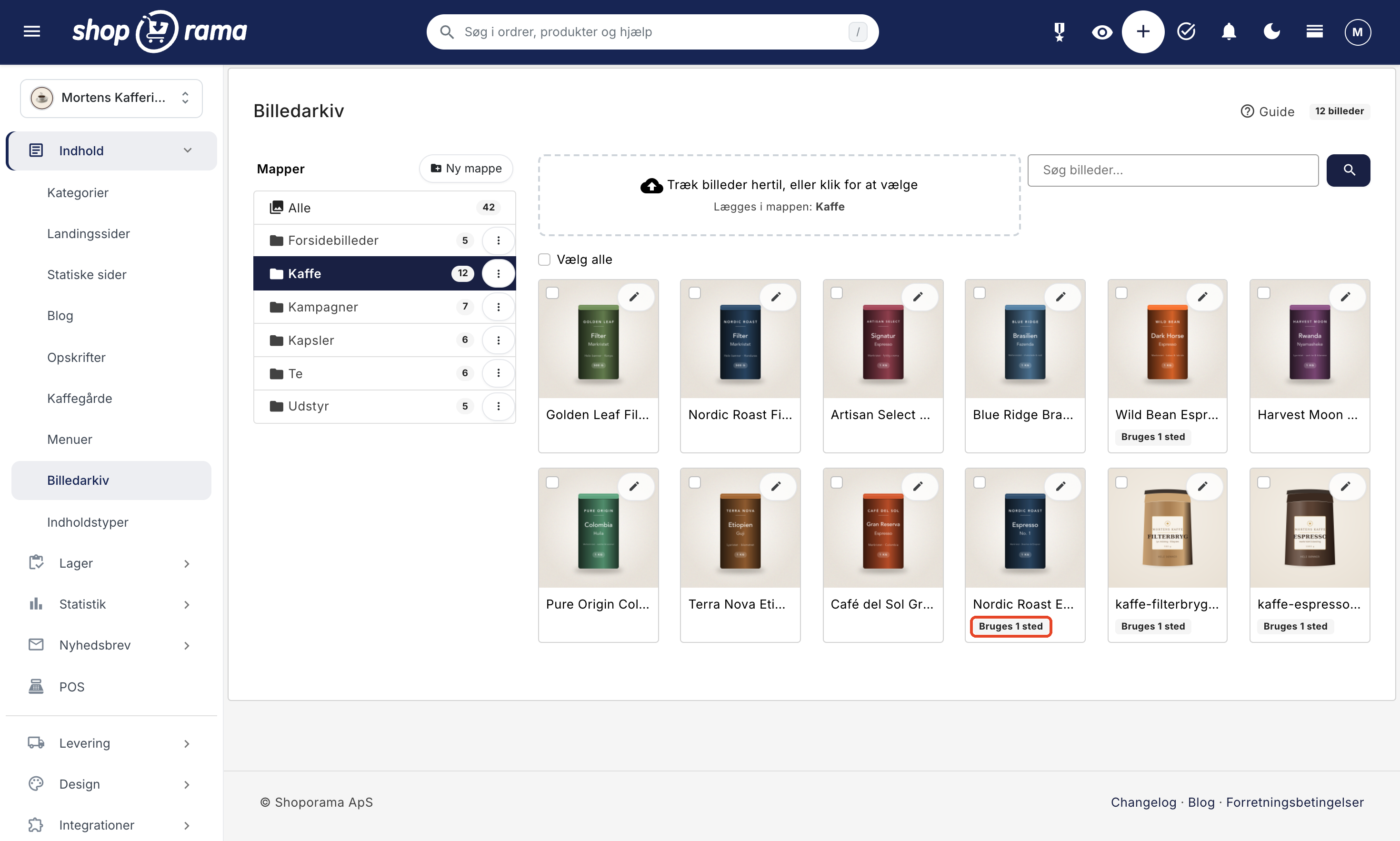
You’ll find the Image Library in the admin panel under Content → Image Library. Here you’ll see all the images you’ve added to the library, organized in a clear gallery with the folders listed in the menu on the left.
Upload your images
You can upload images in two ways:
- Drag and drop. Drag one or more image files from your computer into the upload field.
- Click and select. Click the upload field and select the images in the file browser. You can select multiple images at once.
If you want to place the images directly into a specific folder, select the folder from the menu on the left before uploading. The upload field shows which folder the images will be placed in.
You can drag and drop many images at once—even several hundred. They’ll be uploaded in small batches one after another, and you can track the progress in the upload field, e.g., “Uploading 12 of 200.” Keep the page open until all the images have been uploaded.
If a file is too large or cannot be used, it will be skipped, and you’ll see a message with the file name below the upload field, such as “image.jpg: File is too large (max 30 MB).” The rest of the images will be uploaded as usual, and by clicking the “View Images” button, you can see them in the archive.
File types and size: You can upload JPG, PNG, GIF, and WebP files, up to 30 MB per file. Large images are automatically scaled down to a maximum of 2,000 pixels so they fit reasonably well without you having to worry about it. However, images larger than 40 megapixels (approx. 8,000 x 5,000 pixels) cannot be uploaded.
Organize into folders
Folders help you keep track of your images, for example, by season or campaign. In the menu on the left, you can:
- Create a folder using the “New Folder” button. The folder will remain even if it’s empty, so you can create it first and upload to it later.
- Rename or delete a folder using the three dots next to the folder.
- View the number of photos in each folder directly in the menu.
- Search for an image by name or description.
When you delete a folder, the images are not deleted. They are simply moved out of the folder and remain in the archive under “All.”
Use images from the archive on products and elsewhere
You can link images from the archive directly to a product, a category, a page, and a wide range of other places in the admin panel. The image will appear in the store, in your product feeds, and in the API just like any other image. Here’s how to do it for a product:
- Open the product under Products → All Products, and expand the Product Images tab.
- Click " Select from Image Archive " below the upload field. The "Select Images from Archive" window opens.
- Find the images you need. Select a folder in the “All Folders” field, or search by the image’s filename or description. If the image isn’t among the first few results, click “Show More.”
- Click on the images to select them. You can select multiple images at once, and your selection is retained even if you search, switch folders, or view more. In the lower-left corner, you can see how many you’ve selected, e.g., “2 selected.”
- Click the button in the bottom right corner, such as “Add 2 images” (or “Add image” if you’ve selected one). The images will appear on the product immediately and will be placed at the end of the row, so you can drag them into place just like your other images.
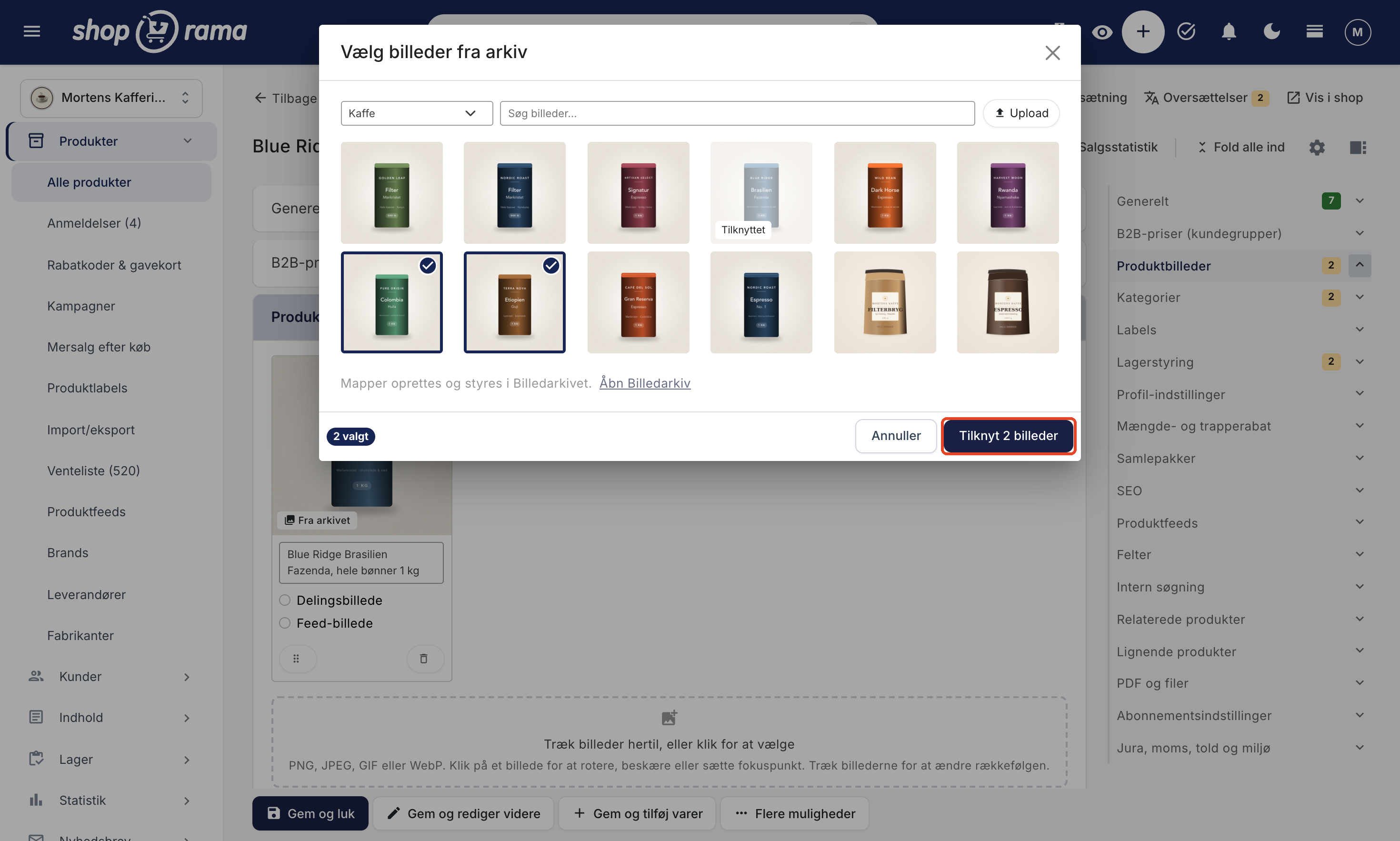
Images that are already attached to the product are dimmed and labeled “Attached” and cannot be selected again. This means you won’t accidentally add the same image twice.
If the image isn’t in the archive yet, click “Upload” at the top of the window. The images will be saved to the archive in the folder you selected in the window and will be automatically marked, so you just need to click the button to attach them. You can also upload multiple images at once here.
Where else can you find the button?
The “Select from Image Archive” button is located below the image field on categories, static pages, landing pages, blog posts, brands, campaigns, posts in your content types, shipping methods, payment gateways, and security profiles. If you create a new page, landing page, blog post, or post within a content type, the button will appear after you save it for the first time.
Some fields can only have one image, such as for a brand, a campaign, a shipping method, or a payment gateway. In these cases, the window is labeled “Select Image from Archive,” and the image you choose will replace the one already there.
The file is stored in only one location
When you link an image from the archive, the file is not copied. The product borrows the file from the archive, so the image is stored in only one location, no matter how many products you use it on. The image on the product, however, has its own settings:
- Alt text. The archive’s alt text is included when you link the image, and you can edit it in the field below the image on the product afterward. Remember to save the product.
- Cropping, rotation, and focus point. You edit the image on the product just like any other image; see Edit Images: Rotate, Crop, and Set Focus Point.
- Order and variant. The image has its own position in the sequence, can be linked to a variant, and can be selected as a Sharing Image or Feed Image.
If you edit the alt text in the archive afterward, it will not be changed on the products where the image is already used, and vice versa. If you crop or rotate the image on a single product, it will not affect the archive or your other products. And if you remove the image from a product, it will remain in the archive and on the other products.
On the product page, you can identify images from the archive by the “From the archive” label on the image card. Next to the “Select from image archive” button, you’ll also find the link “How to use the image archive,” which leads here.
Edit, Move, and Organize
Click the pencil icon on an image to edit it. Here, you can add alt text to the image (a description of what the image shows), move it to a folder, or delete it. You can also copy the image’s URL if you need to use it elsewhere. If you click on the image itself instead, it will be selected (see the section on managing multiple images below).
If you need to manage many images at once, select them (click on the images or use “Select All”) and use the action bar at the bottom to move them to a folder or delete them all at once.
Images associated with products, categories, or other locations have a label in the gallery showing how many places they’re used, e.g., “Used in 1 place” or “Used in 3 places.” Images you’ve inserted into text aren’t counted, so an image without this label may still appear in a text somewhere.
Please note: If you delete an image from the archive and it is embedded in a text somewhere, it will also disappear from there. Images associated with products, categories, and other locations, however, will remain there even when you delete them from the archive. Moving and renaming folders is completely safe, as the images are not deleted.
Insert an image into text
When you’re editing a product description, a page, a blog post, or text for a category, campaign, or landing page, you’ll find an image button in the text editor’s toolbar. Here’s how:
- Place the cursor where you want the image to appear, and click the image button.
- The image library will open. Select an image or upload a new one directly in the window.
- Select a size (small, medium, large, or very large) and click "Insert Image."
- If you want the image centered or aligned to the left or right, select it in the text and use the alignment buttons in the toolbar.
The image is inserted as a link to the gallery, so you don’t need to upload it again. You can use the same image as many times as you like.
Images are automatically optimized
You don’t need to worry about file sizes. Shoporama optimizes the images for you:
- When you insert an image, you select a size (e.g., medium at 800px), and the image is delivered in that exact size, not in the original’s full resolution.
- Images are delivered in the modern WebP format, which results in smaller file sizes.
- The scaled images are cached so they load quickly on subsequent visits.
This means that even a large original image won’t slow down your product description, because only the selected size is downloaded. To learn more about how Shoporama handles quality and format, see Image Quality and Image Format and Optimizing Images for Mobile.
For developers: image adjustment in custom themes
This section is only relevant if you’re building or customizing your own theme.
When an image is aligned in the editor, a CSS class is applied to the image: aligncenter, alignleft, or alignright. Shoporama’s built-in themes style these classes so that the alignment works out of the box. If you’re building your own theme that strips inline styles from the HTML, you’ll need to add CSS for these classes yourself, for example:
.aligncenter { display: block; margin-left: auto; margin-right: auto; }
.alignleft { float: left; margin: 0 1rem 0.5rem 0; }
.alignright { float: right; margin: 0 0 0.5rem 1rem; }
For developers: Manage the archive via REST and AI (MCP)
The archive’s features can also be controlled programmatically:
- REST API. You can list images, upload them (from a public URL, as base64, or as a file with an upload_id), assign a folder or description to an image, and create, rename, or delete folders. Images are located under /library-image and folders under /library-folder. Large images are automatically resized to a maximum of 2000px and served as WebP, just like in the admin panel. Uploading from a URL only works with public HTTP and HTTPS addresses, with a maximum of 5 redirects, and files up to 32 MB. If you want to send the file as multipart, call POST /upload-ticket and send the file in the `file` field to the ` upload_url` you receive in response—one file per call. Use the ` upload_id` provided in the response instead of `data` or `url`, both under ` /library-image ` and in the product’s `images` list. Details can be found in Images from Claude.
- AI (MCP). The same functions are available as AI tools (e.g., library_image_create and library_folder_create), so an AI assistant can handle images for you. Claude can also upload photos you attach in the chat—for example, from your phone—directly to the archive. This requires that you enable “www.shoporama.dk” in Claude’s settings; see “Images from Claude.” Under Integrations → Manage the Store with AI (the “Customize Tools” button), select one of three levels for the “Image Archive” section: Read and Edit, Read-Only, or Off. In Read-only mode, Claude can view images and folders but cannot upload, edit, or delete them. If you’ve enabled Extra Security, deleting images must be approved before it’s carried out.
- Logo, favicon, and theme settings. When Claude sets the store’s logo, favicon, or an image in the theme settings, the image must come from the image archive. If the image isn’t there, you’ll need to upload it yourself first, or ask Claude to add it to the image library from a public web address or from a photo you’ve attached in the chat. A copy is created so that the image remains in the media library, even if the logo is later changed or removed. This also requires that the “Theme and CSS” section be set to “Read and Edit.”
- Archive images on products. When you create or edit a product via REST (POST /product or PUT /product/{id}), an element in the product’s images list can point to an archive image, e.g., {"library_image_id": 123}, possibly with a description (alt text) and weight (sort order). The image is associated with the product just as it is with the button in the admin panel, without copying the file. If the image is already associated with the product, it is reused, so a repeated call does not create duplicates. Rotation and cropping can be included in the same element. Use only one of the fields `library_image_id`, `upload_id`, `data`, and `url` per image. You can find the library image ID under `/library-image`, and an ID that is not in the store’s own library will be rejected. The same applies to a user key whose role does not have access to the image archive. The AI tools `product_create` and `product_update` can do the same thing using IDs from ` library_image_list`, so you can, for example, ask Claude to add an image from the archive to a product.
Note: Inserting an image into text is still done in the text editor. Through the API, you can manage the archive and associate archive images with products. For categories, pages, and other locations, you associate images from the archive in the admin panel.
Frequently Asked Questions
Do I have to upload the same image again every time I want to use it?
No. You upload the image once to the archive and retrieve it wherever you need it. That’s the whole point of the archive. For example, you can reuse last year’s spring images without having to upload them all over again.
Do I need to create the folder first, or can I move images as I go?
Both methods work. You can create a folder using “New Folder” and upload to it, or you can select photos afterward and move them to a folder via the action bar. The same field is also available when you edit a single photo.
Can I move or delete multiple photos at once?
Yes. Click on the images you want to select, or use “Select All.” An action bar will then appear at the bottom where you can move or delete them all at once.
How do I center an inserted image or make it smaller?
When you insert the image, choose a size (small, medium, large, or very large). If you want to center it or align it to the side, select the image in the text and use the alignment buttons in the editor’s toolbar.
Do images automatically get alt text, and does that matter for SEO?
You write the alt text for each image yourself, and it’s used when the image is displayed. Good alt text helps both screen readers and Google Image Search, so it’s worth filling out.
Do large images slow down my page?
No. You choose the image size when you insert it, and it’s delivered as a compressed WebP file in that exact size. If you select “small,” the page only loads a small file, so the loading speed remains fast—even on mobile.
Is the image library shared across my stores?
No. Each online store has its own private image library. If you have multiple stores, they cannot see each other’s images or folders.
Can Claude replace my logo with an image from the archive?
Yes. If you’ve connected Claude to the shop, you can, for example, type “Use the image logo-2026 from the image archive as the logo.” The logo, favicon, and images in the theme settings must always come from the image archive when Claude sets them. If you have the new logo as a file, you can also attach it in the chat, and Claude will add it to the archive first. Claude makes a copy so the original remains in the archive.
What happens if I delete an image from the archive?
It depends on how the image is used. If it’s associated with a product, a category, or another location, it will remain there even if you delete it from the image library. However, if it’s inserted into a text, it will also disappear from the text. The “Used in 3 places” label in the archive only counts these associations, not images in text, so only delete images you’re sure aren’t used in any text. Moving or renaming folders, on the other hand, is completely safe, since images are never deleted when you do that.
Where can I find the Image Archive now?
Under Content → Image Archive. It used to be under Design, but has been moved because the archive is now also used for images on products, categories, and pages.
I can’t see the “Select from Image Library” button. Why?
If you’re creating a new page, landing page, blog post, or post in a content type, the button will appear after you save for the first time. Otherwise, it may be due to your role: the button is only visible to users whose role grants access to the image archive. The button appears next to image fields, such as those on products and categories, but not, for example, in the Page Builder or theme settings. Learn more about roles and permissions.
Can I add archive images to multiple products without having to click through them one by one?
Yes, if you use the REST API or Claude. Both can associate an image from the archive with a product (see the section for developers above). If you’ve connected Claude to your store, you can, for example, ask it to assign images from the “Coffee” folder to the products they belong to. This requires that the “Catalog” section is set to “Read and Edit” under “Customize Tools.”
What happens to the archive images when I copy a product?
The copy uses the same images from the archive, so no new files are created, and you can edit the alt text on the copy without changing the original. If you copy the product to another one of your shops, the copy will have its own file because the archive is private to each shop.
Does image alignment work in my own custom theme?
In Shoporama’s built-in themes, image adjustment works right out of the box. If you’re building your own theme, you may need to add CSS for the three adjustment classes (see the “For Developers” section above).
If you have any questions about the Image Archive, feel free to email support@shoporama.dk.
Related articles
Image quality and aspect ratio in Shoporama
Understand how Shoporama handles image quality and aspect ratio - and what you can do if your images don't look sharp enough.
Edit photos: rotate, crop, and set the focus point
Here's how to rotate, crop, and set the focus point for images in the admin panel. The original is never overwritten, and you can always reset it.
Optimizing images for mobile
Guide to using responsive images with srcset in your Shoporama theme to provide optimized images for mobile users.
Theme Files: Upload Images to Your Theme
Learn how to upload images, PDFs, SVGs, and videos to your online store under "Design" > "Files," how to get a permanent public URL for each...
Page designer
Lær hvordan du bruger Sidedesigner i Shoporama til at opbygge sidelayouts med blokke som hero-sektioner, produktlister, bannere og meget mere, helt...
Images from Claude: Send photos and PDFs directly to your online store
Attach photos and PDFs in Claude on your phone, in Claude Desktop, or at claude.ai, and ask Claude to add them to your products. The first time you...