Delivery: Basic Setup and Shipping Strategy
Get a handle on the entire Delivery menu in Shoporama: countries, shipping methods, shipping rates, weight-based rates, shipping agreements, and labels. See the order in which you should set these up and how the shipping rate is calculated.
Shipping is one of the last things a customer sees before clicking the payment button, and one of the main reasons why shopping carts are abandoned. At the same time, shipping is a real expense that you have to cover yourself. Shipping in Shoporama is therefore structured as a series of pages, each of which adds a piece to the puzzle: which countries you sell to, which shipping methods customers can choose, how much they cost, and how packages are turned into shipping labels.
This article ties the entire menu together. You’ll find it under Store → Shipping in the left-hand menu of your admin panel, and it includes the sections Shipping Methods, Print Labels, Countries, Weight-Based Rates, Shipping Rates, Setup, and Help.
What each page does
- Countries: the countries you sell to, their VAT rates, which shipping methods they can use, and the country’s free shipping threshold.
- Shipping Methods: the options customers see at checkout, such as “GLS PakkeShop” or “Door-to-Door Delivery.”
- Shipping Rates: The price for each combination of country and shipping method. The most important page of them all.
- Weight-based pricing: an optional feature where the price is based on the total weight of the cart instead.
- Setup: Your agreements with shipping carriers, including customer IDs and API access for PostNord, GLS, DAO, Burd, DHL, and DPD.
- Print labels: Create and print shipping labels, even without an order on file.
- Help: a built-in overview of all the factors that can affect the shipping price.
Set it up in this order
The order matters. Shipping Rates and Weight-Based Rates are tables with one field per country and shipping method, so they only become usable once the countries and methods have been added.
- Set up your countries under Store → Shipping → Countries.
- Create your shipping methods under Store → Shipping → Shipping Methods.
- Enter the prices under Store → Shipping → Shipping Rates.
- If necessary, add weight ranges under Store → Shipping → Weight-Based Rates.
- Link your shipping agreements under Store → Shipping → Setup.
- Test an order in your own storeto verify that the shipping costs are as expected.
Step 1: Countries
The overview displays the columns Name, B2B VAT, B2C VAT, Default, Free Shipping Over, Shipping Options, and Weight. The Weight field determines the order of the country list at checkout, so you can place your most important markets at the top. Remember to click Save Weight afterward.
When you click on a country, you can set the country code, VAT rates for residential and business customers, VAT zones for accounting purposes, as well as two shipping fields: "Free Shipping Over," which is the country’s general threshold, and " Shipping Options," which determines which methods are allowed to be displayed for that country. If the field is set to "All," all methods are permitted. Read more in Countries and Currencies.
Step 2: Shipping Methods
A shipping method is a line item in the checkout. Under General, set the following:
- Name: the text the customer sees. Be specific, e.g., “GLS PakkeShop, 1 to 2 business days.”
- Shipping Module: Select a package pickup point provider if you want customers to be able to choose a pickup point during checkout. The options are Swipbox, GLS Package Shop, DHL Package Shop, PostNord Package Shop, DAO Package Shop, and Burd. Select “None” for delivery to the address.
- Tracking URL: Enter %ID% where the tracking number should be inserted so the customer receives a clickable tracking link in the order confirmation.
- Max. weight in grams: This method is automatically hidden if the cart exceeds this weight. If you enable “Show method anyway when cart is too heavy,” it will appear struck through and cannot be selected. This works in the built-in themes.
Like the "Countries" page, the shipping methods overview has a " Weight" column that determines the order in which methods appear at checkout. Place the method you’d most like customers to choose at the top, and click " Save Weight."
Under “Settings,” you’ll find the fields that control pricing and behavior: “Default Shipping” (preselected at checkout), Never Free Shipping, Free Shipping Over, Automatically Add Package Shop, and Email Notifications for the status changes “Shipped,” “Ready for Pickup,” and “Picked Up.” The “Free Shipping Over” setting takes precedence over the “Country Limit.” If you leave it blank, the overview will display the “Country Limit” badge.
One field requires special attention: “Shipping is VAT-exempt.” Shipping rates are always entered without VAT in Shoporama, even if your product prices are displayed with VAT; the system automatically adds VAT at checkout. Therefore, only check this box if the shipping is actually VAT-exempt, e.g., when exporting to countries outside the EU. If you select this option for a standard Danish shipping method, you’ll charge too little VAT. The step-by-step guide is available in “Create a New Shipping Option.”
Step 3: Shipping Rates
Shipping rates are a table with one field per country and shipping method. The price is entered excluding VAT, and fields with a value of 0 are highlighted in yellow so you can quickly see where you’re actually offering free shipping. The “Order” column uses the same weighting as on the “Countries” page. If you sell subscriptions, you’ll also see the “Price excl. VAT for subscriptions” field, which is used when the cart contains only subscription products.
At the top of the page, you can choose what should happen when a product has its own fixed shipping price (the “Shipping without VAT” or “Shipping with VAT” field on the product):
- Highest price wins: The product’s shipping price is used only if it is higher than the country’s price. This is the default setting and protects your shipping margin.
- Product shipping always wins: if all items in the cart have a fixed shipping rate, the highest of these is used, even if it’s lower than the country’s rate. If just one item lacks a fixed rate, the calculation reverts to the table.
Step 4: Weight-Based Rates
Weight-based rates are optional but essential if you sell both postcards and pallet-sized items. Enter your weight ranges in grams—for example, 1,000, 2,000, and 5,000—and click “Save Ranges.” The pricing table will then appear, where you set a price for each weight range, country, and shipping method.
The calculation takes the total weight of the cart and determines the highest weight range the cart falls into. If the cart weighs 3,200 grams and your weight ranges are 1,000, 2,000, and 5,000, the price for the 2,000-gram range is used. If the cart falls below the lowest weight range, the standard price from Shipping Rates is used. This requires that your products have a weight entered in the “Shipping Weight (if applicable)” field in grams.
Enter a price in all the fields for which you’re selling. A field set to 0 means free shipping within that range—not that the standard rate from Shipping Rates is used. This is the single mistake that most often results in packages being shipped without payment for shipping.
How the Final Shipping Price Is Calculated
When the customer is at checkout, Shoporama calculates the shipping cost in this order:
- If the customer is logged in and you’ve enabled free shipping in the loyalty program, the shipping cost is 0.
- If the customer has a discount code for free shipping and any minimum purchase requirement is met, the shipping cost is 0.
- The base price is retrieved based on the delivery country and the selected shipping method. If the customer hasn’t yet selected a method, the lowest price in the country’s list is displayed.
- If you have weight-based price tiers and the cart falls into one of them, the weight-based price is used instead.
- The products’ individual shipping rates are applied according to the rule you’ve selected on the Shipping Rates page.
- If the cart consists exclusively of subscription items, the subscription rate from the Shipping Rates page is used, if it has been filled in.
- If the cart total exceeds the free shipping threshold, the shipping cost is set to 0. The method’s own threshold takes precedence over the country’s.
- Finally, sales tax is added based on the rate of the delivery country, unless the shipping method is marked as tax-exempt.
Two things can override free shipping: “Never free shipping” for the shipping method and “Never free shipping” for a product. If there is even one such product in the cart, shipping will never be free. This is exactly what you want for a coffee table or a pallet of tiles. Free shipping is described in detail in “Free Shipping Over a Certain Amount.”
Step 5: Setup—Your Own Shipping Agreements
The Setup page isn’t about prices, but about linking your own agreement with the shipping carrier to your store. Check the box next to the carrier you use, and its fields will expand. Finally, click Save. Without a business agreement with the shipping company, there’s nothing to fill out, so start there.
PostNord
Here, you’ll enter the Production Customer Number (PostNord also calls this MISKOS or GTT), the PostNord branch, and the Paper Size for your labels, where you can choose between Label, A4, and A5. If you’re shipping internationally, you’ll also need to enter your EORI number. The fields “Sender Name,” “Sender Address,” “ZIP Code,” and “City” are only filled out if the sender is someone other than the company’s contact information. If the integration isn’t activated yet, click “Activate PostNord Integration.” This requires an EDI agreement with PostNord. Shoporama will then contact PostNord, and you’ll be notified when the integration is ready, so you don’t need to apply multiple times. See also Set up PostNord with a package shop.
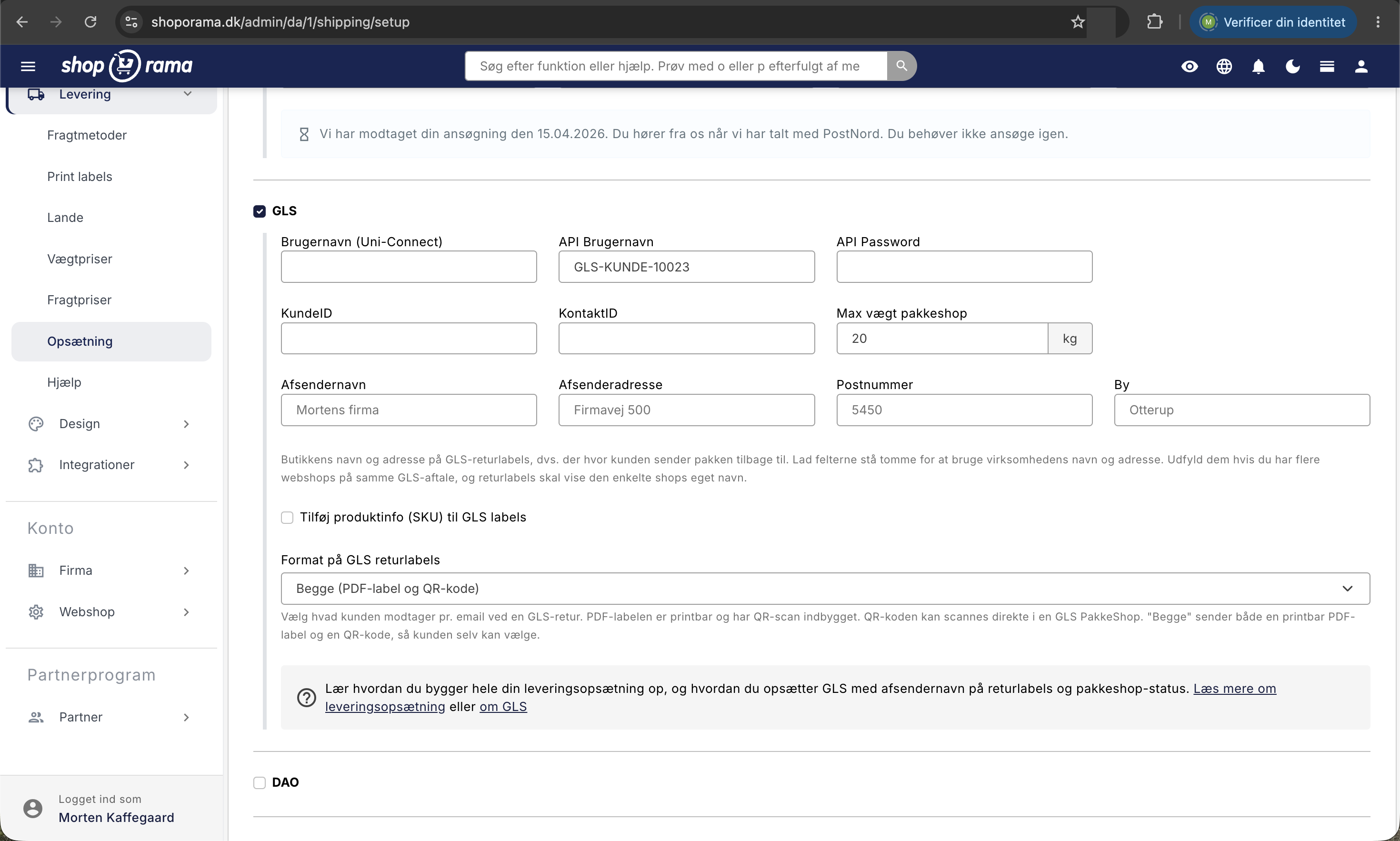
GLS
GLS uses both a Uni-Connect username and API credentials: Username (Uni-Connect), API Username, API Password, Customer ID, and Contact ID. The “Max weight at pickup location ” field specifies, in kilograms, the maximum weight a package can have when sent to a pickup location. The sender fields control what appears on your return labels—that is, where the customer sends the package. Leave them blank to use the company’s name and address. Finally, you can enable “Add Product Info (SKU) to GLS Labels” and choose the format for GLS return labels between a PDF label, a QR code, or both. See “Set Up GLS Integration.”
DAO, Burd, DHL Returns, and DPD Returns
DAO and Burd are straightforward: enter the Customer ID and Code from your agreement. The last two sections are used for automatic return labels. DHL Returns (Parcel DE) requires a DHL Parcel business contract with “DHL Retoure Online” enabled, and you must enter your username, password, and a return recipient (receiverId) from the DHL portal. DPD Return (Web Connect) requires that your DPD depot has activated DPD Web Connect and that returns are enabled on the contract. Here, you enter the delisId and password, where the password is a separate web service password and not your portal login. Both have a test checkbox, Sandbox, and Staging, which are only used if you are testing against the carrier’s test environment.
Step 6: Print labels
Under “Print labels,” you can create a label without an underlying order—for example, for a product sample, an exchange, or a package for a trade show. Labels are created under your own shipping agreement, so they cost the same as your regular packages. The overview shows Date, Shipping Carrier, Recipient, Delivery, Weight, Tracking No., and Status, and you can filter by shipping carrier and status. Multiple labels can be printed together using “Print Selected” (combined PDF), and you can create packing slips and clone a previous label as a new one. Read more in “Print Shipping Labels Without an Order.”
Shipping Strategy: What Do You Gain by Doing It Right?
- Set the free shipping threshold slightly above your average order value. If it’s 380 kroner, 449 is often better than 299. Customers are happy to add an extra item to their cart to avoid shipping costs.
- Use weight-based pricing if your product range is mixed. Otherwise, the light orders end up subsidizing the heavy ones, and you lose money every time someone orders the heaviest item in the store.
- Set “Never Free Shipping” for express delivery. Express delivery is an add-on service, not something you should give away for free along with free shipping.
- Give the few large items their own shipping rate listed on the product page, combined with “Never free shipping.” That way, a single piece of furniture won’t eat up your entire contribution margin.
For those who are tech-savvy
- The “Tag” field for a shipping method is a free-text field for use in the theme code, e.g., to display different methods depending on which warehouse the customer is ordering from.
- In the “Tracking URL,” %ID% is replaced with the order’s tracking number, e.g., https://www.gls.dk/track/%ID%.
- "Show the method anyway when the cart is too heavy " still sends the method to the theme, and it’s then up to the theme to mark it as unavailable. The built-in themes already do this. If you have a custom-built theme, it must be adapted by the person who built it.
Frequently Asked Questions
I’ve created a shipping method, but it doesn’t appear at checkout. What’s wrong?
Check three things. First, check whether the destination country has restricted its shipping options to a list that does not include this method. If the field is set to “All,” all methods are allowed. Second, check whether the method has a maximum weight in grams that the cart exceeds. Third, check whether the method was deleted at some point.
Should I list the shipping price with or without sales tax?
Always exclude VAT. This applies even if your product prices are displayed with VAT in the store. Shoporama automatically adds VAT to the shipping cost at checkout based on the delivery country’s rate. Therefore, do not check the box for “Shipping is VAT-exempt” just because you entered the price excluding VAT.
What happens if I have both a weight-based price and a flat rate for the same country and shipping method?
If the cart weighs enough to fall into one of your weight intervals, the weight-based price for the highest interval that the cart reaches will be used. If the cart is lighter than the lowest interval, the flat rate from “Shipping Rates” will be used. The weight-based price must therefore be entered for that specific combination of country and shipping method. If the field is set to 0, shipping is free within that interval, and the calculation does not fall back to the base price.
Why does it say “Country Limit” in the Free Shipping column for the shipping methods?
This means that the shipping method does not have its own limit and therefore uses the limit you have set for the destination country. If you want to set a limit for the shipping method, enter an amount in the field for that method. If you want to revert to the country’s limit, clear the field.
How do I get weight-based shipping to calculate correctly when I have many products?
The weight is retrieved from the “Optional weight in grams for shipping” field on each product, and the total weight of the cart is the sum of these values. Products without a weight count as 0, so a single empty weight can make a heavy order cheaper. If you have many products, bulk editing or a CSV import is the quickest way.
Our customers need a tracking link. What should I do?
Fill in the “Tracking URL ” field for the shipping method and enter %ID% where the shipping carrier’s tracking number should appear. Once the order receives a tracking number, the link will become clickable in the order confirmation. At the same time, enable the “Shipped” email notification for the shipping method so the customer is notified when you update the order status.
Do I need to use the Setup page if I’m just printing labels manually at the shipping carrier’s location?
No. The Setup page is only used if Shoporama needs to communicate with the shipping carrier—that is, to integrate package drop-off locations into checkout, create shipping labels, or send return labels. If you just want to offer “GLS PakkeShop” as a pricing option at checkout and enter the packages into GLS yourself, you can limit yourself to Countries, Shipping Methods, and Shipping Rates.
We have multiple online stores under the same GLS agreement. Can return labels display each store’s own name?
Yes. Fill in the Sender Name, Sender Address, ZIP Code, and City in the GLS section under Setup for each individual store. If you leave these fields blank, the company’s name and address will be used instead.
How do I test whether my setup is working?
Add items to the cart in your own store and proceed to checkout. Change the delivery country and shipping method, and see if the prices update accordingly. Also try a cart just below and just above your free shipping threshold, and a cart with a heavy item if you use weight-based pricing. If something still looks wrong, you can email support@shoporama.dk with an example of the cart and the amount you expected.
Related articles
Countries and currencies
Guide to setting up countries, VAT rates, VAT zones, shipping options and currency in your Shoporama online store.
Create a new shipping option
Guide to creating new shipping options and assigning them to countries in Shoporama.
Free shipping over a certain amount
How to set up free shipping above a certain amount in Shoporama. The amount limit is set per country under Store, Shipping, Countries, and applies...
Set up PostNord with parcel shop
Guide to setting up PostNord with parcel shop as a shipping option in your Shoporama online shop.
Set up GLS integration
Guide to setting up GLS integration in Shoporama so you can print GLS labels directly.
Print shipping labels without an order
Create and print shipping labels without first placing an order, using your own account with PostNord, GLS, or DAO. Send a QR code to senders who...
Checkout flow and shipping calculation
Guide for developers to implement shipping in the checkout flow of a Shoporama theme.