Create a new shipping option
Guide to creating new shipping options and assigning them to countries in Shoporama.
To create additional shipping options, you need to follow three steps
- Create the shipping option
- Link the shipping option to a country
- Set a price for the shipping option
Here’s how to do it:
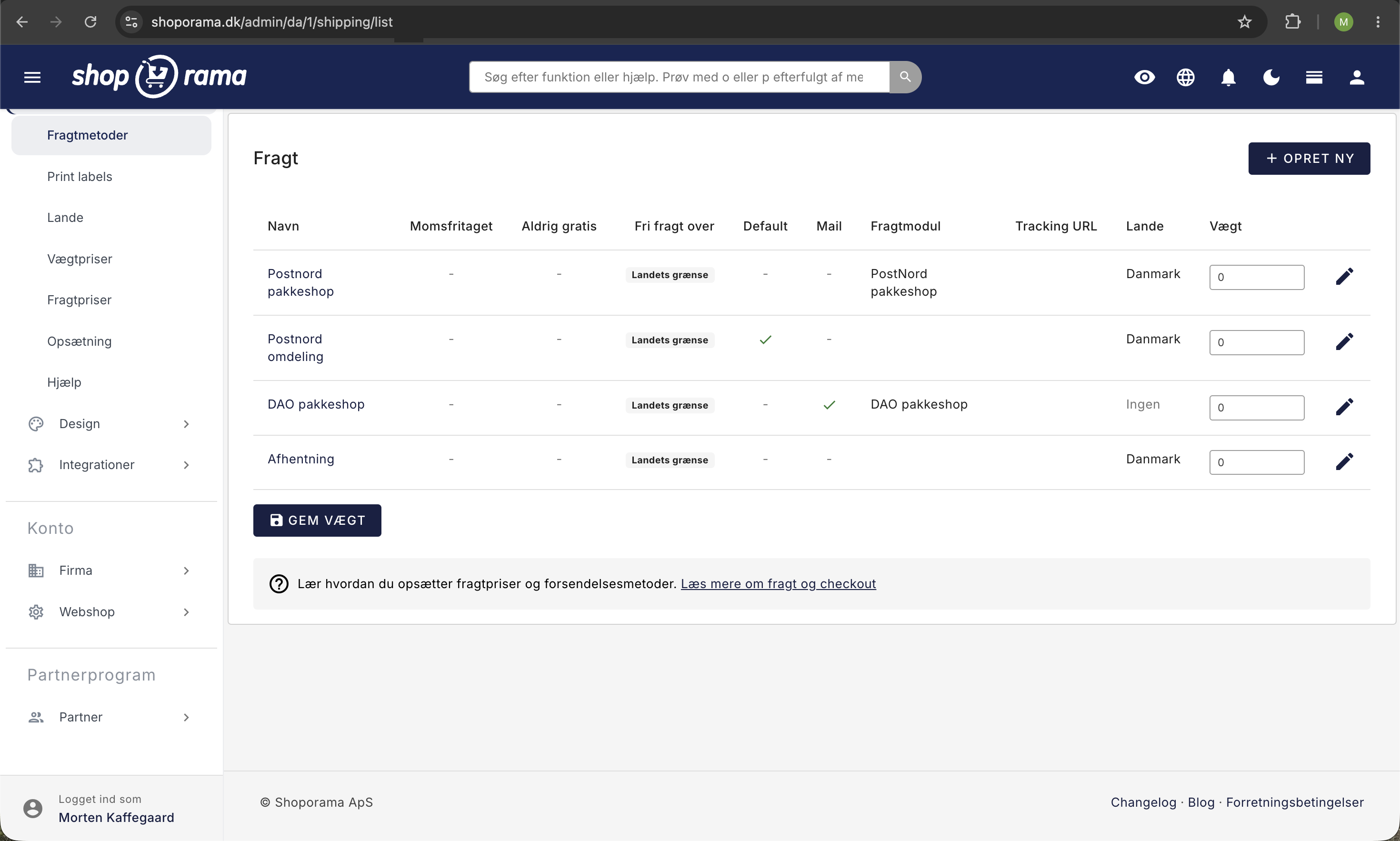
Create the shipping option
- Go to Delivery → Shipping Methods in the admin menu
- Click the blue “Create New” button
- Now give the shipping option a name. For example, it could be “GLS with home delivery”
- You can also enter a tracking URL if desired. This is the address where the user can track their package if tracking is available. Where the user’s tracking number would normally appear, enter %ID%. You can view a list of tracking numbers here.
- In the “Shipping Module” dropdown, select whether the shipping method should use a package shop module.
- If the shipping method is tax-exempt, you can check the “Tax-Exempt” box.
- If you want the user to receive an email when the order is shipped, check the box next to “Send an email to the recipient when the item is shipped.”
- If the shipping method should never be free, check the box next to “Never free shipping.”
- Then click “Save.”
Your shipping method has now been created, but we still need to specify which countries it should be available in. That’s the next step
Assign the shipping option to a country
- Go to Shipping → Countries in the admin menu
- Click the edit icon next to the country you want to associate your new shipping option with
- Under "Shipping Options," make sure to select your new shipping option.
- Then click “Save.”
Set the price for the shipping option
Last but not least, we need to set a price for your shipping option. Here’s how:
- Go to Delivery → Shipping Rates in the admin menu
- Here, enter the price for your new shipping option.
- Click "Save"
You now have a new shipping option in your store.
Please note that your template may be set to display only one shipping option, or it may not have been coded to allow for the selection of a package pickup location. If that’s the case, please contact support, and we’ll explain what’s missing.
Related articles
Find or create an API key
Guide to finding your API key in Shoporama, which is used for integrations with e.g. Shipmondo.
Create a discount code
Complete guide to creating and managing discount codes in Shoporama - percentage discount, fixed amount, free shipping, restrictions and more.
Checkout flow and shipping calculation
Guide for developers to implement shipping in the checkout flow of a Shoporama theme.
Related features
Shipping module
A shipping module connects your online shop with shipping carriers. Read about shipping modules, delivery methods and shipping setup for webshops.
Shipping options
Set up shipping with PostNord, GLS, DAO, DHL and Shipmondo. Parcel shops in checkout, tracking, free shipping and weight-based shipping calculation.
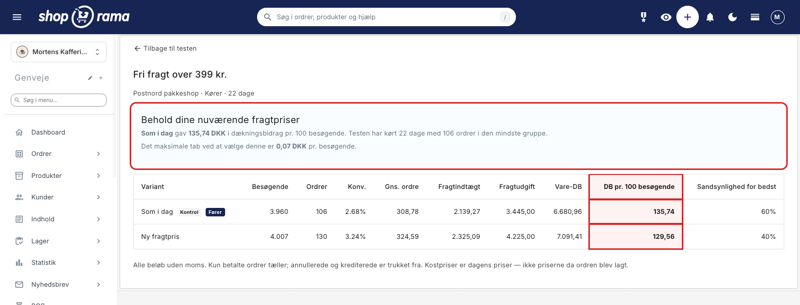
How much should shipping cost? Here's how to find the answer in your own store
A new shipping rate can improve conversion by 21% and still generate less revenue. That’s why A/B tests of shipping rates are determined by the...
A/B Testing of Shipping Rates
Compare two shipping rates in your own store. Shoporama measures the contribution margin per visitor, so you can see how the shipping rate actually...