Login and two-factor authentication (2FA)
Two-factor authentication (2FA) is optional extra security on your Shoporama login. Choose between the Authenticator app or free SMS and secure your admin against intrusion.
Two-factor authentication (2FA) is an optional extra layer of security for your Shoporama login. You can choose between an Authenticator app or SMS, and you can always turn it off again. This article explains how to set up 2FA, what methods are available, and what to do if you lose access to your phone.
In short: 2FA is optional in Shoporama. We don’t force anyone to use it. However, we strongly recommend it because it’s one of the most effective ways to protect your admin account.
What is two-factor authentication?
Two-factor authentication (abbreviated as 2FA) means that, in addition to your password, you must also confirm your login with something you have—typically your cell phone. Even if someone knows or guesses your password, they cannot log in without also having your phone.
In Shoporama, you decide for yourself whether you want to use 2FA for your own account. Each user on the shop manages their own 2FA setup. Therefore, you can have it enabled even if your colleagues don’t, and vice versa.
What 2FA methods are available?
Shoporama offers two different methods:
- Authenticator app (recommended): An app on your phone that generates a new 6-digit code every 30 seconds. It uses the open TOTP standard and works with Google Authenticator, Microsoft Authenticator, Authy, 1Password, and similar apps.
- SMS: You’ll receive a one-time code via text message every time you log in. Works only with Danish cell phone numbers.
Tip: An authenticator app is more secure than SMS and also works when you’re offline or abroad without cell service. SMS, on the other hand, is easier to get started with if you’re not used to apps.
Enable the Authenticator app
Before you begin, you’ll need to install an authenticator app on your phone. Google Authenticator for Android or Google Authenticator for iPhone are good choices, but you can use whichever app you prefer.
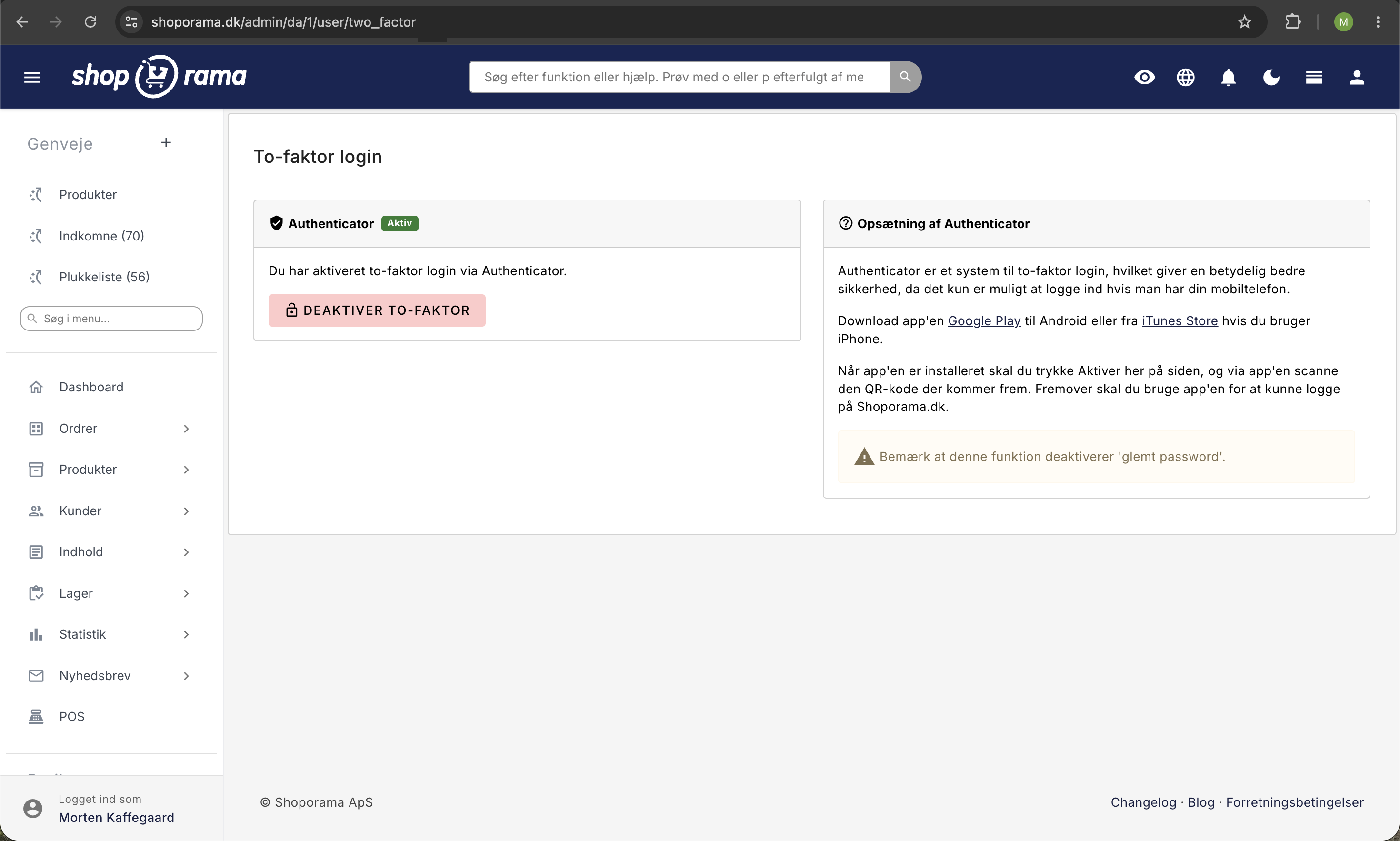
- Click the profile icon in the top right corner of the admin panel and select Authenticator.
- Click the " Activate" button.
- Open your Authenticator app and scan the QR code on the screen.
- Enter the 6-digit code from the app into the field and click " Approve Activation."
The next time you log in, you’ll be asked for a code from the app after you’ve entered your password.
Important: If you forget your password, you can still reset it under " Forgot Password," but you’ll need the code from the app to log in afterward. If you lose your phone, contact support to have your 2FA reset.
Enable SMS authentication
- Go to /user/sms-auth in your admin panel. The page is called “2-Step Login.”
- Check the box next to “Enable 2-step login.”
- Enter your Danish cell phone number (without the country code).
- Click Save.
Starting with your next login, we’ll send a code to your mobile number, which you’ll enter along with your password.
SMS is free: Shoporama covers the cost of the SMS messages. You do not need an SMS plan, a CPSMS account, or any other integration. It works immediately as soon as you’ve saved your mobile number.
Turn 2FA off again
You can turn 2FA off again at any time as long as you’re logged in:
- Authenticator app: Go to Authenticator in your profile menu and click Disable two-factor authentication.
- SMS: Go to 2-Step Login, uncheck the box, and click Save.
If you’ve lost access to your phone
If you can no longer generate codes (lost phone, new phone without a backup, or the app has been deleted), please contact us. Send an email to support@shoporama.dk from the email address associated with your account. We’ll then reset your 2FA, and you’ll be able to log in with your password and set up a new device.
Do all users need 2FA?
It’s up to each individual user. Shoporama does not force 2FA on anyone, and as an owner, you cannot enable 2FA on behalf of your colleagues either. You can only encourage them to do so. As a company administrator, you can see who has enabled it in the “Login and Security” tab when you open a user’s profile under Company → Users. We strongly recommend that everyone with admin access enable 2FA, especially if multiple people use the system or if you handle a large volume of orders and customer data.
Want to learn more about user management? See Roles and Permissions and Create More Users in Your Store.
Passwords and General Security
2FA does not replace a strong password; it complements it. Shoporama stores passwords encrypted with bcrypt, so even our employees cannot see your password. Older accounts are automatically upgraded to the new encryption upon your next login.
If you need to change your password, you can go directly to “Change Password” in Shoporama. A new password must be at least 10 characters long.
Troubleshooting
- Code rejected: Check that the clock on your phone is set to automatic time synchronization. Authenticator codes are time-based, and even a delay of a few seconds can invalidate the code.
- Too many login attempts: After 5 incorrect codes within 15 minutes, login is blocked for 15 minutes, and you’ll see the “Too many login attempts” page. Wait, then try again with a new code.
- SMS Not Received: Check that your cell phone number is entered correctly under “2-Step Verification” and that it is a Danish number. Also check that your phone has service and isn’t blocking SMS messages from unknown senders.
- The QR code won’t scan: Hold your phone a little farther away from the screen and make sure there’s good lighting. Most apps also let you enter the code manually if scanning is difficult.
- Lost both your phone and your backup: Send an email to support@shoporama.dk from the email address linked to your account, and we’ll reset your 2FA.
- A colleague can’t open the Authenticator or complete 2-step verification: This happens to users who already had “Order Management” or “Supplier” roles before Shoporama introduced roles. For them, the admin interface works as before, and the pages take them to the order list or back to the page they came from. Ask the company administrator to change the colleague’s role or select an option under Company → Users and click Save. After that, the colleague can enable 2FA. If you save without making any changes, the previous settings will be retained.
Frequently Asked Questions
Is 2FA required to use Shoporama?
No. 2FA is optional. You can use Shoporama without 2FA, and you can turn it on or off at any time. However, we strongly recommend it for security reasons.
Does it cost anything to use SMS 2FA?
No. Shoporama covers the cost of the SMS messages itself. You do not need an SMS plan, a CPSMS account, or any other integration. The Authenticator app is also free to use.
I lost my phone. How do I log in again?
Send an email to support@shoporama.dk from the email address associated with your account. We’ll manually reset your 2FA so you can log in with your password and set up a new device.
Can I force my coworkers to use 2FA?
No. Each user manages their own 2FA. As the owner, you can encourage everyone to enable it, but you cannot activate it on behalf of other users from the admin panel.
Which authenticator app should I choose?
Shoporama uses the open TOTP standard, so any Authenticator app will work. Google Authenticator, Microsoft Authenticator, Authy, and 1Password are all good choices. Choose the one you prefer or the one your company already uses.
Can I switch to a new phone without losing access?
Yes. Before you get rid of your old phone, log in to Shoporama, disable 2FA, and re-enable it on your new phone. Many Authenticator apps (such as Authy and Google Authenticator with a Google account) can also automatically transfer codes to a new phone.
What happens to the “Forgot Password” option if I enable 2FA?
With the Authenticator app, it still works. If you click “Forgot your password? ” on the login page, you’ll receive an email with a link to choose a new password. The link is valid for 24 hours and can only be used once. It doesn’t log you in, so once you’ve chosen the new password, you’ll log in as usual and will still need to use the code from the app. That’s why no one can access your account just by gaining access to your email. If you’ve lost your phone, your 2FA must be reset by support.
If you’ve enabled SMS authentication, we won’t send a link for security reasons. Instead, you’ll receive an email asking you to contact support@shoporama.dk, and we’ll help you.
Does SMS 2FA work abroad?
SMS messages are sent to Danish cell phone numbers. If you’re roaming abroad, it usually works fine as long as your phone can receive SMS messages. If you travel frequently or have employees abroad, the Authenticator app is a better choice because it also works without cell service.
Is it safe enough to just use a strong password?
A strong, unique password is a good starting point, but unfortunately, passwords are constantly being leaked from other services. 2FA is the best protection against a leaked password being used to log in to your store. We recommend it for owners, bookkeepers, order processors, and anyone else with admin access.
If you have any questions or need help with setup, please email support@shoporama.dk, and we’ll be happy to assist you.
Related articles
Change your password in Shoporama
How to change your Shoporama admin password. Step-by-step guide and tips for a secure password.
Create more users in your shop
A guide to creating multiple user logins for your Shoporama admin panel and assigning each user a role that determines what they can do.
Remove a user from your shop
Guide to removing a user from your business in Shoporama admin.
Roles and Permissions: Give Each User the Right Access
See what the seven roles and five optional features provide access to, which role is best suited for whom, and what only the company administrator...
Related features
Two-factor login - extra security for your webshop
Protect your online store with two-factor login. Easy to set up with Google Authenticator, Authy or other TOTP apps.
More users
Assign each employee their own user account and a fixed role so they have only the access required for their tasks. Unlimited users on Pro and...
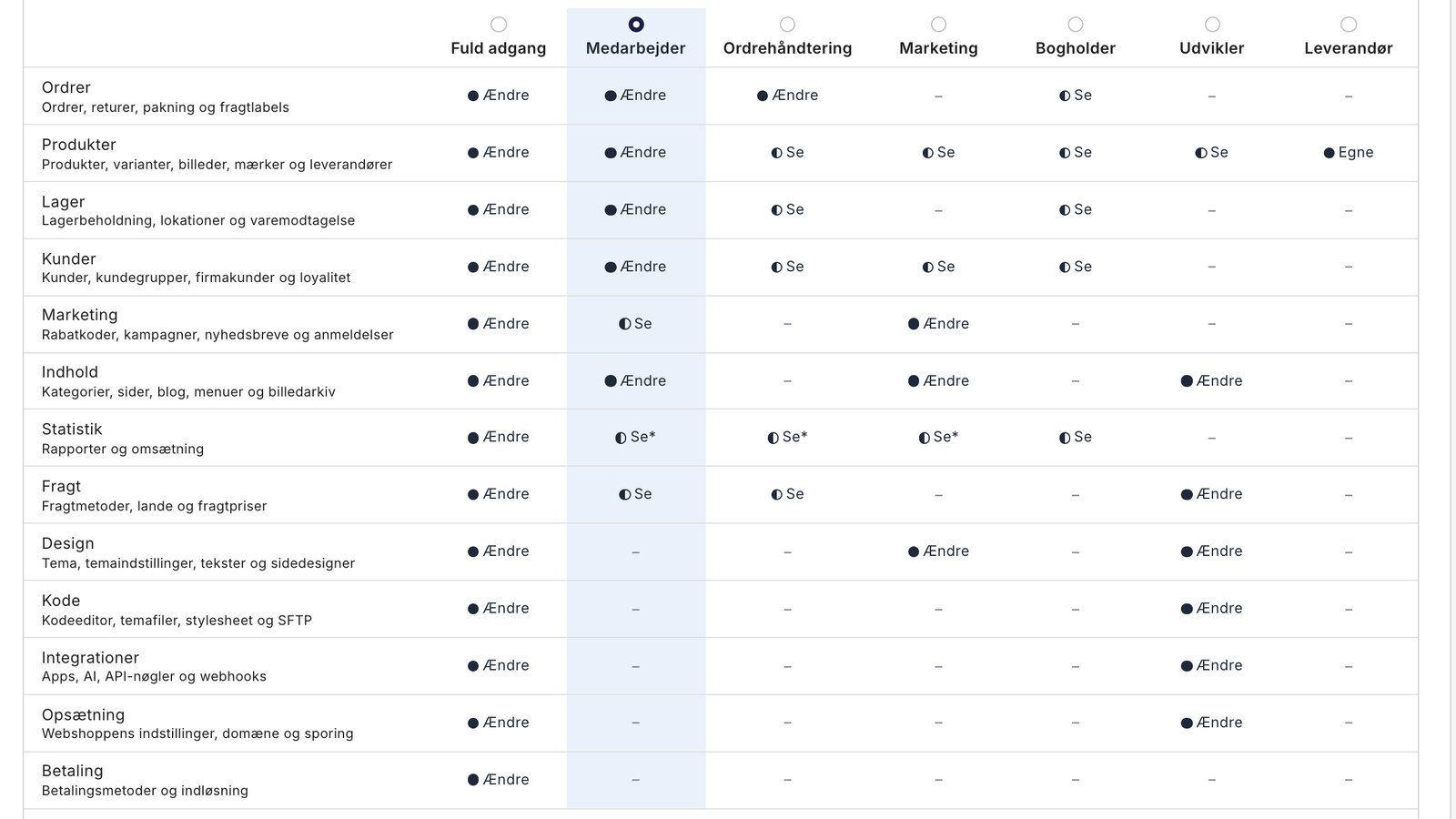
Roles for your team: Decide who has what permissions in the admin panel
New in Shoporama: Assign the packer, the bookkeeper, and the web agency their own roles in the admin panel, and decide who is allowed to issue...