Create a new shipping country
Guide to creating a new shipping country under Shipping → Countries in your Shoporama online store, and when you should also add the country under Online Store → Countries.
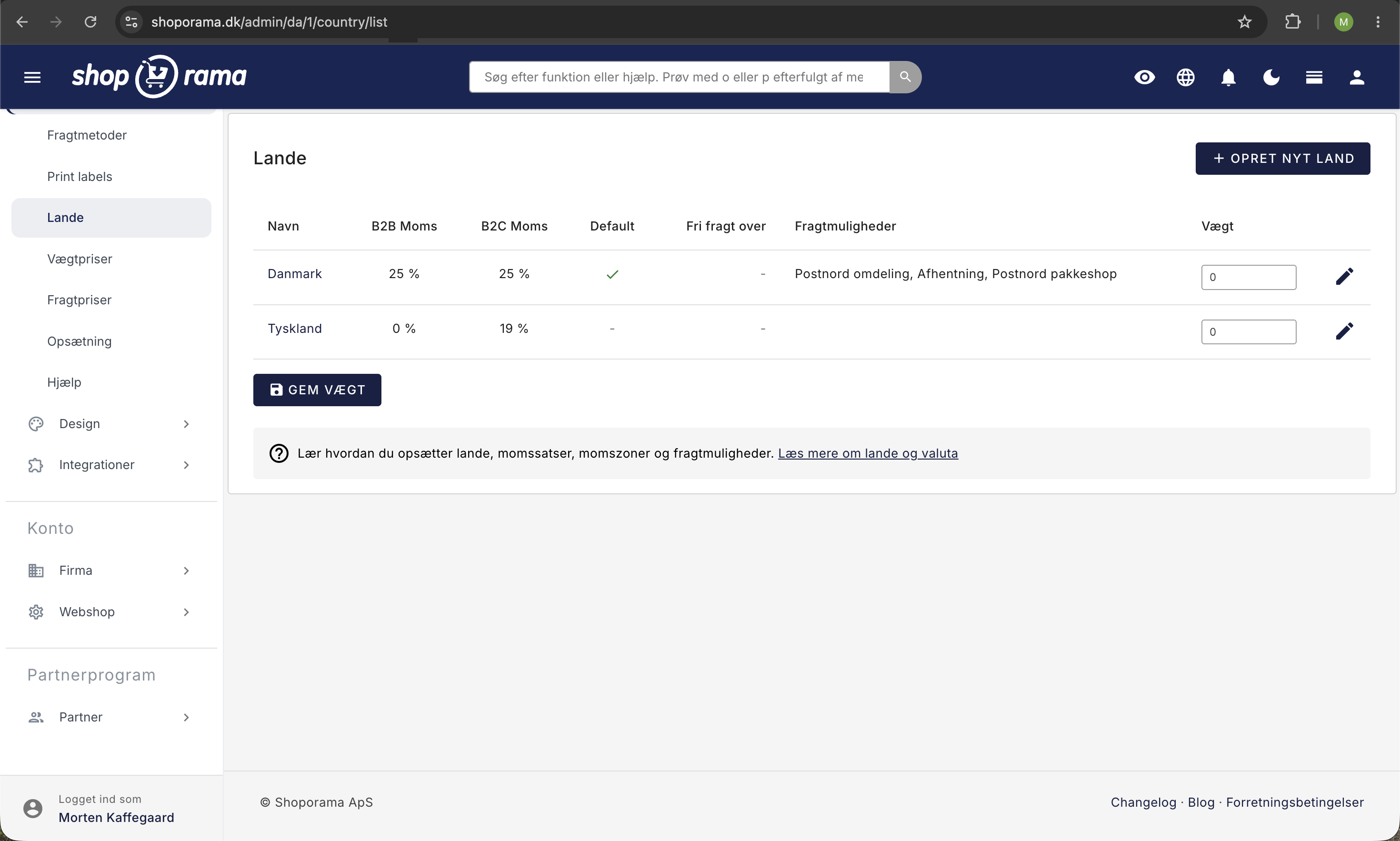
If you want to ship to multiple countries, add them as shipping countries under Shipping → Countries. This affects shipping costs, sales tax, and the checkout process.
Shipping country or country with its own language?
A delivery country is a country to which you ship products. Customers then shop in your store, in your language, and in your currency. If you also want to sell in that country in its own language, in its currency, and at a dedicated address such as minshop.dk/se, first create the delivery country here and then add it under Web Store → Countries. Learn how in “Sell in Multiple Countries and in Multiple Languages.”
How to create a new country
- Click on Shipping in the menu
- Go to Countries
- Click Create New Country
- Enter the country’s name and select the country code from the list
- Click Save. You will now be taken to the country's edit page
- Set B2B VAT (%) and B2C VAT (%), and select the shipping options for the new country. Both VAT fields are set to 0 until you edit them
- Click Save
What is affected?
- Shipping: Set shipping rates for the new country under Delivery → Shipping Rates, and, if necessary, select which shipping methods are allowed for that country in the Shipping Options field
- VAT: The VAT rate may differ (e.g., 0% for sales to countries outside the EU). The rate determines the VAT on the order, but if you’ve entered your prices including VAT, the price will be the same in all countries by default. For example, if a Norwegian customer is to pay the price excluding Danish VAT, enable “Adjust prices to the destination country’s VAT rate ” under Web Store → General.
- Checkout: The new country appears in the country list at checkout
- Countries: The new country can now be selected under Webshop → Countries if you want to sell there using its own language and currency. The country’s VAT and shipping rates will then be based on what you’ve set up here
Sell to the EU and internationally
The VAT rate you should set for each country depends on your sales and your VAT registration, such as whether you’re registered with the One Stop Shop (OSS). Ask your accountant if you’re unsure.
If the country is an EU member state, the edit page displays a warning under “B2C VAT (%)” if the rate is neither the country’s standard rate according to Shoporama’s VAT table nor the same as in your default country. A new country starts at 0%, so the warning will remain until you set the rate. Items with a VAT rate different from the country’s standard rate—such as books or food—will be assigned the country’s rate for those types of items when you assign them a VAT category. Read more in VAT Categories.
Important
A new country can, by default, use all your shipping methods, but it has no shipping rates. Enter the prices for the country under Delivery → Shipping Rates. Without a price, shipping to that country costs 0 DKK. If you use weight-based rates, also fill in the country’s row under Delivery → Weight-Based Rates. If it’s left blank, the country’s price from Shipping Rates will be used.
See also: Create a New Shipping Option and Countries and Currencies.
Need help? Contact us at support@shoporama.dk.
Related articles
Find or create an API key
Guide to finding your API key in Shoporama, which is used for integrations with e.g. Shipmondo.
Create EAN payment as a payment method
Guide to setting up EAN payment (invoice payment for businesses) on your Shoporama online store.
Create an additional webshop
Guide to creating an additional online store under the same login in Shoporama.
Countries and Currency: Delivery Countries, Sales Tax, and Shipping
Set up delivery countries under Delivery → Countries with VAT rates, VAT zones, shipping options, and free shipping, and see how they relate to...
Sell in multiple countries and in multiple languages
Here's how to sell in other countries in your customers' languages and currencies using "Countries": Add a country, set up the address, language,...
Related features
Shipping options
Set up shipping with PostNord, GLS, DAO, DHL and Shipmondo. Parcel shops in checkout, tracking, free shipping and weight-based shipping calculation.
OSS (One-Stop Shop)
OSS (One Stop Shop) is the EU's VAT scheme for sales to consumers in other EU countries. Learn what OSS is and how Shoporama helps with...