Find or create an API key
Guide to finding your API key in Shoporama, which is used for integrations with e.g. Shipmondo.
Do you need to connect Claude or another AI?
Claude (and other MCP clients) do not use API tokens; they use OAuth. So you don’t need to create a token for them. Instead, read Webshop with Claude.
For integrations with external systems such as Shipmondo and others, you’ll need an API token from Shoporama. You can find them here and learn how the usage limits work.
Find your API tokens
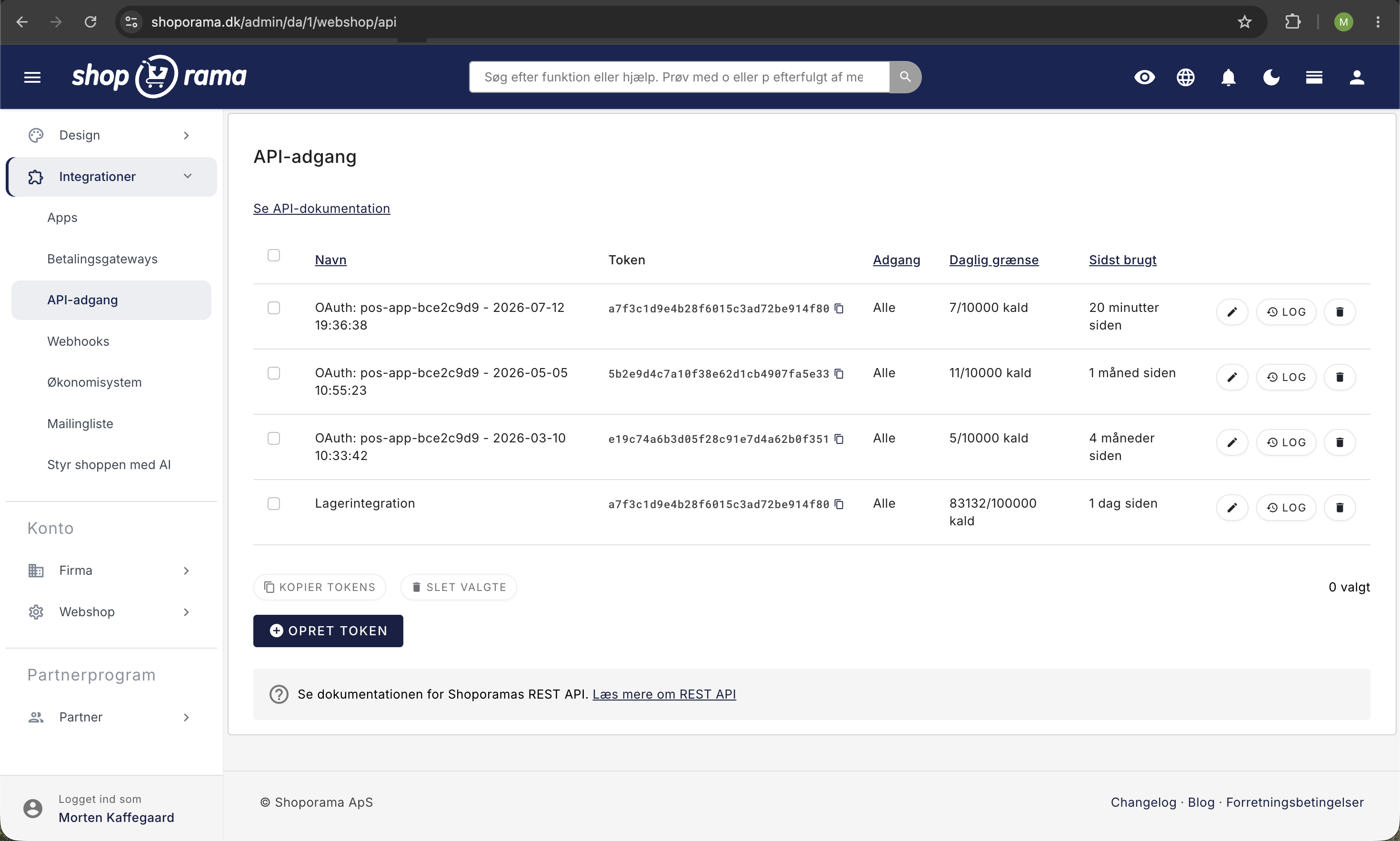
- Go to Integrations → API Access (or directly to /webshop/api)
- Here you’ll see a list of the store’s tokens, their access level, daily usage limits, and when they were last used
- Click on a token to view or copy its full value
On Shoporama, there isn’t a single “API key” per store, but rather a list of tokens—you can have multiple tokens active at the same time, such as one for Shipmondo, one for E-conomic, and one for your own script.
Create a new API token
- Go to Integrations → API Access
- Click Create Token
- Give it a descriptive name (e.g., “Shipmondo”) and select the access level
- The new token will appear and is ready to use
The API Access page can be accessed by users with the Full Access or Developer role. If you have the Developer role, the list shows only the tokens you’ve created yourself with that role, as well as your own connections via “Sign in with Shoporama.” These are also the only ones you can edit, delete, and view the log for.
A token created by a user with Full Access belongs to the store. This also applies to all tokens created under API access before the roles were introduced. They function as before. If a user with the Developer role creates the token, it is linked to that user and has no more permissions than the role itself. Developers do not have access to orders or customers, so a token for, say, Shipmondo—which is used to retrieve orders—must be created by a user with Full Access. Read more in Roles and Permissions.
API Limits and Usage
Each API token has a daily limit on the number of calls it can make. This protects the store from an integration that gets out of control and keeps usage predictable. New tokens are set by default to a limit of 10,000 calls per day, and you can increase or decrease this limit yourself at any time.
What counts as a call?
A call is a single HTTP request to the REST API. If you retrieve a list of 100 products with a single request, it counts as one call but returns 100 products. If you retrieve them one at a time, it counts as 100 calls. Therefore, use list endpoints (e.g., /products) instead of looking up by ID whenever possible.
How to view your usage
In the list under Integrations → API Access, you can view the current usage for each token. If you click on a token, a colored progress bar (green, yellow at 70%, red at 90%) appears, showing how close the token is to the limit.
What happens if the limit is reached?
When a token reaches its daily limit, the API responds with an HTTP 429 Too Many Requests status code to subsequent calls. The client must wait until the next 24-hour period, when the counter automatically resets. You’ll receive one notification email per day when this happens—not one per blocked request—so your inbox won’t be flooded.
Tip: Customers on your online store will never see a 429 error. The limit applies only to integrations that use an API token. Customers have their own browser session completely separate from the API.
How to raise the limit
- Go to Integrations → API Access
- Click on the token you want to change
- Enter a new value in the Maximum Daily Limit field (adjusts in increments of 100)
- Click Save
Call Quotas
In addition to the per-token limits, each shop has a total pool of free calls included in its pricing plan:
- Flex: 1,000 calls per day included for free
- Pro: 10,000 calls per day included for free
- Beyond that, 0.01 DKK is charged per additional call
The pool is calculated across all of the shop’s tokens combined. Always check the pricing page for the current figures. Typical integrations such as Shipmondo, E-conomic, and price trackers usually use far less than this limit in daily operations.
Tip: If you regularly hit the limit with a specific integration, increase that token’s limit and consider whether you can use batch processing. For example, retrieve many products in a single list call instead of fetching them one at a time.
What is an API token used for?
An API token grants external systems access to read and write data in your store via the REST API. Typical integrations:
- Shipmondo: to retrieve orders and create shipments
- Shoporama’s apps for e.g., e-conomic, Dinero, and Uniconta: they receive their own token (App token in the list) when you install them under Integrations → Apps, so you don’t need to create one
- Heysender: for email marketing
- Custom integrations: retrieve products, orders, and customer data
Tip
Create one token per integration. That way, you can easily see how much each integration uses, and you can delete a single token without affecting the others.
Security
An API token grants access to your store’s data based on its access level. However, if the token is created by a user with the Developer role, its capabilities are limited to those of that role. Only share tokens with trusted services and store them securely. If you suspect a token has been compromised, delete it and create a new one.
Frequently Asked Questions
Why did I suddenly hit the limit after a CSV import?
An import via an integration can trigger many calls per row. For example, if each item updates the product, inventory, and price, 500 rows can quickly turn into 1,500 calls. Check the log in the external service, and if necessary, increase the token’s daily limit if you regularly have large imports.
Do my customers also get 429 errors on the store?
No. The limit only applies to integrations that use an API token. Your customers use the store in their browser via a regular session, completely outside the API, and they are never affected by token usage.
What’s the difference between Flex and Pro when it comes to the API?
Flex includes 1,000 free calls per day; Pro includes 10,000. This is a combined pool across all of the store’s tokens. Calls exceeding this limit cost 0.01 DKK each. You set the per-token limit yourself, regardless of the pricing model.
How can I see in my billing statement how many extra calls I’ve paid for?
Extra API calls beyond the included pool are calculated monthly and appear as a separate line item on your monthly Shoporama invoice. This is separate from the subscription, so you can clearly see the usage in your accounting records.
Where can I find out which token is using the most?
In the list under API Access, you can sort by the “Daily Limit” column, which shows today’s usage and the limit for each token. It’s easiest if you’ve assigned each integration its own token with a descriptive name (e.g., “Shipmondo,” “E-conomic,” “Custom script”).
Can I get a notification before I hit the limit?
You’ll receive an email on the day the limit is reached (one per day, not per blocked request). If you’d like an earlier warning, keep an eye on the progress bar on the token page. It turns yellow at 70% and red at 90%.
What should I do right now if my integration has stopped?
Go to Integrations → API Access, click on the token, and increase the “Maximum Daily Limit.” Save. The integration can make calls again immediately. The counter resets automatically at midnight.
What happens to the API keys when an employee leaves?
It depends on who created the key. API keys created by a user with the Full Access role using "Create Token " under Integrations → API Access belong to the store and not to the user who created them, so they will still work even after you remove the user. If the employee knew a key, delete it manually and create a new one for the integration. A key that the employee created with the “Developer” role, on the other hand, is linked to the employee and is automatically revoked. The same applies to connections that the employee created themselves via “Sign in with Shoporama,” such as Claude, the POS app, and the scanner app. A revoked key may still appear on the list under “API Access,” but it won’t work, and you can delete it.
Can I see who created a token?
Not in the list under API Access. If you’re a company administrator, you can go to Company → Users → Activity Log to see who created or modified a token and when. Connections made via “Sign In with Shoporama” are also listed as API keys created via OAuth. The log does not contain any history from before it was introduced. Read more in the Activity Log.
My integration is getting calls rejected even though the token has the “All” access level. What’s wrong?
If the error message mentions a role, the token was created by a user who does not have the “Full Access” role. Such a token can only perform actions permitted by that role; for example, the “Developer” role does not have access to orders or customers. Create a new token while logged in as a user with Full Access, add it to the integration, and delete the old one.
My inventory system makes thousands of calls overnight. Is that normal?
This may be normal for a full synchronization, but often the integration can be configured to retrieve only changes since the last sync (delta sync) instead of the entire inventory. Check the settings in your inventory system or ask your provider if there’s a “changes only” mode.
See also: View webhooks in your store.
Need help? Contact us at support@shoporama.dk.
Related articles
Create a new shipping option
Guide to creating new shipping options and assigning them to countries in Shoporama.
Create a discount code
Complete guide to creating and managing discount codes in Shoporama - percentage discount, fixed amount, free shipping, restrictions and more.
Checkout flow and shipping calculation
Guide for developers to implement shipping in the checkout flow of a Shoporama theme.
Related features
Webshop with Shipmondo
Get a webshop with Shipmondo integration: GLS, PostNord, DAO, Bring and many more shipping companies in one single flow. Here's how to set up the...
REST API
REST API is a standard for system communication over HTTP. Read about REST APIs, integrations and how webshops use them.
Webshop with Claude
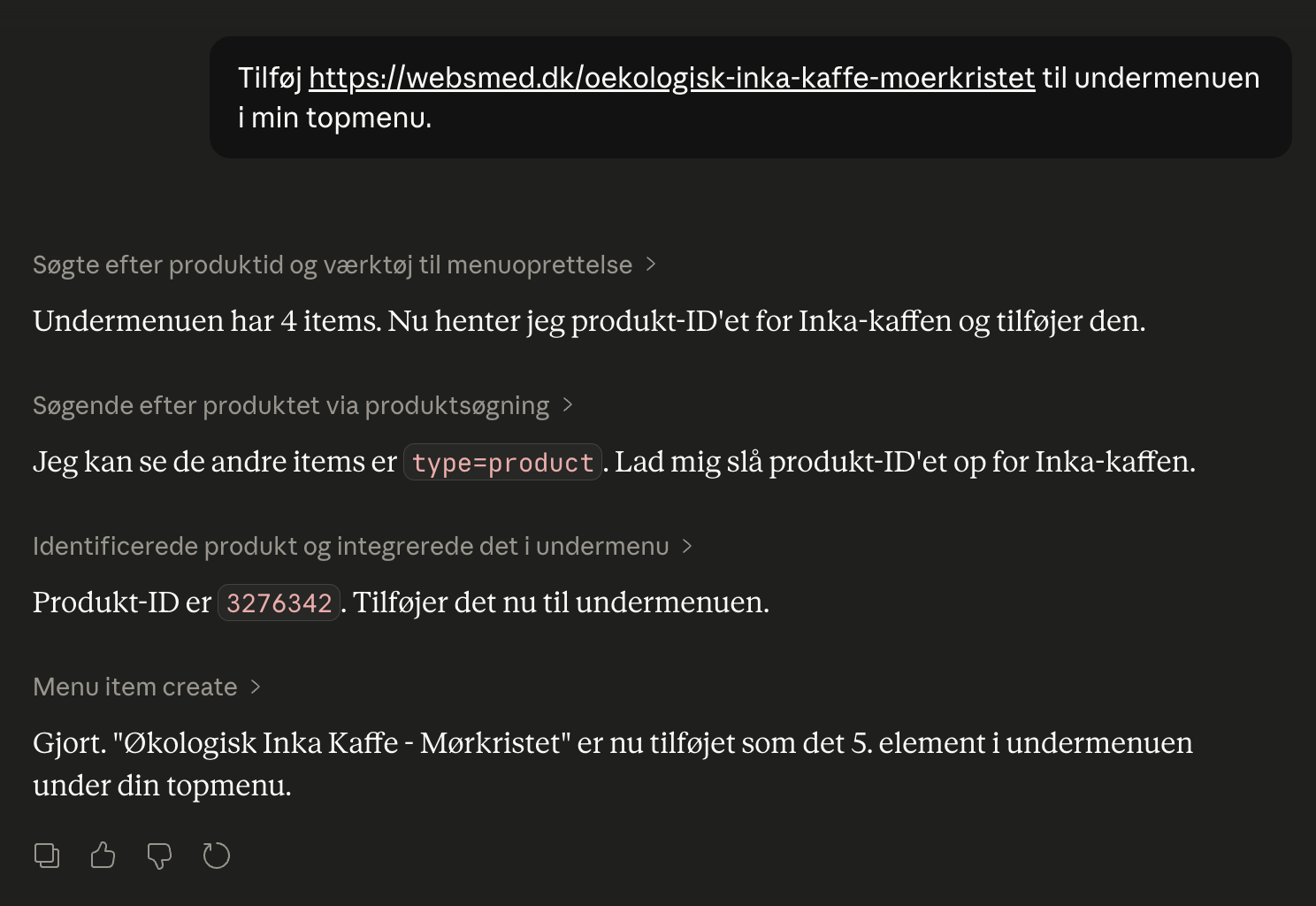
Connect your Shoporama webshop with Claude and manage products, orders, campaigns and designs by typing in Danish. No code, full control, audit log.
REST API - build exactly the integration you want
Full REST API with access to products, orders, customers and more. Build your own integrations, apps or a headless frontend.