Følg levering og pakkeshop-afhentning i Shoporama
Shoporama viser leveringsstatus direkte i ordrelisten, både for pakkeshop og levering til adressen. Se om pakken er undervejs, klar til afhentning, leveret eller returneret, og mind kunder om at hente inden fristen.
Shoporama displays the delivery status directly on your orders, so you can track a package all the way from the time it’s shipped until it’s delivered. This applies to both packages delivered to a package pickup location and packages delivered directly to the customer’s address. For pickup point deliveries, this helps you retrieve packages that are waiting for you before they’re returned, which would incur additional shipping and handling fees. For deliveries to your address, you can see whether the package is on its way or has already been delivered.
Where can I see this?
Go to Orders. Next to each order, you’ll see a small colored label indicating the delivery status. You don’t need to set anything up. As soon as Shoporama has generated the shipping label with GLS, PostNord, or DAO, the system automatically retrieves the status a few times a day and updates the label.
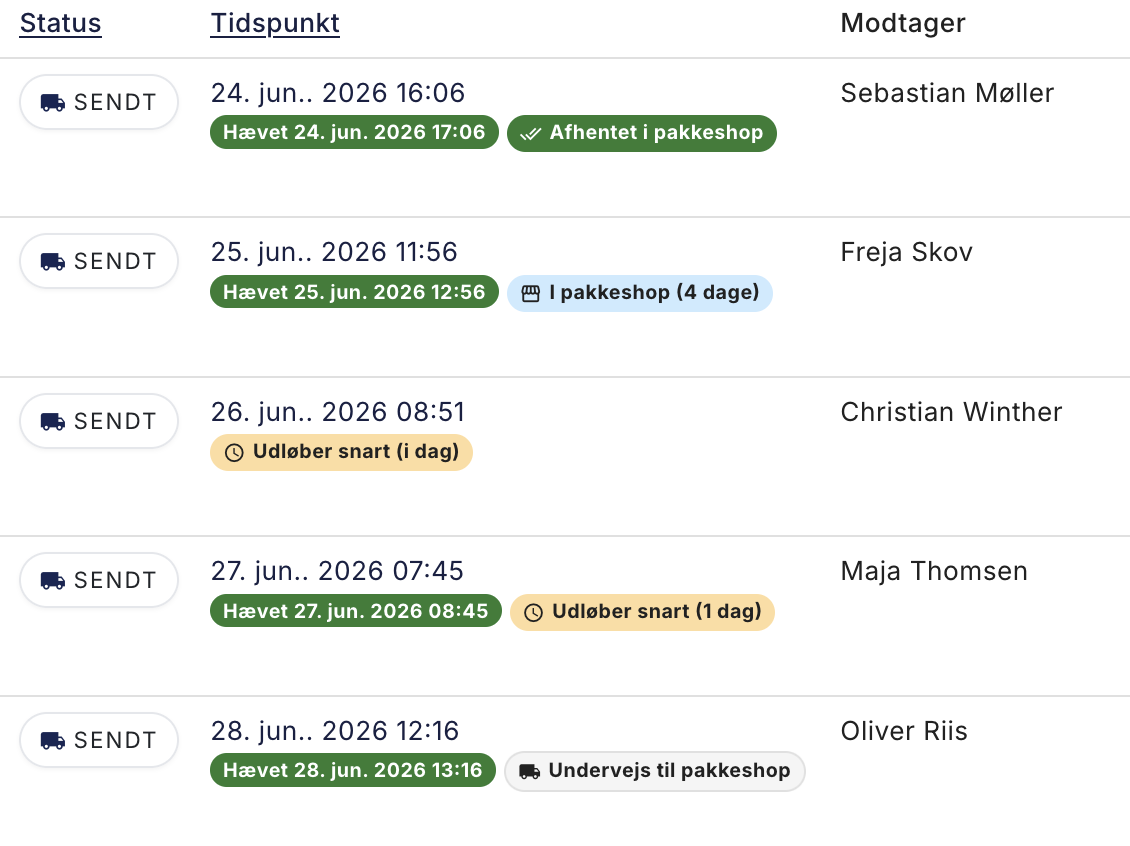
What do the labels mean?
The label automatically adjusts depending on whether the package is delivered to a package pickup location or directly to the customer’s address.
Delivery to a package store
- At the package store (blue): The package is ready for pickup, and there’s still plenty of time. The number in parentheses is the number of days until the deadline.
- Expiring soon (yellow): There are only a few days left. Consider reminding the customer to pick up the package now.
- Expired at the package store (red): The deadline has passed, and the package is on its way back to you.
- Picked up at the package shop (green): The customer has picked up the package.
- Returned from the pickup location (red): The package has been sent back to you.
- En route to the pickup location (gray): The package has not yet arrived at the pickup location.
Delivery to the address
- In transit (gray): The package has been shipped and is on its way to the customer.
- Delivered to address (green): The package has been delivered to the customer’s address.
- Returned to sender (red): The package could not be delivered and has been returned to you.
Filter by delivery status
If you want to see only the orders awaiting pickup, or only those that have been delivered, you can filter by status. Click the shipping filter above the order list. At the bottom of the window, you’ll find “Delivery Status,” where you can check boxes next to options such as “At a package shop,” “Delivered to the address,” or “Returned.” Click “Apply Filter,” and the list will show only the selected statuses.
Which carriers does this work with?
Delivery status is automatically retrieved for GLS, PostNord, and DAO, both for pickup at a package shop and for delivery to the address. This works for orders where you’ve created the shipping label through Shoporama, because that’s where we have the tracking number. If you create labels in another system or enter tracking numbers manually, we can’t track the status automatically.
How to remind the customer to pick up the package
- Filter the order list by “At a pickup location” or “Expires soon.”
- Open the order and find the customer’s email and phone number.
- Send a friendly reminder that the package is ready and when the deadline expires.
Frequently Asked Questions
I can’t see any labels on my orders. Why?
The label appears on orders where the label was generated with GLS, PostNord, or DAO through Shoporama, regardless of whether the package is going to a pickup location or the customer’s address. If you created the label in another system or entered the tracking number manually, no label will be generated, since we don’t have the package number. No label will appear if the carrier’s API information is not filled out under Delivery → Setup, because Shoporama cannot generate the label in that case. See Set Up GLS Integration and Set Up PostNord with a Package Shop. Additionally, newly created packages may be missing a status until the next automatic update.
Does this also work for packages delivered to the customer’s address?
Yes. For deliveries to the address, the label shows whether the package is “In Transit,” “Delivered to Address,” or “Returned to Sender.” This requires that the shipping label be generated through Shoporama using GLS, PostNord, or DAO.
What’s the difference between “Picked up at a package store” and “Delivered to the address”?
Both mean that the customer has received their package. “Picked up at a package shop” is used when the package was delivered to a package shop and picked up there. “Delivered to the address” is used when the package was delivered directly to the customer’s address.
How often is the status updated?
A few times a day. A package that has just been picked up or delivered may therefore show the previous status for a few hours until the status is updated again.
Is “Picked up at a package store” the same as the order status “Picked up”?
No. “Picked up at a package store” comes from the carrier and means that the customer has picked up the package at the package store. The order status “Picked Up” is used for click-and-collect at your own physical store and is set by you. The two are unrelated.
Does Shoporama automatically send a reminder to the customer?
Not at this time. You’ll have an overview and can contact the customer yourself. Automatic reminders are something we’re looking into for a future version.
Why are there different numbers of days in parentheses?
The number represents the number of days until the deadline for pickup at the package shop expires, calculated from when the package arrived. The lower the number, the more urgent it is. For delivery to an address, there is no deadline, and therefore no number in parentheses.
Can I have the urgent orders listed at the top?
Filter by “Expiring Soon,” and you’ll see exactly those orders with only a few days left, so you can handle them first.
If you have any questions, feel free to email us at support@shoporama.dk.
Related articles
Set up GLS integration
Guide to setting up GLS integration in Shoporama so you can print GLS labels directly.
Set up PostNord with parcel shop
Guide to setting up PostNord with parcel shop as a shipping option in your Shoporama online shop.
Print shipping labels without an order
Create and print shipping labels without first placing an order, using your own account with PostNord, GLS, or DAO. Create labels for multiple...
Manage your orders in Shoporama
Guide to managing orders in Shoporama - from receiving to shipping and status updates.
PostNord tracking and parcel labels
Guide to PostNord tracking links and parcel labels in Shoporama, including troubleshooting common issues.
Related features
Parcel shop
A parcel shop is a pickup point for parcels in stores and kiosks. Read about parcel shop delivery in webshops and how it works.
Package Shop Overview: See Which Packages Are About to Expire
Shipping options
Set up shipping with PostNord, GLS, DAO, DHL and Shipmondo. Parcel shops in checkout, tracking, free shipping and weight-based shipping calculation.