How to create and run a split test in Shoporama
Step-by-step guide to create and run a split test (A/B test) in Shoporama. You will learn how to clone a page setup, stylesheet, or split test entire themes, create the test, read the statistics and let the system find the winner automatically.
With split testing, you can compare two or more versions of the same page, stylesheet, or entire theme to see which one actually performs best. Here’s a step-by-step guide to setting up and running your first split test. Read the feature description if you want to understand how the system works behind the scenes.
Prerequisite: You must have two variants
A split test compares two or more variants of the same element. Before you can create the test, the variants must exist. There are three types:
- Page layouts — created in Page Designer under Design → Page Designer
- Stylesheets (CSS variants) — created under Design → Stylesheet
- Entire themes — exist as folders under the store’s private themes. Requires a Pro subscription and Smarty 4. You do not create the themes themselves via the Split Test page—they must already be on the store (uploaded via FTP, copied from an existing theme, or built by a developer).
Step 1: Clone the page or stylesheet you want to test
Go to Design → Page Designer (or Stylesheet if you want to test CSS). Find the page you want to test in the list, and click the copy icon (the two sheets of paper) on the right side of the row.
You’ll now get a copy that starts offline with the name “(original name) (copy).” The clone automatically has a lower priority than the original, so if you put it online without testing it, the original will still be displayed.
Step 2: Customize the copy
Click the edit icon (pencil) next to the copy to open it. Make the changes you want to test:
- Change the hero image
- Edit the headline or text
- Add or remove sections
- Reorder the sections
- Edit CSS (if using a stylesheet variant)
Important: Test only ONE thing at a time. If you change five things and B wins, you won’t know what made the difference. Start with, for example, just the headline, or just the button color.
Step 3: Publish the copy
When you’re done making changes, go back to the overview and click the toggle icon next to the copy to put it online. It turns green when it’s active.
You now have two online versions of the same page. Without a split test, the one with the highest priority would automatically win and be shown to everyone. This is where the test comes in.
Theme test: a slightly different workflow
If you want to A/B test entire themes against each other, Steps 1–3 do not apply. Instead, you must already have two private themes on the store—for example, MyTheme and MyTheme-v2. On the create page, select “Theme” from the dropdown menu, and on the edit page, add the two (or more) theme folders you want to test. The rest of the process (weighting, statistics, winner) is identical to that for page layouts and stylesheets.
The “Theme” option only appears if the store has a Pro subscription, runs Smarty 4, and has at least two private themes. The Pro requirement is because private themes are a Pro feature in and of themselves. The Smarty 4 requirement is technical: only Smarty 4 can render two different themes side-by-side on the same store without their template cache going haywire.
When a theme test is declared the winner, the winning theme is automatically set as the store’s new default theme (equivalent to you selecting it yourself under Design → Theme). The other theme folders remain untouched—they’re still there if you want to test them again later.
Step 4: Create the split test
Go to Design → Split Test and click New Split Test.
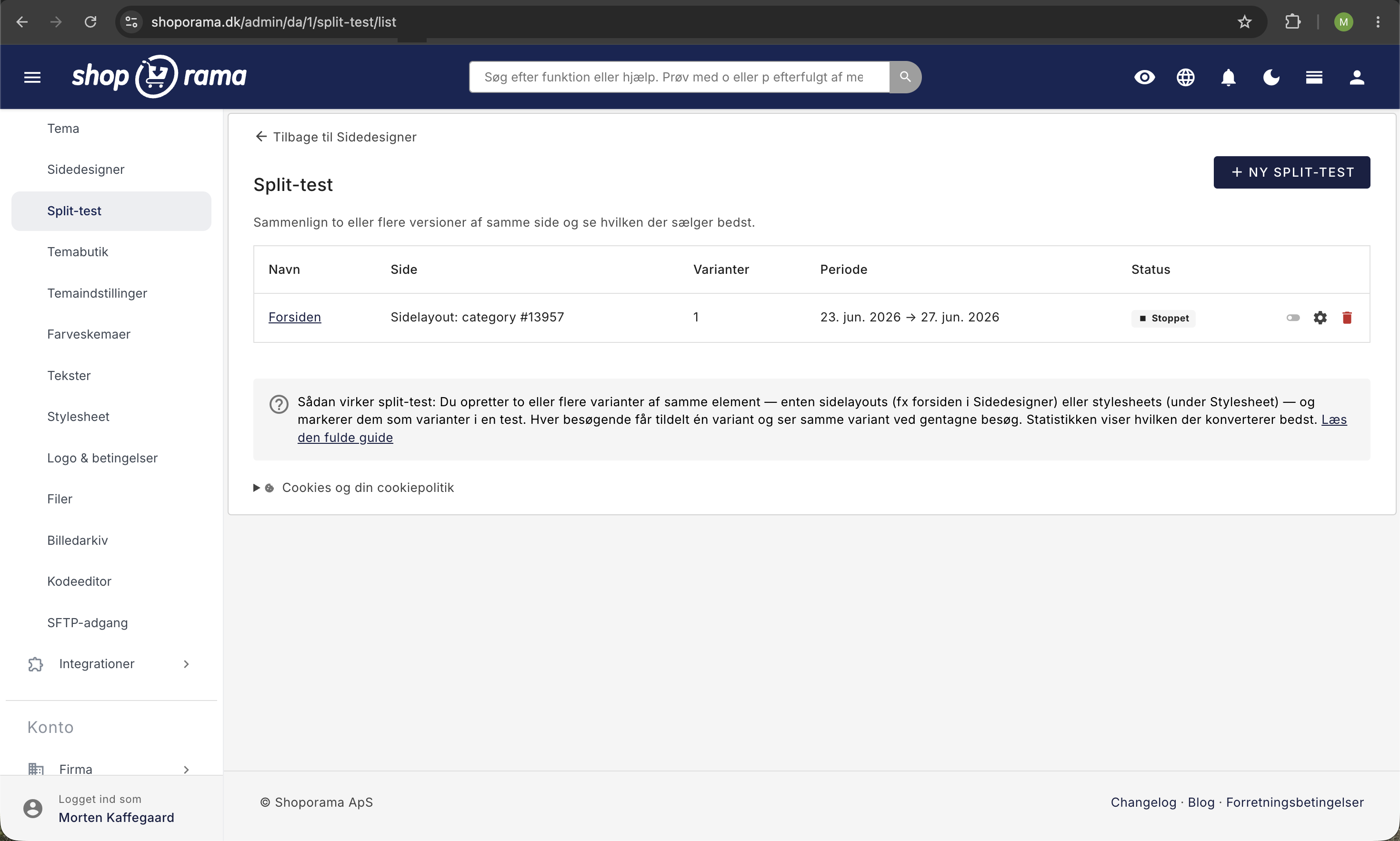
- Give the test a name so you can find it again later. For example, “Homepage Hero A vs. B” or “Button Color: Red vs. Green.”
- Select what you want to test from the dropdown menu. You’ll only see the target types for which there are at least two variants.
- Click “Create Split Test.” You’ll be taken to the test’s edit page.
Step 5: Add variants to the test
On the test’s edit page, you’ll see a “Variants” section. Use the dropdown menu to select a variant and specify a weight (typically 50). Click “Add.” Repeat for the second variant.
The weight determines what percentage of visitors will see each variant:
- 50/50 — recommended. The fastest way to reach a conclusion because the data is distributed evenly.
- 90/10 — use this if you’re cautious and only want to expose a new variant to a small portion of traffic. It takes longer to gather enough data.
Step 6: Configure settings and start
On the right side of the edit page, you can set:
- Start and end dates — optional. Leave the end date blank to let the test run until you stop it yourself.
- Stop automatically when there is a clear winner — recommended. The test stops when there is a ≥95% probability that a variant is the best and the minimum requirements are met (5,000 impressions per variant, 100 orders in total, 14-day duration).
- Use the winner as the new default when the test stops — recommended. When the test ends with a valid winner, the winning variant is put online with high priority and the losing variants are taken offline. You can always roll back manually.
Click “Start the Test ” when you’re ready. The button is disabled until you’ve added at least 2 variants.
Step 7: Wait and keep an eye on the statistics
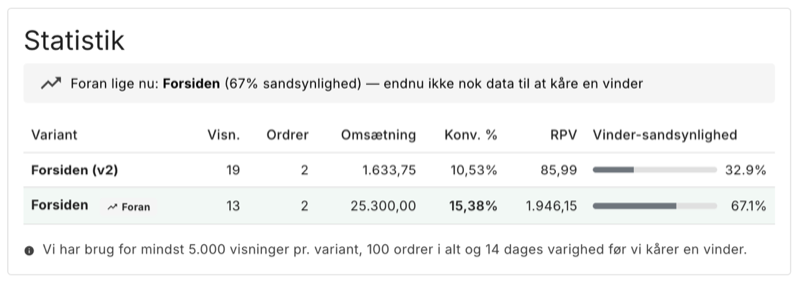
While the test is running, you can return to the test’s edit page at any time to view the statistics. You’ll see:
- Views per variant
- Orders and revenue
- Conversion rate (percent)
- Revenue per visitor (RPV) —the most important KPI in e-commerce
- Probability of winning shown as a colored bar (gray = uncertain, blue = leading, green = winner)
The leading variant is highlighted with a green background and receives a “Leading” badge. When a winner is determined with a 95%+ probability and the minimum requirements are met, it receives a trophy badge and a green alert at the top.
Please be patient. The statistics are updated when visitors click on one of the variants. For a small store, it may take 4–8 weeks before there is enough data to draw a conclusion.
View results by device (mobile, tablet, and computer)
The same variant can easily win on a computer and lose on a mobile device. People shop differently depending on the screen: a new hero image might look great on a large screen but push the buy button way down on a phone. That’s why you can see the numbers broken down by device in the statistics.
At the top of the statistics box, you’ll find a “Show Device” menu with four options:
- All devices — the overall picture (default).
- Computer — only visitors on desktops and laptops.
- Mobile — visitors on phones only.
- Tablet — visitors on tablets only.
When you select a device, the entire table—visitors, orders, revenue, and conversion—is filtered so that you only see the numbers for that device. The number in parentheses next to each option shows how many visitors have been recorded on that device so far, so you can see if there’s enough data to draw any conclusions.
Good to know: A device-specific view does not determine a winner, and an automatic winner is always selected based on the overall numbers. This makes sense because your store can only display one version of a page at a time—you can’t have one homepage on mobile and another on desktop based on a split test. Use the device breakdown to understand the results, not to choose two different winners.
The device is determined based on the visitor’s browser, just like in the major A/B testing tools. The breakdown counts visits from the time the feature was activated on your store—older visits from before that are only included under “All devices.”
Step 8: When the test ends
If you’ve enabled “Use the winner as the new default,” this happens automatically: the winning variant is activated as the new default, and the losing variants are taken offline. You’ll receive a notification in the admin panel explaining what happened.
If you have NOT enabled auto-apply, you can click into the test yourself, see which variant won, and manually update your store by going to Page Designer/Stylesheet and putting the winning variant online (and, if necessary, taking the losing variants offline).
The statistics are preserved regardless of the outcome. You can always go back and view historical tests and their results.
How to Stop a Test Manually
If you want to stop a test early, you can do so in two ways:
- From the split-test list: Click the toggle icon (green = running) to stop it.
- From the test’s edit page: Click the “Stop Test” button on the right-hand side.
Collected data is retained as history. If auto-apply is enabled AND there is a valid winner with enough data, the winner is set as the default. Otherwise, the test simply stops without any changes.
How to restart a test
A stopped test can be restarted by clicking the toggle icon on the split-test list or from the edit page. The probabilities are reset, and the test begins collecting new statistics from that moment on.
How to delete a test
Click the trash can icon next to the test in the list. A confirmation dialog will appear. The statistics on tagged orders are retained as history on the orders themselves, but the test cannot be continued.
Time-Based Control Without Split Testing
You don’t need to run a split test to use the variant system. You can also simply create time-controlled pages:
- Clone an existing page (e.g., the homepage) and customize it to have a Black Friday look.
- Open the clone and go to Settings.
- Leave the “Online” checkbox unchecked.
- Set “Display from” to the start date (e.g., 11/28/2026) and “Display through” to the end date (e.g., 12/01/2026).
- Save.
The clone will automatically appear during the specified time frame (from midnight on the start date to 11:59 PM on the end date) and disappear again once the period is over.
Cookies and GDPR
When a split test is running, Shoporama sets a functional cookie called pb_v on your visitors’ browsers. The cookie is HttpOnly, SameSite=Lax, and expires after 30 days. It contains only a random visitor ID and the variant the user is viewing. It is not shared with third parties.
You should add this cookie to your cookie policy as a functional/preference cookie. If visitors reject cookies (via `accept_cookies=reject`), a session-based fallback is used.
Frequently Asked Questions
Can I change the weights while the test is running?
No. The weight fields are locked while the test is active. If you want to change the weights, you must stop the test, adjust the weights, and restart it. Note that changing weights in the middle of a test can skew the results.
Can I add a new variant to a running test?
No. You can only add variants when the test is stopped or in draft status. This is to ensure data quality—adding a new variant in the middle of a test would result in an uneven sample size.
What happens if I delete a variant that’s part of the test?
The variant row is automatically removed from the test. If the test falls below 2 variants, it stops completely. The statistics for orders that have already been tagged are retained.
Where can I find historical tests?
All tests (drafts, paused, completed) are displayed in the list under Design → Split Test. The Status column shows whether the test is running, is a draft, has been paused, or has been completed with a winner.
Can I split-test two different themes against each other?
Yes. If you have at least 2 private themes on your store + a Pro subscription + Smarty 4, “Theme” will appear as a third target type in the dropdown when you create a new test. You select two (or more) theme folders and run the test just like any other split test. When a winner is determined, it automatically becomes the store’s new default theme.
What should I do if the “Theme” option isn’t there?
There are three reasons why it might not appear: (1) The store does not have a Pro subscription—upgrade under Account → Webstores; (2) the store is running Smarty 2 — switch to Smarty 4 under Design → Theme; (3) you have fewer than 2 private themes — upload or copy an additional theme first.
How do I know if a variant is online?
In the Page Designer list and Stylesheet list, the status column shows whether the variant is Active Now, Standby, Offline, Scheduled from X, or Expired. The toggle icon changes color (green = online, default = offline).
Can the AI assistant create split tests for me?
No. The actual split-test orchestration (creating tests, selecting variants, starting/stopping) is intentionally not automated via AI. These are decisions you must make yourself so that no one accidentally starts a test. However, the AI can create and schedule page setups using natural language, for example , “Create a Black Friday homepage that automatically goes live on November 28 and is taken down on December 1.”
Will I receive a warning if the test cannot determine a winner?
Yes. If the traffic is clearly skewed (e.g., 70/30 instead of 50/50), you’ll receive a warning in the admin panel. This is typically due to a cache configuration or bot activity. We send no more than one warning per week per test, so you won’t be spammed.
What happens to my online store’s cache?
Caching is automatically disabled for pages included in an active test. This ensures that each user receives the correct variant. When the test ends, the cache is reactivated for new visitors. However, users who participated in the test will continue to have a non-cached experience for up to 30 days (the cookie’s lifespan), so we don’t serve them a cached version from a different variant.
Can I see if a variant performs better on mobile than on desktop?
Yes. Use the “View Device” menu at the top of the statistics and select Mobile, Computer, or Tablet. You’ll then see visitors, orders, revenue, and conversions for that specific device only, and you can compare how the variants perform across different screens.
Why can’t I choose a winner per device?
Because your store only shows one version of a page at a time to everyone. An automatic winner is therefore always selected based on the overall numbers. The device breakdown is there to help you understand the results—for example, if a variant that loses overall actually wins big on mobile—so you can make an informed decision.
Do I need Google Analytics to view mobile and desktop metrics?
No. The breakdown by mobile, tablet, and computer is built into the split test statistics. You don’t need to set up additional tracking in Google Analytics to see this.
Where can I find more information about how it works?
Read the split test feature description to understand the statistics, GDPR compliance, and how we determine the winner behind the scenes.
Related articles
Split testing in your Shoporama online store
Guide to setting up and running server-side split tests (A/B tests) in Shoporama.
Set up a split test in Shoporama
Detailed guide to setting up a split test in Shoporama with step-by-step instructions.
Page designer
Lær hvordan du bruger Sidedesigner i Shoporama til at opbygge sidelayouts med blokke som hero-sektioner, produktlister, bannere og meget mere, helt...
Conversion rate - understand and improve your stats
Understand what your conversion rate means and how to use the statistics page in Shoporama to track your progress over time.
Related features
Test your front page against itself - split testing is live in Shoporama
Compare two versions of your front page, category page or stylesheet and see which one actually sells better. Bayesian statistics, automatic winner...
Split test
A split test compares two versions to find the best one. Learn what you can test, how to do it correctly and what pitfalls to avoid.
A/B Testing — Find Out What Works Best for Your Online Store
A/B test home pages, category pages, button colors, stylesheets, and entire themes against each other. Statistical winner, time tracking, and full...
Build your homepage in the page builder
The Shoporama homepage is a category. Build it using sections in the page designer, display the right products, and make sure the layout doesn't...