See the number sold of a product
Guide to see how many units you have sold of a specific product in Shoporama.
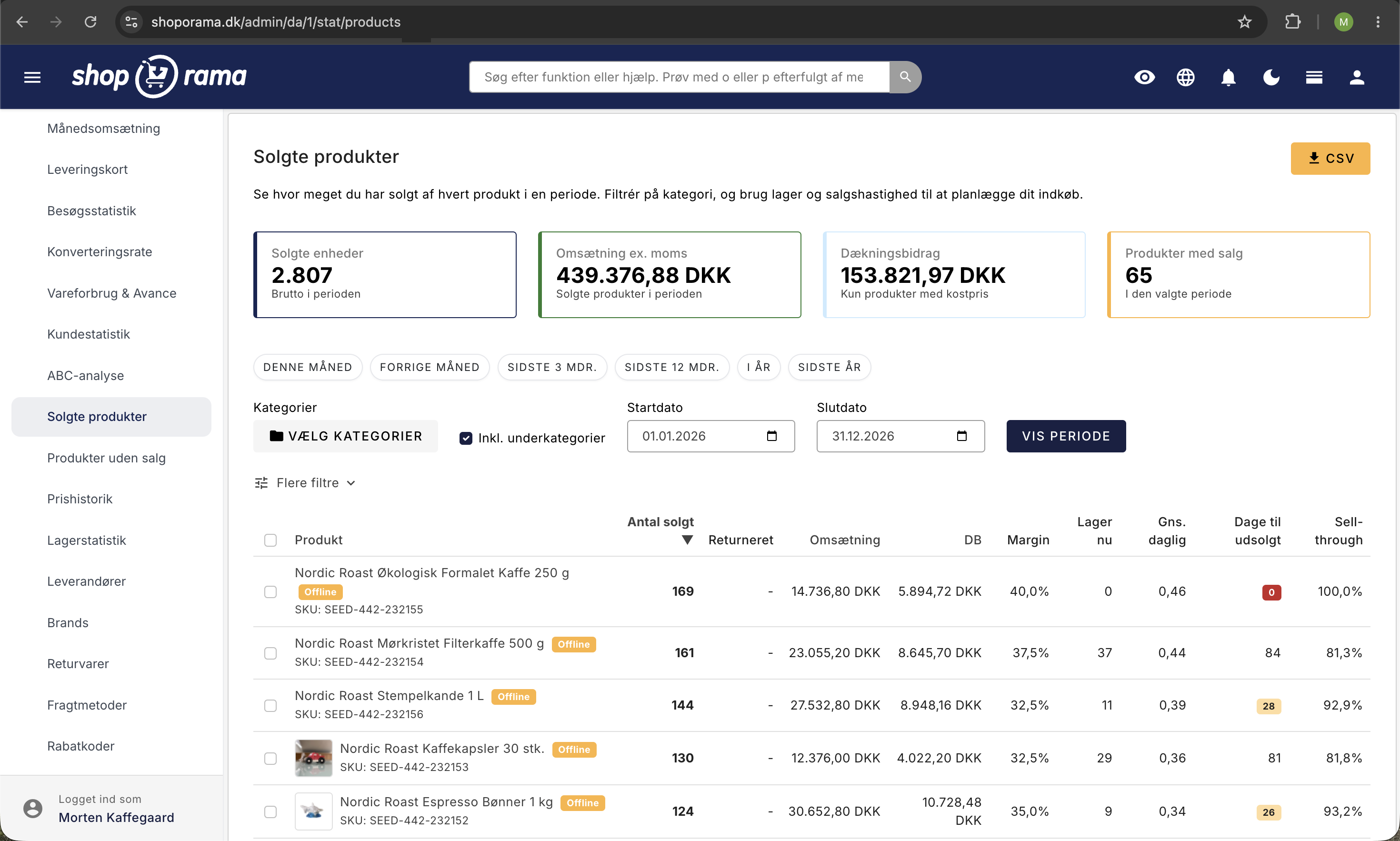
You can see how many units of each product you’ve sold directly in the Shoporama admin. This gives you a quick overview of your bestsellers. There are three ways to do this: the “Sold” column in the product overview, the sales statistics for each individual product, and the “Sold Products ” report under “Statistics.”
How to view the number of units sold
- Go to Products → All Products
- The “Sold ” column appears by default in the product list
- The number next to each product shows the total number of units sold
- Click the number to view the orders containing that product
Sort by best-selling
Click the "Sold" column header to sort the product list by number of units sold. Click again to toggle between ascending and descending order.
View sales for a specific period
The “Sold” column shows total sales and cannot be filtered by a specific period. If you need figures for a specific period, you have two options:
- Sales statistics for a single product: Open them from the menu with the three dots next to the product in the product overview or using the “Sales Statistics” button at the top of the product’s edit page. Select, for example, 30 days, 12 months, or your own dates, and view units sold, orders, revenue (excluding tax), and how many days of inventory you have left. You can compare with the previous period or the same period last year, and if the product has variants, you’ll see sales per variant. Read more in Sales Statistics for a Single Product.
- Statistics → Sold Products: This report shows sales for all your products during the selected period, allowing you to compare them. Read more in Sold Products: Sales Report and Reordering.
Export Sales Data
For more detailed sales statistics, you can:
- Export products as CSV —includes the number sold per product
- Export orders —for detailed revenue per product over a period
- View revenue – the admin dashboard shows your total revenue
Tip
The number in the “Sold” column is the total number of units of the product across all your orders, regardless of when they were placed, and includes orders that haven’t been paid yet. Canceled orders are not included. The figure may therefore differ from the Sales Statistics and the “Sold Products” report, which only count paid orders within the selected period.
Need help? Contact us at support@shoporama.dk.
Related articles
Export customers who have purchased a specific product
Guide to export a list of customers who have purchased a specific product and send them an email.
Copy a product
Guide to copying a product in Shoporama - including variants, images and descriptions.
Set noindex on a page, product or category
Here's how to set "noindex" for products, categories, static pages, landing pages, and blog posts in Shoporama so they don't appear in Google...