Change payment card for your subscription
Guide to changing the payment card you use to pay for your Shoporama subscription.
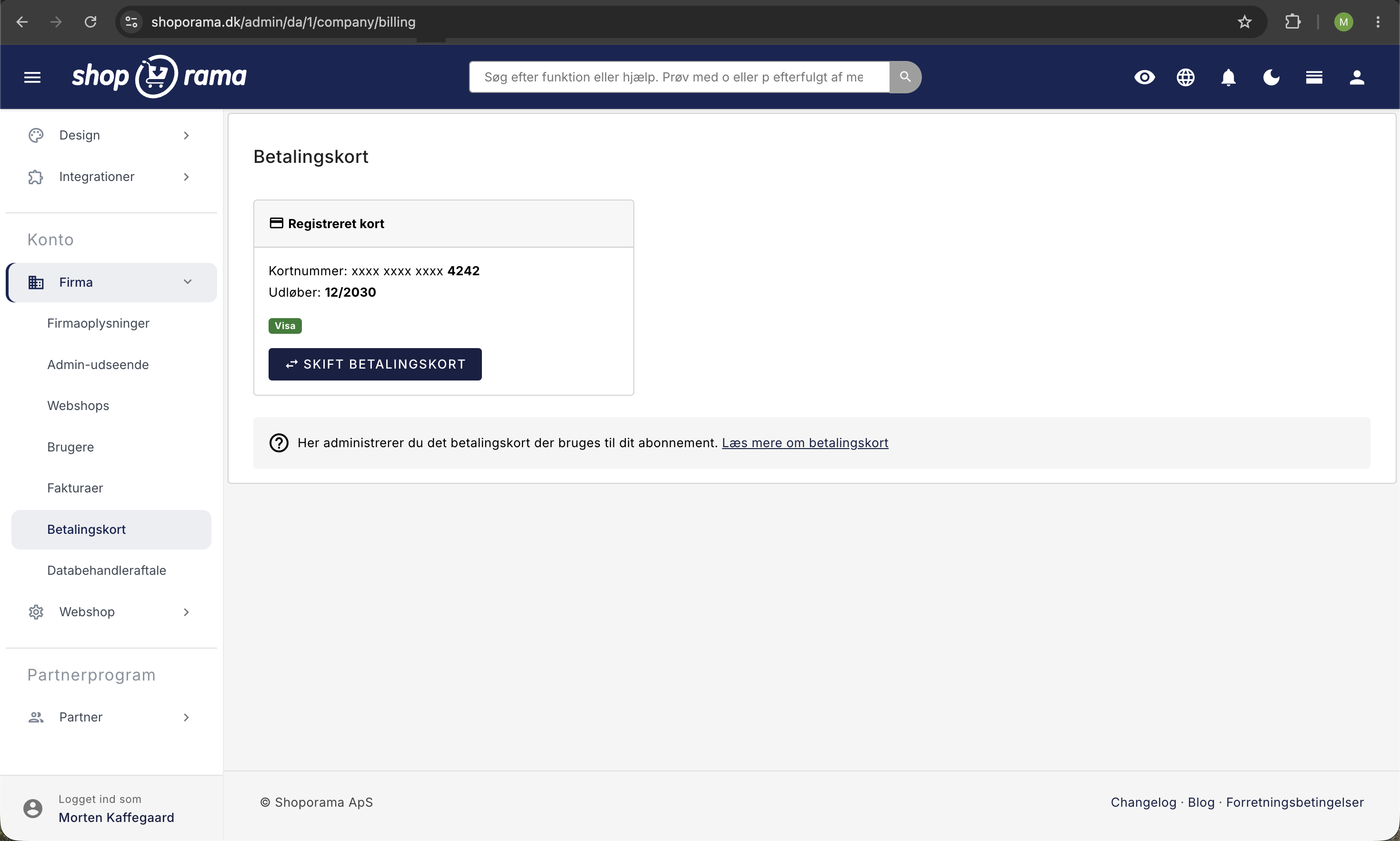
You can change the payment card used to pay for your Shoporama subscription directly in the admin panel.
How to change your card
- Go to Account → Company → Payment Card (URL: /company/billing)
- Click Change Payment Card (or Register Payment Card if no card is already registered)
- Enter the details of the new payment card
- Confirm that the new card will be used for future subscription payments
When should you change your card?
- Ifyour card is about to expire, change it before the expiration date to avoid service interruption
- New card: if you’ve received a new card from your bank
- Different company: if another company is paying for the subscription
Note
If your card is declined, Shoporama will attempt to process the payment again. Change your card as soon as possible to prevent your shop from being shut down.
See also: Find your invoice from Shoporama.
Need help? Contact us at support@shoporama.dk.
Related articles
Subscriptions
Learn how to set up subscriptions in Shoporama so your customers can create recurring orders with automatic payment and delivery at set intervals.
3D Secure error in QuickPay
Solution to the '3D secure enrollment failed' error in QuickPay and what you can do.
3D Secure on QuickPay
Guide to enabling 3D Secure (SCA) on your QuickPay integration in Shoporama.
Related features
Subscription webshop
Create a subscription online store on Shoporama. Offer monthly or weekly deliveries, let the customer take control and get stable revenue every month.
What does an online store cost?
What does it cost to start and run an online store? See all costs: platform, payment, design, operations and marketing. Honest comparison.