Attach terms and conditions to the order confirmation
Sådan vedhæfter du dine handelsbetingelser som PDF til ordrebekræftelsen i Shoporama.
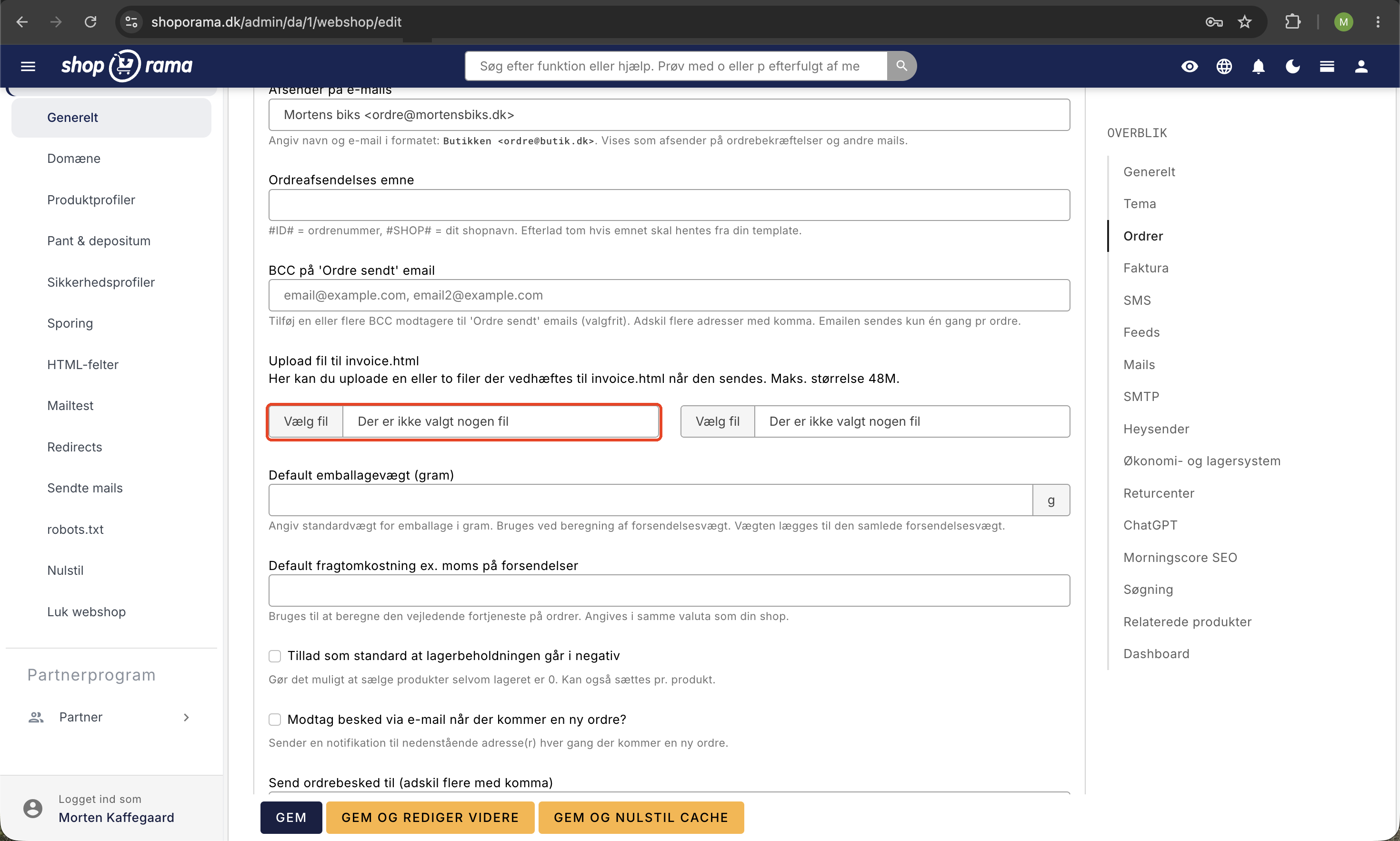
You can attach your terms and conditions (or another PDF file) to the order confirmation so that the customer automatically receives them along with the order details.
How to attach a PDF
- Click the gear icon in the top-right corner of your admin panel
- Go to Settings and scroll down to the Orders section
- Find the “Upload file to invoice.html” field
- Select your PDF file and click Save
The file will now be automatically attached to all order confirmations sent to your customers. You can upload up to two files if, for example, you want to send both your terms and conditions and a separate cancellation policy.
File requirements
- The file should be in PDF format for best compatibility
- Keep the file size small, preferably under 5 MB, so the email doesn’t end up in the customer’s spam filter
- Make sure the content is up-to-date and accurate
How to write terms and conditions as text
In addition to the PDF attachment, your store also has a text-based field for terms and conditions, which is displayed on the store itself under /terms:
- Click the gear icon in the top-right corner of your admin panel
- Go to Design → Logo & Terms
- Type or paste your terms and conditions into the Terms and Conditions field
- Click Save
You can also link directly to /terms from the text in your order confirmation if you don’t want to attach the file.
Tip
If you want to attach different files depending on product type, shipping method, or other criteria, you can do so through your theme. See the article “Attach a File to the Order Confirmation ” for the advanced solution.
Need help? Contact us at support@shoporama.dk.
Related articles
Attach file to the order confirmation
Guide to attaching a file (e.g. terms and conditions) to the order confirmation in Shoporama.
Customers skip payment and land directly on the order confirmation
Troubleshooting when customers skip the payment in your webshop and land directly on the order confirmation. Almost always due to the EAN field in...
Resend the order confirmation
Guide to resend the order confirmation to a customer in Shoporama.
Related features
PDF invoice
Generate professional PDF invoices automatically from your orders in Shoporama. Attach to order confirmation, credit note and pickup email.
Verified Shoporama Store
Company Information, Logo, and Terms and Conditions
Here's how to fill in your company information and CVR number, upload your logo and favicon, and write the terms and conditions that will appear at...