Gift wrapping and add-ons in the cart: a little extra for Christmas
Black Friday and the holiday shopping season are just around the corner, and many orders are meant as gifts. Now you can offer gift wrapping, greeting cards, and delivery with a single checkbox in the shopping cart and on the final step before checkout. It’s an easy way to add a little extra revenue to orders the customer has already decided to place.
Christmas Is Decided in the Shopping Cart
Black Friday and the holiday shopping season are just around the corner, and these are the weeks when a large number of orders are gifts. Checking the box for “Gift wrapping” or “Greeting card” right before checkout is an easy yes, because the customer has already decided to buy.
With add-ons in the shopping cart and at checkout, you can now offer exactly that. This feature was developed at the request of one of our partners, and it’s perfect for all those small extras that make a difference no matter what the customer has purchased: gift wrapping, a greeting card, or carrying a heavy item upstairs.
Small amounts on many orders
An add-on doesn’t cost you any extra marketing, because the customer is already there. It increases your average order value, and during the holiday season, even a small percentage of customers who say “yes, please” can add up to a nice sum. Do the math with your own numbers: number of orders multiplied by the percentage of customers who choose the add-on, multiplied by the contribution margin on the add-on.
The add-on is a standard product with a price, sales tax, SKU, and, if applicable, inventory. It appears on the order as a regular order line, so it’s listed on the invoice, recorded in the books, and included in the statistics just like any other item.
Here’s how it looks to the customer
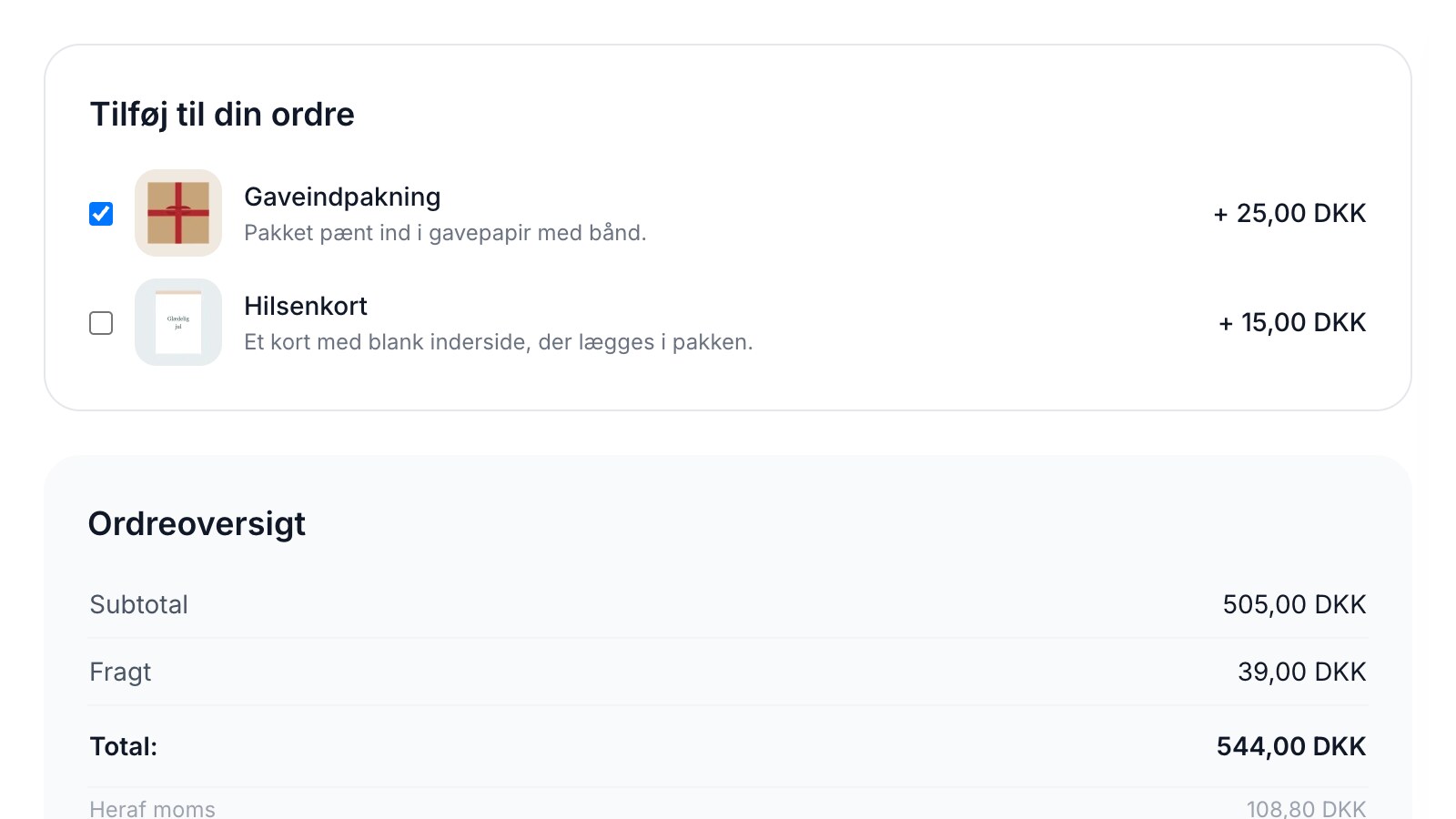
The add-ons appear in a small block labeled "Add to your order" in the shopping cart and on the final step before checkout. Each add-on has a checkbox, a name, a short description, an image (if the product has one), and the price with a plus sign in front of it. One click adds the add-on to the cart, and the total is updated immediately. One more click removes it again.
- The checkboxes are never pre-selected. Under the Consumer Contracts Act, the customer must actively choose to make an additional purchase, and pre-checked boxes are not permitted. Shoporama ensures this.
- The block only appears when there is a regular item in the cart. If the customer removes all regular items, the add-ons disappear as well, so no one ends up buying “just gift wrapping.”
- The add-ons do not clutter the product lineup. They are excluded from categories, search results, and product feeds such as Google Shopping.
Set up in just a few minutes
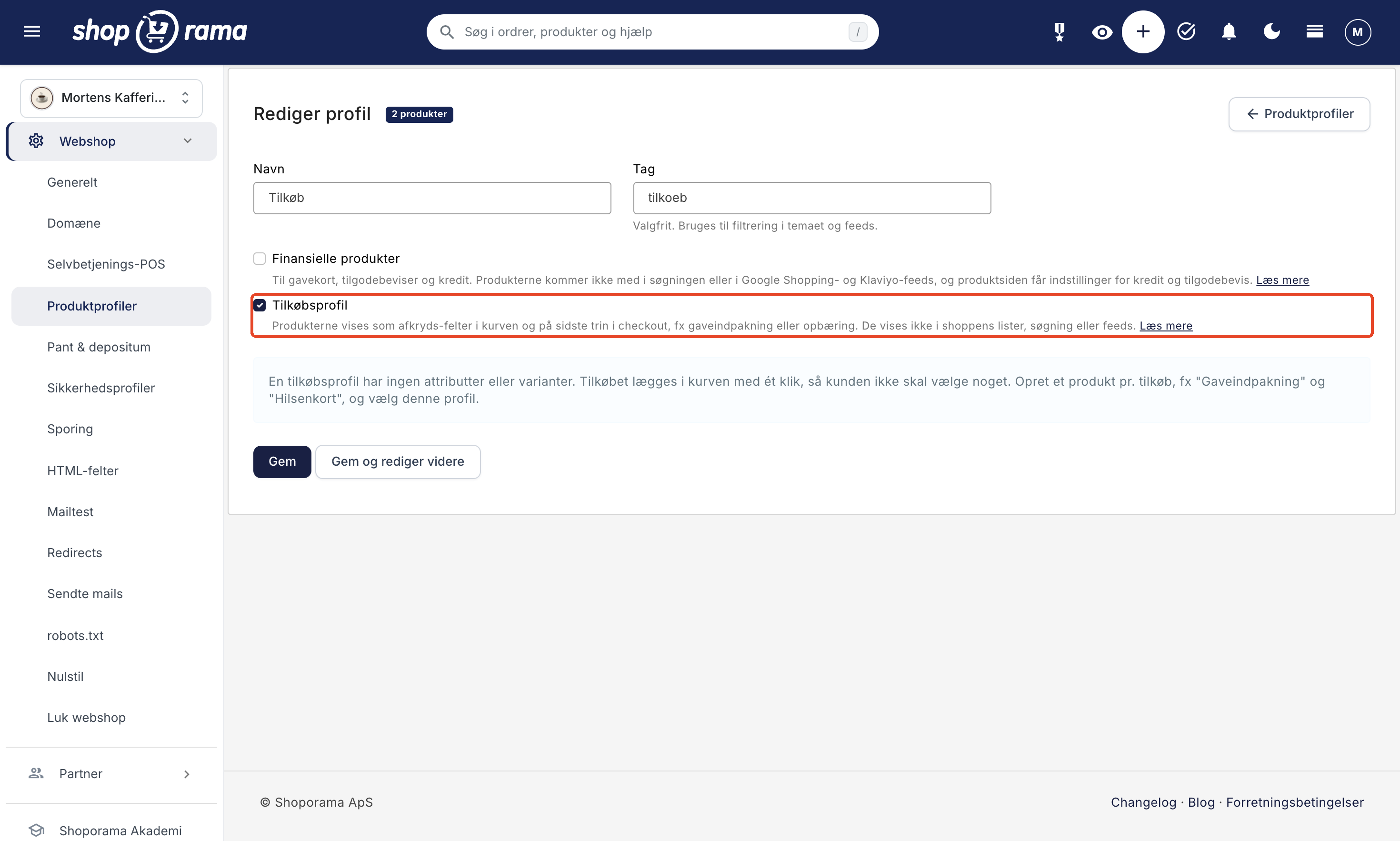
- Go to Webshop → Product Profiles, and create a new profile, e.g., “Add-ons.” Check the “Add-on Profile” box, and save.
- Create a product for each add-on, such as “Gift Wrapping” and “Greeting Card,” and select the add-on profile. Set a price for the product and add a short description in the “Listing Description” field, which appears below the name in the cart.
- Make sure the product is online.
All add-ons are visible to all customers, so stick to two or three that make sense for almost any order. If you sell greeting cards, the customer can write their message in the order comment field, if your theme has one. All details about inventory, placement, and what the customer sees are covered in the support article " Add-ons in the Cart and Checkout."
Works in the built-in themes
Add-ons in the cart are a theme feature, and they work in the built-in themes Delaware, DelawareDK, Montana, and MontanaB2B. If you’re using a different theme, the block won’t appear automatically, so a developer will need to add it. If you’re unsure, please email support@shoporama.dk.
In the cart or on the product page?
"Add to Cart" applies to the entire order. If the accessory is meant for a specific item—such as a French press for coffee beans—use the "Add to Cart" option on the product page instead. There, the customer can also choose a color or size, as we mentioned in a previous post. Both options can easily be used in the same store.
Related articles
Add to Cart and Checkout
Here's how to offer gift wrapping, greeting cards, delivery, and other add-ons with a single checkbox in the shopping cart and on the final step...
Add-ons on the product page: Sell accessories with a single checkbox
Display selected accessories below the "Buy" button so customers can add them to their cart with a single checkmark. With variant selection,...
More from the blog
Reviews with photos: Let customers show the product as it is
Now your customers can attach photos when they leave a review of their purchase. A photo of the product in use at a real customer’s home shows...
19. oktober 2026
Inventory Value with Split Inventory: One Number for the Financial Statements, Without Duplicates
If your shops sell from the same inventory, each shop displays the full value of the shared inventory, and if you combine the shops, the items are...
17. oktober 2026
Customer Club Newsletter: Sell More to Returning Customers
Your regular customers are the ones most likely to make repeat purchases. Now you can send the newsletter only to the customer club, to a specific...
14. oktober 2026