Add to Cart and Checkout
Here's how to offer gift wrapping, greeting cards, delivery, and other add-ons with a single checkbox in the shopping cart and on the final step before checkout. Create an add-on profile, add the products to it, and the add-on will appear as a regular order line item.
What are "Add-ons" in the cart?
Add-ons in the cart are small extra services or items that the customer can select for the entire order with a single checkbox, right before checkout. Typical examples include gift wrapping, a greeting card, or delivery of a heavy item. The customer sees a small section labeled “Add to Your Order” in the cart and on the final step of checkout; they check the box next to the desired option, and the add-on is added to the cart.
The value is straightforward: the customer has already decided to make a purchase, and an offer for gift wrapping for 25 kroner leading up to Christmas or Black Friday is an easy “yes.” This increases your average order value without requiring any extra effort on your part once the add-ons are set up. An add-on is, in fact, a regular product with a price, sales tax, SKU, and possibly inventory. It appears on the order as a regular order line and is booked, invoiced, and included in the statistics just like any other item.
The difference between add-ons in the cart and add-ons on the product page
Shoporama has two types of add-ons, and each serves a different purpose:
- Add-ons on the product page are selected per product and appear below the “Buy” button on the product page. This is suitable for accessories that belong to a specific item, such as running socks for running shoes, and the add-on may have variations such as size or color.
- Add-ons in the cart—which are the focus of this article—apply to the entire order and are displayed in the cart and at checkout. This applies to services that make sense regardless of what the customer has purchased, such as gift wrapping and greeting cards. These add-ons have no variations, and you select them by adding the products to a special product profile.
You can easily use both types in the same store.
How to set up add-ons in the cart
Setup is a two-step process. First, create a single product profile and mark it as an add-on profile. Then, create a product for each add-on and add it to the profile.
Step 1: Create the add-on profile
- Go to Web Store → Product Profiles.
- Enter a name in the field for the new profile—for example, “Add-ons”—and click Create Profile.
- Check the box next to “Add-on Profile.” The field is located directly below “Financial Products.”
- Click Save. The profile list will now show a small label that says “Add-ons” next to the profile name.
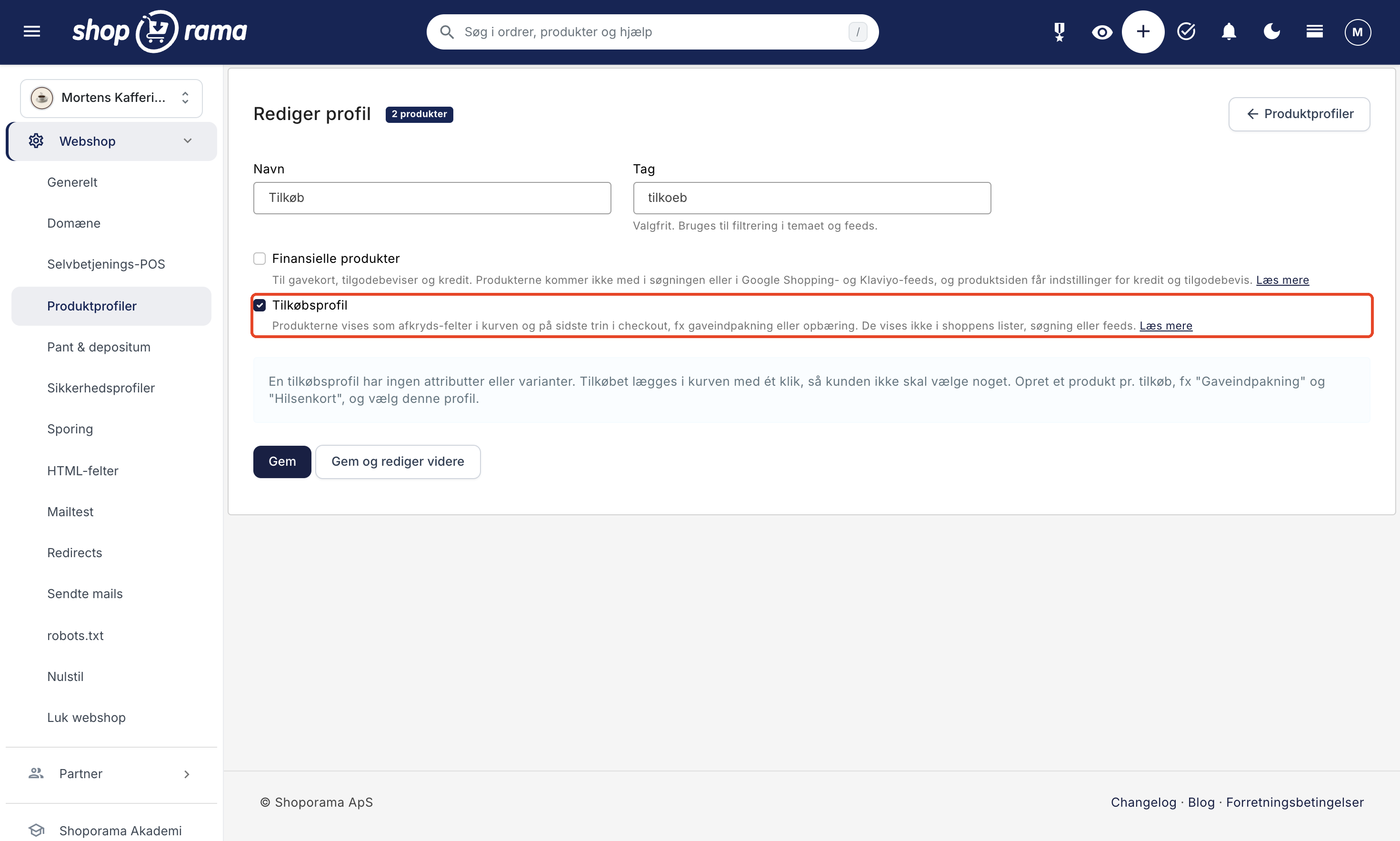
An add-on profile cannot have attributes or variants, because the add-on must be able to be added to the cart with a single click, without the customer having to make any selections. When you check the box, the attributes section will therefore disappear from the page. If the profile already has attributes, you cannot check the box, so start with a new, empty profile. A profile also cannot be both an add-on profile and a financial profile at the same time.
Step 2: Create a product for each add-on
- Go to the product list and click Create Product.
- Select your add-on profile under “Profile,” give the product a name that the customer will understand immediately—for example, “Gift Wrapping”—and click “Create Product.” You’ll now be taken to the product page.
- Enter the price in the “General” tab, and check the sales tax in the “Legal, Sales Tax, Customs, and Environment” tab, just as you would for any other product.
- Feel free to upload a small image. It will appear next to the add-on in the cart.
- Write a short description in the “List Description” field on the “General” tab, for example, “Wrapped in gift wrap with a ribbon.” The description will appear below the product name in the cart.
- Make sure the “Product is online” checkbox is selected in the “General” tab, then save. An add-on that is offline will not be displayed.
Repeat this for each add-on, such as “Greeting Card” and “Delivery.”
When the product is part of an add-on profile, the product page in the admin panel displays an info box with the heading “Add-on Product” at the top. At the same time, only the tabs that are relevant for an add-on are displayed: General, Product Images, Inventory Management, Fields, Theme Settings, and “Legal, VAT, Customs, and Environment” (as well as B2B Prices, if you use customer groups). Tabs such as Categories, SEO, Product Feeds, and Related are hidden because the add-on product won’t appear in the store’s listings anyway. If you want to move the product to a different profile, use “Switch Profile” in the General tab.
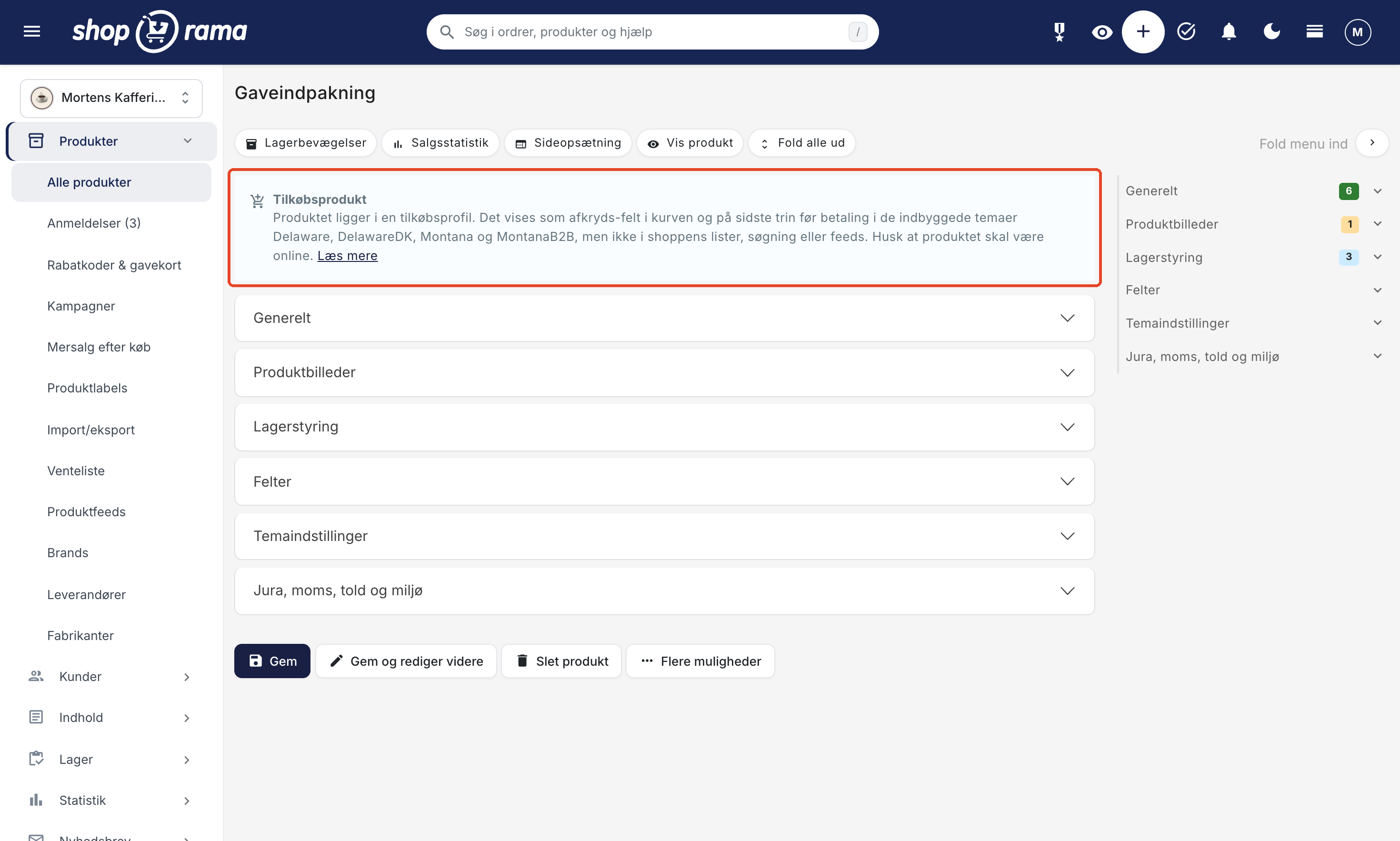
Inventory for Add-ons
Many add-ons are services that do not require inventory management, such as delivery. If an add-on product has never had inventory recorded for it, Shoporama automatically enables “Allow Negative Inventory” so the add-on can be sold immediately.
If you want to manage inventory—for example, because you only have 50 gift boxes—enter the inventory level for the product just as you would for other items, and uncheck the “Allow Negative Inventory” box on the Inventory Management card. The stock level will then apply, and when the add-on is out of stock, it will automatically disappear from the shopping cart and checkout.
What the customer sees
Add-ons are displayed in a block with the heading “Add to your order.” Each add-on has a checkbox, an image (if the product has one), the name, the text from the List description, and the price with a plus sign in front, for example, “+ 25.00 DKK.” The block appears in two places:
- In the cart. The block appears above the order summary, on the right side on a computer and below the items on a mobile device.
- On the final step before checkout. This is usually the step where the customer confirms the order, and here the block appears at the top. If you’ve enabled “Skip ‘Confirm Order’” under Webshop → General, the add-ons will instead appear on the shipping step, where the customer selects shipping. If the store has only one shipping method and one payment method, the delivery step is also skipped, and the customer will see the add-ons in the cart. In Montana and MontanaB2B, this only happens if no provider has been selected for the shipping method in the “Pakkeshop” field.
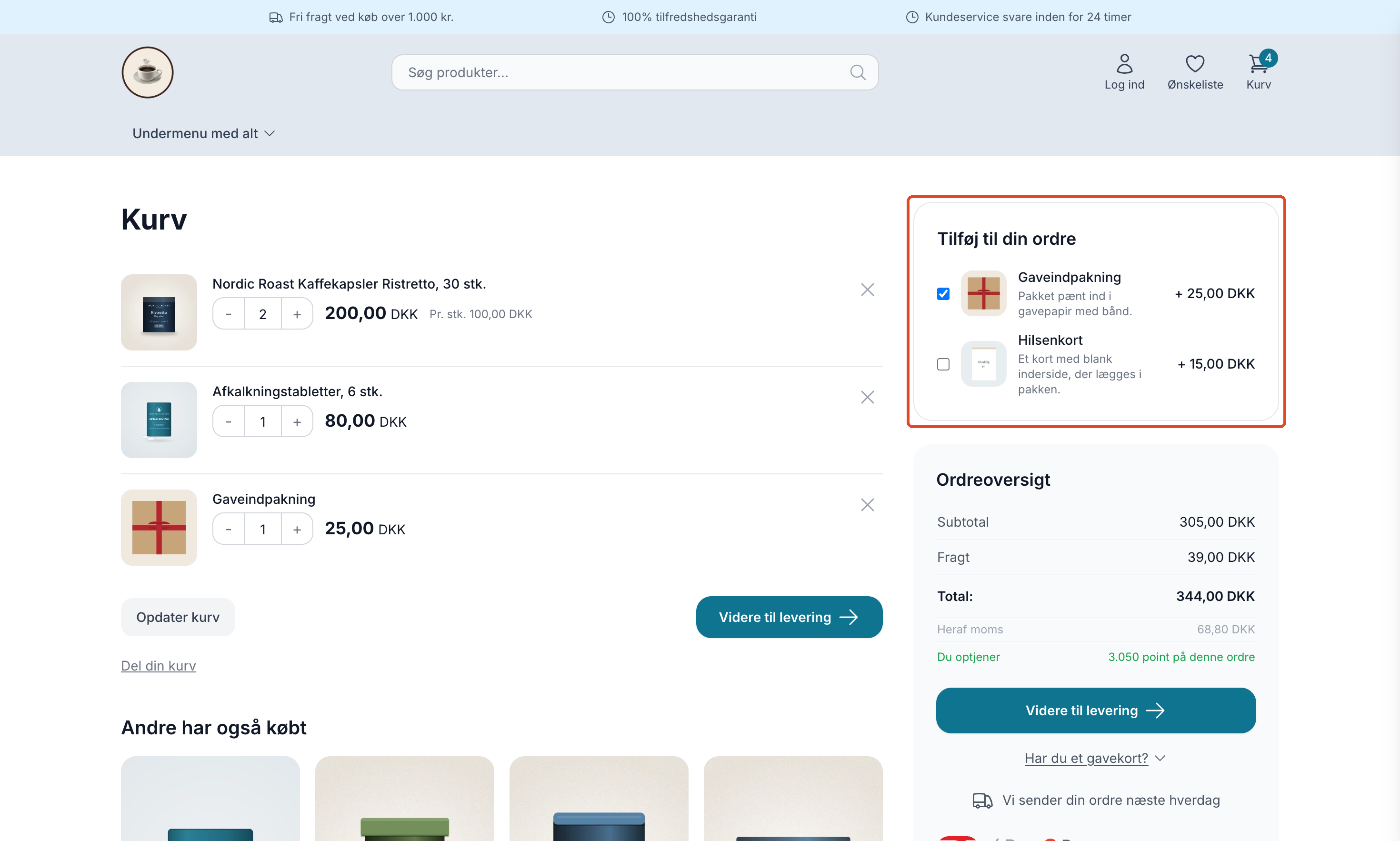
When the customer checks the box, one unit of the add-on is added to the cart, the page refreshes, and the total is updated immediately. If the customer unchecks the box, the add-on is removed from the cart. The add-on also appears as a regular line item in the cart, where the customer can change the quantity or delete it, just like with any other item.
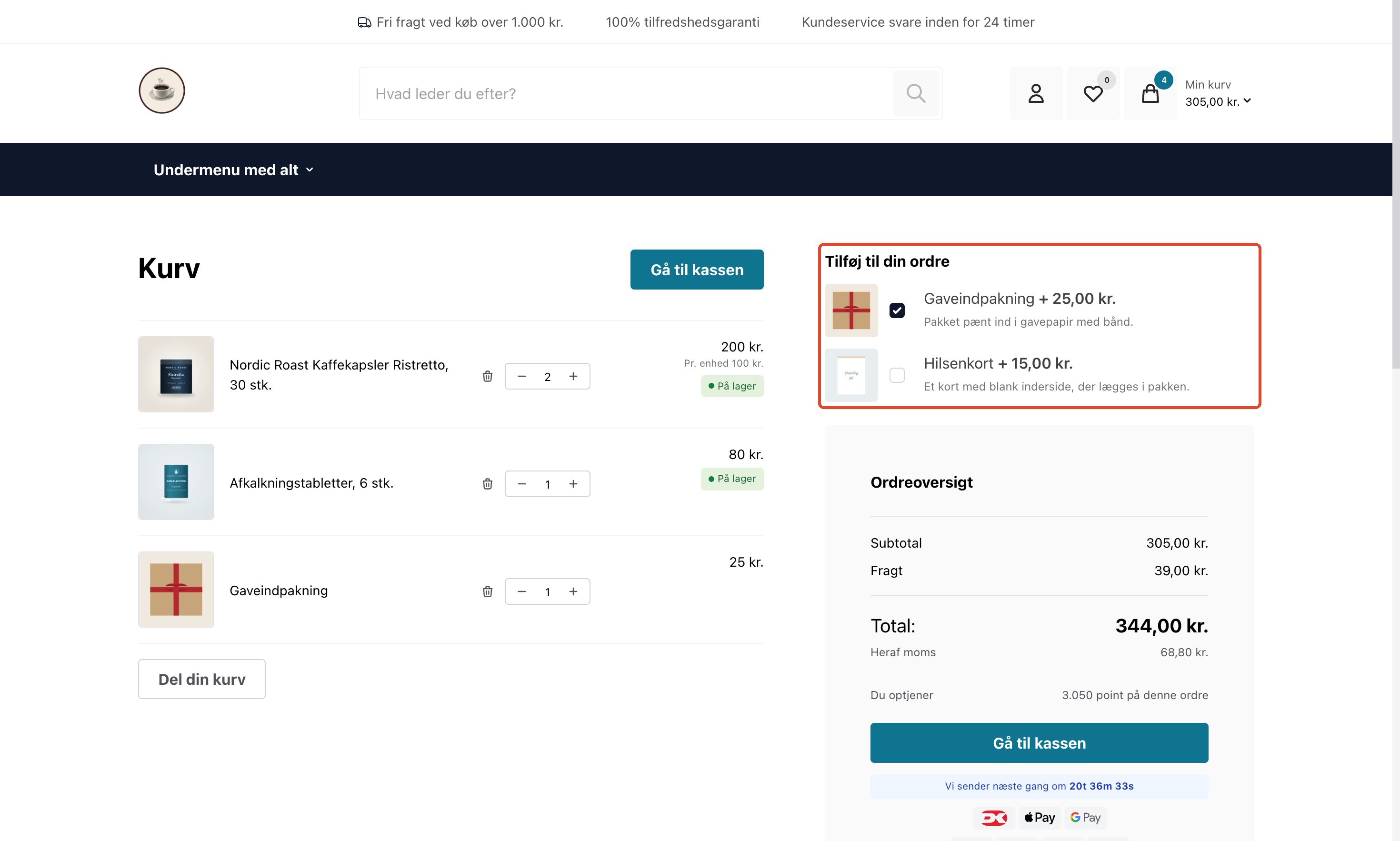
A few things are worth noting:
- Add-ons are never preselected. A checkbox is only checked if the add-on is already in the cart. This is not a choice but a legal requirement: under the Consumer Contracts Act, the customer must actively choose to pay for an add-on, and pre-checked boxes are not permitted.
- The block is only displayed when there is a regular item in the cart. If the customer removes all regular items, the add-ons are automatically removed so that no one ends up purchasing “gift wrapping only.”
- Only add-ons that are available for purchase are displayed. The add-on must be available online and either in stock or have “Allow Negative Stock” enabled.
- Items are listed alphabetically by product name, and a maximum of 20 add-ons are displayed. In practice, two or three standout add-ons sell better than a long list.
- In MontanaB2B, B2B customers see the add-on price excluding tax, just like the rest of the prices in the theme.
What happens on the order and in the store?
An add-on becomes a regular order line with its own name, price, and sales tax. The order in the admin panel, the invoice, and your accounting software treat it like any other item, so you can add gift wrapping or a greeting card based on the order line as you normally would.
The products in an add-on profile are kept separate from the rest of the store so they don’t clutter the product range. They do not appear in categories or product lists, in search results, in recommendations or “customers also bought” sections, in related or similar products, on landing pages, in the sitemap, or in product feeds such as Google Shopping and Klaviyo. The product page can still be accessed directly via its URL, but it’s marked so that search engines don’t index it.
Add-ons and Free Shipping
By default, an add-on counts toward the cart total when comparing it to your free shipping threshold above a certain amount, just like any other item. This can lead to an inaccurate result. If you offer free shipping on orders over 460 kr., and the customer has items totaling 449 kr., checking the box for gift wrapping at 25 kr. will trigger free shipping. The customer pays 25 kr. for the gift wrapping and avoids the shipping charge.
If you want to avoid this, you can specify that add-ons do not count toward the threshold:
- Go to Delivery → Shipping Rates.
- Find the “Add-ons and Free Shipping” card. It’s located between the “If a product has a fixed shipping rate” card and the shipping rates table.
- Check the box next to “Add-ons do not count toward the free shipping threshold.”
- Click Save at the bottom of the page.
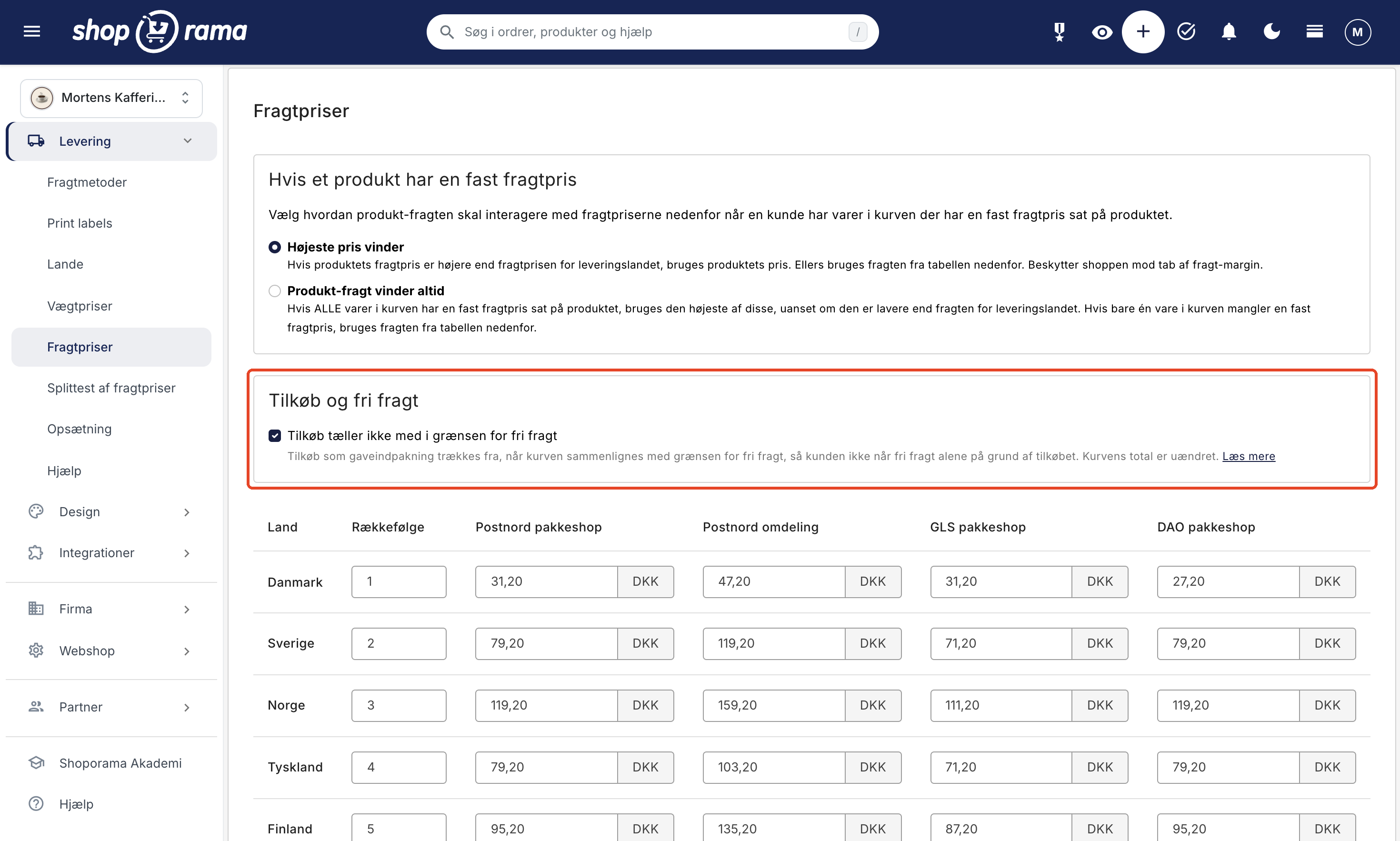
The card is only displayed when the store has an add-on profile. The setting is turned off until you turn it on yourself, and it applies to the entire store, in all countries, and for all shipping methods. You set up shipping rates as described in “Shipping Rates: How to Set Up Rates by Country and Amount.”
What does this setting change?
- The add-on is deducted when the cart total is compared to the threshold. In the example above, only the items totaling 449 kr. count, so the customer pays for shipping, and the free shipping message in the built-in themes indicates that 11 kr. is missing.
- The customer still pays for the add-on. The add-on remains in the cart as before, and the cart total, order total, and sales tax remain unchanged. Only the comparison against the threshold changes.
- The add-on is deducted at the price listed in the cart, before discount codes and promotional discounts. If the customer selects multiple copies of the same add-on—for example, two gift wrappings—both are deducted.
- Discount codes offering free shipping are not affected. If a discount code includes free shipping and requires the customer to spend a minimum amount for the code to apply, the add-on still counts toward that minimum amount. Free shipping for members of the loyalty program also works as before.
- Applies only to add-ons in the cart. This setting applies to the products in your add-on profile. Items the customer selects as add-ons on the product page count toward the minimum as regular items, unless you’ve selected a product from your add-on profile.
The shipping price at checkout and next to each shipping method always follows this setting, regardless of the theme. In the built-in themes, the free shipping message is also included. Montana and MontanaB2B display the bar “Only X left for free shipping!” in the small shopping cart that slides out from the side. Delaware and DelawareDK display the message “You need X more for free shipping” when you’ve enabled it under Design → Theme Settings in the Shipping group using the “Enable Free Shipping Notice” option. In Delaware, the setting is called “Enable Free Shipping Notice” in the “Shipping” group, and the message is in English. If you have a different theme with its own free shipping message, a developer will need to customize it; see the section for developers below.
Which themes support add-ons in the cart?
Add-ons in the cart work in the built-in themes Delaware, DelawareDK, Montana, and MontanaB2B. If you’re using a different theme or a custom theme, the block won’t appear automatically. In that case, a developer will need to add it to your theme; see the section for developers below.
The products in the upsell profile are excluded from lists, search results, and feeds regardless of which theme you use. If your theme does not include the block, the upsells will therefore be invisible to customers until the theme is updated. If you’re unsure about what your theme is capable of, please email support@shoporama.dk.
What You Need to Know Before You Get Started
- No conditions. All active add-ons are displayed to all customers. You cannot restrict an add-on to specific categories, a specific order amount, or specific shipping methods.
- Add-ons count toward the free shipping threshold unless you check the box for “Add-ons do not count toward the free shipping threshold ” under Delivery → Shipping Rates. See the section “Add-ons and Free Shipping” above.
- No variants. If you want the customer to be able to choose between, for example, two types of gift wrap, create them as two add-ons.
- The add-on applies to the entire order. Checking the box adds one item to the cart for the entire order, and the add-on is not linked to a specific item in the cart. If the add-on is meant to accompany a specific item, use the add-on option on the product page instead.
- Only in the cart and on the final step. Add-ons do not appear on the address step or in the small cart that slides out from the side.
- No text field for the greeting. If you sell greeting cards, the customer can write their greeting in the order comments, if your theme has one.
For Developers
This section is for you if you’re building or maintaining a theme and want to add add-ons to the cart for a theme that doesn’t already have them.
The theme retrieves the add-ons using $webshop->getBasketAddOnProducts(), which returns a list of products. The list is empty when the cart contains no regular items, so you can use it directly in a condition. For each product, $product->getBasketAmount() returns the quantity in the cart, so you can display the field as checked when the add-on has already been selected.
Add-ons are added to and removed from the cart using a form that is submitted via POST to / and has three fields:
- basket_addon: the product’s ID.
- basket_addon_state: 1 adds one item to the cart (if the add-on is already there, nothing happens); 0 removes it.
- basket_addon_return: the step the customer is redirected to afterward— basket, address, shipping, or approve.
A simplified example of the Smarty code:
<{$basket_addons = $webshop->getBasketAddOnProducts()}>
<{if $basket_addons}>
    <p>Add to your order</p>
    <{foreach $basket_addons as $addon}>
        <{$selected = $addon->getBasketAmount() > 0}>
        <form action="/" method="post">
            <input type="hidden" name="basket_addon" value="<{$addon->getProductId()}>">
            <input type="hidden" name="basket_addon_state" value="<{if $selected}>0<{else}>1<{/if}>">
            <input type="hidden" name="basket_addon_return" value="basket">
            <label>
                <input type="checkbox" onchange="this.form.submit()"<{if $selected}> checked<{/if}>>
                <{$addon->getName()|escape}>
            </label>
        </form>
    <{/foreach}>
<{/if}>
Each add-on is its own form, so the block must not be placed inside another form, such as the shopping cart’s quantity form. Never set the field to checked unless the add-on is already in the cart. The finished component in the built-in themes is located at components/basket-addons.html and also displays an image, list description, price, and a button for browsers without JavaScript. It’s a good starting point to copy from.
If your theme displays a message about free shipping—for example, “You need 50 kr. more for free shipping”—calculate it using $free_shipping_price|default:$price instead of $price, as the built-in themes do. This variable represents the cart total excluding add-ons when “Add-ons do not count toward the free shipping threshold” is enabled; otherwise, it is the same as $price. This ensures the message matches the shipping cost charged at checkout.
In the REST API, the /profile endpoint has the is_addon field (next to is_financial) for reading, creating, and updating. The call returns a 400 error if both are set to 1, or if one of them is enabled on a profile that has attributes; attributes cannot be created on an add-on profile. If you use the Claude integration (MCP), Claude can also create an add-on profile or mark an existing profile as an add-on profile. The setting “Add-ons do not count toward the free shipping threshold” cannot be set via the REST API or Claude. You enable this in the admin panel.
Frequently Asked Questions
Can I set the price for gift wrapping myself and change it later?
Yes. The add-on is a regular product, so you set and change the price of the product as you normally would. The new price appears immediately in the cart and at checkout.
Can I select an add-on in advance for the customer?
No. The Consumer Contracts Act requires that the customer actively select an add-on themselves, so an add-on is never pre-selected until the customer has chosen it. This also protects you from customers who later claim they didn’t choose the add-on.
Does the add-on appear on the order confirmation and in the order in the admin panel?
Yes. The add-on is a regular order line with a name, quantity, and price, so it appears on the order confirmation, on the invoice, and in the order in the admin panel just like all other items.
Can I see how many customers choose gift wrapping?
Yes. The add-on is included in the statistics just like other products. Open the product and click on Sales Statistics to view the sales.
Does gift wrapping count toward the free shipping threshold?
Yes, by default. If you don’t want this, go to Shipping → Shipping Rates, check the box for “Add-ons do not count toward the free shipping threshold” in the Add-ons and Free Shipping tab, and click Save. Then, add-ons will be deducted when the cart is compared to the threshold. The customer still pays for gift wrapping, and the cart total remains unchanged.
I can’t find the “Add-ons and Free Shipping” tab. Where is it?
The tab is on the “Delivery → Shipping Rates” page, but it only appears when the store has an add-on profile. First, create the add-on profile as described above, and then go back to Shipping Rates. The tab is located between the “If a product has a fixed shipping rate” tab and the table of prices.
Can I include delivery to the door but exclude gift wrapping?
No. This setting applies to all add-ons in the cart at once.
Is the add-on deducted from inventory?
The add-on is stocked like any other item. If you haven’t set up inventory tracking, it will be sold with “Allow Negative Inventory” enabled, and you can ignore the stock count. If you want to manage inventory, set up inventory tracking and uncheck “Allow Negative Inventory.” Then the add-on will no longer be displayed when it’s out of stock.
I’ve already set up the gift wrapping as a regular product. Do I need to start over?
No. Create an add-on profile as described above, and move the product into it by selecting “Switch Profile” in the “General” tab. Do not check the “Add-on Profile” box on the profile where the product is currently located if there are other items in that profile as well. Otherwise, they will all become add-ons and disappear from the store’s listings.
Can add-on products appear in Google Shopping or other product feeds?
No. Products in an add-on profile are automatically excluded from product feeds, search results, the sitemap, and the store’s listings, so they do not appear as standalone items.
Do I need to use the REST API to display the add-ons in my own theme?
No. The theme retrieves add-ons directly using the theme method, which is described in the section for developers. You only use the REST API if you want to create or mark add-on profiles from another system.
Related articles
Add-ons on the product page: Sell accessories with a single checkbox
Display selected accessories below the "Buy" button so customers can add them to their cart with a single checkmark. With variant selection,...
Product Profiles and Variants
Guide to product profiles and variants in Shoporama. Understand how profiles, attributes and variants are related.
Customize your checkout
Guide to customizing the checkout flow in your Shoporama online store, including payment methods, shipping, customer fields and gift cards.
Add a comment to a product in your cart
Learn how to add a comment field to products in the basket - for engraving, gift wrapping or other customer requests.
Related features
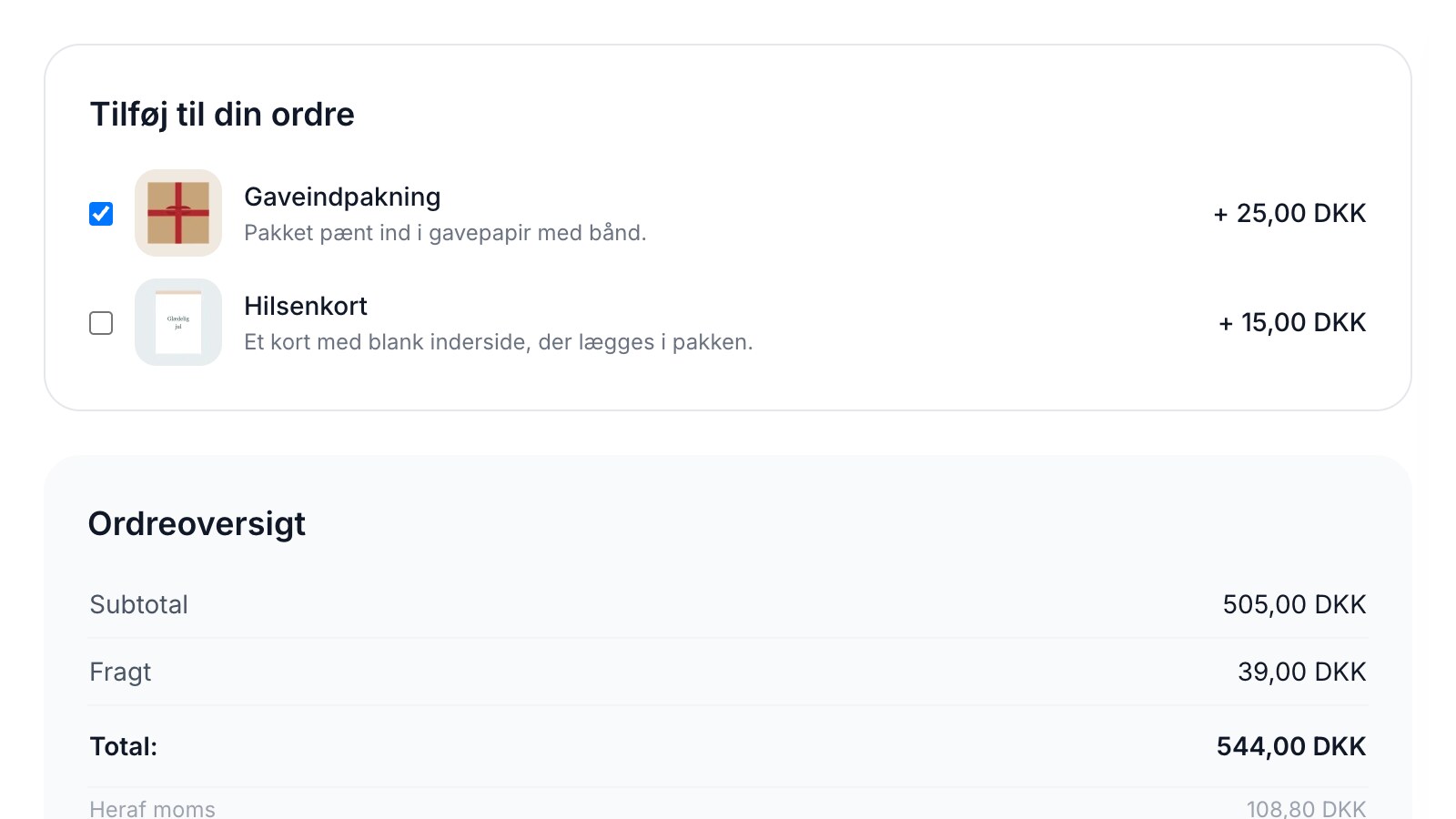
Gift wrapping and add-ons in the cart: a little extra for Christmas
Offer gift wrapping, greeting cards, and delivery with just one checkbox in the cart and at checkout. Boost your order value before Black Friday...
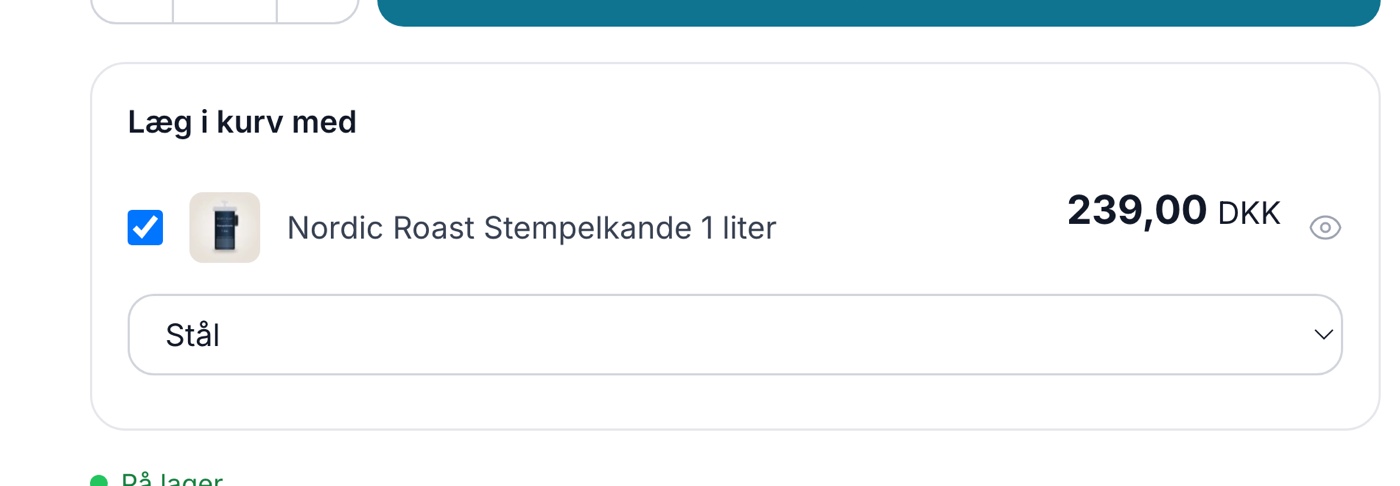
Add-ons: Sell accessories with a single checkmark
Add-ons
Add-ons are accessories that customers can add to their cart with a single checkmark directly on the product page. See how add-ons work in...