Reviews with photos: Let customers show the product as it is
Now your customers can attach photos when they leave a review of their purchase. A photo of the product in use at a real customer’s home shows things that your own product photos can’t. You’ll see the photos before they’re displayed in the store, and you can add, delete, or hide them yourself.
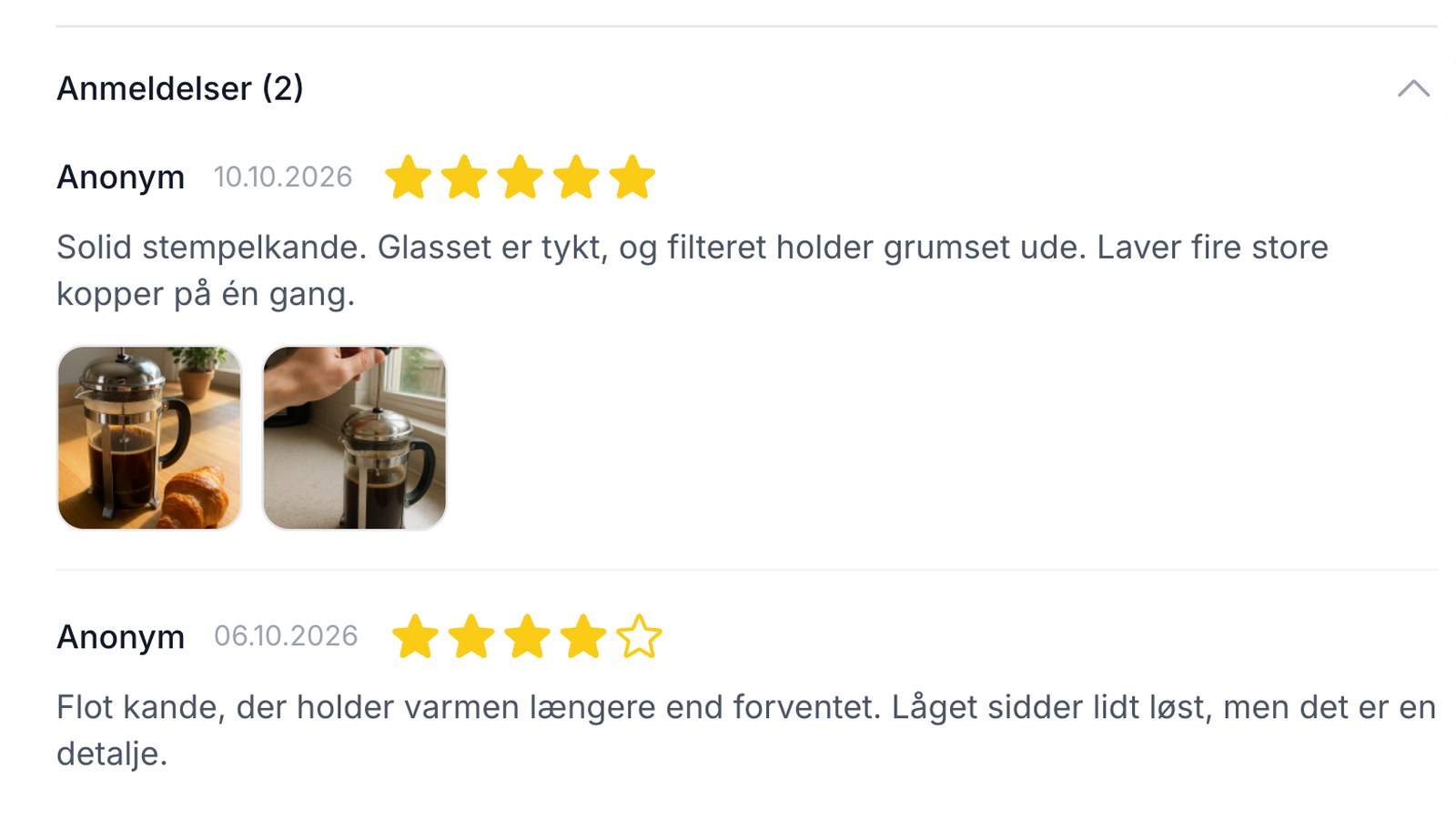
We’ve been asked whether customers can show the products in use along with their reviews. Now they can. When a customer reviews a purchase, she can attach up to five photos for each product, and once you’ve approved the review, the photos will appear below the text on the product page.
This feature is part of Shoporama’s built-in product reviews and works right away in the built-in themes that include reviews. You don’t need to enable anything.
Why a customer photo says more than just another star
Your own product photos are taken in good lighting and show the item at its best. They have to be. But new customers often want to know what the item looks like in real life, and here, a photo from another customer is more powerful than both stars and text. This is user-generated content (UGC), and it serves as social proof: others have bought the product, and this is what it looks like in their homes.
- Clothing and shoes: fit and color on an average body in natural light, not just on a model in a studio
- Furniture and home goods: how big the lamp, pillow, or bookshelf is next to items you have at home
- Toys: the product fully assembled, in use in a child’s room, or displayed as part of a collection
- Food and coffee: the quantity, texture, and what the item looks like when unwrapped or served
The customer has a better idea of what she’s getting, which can lead to fewer questions for customer service and fewer disappointments when the package is opened. The images also bring the product page to life without you having to take any photos yourself.
Here’s how customers add photos to their reviews
The customer submits a review via the link in the review email that Shoporama sends a few hours after the order is shipped. Under each product on the review page, there is now a field for images.
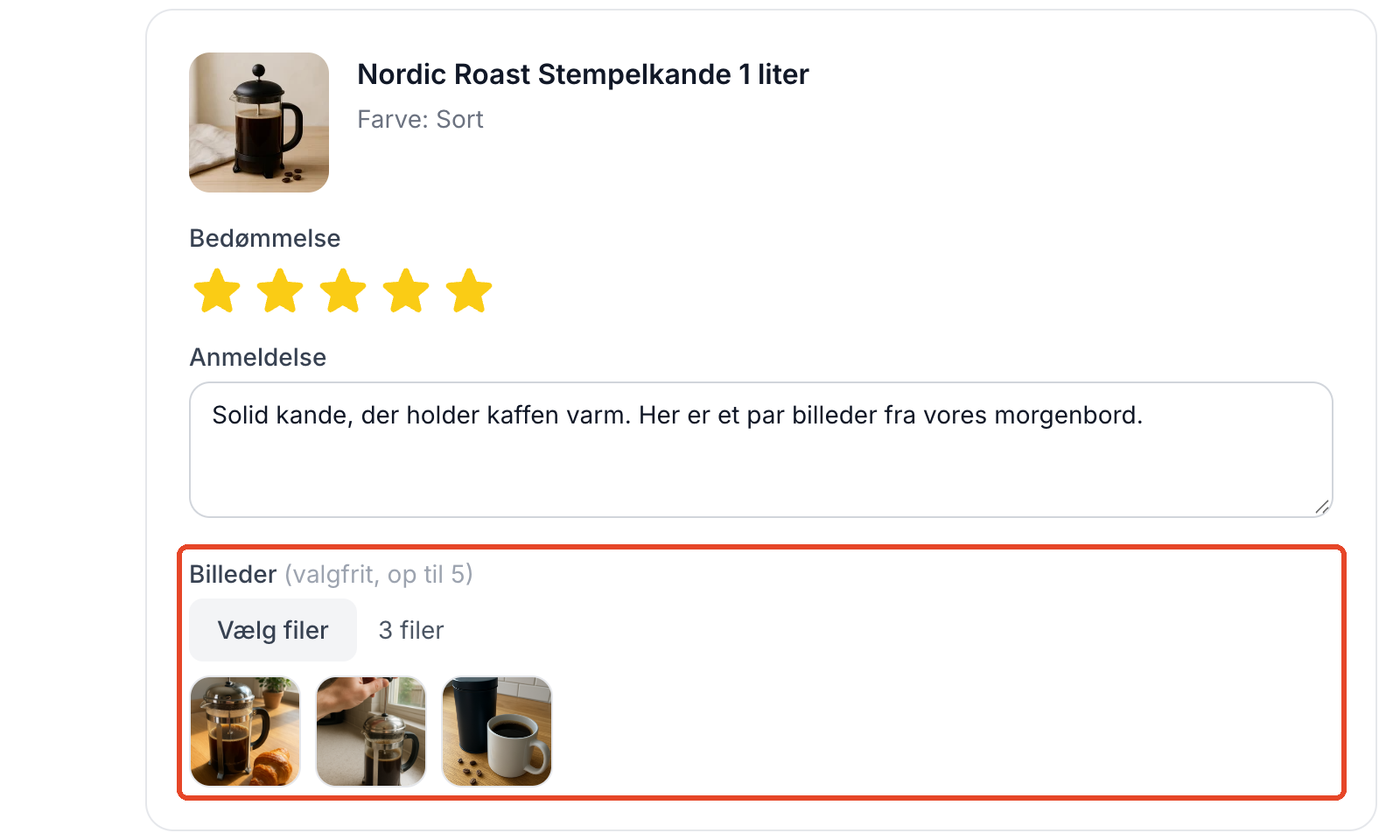
- Up to five images per product in JPEG, PNG, WebP, or GIF
- Large images from a phone are resized before being submitted, and images taken in portrait orientation are rotated correctly. The customer doesn’t have to worry about it
- The images are saved along with the review, so the customer just needs to rate the product with stars. If an image cannot be saved, the review is saved anyway, and the customer receives a notification on the thank-you page
You’ll see the images before they go public
Customer reviews always await your approval, and this also applies to the photos. Under Products → Reviews, the customer’s photos appear as small thumbnails in the new Photos column, so you can view them before approving. When you approve the review, the photos are included. You do not need to approve them separately.
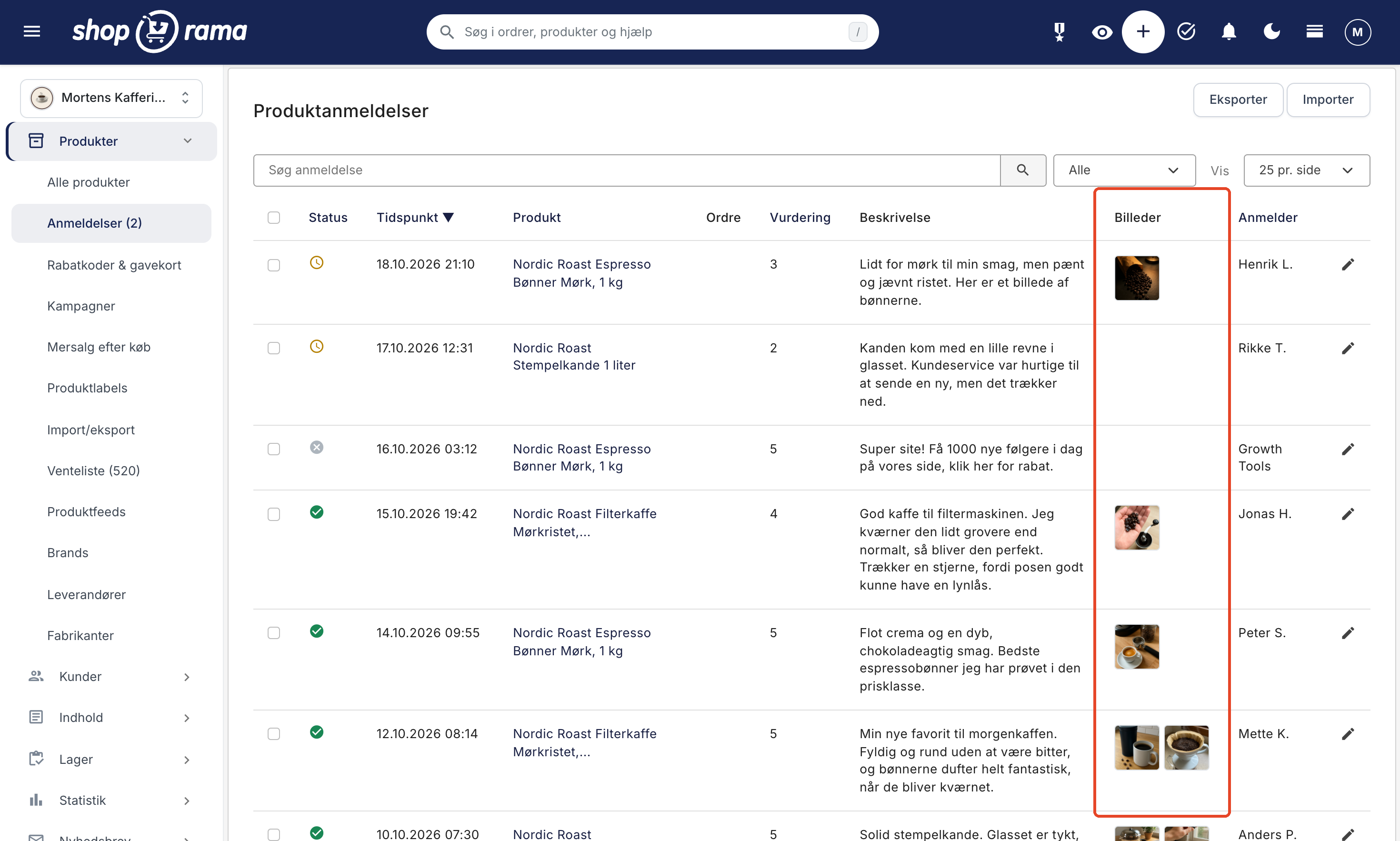
Click the pencil icon on the far right to open the review. In the Images tab, you can delete a single image using the trash can icon, for example, if it’s blurry or unrelated to the product. If you want to keep the text but not display the images, turn off “Show images in the shop ” and click Save. The images will remain but won’t be displayed in the shop.
Add your own images to a review
Some customers send photos via email instead, or think of them later. You can now add these to the review yourself. Drag the images into the “Images” tab, or upload them from the image library. This works for all reviews, including those you’ve imported from a previous system, and you can rotate or crop the image right away.
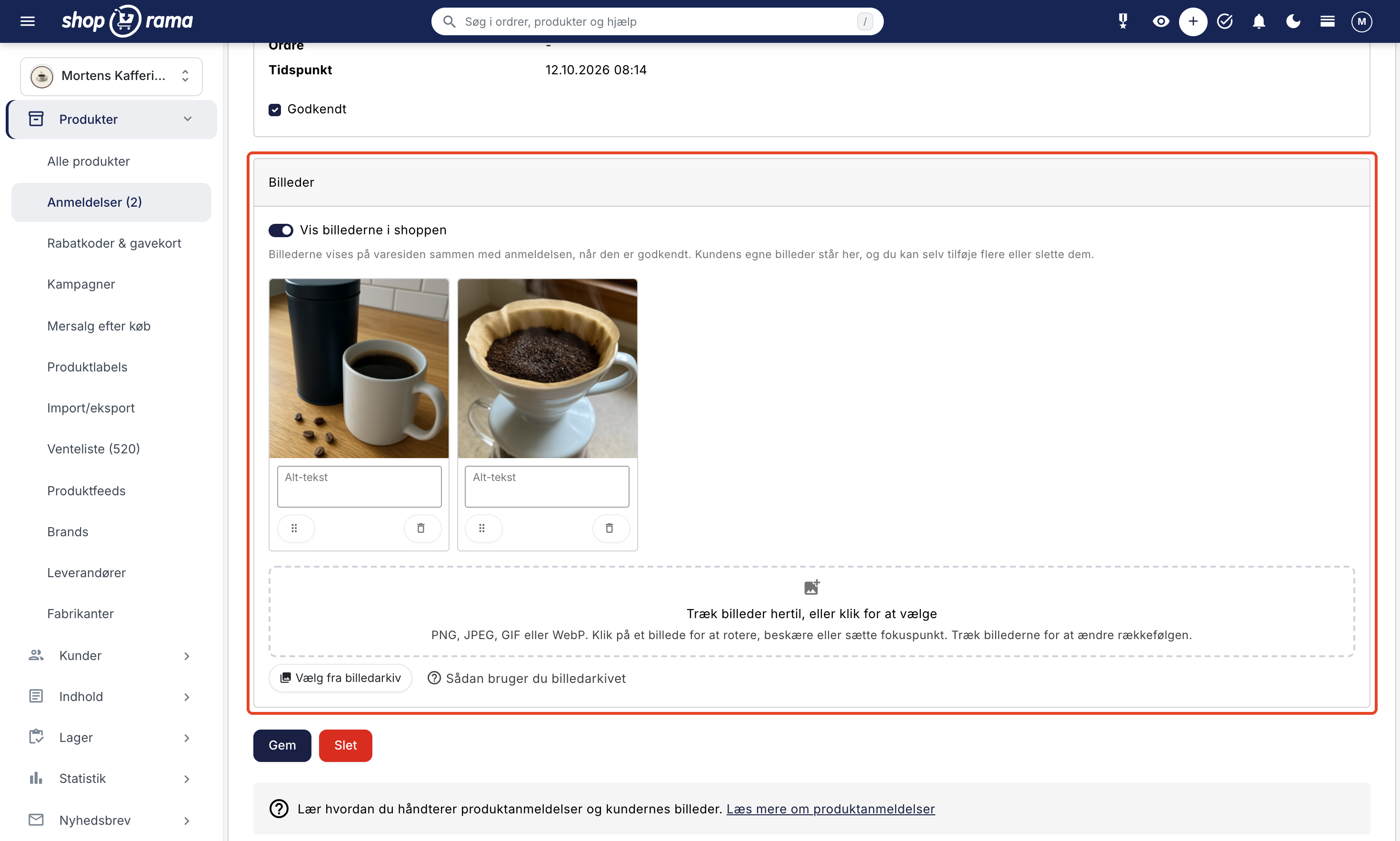
A helpful tip: Ask the customer for permission to display the images before adding them, especially if people are in them.
Images on the product page and in Google Shopping
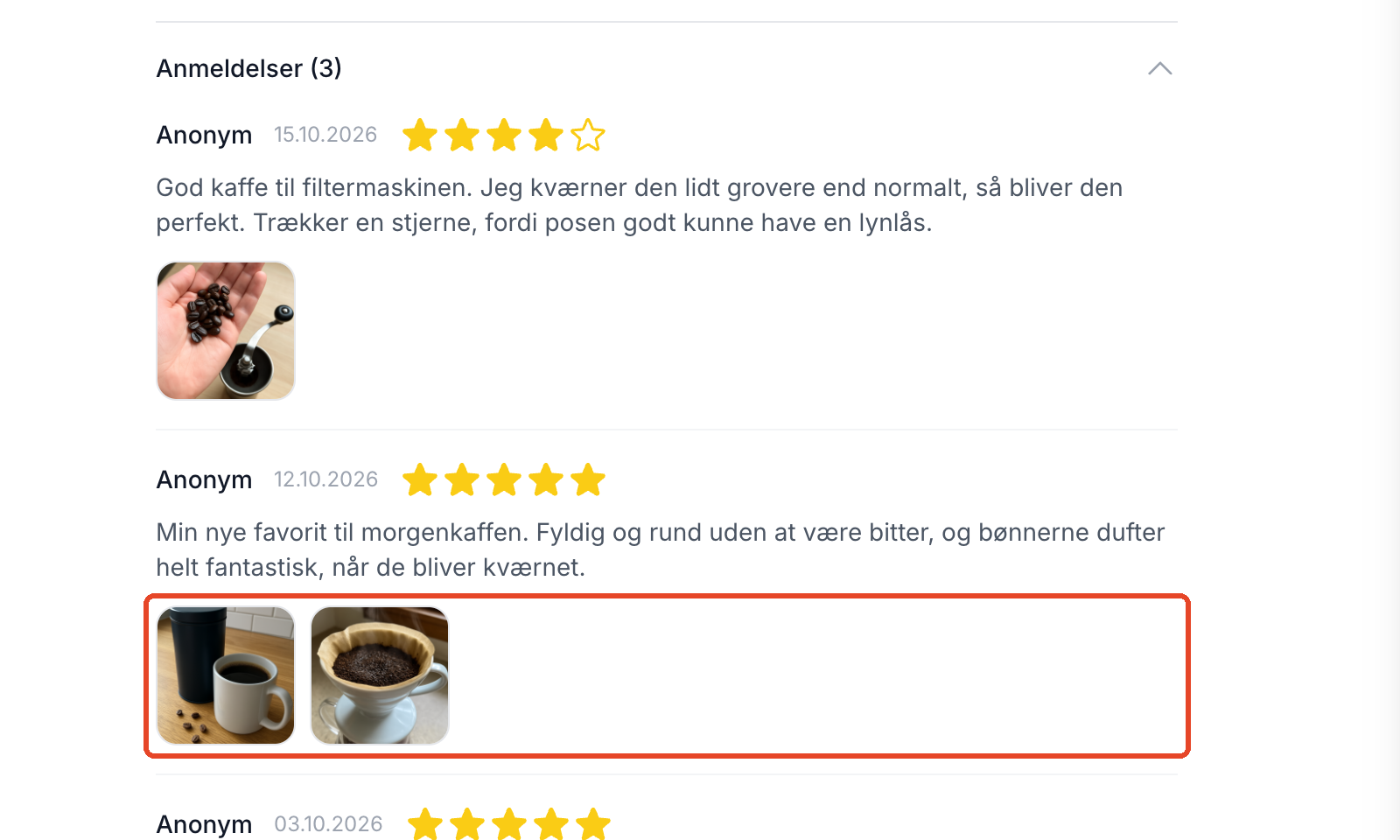
On the product page, the customer’s images appear as thumbnails below the review. Clicking on an image opens it in full size, and if the review includes multiple images, the customer can scroll through them.
If you use the built-in review feed for star ratings in Google Shopping, Shoporama will also send the images once the review has been approved, includes text, and the “Show images in the store ” option is enabled. Google determines whether and when to display them.
Get Started
The image field is available in the built-in themes that support reviews: Montana, MontanaB2B, Delaware, DelawareDK, California, and Alaska2. If you’re using your own theme—even if it’s based on one of the built-in themes—the theme must be updated to include both the field on the review page and the display on the product page before images will appear. Reviews without images will work as before.
If you already have reviews enabled, you don’t need to do anything. The next time a customer reviews their purchase, the images will be included. Read more in the article about product reviews, and email support@shoporama.dk if you have any questions.
Related articles
Product reviews
Learn how to use product reviews in Shoporama. Automatically collect customer reviews and photos, moderate them, and display star ratings on your...
Get stars on Google Shopping with product reviews
Here's how to display your product reviews as stars in Google Shopping using Shoporama's built-in review feed: activation, Google requirements, and...
Image Archive: Upload, Organize, and Reuse Your Images
Collect, organize, and reuse your images all in one place with the Image Library. Use them as images for products, categories, and pages, and...
Edit photos: rotate, crop, and set the focus point
Here's how to rotate, crop, and set the focus point for images in the admin panel. The original is never overwritten, and you can always reset it.
More from the blog
Inventory Value with Split Inventory: One Number for the Financial Statements, Without Duplicates
If your shops sell from the same inventory, each shop displays the full value of the shared inventory, and if you combine the shops, the items are...
17. oktober 2026
Customer Club Newsletter: Sell More to Returning Customers
Your regular customers are the ones most likely to make repeat purchases. Now you can send the newsletter only to the customer club, to a specific...
14. oktober 2026
Sell in multiple countries through the online store you already have
Now you can sell in other countries through the online store you already have. Under Online Store → Countries, you can set a unique address,...
11. oktober 2026