New: Let customers personalize their purchases
Do you sell products that customers personalize? Now you can add fields directly to the product page for customers to fill out themselves: a name, a date, a yes/no selection, a choice from a list, or a file with the customer’s own design. The responses follow the order all the way to the packing table.
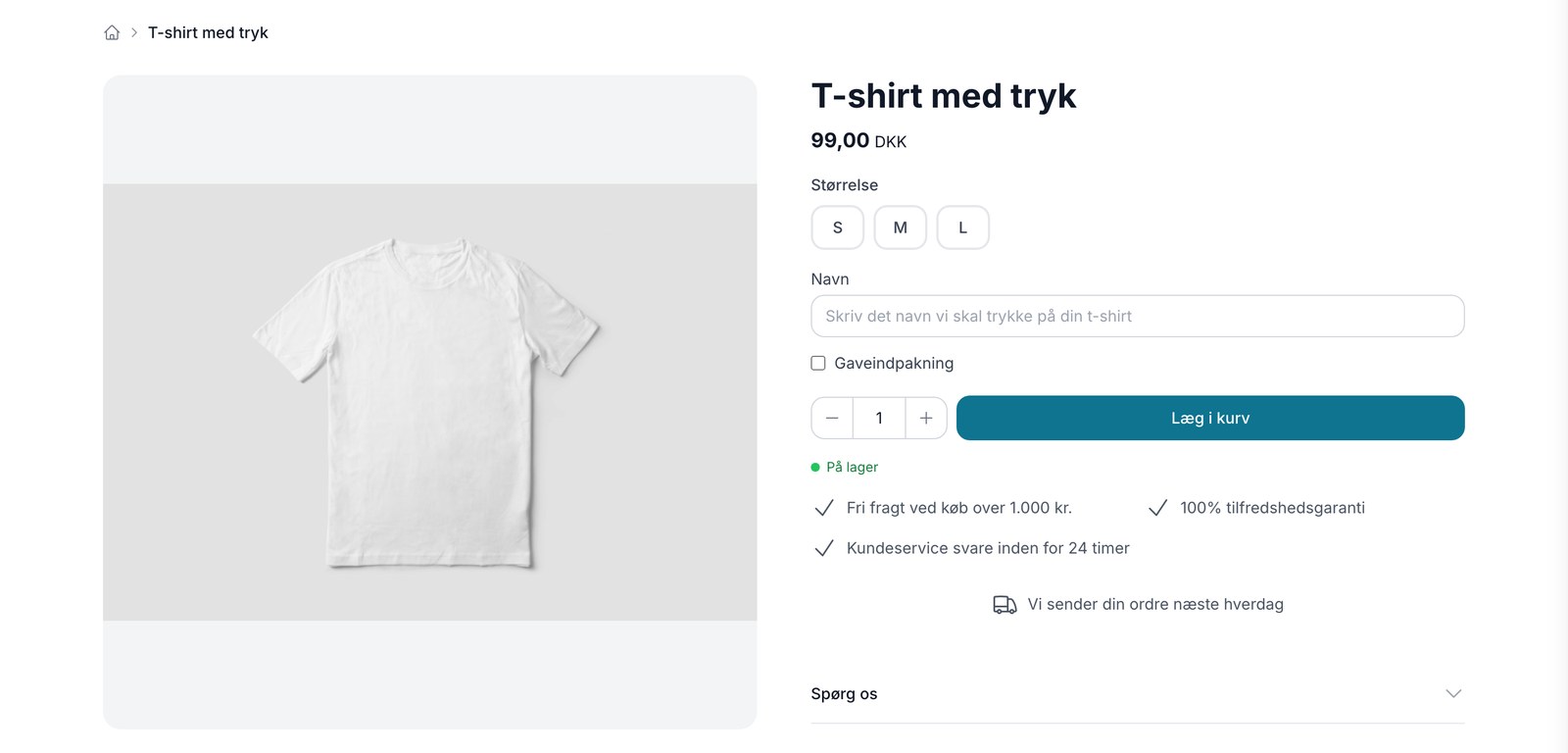
Embroidered teddy bears. Engraved jewelry. Christening gifts with the date. Name tags for preschool. If you sell products that customers can personalize, until now you’ve had to make do with a comment field in the shopping cart or back-and-forth emails after the order was placed. That’s over now.
With product personalization, you can add fields directly to the product page that customers fill out themselves before adding the item to their cart. For each product profile, you control which fields are displayed, whether they’re required, and what the help text says.
Five field types
You choose which type of field the customer sees. Text fields for names and dates, yes/no options for add-ons like gift wrapping, a dropdown list when the customer needs to choose from preset options, numeric fields for quantity and measurements, and file upload when the customer needs to submit their own logo or design.
The fields are created on the product profile, not on the individual product. If you have a hundred products on the same profile, they’ll all have the fields applied at once.
The responses follow the order to the packing table
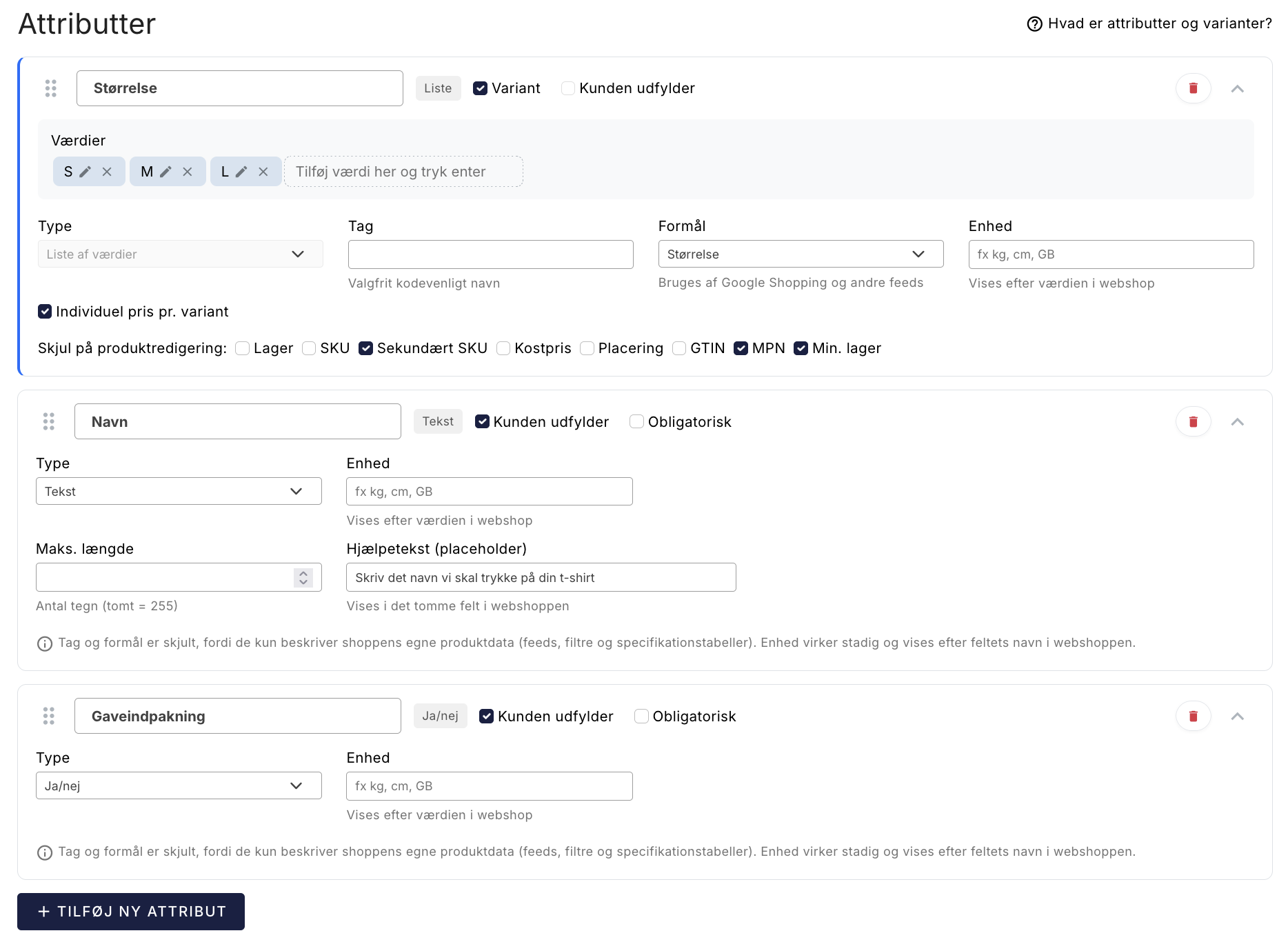
Whatever the customer enters appears on the order line throughout the entire process: in the shopping cart, on the order confirmation, on the order in your admin panel, and on the picking list. There’s never any doubt about what needs to be embroidered when the order is being packed, and no one has to search through old emails.
A little trick: more options without more SKUs
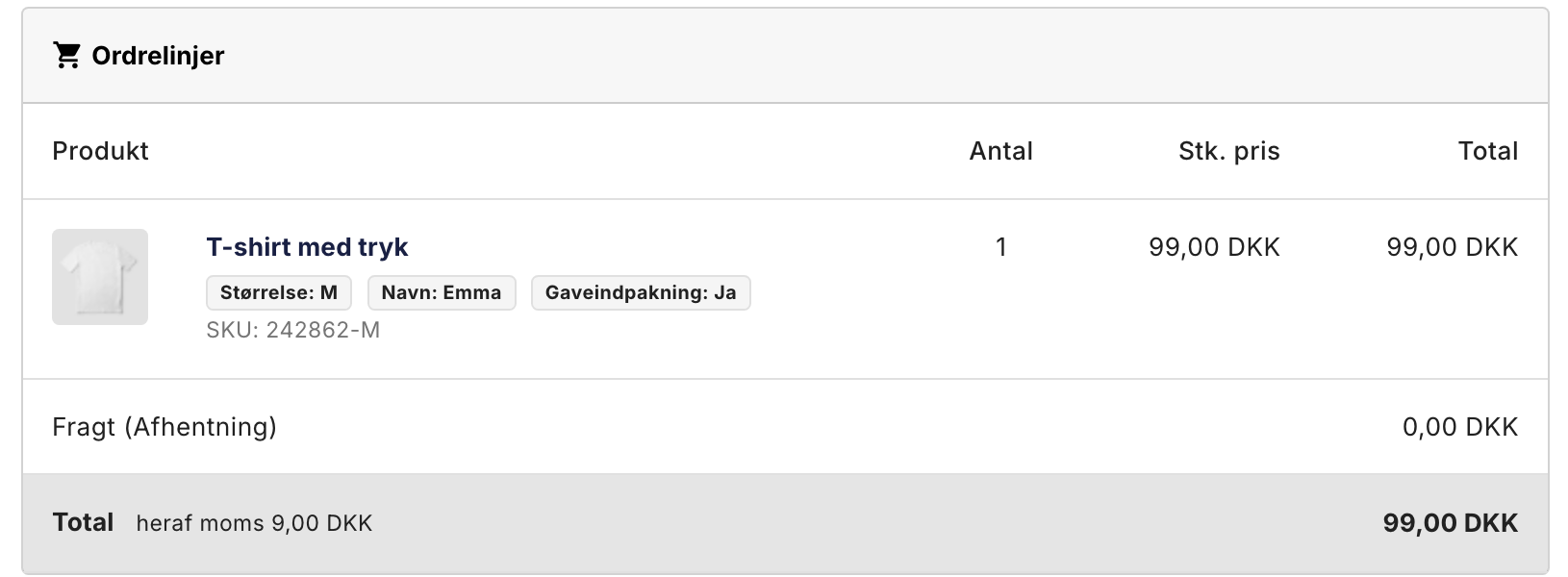
A product profile can only have one variant—that is, one axis that controls inventory and item number. But you can give the customer more choices by combining the variant with a customer input list.
If you sell a T-shirt where you keep inventory by size but print the color after the order is placed, set “Size” as a variant with S, M, and L, and “Color” as a customer input list with Red, Green, and Blue. The customer sees two options, you maintain only one inventory, and the color is included as information on the order.
Files are handled securely
If a customer uploads a logo or a design, the file is stored outside the online store’s public files and can only be accessed by you via the link on the order. Only images and PDFs up to 10 MB are accepted, and the content is checked upon upload. If the customer changes their mind along the way, the system automatically deletes the uploads that never resulted in an order.
Get started
Personalization works in Shoporama’s built-in themes starting today: Montana, MontanaB2B, Delaware, DelawareDK, Alaska2, and California, as well as Washington (without file upload). If you’re using a custom-developed theme, your theme developer must add the fields to the product page.
Read how to get started in the guide “Let the customer fill in fields on the product.” You’ll be up and running in under five minutes.
Related articles
Let the customer fill in fields on the product (personalization)
Add fields to the product page that customers can fill out themselves: name for engraving, date, yes/no options, a list, or an uploaded file....
Product profiles and variants
Guide to product profiles and variants in Shoporama. Understand how profiles, attributes and variants are related.
Exclude products from the right of withdrawal (custom-made, perishable, hygiene-related)
Here's how to mark items that are legally exempt from the 14-day right of withdrawal, such as custom-made, perishable, and sealed hygiene products....
More from the blog
Recommendations are now built into Shoporama
"Others also viewed" and "Others also bought" are now part of Shoporama. No external service, no extra cost, and setup in the Page Designer takes...
31. juli 2026
New: See right away which packages at the pickup location are about to expire
An unclaimed package at a pickup location costs you return shipping, extra handling, and an unhappy customer. Now, Shoporama shows directly in the...
06. juli 2026
Now your online store handles returns all on its own
Do you sell beer, soda, or other beverages with a deposit? According to the rules, the deposit must be collected, and the price of the item must be...
04. juli 2026