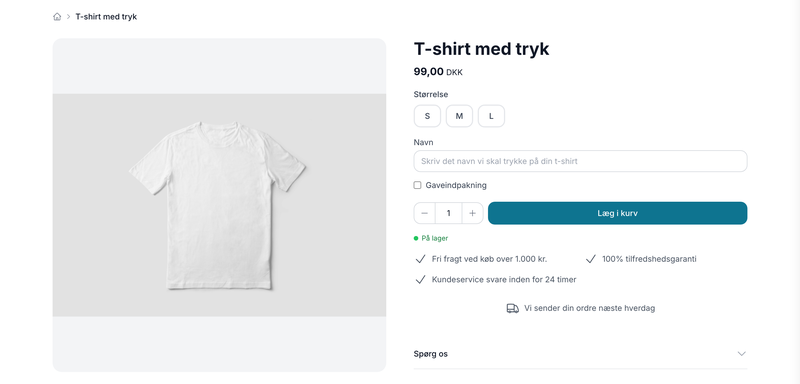
Let the customer fill in fields on the product (personalization)
Add fields to the product page that customers can fill out themselves: name for engraving, date, yes/no options, a list, or an uploaded file. Here’s how to set up customer input on a product page, and here’s how to find the responses on the order.
Do you sell products that customers can personalize themselves? A name to be embroidered, a date to be engraved, a color to be chosen, or a file the customer has drawn themselves? With customer input, you add fields directly to the product page that the customer fills out before the item can be added to the cart. The responses follow the order line all the way through to picking and packing.
What is customer input?
Customer input consists of fields on the product page that the customer fills out themselves. You create them as attributes on a product profile and check the “Customer fills in” box. The customer’s responses are saved on the order line and displayed in the cart, on the order confirmation, and on the order in the admin panel.
Unlike variants, customer input does not affect inventory, SKU, or price. It is purely informational data that follows the item from the product page to the packing table.
Here’s how to set it up
- Go to Account → Webstore → Product Profiles and open the profile your products use.
- Click Add New Attribute and give it a name. The name is what the customer sees as the field label, e.g., “Name for Embroidery.”
- Select Type: Text, Yes/No, List of Values, Number, or File Upload.
- Check the box next to " Customer fills in."
- If desired, select " Required," set a " Max. length," and enter a " Help text."
- Save the profile. The fields will appear immediately on all products that use the profile.
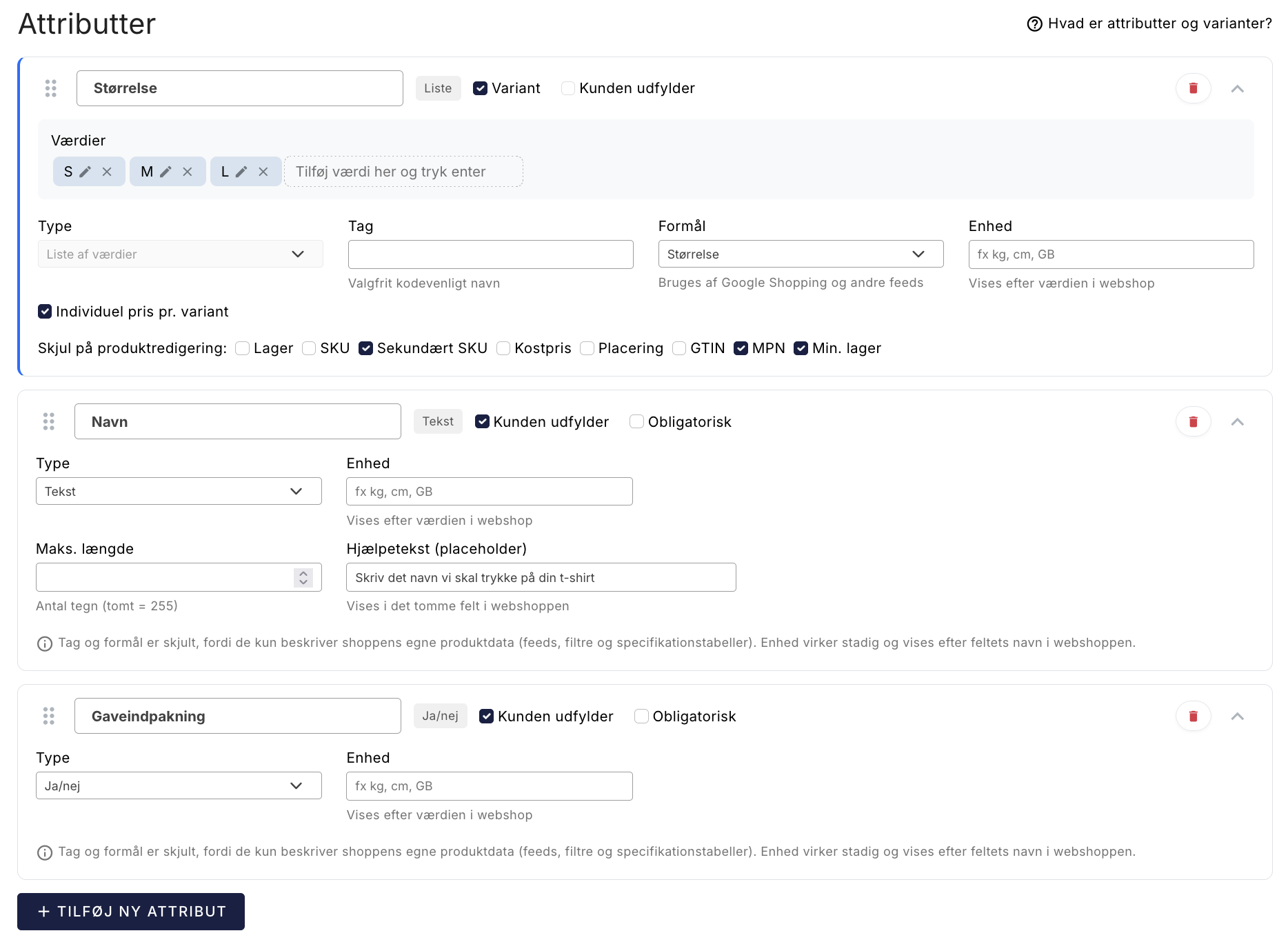
The five field types
- Text: a standard text field for names, dates, or greetings. Maximum of 255 characters.
- Yes/No: a checkbox, e.g., “Gift Wrapping.” Displays as Yes or No on the order.
- List of values: The customer selects one of the values you create, such as font or thread color.
- Number: A numeric field, e.g., the number of lines in an engraving.
- File upload: The customer uploads their own material. See the section on files below.
Settings for each field
- Required: The item cannot be added to the cart until the field is filled out. The customer remains on the product page with a message stating that the field is missing.
- Max. length: For text fields only. Set this so the text fits on the product. If the field is empty, the limit is 255 characters.
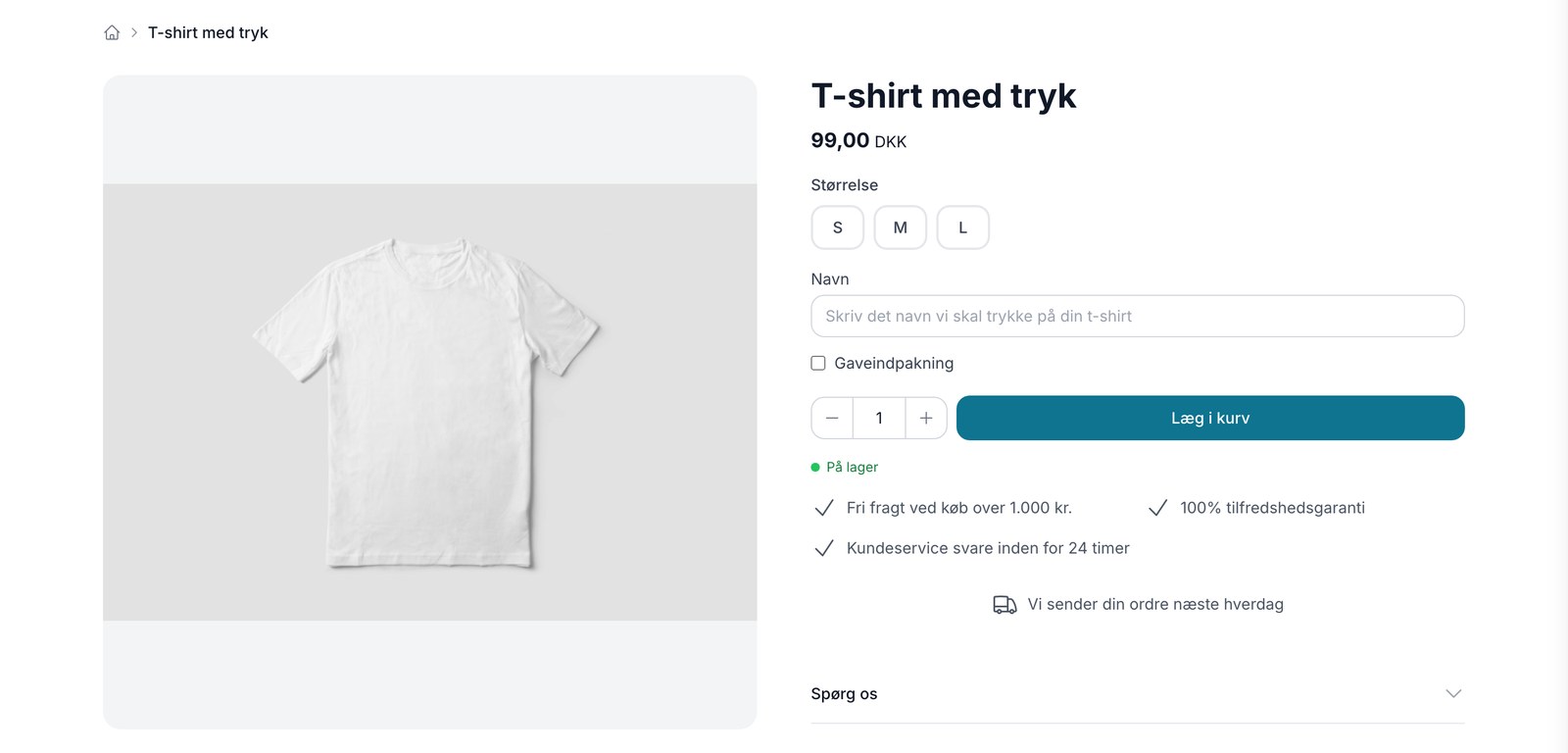
- Tooltip: The gray example text in the empty field, e.g., “Enter the name you want printed on your T-shirt.” It disappears as soon as the customer starts typing.
- Unit: Displayed after the field name in the online store, e.g., “Length (cm).”
The "Tag" and "Purpose" fields are hidden on customer input fields. They describe the store’s own product data and are used for feeds, filters, and specification tables; customer responses do not belong here.
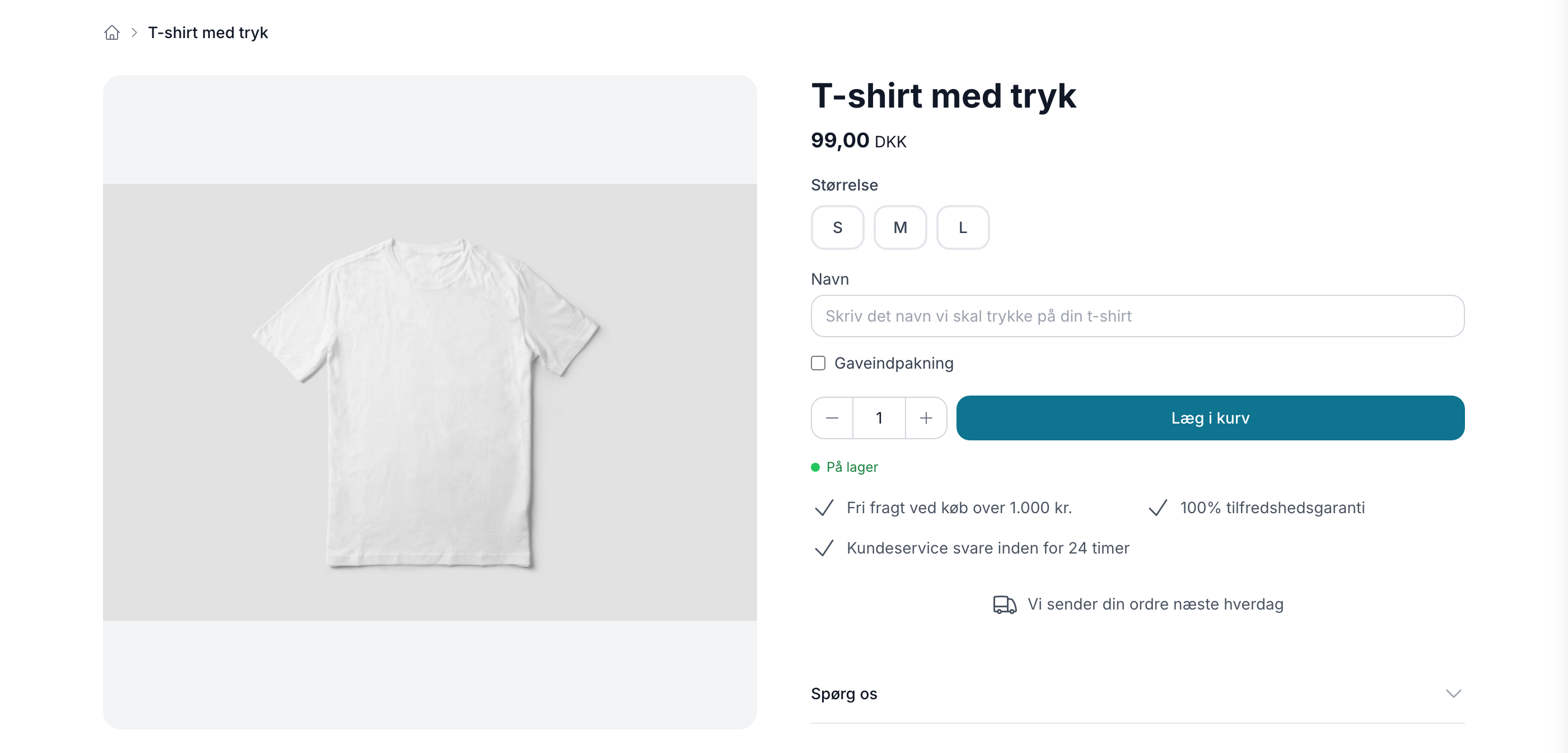
Here’s how it looks to the customer
The fields appear on the product page alongside the standard options. The customer fills them out before adding the item to the cart.
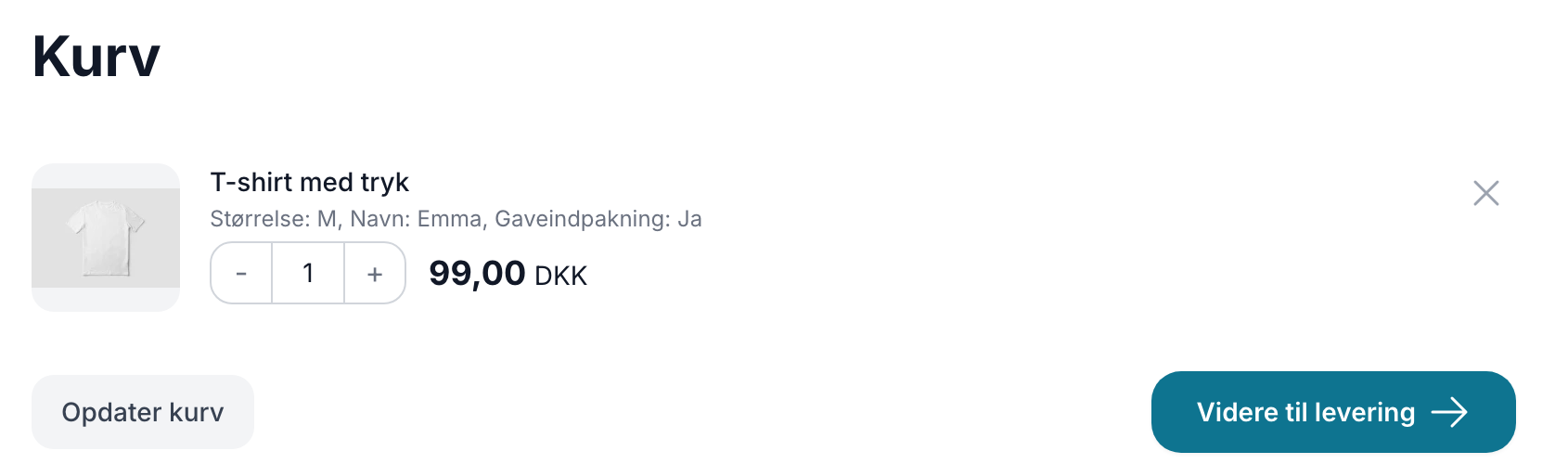
In the cart, the responses appear on the product line itself, so the customer can see what has been ordered before checking out.
The Difference Between Variants and Customer Input
This is the most important distinction to understand, and an attribute can only be one or the other.
- A variant is something you sell. It has its own inventory, its own product number, and may have its own price. The customer selects from a fixed list that you manage yourself. Size and color for a shirt are classic variants.
- Customer input is something the customer tells you. It has no inventory, SKU, or price, and the customer can type freely if the field is a text field.
Read more in the article about product profiles and variants.
Tip: An additional option without inventory management
A profile can only have one variant—that is, one axis that controls inventory and SKU. But you can easily give the customer more choices on the product page by using customer input lists alongside the variant.
For example, if you sell a T-shirt where you keep inventory by size but print the color after the order is placed, you can set it up like this:
- Size as a variant with the values S, M, and L. This controls inventory.
- Color as a customer input of the “List of Values” type with the values Red, Green, and Blue. Set it as required so the customer must make a selection.
The customer sees two dropdown menus and perceives them as two separate choices. Behind the scenes, inventory is deducted only based on size, and the color is included as information on the order line. Note that in this case, the color cannot have its own item number, price, or inventory, and it is not counted as a variant in statistics and tracking.
Where can you find the customer’s selections?
The selections follow the order line throughout the process, so no one needs to search for them:
- On the order in the administration system, as labels under the product name.
- On the picking list and on the printout, so they appear next to the item when the order is packed.
- In the order list, where you can enable the “Personalization” column under “Customize View,” just like the other optional columns.
- On the order confirmation sent to the customer, and in the order email you receive yourself.
- In the CSV export of orders, in parentheses after the product name.
- Via the REST API, if you export orders to another system.
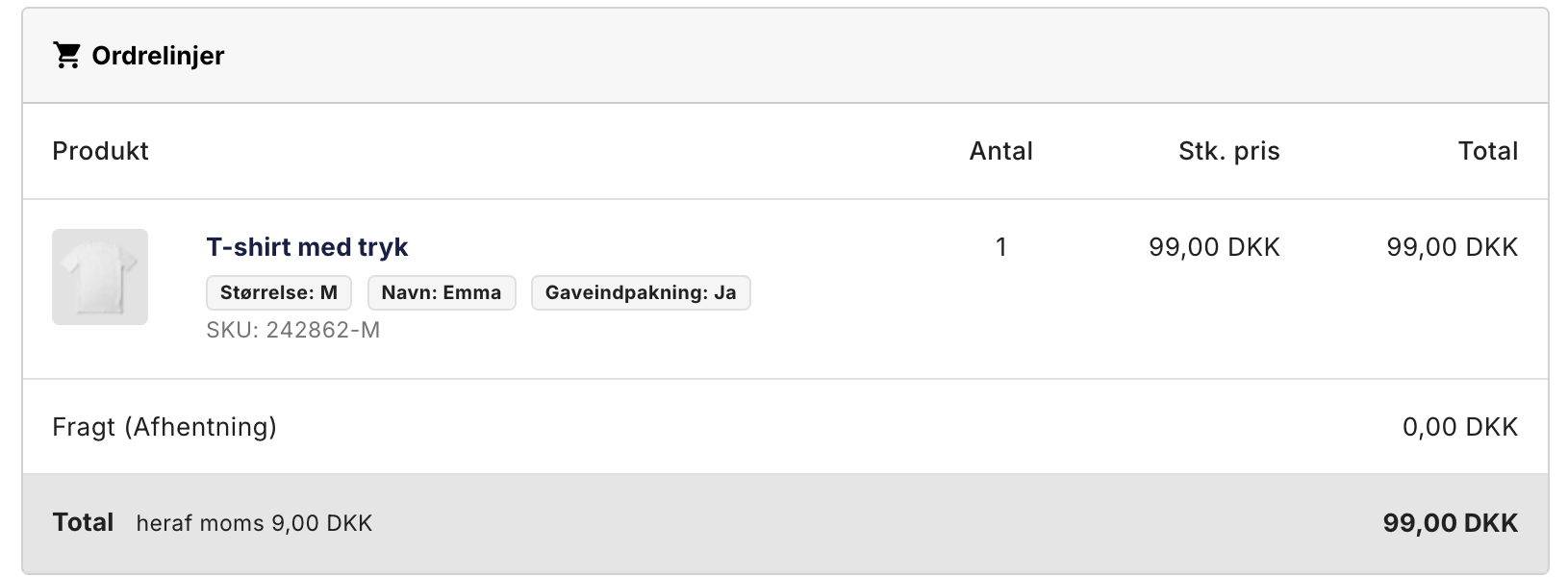
If the customer misspelled something, you can correct the response on the order under " Edit Order." This applies to all field types except uploaded files.
File Upload
With the File Upload field type, the customer can submit their own material with the order, such as a logo or a drawing.
- Allowed file types: JPG, JPEG, PNG, GIF, WEBP, and PDF. Other file types are rejected, and the content is checked upon upload.
- Max. 10 MB per file.
- The file is stored outside the online store’s public files. It can only be downloaded by you via the link on the order in the admin panel, and the address cannot be guessed or shared.
- Uploads from shopping carts that never become orders are automatically deleted after 30 days.
The order displays the customer’s original file name, and that name also serves as the download link. On the picking list and in emails, the file name is listed with a note indicating that the file itself must be downloaded from the admin panel, since an email cannot contain a secure link.
Does this work with my theme?
The fields appear automatically in Shoporama’s built-in themes: Montana, MontanaB2B, Delaware, DelawareDK, Alaska2, and California. Washington supports all field types except file upload.
If you’re using a custom-developed theme, your theme developer must add the fields to the product page before customers can see them. The data layer itself works regardless of the theme, but the field must be rendered by the theme.
Important: If you mark a field as required in a theme that does not display that field, the product cannot be purchased. Therefore, always check the product page in your own store after making a field required.
Personalization and Right of Withdrawal
Items manufactured according to the customer’s own specifications are, as a general rule, exempt from the right of withdrawal. This does not happen automatically just because you add a customer input field. You must manually mark the relevant products yourself, as described in the article on exceptions to the right of withdrawal. If you’re unsure about the legal assessment for your specific store, have it confirmed by your own legal advisor.
Frequently Asked Questions
Can I charge an extra 50 kroner when the customer chooses a name?
No, not yet. A customer input field cannot add kroner to the price, and it does not affect either inventory or the product ID. If the option is to cost extra, you can instead create two variants, e.g., “Without name” and “With name,” and assign each its own price. True add-on pricing for customer input fields is currently in the planning stages.
Do I have to create the field for every single product?
No. You create the field in the product profile, and all products that use that profile will automatically have the field. If different product groups need different fields, create one profile per group.
Do the fields affect inventory?
No. Inventory is tracked at the product level, and at the variant level if the product has one—just like before. Customer input has no inventory, so you won’t have two sets of inventory numbers to keep track of.
A customer misspelled the name. Can I still correct it?
Yes. Open the order in the admin panel and correct the response under “Edit Order.” Do this before the order is packed so that the corrected response appears on the picking list and printouts. Uploaded files cannot be corrected; the customer will need to send them to you another way.
I’ve created the field, but it’s not showing up on the product page. What should I do?
First, check that the attribute has the box checked for “Customer fills in” and isn’t set as a variant. Then check which theme the store is using. In Shoporama’s built-in themes, the fields work out of the box, while a custom-developed theme requires your theme developer to integrate them.
Where can I find the file the customer uploaded, and can others see it?
The file can be downloaded via the link on the order in the admin panel, and that’s the only place. It’s never publicly accessible, and the URL cannot be guessed. If a shopping cart with an upload never becomes an order, the file is automatically deleted after 30 days.
Can I see in Google Analytics what customers choose?
No. Customer input isn’t treated as variants, so the selections aren’t included as variants in your tracking. If you want to track what customers choose, you’ll need to use the CSV export of orders or the REST API.
What if a customer orders the same product twice with different text?
In that case, it will appear as two separate lines in the cart, each with its own text. If the customer changes the quantity on one line, the text will update accordingly.
Can I retrieve what the customer wrote themselves six months later?
Yes. The answer is on the order line and can be retrieved from the order list, the CSV export, or the REST API. Please note that any answer you edit yourself under “Edit Order” will replace the original one.
Related articles
Product profiles and variants
Guide to product profiles and variants in Shoporama. Understand how profiles, attributes and variants are related.
Exclude products from the right of withdrawal (custom-made, perishable, hygiene-related)
Here's how to mark items that are legally exempt from the 14-day right of withdrawal, such as custom-made, perishable, and sealed hygiene products....
Pick list
Guide to Shoporama's pick list. Pick and pack orders efficiently with barcode scanning, batch management and mobile-friendly interface.
Add a comment to a product in your cart
Learn how to add a comment field to products in the basket - for engraving, gift wrapping or other customer requests.
Associate images to a variant
Guide to associate product images to specific variants so that the correct image is displayed when selecting a variant.
Related features
New: Let customers personalize their purchases
Now your customers can enter a name, choose a color, or upload their own design right on the product page. The selections are carried through the...
Product Personalization
Product personalization is when the customer fills in fields on the product page themselves, such as a name for engraving or an uploaded file....