Add-ons on the product page can now have variants
If you sell coffee, the obvious add-on item is a French press, and the French press is available in black, stainless steel, and copper. Those were exactly the kinds of items that the add-on feature on the product page couldn’t handle. If the add-on had variants, customers on Delaware and DelawareDK could check a box without the item ever ending up in the cart. This has been revised. Now, a dropdown menu appears under the add-on; the customer selects a color or size, and the item is included in the order as a separate item with its own SKU. This feature is brand-new in Montana and MontanaB2B, and has been upgraded in Delaware and DelawareDK.
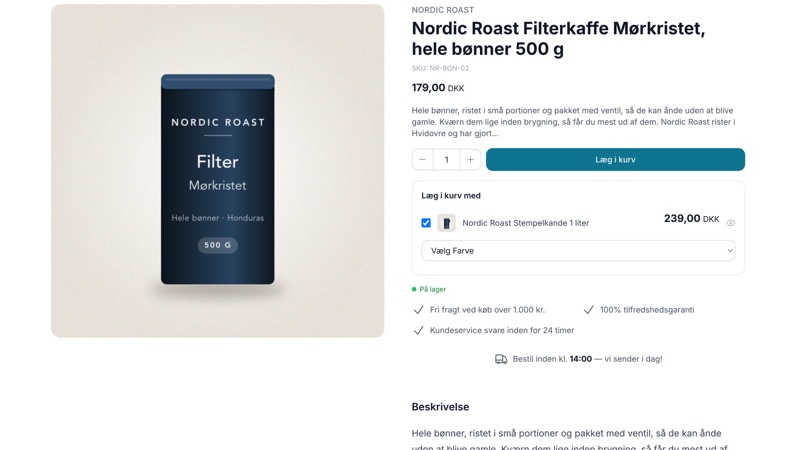
Your best add-on item has a color
Imagine a coffee shop. The customer is on the product page for a bag of dark-roasted beans, and the most obvious item to add to the cart is a French press. The French press is available in black, stainless steel, and copper—because that’s how French presses are sold.
Cross-selling on the product page is the small box below the buy button labeled “Add to Cart.” You choose which products to include in the box; the customer checks the boxes, and the items are added in a single transaction. This is classic cross-selling: relevant accessories displayed exactly where the purchase decision is already being made.
Until now, the box could only handle products without variants. This limitation wasn’t random—it had unintended consequences. The items without variants are filters, bags, refills, and batteries. Items with color or size options include jugs, bags, cases, straps, and belts. The items that were excluded are typically also the most expensive. Now, both types can be used.
There is one requirement: the variant field for the add-on must be set up as a list of values—that is, a standard color or size selector. If the variant field is instead free text, a number, or a yes/no field, the add-on cannot be added to the cart from the box. You can view the field type in the attribute under the product’s profile, and the setup is described in Product Profiles and Variants.
In Delaware, the add-on disappeared without an error message
The worst thing about the old limitation wasn’t that it existed. It was that it was silent. If the customer checked a box for an add-on with variants and clicked “Add to Cart,” the main item went into the cart, but the add-on disappeared. No error message, no warning, no trace.
This applies to Delaware and DelawareDK, which have had the add-on box for a long time. If you’re running Montana or MontanaB2B, your store hasn’t lost sales this way, because the box has never been there. The entire feature is new.
The error was almost invisible in the reports. The conversion rate didn’t change, since the main item was purchased after all. What was missing was an extra item on orders that otherwise looked completely normal, and that sort of thing is hard to spot in an average order value that you’ve never seen the full extent of.
The loss occurred right at checkout, where the customer had already agreed to the purchase. The customer first noticed it in the shopping cart or on the order confirmation, and then it was up to your support team to clean it up.
Nothing was logged along the way, so there’s no list of the sales that disappeared. Going forward, they’ll go through as they should.
Here’s how it looks for the customer now
The customer checks the box for the add-on, and only then does the selection menu expand. In other words, the option only appears if the customer actually wants the item, and the rest of the time, the box takes up no more space than usual.
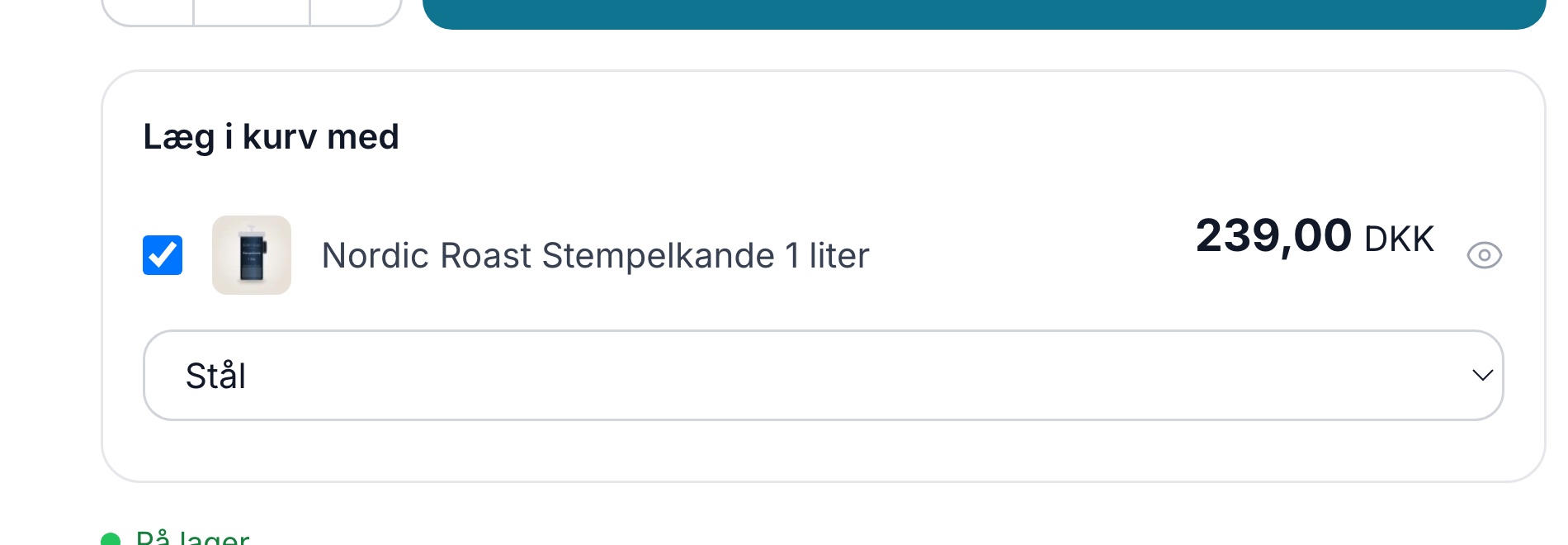
The key is keeping the customer on the page. Without a dropdown in the box, the alternative would be to send the customer away from the product page to choose a color, add the carafe to the cart, and find their way back. Each of those steps is a point where they might drop off.
Three details take care of the rest:
- If the add-on has only one possible value, it is selected automatically. The customer doesn’t need to confirm anything, because there’s nothing to confirm.
- If the customer forgets to select a value, a clear error message appears. The ambiguity is gone.
- If all variants are out of stock, the add-on cannot be added to the cart, but it remains visible so the customer can see that the item exists. If you’ve enabled “Show variants that are out of stock,” the sold-out variants will appear in the selector instead, marked as sold out and unavailable for selection.
The add-on becomes its own item on the order with a quantity of 1, the selected variant, and the item number for that specific variant. The customer can easily recognize their specific pitcher in the cart and on the order confirmation, and the packing team can see which one to include in the box.
It’s not a one-click add-on, nor is it meant to be. That extra click is the whole point: that’s where the customer chooses their color.
Add-ons are a theme feature: brand-new in Montana, upgraded in Delaware
Add-ons are a theme feature, not a setting that works everywhere.
- Delaware and DelawareDK have had the add-on box for a long time. They’re now getting the variant selector on top of that.
- Montana and MontanaB2B have never had the box. It’s built from scratch and is brand new there.
- If you’re running a custom-built or older theme, the feature isn’t available automatically. The theme must be extended first, just like with all other theme features.
If you’re unsure which theme you’re using, you can check the overview in Themes on Shoporama, and if you’re using Delaware, the configuration is described in the Delaware theme: configuration and customization.
How to set it up and how to test it
- Find the ID of the product you want to use as an add-on. See Find the ID of a product, category, or order.
- Edit the main product and locate the product extensions at the bottom of the product page—that is, the additional fields defined by your theme. These are explained in Theme Extensions.
- Enter the product IDs in the field for add-on products. Separate multiple IDs with commas, e.g. , 1042,1043. The exact name of the field depends on the theme.
The field is typically set on the individual product, so this is a task for each main product. If the product has not filled in the field, the theme looks further up in the product’s main category and then through the parent categories. If you assign add-ons to a category, they apply to the entire subcategory beneath it—this is the quickest way to ensure an entire product group has the same add-ons. If you prefer precision instead, set the field on the product itself—this way, it’s your own choice rather than an automatic assignment.
If you’re already using Delaware or DelawareDK with add-ons, take this test. It takes half a minute: go to your own product page, check the box for the add-on, click “Add to Cart,” and check to see if the item is actually in your cart. This is the quickest way to verify that it’s working as expected for you.
Which items are suitable as add-ons
The technical side is the easy part. Choosing the right products is the hard part. Three criteria almost always apply:
- The price should typically be significantly lower than that of the main item. The add-on should feel like a small extra alongside the purchase the customer has already decided on, not like a new decision.
- The customer should be able to say yes without thinking. If the customer needs to research the item first, it belongs on its own product page, not in a box below the purchase button.
- The choice of variant should be a matter of personal preference. The color of the pitcher is purely a matter of taste, and that’s exactly the kind of choice that works well here. Phone model, dimensions, or compatibility are not—because a quick guess on those factors will result in a return instead of an additional sale.
There are also some guidelines worth knowing before you select items. The customer cannot choose the quantity in the add-on box itself, as the item is added to the cart as 1 piece. The customer can increase the quantity later in the cart, but this requires an extra step, so “build-your-own” offers for ten items don’t work here. Add-ons are displayed only on the product page itself, not in product lists. Products that are out of stock are not displayed as add-ons. Finally, a product can only have one type of variant—either size or color, not both.
The value of adding an extra item to an order is easy to calculate. It doesn’t cost anything extra in marketing, since the customer is already there. It usually doesn’t cost extra for shipping either, since the item goes in the same box, but if you have shipping methods with a maximum weight limit, make sure a heavy add-on doesn’t push the order over the limit. By comparison, a discount code must be paid for out of the contribution margin every single time.
Use your own numbers instead of industry figures: the number of orders for the main item multiplied by the percentage of customers who say “yes, please,” multiplied by the contribution margin on the add-on. Be conservative in your estimate. Even a low “yes, please” rate can result in a reasonable calculation when the item is already in stock.
Add-ons, bundle deals, or upsells after purchase?
Shoporama offers several ways to increase revenue per order, and each serves a different purpose.
Useadd-ons when you want to select specific accessories for a single product and display them right where the purchase decision has already been made. Each item becomes its own order line at its own price.
You usebundle deals when the customer needs to pay a single combined price instead of separate prices. The customer buys one product that contains multiple items.
Post-purchase upsells are used when the offer must not interrupt the payment process. They appear on the receipt page after the customer has paid.
You userecommendations when you don’t want to select the items yourself. The system finds the products for you based on your customers’ behavior.
"Frequently Bought Together " is not something the customer sees. It’s the statistics page in the admin panel that shows which products are most often ordered together in the same order. It doesn’t select anything for you, but it’s the best place to figure out which items to include as add-ons.
See also “Your Orders Already Know What Customers Want,” “Sell More with Post-Purchase Upsells,” and “Recommendations Are Now Built Into Shoporama.” If you have questions about setting up upsells in your theme, please email support@shoporama.dk.
Related articles
Add-ons on the product page: Sell accessories with a single checkbox
Display selected accessories below the "Buy" button so customers can add them to their cart with a single checkmark. With variant selection,...
Product Profiles and Variants
Guide to product profiles and variants in Shoporama. Understand how profiles, attributes and variants are related.
Upselling After Purchase: Sell More on the Receipt Page
Post-purchase upsells display suggested products on the receipt page, allowing customers to add more items with a single click. Here’s how to set...
More from the blog
Reviews with photos: Let customers show the product as it is
Now your customers can attach photos when they leave a review of their purchase. A photo of the product in use at a real customer’s home shows...
19. oktober 2026
Inventory Value with Split Inventory: One Number for the Financial Statements, Without Duplicates
If your shops sell from the same inventory, each shop displays the full value of the shared inventory, and if you combine the shops, the items are...
17. oktober 2026
Customer Club Newsletter: Sell More to Returning Customers
Your regular customers are the ones most likely to make repeat purchases. Now you can send the newsletter only to the customer club, to a specific...
14. oktober 2026