You don’t need a developer, an agency, or coding skills to create your own online store. At Shoporama, you choose a ready-made Danish theme, customize the design with drag-and-drop, and get help from a built-in AI assistant along the way. This guide shows you how to build your own store from the first click to your first sale.
Create your own online store: what does it really take?
In short, it requires three things: an online store platform, time to set up your products, and the willingness to experiment. The technical aspects are taken care of: hosting and an SSL certificate are included with the platform, so you don’t need to purchase web hosting, install software, or keep the system updated yourself.
This page is about the actual setup process: choosing a theme, creating products, designing pages, and going live. If you also need to get a handle on your business registration number, sales tax, and budget, read our complete guide to starting an online store. It covers the entire business side of things, while here we’ll focus on the practical aspects of building the store.
Build Your Own Online Store in 5 Steps
Here’s what the process looks like, from a blank store to your first order. You can complete all five steps yourself, and you can always go back and make adjustments.
Step 1: Choose a theme
Shoporama offers a variety of ready-made themes, such as Montana, Delaware, and California. They’re free to use and adapt to mobile, tablet, and desktop devices. Choose the theme that best matches your style, then customize the colors and logo afterward. View them all in the theme overview. You can change themes later without losing your products, categories, or orders.
Step 2: Create your products
Upload images, write titles and descriptions, and set prices and stock levels. If you already have your products in a spreadsheet, you can import them from a CSV file instead of entering them one by one. If you get stuck on the text, the AI assistant can write a draft of the product description based on a few keywords, so you just need to edit it. Start with your 10–20 most important items, and expand your product range over time.
Step 3: Design your pages with the page builder
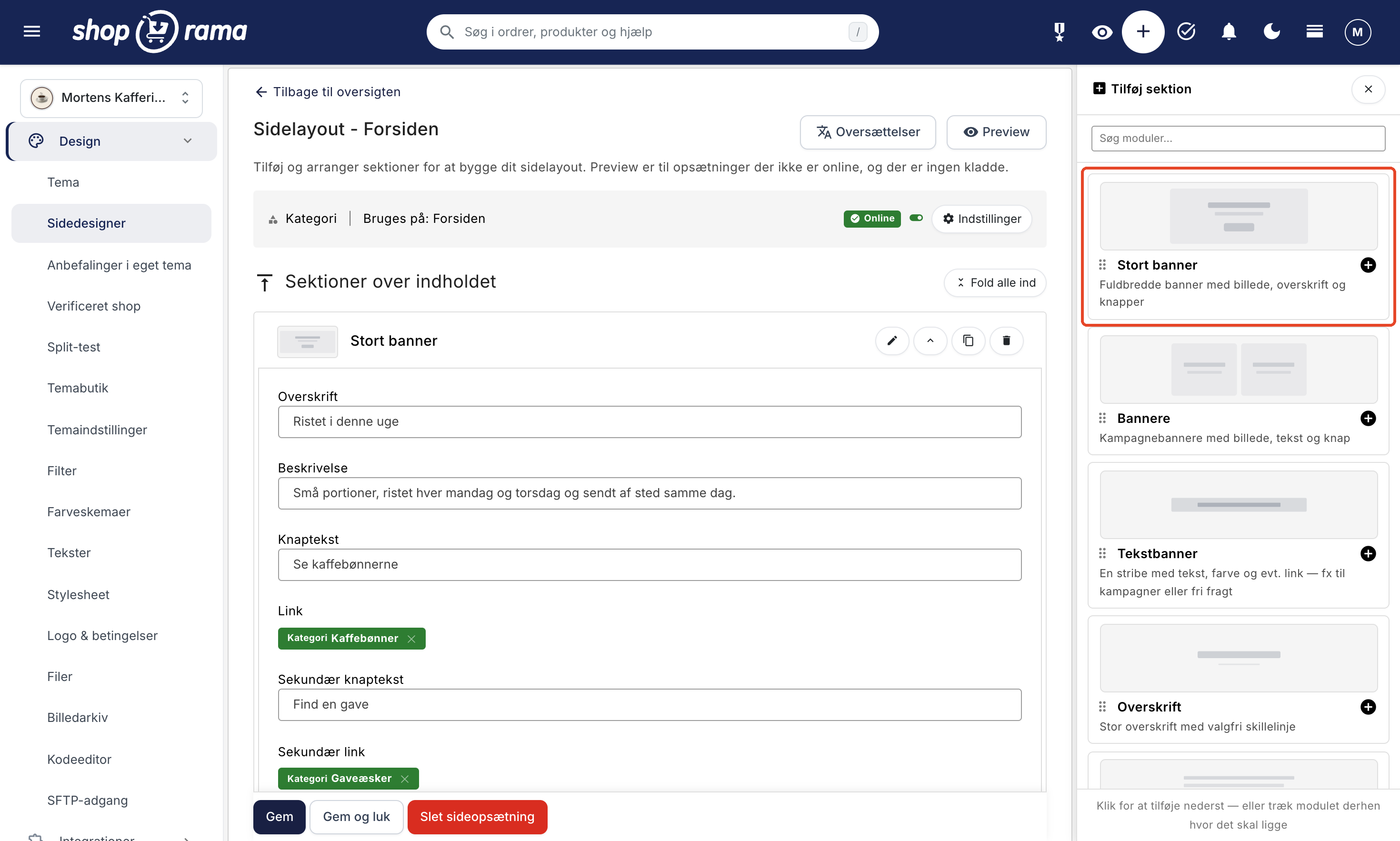
With the page builder, you can create your homepage, category pages, product pages, and landing pages by dragging and dropping modules: banners, product carousels, text, and images. If you’re short on ideas for layout and style, you can get design inspiration for your online store before you get started.
Step 4: Set up payment and shipping
Choose a payment gateway such as Quickpay, Stripe, Nets Easy, or OnPay. Depending on the gateway, your customers can pay with options like Dankort, MobilePay, and Klarna. Under “Shipping Methods,” you can offer delivery to pickup locations via PostNord, GLS, DAO, and DHL, and you can create shipping labels for providers like PostNord and GLS directly in your admin panel. If you use Dinero, Billy, or e-conomic, orders can be automatically transferred to your accounting system.
Step 5: Go Live
Point your domain to the store, place a test order, and check that the order confirmation looks correct. Then you’re up and running. If you’d like some help along the way, Shoporama Academy covers this in the lesson on setting up your own domain and going live. Your store runs on Shoporama’s hosting with an SSL certificate included, so there’s no server you need to manage yourself.
Can I build a web store myself without knowing how to code?
Yes. Everything you need to build and run your store is available in a visual admin panel: themes, page builder, product editor, and settings for payment and shipping. You click, drag, and type—but you don’t code. If you can send an email with an image attached, you can also create a product. A code-free online store isn’t a “light” version at Shoporama—it’s the standard way to use the platform.
If you know a little code, or if you’ll later get help from someone who does, there’s room for that, too. You can read about how far you can go and what requires the Pro plan in the section on design freedom further down. But coding is an option, not a requirement, and it never stands in the way of you creating your own online store and continuing to grow afterward.
The Page Designer: Build Your Pages with Drag-and-Drop
The Page Designer is Shoporama’s visual page builder, and it’s your most important tool when building your own online store. You build pages using modules that you can freely combine and drag into place:
- Large banners with images, headlines, text, and buttons
- Product carousels and product lists featuring items from a category, the newest items, or the most popular items
- Text and images, including side-by-side layouts
- Image galleries and categories that guide customers further into the store
- Blog posts, Instagram, and a map with your store’s address
- An HTML block for those who still want to write a little code
The modules available to you depend on your theme. The modules automatically adapt to the screen, so you can build a single layout that works on mobile, tablet, and desktop. Use the preview button to see how the page will look in the store before it goes live. The page builder works on the homepage, category pages, product pages, landing pages, information pages, and blog posts, and it’s included in the price.
Full design freedom when you want more than the standard
A pre-made theme is a great place to start, but it shouldn’t be a limit. Shoporama gives you full design freedom across four layers, so you can build your own online store exactly as far as you want:
- Theme Settings: Adjust colors, logos, and images directly in your admin panel, without any coding.
- Page Designer: Build layouts and pages using modules, as described above.
- Custom Stylesheet: Apply your own CSS on top of the theme to fine-tune fonts, colors, and spacing. The guide to custom stylesheets shows you how.
- Theme Code (Pro required): With Pro, you or your developer can work directly in the theme’s files, upload your own theme, and get SFTP access so you can build the design from scratch.
The point is that you’ll never hit a ceiling. You can start with a default theme today and build it into something entirely your own as your business grows. That’s why a Shoporama store doesn’t have to look like all the others. If you start with Flex, you can simply switch to Pro the day you want to use your own code.
The AI assistant helps you along the way
The hardest part of creating your own online store is rarely the technical side. It’s the copy. Here, Shoporama’s built-in AI assistant saves you many hours:
- Product descriptions: Enter a few keywords and get a draft that you can adjust in tone and length.
- SEO: Get suggestions for titles and meta descriptions so your pages are ready for Google.
- Translation: If you’re selling internationally, the assistant can translate your text directly in the admin panel.
You create the content, it writes it, and you edit it. That’s how a weekend of adding 40 products becomes a manageable task. Always read through the text before saving to make sure it sounds like you—not like a machine.
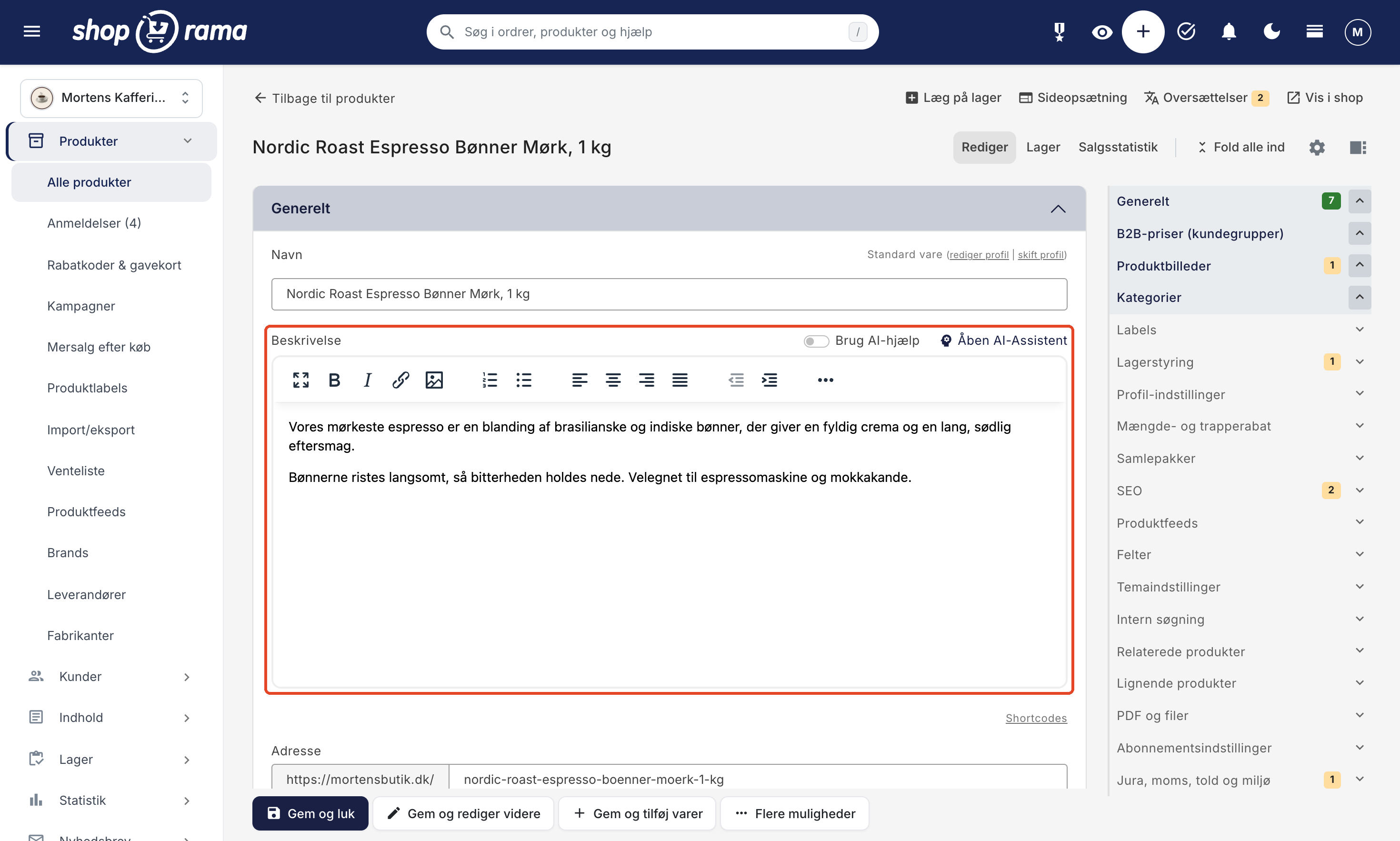
The assistant uses ChatGPT and is included in the price with no extra apps or subscriptions. If you want to see what else artificial intelligence can do for your store, read more about running an online store with AI.
How much does it cost to create your own online store?
The setup itself is free: you can create your store and work on it for 30 days without paying and without entering a credit card. If you want to continue, you can choose between two pricing plans (prices exclude VAT):
- Pro: 1,400 DKK per month as a flat rate, regardless of how much you sell, and with no transaction fees.
- Flex: 0 kr. per month plus 5% of sales, including VAT and shipping. However, starting January 1, 2027, Flex will cost a minimum of 249 kr. per month.
If your monthly sales exceed approximately 28,000 kr., the Pro plan is typically the most cost-effective. There’s no contract and no setup fee, and hosting, SSL, the website builder, and the AI assistant are included in the price.
In addition to the platform, there are typically three costs: a domain, email on the domain (e.g., through Google or Microsoft), and the fees charged by your payment gateway, which you pay directly to them. Get the full breakdown in our guide to the cost of an online store, and see how you can get started for 0 kr. with a free online store during the trial period.
Build it yourself or hire a developer?
Many people consider hiring a developer or an agency to build their online store. This might make sense for very specific needs, but for a standard online store, the difference is negligible in practice. When you build it yourself, you don’t have to write a project description, wait for a quote, or pay a bill just to move a banner:
| Build it yourself with Shoporama | Hire a developer | |
|---|---|---|
| Startup cost | 0 DKK for a 30-day trial period, then Pro or Flex | A large one-time bill before you’ve sold anything |
| Time before you’re up and running | Same day—you set the pace | Weeks or months, depending on the developer’s schedule |
| New banner on Friday night | You can change it yourself in five minutes | You send an email and hope for a reply on Monday |
| Black Friday landing page | You build it in the page builder when the idea strikes | New task, new quote, new bill |
| Hosting and technical updates | Included in the platform | Your own responsibility or an ongoing service agreement |
| Knowledge of your own store | You know every page because you built it yourself | You rely on others being able and willing to help |
The difference grows over time. Your store needs to evolve alongside your business: new product categories, new seasons, and new ideas. A store you can rebuild yourself keeps pace with the tempo you set. A store that others have to change for you follows their schedule and their hourly rate. That’s why ownership becomes more valuable with each passing year, and it’s about more than just saving money at launch.
And it’s not an either/or situation. You can always bring in a developer later—for example, for an integration via the REST API or, on the Pro plan, to make changes to the theme’s files. If you’d like help getting started, you can purchase Shoporama’s onboarding package, which includes setup, importing products and categories, and two hours of personalized onboarding. It normally costs 10,000 DKK (excl. tax), but is free on the Pro plan if you prepay for the first three months (4,200 DKK). On the Flex plan, it costs 4,995 DKK. Larger stores are priced separately. Afterward, you’re still in control of the store.
Frequently Asked Questions About Creating Your Own Online Store
How do you build an online store from scratch?
Create an account, choose a theme, add your products, design your pages using the page builder, set up payment and shipping, and point your domain to the store. The steps are described in the guide on this page, and you can complete them all yourself without technical assistance.
How long does it take to create your own online store?
The setup itself takes just a few minutes, and with a small product selection, you can have your store up and running in a single workday. If you have your products listed in a spreadsheet, it’ll go even faster, since you can import them from a CSV file. If you have a lot of products or want to fine-tune the design, expect it to take a few days to a couple of weeks. Be sure to apply for your payment agreement early so that it doesn’t become the thing you’re waiting for.
Do I need a CVR number before I get started?
No. You can build and test your store throughout the entire trial period without a CVR number. Once you start selling, your business must be set up. Everything related to the CVR, VAT, and accounting is covered in the guide to starting an online store.
Do the page builder and AI assistant cost extra?
No. Both are an integral part of Shoporama and are included in the price, just like Shoporama’s own themes, hosting, and SSL. If you have a physical store, the point-of-sale system is also included, and it shares inventory, customers, and orders with the online store. The only additional costs are for optional features you enable yourself, such as server-side tracking for 89 DKK per month and newsletter distribution for 1 DKK per 100 emails (excl. tax).
Can I change the design and theme later?
Yes. You can switch themes, change colors and the logo, and redesign your pages in the page builder whenever you want. Your products, categories, and orders won’t change when you switch themes. Your pages in the page builder will also remain, but be sure to check them in the preview, as modules that the new theme doesn’t recognize won’t be displayed.
Does a web store you’ve built yourself look professional?
Yes. You build on top of a ready-made theme, and the Page Builder’s modules keep the layout neat and consistent, no matter what you put together. Both themes and modules automatically adapt to mobile, tablet, and desktop, so the store looks great no matter what device your customers are shopping on. What makes the biggest difference are your own images and text—and for the text, you have the AI assistant.
Can I build landing pages and campaign pages myself?
Yes. In the page builder, you can create landing pages with banners, product carousels, and text without having to ask anyone for permission first. It’s perfect for sales, holidays, and ad campaigns where you need a page to be ready by tomorrow. With a preview link, you can show the page to a colleague before it goes live.
Can I access the code if I want to build something completely custom?
Yes. You can layer your own stylesheet over the theme and use an HTML block in the page builder. On the Pro plan, you or your developer can also work directly in the theme’s files, upload your own theme, and get SFTP access. If the store needs to integrate with a warehouse system or other programs, the platform offers a REST API with 1,000 calls per day included on the Flex plan and 10,000 on the Pro plan. But this is an option, not a requirement. You can easily build the entire store without touching the code.
What should I do if I get stuck along the way?
Email support@shoporama.dk, and someone familiar with the platform will typically respond the same business day. Support is available Monday through Friday from 9 a.m. to 5 p.m. If you have the Pro plan, Danish phone support is included, and you can schedule a call via the contact page. In addition, there are step-by-step support articles for virtually every administrative task, and in the Shoporama Academy, you’ll find lessons on everything from products and shipping to going live.
I already have an online store elsewhere. Can I move it myself?
Yes. You can finish building your new store on Shoporama while the old one continues to run, and only transfer the domain once you’re satisfied. You can import products, variants, categories, and images from sources such as DanDomain, Shopify, or a CSV file, and use 301 redirects to forward the old URLs to the new ones so that customers and Google can find their way there. You can import customers via CSV, but they’ll need to create a new password. Order history isn’t transferred automatically, but old orders can be imported separately as historical orders using the AI tool Claude or via the REST API. Read the full procedure in the guide to moving your online store to Shoporama.
Try Shoporama free for 30 days
The best way to find out if you can build an online store yourself is to give it a try. Create your online store for free and start building with themes, the page designer, and the AI assistant:
- 30-day free trial with access to everything
- No commitment—you can stop anytime
- No credit card required to get started
In 30 days, you’ll have a fully functional online store that you built yourself—and that you can keep updating for years to come.
Which guide is right for you?
This guide is about doing it yourself, without a developer and without coding. Looking for something else:
- Starting an Online Store: The comprehensive guide to business registration, sales tax, budgeting, payments, and shipping.
- Choosing a platform: Not sure which online store platform to choose? Check out our comparison of the platforms.
- Set up an online store: Skip the guide and set up your store right away.