An online store that’s been selling for a few years has built up its rankings on Google, and you don’t want to lose those just because you’re switching platforms. Here’s the complete guide to the migration: what can be imported, what you’ll need to do yourself, and how much the assistance costs. If you haven’t chosen a platform yet, start by comparing online store platforms.
How to Keep Your Google Rankings
Google recognizes your store by its URLs. If a product gets a new URL, the old one must redirect customers and Google using a 301 redirect. This tells them that the page has been permanently moved, so no one ends up on an error page.
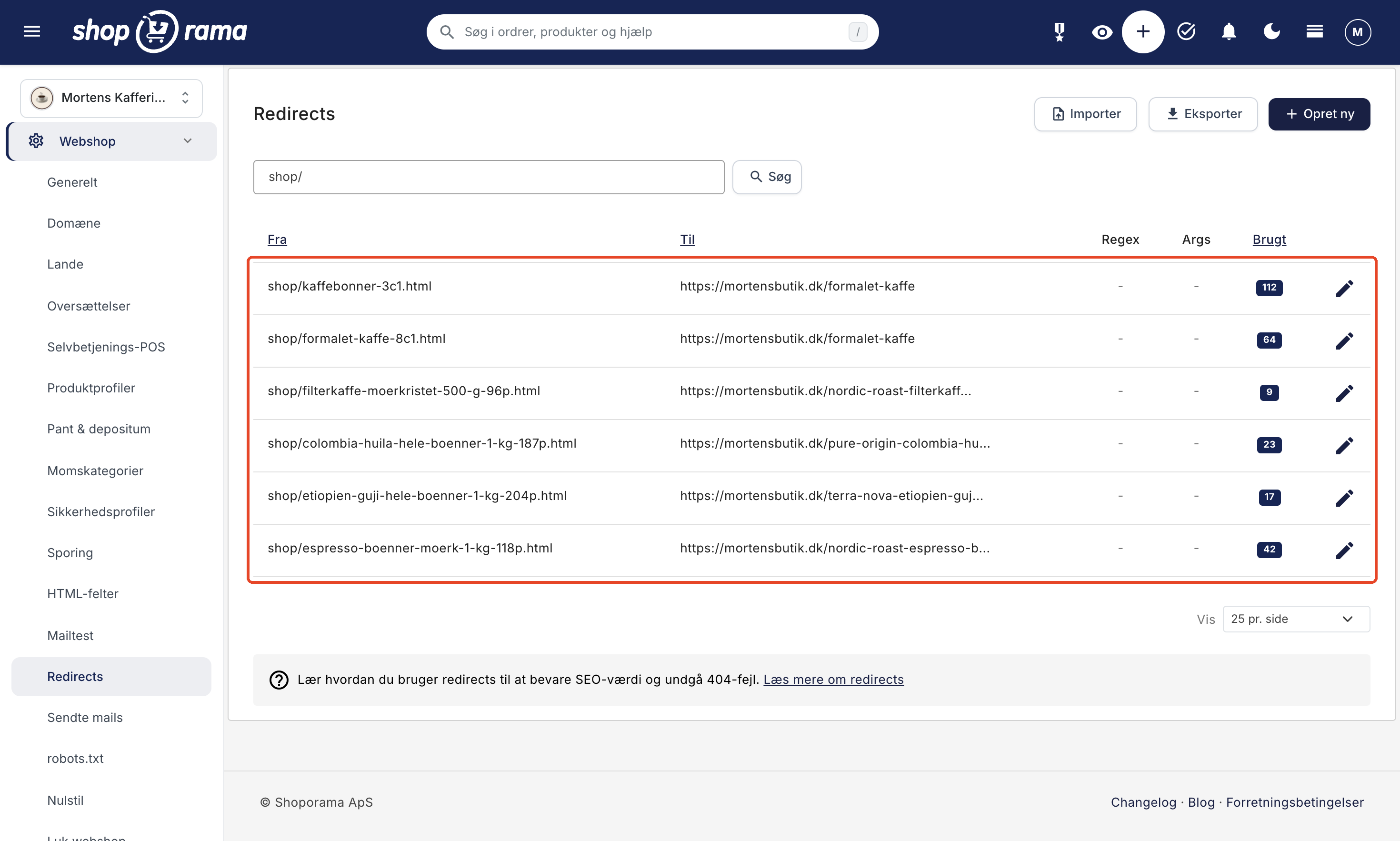
In Shoporama, you can set up redirects in five ways:
- One at a time under Online Store → Redirects.
- Multiple at once using a CSV file with the columns “from,” “to,” “regex,” and “incl_args.” You’ll receive an email with a log once the import is complete.
- Using a pattern (regex) that sends many old URLs to a single new page, or each to its own new URL, when the new URL is specified directly in the old one.
- In the product import, where the “Previous URL” (prev_url) column creates a 301 redirect from the product’s old URL. Enter the old path, e.g., /products/sweater, not the full URL including the domain.
- From the 404 log, which shows the URLs that resulted in an error page for visitors coming from, for example, Google or a link on another site, with a link to set up a redirect.
All redirects return a 301 status code, and the overview shows how often each redirect is used, so you can see which old URLs are still in use. If you later change the URL of a product, a category, a page, or a blog post, Shoporama automatically creates a 301 redirect from the old URL.
Redirects are only half the story. Google also reads the content, so be sure to include product descriptions, category descriptions, titles, and meta descriptions. The import from DanDomain and Shopify includes SEO titles and descriptions.
Here’s what you need to do yourself
- Get a list of all old URLs, for example, from the old store’s sitemap or Google Search Console. Start with the homepage, the most important categories and products, and pages with external links.
- Write the new URL next to each old URL.
- Import the list as a CSV file.
- Test the most important old URLs once the domain has been moved.
- Monitor the 404 log for the first few weeks and set up redirects for anything you’ve overlooked.
Read more in the comprehensive guide to redirects and the guide to maintaining your rankings.
What can be moved?
Under Products → Import/Export, you’ll find the import tools. Here’s what they include:
| From | Format | Products and images | Variants | Categories | Redirects |
|---|---|---|---|---|---|
| DanDomain | 4 XML files | Yes | One variant type per item | Yes, with hierarchy | No, but the paths are often reused |
| Shopify | Product CSV | Yes | First option only | One per item | No, must be created |
| Magento 2 | Product CSV | Yes | No | Yes, without hierarchy | No |
| Google Shopping Feed | Feed URL or file | Yes | Yes | No | No |
| All platforms | General product CSV | Yes, images from URL | Yes | Yes, with hierarchy | Yes, via prev_url |
Customers are migrated separately using a customer CSV, but without a password. Customers receive a new account and log in using the "forgot password" option or the welcome email. Customer groups, EANs, business accounts, and newsletter subscriptions are not included.
Old orders are migrated separately. They can be imported as historical orders using the AI tool Claude or via the REST API, so that customer value and order history also cover the period before Shoporama. There is no upload page in the admin panel, but with Claude, no developer is required. The import does not send any emails and does not affect inventory. Be sure to save an export of your orders from the old platform anyway, so you and your accountant have them. Via the REST API, a developer can also create products, variants, categories, customers, and redirects.
Step by step: how to migrate your online store
- Set up a test store. 30 days free, no credit card required. The old store will continue to sell while you build the new one.
- Gather data and addresses. Export products, customers, and orders from the old platform, and compile a list of old addresses.
- Import products and categories using the tool that works with your platform. Watch the tutorial on importing products, and then review a selection of prices, variants, and images.
- Import customers using a customer CSV file. If you want to include old orders, import them afterward so they’re linked to the customers.
- Choose a theme and set up payment, shipping, and accounting. Billy, Dinero, e-conomic, Uniconta, and Business Central can be connected using free apps.
- Set up redirects and test them. Import the list and browse the store as a customer.
- Switch to the new store. Transfer the domain and go live; test the most important old URLs, and monitor the 404 log during the first few weeks.
Migrate from your current platform
From DanDomain
DanDomain has its own import tool in Shoporama. You download four XML files from DanDomain and upload them along with the URL of your current store. Images are retrieved from DanDomain’s image server, even after you’ve received an email confirming that the import is complete, so leave the old store online until all images have been retrieved. The product and category paths from DanDomain are often reused as URLs in Shoporama, so many old links can be preserved. Customers and orders are not included, but both can be imported separately. Learn more about switching from DanDomain, including what the import process does not include.
From Shopify
Export your products as a CSV in Shopify, and import the file under “From Shopify.” Shoporama reads, among other things, the title, description, prices, SEO fields, and images. Only the first option is converted into product variants; inventory counts, tags, and collections are not included. On Shopify, a product is located at /products/product-name, and on Shoporama at /product-name, so you’ll need to set up redirects here. The product name in the URL is the same, so a single pattern works for all of them: From ^/products/(.*)$ and To /$1. Customers can also be exported from Shopify as a CSV, but without passwords (as of October 2026). Read more about a Danish alternative to Shopify.
From WooCommerce
WooCommerce does not have a separate import tool in Shoporama, but WooCommerce itself can export products as a CSV (as of October 2026). You import that file using the general product CSV, where you specify which column corresponds to what. Categories are entered as “Clothing > T-shirts,” images are retrieved from their URLs, and the prev_url column automatically creates the redirect. You can also import from a Google Shopping feed. Compare Shoporama and WooCommerce side by side.
From Magento 2
The Magento 2 importer reads a product CSV separated by semicolons and displays 50 items at a time with previews before they are created. Categories are imported without hierarchy, and variants are not included.
From other platforms
For PrestaShop, OpenCart, BigCommerce, and other platforms, you can migrate using the general product CSV, a Google Shopping feed, or the REST API. The feed groups variants based on item_group_id, color, and size, but does not include categories.
How long does a migration take?
Typically a couple of weeks, depending on the size of the store. Most imports run in the background. Time is spent reviewing products, setting up payment and shipping, and creating redirects. Your old store will continue to sell throughout the process, and you decide when to migrate the domain. If you have a major campaign coming up, schedule the migration to coincide with it.
How much does it cost to move?
You’ll receive a migration guide at no charge. If you’d rather have us handle the work, there’s the onboarding package. It includes complete setup, migration of your existing online store, import of products and categories, setup of payment and shipping, and two hours of personalized onboarding at our office in Odense or online. We’ll migrate products, categories, and customers, and we’ll set up 301 redirects.
- Regular price: 10,000 DKK
- Pro: Free if you prepay for the first three months (4,200 DKK). The prepayment is a subscription, not a fee, and it’s optional.
- Flex: 4,995 DKK
This package covers a standard migration using one of Shoporama’s own themes. Large stores, a large number of products, or specific requests for integrations and data migration will be priced separately before we begin, and custom themes are not included.
All prices are exclusive of VAT, and there is no contract commitment. The 30-day trial period itself is free, and your old store will continue to run during that time. If you’d like a quote for your store, book a meeting.
Bring your data with you—even next time
Since you’re moving anyway, think about the next move. In Shoporama, you can export products, customers, orders, and redirects as CSV files, and products with categories as JSON; a developer can retrieve data via the REST API. Unlimited exports are included in the price. Learn more about exporting your data.
Frequently Asked Questions
Will I lose my Google rankings when I move my online store?
That’s exactly what redirects are designed to prevent. If you redirect every old URL to the new one using a 301 redirect—and the page content is included—Google can follow the pages over to the new store. Monitor the 404 log during the first few weeks and set up redirects for anything you’ve overlooked.
Does the online store need to close during the move?
No. You build and test the new store during the trial period while customers shop in the old one. If something goes wrong along the way, customers won’t notice. Only when everything is in place do you move the domain, and you choose the timing yourself—for example, after a major campaign.
Can you set up 301 redirects for all my old URLs?
Yes. Setting up 301 redirects is part of the onboarding package, along with migrating products, categories, and customers. Larger stores are priced separately before launch. You should check yourself to make sure your most important URLs are redirecting correctly after the switch and monitor the 404 log.
Can I set up redirects in bulk if I have several thousand old URLs?
Yes. You import a CSV file with the columns “from,” “to,” “regex,” and “incl_args,” and the import runs in the background. A regex pattern can map many old URLs to a single page. It can also map them one-to-one when the new URL is directly contained within the old one, e.g., /products/sweater from Shopify to /sweater. If products and categories have been renamed in the URL, they must each have their own line. For products, the `prev_url` column in the product import can create the redirect.
Will my customers and orders be included?
Customers can be imported via a CSV file, but without a password, so they’ll log in using the “forgot password” option or the welcome email. Old orders can be imported as historical orders using the AI tool Claude or via the REST API. There is no upload page in the admin panel, but with Claude, no developer is required. The orders are included in customer value and order history, and no emails are sent. Import the customers first, and the orders will be linked to them. Also, save an export of orders and invoices from the old platform so that you and your accountant have them.
How much does it cost to migrate a web store to Shoporama?
If you handle the migration yourself using the import tools, you’ll receive guidance at no charge. The onboarding package, where we handle the migration, typically costs 10,000 DKK. It’s free on the Pro plan if you prepay for the first three months (4,200 DKK), and costs 4,995 DKK on the Flex plan. All prices are exclusive of VAT. The 30-day trial period itself is free.
How long does it take to migrate an online store?
Typically a couple of weeks, depending on the size of the store. Most imports run in the background, so the time is spent on review and setup. You can test the entire new store before migrating the domain, and the old one will continue to sell in the meantime.
Can I keep my accounting software when I migrate?
Yes, if you use Dinero, Billy, e-conomic, Uniconta, or the Business Central ERP system (online). All five can be connected using Shoporama’s free apps. Your accounting stays where it is. You connect the new store and choose when orders should be transferred—for example, upon payment or shipment.