An online store powered by Dinero handles your bookkeeping for you
When orders are manually entered into Dinero, time is spent copying customers, amounts, and sales tax from the online store to the accounting system, and you might not notice a typo in an amount until it’s time to reconcile the accounts. With Shoporama’s free Dinero app, orders are automatically transferred to Dinero once they’ve been paid or shipped. The app posts the transaction to the accounts you’ve selected, records the payment, and notes the status of the order in Shoporama.
The app was developed by Shoporama and replaces the built-in Dinero integration under “Financial System.” You’ll find it under “Integrations,” “Apps.” You log in with your Dinero username, and there are no keys to copy.
How the Dinero App Works
Here’s what happens when the order is transferred as an invoice, which is the default setting. Financial documents are covered in the next section.
- The customer makes a purchase in the online store. Once the order is paid for—or once it’s shipped, if you prefer—Shoporama sends it to the app. This typically happens within a few minutes.
- The customer is either found or created in Dinero. The app searches for the customer by email. If the customer isn’t found, a contact is created with name, address, phone number, and email. For businesses, the CVR number, EAN number, and contact person are also included.
- The invoice is created. It includes the online store’s order number, one line per item with the item number, and lines for shipping and discounts. Sales tax, shipping, and discounts are posted to the accounts you’ve selected.
- The amount is verified before posting. If the invoice amount and VAT match the order, the invoice is posted. If there are discrepancies, the invoice remains as a draft so you can correct it before anything is posted.
- The payment is recorded. For a paid order, the payment is recorded in the account you’ve selected for the payment method, so the invoice appears as paid in Dinero.
- You’ll see the result on the order. The order receives the green “dinero-ok” label and a note with the invoice number and amount.

Invoice or financial document?
You choose how orders are transferred to Dinero:
- Invoice in Dinero (default). Dinero creates the invoice, the customer is added as a contact, and the payment can be recorded on the invoice. If you’d rather do the bookkeeping yourself, the app can save the invoices as drafts. A draft does not record the payment.
- Financial document with the online store’s invoice. Only the accounting entries are imported: sales, shipping, and payments to your accounts, with the online store’s own invoice attached as a PDF. Customers are not created as contacts in Dinero.
Credit entries follow the original order. An invoice is credited with a credit memo, and a financial document is credited with an offsetting financial document.
What do you get as a store owner?
- No double entry. Customers, line items, shipping, discounts, and sales tax are automatically imported.
- Payments go to the correct account. Card, MobilePay, ViaBill, Anyday, Klarna, PayPal, and in-store cash payments can each be assigned their own account in Dinero. Orders paid by invoice, with an EAN number, or via bank transfer can remain marked as unpaid until the funds are received.
- Automatic credit memos. If you create a credit memo in Shoporama, it will be transferred to Dinero once the app has imported the original order. A credit memo in Dinero is linked to the original invoice.
- Verification before posting. An invoice is posted only when the amount and sales tax match the order. Otherwise, it remains as a draft, and a note on the order explains why.
- Errors are displayed on the order. Orders that did not transfer are labeled “dinero-failed” with an explanation, and the app’s settings show how many have failed in the last 7 days.
- No duplicates. An order is transferred only once, even if its status changes afterward.
- VAT for international sales. Sales to businesses in other EU countries with a valid VAT number, sales outside the EU, and OSS sales to individuals in other EU countries are posted to separate accounts.
- A login that lasts a year. You log in once, and the connection remains active for a year. For the last 30 days, a reminder appears in the “Connection” field in the app’s settings. You won’t receive an email about this, so be sure to mark the date on your calendar.
How to Get Started
- Make sure your company has Dinero Pro. The app uses Dinero’s API, which requires Pro.
- Install the app. Go to Integrations, Apps in Shoporama, click Install for Dinero, and then click Settings.
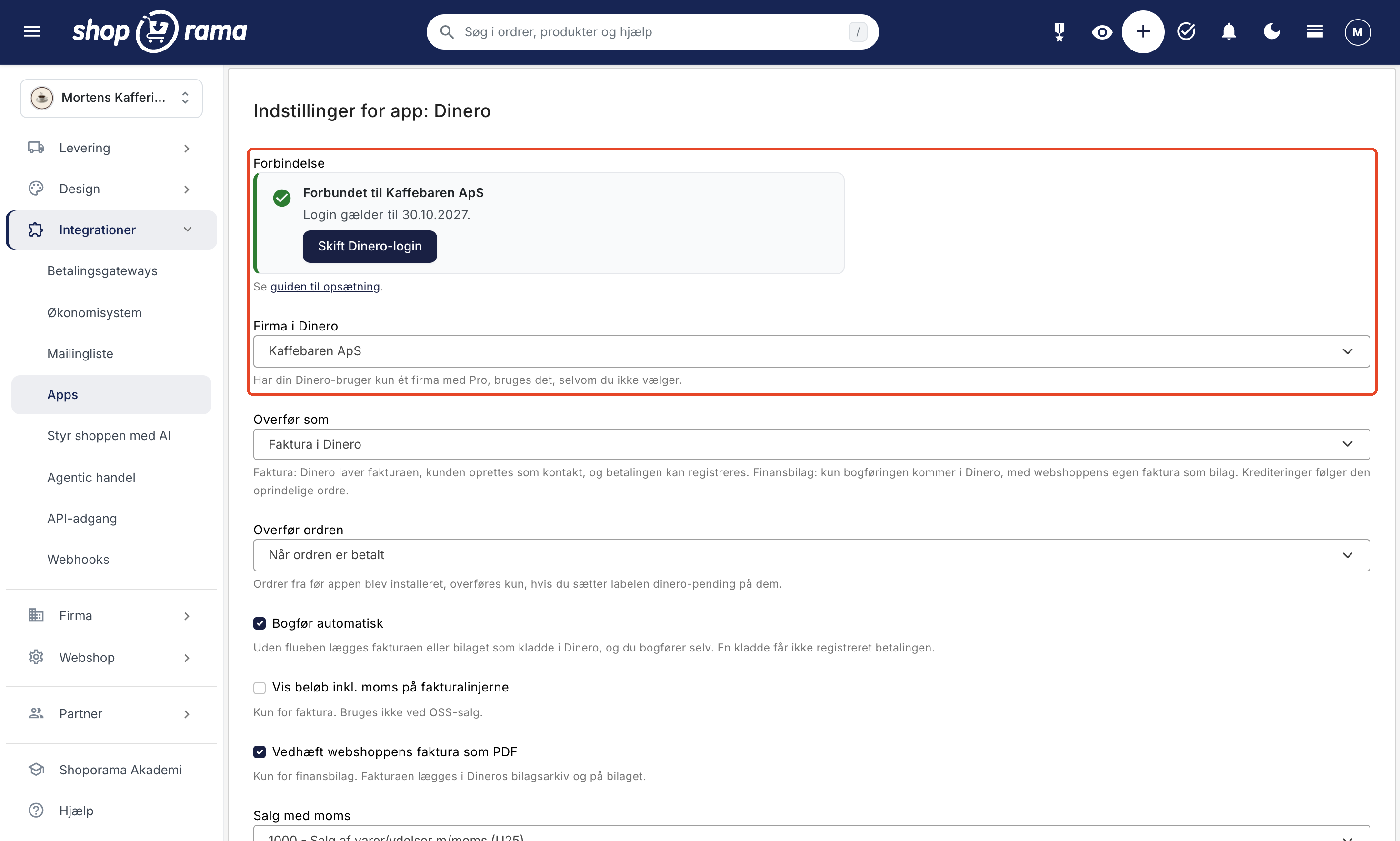
- Connect to Dinero. Click Connect to Dinero, log in with the Dinero user who has access to the company, and click Authorize. You’ll then be returned to the app’s settings.
- Select a company. If your Dinero user has only one company with Dinero Pro, it will be selected automatically. Otherwise, select the company and click Save. Only then can the app retrieve the chart of accounts.
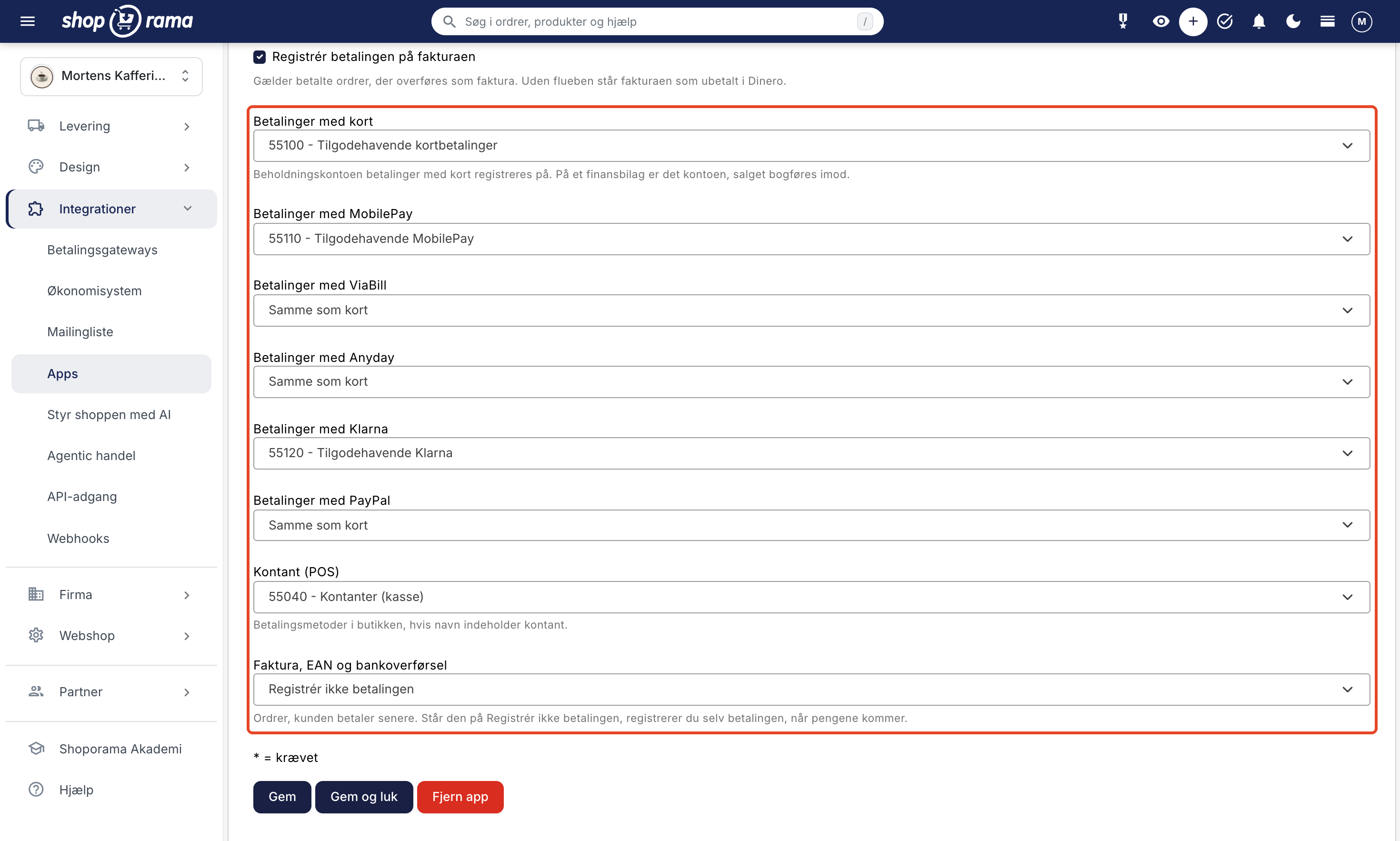
- Select accounts and specify when orders should be transferred. The lists are retrieved from the chart of accounts in Dinero. The four sales accounts and the account for card payments are pre-assigned numbers from Dinero’s standard chart of accounts. The chart of accounts isn’t the same for all companies, so be sure to check them. Click Save.
- Check the first order. Once it has been transferred, the invoice number will appear in the note on the order.
The complete guide with all the fields can be found in “Set Up Dinero Integration.” A brief overview of the app is available under “Dinero Integration,” and all accounting integrations are listed under “Accounting Programs.”
Are you using the old Dinero integration?
The built-in integration under “Integrations,” “Financial System” will continue to work for the online stores that have it, but it will no longer be developed. Here’s how to switch to the app:
- Install and set up the app as described above. The settings aren’t transferred automatically, so select your company and accounts in the app.
- Set “Supplier” to “None” under “Financial System” as soon as the app is set up. Until then, the app will not transfer any orders. The old integration will continue to transfer them as before, and the app will label them “dinero-failed” with a note. This is expected.
- Check the orders from that period in Dinero. Only apply the “dinero-pending” label to an order that is missing in Dinero. Otherwise, it will be transferred twice.
If you later issue a credit memo for an order that the old integration transferred, the credit memo will be labeled “dinero-failed” and include a note. Create the credit memo in Dinero yourself, or apply the “dinero-pending” label to the credit memo. The app will then transfer it according to the “Transfer as” setting, but without linking it to the original invoice. The entire procedure is described in “Set Up Dinero Integration.”
What You Need to Know
- Dinero Pro is required. Without Pro, the app cannot transfer orders.
- No products or inventory in Dinero. The app does not create products in Dinero and does not sync inventory. You manage inventory in Shoporama. If you need products and inventory to be tracked in your accounting, see “Webshop with e-conomic ” or, if you use Microsoft’s ERP system, “Webshop with Business Central.”
- No account per product. Sales are distributed across the accounts for sales with VAT, without VAT, to EU companies, outside the EU, and OSS. You cannot assign a specific account to a product or product group.
- You must reconcile payments and fees yourself. The app records the customer’s payment but not the payments and fees from the payment provider.
- Corrections are not included. If you correct the order in Shoporama after the transfer, you must also make the correction in Dinero.
- No automatic retries. If an order fails, correct the error and apply the “dinero-pending” label to the order.
- You must renew your login once a year. The date is listed in the app’s settings.
Frequently Asked Questions About Online Stores with Dinero
How much does the Dinero app cost?
The app is free in Shoporama. It requires that your company in Dinero has Dinero Pro, because Dinero’s API can only be used with Pro. You can find the price of Pro on Dinero’s website.
Do I need to find an API key in Dinero?
No. Click “Connect to Dinero” in the app’s settings, log in with your Dinero account via Visma’s login, and click “Authorize.” The online store is then connected, and you don’t need to copy any key or code.
What’s the difference between an invoice and a financial document?
If you select “Invoice,” Dinero creates the invoice, the customer is added as a contact, and the payment can be recorded on the invoice. If you select “financial document,” only the accounting entries are transferred to Dinero with the online store’s own invoice attached as a PDF, and customers are not created as contacts. “Invoice” is the default setting.
When is the order transferred to Dinero?
When the order is paid, or when it is shipped, if you prefer. This typically happens within a few minutes, and each order is transferred only once. Canceled orders are never transferred. Orders from before the app was installed are only transferred if you apply the “dinero-pending” label to them.
Are credit memos also transferred to Dinero?
Yes. When you create a credit memo in Shoporama, it is automatically transferred if the app has already transferred the original order. An invoice is credited with a credit memo linked to the original invoice, and a financial document is created with an offsetting entry. If you’ve turned off “Post Automatically,” the original invoice must be posted in Dinero first. The actual refund to the customer isn’t recorded on the credit memo. Read more in “Credit Memos and Refunds.”
What happens if an order cannot be transferred?
The order will be labeled with the red “dinero-failed” label and a note explaining why, such as an account with an incorrect VAT code or a lost connection. The app will not retry on its own. The note tells you what to do. If the invoice is a draft in Dinero, correct the draft, or correct the account in the app and delete the draft. Then apply the “dinero-pending” label to the order. If the note states that the old Dinero integration is still enabled, only apply the “dinero-pending” label to the order if it’s missing in Dinero. How to use labels: Order labels.
How long does the connection to Dinero last?
One year from the time you logged in. The date is shown in the “Connection” field in the app’s settings, and a reminder is also displayed for the last 30 days. You won’t receive an email. If your login expires, the transfer stops, and the orders will be marked as “dinero-failed” until you reconnect and set them to “dinero-pending.”
Does the app create my items in Dinero?
No. The invoice lines consist of text containing the item name, item number, and amount, so the items do not need to exist in Dinero. The app also does not sync inventory. You manage items and inventory in Shoporama.
Can the app handle international sales?
Yes. The account to which the sale is posted is determined by the country of delivery and whether the line item includes VAT. Sales to businesses in other EU countries with a valid VAT number and sales outside the EU are posted to separate accounts. If you’re registered for OSS, you’ll select two OSS accounts for sales to private customers in other EU countries. If you sell in multiple currencies, the invoice is transferred in the order’s currency. A financial document is always in Danish kroner.
I’m using the old Dinero integration. What should I do?
The built-in integration under “Accounting System” will continue to work, but will no longer be developed. Install the app, connect to Dinero, select your company and accounts, and then set “Supplier” to “None” under “Financial System.” Until then, the app won’t transfer any orders so they aren’t duplicated in Dinero. The old integration will transfer them as before, and the app will label them “dinero-failed” with a note. This is expected. Afterward, check the orders from that period in Dinero, and only set “dinero-pending” on an order that’s missing from Dinero. Otherwise, it will be transferred twice.
Ready to handle your bookkeeping on your own?
If you’re already using Dinero, the app is the quickest way from an online store order to a posted invoice. If you have a Shoporama online store, install it under Integrations, Apps. If you’re not a customer yet, you can set up an online store and try it out for yourself. Need help with setup? Email support@shoporama.dk.