Set up Dinero integration
Here's how to install and connect the free Dinero app, select accounts, VAT, and payment accounts, and have your online store's orders imported as invoices or financial documents.
With the Dinero app, orders and credits from your online store are automatically imported into Dinero, either as invoices or as financial documents with the online store’s own invoice as a PDF. Sales tax, shipping, discounts, and payments are posted to the accounts you choose, and if something goes wrong, you can see it directly on the order in Shoporama. The app is free and developed by Shoporama.
What You Need
- Dinero Pro. Dinero’s API, which the app uses, requires Pro. Companies without Pro cannot receive orders from the app.
- A Dinero login with access to the company where the orders are to be posted.
- A user with full access in Shoporama. Only that user can install apps.
Are you using the old Dinero integration?
If you’ve set up Dinero under Integrations → Accounting System, it still works, but that integration is no longer being developed, and new shops can no longer select it. We recommend that you switch to the app. Here’s what you’ll get out of it:
- Your login is valid for one year at a time. The old connection had to be renewed approximately every 30 days.
- Errors are displayed on the order with a label and a note, so you can see which orders are missing in Dinero and why.
- One account per payment method, so that, for example, cards, MobilePay, and Klarna are kept separate in the bookkeeping.
- Draft mode instead of bookkeeping, if you’d rather review the invoices and post them yourself.
- The online store’s invoice as a PDF in the financial attachment if you import it as a financial attachment.
How to switch
- Install the app, connect it to Dinero, select your company and accounts, and click Save. The steps are listed below. The settings from the old integration won’t be carried over, so select your accounts again.
- Go to Integrations → Accounting System, set Vendor to None, and click Save. From now on, the app will transfer new orders. Once you’ve saved, you won’t be able to select the old integration again. Therefore, first check that the Connection field in the app shows the company and that the only message is the one about the old integration.
- Filter the order list by the label “dinero-failed.” Orders from the period when both integrations were enabled have a note about the old integration. Check them in Dinero. If an order is missing, apply the label “dinero-pending” to it, as described under “When Something Goes Wrong.”
Make the switch in one go
As long as “Supplier” is listed in Dinero, the app won’t transfer any orders. The old integration will transfer them as usual, and the orders will be labeled “dinero-failed” with a note stating that the app hasn’t transferred them. The app won’t transfer those orders later either, so they won’t be duplicated. The app can’t see what the old integration has transferred, so only apply the “dinero-pending” label to an order that you’ve verified is missing in Dinero.
Once you’ve made the switch, the “Dinero” button under “Finance” in the order list will disappear, as will the checkbox “Order must be sent to finance or POS system ” on the order. Use the “dinero-pending” label instead. The app also doesn’t use the order queue, and errors appear on the order itself rather than as messages in the admin panel.
Step 1: Install the app
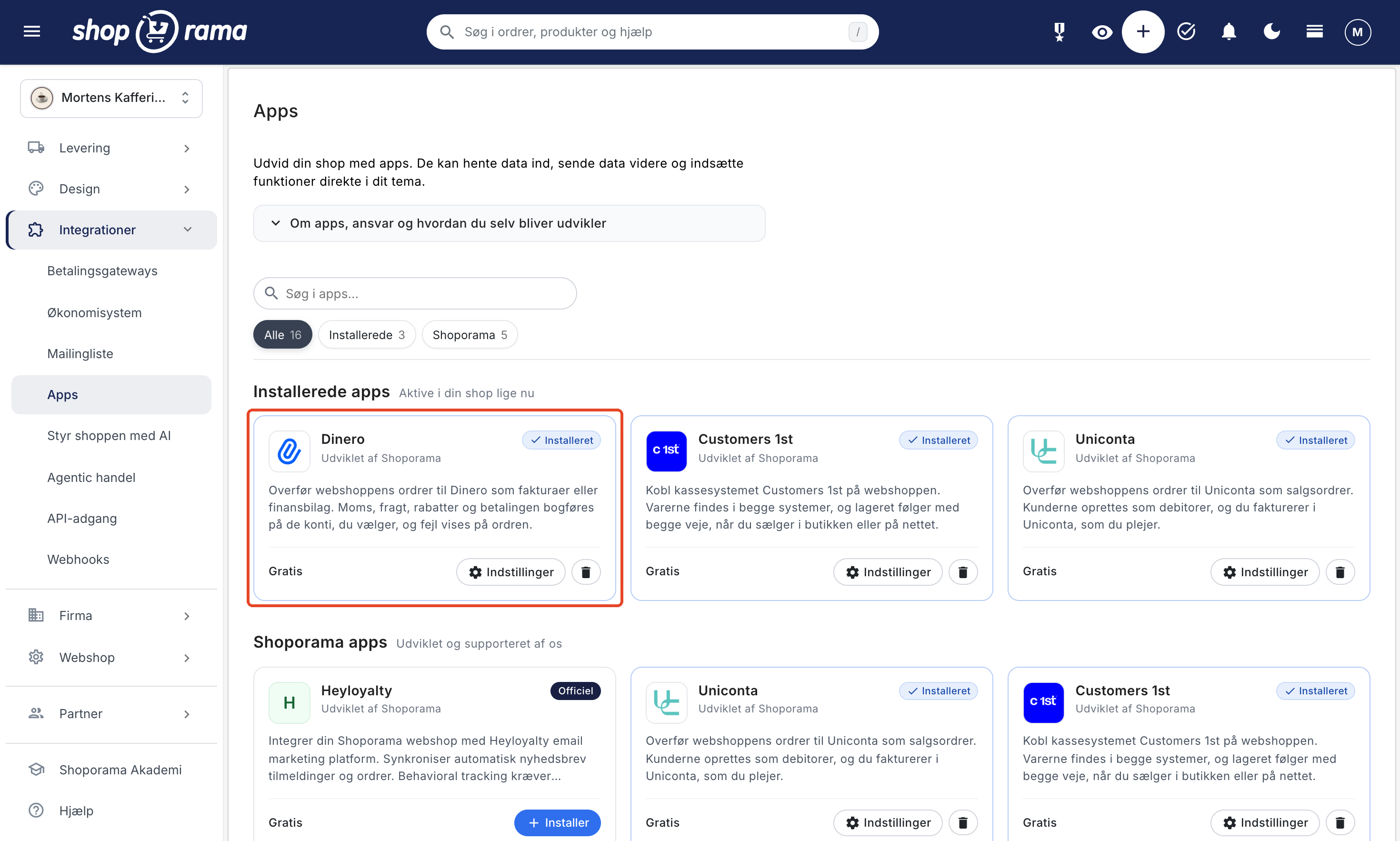
- Go to Integrations → Apps.
- Find Dinero and click Install. The App Settings: Dinero page opens. Later, you can find it by clicking the Settings button on the card under Installed Apps.
Step 2: Connect to Dinero
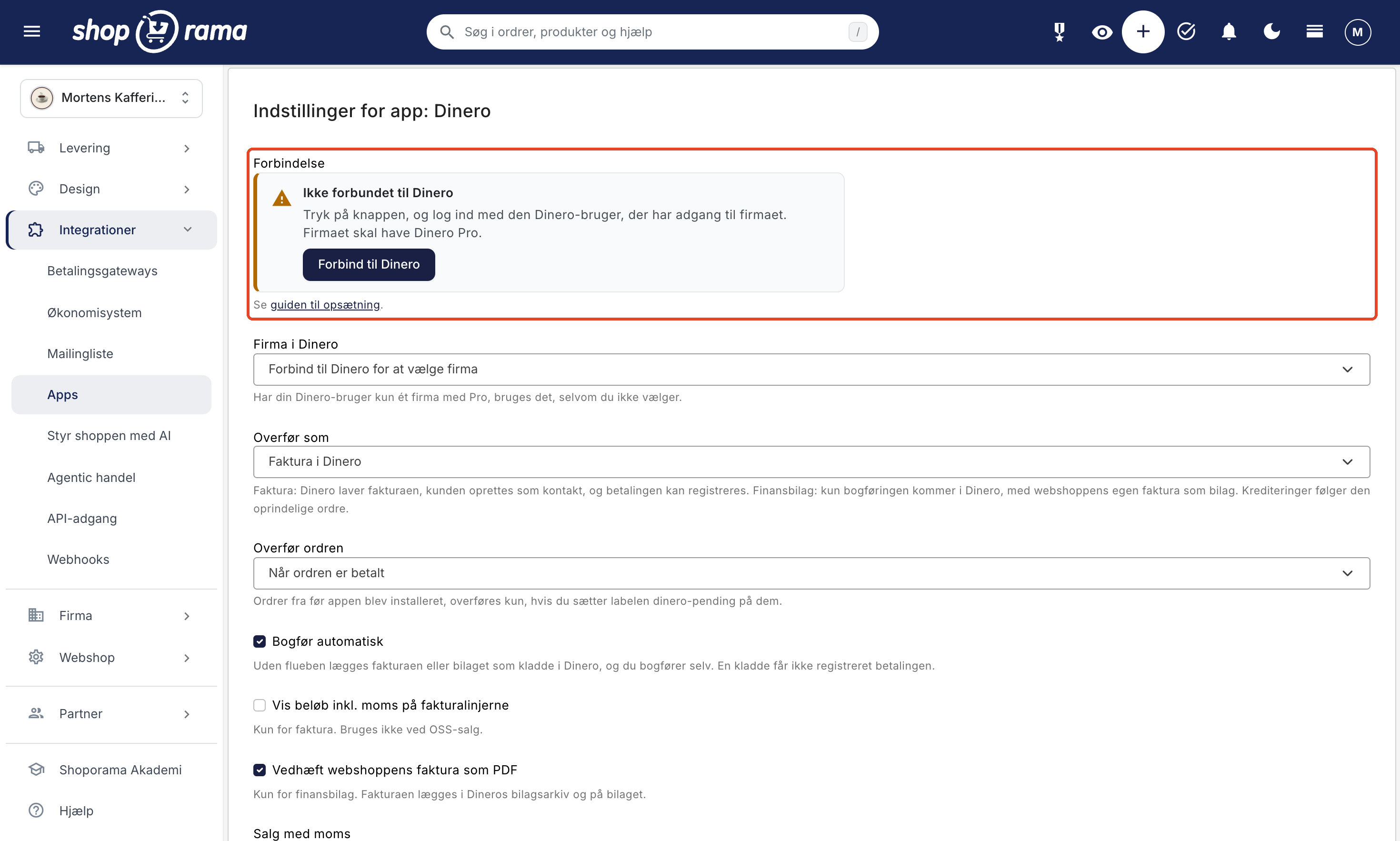
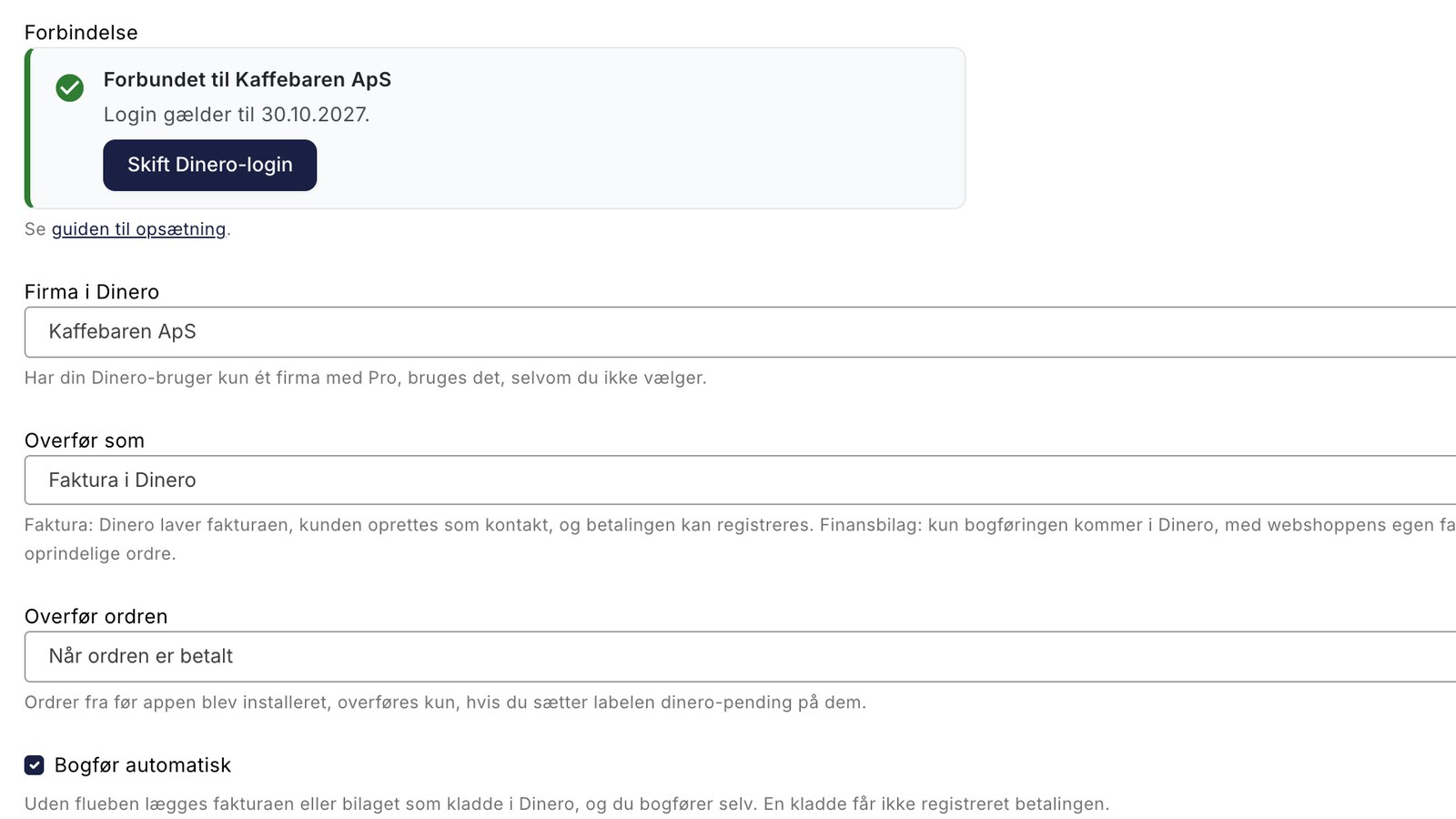
At the top of the page is the Connection field. Before you log in, it says Not connected to Dinero.
- Click “Connect to Dinero.”
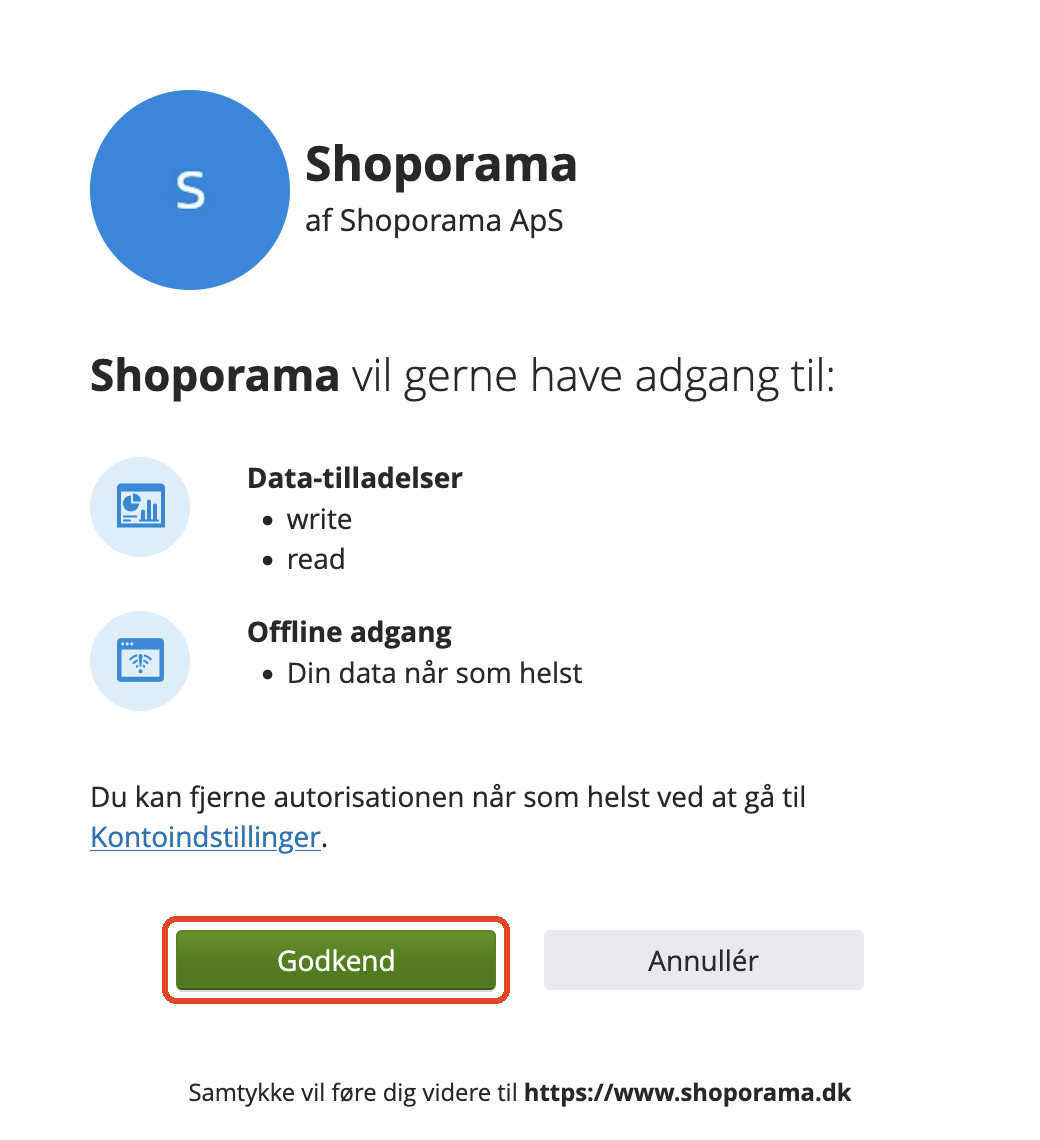
- You’ll be taken to the Visma login screen, which Dinero uses. Log in with the Dinero user account that has access to the company.
- Visma will ask if Shoporama can access your data in Dinero. Click “Authorize.”
- You’ll be taken back to the app’s settings. The “Connection” field now shows “Connected to” along with the company name and how long the login is valid. If your Dinero user account is linked to multiple companies, it will say “Connected to Dinero” until you select a company in the next step.
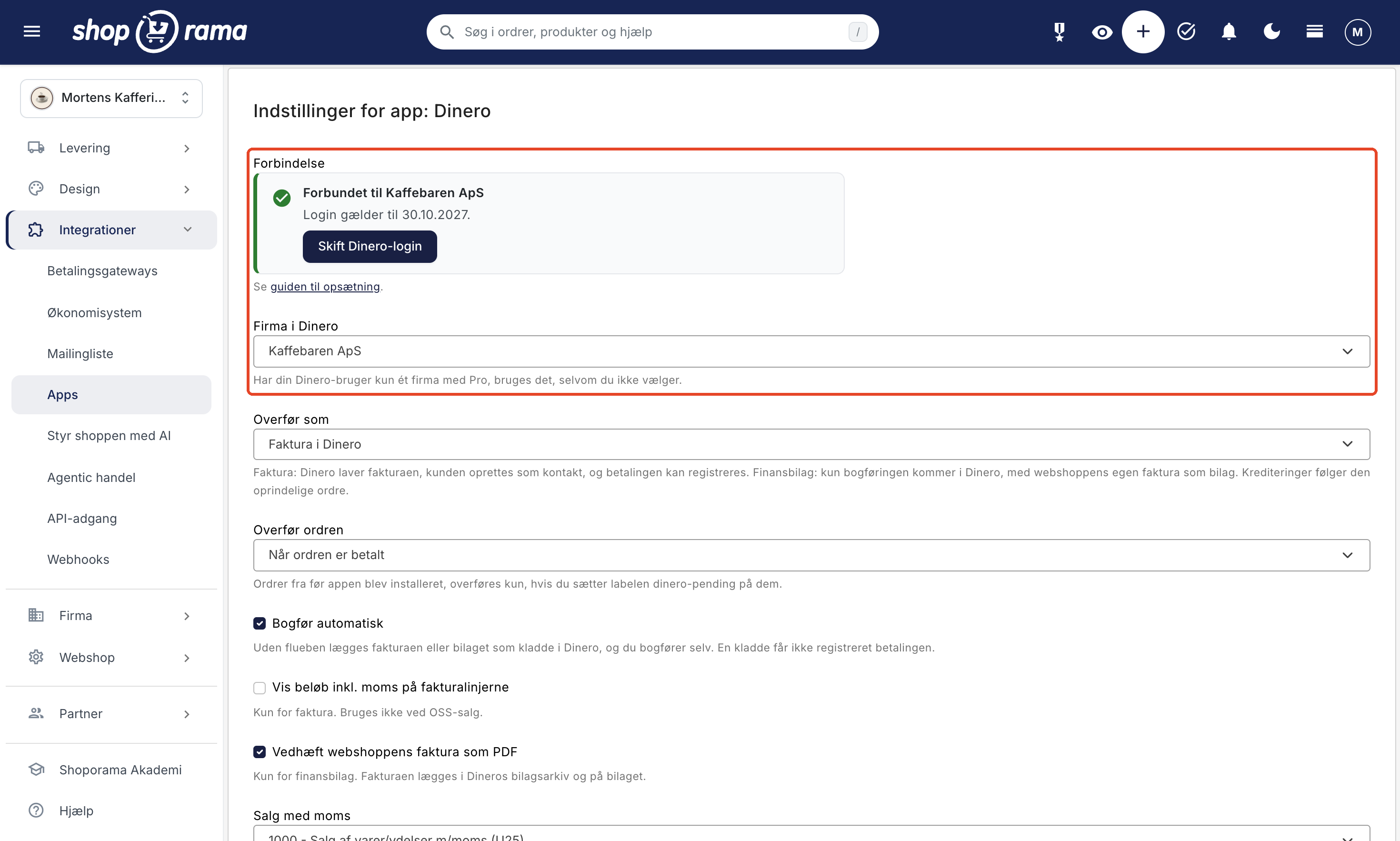
You do not need to copy any key or code. The login is valid for one year from the time you logged in. In the last 30 days , the field will say: “Reconnect before then” so that the transfer does not stop. Then click “Change Dinero Login” and log in again. This will extend the login for another year. Use the same button if the app needs to use a different Dinero user.
The connection belongs to the Dinero user. If you have multiple stores, they can use the same Dinero user. Click “Connect to Dinero” in each store, and the stores will share the connection.
Step 3: Select a company
"Company" in Dinero shows the companies your Dinero user has access to. If the user has only one company with Dinero Pro, the app will use that one automatically, even if you don’t select it. If the user has multiple companies, select the correct one from the list. Companies without Pro have "(does not have Dinero Pro) " after their name.
Click Save once the company is selected. Only then can the app retrieve the chart of accounts from the company, allowing you to select accounts in the next steps.
Step 4: Choose how and when the order is transferred
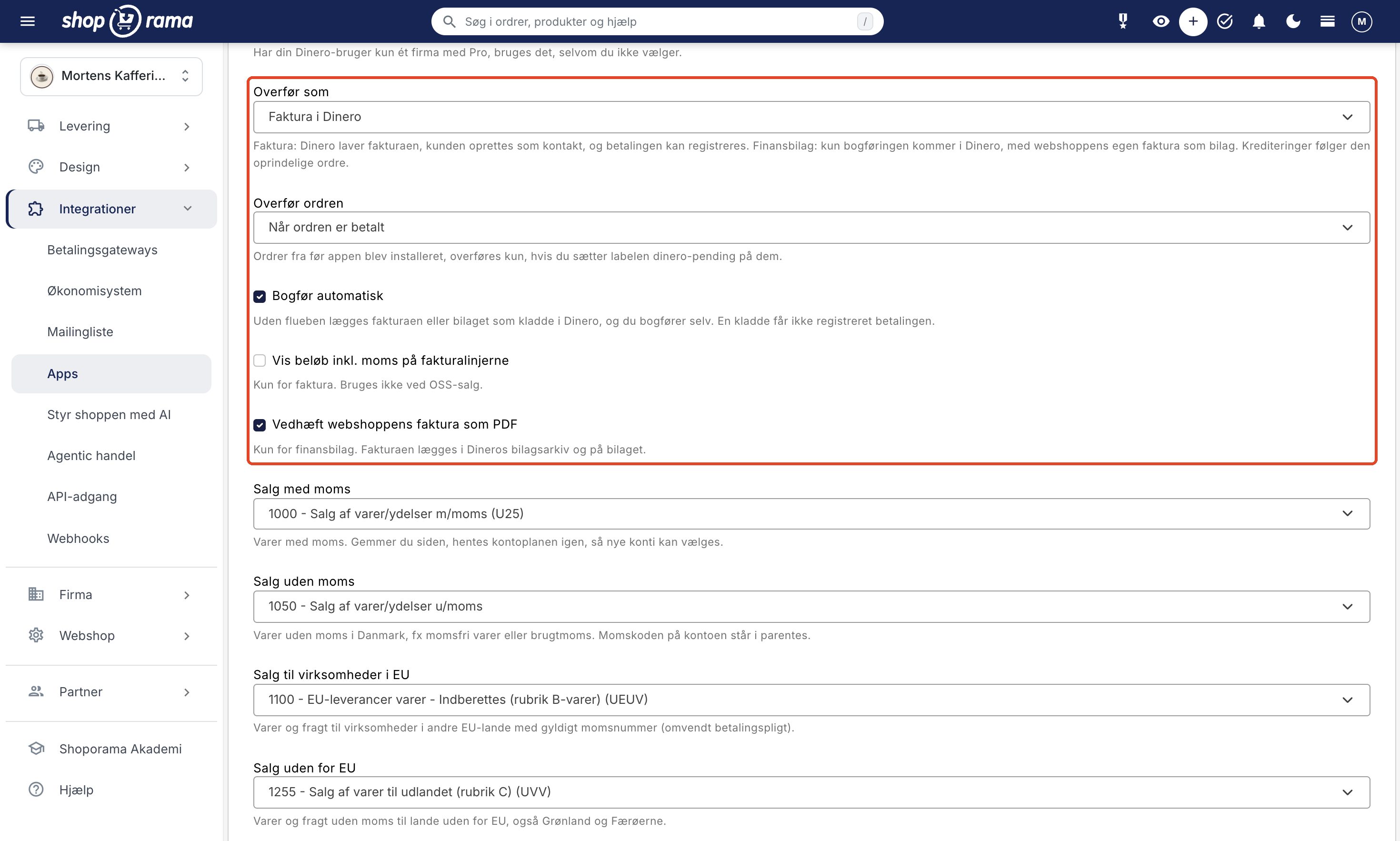
Transfer as: invoice or financial document
- Invoice in Dinero (default): Dinero creates the invoice, and the customer is added as a contact in Dinero. If the customer already exists with the same email address, that contact is used. The invoice is labeled “Order No.” and includes the order number (e.g., Order No. 4776); the transfer date is used as the invoice date; and the line items show products with variants and product numbers, shipping, discount codes, promotional discounts, and loyalty point discounts. The payment can be recorded on the invoice.
- Financial document with the online store’s invoice: only the bookkeeping entry is created in Dinero. No customer is created, and the document is dated according to the order date. The online store’s own invoice is attached to the document as a PDF. A financial document is always in Danish kroner.
Select “Invoice” if you want customers and invoices in Dinero. Select “Financial Document” if you only need the accounting entries and the online store’s invoice should be the attachment. Credit entries always correspond to the original order: an invoice is credited with a credit memo, and a financial document with an offsetting financial document. If you change your selection, the new selection applies to orders transferred thereafter.
The other options
- Transfer the order: “When the order is paid ” (default) or “When the order is shipped.” With “When the order is shipped,” only orders that have the “Shipped” status will be transferred; if you offer in-store pickup, select “When the order is paid.” The transfer happens automatically shortly afterward, typically within a few minutes. Orders from before you installed the app are only transferred if you apply the “dinero-pending” label to them.
- Auto-post: enabled by default, so the invoice or attachment is posted immediately. If you uncheck this box, it is saved as a draft in Dinero, and you post it yourself. A draft does not record the payment.
- Show amounts including tax on invoice lines: turned off by default. Applies only to invoices and is not used for OSS sales.
- Attach the online store’s invoice as a PDF: enabled by default. Applies only to financial documents. The invoice is saved in Dinero’s document archive and attached to the document. If it cannot be attached, the document is created anyway, and a note on the order indicates this.
Step 5: Select accounts and VAT
The lists show your company’s chart of accounts in Dinero, sorted by account number. The account’s VAT code is shown in parentheses, e.g., (U25). It is the account’s VAT code that determines the VAT in Dinero, so a line with VAT must be posted to an account with VAT, and a line without VAT to an account without VAT.
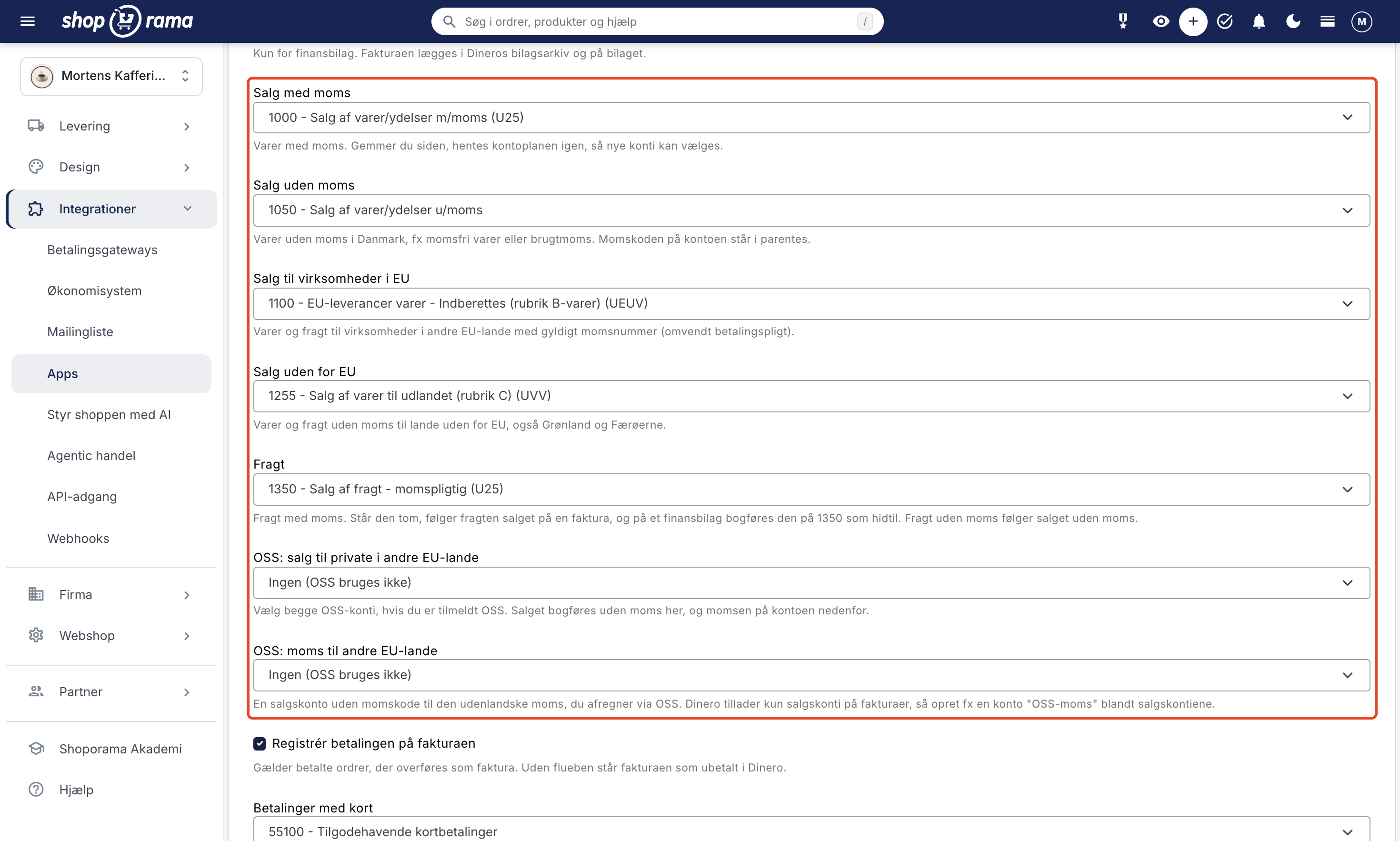
- Sales with VAT (default 1000): goods subject to VAT.
- Sales without VAT (default 1050): goods without VAT in Denmark, e.g., VAT-exempt goods or secondhand goods.
- Sales to businesses in the EU (default 1100): goods and shipping to businesses in other EU countries with a valid VAT number. See Reverse Charge and VIES Validation.
- Sales outside the EU (standard 1255): goods and shipping without VAT to countries outside the EU, including Greenland and the Faroe Islands.
- Shipping: shipping with VAT. If the field is set to “As sale,” the shipping follows the sale on an invoice, and on a financial document, it is posted to account 1350. Shipping without VAT follows the sale without VAT.
- OSS: Sales to private individuals in other EU countries and OSS: VAT to other EU countries: only if you are registered for OSS. See below.
Which account a line item is posted to is determined by the VAT on the line item, the country of delivery (your own country, another EU country, or the rest of the world), and whether the customer has provided a VAT number or EAN number. The app does not use the countries’ VAT zones under Delivery → Countries.
Dinero’s chart of accounts is not the same for all companies. If a selected account does not exist in your company, this will be indicated in the “Connection” field, e.g., “Sales outside the EU: Account 1255 does not exist in Dinero’s chart of accounts.” Select another one and save. Then select the account you use for this type of sale. If you’ve just created an account in Dinero, click Save in the app. The chart of accounts will then be retrieved again, and you can select the new account.
OSS: Sales to Private Customers in Other EU Countries
If you’re registered for OSS and sell using the buyer’s country’s VAT, select both OSS accounts. Both must be sales accounts without a VAT code. Sales to private customers with delivery to another EU country are then posted without VAT to the OSS sales account, and the foreign VAT appears on a separate line in the OSS VAT account. If you select only one of the two accounts, neither will be used, and the sale will be posted to “Sales with VAT.”
The OSS VAT account must be a sales account
Dinero only allows sales accounts on invoices, so you cannot use a VAT account or another balance sheet account for OSS VAT. Instead, create a sales account without a VAT code in Dinero—for example, named “OSS VAT”—click Save in the app, and select it in OSS: VAT for other EU countries.
If you sell with another EU country’s VAT without having selected OSS accounts, the VAT in Dinero will not match the order. The invoice will then remain as a draft, and the note on the order will suggest that you select the two OSS accounts.
Sales outside the EU with Danish VAT
Dinero will not post an invoice with Danish VAT to a country outside the EU. The invoice will remain as a draft, and the note on the order will display Dinero’s message: “The VAT code for the account you’re trying to post to doesn’t match the country you’re doing business with.” Correct and post the draft in Dinero, and record the payment there. The order will retain the label “dinero-failed.” Check the B2C VAT (%) for the country under Delivery → Countries so that future orders are processed correctly. Read more in Countries and Currencies, and consult your accountant if you have any questions about VAT.
Step 6: Select accounts for the payments
"Record payment on invoice " is enabled by default. This means the payment is recorded for paid orders that are transferred as invoices, and the invoice is marked as paid in Dinero. The payment is recorded with the invoice amount so that it matches, even if Dinero rounds to a different 1 øre than the online store. If this option is unchecked, the invoice will appear as unpaid.
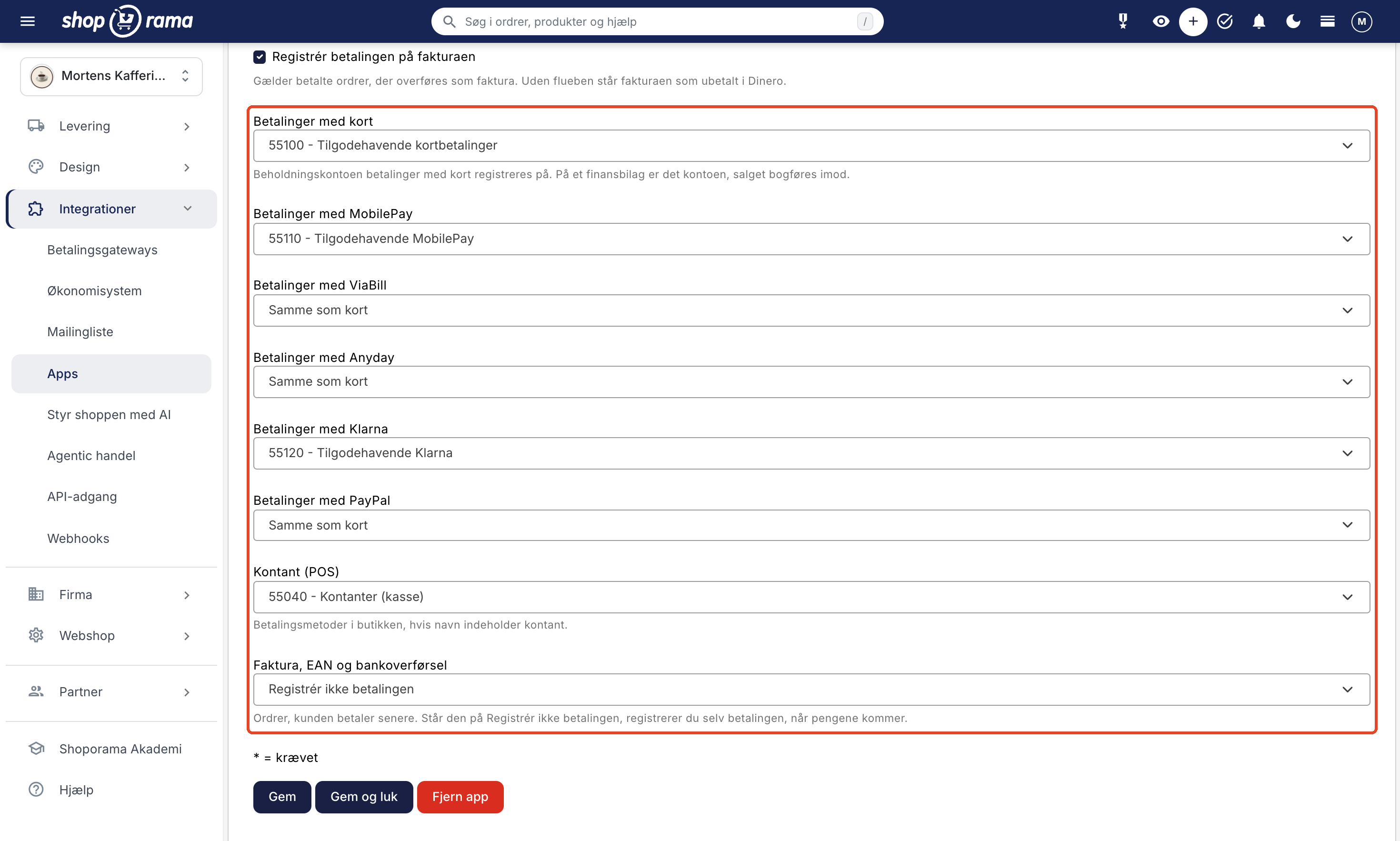
Each payment method can have its own balance account:
- Card payments (default 55000, which is “Bank” in Dinero’s default chart of accounts—so select your intermediate account instead; see below): card payments and all payment methods not covered by the other fields.
- MobilePay, ViaBill, Anyday, Klarna, and PayPal: the app recognizes them by the payment method. Vipps falls under MobilePay. If the field is set to “Same as Card,” the card account is used.
- Cash (POS): in-store payment methods whose names include “cash.”
- Invoice, EAN, and bank transfer (default: “Do not register the payment”): orders where the customer pays later, e.g., using an EAN number or your own payment methods such as invoice and bank transfer. The invoice appears as unpaid in Dinero, and you manually record the payment when the funds are received.
If you set another method to “Do not record payment,” invoices using that method will also appear as unpaid. On a financial document, the payment account is the account to which the sale is posted. If the method is set to “Do not record payment,” the financial document uses the account from the card.
Use a suspense account for each payment provider
We do not recommend recording payments directly to your bank account. The payment provider deducts its fees before the funds are deposited into your bank account. If you make a sale for 249 DKK, you may only receive 241 DKK. Instead, use a holding account for each provider, such as “Card Payments Receivable,” “MobilePay Receivable,” and “Klarna Receivable.” When the payment is received, post it to the bank account and record the fee as an expense, so the holding account balances to zero.
First, set up the holding accounts in Dinero. Then click Save in the app; this will reload the list, and you can select the new accounts. Click Save or Save and Close once all fields are filled in. From now on, new orders will be transferred automatically. If you’re using the old integration, this will only happen once you’ve set Supplier to None, as described above.
How to see what happened to an order
The app creates three order labels in your shop:
- dinero-ok (green): the order has been transferred. This also applies when it’s saved as a draft because “Auto-Post” is turned off.
- dinero-failed (red): The order hasn’t been transferred, or something went wrong along the way. The note on the order explains what happened.
- dinero-pending (yellow): You set this yourself when an order needs to be transferred, e.g., after an error.
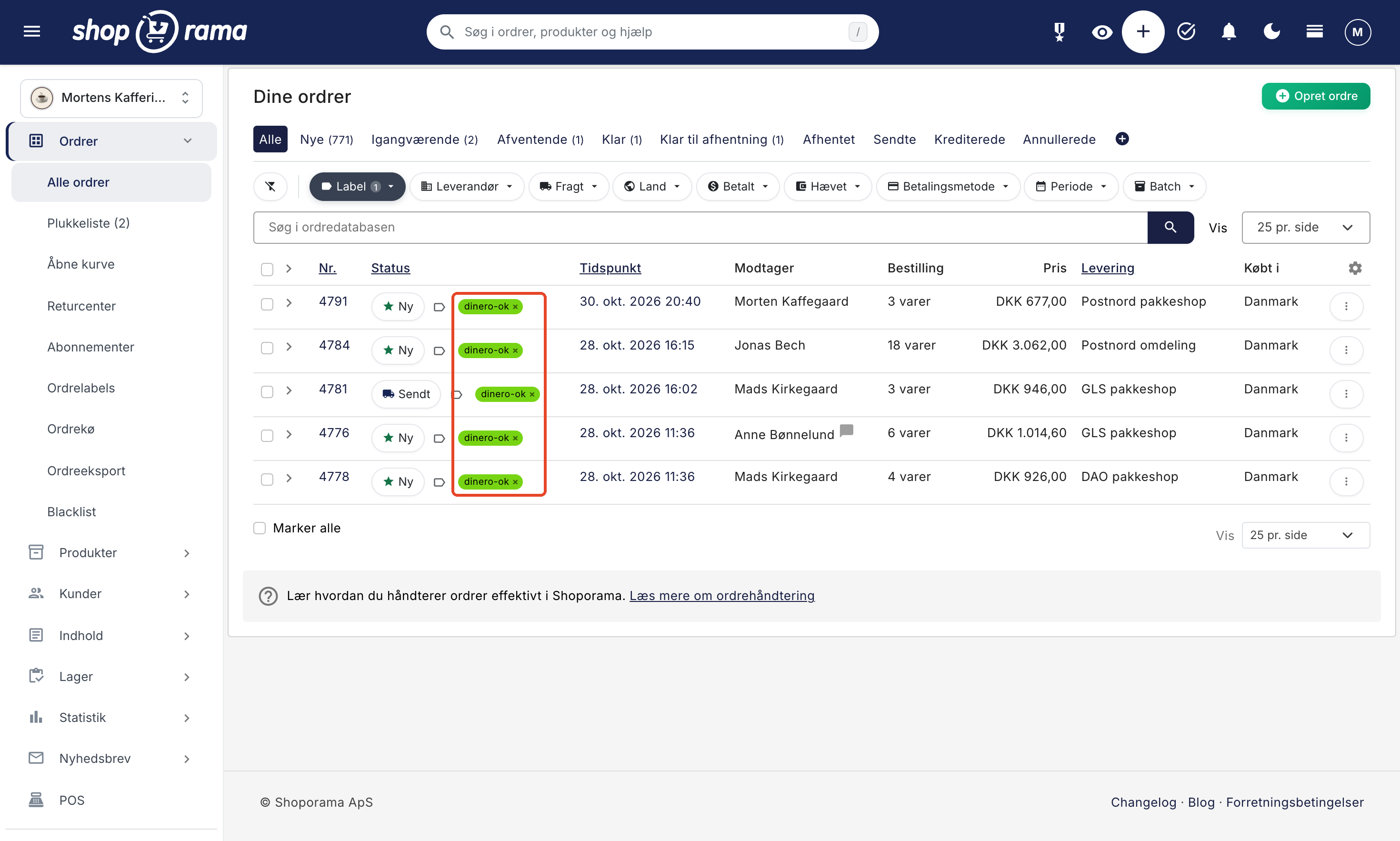
Open the order and click on System Notes to expand the note. Here you’ll find the invoice number in Dinero, the amount, and the account to which the payment was posted.
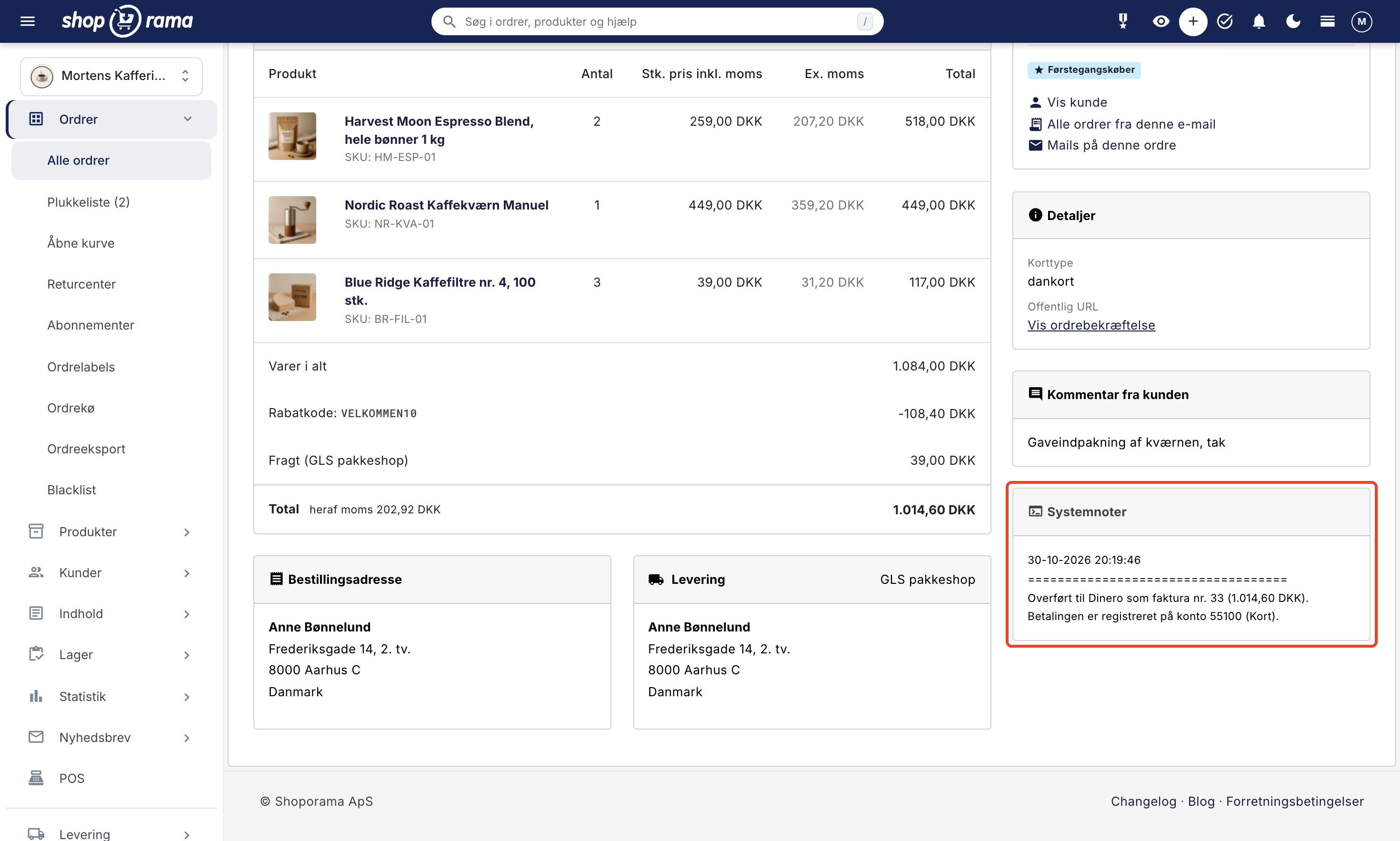
Credits, canceled orders, and old orders
- Credit memos are automatically transferred once the original order has been transferred. A credit memo is linked to the original invoice in Dinero, and the amount always matches the credit entry in Shoporama. Dinero only credits posted invoices: if you’ve turned off “Post Automatically ” and the invoice is still a draft, the credit entry will show “dinero-failed.” Post the invoice in Dinero and set the credit memo to “dinero-pending.” The refund to the customer is not recorded on the credit memo, so you’ll need to record it yourself. Read more in Credit Memos and Refunds.
- Credits for orders that the app did not transfer itself—such as orders transferred by the old integration—will be labeled “dinero-failed” and include a note. Create the credit memo in Dinero, or mark the credit entry as “dinero-pending.” The app will then transfer it without linking it to the original invoice. If the original order failed, transfer it first, and then mark the credit entry as “dinero-pending.”
- Canceled orders are never transferred, even if you apply the “dinero-pending” label to them. Orders with the “Pending” status are transferred like any other.
- Orders from before you installed the app are transferred only if you mark them as “dinero-pending.”
- The app never transfers the same order twice. If you mark an order that the app has already transferred as “dinero-pending,” you’ll instead receive a note stating that it has already been transferred, along with the transaction number if it has been posted.
When Something Goes Wrong
If a transfer fails, the order is labeled “dinero-failed” and a note is added under “System Notes” with Dinero’s explanation. The app does not retry automatically. Here’s how to resend the order:
- Read the note on the order and correct the error in the app or in Dinero.
- Go to the order list, click the label icon “Assign/Remove Labels ” next to the order, and select “dinero-pending.”
- Typically, within a few minutes, the label will change to “dinero-ok.” If it fails again, the order will be labeled “dinero-failed” and a new note will be added.
The “Connection” field in the app also keeps track of this. It counts the orders that failed in the last 7 days and shows, for example, if a selected account doesn’t exist, if the company doesn’t have Dinero Pro, or if the old integration under “Financial System” is still enabled.
The invoice is saved as a draft because the amount differs
Before the app posts an invoice, it compares the amount and sales tax in Dinero with the order. If they differ, the invoice is not posted. It remains as a draft in Dinero, and the note on the order begins with “The invoice is a draft in Dinero because the amount (or the VAT) differs.” This typically happens when an account has a different VAT code than the line item. You have two options:
- Correct the draft in Dinero so the amount matches, and set the order to “dinero-pending.” The app will check the invoice again, post it, and record the payment.
- Correct the account in the app, delete the draft in Dinero, and mark the order as “dinero-pending.” The app will then create a new invoice with the correct accounts.
Connection interrupted
If “Connection to Dinero is disconnected” appears in the Connection field, Dinero has rejected the login—for example, because it has expired or because access has been revoked in Dinero or at Visma. The app will not reconnect to Dinero until you log in again. Click “Reconnect, ” and then mark the orders that received a “dinero-failed” status in the meantime as “dinero-pending.”
If the app lacks a connection or company when an order is to be transferred, the order will also receive a “dinero-failed” status with a note. Once the setup is correct, the order will be transferred at the next status change or when you set it to “dinero-pending.” If “Link has expired” appears when you click “Connect to Dinero,” reload the app’s settings and click the button again.
The app does not
- Does not create items in Dinero. The lines on the invoice are text entries with amounts and account numbers.
- Does not reconcile payments and fees from payment providers. You do this yourself, as described under “Interim Accounts” above.
- Does not post to an account per item or item group. The account is determined by the VAT on the line item and the country of delivery.
- Does not generate legally valid VAT invoices for used goods. Items with 0% VAT can be posted to an account without VAT. See VAT Categories.
- Do not update the invoice if you correct the order in Shoporama after the transfer. Correct it in Dinero as well.
- Does not record refunds on credit memos.
- Does not send the invoice from Dinero to the customer. The app does not send emails.
Frequently Asked Questions
Can I switch back to the old integration if the app doesn’t work for me?
No. Once “Supplier” is set to “None” under Integrations → Accounting System, Dinero cannot be selected there again. Therefore, set up the app completely before switching, and check that the “Connection” field shows your company. The app won’t transfer any orders until you’ve switched, so you can’t test it out on real orders first.
Will my settings from the old integration carry over to the app?
No. The app starts with its own default accounts, so select your company, sales accounts, and payment accounts again before you disable the old integration. Note that the app’s default for sales outside the EU is 1255, which is Dinero’s current account, while the old integration used 1250. If an account doesn’t exist in your company, it will be noted in the “Connection” field.
My boss wants an order from before the app was installed to be included in Dinero. What should I do?
Apply the “dinero-pending” label to the order. The app will then transfer it, even if it predates the installation. An invoice will be dated today, not the order date, so consult your accountant if the order falls within a closed VAT period. The app can’t see what the old integration has transferred, so first check in Dinero to make sure the order isn’t already there. Canceled orders are never transferred.
What happens if I cancel an order that has already been transferred?
Nothing happens in Dinero. The invoice remains as is. Instead, credit the order in Shoporama—the app will then generate a credit memo—or credit the invoice in Dinero.
What date do the invoice and credit memo receive in Dinero?
Invoices and credit memos are dated the day they’re transferred, and the payment is also recorded with that date. Financial documents are dated the order’s date.
We have multiple online stores on the same Dinero accounting system. Can the orders get mixed up?
No. Each store keeps track of its own transfers, and each invoice is assigned its own ID. The invoice reference is the order number, so if the stores use the same number series, two invoices may have the same reference. A customer with the same email address is treated as a single contact in Dinero. Online stores linked to the same Dinero user share that connection.
We sell in Swedish and Norwegian kroner. Is it posted in the foreign currency?
An invoice is transferred in the order’s currency, and the exchange rate at the time of purchase is listed in the invoice’s comments. If the language of the order is not Danish, the invoice is created in English. A financial document is always in Danish kroner, converted using the exchange rate at the time of purchase. Accounts are selected by sales type—for example, “Sales outside the EU” or “OSS”—not by country. See also “Sell in Multiple Countries and Languages.”
A municipality pays an EAN invoice 30 days later. Is it marked as paid?
No. EAN orders fall under Invoice, EAN, and Bank Transfer, which is marked as “Do not register the payment.” The invoice appears as unpaid in Dinero, and you record the payment there once the funds are received. You send the EAN invoice yourself from Dinero, so the order must be transferred immediately. If “Transfer the order when the order is paid” is selected, check the box next to “Automatically mark new orders as paid?” for your EAN payment method, or apply the “dinero-pending” label to the order. The invoice will still appear as unpaid in Dinero until you record the payment.
Can my accountant trace an invoice in Dinero back to the order?
Yes. The invoice description is “Order No.” followed by the order number, and the order number also serves as the invoice reference. On the order in Shoporama, Dinero’s invoice number appears in the note under “System Notes,” and a credit memo is linked to the original invoice. A financial document includes the order number in the text of the line items and the online store’s invoice as a PDF when “Attach online store’s invoice as PDF” is enabled.
Read more
- Online Store with Dinero
- Accounting software you can use with Shoporama
- Order labels
- Credit notes and refunds
- OSS (One Stop Shop) in the dictionary
Do you need help with the Dinero app? Email us at support@shoporama.dk.
Related articles
Set up E-conomic integration
Step-by-step guide to install Shoporama's e-conomic app from the App Store and set up automatic transfer of orders.
Billy Integration: Transfer Orders to Billy (Shine Accounting)
Here's how to install the free Billy app, connect it to an API token from Billy (Shine Accounting), select sales and payment accounts, and have...
Troubleshooting E-conomic integration
Guide to troubleshooting the e-conomic app in Shoporama. Fix sync issues, failed transfers and incorrect posting.
Order labels
Guide to order labels in Shoporama. Create color-coded labels to organize and categorize your orders and set up automatic allocation based on...
Credit notes and refunds
Complete guide to credit notes and refunds in Shoporama, including partial refunds, full credit notes and transfer to accounting systems.
VAT Categories: The Correct VAT Rates for Books, Food, and Other Goods
Here's how to apply the correct VAT rate to books, newspapers, food, and other items in each country using VAT categories, and how to allocate...
Countries and Currency: Delivery Countries, Sales Tax, and Shipping
Set up delivery countries under Delivery → Countries with VAT rates, VAT zones, shipping options, and free shipping, and see how they relate to...
Sell in multiple countries and in multiple languages
Here's how to sell in other countries in your customers' languages and currencies using "Countries": Add a country, set up the address, language,...
Reverse charge og VIES-validering: sælg uden moms til erhverv i EU
Create EAN payment as a payment method
Guide to setting up EAN payment (invoice payment for businesses) on your Shoporama online store.
Related features
Dinero Integration
Shoporama's Dinero app transfers orders as invoices or financial documents, records payments by payment method, and displays errors on the order....
New free Dinero app replaces the old integration
Shoporama's new, free Dinero app replaces the old integration: one-year login, order errors, one account per payment method, and a notepad if you...
Webshop with Dinero
Connect your online store to Dinero using Shoporama's free app. Orders are converted into invoices or financial documents, and payments, sales tax,...
OSS (One-Stop Shop)
OSS (One Stop Shop) is the EU's VAT scheme for sales to consumers in other EU countries. Learn what OSS is and how Shoporama helps with...
Best E-commerce Platform for 2026: A Comparison of 9 Platforms
Shopify, WooCommerce, DanDomain, Shoporama, and 5 others compared based on price, fees, MobilePay, Dankort, accounting, and Danish support....
Accounting programs
Automatically transfer orders from your online store to e-conomic, Dinero, Uniconta, Billy, or Business Central. Free apps for sales tax,...
e-conomic vs. Dinero: Which One Is Best for Your Online Store?
e-conomic or Dinero for your online store? See the differences in VAT, OSS, payments, credit memos, and customers when orders are posted...
Dinero
Dinero is a Danish accounting program for small businesses. See what it's used for and how orders from your online store are imported using...