Credit notes and refunds
Complete guide to credit notes and refunds in Shoporama, including partial refunds, full credit notes and transfer to accounting systems.
When a customer returns an item or an order needs to be credited, you create a credit memo in Shoporama. The credit memo documents the refund and can be transferred to your accounting system.
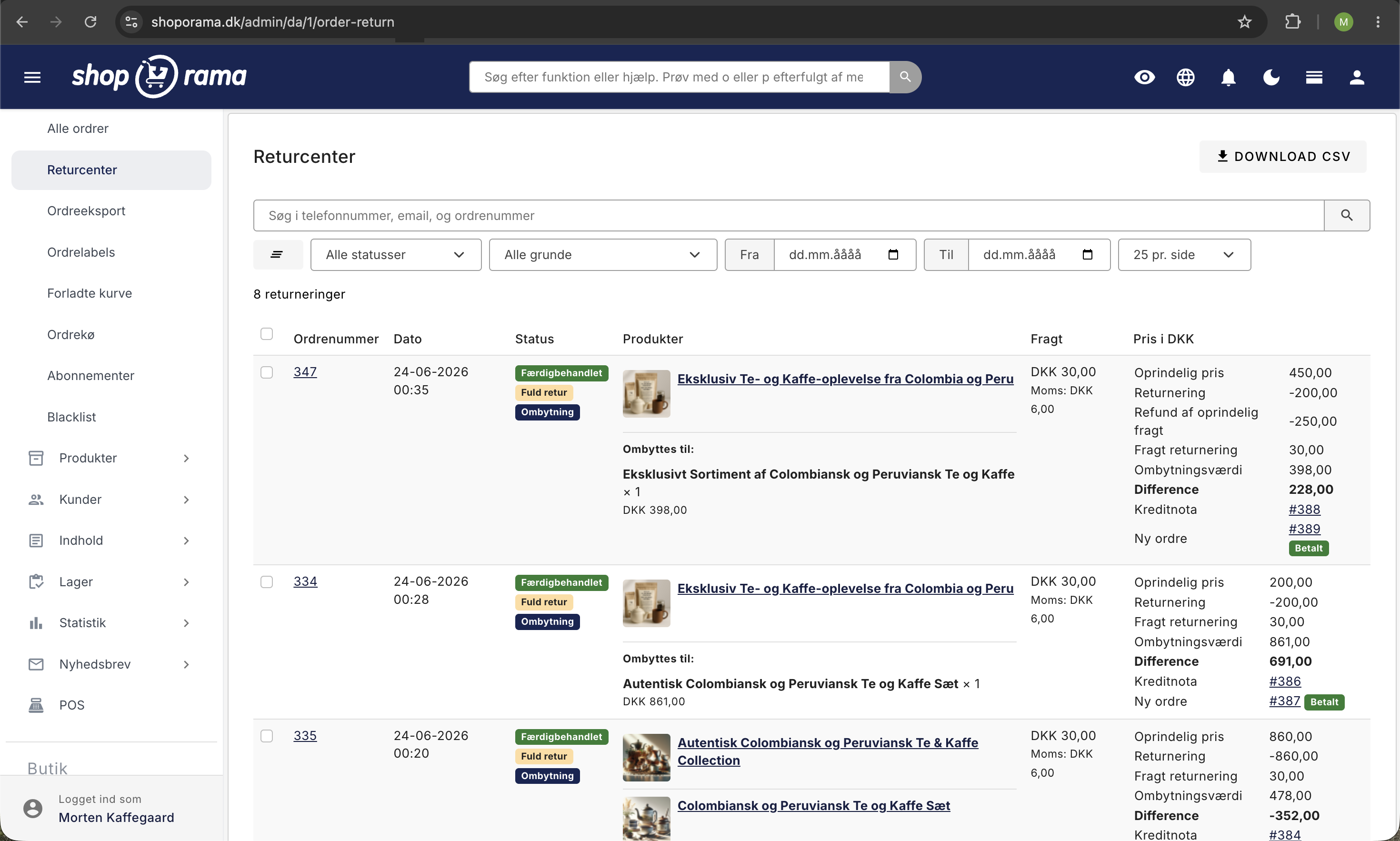
Create a credit memo
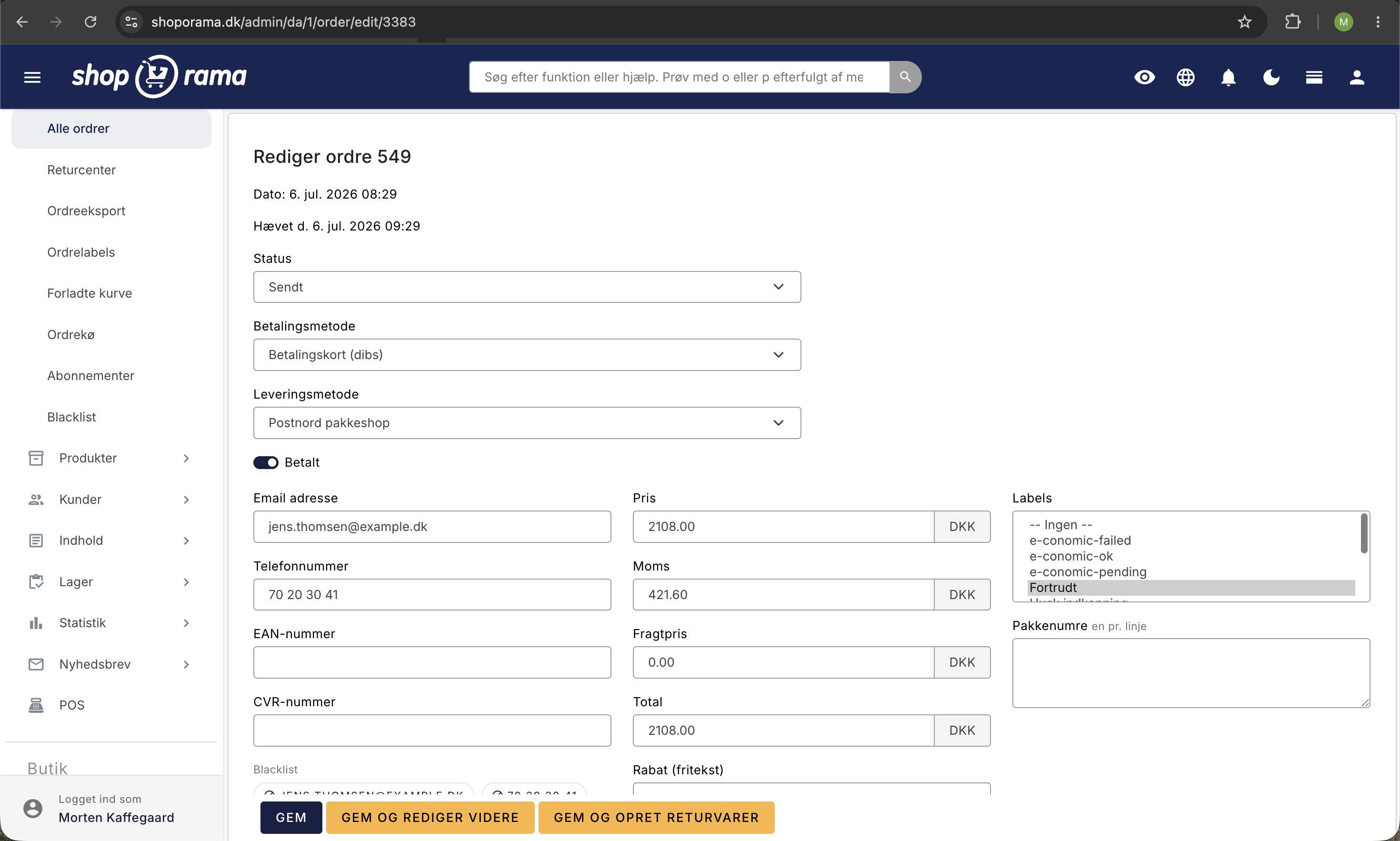
- Open the order to be credited
- Click “ Save and Create Return Items ” at the bottom of the order
- Select the products and quantities to be credited
- If applicable, specify whether shipping costs should also be refunded
- Save the credit memo
Partial credit memo
You don’t have to credit the entire order. You can select specific products and specify the quantity to be credited. The rest of the order remains unchanged.
Refund via payment gateway
The credit memo handles the documentation. The actual refund to the customer is a separate step.
If you use QuickPay, OnPay, Stripe, PensoPay, or Flatpay, you can issue a refund directly from Shoporama. Open the credit memo and click the “Refund the amount” link in the yellow box at the top. You can refund the entire amount or just a portion of it, and you don’t need to log in to the gateway.
If you use a different payment gateway, you’ll process the refund in the gateway’s own dashboard.
Credit Memos and Accounting
How credit memos are transferred to your accounting system depends on which integration you use:
- e-conomic — The credit memo is automatically transferred as its own document with negative line items. If you’ve enabled “Automatically post transferred invoices,” it’s posted immediately; otherwise, it remains as a draft until you approve it yourself
- Dinero — The credit memo is automatically transferred and linked to the original invoice
- Billy — The credit memo is automatically transferred as a valid credit memo, linked to the original invoice
Regardless of which integration you use, we always recommend checking that the credit memo appears correctly in your accounting software after it’s created.
How to check if the credit memo has been transferred
A credit memo is a standalone order with its own order number and a negative amount. If you use e-conomic, the “e-conomic-ok” label is applied to the credit memo itself, not to the original order. This is a common source of confusion: the original order has its own green label from when it was transferred, and that label says nothing about the credit memo.
Therefore, open the credit memo from the order and check the label there. If you want to view multiple items at once, you can filter the order list by the “e-conomic-failed” label to find the ones that didn’t go through.
Tips
- Always create the credit memo in Shoporama before refunding the money, so the documentation is in order
- The credit memo is automatically assigned a credit memo number
- You can view all credit memos associated with an order in the order details
- Shoporama’s order number is automatically entered on the voucher in the accounting software, so you can always trace it back to the order
Related articles
Billy Integration: Transfer Orders to Billy (Shine Accounting)
Here's how to install the free Billy app, connect it to an API token from Billy (Shine Accounting), select sales and payment accounts, and have...
Troubleshooting E-conomic integration
Guide to troubleshooting the e-conomic app in Shoporama. Fix sync issues, failed transfers and incorrect posting.
Find your invoice from Shoporama
Guide to finding and downloading your invoices from Shoporama.
Related features
e-conomic vs. Dinero: Which One Is Best for Your Online Store?
e-conomic or Dinero for your online store? See the differences in VAT, OSS, payments, credit memos, and customers when orders are posted...
Credit note
A credit note cancels or reduces an invoice for returned goods or price adjustments. Read about credit notes in eCommerce and accounting.
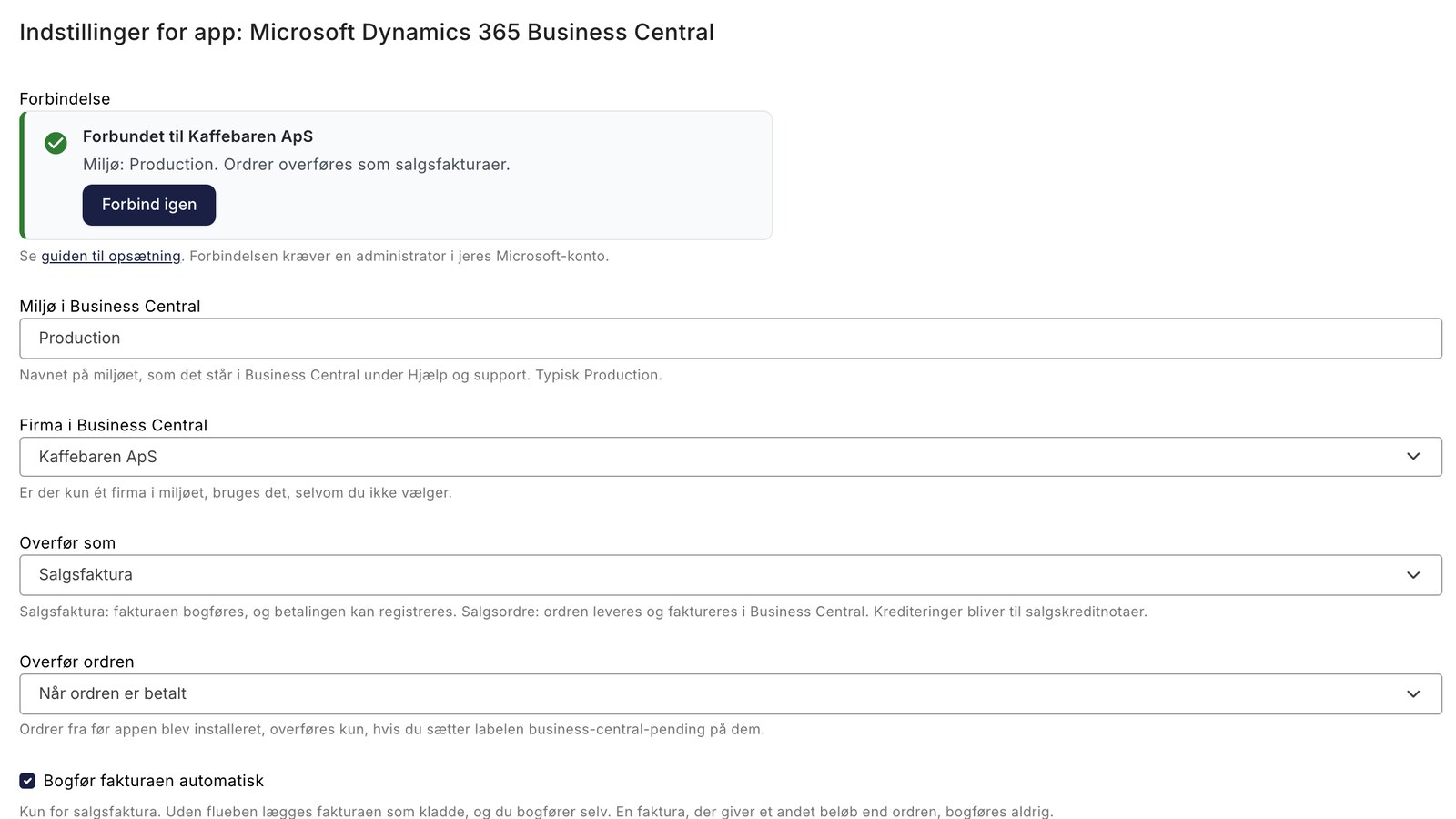
New Free App Sends Online Store Orders to Business Central
New on Shoporama: A free app sends orders from the online store to Business Central as posted sales invoices, including customer information, VAT,...
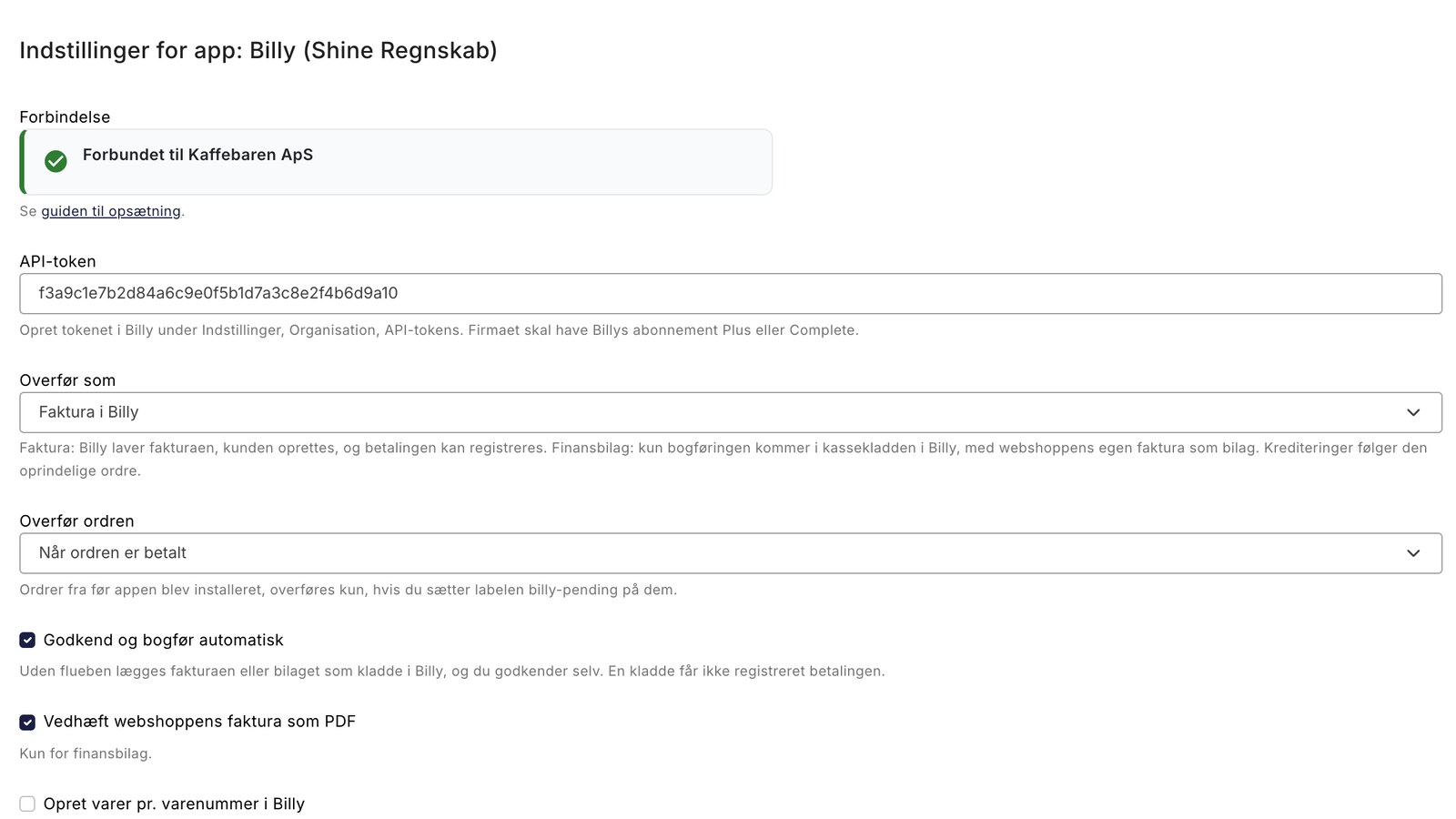
New free Billy app replaces the built-in integration
Shoporama's new, free Billy app replaces the old integration: customer data is reused, credit memos are linked to the invoice, and each payment...
Webshop with Dinero
Connect your online store to Dinero using Shoporama's free app. Orders are converted into invoices or financial documents, and payments, sales tax,...
Billy Integration
Shoporama's Billy app transfers orders as invoices or financial documents, links credit memos to the invoice, records payments, and displays errors...
Dinero Integration
Shoporama's Dinero app transfers orders as invoices or financial documents, records payments by payment method, and displays errors on the order....
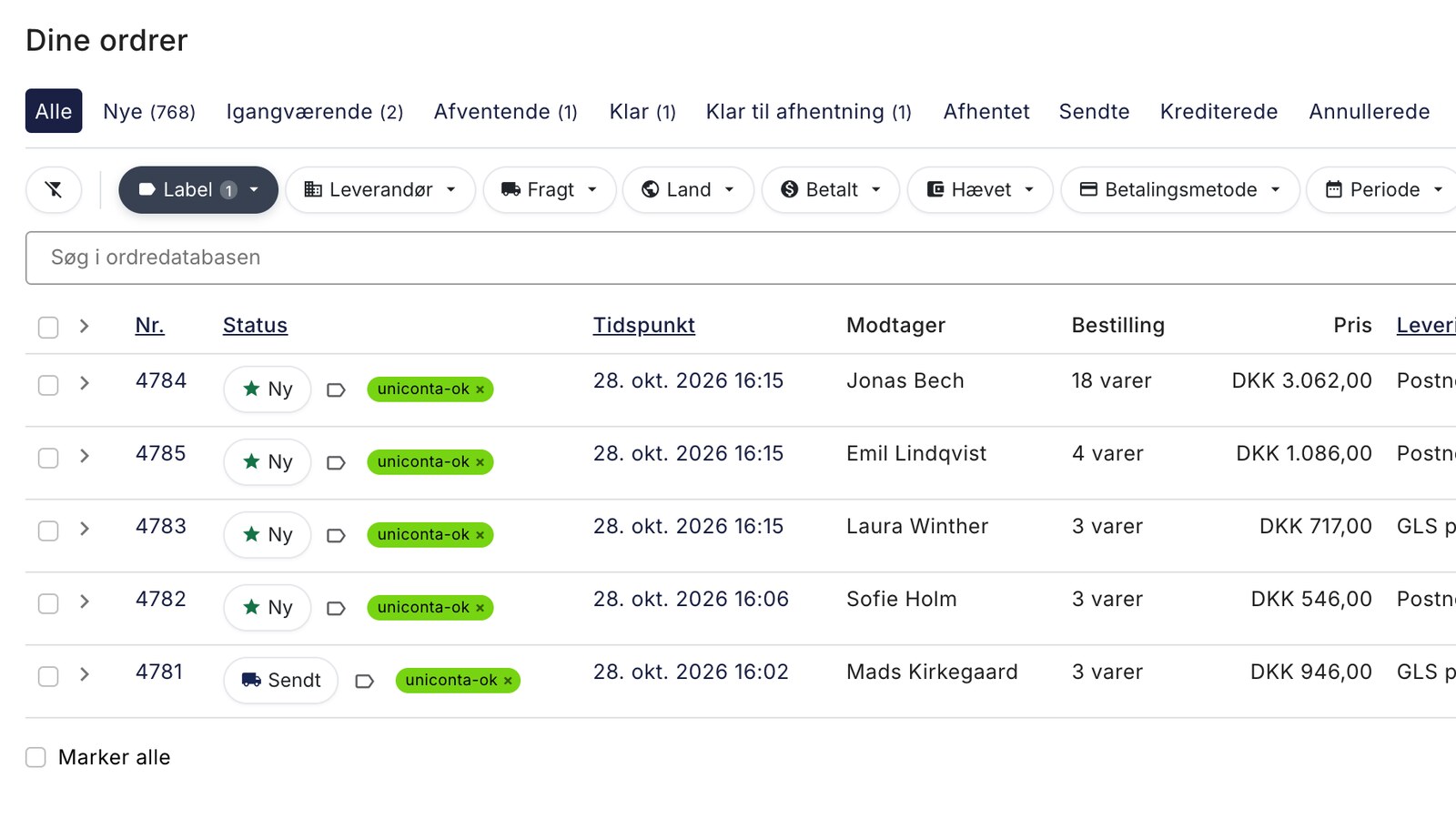
Orders from the online store are now automatically transferred to Uniconta
New on Shoporama: A free app sends orders from the online store to Uniconta as sales orders, including customer information, item lines, discounts,...
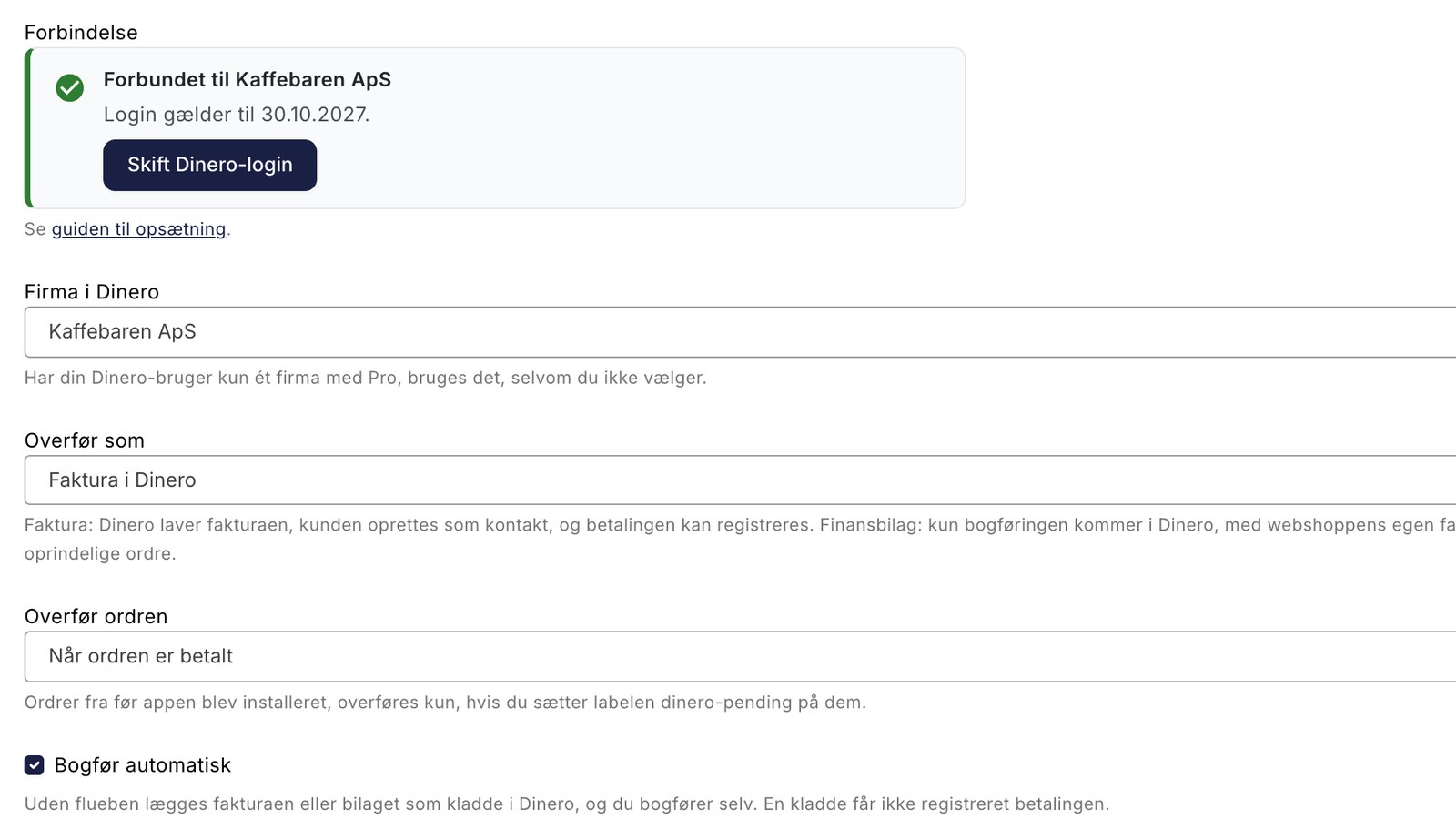
New free Dinero app replaces the old integration
Shoporama's new, free Dinero app replaces the old integration: one-year login, order errors, one account per payment method, and a notepad if you...
Replacement
An exchange is when a customer exchanges an item for another instead of getting a refund. See what exchange means and how it works in an online store.
Return center - handle returns professionally
Manage returns, issue credit notes and refunds to the customer's card. With return statistics and automatic inventory management.
Uniconta Integration
Shoporama's Uniconta app transfers orders as sales orders, finds or creates the customer, and displays the status using labels. See what the app...
Online Store with Billy (Shine Accounting)
Connect your online store to Billy (Shine Accounting) using Shoporama's free app. Orders are converted into invoices or financial documents, and...
Online Store with Uniconta
Connect your online store to Uniconta using Shoporama's free app. Orders are converted into sales orders, the customer is created or recognized as...
Business Central Integration
Shoporama's free app transfers orders to Business Central as posted sales invoices or sales orders, records payments, and displays errors on the...
Online Store with Business Central
Connect your online store to Microsoft Dynamics 365 Business Central using Shoporama's free app. Orders are posted as sales invoices with sales...
Your first order: pack, ship, and collect payment
Manage your first order in Shoporama: order status, picking list, partial shipments, shipping labels, payment refunds, and unpaid orders.
Accounting programs
Automatically transfer orders from your online store to e-conomic, Dinero, Uniconta, Billy, or Business Central. Free apps for sales tax,...