How to switch between open and closed basket
Step-by-step guide to enable or disable open basket in your Shoporama online shop - and what you need to be aware of.
In Shoporama, you can choose whether your online store should use an open or closed shopping cart. Here’s a quick guide on how to change this setting.
First, read about the difference between an open and a closed shopping cart if you’re unsure which type is right for your online store.
How to change the setting
- Log in to your admin panel
- Click the gear icon (Settings)
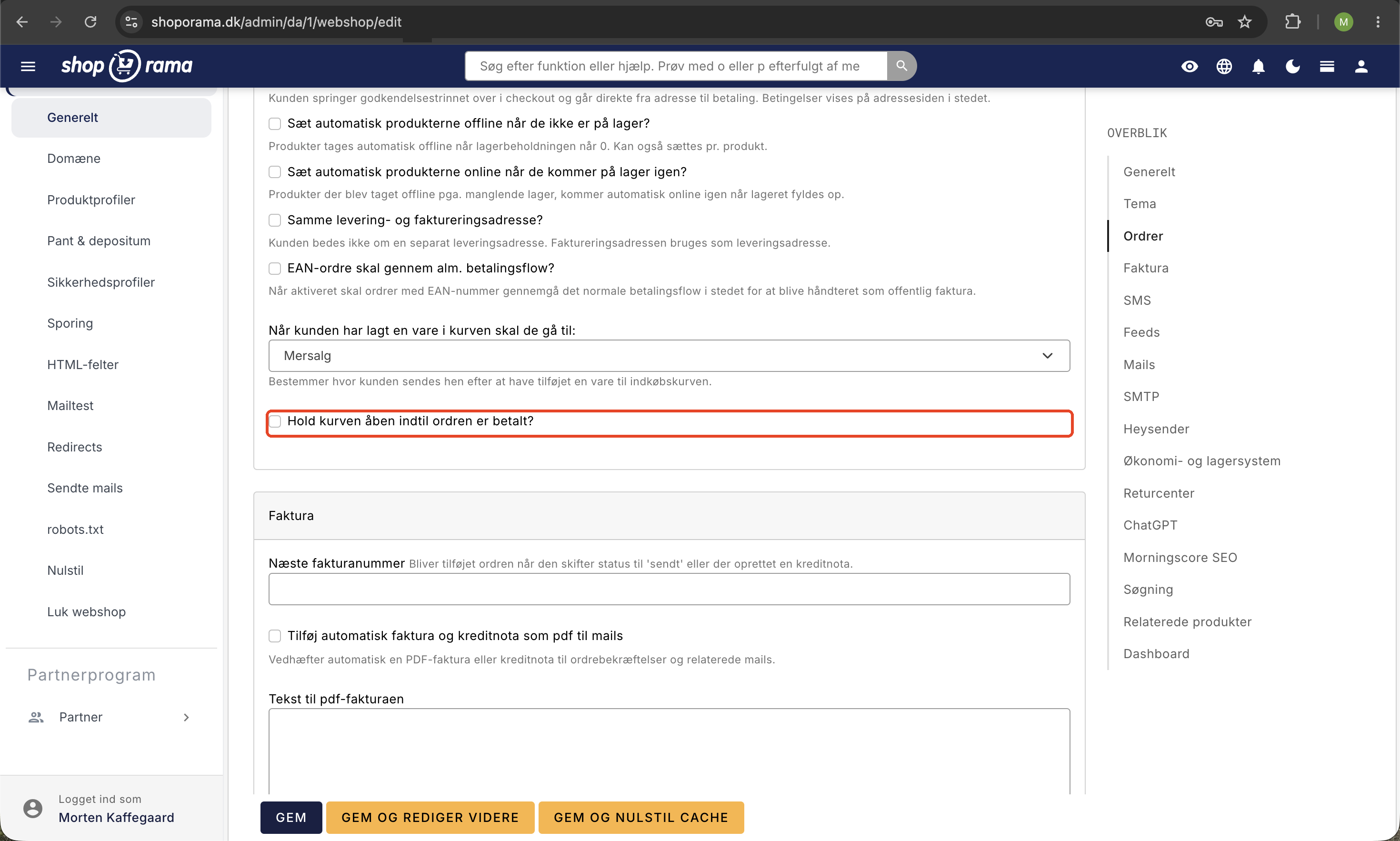
- Click the Orders tab
- Check or uncheck the box next to "Keep the cart open until the order is paid"
- Click Save
Important: An open cart usually requires that your theme be customized for it. When you enable the open cart, you should check that the checkout page still works correctly. If it doesn’t, disable the open cart again and contact your theme designer to have the theme customized.
What happens when you switch?
The change takes effect immediately for new orders. Existing orders in the system are not affected.
Related Articles
- What’s the difference between an open and a closed cart? – Pros and cons of both types
- Transactional email settings – set up emails for abandoned carts and payment reminders
- Automatic emails to customers – overview of all emails Shoporama sends
Related articles
What is the difference between open basket and closed basket?
Understand the difference between open and closed baskets in Shoporama - stock reservation, customer experience and which type is right for your...
Blacklist - Block unwanted orders
Learn how to use Shoporama's blacklist feature to block spam orders and unwanted customers by blacklisting email, phone number or IP address.
Checkout flow and shipping calculation
Guide for developers to implement shipping in the checkout flow of a Shoporama theme.