Blog linked to your shop
Complete guide to the blog feature in Shoporama - create posts, schedule publishing, link products, optimize for search engines and use dynamic variables.
Shoporama has a built-in blog feature that lets you publish articles, guides, and news directly in your online store. The blog is a powerful tool for attracting organic traffic and engaging your customers.
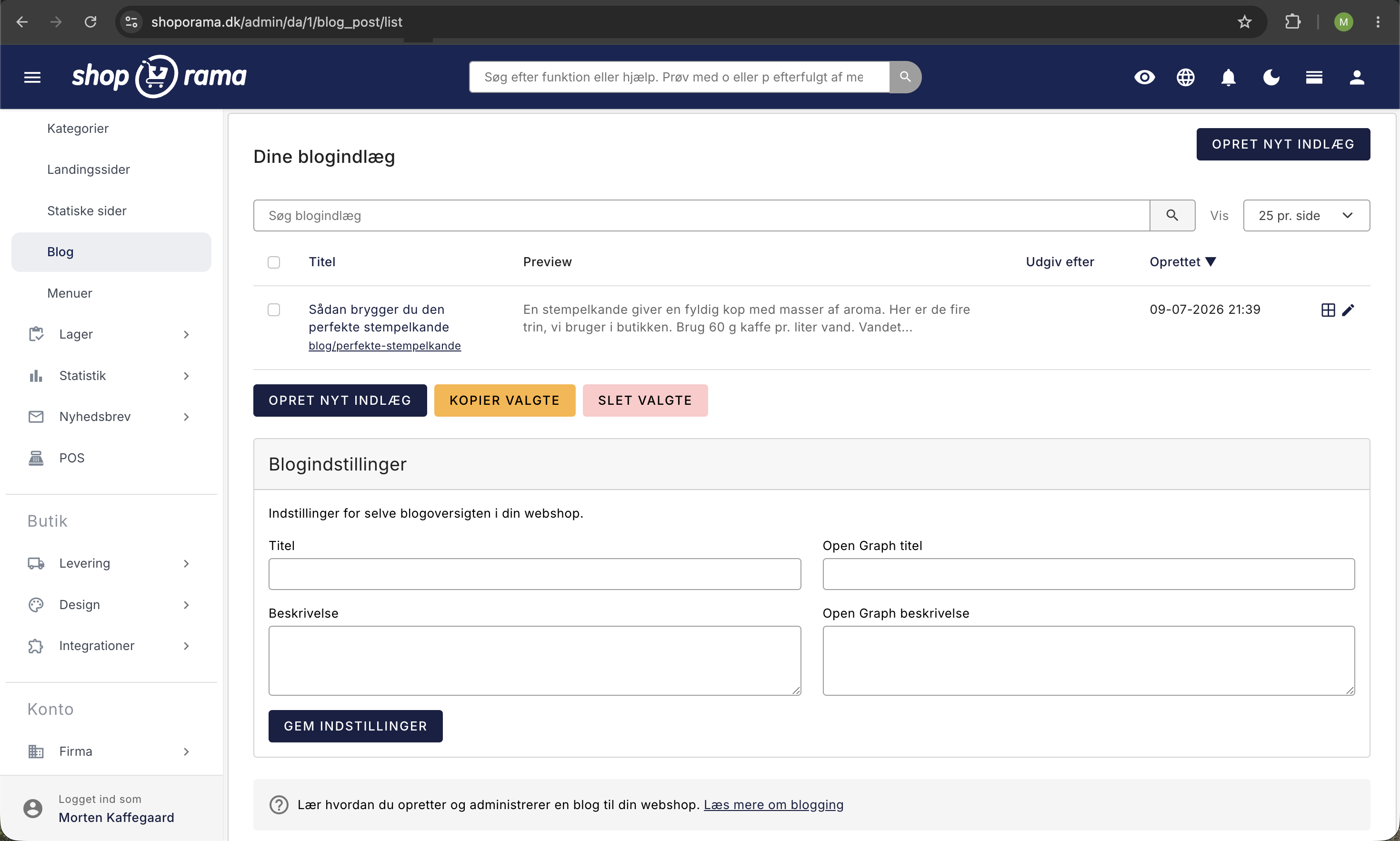
Create a blog post
- Go to Content > Blog in the menu
- Click " Create New Post"
- Enter the title and write your content in the text editor
- Click Save
Blog Post Settings
When editing a blog post, you have access to the following tabs:
- General – Title, URL, creation date, content, and scheduled publication
- Images – Upload images, reorder them using drag-and-drop, add captions
- Products – Link related products to be displayed in the blog post
- Categories – Assign the post to one or more blog categories
- Search Engines – Meta title, meta description, Open Graph data for social media, and noindex
Schedule Publication
You can write posts in advance and schedule when they should be published. Use the “Publish on” field to specify the date and time. The post will be hidden from visitors until that time.
Images
You can upload multiple images to each post. The first image is typically used as the featured image (thumbnail) in blog listings. You can also select a specific image as the Open Graph image—this is the image that appears when the post is shared on social media.
SEO Optimization
Under the Search Engines tab, you can optimize your post for search engines:
- Meta Title – The title that appears in Google search results (recommended: under 70 characters)
- Meta description – The description below the title in search results (recommended: under 155 characters)
- Open Graph – Title, description, and image for sharing on Facebook, LinkedIn, and others
- Noindex – Select this if you don’t want the post to be indexed by search engines
Link Products
Under the Products tab, you can link related products to your post. The linked products typically appear at the bottom of the post and allow customers to purchase the products you’re writing about.
Dynamic variables
You can use dynamic variables in your blog posts, which are automatically replaced with current values:
- [YEAR] – Current year
- [MONTH] – Current month
- [SEASON] – Current season
- [WEBSHOP_NAME] – Your online store’s name
- [COMPANY_NAME] – Your company name
- [FREESHIPPING] – Your free shipping threshold
These variables are useful for content that always needs to be up-to-date (e.g., “The Best Products of [YEAR]”).
Blog Categories
Organize your posts into categories so your visitors can easily find related content. A post can belong to multiple categories.
Blog Settings
At the bottom of the blog overview in the admin panel, you can set your blog’s title, description, and Open Graph data for the blog page itself.
Related articles
Images on landing pages
How to upload images to a Shoporama landing page and display them correctly in your theme with getImages() and getSrc().
Add multiple products to the basket at a time
Guide to implementing an 'add more to cart' feature, for example on landing pages or wholesale pages.
Page designer
Lær hvordan du bruger Sidedesigner i Shoporama til at opbygge sidelayouts med blokke som hero-sektioner, produktlister, bannere og meget mere, helt...