Downloads: Download your customers and newsletter subscribers as a CSV file
Under "Customers," "Downloads," you can download two spreadsheets: one listing all customers who have made purchases from you, including the number of orders and total amounts, and another listing all newsletter subscriptions with proof of consent.
Under the "Downloads " menu item in Shoporama, you can export your customer data as a spreadsheet. The page is called “Download Customers” and provides you with two files: a list of all customers who have shopped at your store, and a list of everyone who has subscribed to your newsletter, along with documentation of their consent.
It takes less than a minute, and these two files are among the most useful you can extract from your store. One tells you who your best customers are. The other serves as your documentation if anyone asks why you’ve contacted them.
Where to Find the Page
In your online store’s admin panel, go to Customers, then Downloads. The page is called “Download Customers” and consists of two tabs side by side:
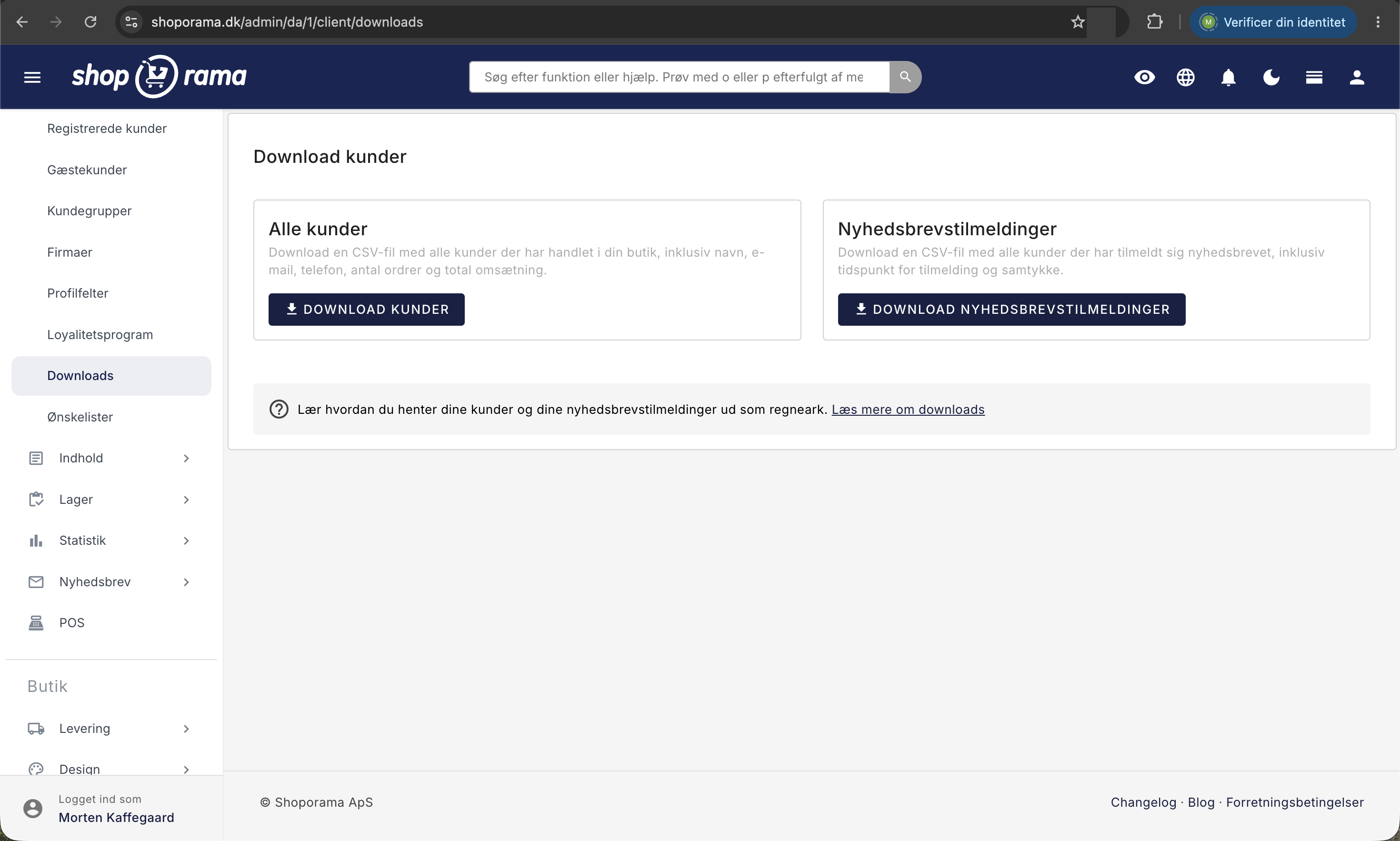
- All customers with the “Download Customers” button
- Newsletter Subscribers with the “Download Newsletter Subscribers” button
Both buttons start a download immediately. There are no settings, no date filters, and no choices along the way.
The “All Customers” file: who has shopped with you
The text on the card reads: “Download a CSV file with all customers who have shopped at your store, including name, email, phone number, number of orders, and total revenue.” The file is named customer-stat.csv. A CSV file is a simple spreadsheet format that can be opened in Excel, Numbers, Google Sheets, and most other programs that work with lists and numbers. The columns are:
- order_count is the number of orders the customer has placed.
- order_name is the name from the customer’s orders. One name is displayed per email address.
- email is the customer’s email address. This is the field by which customers are grouped.
- phone is the phone number from the customer’s orders.
- first is the date and time of the customer’s first order.
- last is the date and time of the customer’s most recent order.
- total_price is the sum of the customer’s orders, i.e., the total amount including tax and shipping.
Who is included in the file
There is one line per email address. If the same customer has placed five orders, they appear on a single line with the number 5 in ` order_count`. That’s why the file is so well-suited for identifying your loyal customers: sort by number of orders or by total amount, and you’ll immediately see who’s actually shopping with you. Two things are worth keeping in mind:
- Both customers with and without profiles are included. The file does not distinguish between customers who have created a profile and guest customers who have shopped without one. Everyone is grouped by their email address.
- Only orders with the status “Shipped” that are marked as paid are included. New orders, orders in progress, unpaid orders, and credit memos are not included. Therefore, the numbers may be lower than the revenue you see elsewhere in the system.
If you do not yet have a single order that is marked as both shipped and paid, no download will occur. Instead, you’ll be taken to the guest customer overview. This is not an error. There’s simply nothing to download yet.
The “Newsletter Subscriptions” file: your proof of consent
The text on the second card reads: “Download a CSV file with all customers who have subscribed to the newsletter, including the time of subscription and consent.” The file is named mailing-list-consent.csv.
This isn’t about purchases, but about being able to document that a person has personally requested to receive your newsletter. Every time someone subscribes, a row is saved with these columns:
- email is the email address used to sign up.
- ip is the IP address from which the sign-up originated. An IP address is the external address of an internet connection.
- browser contains information about the browser and device from which the sign-up was sent.
- from is the page the person came from when the subscription request was sent.
- time is the time of the sign-up.
One record is saved regardless of where on your store the sign-up occurs: the sign-up form on the online store, the pop-up you can display to visitors, and the field where the customer can opt in to the newsletter during a purchase.
Note that one record is saved per sign-up, not per person. If the same email address has signed up three times, it will appear three times with three different timestamps. Each individual sign-up is a separate event, and these events constitute the documentation. If no one has signed up yet, no file will be downloaded. You’ll be redirected to the page with the message “There are no newsletter sign-ups to export yet.”
How to open the files without any hassle
Both files use semicolons as delimiters and are saved in the UTF-8 character set. In Google Sheets, simply select File, Import, and upload the file. In Excel, it’s best to go to Data, Get Data, From Text/CSV, and then select semicolon and UTF-8.
What you can use the two files for
- Identify your loyal customers. Sort by `order_count` or `total_price`, and you’ll have a list of your top spenders. Use this list to send a special invitation, an early heads-up about a sale, or simply a thank-you note.
- See who has dropped off. The “last” column shows when the customer last made a purchase. Filter for customers who haven’t bought anything in, say, a year, and you’ll have a specific list for reactivation. It’s significantly cheaper to win back a former customer than to find a new one.
- Calculate customer lifetime value. With “first,” “last,” “order_count,” and “total_price” on the same row, you can calculate both average order size and average lifetime value in a spreadsheet in just a few minutes.
Important: This is not where you list digital products
The menu item is called “Downloads,” and for good reason, this leads some people to look in the wrong place. This page is about you downloading data about your customers. It’s not about digital products that your customers need to download.
If you sell PDFs, audio files, e-books, or other items delivered as a file, you should instead upload the file to the product page itself, in the “PDFs and Files” section. There, you can upload both product sheets and manuals—which anyone can access—and files that can only be downloaded if the item is purchased. Read the full instructions in “Sell Downloadable Products.”
Other places where you can retrieve data
- Registered customers. Under Customers, Registered Customers, you’ll find the Download All Customers button. This file includes only customers who have created a profile, but it contains their address, ZIP code, city, country, shipping address, creation date, loyalty points, and your own profile fields.
- Customers who have purchased a specific product. See How to Export Customers Who Have Purchased a Specific Product.
- Sales data by product. If you need sales figures for products rather than for customers, you can retrieve them from the product overview. See “Export sales data from the product overview.”
Remember that this is personal information
Once the file is on your computer, names, email addresses, phone numbers, and—in the newsletter file—IP addresses are stored outside the store. Save the files in a location accessible only to authorized personnel, and delete them once the task is complete.
Also, be aware that the customer list does not in itself constitute consent to marketing. The fact that a person has made a purchase from you does not mean that they have agreed to receive your newsletter. This is precisely why the two files are separate. You can read more about the framework of the GDPR and data processing agreements.
For the tech-savvy
- Both files are CSV files with semicolons as delimiters and UTF-8 encoding without a BOM. Values containing spaces are enclosed in quotation marks. The first row is always a header row with the column names.
- The customer file is grouped by email address, and the name and phone number are combined into a single value per address. If the same email address has been associated with different names, only one of them is included. The file only includes orders with the status “Shipped” that are also marked as paid.
- The timestamp in the newsletter file can have two formats, depending on where the subscription came from: 2026-07-27 09:15:00 or Mon, Jul 27, 2026 09:15:00 +0200. If you’re performing automated calculations on this column, be sure to handle both formats.
- Both buttons are for manual downloads. There is no scheduled or automatic delivery of these two files.
Frequently Asked Questions
I clicked the button, but nothing happened. What should I do?
This happens when there’s nothing to download. If you click “Download Customers” and you don’t yet have any orders that are marked as both shipped and paid, no file will be downloaded, and you’ll be taken to the overview of guest customers. If you click the newsletter button without any subscriptions, you’ll see the message “There are no newsletter subscriptions to export yet.”
Why does the same email address appear multiple times in the newsletter file?
Because the file contains one line per subscription, not per person. If someone has subscribed three times—for example, both via the pop-up and later in connection with a purchase—the address appears three times with three different timestamps. If you plan to use the list for a mailing, remove the duplicates in the spreadsheet first.
Can I use the column with the total amount for accounting purposes?
No, do not use it for accounting purposes. The amount is the customer’s total order amount, including tax and shipping, and applies only to orders marked as shipped and paid. Credit memos and unpaid orders are not included. For bookkeeping and tax reporting, you must use your order data and your accounting integration.
What is the difference between this customer file and “Download All Customers” under Registered Customers?
This file covers everyone who has made a purchase, regardless of whether they have a profile, and it focuses on purchasing behavior: number of orders, total amount, first and most recent purchases. The file under “Registered Customers” covers only customers with a profile, but it includes address, country, shipping address, loyalty points, and your own profile fields.
The characters “æ,” “ø,” and “å” look completely wrong when I open the file. What should I do?
The file is saved in UTF-8, and Excel doesn’t always guess correctly when you double-click it. Instead, open Excel first, then go to Data > Get Data > From Text/CSV. Select UTF-8 as the file encoding and a semicolon as the delimiter. Alternatively, you can upload the file to Google Sheets, which handles it correctly on its own.
Can I import the email addresses from the customer file into my newsletter system?
Technically, yes, but proceed with caution. The fact that someone has made a purchase from you does not in itself constitute consent to receive marketing communications. It’s the subscription file that documents who has opted in to the newsletter. If you use the customer file for mailings, you risk sending messages to people who never asked for them.
Why are there fewer lines in the file than the number of orders in my store?
Because there is one row per email address, not per order. If a customer has placed five orders, they will occupy one row with the number 5 in the “Number of Orders” column. In addition, only orders with the status “Shipped” that are marked as paid are included.
A customer claims she never signed up for my newsletter. Can I prove otherwise?
Yes, that’s exactly what the newsletter file is for. Download it, search for the email address, and you’ll be able to see the time of sign-up, the IP address it came from, browser information, and which page the person came from. Save the relevant line along with your other documentation for the case.
Related articles
Export customers who have purchased a specific product
Guide to export a list of customers who have purchased a specific product and send them an email.
Export sales data from the product overview
Export a CSV file with sales data for your products within a given period.
GDPR - Data Processing Agreement
Information about data processing agreement with Shoporama according to GDPR.
Send emails to customers who have purchased a product
Guide to send an email to all customers who have purchased a specific product in your Shoporama online store.
Create orders directly from the customer overview
Create orders directly from your customer overview with customer details automatically populated.