Action Required
"Action Required" lists the items in your store that require your attention, such as errors in the order queue, payments that weren't processed, and paid orders that haven't been shipped. See what each task means and how to postpone, hide, or turn them off.
In a busy store, it’s rarely the big things that cost money. It’s the little things that slip through the cracks: a payment that was never processed, a shipping label that wasn’t printed, leaving the package sitting on the shelf, or a customer who’s been waiting a week for a response about their return. The “Action Required ” page gathers exactly those items in one place so you can see them before the customer calls.
Each task is a specific issue in your store that you need to address, with a button that takes you directly to where you can resolve it. Once the problem is solved, the task disappears on its own. There’s no “Done” button, and you don’t have to clean up after yourself.
Action Required or Notifications?
Shoporama has two places that let you know about things that have happened in the background. They complement each other:
- Action Required (the icon with a checkmark in a circle) shows what needs your attention right now. The list is calculated based on the store’s actual data every time you open it. The same type of issue is always a single task with a number, e.g., “3 orders have errors in the order queue,” not three separate tasks.
- Notifications (the clock) are a log of messages from payment providers, shipping companies, accounting systems, your theme, and other systems. A message remains even after the problem is resolved until you remove it or it is deleted after 14 days.
Therefore, always start with “Action Required.” Use “Notifications” when you want to see the details behind an error. You can read more about the bell icon in “Notifications: What the Admin Alerts You About.”
How to Find “Action Required”
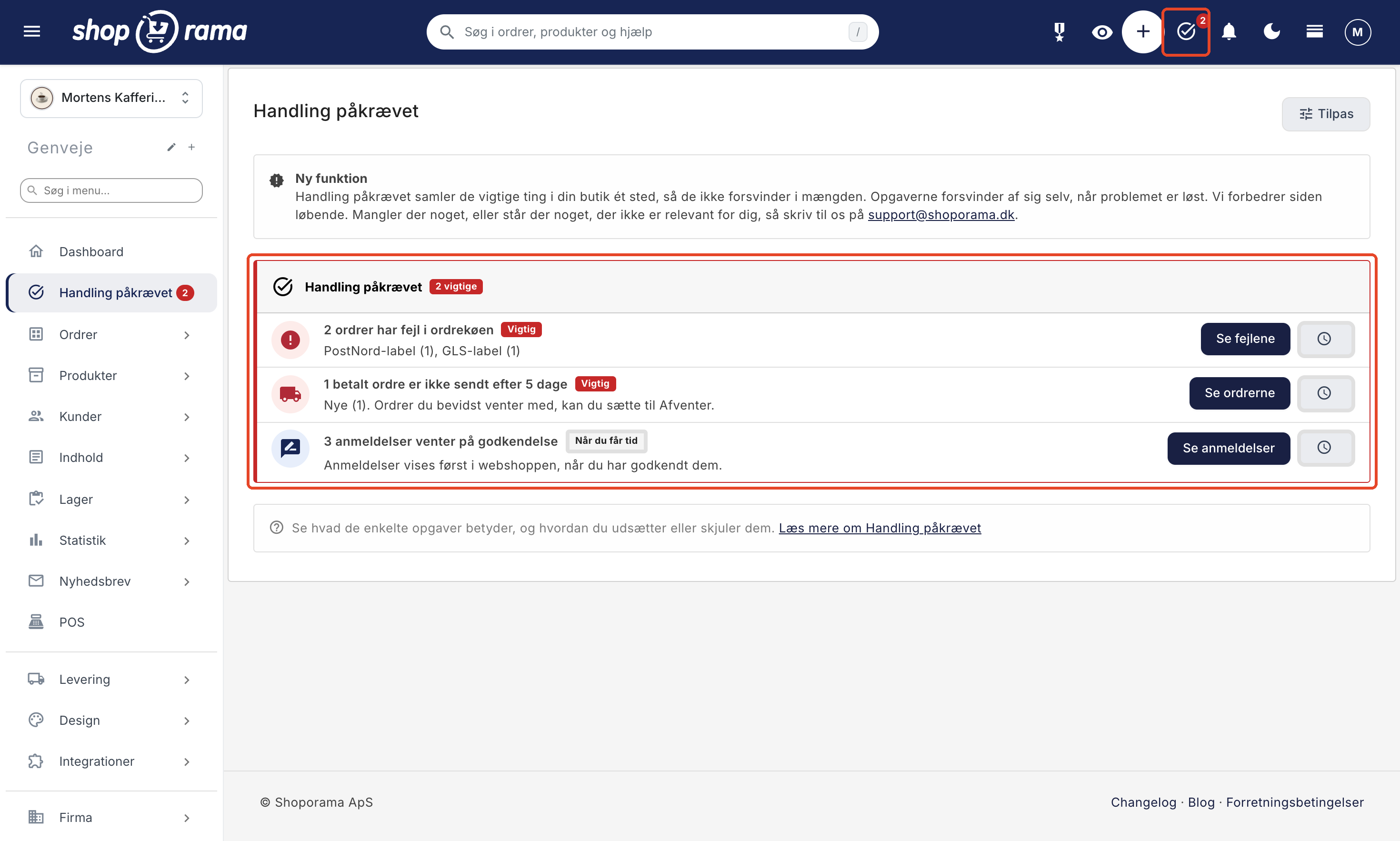
You can access the page in several ways:
- The icon in the top bar. To the left of the clock is an icon with a checkmark in a circle. It’s always there, even when there’s nothing to do. A red number on the icon indicates the number of important tasks. If you only have tasks of the “When you have time” type, there is no number.
- The menu item under Dashboard. As soon as there is at least one task, the “Action Required” item appears in the menu on the left, just below Dashboard. Once everything is done, the item disappears so it doesn’t take up space. If you use the menu at the top of the page instead of the one on the left, you can find the page via the icon in the top bar.
- On mobile and narrow screens. Open the menu and find “Action Required” under “Your Account,” just above “Notifications.”
- From Notifications. When there are tasks, the top of the Notifications page displays: “Items requiring your action are grouped under Action Required,” along with a link, such as “3 items waiting.”
- On the dashboard. You can view tasks directly on the admin homepage. Click “Customize” on the dashboard, select “Add module,” and find the “Action Required” module in the “Orders” group. The module is not enabled by default. It displays up to five tasks and the “View All” link when there are more. You can also postpone and hide tasks directly from the module. Read more about the dashboard in Sales Reports and Revenue in the Dashboard.
If there are no tasks, it simply says “Action Required: Everything is taken care of.”
Important and “When You Have Time”
Each task has one of two labels:
- Important (red label) means that it will cost you money, or that a customer won’t receive their package if you wait. Examples include payments that haven’t been processed, labels that haven’t been generated, and orders that haven’t been posted. Important tasks always appear at the top, and only these are included in the red count.
- "When you have time " (light-colored label) refers to items you should look at but that aren’t urgent today—for example, reviews awaiting approval.
If there’s at least one important task, the card has a red border on the left and a label such as “2 important” in the header.
The tasks, and what to do about them
Here are all the types of tasks that might come up, in the order they appear. The titles are exactly as you see them on the page.
"1 order has an error in the order queue" (Important)
Appears when an action in the order queue has failed within the last 14 days. This could be a shipping label, a payment withdrawal, or a transfer to your accounting system. The task counts orders, and the description shows which actions are involved, e.g., “GLS label (3), Payment withdrawal (1).” Errors on canceled orders and track-and-trace updates are not included.
Click “View Errors.” This opens the order queue showing only the entries with errors. Each error is explained in Danish, with links to where you can correct it. Once you’ve fixed the issue, click “Try Again.” If you’ve already resolved it another way, click “Remove.” The task disappears once the action has been run, retried, or removed. The order queue never retries on its own, because a label or a pickup cannot be created twice. See Order Queue, and for GLS: Errors during transfer to GLS and Comments on GLS orders.
"1 payment could not be withdrawn" (Important)
Displayed when paid orders from the last 60 days have a failed withdrawal that hasn’t been successful since. The description says it plainly: “The funds were not deducted from the customer’s card. The reason is listed in the note on the order.” If the failed debit occurred in the order queue within the last 14 days, the order appears under “Errors” in the order queue instead, so you don’t see the same order twice. If the error in the order queue is older than 14 days, the order appears here.
Click "View Orders " to see the list of orders where the capture failed. The list may also include orders older than those included in the task. Read the note on each order, correct the reason, and capture the amount again. See " Withdraw Payments on Orders (Capture)."
"1 paid order has not been shipped after 5 days" (Important)
Appears when paid orders between 5 and 30 days old still have the status New, In Progress, or Ready. The description shows the breakdown, e.g., “New (2), In Progress (1).” Credit memos and orders with the status “Pending” are not included.
Click View Orders. The order list opens filtered by paid orders in the specified period and by the status most of them have. Ship the orders, or set the status to Shipped if they have already been shipped. Orders you are intentionally holding back can be set to Pending. Then they will no longer be counted. If you sell pre-orders, you can also disable the entire order type under Customize (see below). See Manage Your Orders in Shoporama.
"Payments via ePay are not verified" (Important)
Displayed when an active ePay payment gateway is missing its merchant secret. Without it, orders are marked as paid without Shoporama being able to verify that the payment is genuine. Click “Add merchant secret” to go directly to the gateway. Fill in the “Secret” field (in the latest ePay integration, it’s called “Secret (MD5 key)”) with the exact same MD5 key listed under Settings » Payment System in ePay, and click Save. If the keys are different, payments will not be marked as paid. See Set up ePay as a payment gateway. The task disappears once the key is saved or the gateway is no longer active.
"QuickPay cannot process payments" (Important)
Appears when an active QuickPay payment gateway is missing the API key field. Without it, payments won’t be processed, and you won’t receive any notification about it. This means customers can still make payments, but the amount will only be reserved on the card and not actually charged, and the reservation will expire after a certain period of time. Click “Add API Key ” and enter the key from QuickPay. See “Setting Up QuickPay.”
"The connection to OnPay is not working" (Important)
Appears when the connection between Shoporama and OnPay is lost, preventing your customers from paying with OnPay. Click " Renew Connection" and select "Renew Connection to OnPay" on the payment gateway. The task will disappear once the connection is restored. Appears only for stores that have gone live.
"Emails from Shoporama to [name] are not being delivered" (Important)
Appears when the mail server rejects emails that Shoporama sends to one of the store’s administrators, for example, because the address is misspelled or no longer exists. This causes important messages to be lost, such as notifications that your customers cannot pay. The person must correct their email address under "Your Account." The task disappears once an email goes through again or the address has been corrected.
"Dinero is not posting your orders" (Important)
Appears when Dinero is selected as the accounting system, but the connection has expired or is missing, or when the organization in Dinero to which the orders should be posted has not been selected. Click "Fix Dinero." This will take you to Integrations → Accounting System, where you can reconnect Dinero or select the organization. See " Set Up Dinero Integration."
"1 email to you could not be delivered" (Important)
Appears when emails sent to the store itself have been rejected by the mail server within the last 14 days, such as notifications about a new order or a return. This means you’re missing orders without realizing it. The description explains the most common cause, such as the address being blocked by the email provider. Click "View emails " to see them under "Sent emails," and check the store’s email address. The task disappears when there are no longer any rejected emails from the last 14 days. See " My order emails aren’t arriving."
"1 package must be picked up at the package store within 3 days" (When you have time)
Appears when packages are at a package pickup location and the deadline for picking them up expires within 3 days. If the package isn’t picked up, it will be returned, and the customer won’t receive their item. Click “View Packages” to filter the order list by packages at the pickup location, and consider reminding the customer about the package. The task disappears once the package has been picked up or the deadline has passed. See “Track Delivery and Pickup Location Pickups in Shoporama.”
"1 return pending" (When you have time)
Appears when there are new returns you haven’t processed. The customer is waiting for you to approve the return. Click View Returns to open the Returns Center with the new returns. See Returns Center.
"1 review awaiting approval" (When you have time)
Appears when there are product reviews with the status "Pending." Reviews don’t appear in the online store until you approve them, so a good review that’s sitting there waiting won’t do any good. Click View Reviews to filter the list by Pending. Rejected reviews and reviews of deleted products are not included. See Product Reviews.
"Subscriptions aren’t syncing to Mailchimp" or Klaviyo (When you have time)
Appears when Mailchimp or Klaviyo is only partially set up: there’s an API key but no list, or a list has been selected but the API key is missing. As a result, new newsletter subscriptions won’t be transferred. Click "Edit Mailchimp " or "Edit Klaviyo." This will take you to Integrations → Mailing List, where you can fill in the missing information. See Mailing List Integration.
"1 email to a customer could not be delivered" (When you have time)
Appears when an email regarding an order for the customer—such as an order confirmation or shipping notification—has been rejected by the mail server within the last 14 days. Typically, the customer has entered their address incorrectly. The customer has not received the email and may think the order didn’t go through. Click “View emails,” correct the address on the order, and resend the email, or contact the customer by other means. Newsletters and other emails not related to an order are not included. We cannot see emails that are returned later.
"1 subscriber cannot receive your newsletter" (When you have time)
Appears when the mail server has rejected your newsletter to one or more subscribers in the last 30 days, for example, because the address doesn’t exist. If you keep sending to them, it could prevent your other emails from reaching their destination. Click “View Subscribers” to see them, select them, and choose “Unsubscribe,” or correct the address if you know the correct one.
You can also see an email to a customer that couldn’t be delivered directly in the order list: the order will have a small red email icon next to the customer’s name. Hover your mouse over the icon to see the reason.
Postpone or Hide a Task
Next to the button on each task is a button with a clock. Click it to see these options:
- "Postpone 1 day " and "Postpone 7 days " hide the task for one day or one week. It will reappear afterward if the problem still exists. All tasks can be postponed.
- "Hide " hides the task until the issue arises again. This can only be used on tasks of the "When you have time" type. An important task can only be postponed so it isn’t forgotten.
- "Don’t show this type of task " turns off the entire type, including future tasks. For important tasks, you must confirm your choice.
A postponed or hidden selection applies to the instances that existed when you made the choice. If a new instance arises—such as a new failed label, a new order, or a new report—the task reappears with the total count. This way, a new error isn’t lost just because you hid an old one.
At the bottom of the page, under “Pinned and Hidden,” you’ll see the tasks you’ve hidden. It says “Pinned until” with the date and time, or “Hidden until the issue reoccurs.” Click “Show Again” to bring a task back.
Customize: Choose which tasks to display
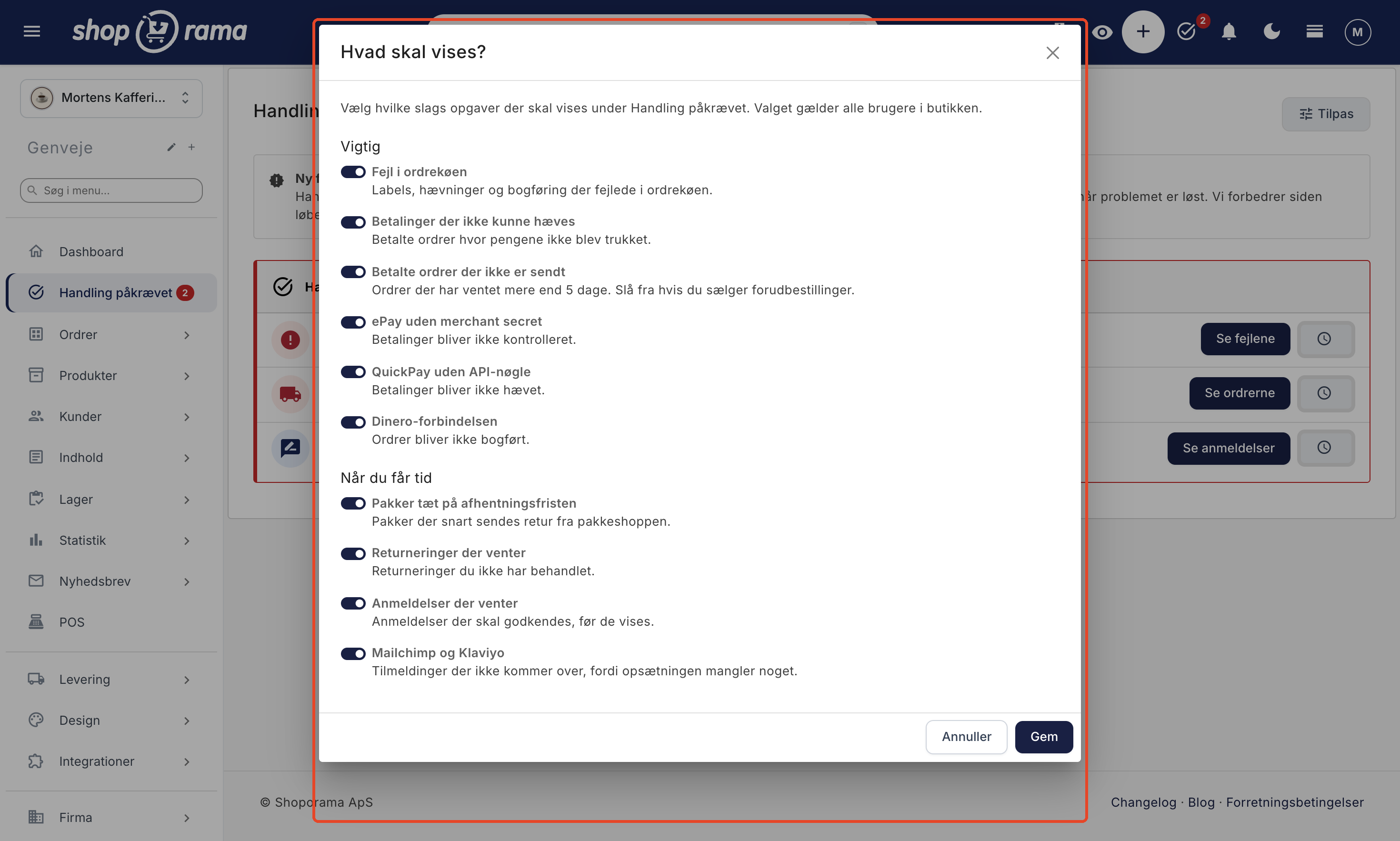
Click Customize in the top-right corner of the page. The “What to Show?” window displays all types of tasks with a label and a brief description, divided into Important and When You Have Time. Turn off the ones you don’t need, and click Save.
A typical example is a store that sells pre-orders. Here, it’s quite normal for paid orders to sit in the system for more than 5 days, so turn off “Paid orders that haven’t been shipped.” If a task type is turned off and there are currently tasks of that type, the window will display a label such as “Currently: 4” so you don’t miss anything.
If one or more types are turned off, a message will appear below the tasks, for example, “2 types of tasks are not being displayed,” with a link to “Customize.”
When are the numbers updated?
The “Action Required” page itself and the module on the dashboard are always recalculated when you open them. The numbers next to the icon in the top bar and in the menu are cached for up to 5 minutes to keep the admin interface fast. If you change an order—for example, by shipping it—or take action in the order queue, on reviews, or here on this page, the number is updated immediately. If you resolve an issue elsewhere—such as by saving a payment gateway or processing a return—it may take up to 5 minutes for the number to decrease.
Frequently Asked Questions
The icon shows a 2, but there are 4 tasks on the page. Why?
The number next to the icon counts only the important tasks. Tasks of the “When you have time” type appear on the page but aren’t included in the count, so you aren’t distracted by things that can wait.
I’ve fixed the error, but the task is still there. What should I do?
Reload the page, as it always shows the current status. If the task is still there, the problem hasn’t been fully resolved yet. For example, an error in the order queue will only disappear once you’ve clicked “Try Again” and the action was successful, or once you’ve clicked “Remove.” Simply correcting the shipping method, for example, isn’t enough on its own.
Will I receive an email when an important task comes in?
No. “Action Required” does not send any emails. You’ll see the tasks when you’re logged into the admin panel, via the icon in the top bar, in the menu, and in the dashboard module if you’ve enabled it. Make it a habit to check the icon when you log in.
Could I accidentally hide something from my coworkers?
Yes. All settings—including “Postpone,” “Hide,” and “Customize”—apply to the entire store and all users. If in doubt, use “Postpone for 1 day” instead of “Hide.” You can always restore a task using “Show Again” under “Postponed and Hidden.”
We ship orders from an external warehouse. Why do they show as “Not Shipped”?
The task looks at the order’s status in Shoporama, not whether the package has actually been shipped. If the order still shows as “New,” “In Progress,” or “Ready” after 5 days, it counts toward the total. Make sure the orders are marked as “Shipped” once the warehouse has shipped them, so that both the task and the customer’s status are accurate.
I’ve reconnected Dinero. Will the orders that weren’t posted be included?
The task only indicates that the connection was down; it doesn’t specify which orders are missing. If a transfer to Dinero failed in the order queue, it will appear under the “Order Queue Errors” task, where you can click “Try Again.” Then check in Dinero to make sure the orders from that period have been included.
I have multiple stores. Do I see all the tasks together?
No. “Action Required” shows the tasks for the store you’re logged into, and the number in the top bar applies only to that store. Switch stores to view the tasks for the others. Your selections under “Customize” must also be made separately for each store.
Why aren’t errors older than 14 days included in the order queue?
The task list is meant to show you what you can still take action on. You can still find older errors in the order queue by selecting “Failed” in the filter. Withdrawals are an exception because money is involved. A withdrawal that failed in the order queue more than 14 days ago is moved to “payment could not be withdrawn.” It remains there as long as the order is less than 60 days old, has been paid for, and has neither been withdrawn nor canceled.
Can I retrieve the tasks via the API?
No, there isn’t an API for “Action Required.” The tasks are based on data that, for the most part, can already be retrieved via the REST API, such as orders and reviews.
Is there a specific task missing, or is there something listed that isn’t relevant to your store? Please email us at support@shoporama.dk. We’re constantly improving the site.
Related articles
Order queue
Guide to the order queue in Shoporama. See the status of automatic order actions such as capture, invoicing and stock pull, and learn how to manage...
Notifications: What the Admin Warns You About
Shoporama collects messages from all background processes on the notifications page. Find out where to locate it, what the messages regarding...
Collect payments on orders (capture)
Guide to capture payments on orders in Shoporama. Understand the difference between authorization and capture and learn how to capture manually or...
Manage your orders in Shoporama
Guide to managing orders in Shoporama - from receiving to shipping and status updates.
Comments on GLS orders
How comments work on GLS orders in Shoporama. The customer's checkout comment is used as a DepositService instruction to the driver, and you can...
Product reviews
Learn how to use product reviews in Shoporama. Automatically collect customer reviews and photos, moderate them, and display star ratings on your...
Sales reports and revenue in dashboard
Guide to the Shoporama dashboard: view revenue, orders, and visitors on the home page; customize the dashboard with the modules you need; and find...