Comments on GLS orders
How comments work on GLS orders in Shoporama. The customer's checkout comment is used as a DepositService instruction to the driver, and you can set a default text on the shipping method itself if the customer does not enter anything.
Når du sender pakker med GLS og bruger DepositService (også kaldet "sæt pakken-service"), kan du sende en leveringsinstruktion med til chaufføren. Eksempelvis "Stilles ved hoveddøren" eller "Aflever i carporten". I Shoporama kommer den instruktion fra kundens egen kommentar i checkout. Hvis kunden ikke skriver noget, bruges en default-tekst som du sætter på den enkelte fragtmetode.
Sådan virker det i praksis
Det er vigtigt at vide, at der ikke findes et separat "GLS-kommentarfelt" på den enkelte ordre i admin. Den tekst der sendes med til GLS er enten:
- Kundens kommentar fra checkout. Det kunden selv har skrevet i kommentarfeltet ved bestilling. I admin på ordren vises den som "Offentlig kommentar".
- Default-kommentaren på fragtmetoden. Bruges automatisk hvis kundens kommentar er tom.
Når ordren overføres til GLS, sendes den ene af disse to tekster med som DepositService-instruktion. Det forudsætter at DepositService er aktiveret enten på webshoppen eller på selve fragtmetoden. Er DepositService slået fra, sender Shoporama ingen kommentar med til GLS.
Bemærk: Teksten der sendes til GLS forkortes automatisk til 100 tegn. Skriv kort, klart og konkret.
Sæt en default-kommentar på en fragtmetode
Default-kommentaren sættes pr. fragtmetode, så du kan have forskellige standardtekster for fx "GLS hjem til døren" og "GLS PakkeShop". Sådan gør du:
- Gå til Butik → Levering → Fragtmetoder
- Klik Rediger på den GLS-fragtmetode du vil tilpasse
- Find kortet "GLS-indstillinger"
- Sæt flueben i DepositService hvis det ikke allerede er aktiveret
- Skriv din standardinstruktion i feltet "Default kommentar", fx Stilles ved hoveddøren
- Klik Gem
Default-teksten bruges nu på alle ordrer der sendes via denne fragtmetode, medmindre kunden selv har skrevet en kommentar i checkout. Kundens kommentar har altid forrang.
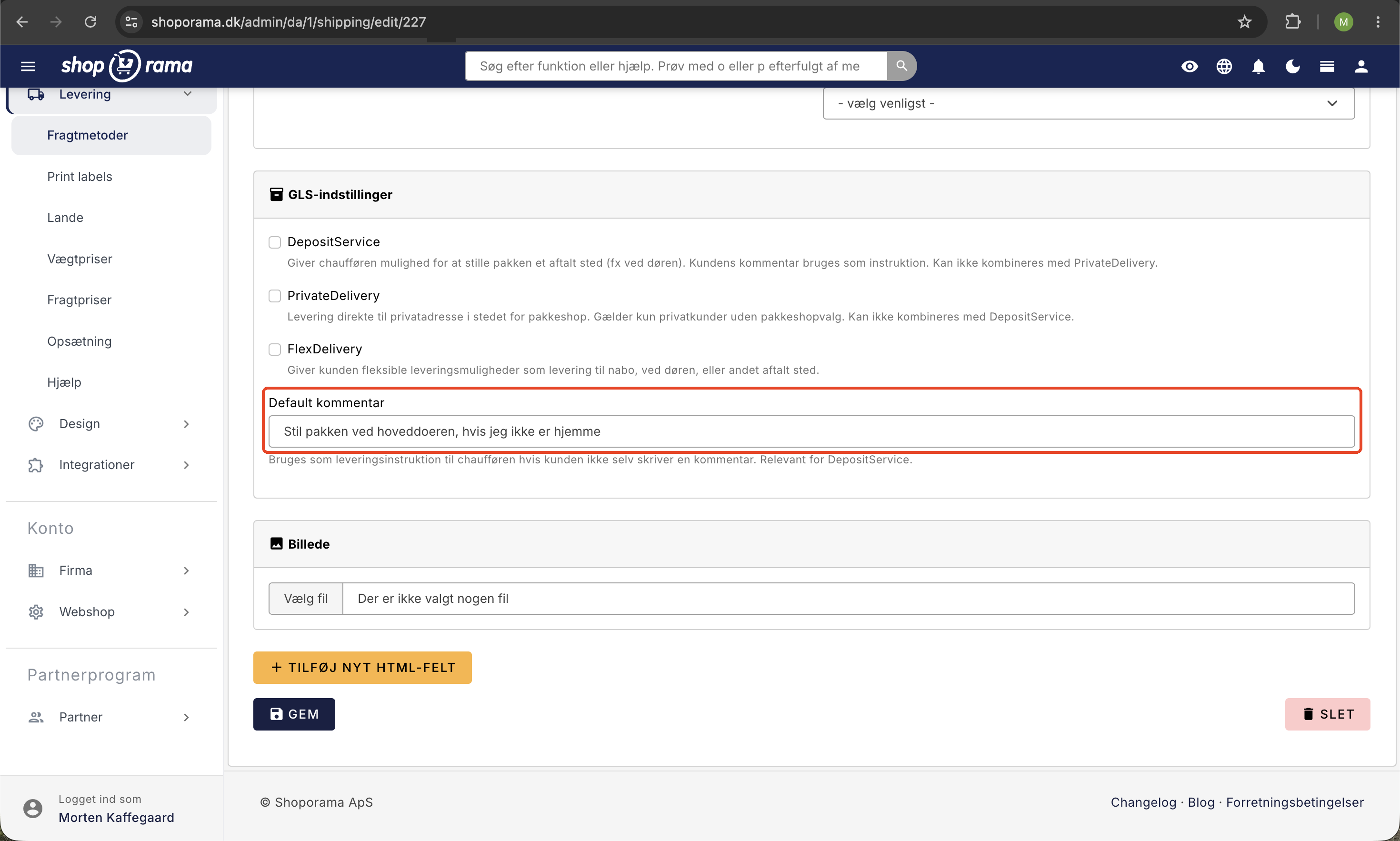
Tip: Lader du "Default kommentar" stå tomt, og kunden ikke skriver noget, sender Shoporama DepositService med uden tekst. GLS-chaufføren skal så selv vurdere et passende sted. Vi anbefaler altid at sætte en default.
Sådan kan kunden skrive en kommentar
For at kunden kan skrive en kommentar i checkout, skal dit tema vise et kommentar- eller besked-felt på sidste trin. De fleste Shoporama-temaer har det indbygget. Når kunden gennemfører ordren, gemmes teksten på ordren som "Offentlig kommentar" og bruges automatisk ved overførsel til GLS.
Tjek og rediger kommentaren før afsendelse
Du kan altid se og rette kommentaren på den enkelte ordre, før den overføres til GLS:
- Åbn ordren under Ordrer
- Klik Rediger og find feltet "Offentlig kommentar". Det er denne tekst der sendes til GLS
- Tilret eller suppler teksten efter behov
- Gem ordren før du klikker "Send til GLS" eller henter pakkelabelen
Vigtigt: Bruger du i stedet feltet "Intern kommentar", sendes teksten ikke til GLS. Det felt er kun til dig selv og dit team.
Hvad kan du bruge kommentarer til?
- Leveringsinstruktioner: "Aflever ved bagdøren", "Stilles i carporten"
- Håndteringsinstruktioner: "Skrøbeligt indhold, må ikke kastes"
- Adgangsoplysninger: "Trappeopgang B, 2. sal"
- Kontakt: "Ring til modtager før levering"
Ofte stillede spørgsmål
Findes der et særskilt "GLS-kommentarfelt" på ordren?
Nej. Det er feltet "Offentlig kommentar" på ordren, der sendes til GLS som DepositService-instruktion. Mange forventer et separat "GLS-felt", men det er kundens almindelige checkout-kommentar der bruges.
Hvor finder jeg "Default kommentar"-feltet i admin?
Det ligger på den enkelte fragtmetode under Butik → Levering → Fragtmetoder → Rediger, i kortet "GLS-indstillinger" sammen med DepositService, FlexDelivery og PrivateDelivery.
Hvad sker der hvis kunden ikke skriver en kommentar?
Så bruges din default-kommentar fra fragtmetoden automatisk. Har du heller ikke sat en default, aktiveres DepositService alligevel, men uden tekst, og chaufføren vurderer selv et passende sted.
Får alle GLS-kunder så samme kommentar?
Default-kommentaren sættes pr. fragtmetode. Har du fx både "GLS hjem til døren" og "GLS PakkeShop" som separate metoder, kan du sætte forskellige defaults, eller helt undlade default på pakkeshop hvor det ikke giver mening. Når kunden selv skriver noget, overskrives default-teksten på den ordre.
Bliver kommentaren printet på pakkelabelen?
Ja. Når DepositService er aktiveret, vises instruktionen for chaufføren via GLS' system, og typisk også på selve labelen. Det er chaufførens guide til hvor pakken må stilles.
Kan jeg ændre kommentaren efter ordren er sendt til GLS?
Du kan altid rette "Offentlig kommentar" på ordren i admin, men når pakkelabelen først er trukket og pakken afleveret til GLS, sidder instruktionen fast i deres system. Tjek derfor altid kommentaren før du downloader labelen.
Hvor lang må kommentaren være?
Maksimalt 100 tegn. Skriver kunden mere, forkortes teksten automatisk ved overførsel. Hold dig derfor til korte og præcise instruktioner i din default.
Hvad betyder DepositService egentlig?
DepositService er GLS' service hvor pakken må afleveres på adressen uden modtagerens underskrift, fx ved døren eller i en carport. Kunden bærer selv risikoen efter aflevering. Servicen er praktisk for kunder der ikke er hjemme om dagen.
Bruges kommentaren også til DAO, PostNord eller DHL?
Nej, ikke automatisk. Default-kommentaren er knyttet til GLS' DepositService. Andre fragtleverandører har deres egne instruktionsfelter eller benytter ikke kommentaren overhovedet. Tjek dokumentationen for den enkelte fragtleverandør.
Hvad gør jeg som lager-medarbejder hvis kunden har skrevet noget mærkeligt?
Åbn ordren, ret "Offentlig kommentar" til en konkret leveringsinstruktion (fx "Stilles ved hoveddøren"), gem og hent derefter pakkelabelen. Brug "Intern kommentar" hvis du vil notere en bemærkning til dig selv eller en kollega uden at sende den til GLS.
Se også GLS-indstillinger på fragtmuligheder for den fulde guide til DepositService, FlexDelivery og PrivateDelivery.
Har du brug for hjælp? Kontakt os på support@shoporama.dk.
Related articles
GLS settings on shipping options
Explanation of the GLS-specific settings per shipping option in Shoporama: shipping module, DepositService, PrivateDelivery, FlexDelivery and...
Add comments to an order
Guide to adding internal comments and notes to orders in Shoporama admin.
Error when transferring to GLS
Overview of typical GLS transfer errors in Shoporama and solutions for them.
Set up GLS integration
Guide to setting up GLS integration in Shoporama so you can print GLS labels directly.
Create a new shipping option
Guide to creating new shipping options and assigning them to countries in Shoporama.