Product reviews
Learn how to use product reviews in Shoporama. Automatically collect customer reviews and photos, moderate them, and display star ratings on your product pages.
Product reviews allow your customers to rate and review the products they’ve purchased. Reviews build trust, help other customers make purchasing decisions, and improve your visibility in search engines.
Here’s how it works
- A customer completes a purchase in your online store
- Once the order is marked as shipped, the number of hours you’ve selected elapses, and the customer automatically receives an email inviting them to review the products they purchased
- The customer clicks the link and provides a star rating (1–5 stars) as well as an optional text review for each product. The customer can also attach photos
- The review is created with the status “Pending” until you approve it
- You approve the review in the admin panel, and it appears on the product page
Automatic review emails
You can set up automatic review emails under Webstore → General in the Emails tab, under the Product Reviews section. Specify how many hours should elapse from when the order is marked as shipped until the email is sent.
Tip: A good timeframe is 48–72 hours after shipment, so the customer has had time to receive and try the product.
Customers who have unsubscribed from review emails will not receive them. Additionally, customers with an account in your online store will only receive the review email once. If they received it for a previous order, they will not receive it again on their next purchase.
When is the review email sent?
The hours are counted from the moment the order receives the “Shipped” status. They are not counted from the order date or the payment date. If you enter 48 in the field, 48 hours will pass from the status change until the customer receives the email.
- The order must be paid and have the status “Shipped.” Unpaid orders and orders that have not yet been shipped will not receive a notification email.
- The system checks once per hour. The email is sent during the hour in which the specified time period expires, not exactly on the minute
- A blank field disables the feature. If you do not enter a number of hours, no notification emails will be sent at all
- Only orders from the last 30 days. Orders marked as shipped more than 30 days ago will never be retrieved again. If you change the number of hours, your old orders will not suddenly trigger an email
- Stay under 720 hours. 720 hours is 30 days. If you enter a higher number, the order will have already fallen outside the 30-day window by the time the email was supposed to be sent, and it will never be sent
Tip: If you want to check that the emails are actually being sent, you can find them under Webshop → Sent Emails. Here, you can both open individual emails and resend them.
The email itself is based on the product_review_mail.html template in your theme. All of Shoporama’s built-in themes include this template. If you have a custom-built theme that doesn’t include this template, nothing will be sent, regardless of what’s entered in the field.
How the customer writes the review
The link in the email leads to a page in your own online store showing exactly the products the customer purchased in that specific order. The customer does not need to log in or create an account. The link contains a verification code linked to the email address on the order, so it only works for that specific order.
- The customer rates each product on a scale of 1 to 5 and can write a comment. Most themes display the rating as stars; some use smileys
- The customer can also attach up to five images to each product, such as photos of the product in use. Read more in the section on images further down
- The number of reviews created depends on your theme. Some themes only create reviews for the products the customer has actually rated, while others include a rating for all items in the order. Check the list after the first review to see how your theme works
- When the customer saves the review, the page displays a thank-you message, and the reviews appear in your list with the status “Pending”
The page comes from the product_review.html template in your theme, so it automatically matches your store’s design. If your theme is missing that template, the page won’t display, and the link in the email won’t lead anywhere.
That’s why the email isn’t always sent
If you notice that fewer reviews are coming in than expected, there are a few perfectly normal explanations. The review email is skipped if:
- The order hasn’t been paid for or doesn’t have the “Shipped” status
- The order was marked as shipped more than 30 days ago
- The customer has already reviewed one of the products in the order from the same email address
- The customer has an account in your online store and has received a review email before. Customers with accounts only receive the email once in total, while guest purchases without an account may trigger one email per order
- The email address is on the unsubscribe list for review emails because the customer clicked “Unsubscribe” in a previous email
- Your theme is missing the template for the review email
- The field under Web Store → General in the Emails tab is empty
Learn more about how unsubscriptions work in “Unsubscribe Links in Automatic Emails.”
Preview and send a test email
Before you enable the automatic subscription emails, it’s a good idea to see what the email will look like to the customer. You can do this directly in the admin panel under Webstore → Email Test.
- Go to Webshop → Email Test
- Select product_review_mail.html in the left column
- The email is displayed as a preview with both the subject line and content, based on random test data from your online store
- Enter your own email address and click Send Test Email to receive the email in your inbox
Tip: Reload the page to view the email with a new random order. This way, you can check that the layout looks correct regardless of what the customer has purchased. You can send up to 3 test emails per minute and 20 per hour, so you don’t end up flooding your own inbox.
If you want to change the language in the email—such as the headings or the introductory text—you can translate the texts under Design → Texts. Select the “Email” section from the drop-down menu to find the texts used in the review email.
Managing Reviews
All reviews are managed under Products → Reviews in the admin panel. Here you can:
- View an overview of all reviews, including status, rating, product, and date
- View only reviews that are pending, approved, or rejected
- Approve reviews individually with a single click
- Use bulk actions to approve, reject, or delete multiple reviews at once
- View customer images as small thumbnails in the Images column
- Open a review using the pencil icon on the far right, where you can add or delete images and choose whether they appear in the store
- View the number of pending reviews in the menu item, on the dashboard, and under " Action Required"
Note: Reviews from your customers must be manually approved before they are displayed to other customers. Until then, they have the status “Pending.” This gives you full control over what appears on your online store. However, reviews you import from a CSV file are approved from the start.
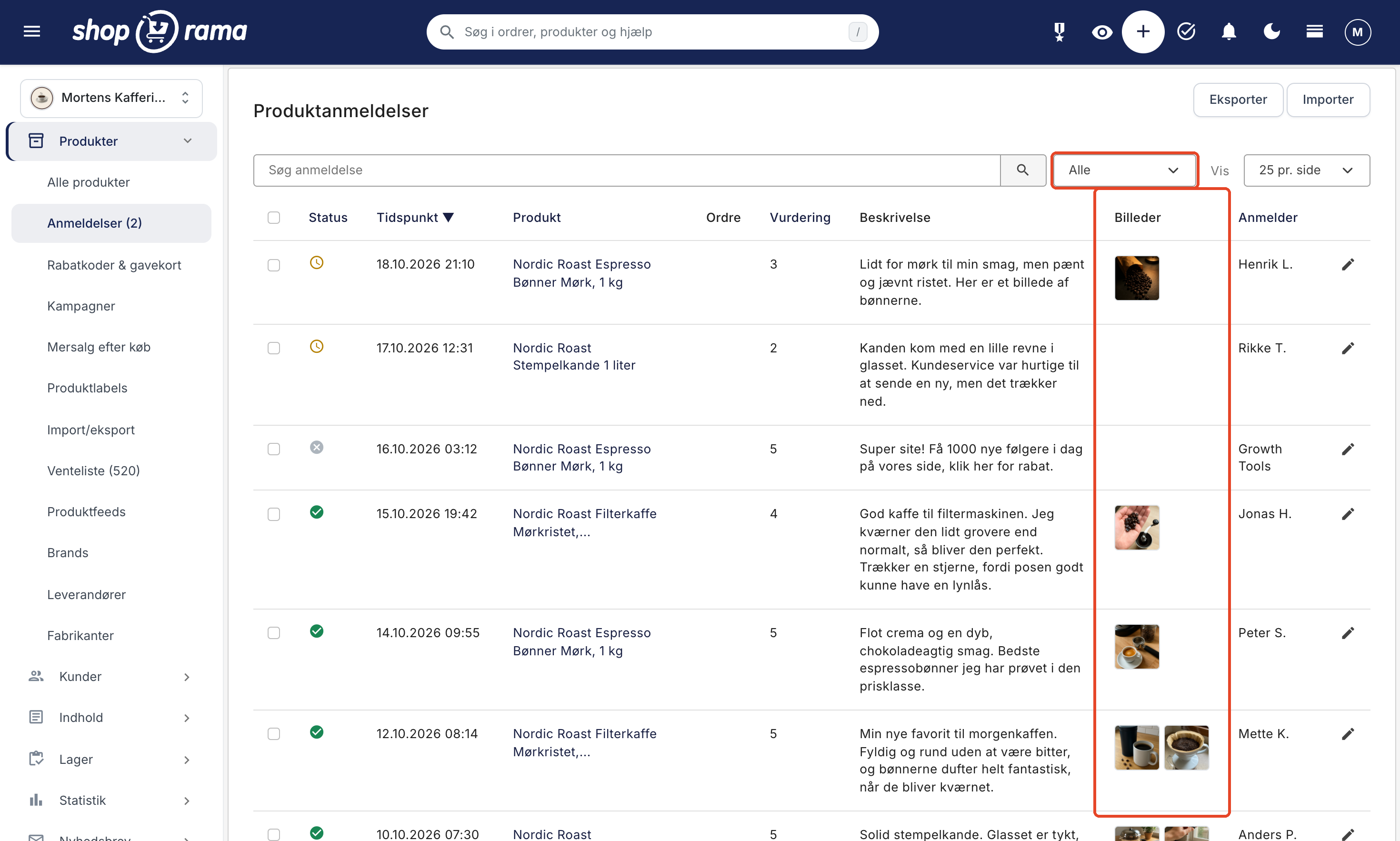
Approve, reject, or delete reviews
You’ll find the reviews under Products → Reviews. If there are reviews waiting for you, the number will appear in parentheses next to the menu item. On the dashboard, you can add the “New Reviews” field, which links to the same location, and pending reviews also appear as a task under “Action Required.” Read more in “Action Required.”
Each review has one of three statuses, which you can see from the icon in the Status column:
- Pending (orange clock): The review is new and has not been processed yet. It does not appear in the online store
- Approved (green checkmark): The review appears on the product page and is included in the average
- Rejected (gray X): You have chosen not to display the review. It does not appear in the online store, does not count toward the average, and is no longer listed as pending
- One at a time: Click the icon in the Status column. A pending review is approved, and an approved review is set back to Pending. If you click on a rejected review, it is approved. Clicking saves immediately, without reloading the page, so you can quickly scroll through the list. You cannot reject a review by clicking the icon; you must use the bulk action. For example, if the filter is set to “Pending,” the row will remain marked with the new icon until you reload the page
- Multiple at a time: check the box in the far-left column. Checking the box in the column header selects all reviews on the page at once
- Select an action: Approve Selected, Reject Selected, or Delete Selected at the bottom of the list
It’s important to understand the difference between rejecting and deleting. Rejecting gives the review the status “Rejected.” It remains in the list but no longer counts as pending, and can be approved again later if you change your mind. Deleting removes the review permanently, which is why Shoporama asks you to confirm before the deletion is completed.
Note: Only approved reviews are included in the product’s average rating and in the total number of reviews. If you reject a review again, it will disappear from both the product page and the average rating.
Search and Sort Reviews
If you have many reviews, there are four tools that make the list easier to work with:
- The status filter next to the search field shows All, or only those reviews with the status Pending, Approved, or Rejected. The filter also works in conjunction with search and sorting
- The search field searches simultaneously for the product name, the reviewer’s name, and the review text itself. This is the fastest way to find a specific review if a customer contacts you about it
- The column headers Status, Time, Product, Rating, and Reviewer sort the list. Click the same header again to reverse the order
- The number of reviews per page can be set to 10, 25, 50, or 100. This setting is saved for the next time you open the list
Two features are particularly useful in your daily work. Select “Pending” in the status filter to view all reviews that haven’t been processed yet. Sort by Rating, and click the header again to display the lowest ratings at the top, allowing you to identify dissatisfied customers immediately. Search and sort functions work independently: when you search, results are always displayed with the most recent ones at the top.
The columns also serve as shortcuts: the product name opens the product page, the order number opens the order, and the reviewer’s name shows the customer’s other orders.
How to Follow Up on a Review
Shoporama doesn’t have a field where you can write a public reply below the customer’s review. Instead, you can go directly from the review to the customer: click the order number in the “Order” column, and the order will open with the customer’s contact information, allowing you to reach out to the customer personally.
Reviews that have been imported from another system, or where the order has since been deleted, do not have an order associated with them. Instead, the list displays the name that appeared in the import file, and you will not have an email address to use for follow-up.
Note: Be cautious about deleting negative reviews. A product page where every single review is five stars appears untrustworthy to new customers, and systematically publishing only positive reviews may violate marketing laws. If you’re unsure about the rules, ask your own advisor.
An objective three-star rating is rarely a problem. Instead, it provides valuable insight: Is the product description inaccurate, does the size guide not match, or was something missing from the package? If you address the issue, both returns and future criticism will decrease.
Images in Reviews
A photo of the product in use often says more than a long text, and it shows new customers what the item looks like in a real customer’s home. That’s why your customers can attach photos when they review their purchases. You can also add photos to a review yourself, for example, if the customer sends them to you via email afterward.
When a customer attaches images
- Under each product on the review page, there’s a field for images. Customers can select up to five images per product, and they’ll appear as small thumbnails before the review is submitted
- Images must be in JPEG, PNG, WebP, or GIF format. Images from an iPhone are automatically converted to JPEG by the phone itself when the customer selects them
- Large images from the phone are resized before being submitted, and images taken in portrait orientation are rotated correctly. The customer does not need to do anything
- Images are saved only for products the customer has rated. If an image cannot be saved, the review is saved anyway, and the customer is notified of this on the thank-you page
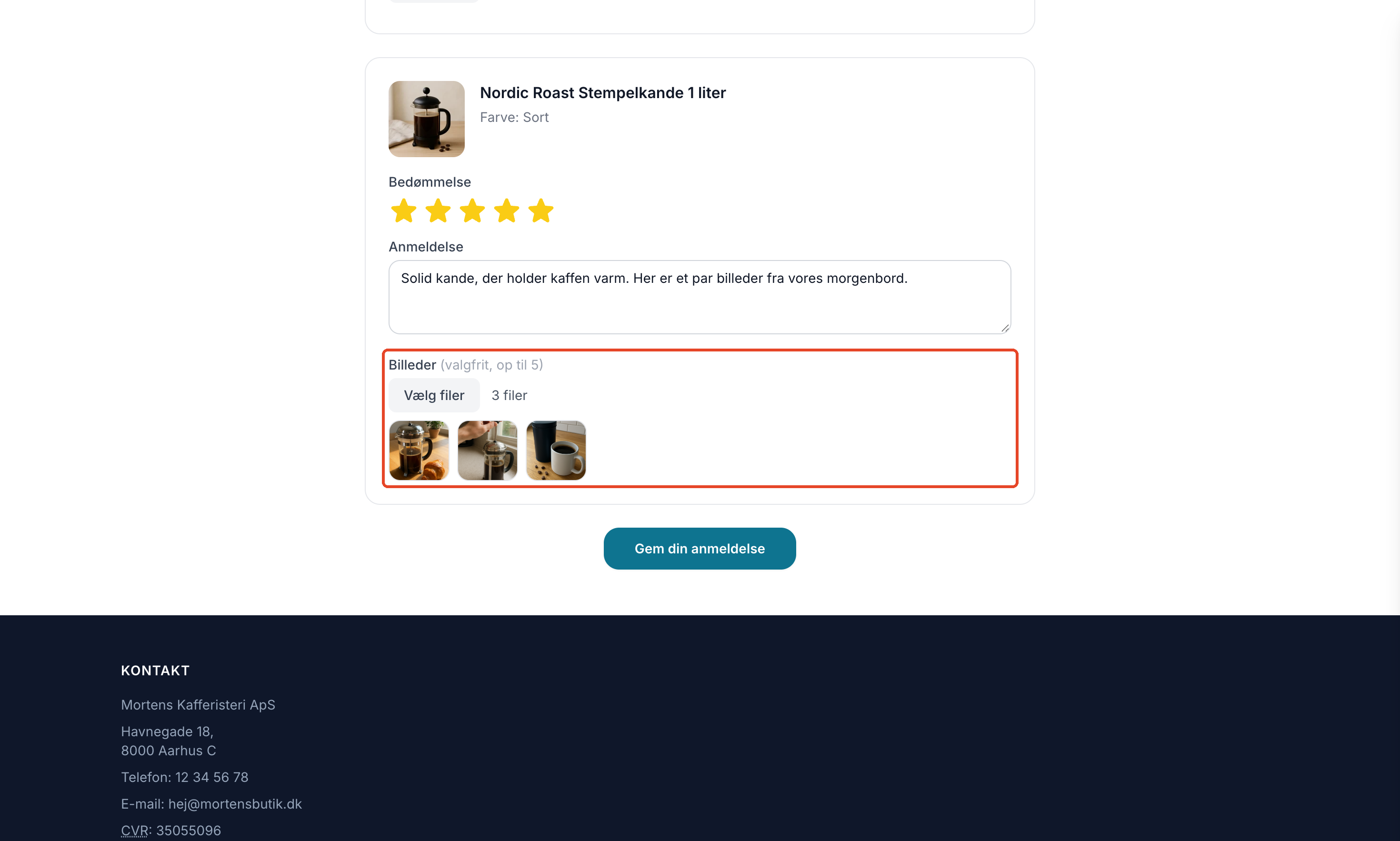
This field is available in the built-in themes that support reviews: Montana, MontanaB2B, Delaware, DelawareDK, California, and Alaska2. If you’re using your own theme—even if it’s based on one of the built-in themes—the theme must be updated to include both the field on the review page and the display on the product page before images will appear. Reviews without images work as before.
View, add, and delete images
Customer images appear as small thumbnails in the Images column of the list, so you can view them before approving the review. The images won’t appear in the store until the review is approved, and they’re automatically included when you approve it. This means you don’t need to approve them separately.
Click the pencil icon on the far right or on the thumbnails to open the review. In the “Images” tab, you can:
- Choose whether the images are displayed: turn off “Show images in the store ” and click Save. The images will remain, but won’t appear on the product page, and the thumbnails in the list will be dimmed with a crossed-out eye. This setting is enabled by default
- Add images: Drag the images into the field, click to select them from your computer, or upload them using “Select from Image Library.” You can add multiple images at once, even to a review that didn’t have any images previously
- Delete an image: Click the trash can icon below the image
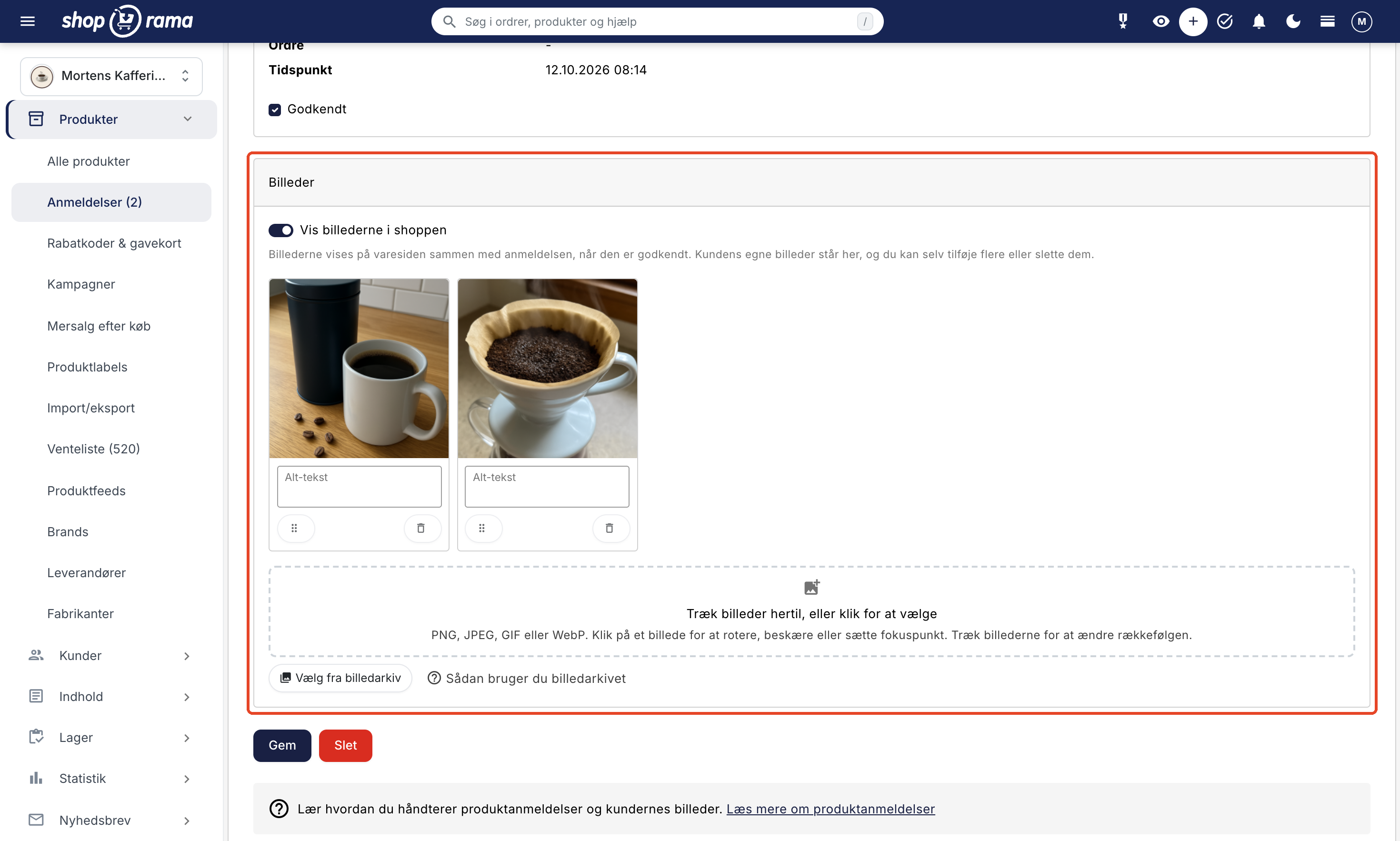
Images you add or delete are saved immediately, even if you don’t click Save. This applies to all images in the review, so if you only want to remove a single image, it’s easiest to delete it. If you delete the entire review, the images will be deleted along with it.
Display on Product Pages
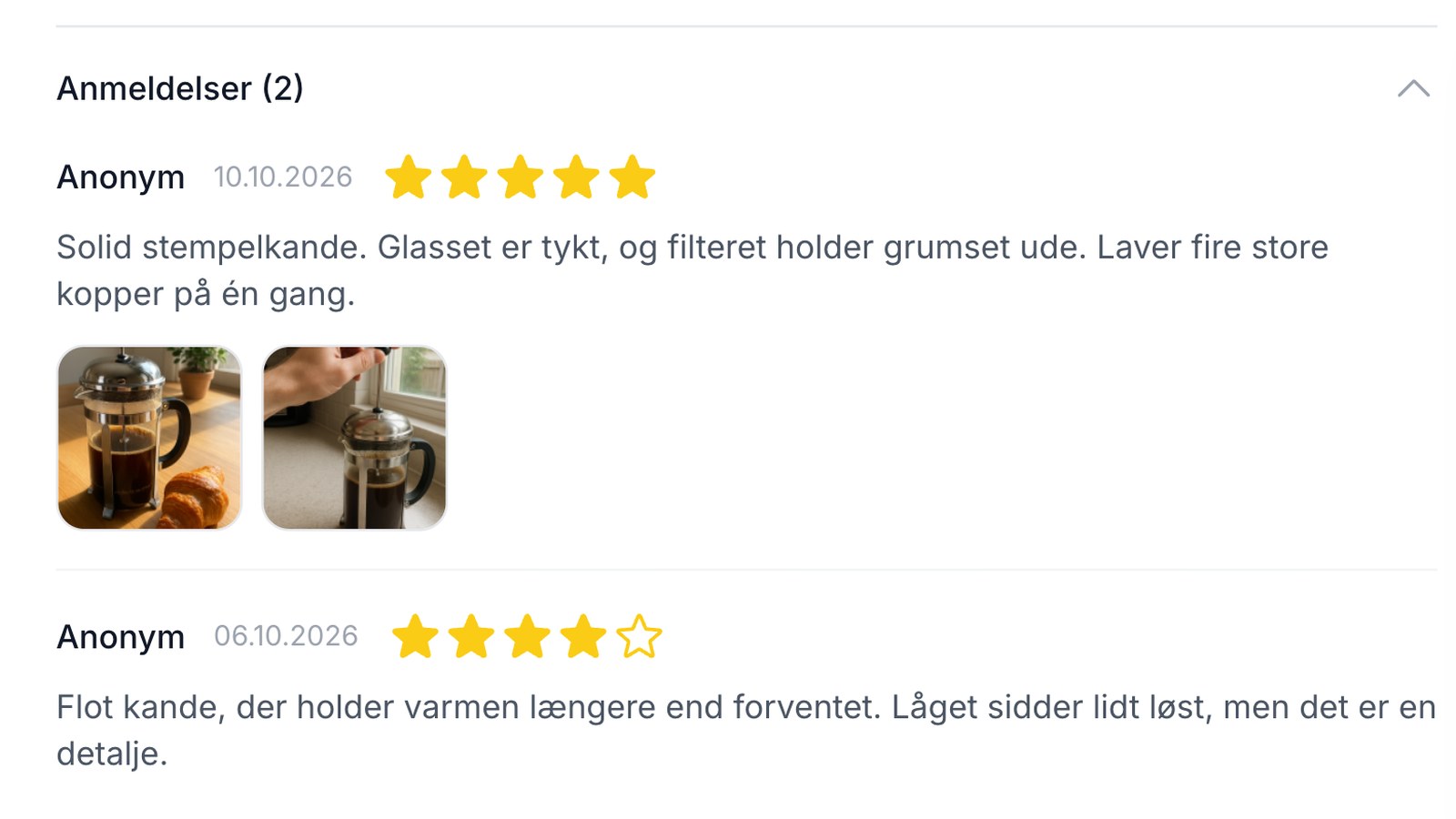
Approved reviews are automatically displayed on product pages with:
- Star rating — 1–5 stars for each product
- Average rating — Overall average of all approved reviews
- Number of reviews — How many reviews the product has received
- Review text — The customer’s own words about the product
- Customer’s name and date — Who wrote the review and when
- Customer photos — Small images below the review that open in full size when clicked
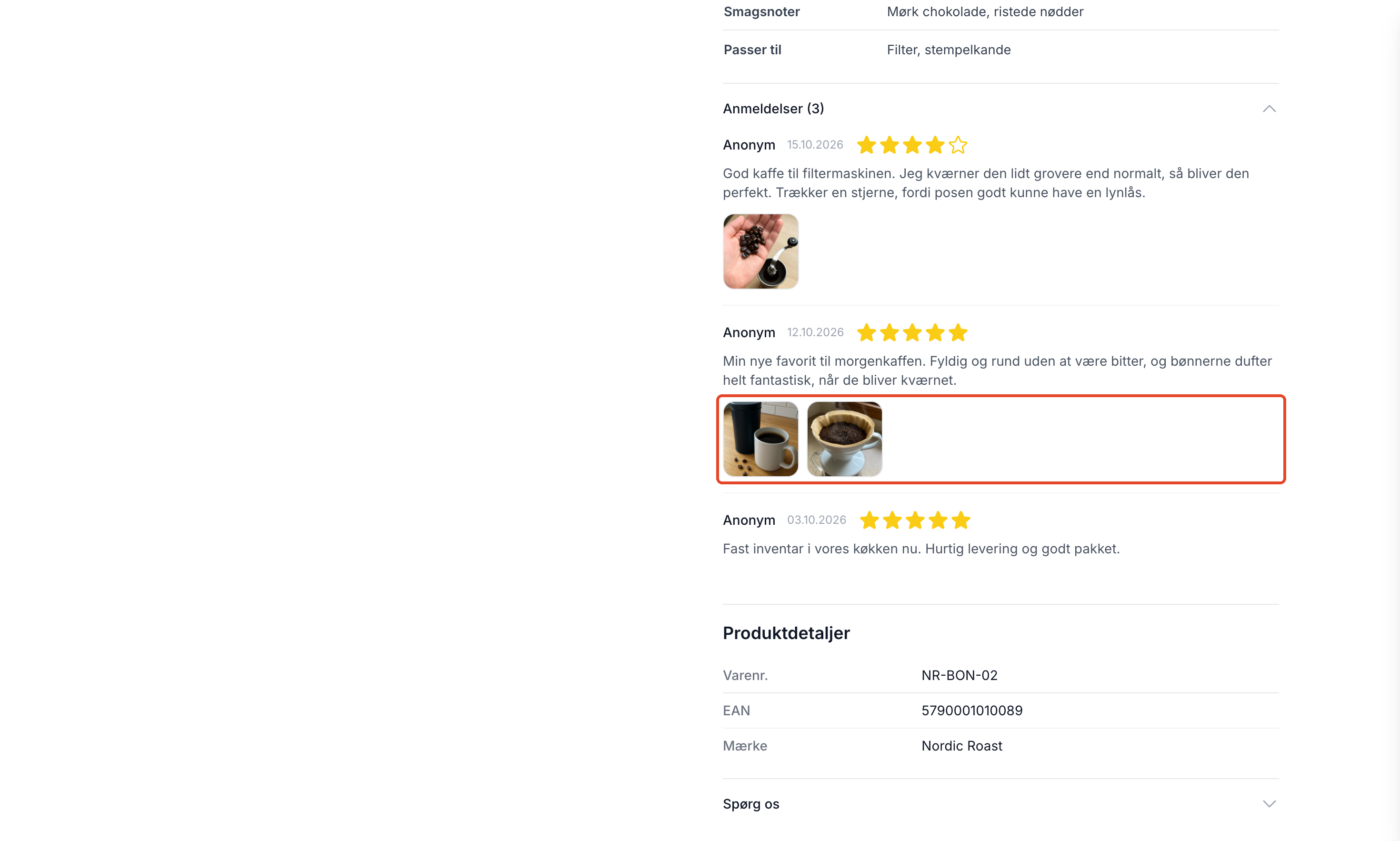
The reviews automatically include structured data (schema.org), which allows star ratings to be displayed directly in Google search results.
Display reviews as stars in Google Shopping
Your approved product reviews can also appear as stars on your Google Shopping ads and in Google’s free product listings. This requires a separate feed that you register in Google Merchant Center, and it’s built right into Shoporama. Customer images are included in the review feed along with text, as long as the images are permitted to be displayed in the store. See how in “Get Stars in Google Shopping with Product Reviews.”
Import and Export
If you’re switching from another e-commerce platform, you can import existing reviews via a CSV file. You can also export all your reviews to CSV for backup or analysis.
When importing, the CSV file must contain the product ID, rating, and review text. Imported reviews are automatically approved.
Upload Reviews from a CSV File
If you’re switching to Shoporama from another system, your reviews are one of the things you’ll be reluctant to leave behind. They’ve been collected over the years, and they help drive sales. That’s why you can add them to your new store with just a few clicks.
- Go to Products → Reviews and click Import in the top right corner
- Select your file under “Upload CSV File”
- Click Import
- The confirmation message at the top of the page shows how many reviews were imported
The file must be in CSV format with a semicolon as the field separator, and the first row must contain the column names. Column names are not case-sensitive. The file may be saved in a character encoding other than UTF-8, because the content is converted during import to prevent characters like æ, ø, and å from becoming garbled.
Columns in the file
- product_id: Shoporama’s internal product ID. Required
- rating: an integer between 0 and 5
- description: the review text itself
- created: date and time in the format 2021-04-24 12:30:00. If you omit this column, the review will be assigned the import time as its date
- name: The name of the reviewer. This column may also be named order_name
- order_id and webshop_order_id: optional. If you include them, the review will be linked to the correct order in your store. Shoporama’s internal order ID is used first; otherwise, the import will fall back on your own order number
Tip: Click “Export” on the review list before you create your import file. This will give you a file containing all the columns the import process recognizes, and you can use it as a template. The file contains a few extra columns that the import process simply ignores. Rejected reviews appear as “unapproved” in the export. Remove them from the file before importing it; otherwise, they will be imported as approved.
Note: All imported reviews are added as approved and are therefore immediately visible on the product pages. Review the file before uploading it.
Rows that refer to a product that does not exist in this specific online store are skipped without an error message. Therefore, the number on the receipt serves as your check: if it doesn’t match the number of lines in the file, there are lines with a product ID that the import couldn’t find. The import also doesn’t check for duplicates, so if you upload the same file twice, the reviews will be imported twice.
Reviews without an associated order have neither an order number nor an email address. If you’ve made customizations to your theme that display order information alongside the review, those customizations must be able to handle the absence of an order.
Frequently Asked Questions
How do I view the review email before it’s sent to customers?
Go to Webshop → Email Test, select product_review_mail.html, and view the email with random test data. You can send a test email to your own inbox and see exactly what the customer will receive.
Can I change the text in the email itself?
Yes. The fixed text in the email is managed under Design → Texts in the Email section. Here, you can translate and customize the wording without modifying the theme’s code.
Why do I need to manually approve reviews?
Manual approval gives you control over what appears on your product pages. You avoid spam, misspelled reviews, and misunderstandings. This is especially important because reviews are used in structured data and can appear in Google search results.
What happens if a customer has unsubscribed from review emails?
If a customer has clicked “unsubscribe” in a previous review email, their email address is added to your unsubscribe list, and no further review emails will be sent to that address. Additionally, customers with an account in your online store will only receive the review email once in total, regardless of how many orders they place.
How many hours after shipment should I send the email?
48–72 hours after the order is marked as shipped is a good starting point. By then, the customer will have received the package and had a chance to try the product. If you test different time frames, you can determine which interval yields the most reviews in your industry.
Do reviews affect my visibility on Google?
Yes. Approved reviews are automatically displayed using structured data (schema.org), and Google may choose to show the star ratings directly in search results. This typically results in a higher click-through rate for your ad or organic listing.
Can I import reviews from another system?
Yes. You can import existing reviews via CSV. The file must contain the product ID, rating, and review text. Imported reviews are automatically approved.
What’s the difference between rejecting and deleting a review?
Rejecting a review sets its status to “Rejected.” It remains in the list, does not appear on the product page, does not count toward the average rating, and is no longer listed as pending. You can approve it again at any time. Deleting permanently removes the review, and this action cannot be undone. If in doubt, reject it.
What’s the difference between “Pending” and “Rejected”?
"Pending" means you haven’t made a decision on the review yet. "Rejected" means you’ve chosen not to display it. Neither appears in the online store, but only the pending reviews are included in the count under the menu item and under "Action Required." Use the status filter if you want to view one type or the other.
Why do my reviews appear under “Action Required”?
If there are reviews awaiting your approval, “Action Required” displays a task showing the number of reviews and the “View Reviews” button, which opens the list filtered by “Pending.” The task disappears automatically once you’ve approved or rejected them all.
Can I reject a review by clicking the icon?
No. Clicking the icon only toggles between “Approved” and “Pending,” and a rejected review will be approved. To reject a review, check the box next to it and click “Reject Selected.”
Can I reply to a customer who left a negative review?
There is no field for a public reply below the review. However, you can click the order number in the “Order” column to go directly to the customer’s order, where you’ll find their contact information and can write to them personally. This is often the better solution: the customer feels heard, and you’ll find out what actually went wrong.
Can I send review emails for my past orders?
No. The system only considers orders marked as shipped within the last 30 days. If you enable the feature today, it will apply going forward, and you won’t send out a flood of emails to your old orders. If you have reviews from a previous system, you’ll need to use the CSV import feature instead.
Where can I find the product ID that the import file needs?
The easiest way is to click “Export” on the review list. The export file contains both the product ID and the product name, and it includes all the columns the import function recognizes. You can also open the product in the admin panel and find the number at the end of the address bar.
A customer sent a photo I don’t want to display. Will it appear on the page right away?
No. Customer reviews always await your approval, and the images won’t be displayed until you approve them. If there’s only one image you don’t want to include, open the review using the pencil icon and delete it using the trash can icon. If you don’t want to show the photos at all, turn off “Show photos in the shop,” check the “Approved” box, and click “Save.”
A customer sent me photos via email. Can I add them to the review myself?
Yes. Open the review using the pencil icon, and drag the images into the “Images” tab, or click in the field to select them. This also works for reviews that didn’t have images to begin with, and for reviews you’ve imported. The photos are saved immediately.
A customer says she’s attached photos, but I can’t see them on the product page. What should I do?
Find the review under Products → Reviews, and look in the Images column. If thumbnails are displayed but the review has an orange clock icon, it must be approved first. If the thumbnails are grayed out with a crossed-out eye, “Show images in the store ” is turned off. If it says “No images,” they weren’t saved. This happens, for example, if the file wasn’t a JPEG, PNG, WebP, or GIF, in which case the customer was notified of this on the thank-you page. If you can’t find a review at all, it means the customer didn’t rate the product with stars, so neither the review nor the images were saved.
We have our own theme. Can our customers also attach images?
Not until the field is added to the theme’s review page. Without the field, reviews will work as before, just without images. The person developing your theme can see how to create the field and display the images in the documentation for theme developers.
Are the images included when I export or import reviews?
No. The CSV file does not include a column for images, whether you’re exporting or importing. If you’ve migrated reviews from another system, you can add images to individual reviews later in the admin panel.
Are customer images also included in Google Shopping?
Yes. The built-in review feed includes images for approved reviews that have the “Show images in the shop ” option enabled. Whether and when Google displays them is determined by Google itself. Read more in “Get Stars in Google Shopping with Product Reviews.”
If you have any questions about product reviews, feel free to contact us at support@shoporama.dk.
Related articles
Unsubscribe links in automatic emails
Give your customers the option to unsubscribe from automatic follow-up emails after purchases and product reviews - with a simple link in the email.
AI assistant in the text editor
Learn how to use Shoporama's built-in AI assistant to generate product texts, image descriptions and text suggestions.
Order list and inventory management
Learn how to use the Shoporama order list to keep track of inventory, generate shopping lists and receive goods efficiently.
Related features
Reviews with photos: Let customers show the product as it is
New on Shoporama: Customers can attach up to 5 photos to their reviews. You'll see the photos before they're published, and you can add, delete, or...
Product reviews
Automatically collect product reviews with star ratings, text, and customer photos. Build trust, improve SEO, and get star ratings in Google search...
Social proof
Social proof is the principle that customers follow the actions of others. Learn about reviews, ratings, trustmarks and other forms of social proof...
UGC - User Generated Content
UGC is content created by your customers, such as reviews and images. Learn why user-generated content is valuable and how to get more out of it.
Online Store with Trustmade
Connect your Shoporama online store to Trustmade. CVR verification, verified reviews from actual orders, and automatic invitations. Install with...
Rich snippets
Rich snippets display stars, prices and stock status directly in Google search results. Learn about types, benefits and how Shoporama generates...