Create a credit note
Guide to creating a credit note in Shoporama when you receive returns or need to refund an order.
When you receive returned items or need to issue a refund for an order, you can create a credit memo directly in Shoporama. The credit memo documents the refund for accounting purposes.
How to Create a Credit Memo
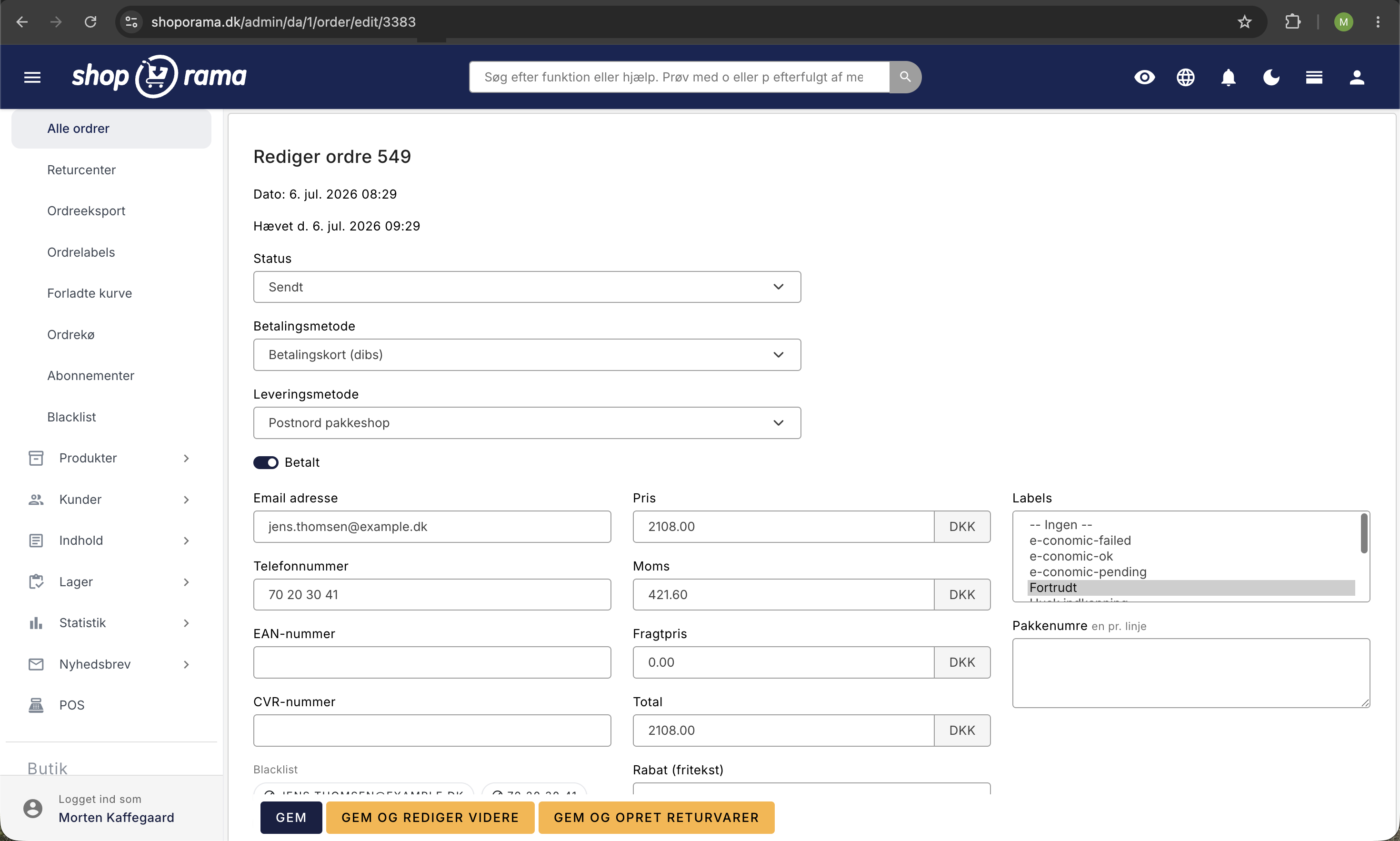
- Go to Orders and open the relevant order
- Click Save and Create Return Items
- Select the products to be credited and specify the quantity
- Add any shipping refund, if applicable
- Click Save and Create Credit Memo
Full or partial credit
- Full credit memo — credits all products and shipping on the order
- Partial credit memo — credits only selected products or a modified amount
e-conomic
If you have e-conomic integration, the credit memo is automatically transferred to e-conomic as a separate document. You do not need to create it manually. The same applies to Dinero and Billy.
A credit memo is a separate order with its own order number and a negative amount. The “e-conomic-ok” label is therefore applied to the credit memo itself, not to the original order. That’s where you can check whether it has been included in the accounting.
The Refund Itself
The credit memo in Shoporama is an accounting document. The actual refund to the customer is a separate step. If you use QuickPay, OnPay, Stripe, PensoPay, or Flatpay, you can issue a refund directly from the credit memo in Shoporama via the “Refund the amount” link. If you use a different payment gateway, you’ll process the refund in the gateway’s own dashboard.
Tip
See also “Handling Returns” for the full return process, including restocking.
Need help? Contact us at support@shoporama.dk.
Related articles
Billy's Billing integration
Guide to setting up Billy's Billing in Shoporama. Automatically transfer orders to your accounts, synchronize products and post payments.
Troubleshooting E-conomic integration
Guide to troubleshooting the e-conomic app in Shoporama. Fix sync issues, failed transfers and incorrect posting.
Handle returns
Guide to Shoporama's returns center - handle returns, create credit notes, and manage customer return requests.
Related features
Credit note
A credit note cancels or reduces an invoice for returned goods or price adjustments. Read about credit notes in eCommerce and accounting.
Return center - handle returns professionally
Manage returns, issue credit notes and refunds to the customer's card. With return statistics and automatic inventory management.
PDF invoice
Generate professional PDF invoices automatically from your orders in Shoporama. Attach to order confirmation, credit note and pickup email.