Set up E-conomic integration
Step-by-step guide to install Shoporama's e-conomic app from the App Store and set up automatic transfer of orders.
E-conomic is Denmark’s most widely used accounting software for small and medium-sized businesses. With Shoporama’s official e-conomic app, your orders are automatically transferred as invoices, and customers are created as accounts receivable in e-conomic. Here’s how to install the app and get started.
What does the integration do?
- Order Transfer — Orders are automatically transferred as invoices or draft invoices in e-conomic via webhook (in real time)
- Customer Creation — Customers are automatically created as accounts receivable in e-conomic with address, phone number, email, and CVR/EAN
- Correct VAT Zone — Domestic sales, EU B2B with reverse charge, OSS sales to EU private individuals, and exports are handled automatically
- Auto-posting — Choose whether invoices should be posted automatically or saved as drafts
Note
The new e-conomic app is one-way: it sends data from Shoporama to e-conomic but does not retrieve inventory or product data back. Inventory is managed exclusively in Shoporama. Credit memos, however, are transferred automatically when an order is credited in Shoporama.
Step 1: Create an API key in e-conomic
- Log in to your e-conomic account at secure.e-conomic.com
- Go to Settings and select Extensions
- Find API Keys and create a new key for Shoporama
- Copy the key—you’ll need it in the next step
Step 2: Install the e-conomic app in Shoporama
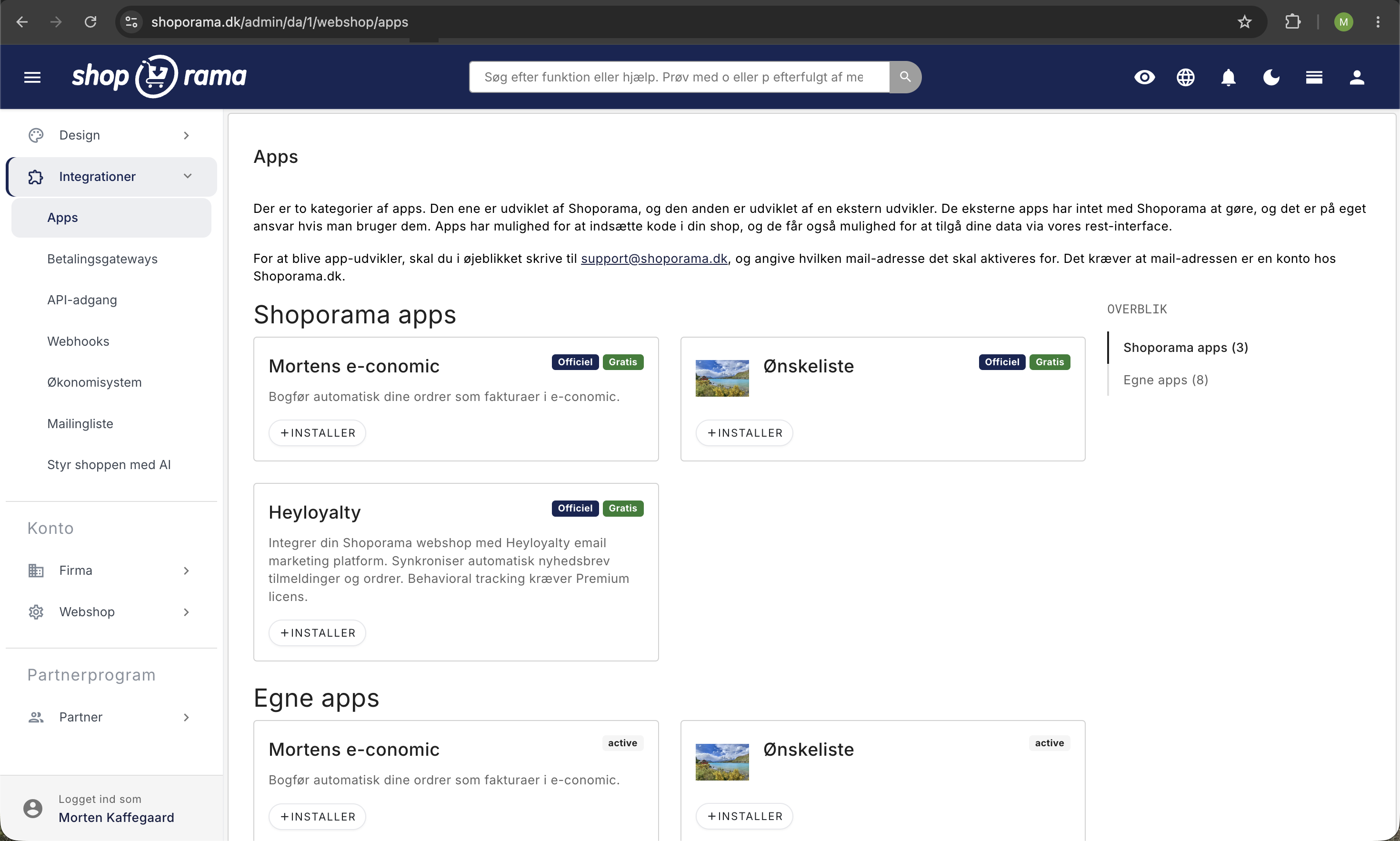
- Log in to your Shoporama admin
- Click Apps in the left-hand menu
- Find e-conomic in the app overview
- Click Install
- Enter your API key from step 1 in the API Key field
- Click Save
Step 3: Configure the settings
Once the app is installed, you can customize how orders are transferred. The most important settings are:
- Country of Origin — Determines the VAT zone calculation. Typically set to Denmark.
- When is the order transferred? — Choose between upon creation, upon payment, or upon shipment.
- Product group — The product group in e-conomic to which new product lines belong.
- Customer groups (retail/business) — You can select different customer groups for B2C and B2B customers.
- Payment Terms — Different terms for orders paid by card versus EAN-invoiced B2B orders.
- Layout — Different invoice layouts can be selected per order type.
- Customer Number Strategy — Choose whether the customer ID should be a phone number, customer number, or fixed number.
- Auto-posting — Should the invoice be posted automatically or saved as a draft?
Recommendation
Leave the invoices as drafts for the first few weeks so you can review them and correct any errors before they are posted. Once you are confident in the setup, you can enable auto-posting.
Step 4: Test with an order
- Create a test order in your online store (or use an existing one)
- Wait until the trigger event occurs (order creation, payment, or shipment)
- Check in e-conomic to make sure the invoice was created correctly
- Verify that the customer has been created with the correct information
- Check that the VAT zone is set correctly
In the Shoporama admin, each order is automatically assigned a label indicating its status:
- e-conomic-ok — Order transferred without issues
- e-conomic-pending — Order is awaiting transfer
- e-conomic-failed — Transfer failed (click on the order to view the error message)
Resend a failed order
If a transfer fails, you can manually retry the order by removing the “e-conomic-failed” label and adding the “e-conomic-pending” label instead. The app will then attempt to transfer the order again.
Orders with items at 0% VAT
If an order contains items with 0% VAT—such as newspapers or items in the “VAT-Exempt” category—Shoporama distributes shipping, discounts, and points across the items’ tax rates so that each rate receives its share. If a customer buys a newspaper at 0% and a cup at 25%, the shipping will therefore be subject to 0% VAT on one part and 25% VAT on the other. Read more in VAT Categories.
The e-conomic app does not break down shipping and discounts by rate. It transfers them as before, with one line item each. If you have orders of this type, leave the invoices as drafts. Check the VAT on shipping, discounts, and the 0% items, and adjust the lines so that the 0% portion is assigned to a VAT-exempt item before you post the transaction.
Items with 0% must be placed in a VAT-exempt product group in e-conomic. The app creates new items in the product group you selected under “Product Group,” so move the 0% items to a VAT-exempt product group.
The older e-conomic integration
If your store still uses the older e-conomic integration under Integrations, Accounting System, you can ensure the 0% portion is transferred correctly by filling in two fields:
- Product ID for shipping with 0% VAT in e-conomic
- Product ID for the discount with 0% VAT in e-conomic
Both items must be in a product group without VAT in e-conomic. Then shipping and discounts will be transferred with one line per rate, and the 0% portion will be applied to the two items. If you haven’t filled in both fields, shipping and discounts will be transferred as before, and you’ll receive a message in the admin panel prompting you to fill them in. Orders where all items have the country’s standard VAT rate will be transferred as before.
The older integration only separates the 0% portion. Shipping and discounts with a different reduced rate—for example, 6% on an order to Sweden—are transferred to your standard shipping and discount items using the VAT rate listed for them in e-conomic. Consult with your accountant on how to handle this.
Select accounting software: e-conomic, Dinero, Billy, or Uniconta
Shoporama has built-in integration with four accounting programs: e-conomic, Dinero, Billy, and Uniconta. All four are included in the subscription (however, the Dinero app requires Dinero Pro, the Billy app requires Billy’s Plus or Complete subscription, and if you use Uniconta, API access may cost extra through Uniconta), and they all perform the same basic function: transferring your orders into your accounting system so you don’t have to enter them manually. But they’re built differently, and those differences are noticeable in day-to-day use. If you haven’t gotten started yet, or if you’re considering switching, use this section to make your choice before spending time on setup. If your company runs on Microsoft’s ERP system, Business Central, there’s also a free app for it. It’s briefly described below, and the rest of this section compares the four accounting programs.
Where to enable them
e-conomic, Dinero, Billy, Uniconta, and Business Central are enabled as apps. You’ll find them under Integrations > Apps, and you can install them with a single click. e-conomic is described earlier in this guide, Dinero in the guide for the Dinero app, Billy in the guide for the Billy app, Uniconta in “Set Up Uniconta Integration,” and Business Central in “Set Up Business Central Integration.”
Under Integrations, Accounting System, you’ll find the old Billy integration and the old Dinero integration for stores that already use them. Here, select the program from the Vendor dropdown, click Save, and then fill in the fields that appear. New stores cannot select these options but must use apps instead.
The dropdown menu can only hold one selection at a time, so the old Billy integration and the old Dinero integration are mutually exclusive. You should also avoid running the e-conomic, Dinero, Billy, Uniconta, or Business Central app at the same time as one of the other programs, unless you intentionally want the same orders posted in two places. The Billy app does not transfer any orders as long as the old Billy integration is enabled. Set “Supplier” to “None” once the app is set up.
Be careful with EasyPos
The “Supplier” dropdown menu also includes EasyPos. This is not an accounting program, but an integration with a physical point-of-sale system that imports products and stock levels into the online store in the opposite direction. Do not select it by mistake if your goal is to have your orders posted to the books.
e-conomic
The most flexible of the four. Just like in Dinero, Billy, and Uniconta, you can review the order before it’s posted.
- There arethree time points to choose from: the order can be transferred when it’s created, when it’s paid, or when it’s shipped. Dinero and Billy only offer the latter two options.
- You choose the customer number yourself. The customer number in e-conomic can be a unique number, the customer’s phone number, the customer’s ID from the online store, or a single fixed number under which all invoices are grouped.
- Draft or posted. You decide using the “Automatically post transferred invoices” setting. If you turn it off, the invoices will appear as drafts that you can edit.
- Cross-border VAT. The VAT zone is automatically set based on the customer’s country, so Danish sales, EU sales to businesses under the reverse charge mechanism, EU sales to private individuals, and exports to countries outside the EU are handled separately. There is also a field for the Norwegian VOEC.
- B2B and B2C are handled separately. You can set different customer groups, payment terms, and invoice layouts for orders paid by card and for orders with an EAN or invoice.
- Status displayed directly on the order. Each order is labeled so you can see in the order list whether it went through.
- Item numbers are handled automatically. The invoice lines use your own item numbers (SKU), and the app automatically ensures that the number exists in e-conomic.
Dinero
A free app from Shoporama that’s easy to get started with. It requires Dinero Pro and replaces the old Dinero integration under Integrations, Accounting System, which will continue to run for stores that already have it. See the full instructions in the guide for the Dinero app.
- You log in instead of copying a key. In the app’s settings, tap “Connect to Dinero,” which will redirect you to Visma, where you log in and authorize the connection.
- Your login is valid for one year. The “Connection” field shows how long your login is valid, and in the last 30 days, the app will prompt you to reconnect. You can do this by tapping the “Change Dinero Login” button.
- Posted or Draft. With “Post Automatically” turned on, the invoice is posted immediately, and the payment can be recorded on it. If you turn it off, the invoice is saved as a draft in Dinero, and you post it yourself.
- You select the accounts in the app. For example, you can select accounts for “Sales with VAT,” “Sales without VAT,” and “Shipping,” as well as one account per payment method, such as “Card Payments” and “MobilePay Payments.” Items with 0% VAT and the 0% portion of shipping and discounts are automatically posted without VAT.
- Two time points. The order can be transferred once it’s paid or once it’s shipped.
- Multiple online stores can use the same Dinero login. If you connect multiple stores to the same Dinero user, they automatically share the connection.
- Status directly on the order. Each order is labeled “dinero-ok” or “dinero-failed” and includes a note explaining what happened.
- No product catalog. Your products are not created in Dinero. The product lines appear as text on the invoice.
Billy
A free app from Shoporama. Billy is now called Shine Regnskab, so the app is listed as Billy (Shine Regnskab) under Apps. It replaces the old Billy integration under Integrations, Accounting System, which will continue to run for stores that have it. See the full instructions in the guide for the Billy app.
- API token from Billy. You create an API token in Billy and enter it into the app. It does not need to be renewed along the way. Billy only provides access to the API for the Plus and Complete subscriptions.
- Invoice or financial document. By default, the order becomes an invoice in Billy, and the customer is created. If you select “financial document,” only the accounting entry is transferred to the cash book in Billy, with the online store’s own invoice as the attachment.
- Approved or Draft. If you select “Approve and Post Automatically,” the invoice is approved immediately, and the payment can be recorded on it. If you leave the checkbox unchecked, it is saved as a draft in Billy, and you approve it yourself.
- The accounts are selected in the app. For example, you can select accounts for “Sales with VAT,” “Sales without VAT,” and “Shipping,” as well as one account per payment method, such as “Card Payments” and “MobilePay Payments.” The app automatically creates the items in Billy that it needs, including those for shipping and discounts.
- No product number is required. By default, the product name and product number appear as text on the invoice line. If you want to view sales by product in Billy, you can enable “Create products by product number” in Billy.
- Two options. The order can be transferred once it has been paid or once it has been shipped.
- Invoice number prefix. The invoice is assigned the online store’s order number, and you can add a prefix to it so you can distinguish online store invoices from your other invoices in Billy.
- Status directly on the order. Each order is labeled “billy-ok” or “billy-failed” and includes a note explaining what happened. The app does not retry on its own. You correct the error and set the order to “billy-pending.”
Uniconta
For those who invoice in Uniconta and want to review the order before it becomes an invoice. See the full guide in “Set Up Uniconta Integration.”
- Sales orders, not invoices. The order appears as a sales order in Uniconta, and you create the invoice yourself there. Until then, you can edit it.
- Log in instead of using a key. The app logs in using your company ID and a Uniconta user with write access. In Uniconta, you must also enable the Orders and Shipping Address features.
- Three time points. The order can be transferred when it is created, when it is paid, or when it is shipped.
- The customer is recognized. If the customer already exists in Uniconta with the same CVR number or email address, that customer record is used. Otherwise, a new one is created.
- Private customers include VAT; business customers exclude it. Orders from private customers are transferred with prices including VAT; orders from businesses are transferred with prices excluding VAT.
- No items to maintain. If the item number exists in Uniconta, the line is linked to the item. Otherwise, it appears as a text line. You can choose to have missing item numbers created as services without inventory.
- Use API calls sparingly. Uniconta’s subscription includes 5,000 calls per user per day. The app uses 2–4 calls per order and displays the daily usage in the settings. API access itself may incur additional costs with Uniconta.
Business Central
For companies that manage finance, inventory, and purchasing in Microsoft Dynamics 365 Business Central, the successor to Navision. The app works with Business Central Online. See the full guide in “Set Up Business Central Integration.”
- Sales invoice or sales order. The invoice can be posted immediately with the payment recorded, or saved as a draft that you post yourself. You fulfill and invoice a sales order in Business Central.
- Connected by an administrator. An administrator in your Microsoft account grants consent by clicking the “Connect to Business Central” button, and the app is then created under Microsoft Entra apps in Business Central.
- Three time points. The order can be transferred when it is paid, when it is shipped, or when it is created.
- Your own items, if you wish. With “Use Items in Business Central,” the line item is posted to the item when the item number is found in Business Central, so the inventory there tracks the sale. The app does not create items.
- Status directly on the order. Each order is labeled “business-central-ok ” or “business-central-failed ” and includes a note. You correct the error and set the order to “business-central-pending.”
What is transferred, and when?
Regardless of which of the four programs you choose, the same basic information is transferred with the order to the accounting system:
- Item lines with item number, quantity, and price excluding tax
- VAT, calculated based on the order
- Shipping as a separate line item
- Discounts as separate, negative lines, including both promotional discounts and discount codes
- The customer as a contact or account receivable with name, address, phone number, and email. Business customers include their EAN number
- the order number from the online store, so you can trace the order back from the receipt
Uniconta differs in two ways: the order becomes a sales order instead of an invoice, and orders from private customers are imported with prices including VAT. In the Billy app, orders from private customers are also imported with prices including VAT.
In the Dinero app and the Billy app, you can also choose to transfer the order as a financial document. In that case, only the accounting entries are imported into Dinero or Billy, with the online store’s own invoice as an attachment.
Times you can choose
- When the order is created. e-conomic and Uniconta. The document is available from the moment the customer clicks “Buy,” even if the payment later fails.
- When the order is paid. All four. This is the most common choice and the one you should use if you’re syncing inventory with other systems.
- When the order is shipped. All four. Best suited if you frequently make changes to the order before the package is shipped.
How fast is it?
e-conomic and the old Billy integration are fast. Transfers are placed in a queue that is cleared every half minute, so the receipt usually appears in your accounting within a minute after your selected time is reached. However, if you’re using the old Billy integration, there’s one exception: the actual posting of the payment runs as a separate step up to 20 minutes later. The Dinero app and the Billy app, just like the Uniconta app, receive notification of the order through Shoporama’s queue, so the invoice typically appears in Dinero or Billy within a few minutes. The Uniconta app receives notification of the order through Shoporama’s queue and is typically processed within a few minutes. If you don’t see anything at all after 15 minutes, something has likely gone wrong, and you should check the order.
Credit Memos
e-conomic, Dinero, and Billy automatically transfer credit memos, regardless of the transfer time you’ve selected. This applies both ways for a credit memo: when you approve a return in the returns center, and when you issue a credit memo yourself by selecting “Save and Create Return Items” at the bottom of an order. The credit memo is forwarded as a separate document with the online store’s order number. In Billy, it is also linked directly to the original invoice, and in e-conomic, it appears as a document with negative line items. The Billy app transfers the credit memo once the original order has been transferred. If the order was transferred as a financial document, the credit memo will also be a financial document. The Dinero app transfers the credit memo once the original order has been transferred and links it to the original invoice (or creates an offsetting financial document if the order was transferred as a financial document). The Uniconta app transfers the credit entry as a sales order with a negative quantity once the original order has been transferred. If you invoice it in Uniconta, it becomes a credit memo.
Check the amount if the customer used a discount code
The credit memo contains the line items you choose to credit, as well as any shipping costs. Promotional discounts and discount codes are not carried over, and the line items are transferred at the full prices from the order. If you credit an order where the customer used a discount code, the credit memo may therefore be larger than what the customer actually paid. Adjust the price of the line items in the returns center before you approve the return. With the Dinero app and the Billy app, the credit memo in Dinero and Billy will always show the same amount as the credit in Shoporama, so you should check the amount on the credit.
Neither of them does this
- Inventory is managed only in Shoporama. None of the four apps retrieve inventory levels from the accounting software.
- Payment status is a one-way process. If you mark an invoice as paid in the accounting software, it doesn’t change anything on the order in Shoporama. The Uniconta app doesn’t transfer payments at all. You handle those in Uniconta.
- Old orders aren’t imported automatically. Orders from before you enabled the integration must be manually imported if you want them included.
How to Choose in Practice
The most important criterion is usually simple: choose the program that you or your bookkeeper already uses. If you have a free choice, these rules of thumb can help:
- Do you want to be able to approve invoices before they’re posted? You can do this with all four apps, but not with the old Billy integration or the old Dinero integration. e-conomic, Dinero, and Billy can leave the invoice as a draft, and the Uniconta app creates sales orders that you invoice yourself.
- Do you sell a lot internationally or to businesses? e-conomic offers the most detailed handling of VAT zones, customer groups, and payment terms, and can distinguish between orders paid by card and orders paid via EAN or invoice. The Uniconta app also distinguishes between paid orders and invoice orders and assigns VAT codes to EU companies and exports. Read more in B2B Sales in Shoporama.
- Do you want your products to appear in your accounting records? The Billy app creates your products with product numbers and names if you enable “Create products by product number” in Billy. e-conomic also creates only the item number and name—not the price—and Dinero doesn’t create any items at all. The Uniconta app can create missing item numbers as non-inventory services if you enable this feature.
- Are you still using the old Dinero integration? Then switch to the app. The old connection needs to be renewed about once a month, and you typically don’t realize it has expired until orders stop coming through. The app’s login is valid for one year, and the “Connection” field in the app’s settings shows when it expires and reminds you to reconnect during the last month.
- Do you manage your finances and inventory in Business Central? Then use the Business Central app. It can post transactions for your items in Business Central and create sales orders that you fulfill from there. Read more in “Set Up Business Central Integration.”
- Do you only have a few orders per week? Then the differences matter less. Choose whichever option is cheapest from the provider, or the one your accountant feels most comfortable with.
- Do you run multiple online stores under the same accounting system? With Dinero, you install the app in each store and log in with the same Dinero user account, so the stores share the connection. With e-conomic, Billy, and Uniconta, you set up the integration separately for each shop. See the question about multiple online stores below.
Can I switch later?
Yes. You can switch both to and from all four, and you can do so in the middle of a fiscal year. Two things are worth knowing:
- Orders that have already been transferred won’t be moved over. They’ll remain in the old accounting program, so choose a switch date that you can explain to your accountant—for example, the 1st of the month.
- Deactivate the old system before activating the new one. Otherwise, you risk having the same orders posted in two places during the overlap period.
If a single order needs to be transferred again afterward, you can do so manually. With the old Billy integration and the old Dinero integration, check the box “Order must be sent to accounting or POS system ” on the order and save. With e-conomic, use the labeling procedure described earlier in this guide. With the Dinero app, apply the “dinero-pending” label to the order; with the Billy app, apply the “billy-pending” label; and with Uniconta, apply the “uniconta-pending” label.
Frequently Asked Questions
Can I review the invoices before they’re posted?
In e-conomic, Dinero, Billy, and Uniconta: If you turn off “Post Automatically Transferred Invoices” in e-conomic, the documents will be saved as drafts, which you can review and edit before posting them. If you turn off “Post Automatically” in the Dinero app, the invoice is saved as a draft in Dinero. A draft does not record the payment. If you credit the order before the draft is posted, the credit memo will remain pending until you’ve posted the invoice in Dinero and applied the “dinero-pending” label to the credit entry. The Uniconta app creates sales orders that you edit and invoice yourself. If you uncheck the “Approve and Post Automatically” box in the Billy app, the invoice or attachment is saved as a draft in Billy, and you approve it yourself. The old Billy integration and the old Dinero integration always post immediately. This also means that an error in the initial entry in those two systems must be corrected with a credit memo afterward, whereas in e-conomic, the Dinero app, and the Billy app, it can simply be corrected in the draft.
Which program provides the best trail back to the online store if the accountant asks?
All four programs include the online store’s order number on the document, so you can always trace the invoice back to the order. In e-conomic, the order number is always included in the invoice header, and you can also choose to include it in the “Other Reference” field or use the cart number there instead. In Billy, you can add a prefix to the order numbers so that online store invoices are easy to filter from your other documents, and you can include the cart number after the invoice number. With e-conomic and the old Billy integration, Shoporama also adds a note to the order with the document ID once it’s been transferred, so the trail goes both ways. The Billy app adds a note to the order with the invoice or document number in Billy. The Dinero app adds a note to the order once it’s transferred, including the invoice or document number in Dinero once it’s posted. The Uniconta app enters the order number in the “Your Ref.” field on the sales order and adds a note to the order with the sales order number.
I don’t really understand the difference. Which one should I choose?
Choose the accounting software that you or your bookkeeper already uses. That’s almost always the right answer, and all four integrations are included in your Shoporama subscription, so there’s no extra charge from Shoporama for choosing one over the other. However, if you use Uniconta, API access may cost extra through Uniconta. If you don’t have an accounting program yet, ask your accountant which one they prefer to work with.
Do all my products need to have a product number?
This is not a requirement for the Billy app. By default, the product name and product number appear as text on the invoice line, and if you enable “Create products by product number” in Billy, products without a product number will still use the app’s default product for the account. The old Billy integration creates your items in Billy based on the item number (SKU), and if a product lacks an item number, the invoice cannot be generated. For e-conomic, the SKU is used as the product number on the invoice line; if the product does not have one, the product ID is used instead, so the transfer still goes through. For Dinero, this isn’t a requirement, since the item lines are entered as text; if the product has an SKU, it’s included in the text. For Uniconta, it’s also not a requirement. If the SKU isn’t found in Uniconta, the line appears as a text line with the same text and price.
Can multiple ones of my online stores use the same accounting system?
Yes, but the setup varies. In Dinero, you install the app in each shop and connect it to the same Dinero user account. The shops then automatically share the connection, and you select the company in each shop. In e-conomic and Billy, you set up the integration separately for each store using the same login credentials. If you use Billy, give each store its own prefix under “Invoice Number Prefix” so that two orders with the same number don’t get mixed up in the accounting. With Uniconta, you install the app in each store and assign each store its own prefix under “Account Number for New Customers.”
What should I do if an order hasn’t been transferred to the accounting system?
First: check the order in Shoporama. If you use e-conomic, the label on the order indicates whether the transfer was successful, and you can resend the order as described earlier in this guide. If you’re using the old Billy integration or the old Dinero integration, you can check the box “Order must be sent to accounting or POS system ” and save; the system will then try again. If there are many orders at once, it’s usually the connection itself that has dropped, and with the old Dinero integration, it’s most often because access needs to be renewed. See Troubleshooting e-conomic Integrations for the full checklist. If you’re using the Dinero app, the Billy app, or Uniconta, the order will be labeled “dinero-failed,” “billy-failed,” or “uniconta-failed” along with a note describing the error, and you can resend it by setting the label to “dinero-pending,” “billy-pending,” or “uniconta-pending.”
Are returns and credit memos also transferred automatically?
Yes. Both when you approve a return at the returns center and when you manually credit an order, Shoporama generates a credit memo that is automatically forwarded to the accounting software. You can see this on the label on the credit memo itself. Check the amount first if the customer used a discount code, as the discount lines are not included on the credit memo. With the Dinero app, the Billy app, and Uniconta, the credit memo is sent once the original order has been transferred; with the Dinero app and the Billy app, the amount always matches the credit entry in Shoporama. Read more in Credit Memos and Refunds.
Read more
- How the e-conomic integration works
- Troubleshooting the e-conomic integration
- Common errors in the e-conomic integration
- B2B sales in Shoporama
- Credit notes and refunds
Need help? Contact us at support@shoporama.dk.
Related articles
Troubleshooting E-conomic integration
Guide to troubleshooting the e-conomic app in Shoporama. Fix sync issues, failed transfers and incorrect posting.
Set up Dinero integration
Here's how to install and connect the free Dinero app, select accounts, VAT, and payment accounts, and have your online store's orders imported as...
Billy Integration: Transfer Orders to Billy (Shine Accounting)
Here's how to install the free Billy app, connect it to an API token from Billy (Shine Accounting), select sales and payment accounts, and have...
Set Up Uniconta Integration
Here's how to install the Uniconta app, create a user in Uniconta, and have orders from your online store transferred as sales orders, including...
Related features
Webshop with e-conomic
Have orders automatically transferred to e-conomic. Install Shoporama's e-conomic app from the App Store and eliminate manual bookkeeping in less...
Accounting programs
Automatically transfer orders from your online store to e-conomic, Dinero, Uniconta, Billy, or Business Central. Free apps for sales tax,...
e-conomic vs. Dinero: Which One Is Best for Your Online Store?
e-conomic or Dinero for your online store? See the differences in VAT, OSS, payments, credit memos, and customers when orders are posted...