Setting up OnPay
Step-by-step guide to setting up OnPay as a payment gateway on your Shoporama online store. Supports payment links, capture, refund and cancel.
OnPay is a Danish payment gateway that allows your customers to pay with Dankort, Visa, MasterCard, MobilePay, and more. Here’s a guide to setting up OnPay on your Shoporama online store.
Step 1: Set up the payment gateway
- Log in to the Shoporama admin panel
- Go to Integrations → Payment Gateways in the left-hand menu
- Click Create Payment Gateway and select the OnPay type
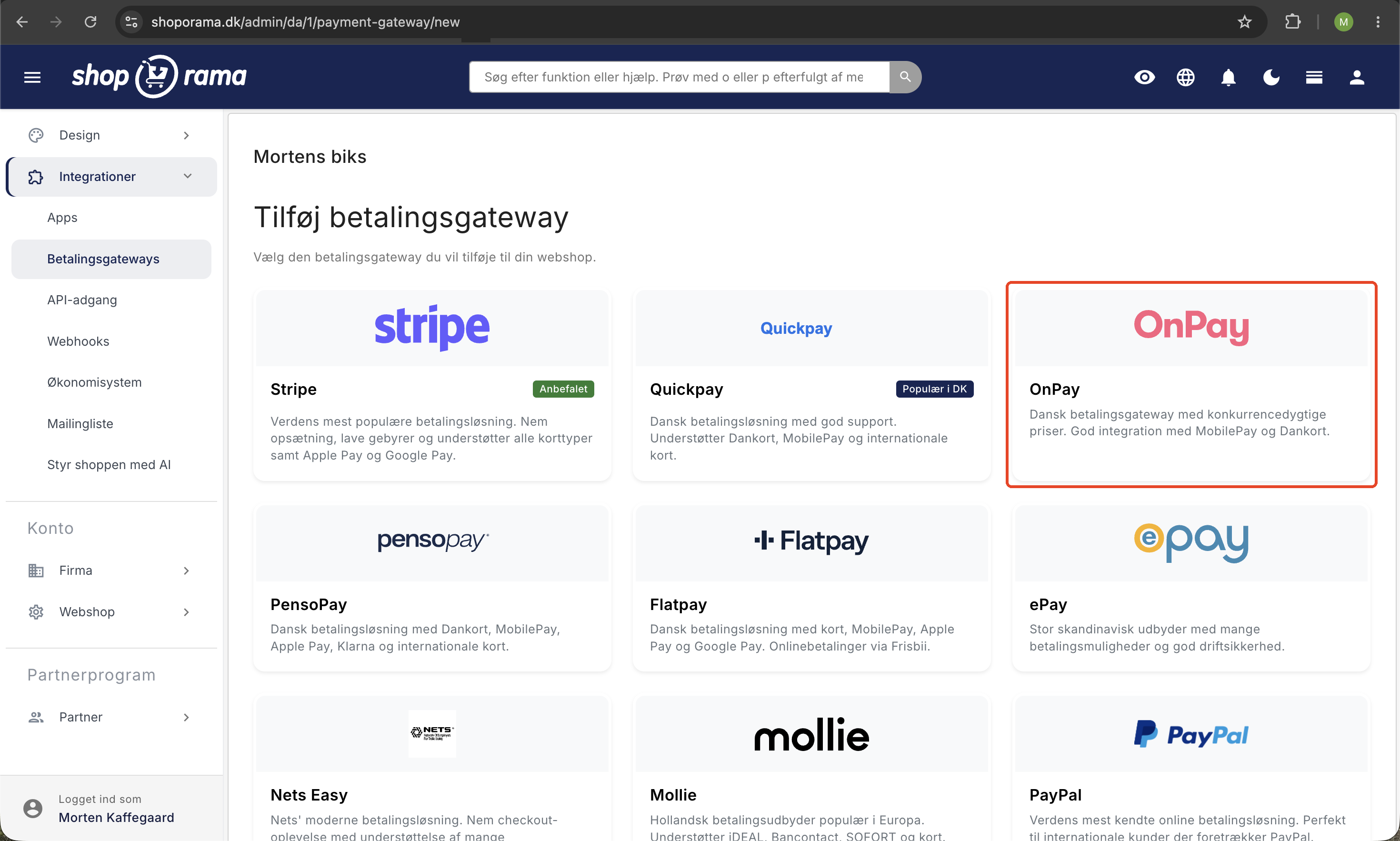
Step 2: Connect to OnPay
Once the gateway is created, a link to connect to OnPay will appear. Follow the link and authorize access on the OnPay website.
Once you’ve granted access to Shoporama, you’re ready to receive payments via OnPay.
Step 3: Choose when to withdraw the funds
When the customer pays, the amount is only reserved on the card. The funds are yours only once the payment has been withdrawn. On the gateway page under Integrations → Payment Gateways, you can enable “Automatically withdraw funds when the item is shipped or picked up ” and click Save. Shoporama will then withdraw the amount when you mark the order as Shipped or Picked Up.
This setting takes effect as soon as you enable it. Orders that are already marked as shipped will not be captured retroactively, so you’ll need to capture those payments manually from the order. If you leave this setting disabled, you’ll always have to capture the payments yourself. Read more in the article about capturing payments.
Features
Shoporama supports the following OnPay features:
- Payment Links — Send payment links to customers
- Capture — Capture the payment from the order page in the admin panel
- Refund — Refund orders in full or in part
- Cancel — Cancel an authorization
- Automatic capture — Automatically capture the payment when the order is shipped or picked up
Need help? Contact us at support@shoporama.dk.
Related articles
Setting up Nets Easy
Guide to setting up Nets Easy (Nexi) as a payment gateway on your Shoporama online shop.
Setting up PensoPay
Step-by-step guide to setting up PensoPay as a payment gateway on your Shoporama online shop.
Setting up QuickPay
Guide to setting up QuickPay as a payment gateway on your Shoporama online shop. Supports Dankort, MobilePay, Visa, Mastercard and many more.