Setting up QuickPay
Guide to setting up QuickPay as a payment gateway on your Shoporama online shop. Supports Dankort, MobilePay, Visa, Mastercard and many more.
QuickPay er en af de mest populære danske betalingsgateways og bruges af tusindvis af webshops. Shoporama har en dyb integration med QuickPay, der understøtter de fleste betalingsmetoder, abonnementer, capture, refund og meget mere.
Opret en QuickPay-konto
- Gå til quickpay.net og opret en konto
- Du skal også have en indløsningsaftale med fx Clearhaus for at modtage kortbetalinger
- Tilknyt din indløser i QuickPay under Settings » Acquirers
Find dine nøgler i QuickPay
Du skal bruge to nøgler fra QuickPay:
- Log ind i QuickPay Manager og gå til Settings » Integration. Begge nøgler ligger på den side
- Private key. Klik på Private key ud for din konto, altså den øverste linje med dit merchant id
- API-nøgle. Klik på Api key ud for brugeren API user
Vigtigt: Brug API-nøglen fra API user, ikke fra Payment Window. På nyere QuickPay-konti har Payment Window-brugeren ikke rettighed til at oprette betalingsvinduer, og så kan dine kunder ikke betale. Nøglen fra API user virker på både nye og gamle konti.
Opsætning i Shoporama
- Log ind i Shoporama og gå til Integrationer » Betalingsgateways
- Klik Opret ny betalingsgateway og vælg Quickpay
- Giv din gateway et navn, fx "Kortbetaling" eller "MobilePay"
- Klik Gem
Konfiguration
Udfyld følgende felter:
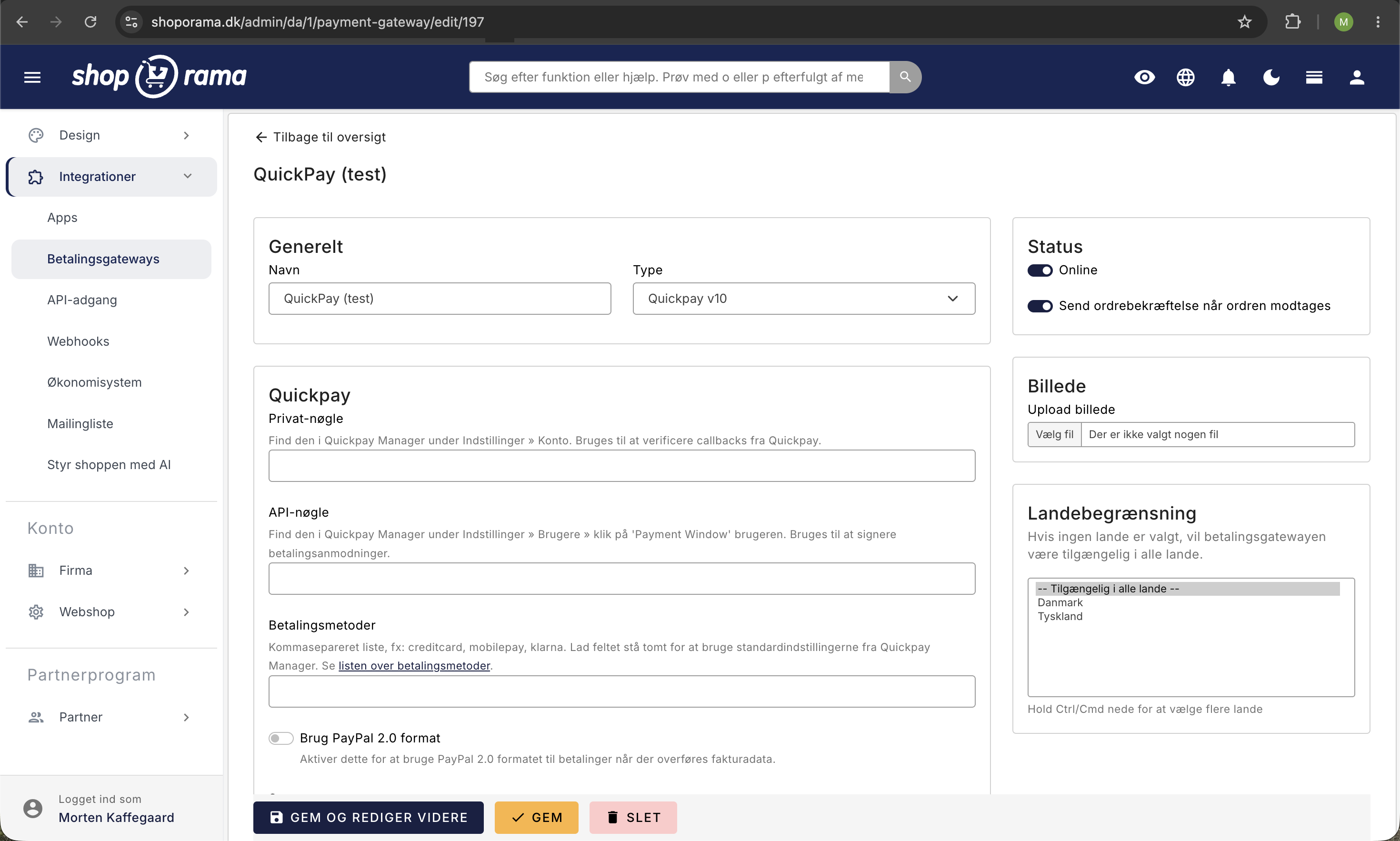
- Privat-nøgle. Din private key fra QuickPay (bruges til at verificere callbacks)
- API-nøgle. Din API user key fra QuickPay (bruges til capture, refund osv.)
- Betalingsmetoder. Kommasepareret liste over metoder, fx creditcard, mobilepay, apple-pay, klarna-payments m.fl. Se QuickPays liste over betalingsmetoder
- Sprog. Sproget på betalingssiden, fx da for dansk eller en for engelsk
- Branding. Valgfrit branding-ID fra QuickPay, hvis du har oprettet et branding-tema
- Text on statement. Tekst der vises på kundens kontoudtog (kun Clearhaus, max 22 tegn)
Indstillinger
- Hæv automatisk ved forsendelse. Beløbet hæves automatisk, når ordren markeres som sendt eller afhentet
- Tilføj fakturadata. Medsender ordredata til betalingsvinduet (påkrævet for Klarna og PayPal)
- Tilføj mobilnummer. Forudfylder kundens mobilnummer i MobilePay-vinduet
- Hent kundeadresse fra PayPal. Lader kunden vælge adresse direkte i PayPal, så adressen kommer retur til Shoporama efter betalingen
Flere betalingsmetoder
Vil du tilbyde flere betalingsmuligheder (fx både kortbetaling og MobilePay), opretter du blot flere betalingsgateways i Shoporama, én for hver type. Alle bruger samme QuickPay-konto, men med forskellige betalingsmetoder.
Eksempel:
- Gateway 1: "Kortbetaling" med metoden creditcard
- Gateway 2: "MobilePay" med metoden mobilepay
- Gateway 3: "Apple Pay" med metoden apple-pay
PayPal via QuickPay
PayPal er ved at udfase deres gamle checkout og flytter alle forretninger over på PayPal Payments (PPCP). Hvis du modtager PayPal via QuickPay, skal du ikke skifte til en ny gateway i Shoporama. Du opgraderer i stedet selve aftalen hos QuickPay, så betalinger fremover routes via PPCP. PayPal-kunder er ofte loyale gengangere med højere gennemsnitskurv, så en lukket PayPal-knap betyder mistet omsætning fra dag ét. Skiftet er en deadline-opgave.
Sådan kommer du i gang
- Log ind på QuickPay Manager og opret en PayPal Payments-aftale under indstillingerne for indløsere (acquirers). Følg QuickPays egen vejledning på skærmen.
- PayPal skal godkende aftalen, før den bliver aktiv. Kontakt PayPal hvis godkendelsen trækker ud.
- I Shoporama opretter du en selvstændig QuickPay-gateway dedikeret til PayPal. Lad Betalingsmetoder stå med præcis paypal. Selve routingen til PPCP styres af QuickPay, så der er ingen særskilt "ppcp"-værdi at sætte i Shoporama.
- Slå Tilføj fakturadata til på PayPal-gatewayen. Uden den sendes der ikke ordrelinjer og adresser med, og PayPal vil ofte afvise betalingen.
- Slå Hent kundeadresse fra PayPal til, så Shoporama får leverings- og fakturaadresse retur fra PayPal efter betaling.
Tip: Bland ikke paypal sammen med andre metoder (fx creditcard,paypal) i samme QuickPay-gateway. Opret PayPal som en selvstændig gateway. Ellers håndteres rabatter til PayPal ikke korrekt, og du risikerer afviste betalinger.
Toggle: Brug PayPal 2.0 format
Indstillingen Brug PayPal 2.0 format bliver kun aktiv hvis du samtidig har slået Tilføj fakturadata til og kun har paypal som betalingsmetode på gatewayen. Når den er slået til, sender Shoporama ikke de enkelte ordrelinjer med til PayPal. PayPal trækker i stedet blot ordrens samlede beløb. Det undgår en kendt fejl i PayPals nyere PPCP-integration, hvor betalinger med rabatkoder eller vouchers bliver afvist (status 422, "Rejected by acquirer"), fordi PayPal ikke længere accepterer negative rabat-linjer eller en linjeopdeling der ikke går præcist op.
Anbefaling: Modtager du PayPal via QuickPay og bruger rabatkoder, vouchers eller kampagnerabatter, så slå indstillingen til. Det er i dag den eneste måde at undgå at rabatterede PayPal-ordrer bliver afvist. Den eneste forskel er, at PayPals kvittering viser ordrens samlede beløb i stedet for de enkelte varelinjer. Selve ordren i Shoporama er uændret med fuld varespecifikation.
Tjekliste når du skifter fra legacy PayPal til PPCP
- PayPal Payments-aftalen er oprettet i QuickPay og godkendt af PayPal.
- PayPal er oprettet som en selvstændig QuickPay-gateway i Shoporama med paypal som eneste betalingsmetode.
- Tilføj fakturadata og Hent kundeadresse fra PayPal er slået til.
- Lav en rigtig minimumsbetaling med dit eget PayPal-login (ikke kun sandbox) og bekræft at ordren lander korrekt i Shoporama, inkl. adresse fra PayPal.
- Refundér test-betalingen fra ordren og kontrollér at refunderingen går igennem hos PayPal.
- Tjek at ordrebekræftelses-mailen viser PayPal som betalingsmetode.
- Tjek at posteringen bogføres korrekt i e-conomic, Dinero eller Billy, hvis du bruger en regnskabsintegration.
- Test hele flowet på mobil. PayPal-konverteringen er typisk højest dér.
- Sluk først den gamle PayPal-integration når den nye er bekræftet live.
Tip: Får du fejlen status 40003 på PPCP-betalinger, så kontrollér først at gatewayen bruger API-nøglen fra API user og ikke fra Payment Window. Hjælper det ikke, så skriv til support@shoporama.dk, så kigger vi med.
3D Secure
Ønsker du at aktivere 3D Secure, tilføjer du 3d- foran betalingsmetoden. Fx ændrer du creditcard til 3d-creditcard. 3D Secure er et krav fra de fleste kortudstedere og reducerer svindel.
Understøttede funktioner
- Kortbetaling. Visa, Mastercard, Dankort, JCB, Diners og flere
- MobilePay. Via MobilePay Online eller Vipps MobilePay. Se MobilePay på din webshop
- Apple Pay. Kræver aktivering i QuickPay og Clearhaus
- PayPal Payments (PPCP). Den nye PayPal-løsning der routes via QuickPay
- Klarna. Kræver at fakturadata medsendes
- Betalingslinks. Send betalingslinks til kunder fra ordresiden
- Capture. Hæv betalingen manuelt eller automatisk ved forsendelse
- Refund. Refundér helt eller delvist direkte fra Shoporama
- Cancel. Annullér en betaling, der endnu ikke er hævet
- Abonnementer. Understøtter recurring betalinger
- REST API. Opret betalingslinks via Shoporamas REST API
Sikkerhed
Alle callbacks fra QuickPay verificeres med en checksum baseret på din private key. Beløbet i callbacket sammenlignes med ordrebeløbet, så der ikke kan snydes med betalte beløb.
Kunderne får "Der opstod en fejl" i stedet for betalingsvinduet
Bliver kunden sendt til en side med teksten "Der opstod en fejl", når de trykker på betal-knappen, så klik på klokken øverst i Shoporama-admin og åbn Notifikationer. Står der en besked fra QuickPay om, at API-nøglen ikke har rettighed til at oprette betalingsvinduet, bruger din gateway nøglen fra Payment Window-brugeren.
Sådan retter du det:
- Log ind i QuickPay Manager og gå til Settings » Integration
- Klik Api key ud for API user og kopiér nøglen
- Indsæt den i feltet API-nøgle på din QuickPay-gateway i Shoporama, og gem
- Læg en testordre i shoppen og bekræft, at betalingsvinduet nu åbner
Fejlen rammer typisk allerede ved den første betaling i en ny shop, fordi Payment Window-brugeren på nyere QuickPay-konti ikke længere må oprette betalingsvinduer. Ordrerne bliver oprettet i Shoporama undervejs og står som ubetalte, så når nøglen er rettet, kan du sende de berørte kunder et betalingslink fra ordresiden.
Ofte stillede spørgsmål
Skal jeg bruge nøglen fra "API user" eller "Payment Window"?
Brug altid API user. Begge nøgler ligger under Settings » Integration i QuickPay Manager, og de ligner hinanden, men Payment Window-brugeren har på nyere QuickPay-konti ikke rettighed til at oprette betalingsvinduer. Bruger du den, kan Shoporama godt oprette selve betalingen, men kunden når aldrig frem til betalingssiden. Nøglen fra API user virker på både nye og gamle konti, og den bruges også til at hæve og refundere beløb.
Stopper PayPal med at virke i min shop, hvis jeg ikke gør noget?
Ja, på et tidspunkt. PayPal udfaser den gamle checkout. Hvis du modtager PayPal via QuickPay, sørger QuickPay for at flytte dig over til PayPal Payments (PPCP). Du skal selv kontakte QuickPay og bekræfte at aftalen bliver opgraderet. I selve Shoporama-admin skal du ikke ændre noget i nuværende opsætning.
Hvordan ved jeg, om vi allerede er skiftet til PPCP?
Log ind på quickpay.net og gå ind under indstillinger for indløsere (acquirers). Her kan du se, om PayPal-aftalen står som PayPal Payments (det nye) eller en gammel type. Er du i tvivl, så skriv til QuickPay-support. Kunden mærker ingen forskel i checkout, så du kan ikke se det udefra i shoppen.
Skal jeg ændre "Betalingsmetoder"-feltet til paypal,ppcp eller lignende?
Nej. Lad feltet stå med præcis paypal. Der findes ikke nogen "ppcp"-værdi i Shoporama. Routingen til PPCP styres helt på QuickPay-siden, så snart din PayPal Payments-aftale er aktiveret. Du skal altså ikke pille ved feltet.
Hvad gør "Brug PayPal 2.0 format" reelt, og skal jeg slå den til?
Indstillingen styrer hvordan ordren sendes til PayPal. Når den er slået til, sender Shoporama ikke de enkelte varelinjer med, og PayPal trækker kun ordrens samlede beløb. Det er nødvendigt, fordi PayPals nyere PPCP-integration afviser betalinger med rabatkoder eller vouchers, hvis der medsendes en linjeopdeling (PayPal tillader ikke længere negative rabat-linjer). Den er kun aktiv hvis "Tilføj fakturadata" er slået til OG du kun har paypal som betalingsmetode på gatewayen. Anbefaling: Bruger du rabatkoder eller vouchers på dine PayPal-ordrer, så slå den til.
Kan jeg lægge PayPal sammen med kortbetaling i samme QuickPay-gateway?
Lad være med det. Opret en selvstændig QuickPay-gateway til PayPal med paypal som eneste betalingsmetode. Hvis du blander, håndteres rabatter til PayPal ikke korrekt, og du risikerer afviste betalinger. Det er også nemmere at fejlsøge når PayPal står for sig.
Påvirker skiftet til PPCP min bogføring eller momshåndtering?
Nej. Pengeflowet er det samme som hidtil: QuickPay afregner samlet med din shop, ikke PayPal direkte. Moms, kontoplan og bogføring ændrer sig ikke. Bruger du e-conomic, Dinero eller Billy, bogføres ordren automatisk som før. Skiftet er rent teknisk.
Ser kunden noget anderledes i checkout efter skiftet?
Nej, ikke i selve Shoporama-checkout. Kunden vælger PayPal som hidtil og får samme PayPal-knap. Forskellen sker på PayPal-siden, hvor kunden nu kan møde flere betalingsmuligheder via PayPals "smart payment buttons". Det styres af QuickPay og PayPal, så du behøver ikke opdatere noget i tema eller marketing.
Hvad gør jeg, hvis en kunde melder at PayPal ikke virker?
Tjek først ordrelisten i Shoporama-admin for fejlede ordrer fra den kunde. Lav derefter en testbetaling på et lille beløb med dit eget PayPal-login, og refundér den bagefter. Virker testen, er fejlen sandsynligvis hos kunden. Fejler testen også, så skriv til support@shoporama.dk med ordrenummer og fejlbesked.
Hjælp
Har du brug for hjælp til opsætningen, er du velkommen til at kontakte os på support@shoporama.dk.
Related articles
3D Secure error in QuickPay
Solution to the '3D secure enrollment failed' error in QuickPay and what you can do.
3D Secure on QuickPay
Guide to enabling 3D Secure (SCA) on your QuickPay integration in Shoporama.
Setting up Nets Easy
Guide to setting up Nets Easy (Nexi) as a payment gateway on your Shoporama online shop.
How do I receive payment online?
What does it take to accept credit card or MobilePay payments online? Read about acquiring agreements, payment gateways and alternative payment...
Mollie payment gateway
Learn how to set up Mollie as a payment gateway in Shoporama. Mollie supports iDEAL, credit cards, Klarna, PayPal, Apple Pay, Bancontact and many...
Set up Klarna as payment method
Learn how to set up Klarna as a payment method in your Shoporama webshop.
Related features
Webshop with Dankort
Create a webshop with Dankort as a payment method. How to get started on Shoporama via QuickPay, ePay, Mollie or Stripe - fees and setup explained.
Payment gateway
A payment gateway handles the secure transaction process between your online shop and the bank. Learn about pricing, popular solutions in the UK...
PSP - Payment Service Provider
A PSP handles online payments for webshops. Read about payment gateways, QuickPay, Stripe and payment solutions in Denmark.
Webshop with Anyday
Offer Anyday in your online shop and let customers pay in 4 free installments. How to set up Anyday on Shoporama via QuickPay.
Webshop with ViaBill
Offer ViaBill in your online shop and let customers pay in installments without fees. How to set up ViaBill on Shoporama via QuickPay.
Payment: acquirer, gateway, and how long it takes
Understand the difference between a merchant and a payment gateway, apply for a merchant agreement, choose Stripe or Quickpay, and test card...
Subscription webshop
Create a subscription online store on Shoporama. Offer monthly or weekly deliveries, let the customer take control and get stable revenue every month.
Webshop with MobilePay
Lav en webshop med MobilePay og giv kunderne et hurtigere checkout. Sådan opsætter du MobilePay på Shoporama via QuickPay.
13+ payment gateways for your webshop
Choose from OnPay, Quickpay, Stripe, Mollie, Nets Easy, ePay and many more. Automatic capture, country restrictions and partial payment.