Setting up Nets Easy
Guide to setting up Nets Easy (Nexi) as a payment gateway on your Shoporama online shop.
Nets Easy (now part of the Nexi Group) is a modern payment solution that provides your customers with a fast and easy checkout experience. Nets Easy supports card payments, MobilePay, Klarna, and much more.
Create a Nets Easy account
- Go to the Nets Easy Portal and create an account
- Complete the verification process
- Nets Easy functions as both a gateway and an acquirer, so you don’t need a separate acquiring agreement
Find your keys
You’ll need two keys from Nets Easy:
- Log in to the Nets Easy Portal
- Go to Integration
- Find your Checkout key (used to open the payment window)
- Find your Secret Key (used to verify payments)
Setup in Shoporama
- Log in to Shoporama and go to Integrations → Payment Gateways
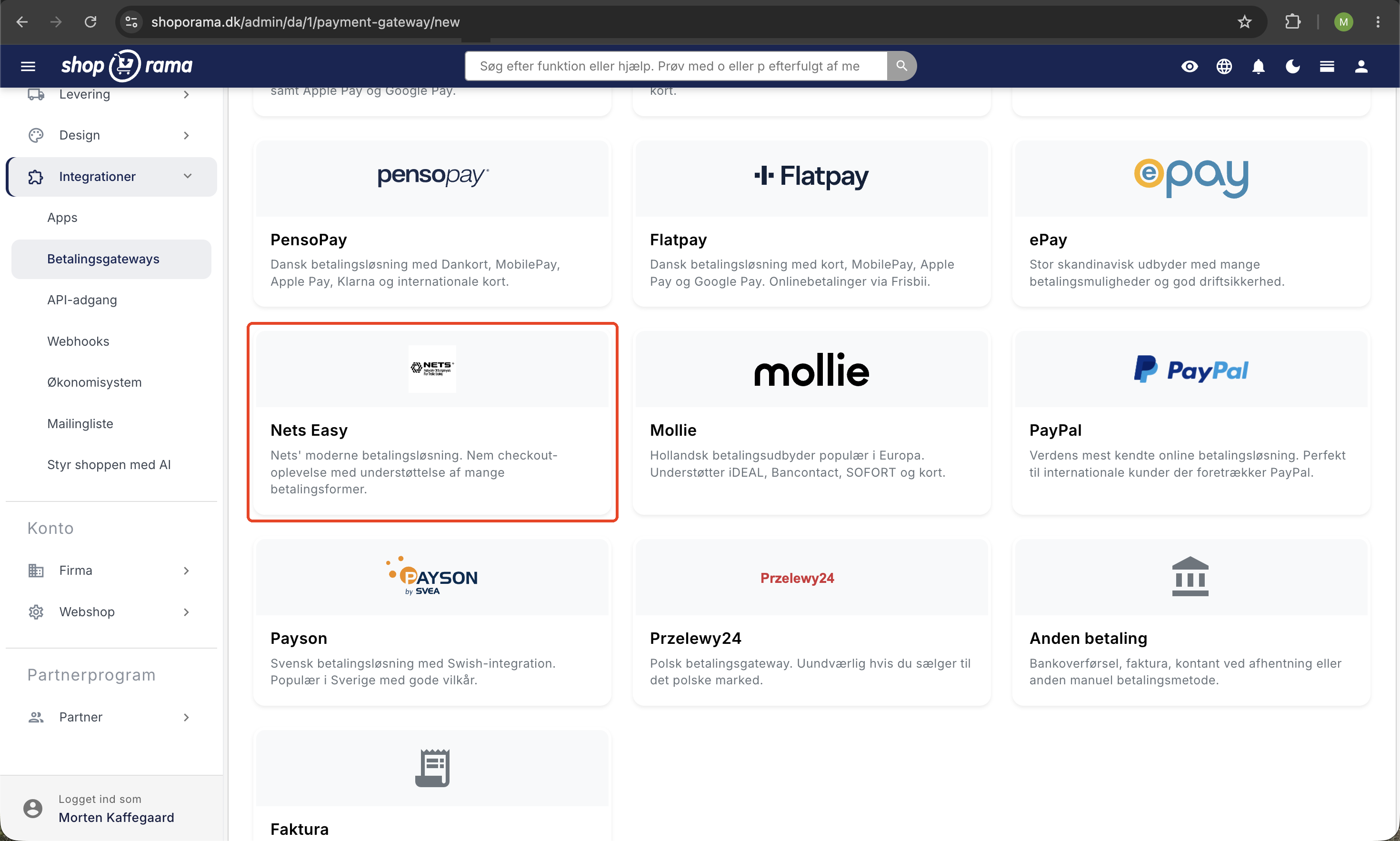
- Click Create New Payment Gateway and select Nets Easy
- Give your gateway a name, e.g., "Card Payment"
- Click Save
Configuration
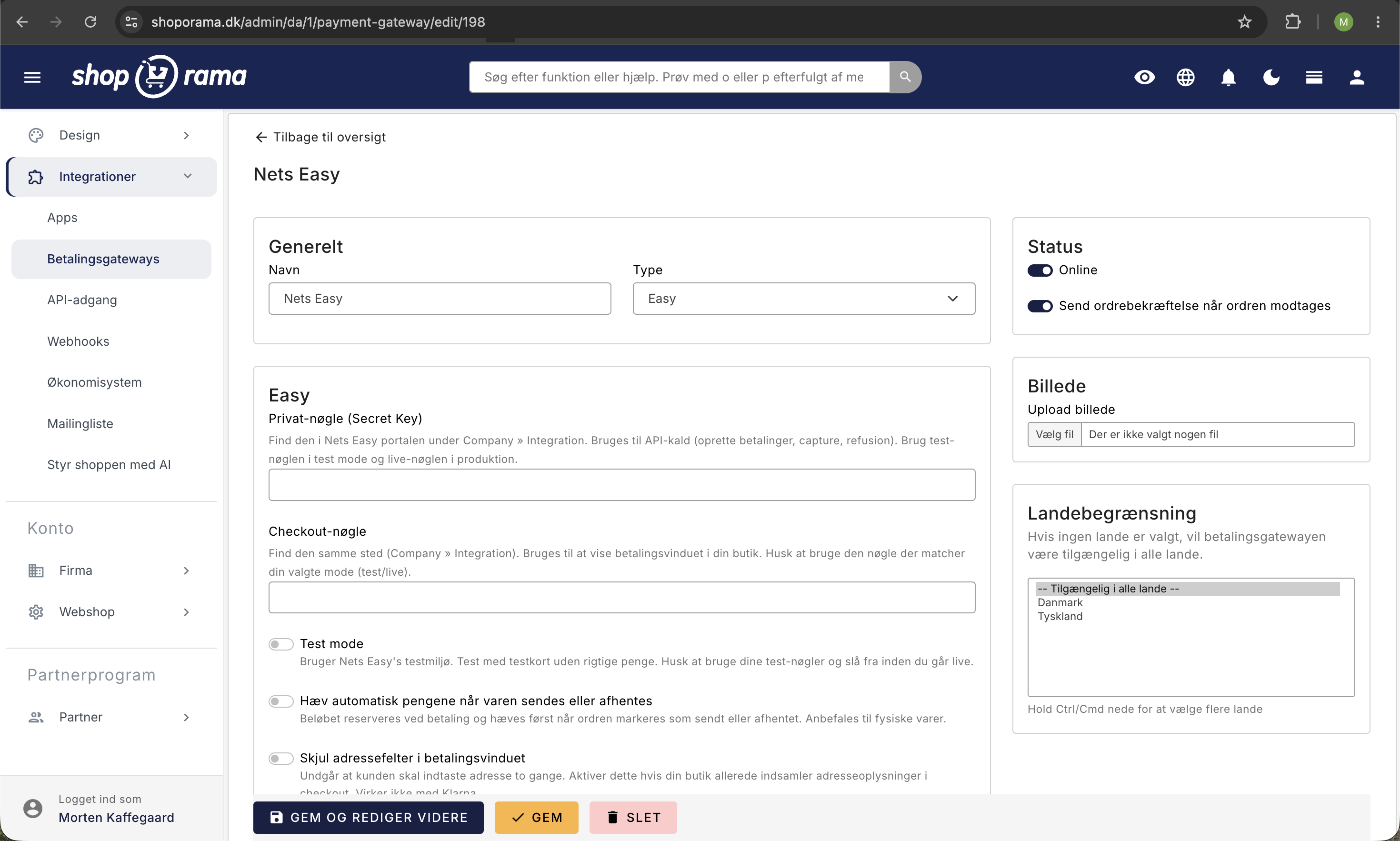
Fill in the following fields:
- Private key — your Secret key from the Nets Easy Portal
- Checkout key — your checkout key from the Nets Easy Portal
Settings
- Test mode — enable this to test payments with test cards without charging real money. Remember to use the test keys from the Nets Easy Portal (not the live keys)
- Automatically charge upon shipment — the amount is automatically charged when the order is marked as shipped or picked up
- Hide address fields in the payment window — prevents the customer from having to enter their address twice (does not work with Klarna)
Supported features
- Card payments — Visa, Mastercard, Dankort, and more
- MobilePay — available as a payment method in the Nets Easy window
- Klarna — pay later or in installments
- Swish — Swedish payment method
- Capture — process the payment manually or automatically upon shipment
- Refund — issue a full or partial refund directly from Shoporama
- Cancel — cancel a payment that has not yet been collected
Payment Methods
Nets Easy handles the display of payment methods in the payment window on its own. You do not need to configure individual methods in Shoporama—instead, you enable the desired methods directly in the Nets Easy Portal.
Security
All payments are verified server-side via the Nets Easy API. Shoporama checks the payment status directly with Nets Easy before marking an order as paid.
Troubleshooting
The most common issue is that the customer is redirected from the cart, but the Nets Easy payment window never opens. Nets rejects the payment transaction, and your store cannot redirect the customer. Below, we’ll go over the typical causes.
The payment window does not open (status 401)
If your customers aren’t redirected to the payment window, it’s usually because Nets rejects the payment creation with status 401. In the Shoporama admin panel, you’ll see a notice under Settings (among your notifications) with the text:
Received status 401. Check that your account is live with Easy
This message means that Nets has rejected the request, even though your keys may have been entered correctly. There are two typical causes.
Reason 1: The account is not yet activated (live)
Even if your agreement with Nets has been approved, your account isn’t necessarily activated right away. It can take some time—in some cases up to about 48 hours—from the time the agreement is approved until the account goes live with Nets. As long as the account isn’t live, Nets will reject payments with status 401. This is a very common reason, and it resolves itself as soon as Nets activates your account.
- Log in to Nets/Nexi and check whether the account is marked as live or active.
- If the account is not yet live, you must wait for it to be activated.
- Contact Nets/Nexi if more than approximately 48 hours have passed since the agreement was approved.
- Once the account is live, payments will work automatically without you needing to change anything in Shoporama.
Tip: If you’ve just set up your agreement, wait until the account is confirmed as live with Nets before troubleshooting further. In most cases, status 401 resolves itself once the account is activated.
Reason 2: The keys do not match Test mode
Another common cause of status 401 is that your keys do not match the selected environment. Nets has two sets of keys: one for testing and one for production (live). If you use test keys while Test Mode is turned off, or live keys while Test Mode is turned on, Nets will reject the request. Both your Checkout key and your Secret key must come from the same environment as the one you’ve selected in Shoporama.
- If Test mode is enabled, you must use the test keys from Nets.
- If Test Mode is turned off (production), you must use the live keys from Nets.
- Never mix test and live keys. Both keys must come from the same environment.
- If necessary, copy the keys again from the Nets portal to ensure they are entered without spaces or missing characters.
Frequently Asked Questions
Do I need a separate acquiring agreement as well?
No. Nets Easy functions as both a gateway and an acquirer, so you do not need a separate acquiring agreement. You set up the agreement in one place with Nets Easy (Nexi), and that covers both the payment window and the acquiring. This makes the setup simpler than most other solutions.
The payment window doesn’t open when the customer is ready to pay. What’s wrong?
This is almost always due to a 401 status, which means one of two things: either your Nets Easy account isn’t activated as live yet, or the keys are from the wrong environment. A newly created account can take up to approximately 48 hours to go live after approval. Also, check that Test mode and the keys match. Admin displays a notice if something is wrong. See the Troubleshooting section above.
How do I determine whether customers can pay with MobilePay or Klarna?
Nets Easy handles this automatically. The payment methods displayed in the window (card, MobilePay, Klarna, Swish) are enabled in your Nets Easy Portal, not in Shoporama. If a method is missing, you’ll need to enable it in Nets Easy. Afterward, it will automatically appear in the payment window without any changes in Shoporama.
When is the money charged to the customer’s card?
It depends on your settings. If you enable “Automatically Debit on Shipment,” the amount is automatically debited when the order is marked as shipped or picked up. If this feature is disabled, you’ll need to manually debit the amount from the order yourself. Many choose the automatic option so that accounting and cash flow follow the shipments.
Can I issue a refund or cancel a payment directly in Shoporama?
Yes. Both refunds and cancellations can be processed directly from the order in Shoporama, so you don’t need to log in to the Nets Easy Portal to do so. Cancel before the amount is debited, and issue a refund once it has already been debited. This makes it easy to handle returns and incorrect orders from a single place.
How do I test payments without using real money?
Turn on Test mode and enter your test keys. Then you can go through the entire purchase flow without any real money being deducted. When you’re ready to go live, turn off Test mode and switch to your live keys. Remember that test and live keys must not be mixed; otherwise, the payment window will not open.
Help
If you need help with setup, feel free to contact us at support@shoporama.dk.
Related articles
Setting up OnPay
Step-by-step guide to setting up OnPay as a payment gateway on your Shoporama online store. Supports payment links, capture, refund and cancel.
Setting up PensoPay
Step-by-step guide to setting up PensoPay as a payment gateway on your Shoporama online shop.
Setting up QuickPay
Guide to setting up QuickPay as a payment gateway on your Shoporama online shop. Supports Dankort, MobilePay, Visa, Mastercard and many more.
Related features
Payment gateway
A payment gateway handles the secure transaction process between your online shop and the bank. Learn about pricing, popular solutions in the UK...
13+ payment gateways for your webshop
Choose from OnPay, Quickpay, Stripe, Mollie, Nets Easy, ePay and many more. Automatic capture, country restrictions and partial payment.