Get stars on Google Shopping with product reviews
Here's how to display your product reviews as stars in Google Shopping using Shoporama's built-in review feed: activation, Google requirements, and registration in Merchant Center.
The stars next to your products in Google Shopping are based on the reviews your customers have already given you. With Shoporama’s built-in review feed, you can send your approved product reviews to Google so that star ratings can appear on your Shopping ads and in the free product listings. This adds extra value to the work you’re already putting into your store.
When a potential customer scrolls through Shopping ads and product listings, their eye is naturally drawn to the products displaying stars. It’s a quick signal of trust—showing that others have bought the item and are happy with it—before the customer has even clicked. A higher click-through rate can help make your ad spend more effective, because more of the people who see the ad will choose your store.
Note: The feed is built into Shoporama and works regardless of which theme you use. You don’t need to install anything or edit your theme.
What are stars in Google Shopping?
Google calls them Product Ratings. These are the yellow stars and the total number of reviews that appear alongside your products in Google Shopping and in Shopping ads. The stars come from a separate feed that you submit to Google Merchant Center, where Google matches your reviews to the correct products.
It’s important to keep three things separate because they are different channels:
- Reviews on your own product pages: the stars your visitors see inside your online store. You manage this in Product Reviews.
- Stars in Google’s organic search results: These come from structured data on your pages. Learn more in Implement Structured Data.
- Stars in Google Shopping and Shopping ads: You get these through this review feed. That’s what this article is about.
You can certainly have one without the other, and the three elements complement each other nicely.
How to enable the review feed
You should already be collecting product reviews in your store. If you haven’t started yet, begin with Product Reviews. Then:
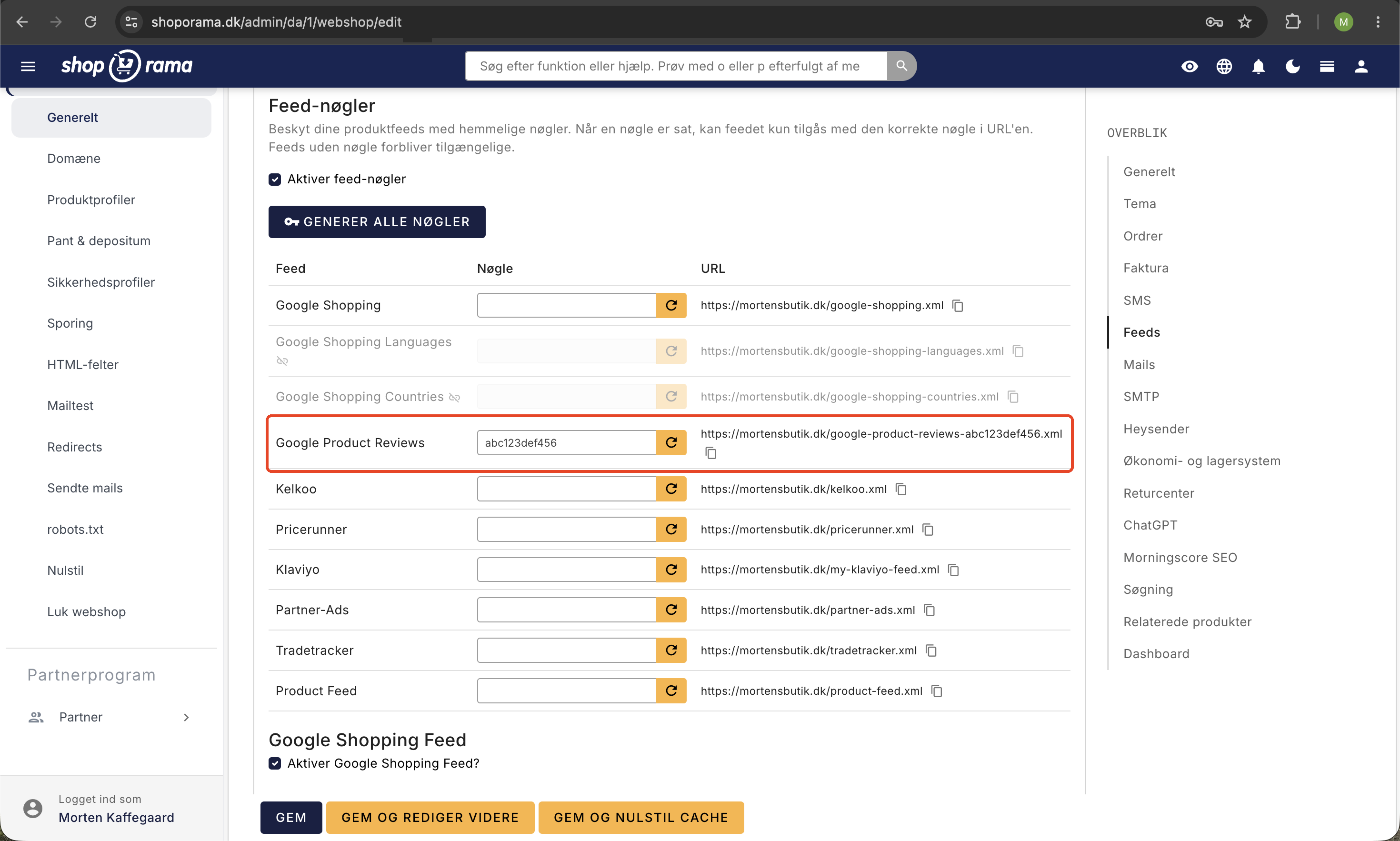
- Go to Settings → Online Store and open the Feeds tab.
- Find the Google Product Reviews section and check the box next to Enable Google Product Reviews feed.
- Save. Your feed address will now appear on the page and look like this: dit-domæne.dk/google-product-reviews.xml
If you don’t want the address to be publicly available, you can add an optional feed key on the same tab. This gives the feed a hidden address where the key is included in the link itself, and that’s the full address you’ll use in the next step.
Register the feed in Google Merchant Center
The feed is not automatically sent to Google. You must register the address yourself once:
- Sign in to Google Merchant Center.
- Find “Product reviews.” If you haven’t joined the program yet, you’ll first need to apply to participate with Google.
- Create a new data source and enter your feed address from Shoporama.
- Save. Google will then retrieve the feed at regular intervals, typically once a day.
If you have multiple online stores, each store has its own feed address, which you must register separately in that store’s Merchant Center. If you’re already running the standard product feed, we recommend reading “Set Up Google Shopping Feed.”
Google’s requirements for displaying stars
- At least 50 reviews: Google will only display star ratings once you have at least 50 reviews across all your products.
- Product identifiers: Google prefers to match reviews to products using GTIN (barcode), but can also use MPN along with the brand or SKU. The more of these you provide for your products, the more reliable the match will be.
- All reviews included: Google wants both good and bad reviews. So you can’t just submit the positive ones.
- About the product only: A product review must be about the item itself, not about shipping, customer service, or price. Reviews that are solely about shipping or service do not comply with Google’s policy.
Which reviews are included in the feed?
Shoporama automatically ensures that the feed follows Google’s official format and contains only reviews that you’re allowed and should submit:
- Only approved reviews with written text are included. Ratings without comments and reviews you haven’t approved yet are excluded.
- If a review is linked to an order, it is automatically marked as a verified purchase. This tells Google that the reviewer has actually purchased the item.
- We display the reviewer’s name. If it’s missing, we’ll use only the first name from the order for privacy reasons; otherwise, the review will appear as “Anonymous.”
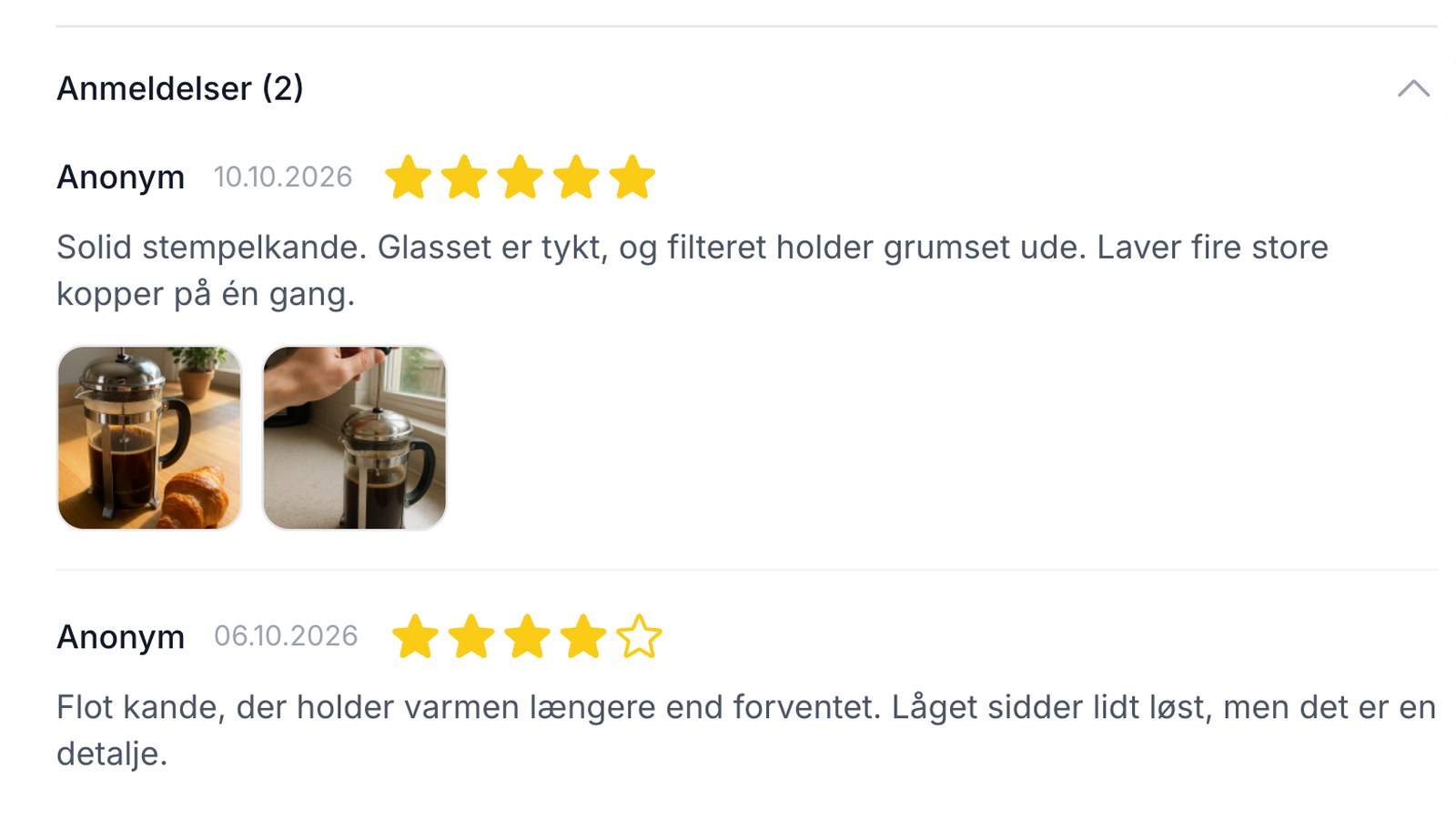
- If the customer has attached images to the review, or if you’ve added images yourself, they’ll be included in the feed so Google can display them alongside the review. If you’ve turned off “Show images in the store” for the review, the images won’t be sent to Google either. Google decides for itself whether and when to display the images. Read more about images in Product Reviews.
For active stores, the feed is automatically refreshed at regular intervals so that it’s always up to date with your latest approved reviews. You don’t need to do anything on an ongoing basis.
The stars aren’t showing up—what should I do?
It’s completely normal for it to take some time before the stars appear. Check the following:
- Do you have at least 50 approved reviews across your products?
- Is the feed registered under "Product Reviews" in Merchant Center, and is Google fetching it without errors?
- Do your products have a GTIN, MPN with brand, or SKU so Google can match the reviews?
- Google typically takes a few days to process and approve a new review feed before the stars start appearing.
Frequently Asked Questions
I’m not very tech-savvy. What exactly do I need to do?
You enable the feature under Settings → Online Store → the Feeds tab → Google Product Reviews. You’ll then receive a feed URL, which you submit to Google Merchant Center under “Product reviews.” Google requires at least 50 approved reviews before the stars appear. The rest takes care of itself.
Does this work no matter which theme I use?
Yes. The feed is built into Shoporama and works regardless of the theme. If you have multiple online stores, each store has its own feed address, which you register separately in that store’s Merchant Center.
Why can’t I see stars even though the feed has been submitted?
Google only displays stars once you have at least 50 reviews across all products. In addition, Google must be able to match the review to the product via GTIN, MPN with brand, or SKU. If you’re missing a GTIN, the match becomes less reliable, and fewer stars will be displayed.
We occasionally receive criticism about delivery times. Are those reviews also sent to Google?
Google wants to include all reviews, even the critical ones, so you can’t just send the positive ones. However, a product review must be about the product itself, not about delivery, service, or price. Reviews that focus solely on shipping or customer service do not comply with Google’s policy.
Aren’t these just the same stars I already see in Google’s search results?
No, these are three different things. Reviews on your own product pages are on your online store. Stars in Google’s organic search results come from structured data on the page. This feed provides stars on Google Shopping and your Shopping ads. You can have one without the other.
Not all of our products have barcodes. Does that mean we won’t get any stars at all?
Google prefers to match using GTIN, but can also use MPN along with the brand name or SKU. Without a GTIN, matching becomes less reliable, so the more product identifiers you provide, the better. Be sure to include a GTIN for products that have a barcode.
Can I protect the feed address?
Yes. You can add an optional feed key so that the feed has a secret address. You submit the full address—including the key—to Merchant Center. Without a key, the feed is publicly accessible.
How does Google know that a review is from a real customer?
When a review is linked to an order, it is automatically marked as a verified purchase in the feed. Only approved reviews with text are included, so empty ratings without a comment are not included.
If you have any questions about the setup, feel free to email support@shoporama.dk at any time.
Related articles
Product reviews
Learn how to use product reviews in Shoporama. Automatically collect customer reviews and photos, moderate them, and display star ratings on your...
Set Up a Google Shopping Feed
Guide to Setting Up a Google Shopping Feed in Shoporama: categories, custom labels, product IDs, and catalog matching; feeds by country with the...
Product IDs and Catalog Match: How to Ensure Your Ads Match Your Product Feed
An explanation of which product ID Shoporama’s tracking sends, why it always matches the Google Shopping feed, what “catalog match” means for your...
Build your own feeds
Guide to building your own product feeds in CSV, XML or JSON format with Shoporama's custom feed feature.
Related features
Reviews with photos: Let customers show the product as it is
New on Shoporama: Customers can attach up to 5 photos to their reviews. You'll see the photos before they're published, and you can add, delete, or...
Social proof
Social proof is the principle that customers follow the actions of others. Learn about reviews, ratings, trustmarks and other forms of social proof...
Online Store with Trustmade
Connect your Shoporama online store to Trustmade. CVR verification, verified reviews from actual orders, and automatic invitations. Install with...