Set Up a Google Shopping Feed
Guide to Setting Up a Google Shopping Feed in Shoporama: categories, custom labels, product IDs, and catalog matching; feeds by country with the country's language and currency; and country- and language-specific feeds.
The Google Shopping Feed is built into Shoporama and updates completely automatically. Below, you can read about how to set it up and customize it, as well as what it supports. If you need a feed in a different format, you can also build your own feeds.
Assign a Google category to your products
To get the most out of Google Shopping, your products should have a Google category. This is Google’s own list of product types, and it helps Google display your items in the right search results. You can view the full list on Google, but you don’t need to look anything up. You can search directly in the field in Shoporama.
You can assign a Google category to your products in two ways:
- At the category level: Select a Google category from your own categories. All products that have that category as their main category will automatically inherit it. This is the easiest and fastest way, since your products likely already have a main category.
- On the individual product: If individual products need a Google category different from their main category, select it directly on the product.
Here’s how to do it at the category level:
- Go to Content → Categories.
- Edit the category you want to assign a Google category to.
- Find the Google Category field under Search Engine Fields, and type a keyword directly into the field, such as “coffee” or “dresses.”
- Select the category from the list that best fits. The list shows the category name, its path, and the Google ID.
- Click Save on the category.
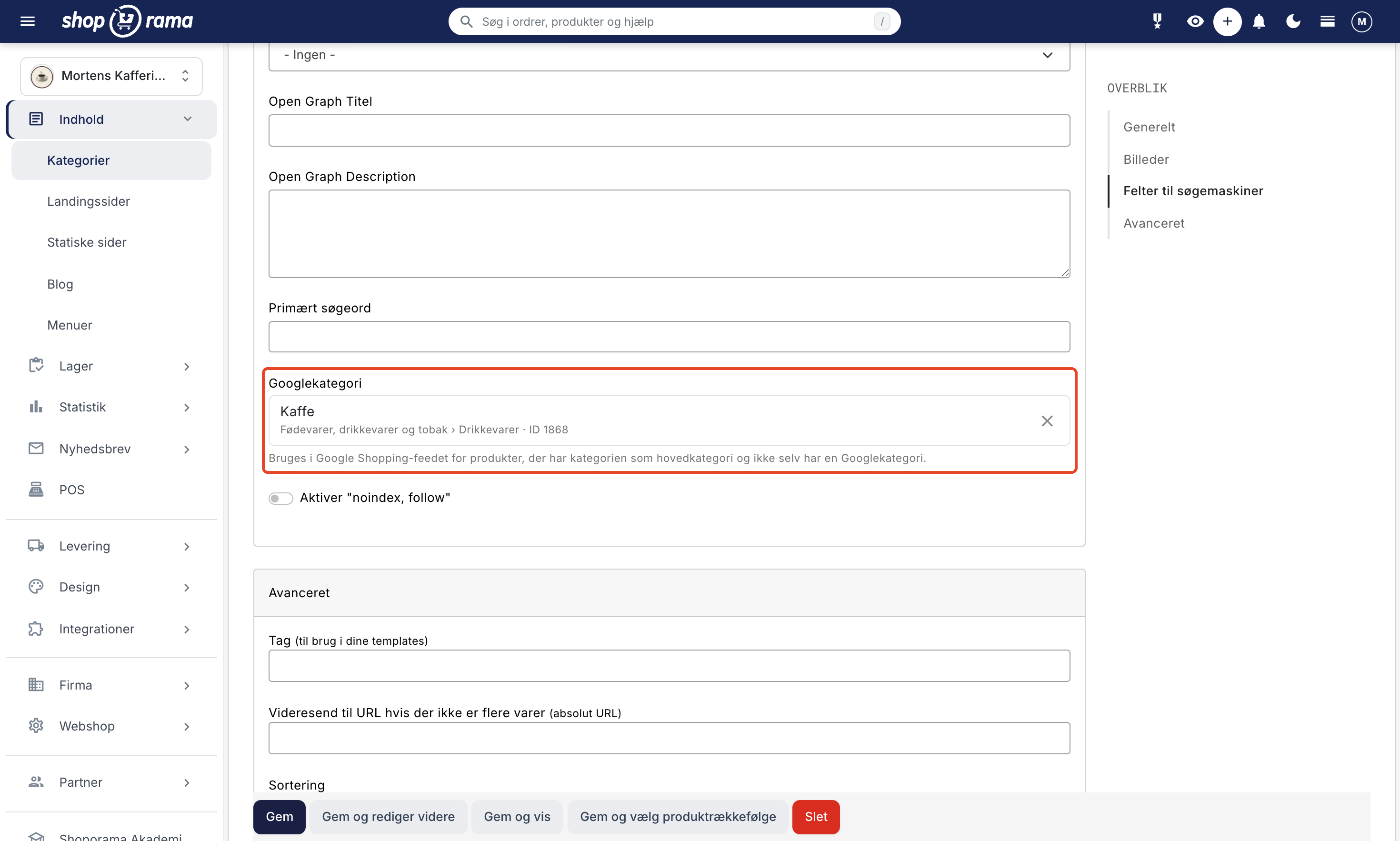
Here’s how to do it for a product:
- Go to Products and edit the product you want to assign a Google category to.
- Expand the Product Feeds tab.
- Type a keyword in the Google Category field. A new window won’t open; the results appear right below the field.
- Click the category that best fits. You can also use the arrow keys and Enter; pressing Esc closes the list.
- Click Save on the product.

To change the category, click the selected category and search again. The checkmark removes it. Category names are displayed in the language you use for the admin interface, but the ID is the same in all languages, and it is the ID that is sent to Google. If you’ve previously entered an ID or text in the field, the value is retained: an ID is displayed along with the category name, and any existing free text is displayed as-is.
Note: If the product has its own Google category, that category is used in the feed. If you leave the field blank for the product, the Google category from the product’s main category is used. You can read more about IDs in Google Shopping Category IDs for Products.
Activate your Shopping feed
Now all you need to do is activate your feed. Here’s how:
- Click Webshop in the left-hand menu, then select General
- Click on " Feeds " in the "Overview" menu on the right, or scroll down to the "Feeds" section
- Check the box next to “Enable Google Shopping Feed?”
- If you want your best-selling products marked as “bestsellers” with a label, you can select a number. If you enter 30, we’ll mark the 30 best-selling products from the past 24 months.
- If you only want products with a specific markup in your feed, you can fill in the field that says “Include only products where the markup is at least.” Here, you must enter the amount in the store’s currency (not as a percentage). For example, enter 30 if you want a markup of 30 on the product. This requires that you have entered the cost price for your products.
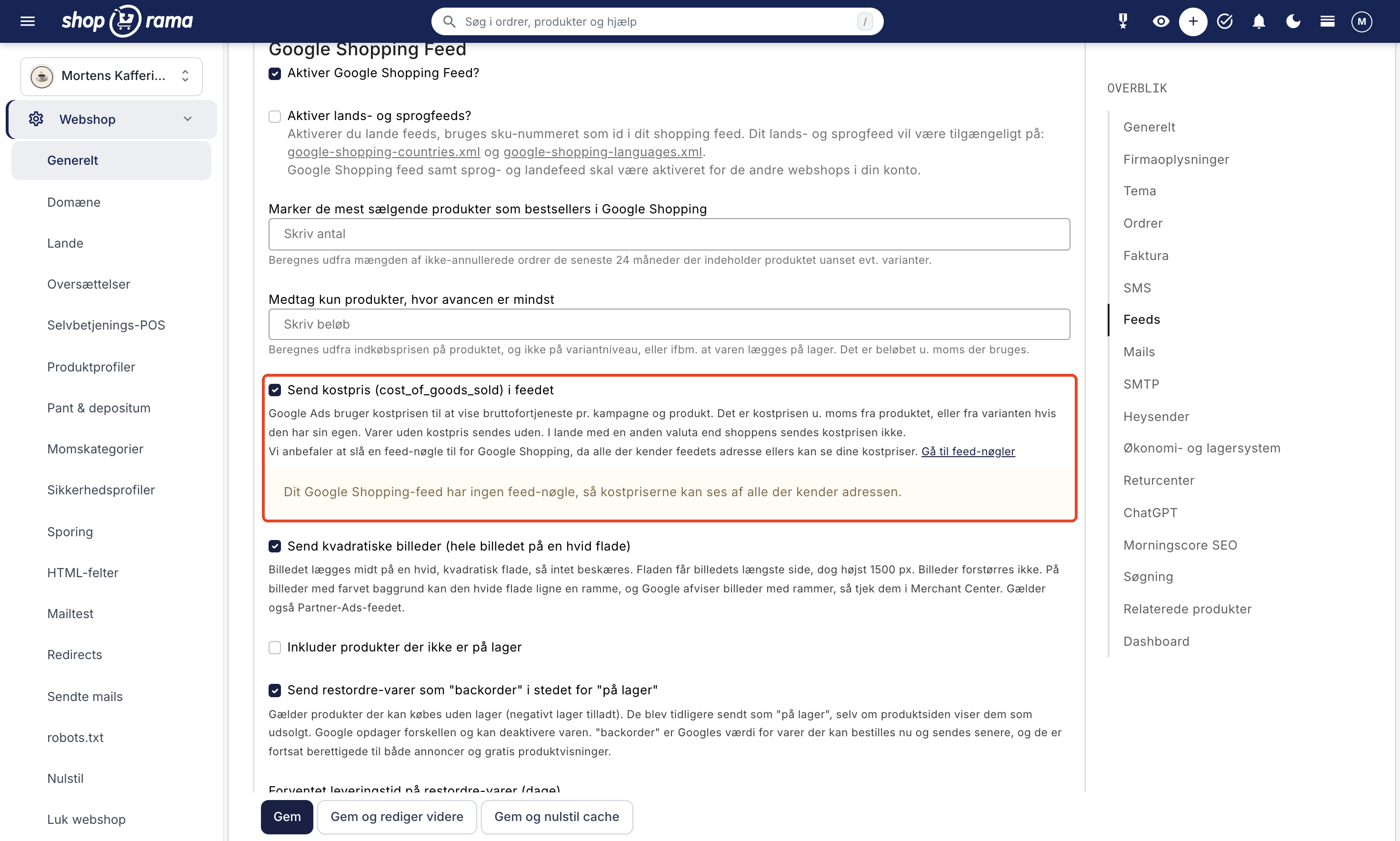
- If you want to see gross profit in Google Ads, you can check the box next to “Send cost of goods sold (cost_of_goods_sold) in the feed.” Read about this in the section “Send cost of goods sold to Google Ads ” below before enabling it.
- If you want the entire image to be displayed when your images appear as squares, you can check the box next to “Send square images (entire image on a white background).” Read about this in the “Send square images ” section below.
- Click “Save.”
Once you’ve saved, you’ll find the address of your feed at the bottom of the section, after the text “If you enable the Google Shopping Feed, you can find your feed at:”.
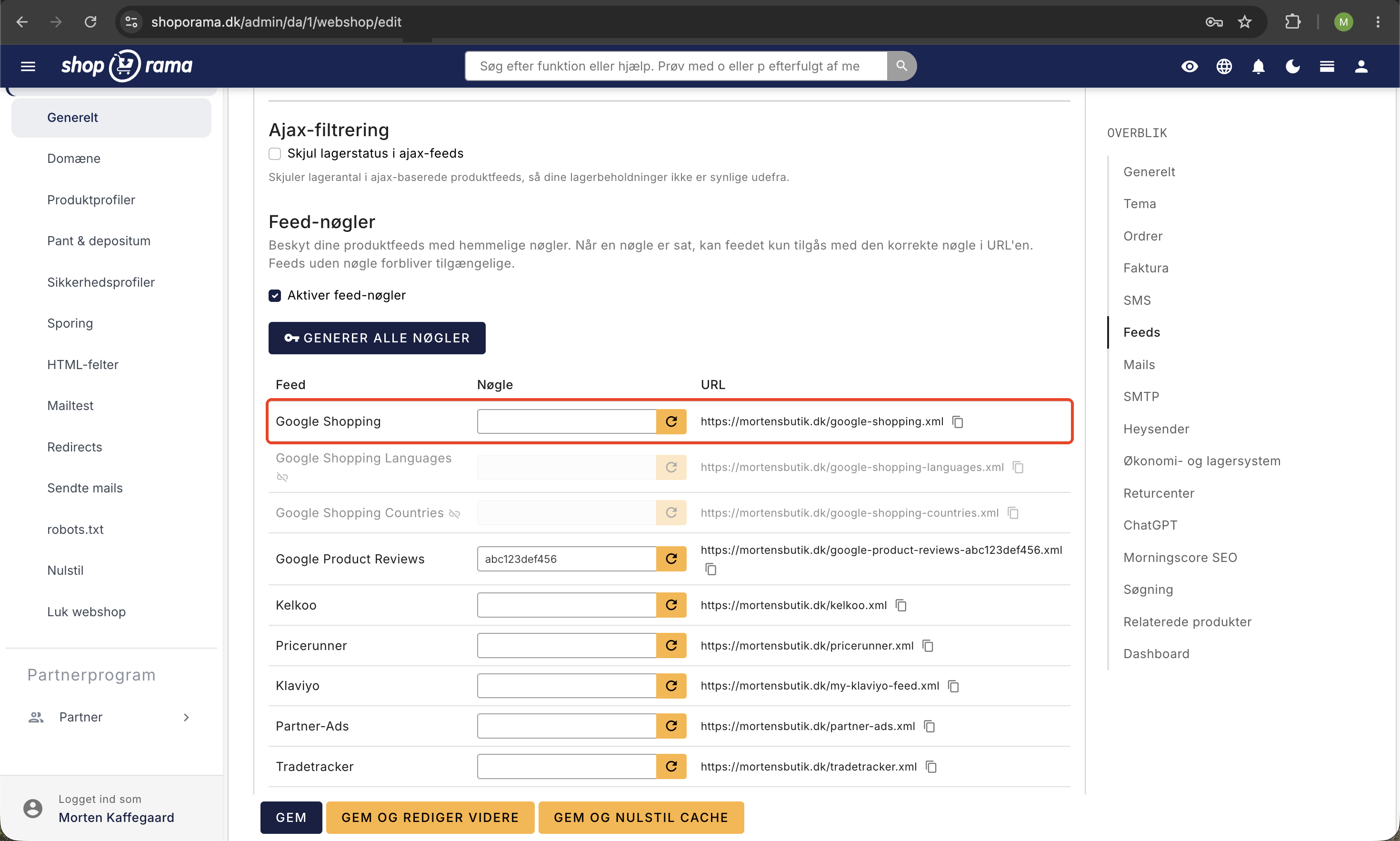
Send Cost of Goods Sold to Google Ads
If you check the “Send cost of goods sold (cost_of_goods_sold)” box in the feed, the feed will send the cost of goods sold to Google in the cost_of_goods_sold field. Google Ads uses the cost of goods sold to display gross profit and cost of goods sold (COGS) per campaign and product, so you can see what your ads are earning—not just what they’re generating in revenue. This option is located right below “Include only products with a minimum profit margin.” Here’s how the cost of goods sold is sent:
- The cost of goods sold excluding VAT, as listed on the product. If a variant has its own cost of goods sold, the variant’s value is used; otherwise, the product’s value is used.
- Products without a cost of goods sold are still included in the feed, just without the cost of goods sold.
- In countries with a currency different from the store’s, the cost price is not sent because cost prices are always in the store’s currency and are not converted. Countries with the same currency as the store will receive it.
- Country and language feeds— which you can enable if you have multiple online stores on your account—do not include the cost price. It appears in your regular Google Shopping feed.
When you check or uncheck the box and save, the change will appear in your Google Shopping feed within about two hours, just as when you change a category. The country-specific feeds will include it the next time they’re fetched. The cost price in the feed is only half the story: Google Ads also needs to know which items the customer purchased. This requires you to enter your Google Merchant Center ID on the Google Ads tab under Online Store → Tracking. Learn how in Google Ads conversion tracking.
Enable a feed key: Without a feed key, anyone who knows the address of your Google Shopping feed can see your cost prices, and the address is the same across all Shoporama stores, so it’s easy to guess. We therefore recommend that you enable a feed key for Google Shopping when you submit cost prices. Remember to update the feed addresses in Google Merchant Center afterward—including those for each country—because the old addresses without a key no longer work. If you’ve checked the box and the feed has no key, the “Feeds” section will display a yellow warning below the checkbox.
The checkbox is only visible to users who have enabled the “Cost Prices and Markup” option. The Full Access role always has this option, and the Developer role does not. If you cannot see the checkbox, ask a user with the Full Access role to check it. If a colleague saves the page without the “Cost Prices and Markup” option selected, the checkbox will not be changed.
Send square images
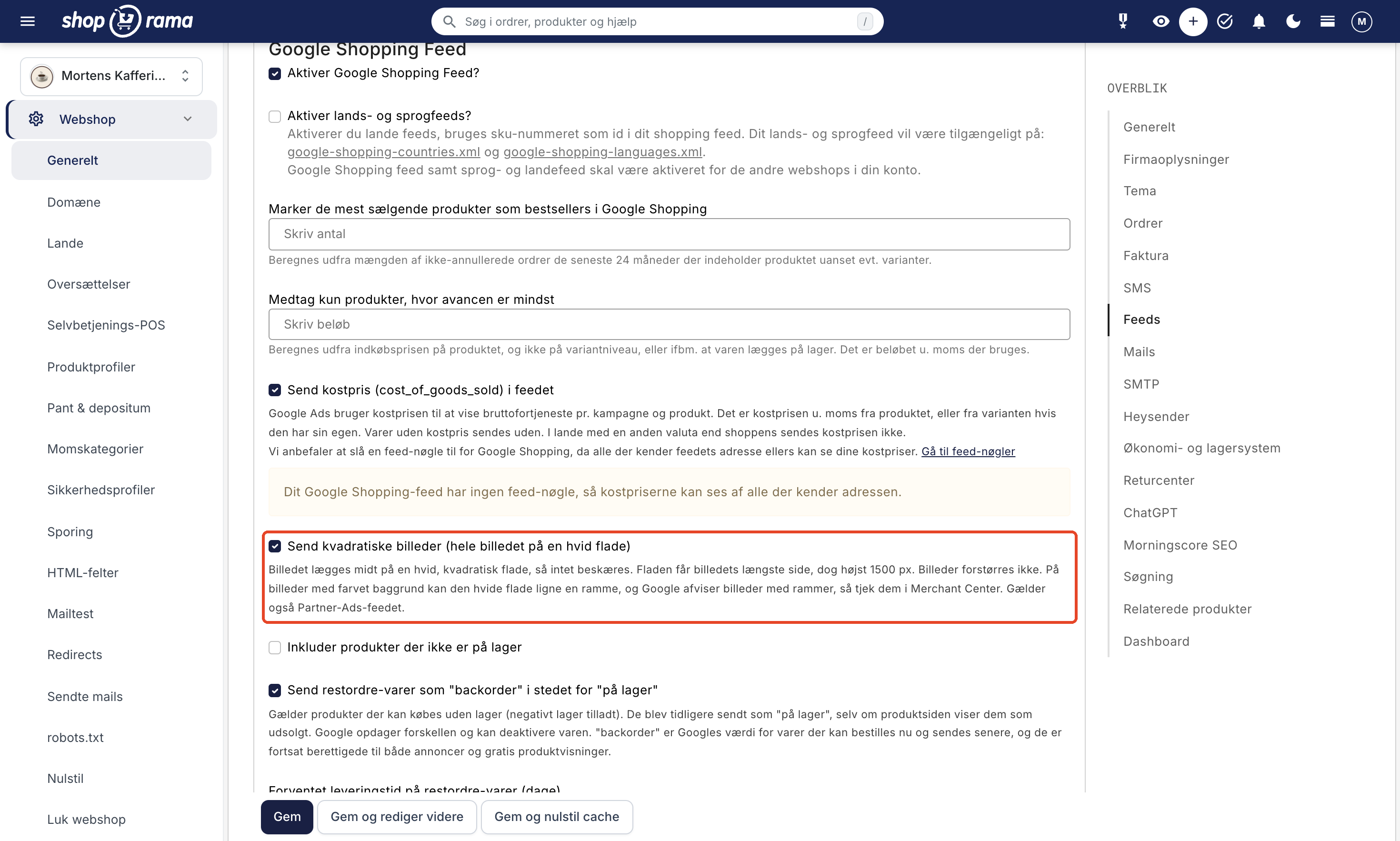
If you check the box for “Send square images” (the entire image on a white background), each image in the feed will be centered on a white, square background so that nothing is cropped out. This is beneficial when images need to be displayed as squares—for example, in ads—because the entire product will be shown, even if your images are tall or wide.
Without the checkbox selected, the feed sends the images as it always has: they are scaled down so that the longest side is no more than 1500 px, but they retain their shape. This is how the images are sent when the checkbox is selected:
- The display area will be the longest side of the image, up to a maximum of 1500 px. A 3000 × 2000 px image becomes a 1500 × 1500 px area with the 1500 × 1000 px image in the center.
- Images are not enlarged. A small image results in a small area, so an image measuring 800 × 600 px becomes an area of 800 × 800 px.
- All images for all products and variants in the Google Shopping feed will be resized to fit the area, including both the main image and the additional images. This also applies to country-specific feeds when you sell in multiple countries using the "Countries" feature.
- The language feed— which you receive along with country and language feeds when you have multiple online stores on your account—also uses square images, though no larger than 1000 px. The checkbox setting on the online store from which you retrieve the language feed determines this, including for product images from your other online stores. Each online store’s own Google Shopping feed follows its own checkbox setting.
- The Partner Ads feed is included. It sends the product’s first image in the same way as the Google Shopping feed, so the checkbox setting applies there as well. The images in your online store are the same as before, and the same applies to your other feeds, such as PriceRunner, Kelkoo, Klaviyo, and your own feeds.
When you check or uncheck the box and save, the change will appear in your Google Shopping feed within about two hours—just like with the cost price—and in your Partner Ads feed within about four hours. The country-specific feeds and the language feed will include the change the next time they’re fetched. The images will have new URLs in the feed, and when Google displays the new images depends on when Google fetches them. If you uncheck the box again, the images will be sent as before.
Check images with colored backgrounds: If an image has a colored background, the white area may appear as a frame around it, which can cause Google to reject the image. Therefore, check your products in Google Merchant Center after you’ve enabled this option. If Google rejects the images, you can disable the option again, and they’ll be sent as before.
Here’s how to enable it:
- Go to Webshop → General, and click Feeds in the Overview menu on the right, or scroll down to the Feeds section.
- Check the box next to “Send square images (entire image on a white background) ” in the Google Shopping Feed section. It’s located right above “Include out-of-stock products.”
- Click Save.
Unlike the cost price setting, this checkbox does not require the Cost Prices and Markup option to be selected. Anyone who can access the page can view and enable it.
One feed per country when selling in multiple countries
If you sell in other countries using the “Countries” feature, each country has its own Google Shopping feed at that country’s address. Prefix the URL with the country’s path, or use the country’s domain if you’ve selected a custom domain per country:
- Main country: dinshop.dk/google-shopping.xml
- A country with a path: dinshop.dk/se/google-shopping.xml
- A country with its own domain: dinshop.se/google-shopping.xml
If you’ve protected the feed with a feed key, the country’s feed uses the same key, e.g. , dinshop.dk/se/google-shopping-dinnoegle.xml. The Feeds section only shows the main country’s address, so you’ll need to enter the country-specific addresses yourself. The country’s feed includes:
- The country’s language in the title, description, product type, and variant values. If you’ve translated a product’s Google Shopping title, that translation is used.
- The country’s prices and currency— the same as what customers see in that country—including fixed prices you’ve set in the country’s currency.
- Links to the country’s addresses, so the customer lands on the product page in their own language.
The settings in the Feeds section—such as markup, bestsellers, and out-of-stock products—apply to all countries. Cost price is an exception: in a country with a currency different from the store’s, it is not sent because cost prices are not converted. In Google Merchant Center, you add each country’s feed separately and select the country and language for which the feed is intended.
Translated products only: If a country has a language different from the main country’s, the country’s feed will only include products that have been translated into that country’s language, just like the country’s sitemap. A product is considered translated when it has an address in the country’s language, and it automatically receives one once the name has been translated. You can therefore submit the country’s feed right away: the products will be included as they are translated. Under Webshop → Translations → Products, you can see which products are missing. If the country shares the same language as the main country, all products are included. The main country’s own feed is not affected by this.
The same applies to feeds for PriceRunner, Kelkoo, and Partner Ads. They are also available at the country’s URL with the country’s language, currency, and prices, and only with the translated products. The country also has its own sitemap. Your own feeds, the Klaviyo feed, and the country and language feeds listed below are only available at the main country’s URL.
The product ID in the feed is the key to catalog matching
Each product in the feed has a unique ID in the g:id field. This ID is more important than it might seem at first glance: It is the key that both Google and Meta (Facebook and Instagram) use to link ads and tracking events to the correct products in the catalog. If your tracking sends an ID different from the one in the feed, the platforms cannot match your events with the products, and dynamic ads and catalog sales will not work.
By default, the feed uses the product’s numeric ID in Shoporama. Variants are assigned an ID consisting of the product’s ID and the variant’s ID, separated by a colon. You usually don’t need to worry about this, because Shoporama’s built-in tracking automatically sends the same ID in all events, ensuring that the feed and tracking always match. You can read more about the relationship between Product ID and catalog matching, as well as how to set up Meta tracking in the Facebook Conversions API.
Country and Language Feeds: Product Number as ID
If you have multiple online stores on the same Shoporama account—for example, a Danish and a Swedish store—you can enable country and language feeds. This setting is located in the same place as the rest of the feed setup: Go to Webstore → General, click on Feeds in the Overview menu on the right, and check the box next to “Enable country and language feeds?”. Note that this setting only appears if your account contains more than one online store, and that it must also be enabled for the other online stores in the account. Country and language feeds are for multiple separate online stores and are different from the per-country feed you get when selling in multiple countries using "Countries in One Online Store."
When country and language feeds are enabled, two things happen:
- The feed changes its ID scheme. Instead of the numeric ID, the product’s stock-keeping unit (SKU) is used as the ID. For variants, the variant’s own SKU is used, if it has been entered. The SKU is the stable key that links the same product across your country-specific stores.
- You’ll get two additional feeds: a country feed and a language feed that aggregate products from your shops. Links to both feeds appear directly below the setting in the admin panel.
Shoporama’s built-in tracking is automatically included: When the feed uses SKUs, your tracking events also send SKUs, so catalog matching continues to work without any additional setup.
Important: Products without an SKU will receive an empty ID in the feed when country and language feeds are enabled, and therefore cannot be catalog-matched by either Google or Meta. Make sure all products and variants have an SKU before you enable this setting.
How often is the feed updated?
The feed updates automatically in the background. You don’t need to press a button or take any action to reflect your changes. There is no manual “update feed” function in Shoporama because it runs entirely on its own.
Here’s how it works in practice:
- When you edit a product (price, inventory, images, description, categories, etc.), the product’s data in the feed is updated immediately after you save. The entire feed is also marked as outdated, so the next time someone fetches the feed, a fresh version is delivered.
- When you change a category (the Google category or the name), the category’s products are rebuilt from scratch in the feed during the next background rebuild. The change is therefore included in the feed within about two hours, without you having to save the products again.
- When you enable or disable cost price or square images, the entire feed is rebuilt from scratch in the same way, so the change is reflected within approximately two hours. The country-specific feeds and the language feed will include the change the next time they are retrieved.
- The combined feed is also automatically rebuilt in the background every two hours if there have been changes to your products or to a category’s Google category or name. If there have been no changes, Shoporama skips the rebuild to conserve resources, but the feed is always rebuilt at least once a day.
- The cache for each product in the feed typically lasts 2 to 6 hours, but is refreshed immediately when you edit the individual product. This means that changes to a product appear faster than the time limit might suggest.
- Country-specific feeds are not built in the background but are assembled from the same cached product data when they are fetched. If you edit a product, it is also updated in the country-specific feeds. A product that has just been translated will be included the next time the country’s feed is fetched. A corrected translation will appear when the product’s cache expires, typically within 2 to 6 hours.
Tip: The frequency with which your products actually appear in Google Shopping and on price comparison sites (PriceRunner, Heureka, etc.) depends on how often they retrieve your feed. Google Merchant Center typically fetches the feed once a day, and price comparison sites often do the same. Even though Shoporama delivers an updated version within a few minutes—or within about two hours when you change a category—it can take up to 24 hours for the change to be visible to the end user. You don’t control this in Shoporama, but rather in Google Merchant Center and with each individual price crawler.
If you, as a store owner, want to ensure the fastest possible update on Google, you can set up a daily feed fetch in Google Merchant Center at a time that suits you (e.g., early in the morning). For critical corrections, Google also offers a “Fetch Now” feature in Merchant Center, which forces an immediate fetch of your feed URL.
Customize the product in the Product Feeds card
On each product, you’ll find the “Product Feeds” tab. Here, you control how the product is included in Google Shopping and your other product feeds. In addition to “Google Category,” which is described above, the tab has three settings.
Google Shopping Title
By default, the product’s name will appear as the title in your feed. But that isn’t always the most appropriate choice. For example, you might have some dark blue shorts from Ralph Lauren called “Polo Ralph Lauren Prepster.” But that won’t trigger your ad when a user searches for “blue Ralph Lauren shorts.” That’s why you can enter a different title in the Google Shopping Title field. This way, the new title will appear in your feed, helping you rank ahead of your competitors. If you leave the field blank, the product name will be used.
Google allows a maximum of 150 characters, and the counter below the field shows how many you’ve used. However, Google only displays the first approximately 70 characters, so put the most important information first—such as the brand, product type, and color.
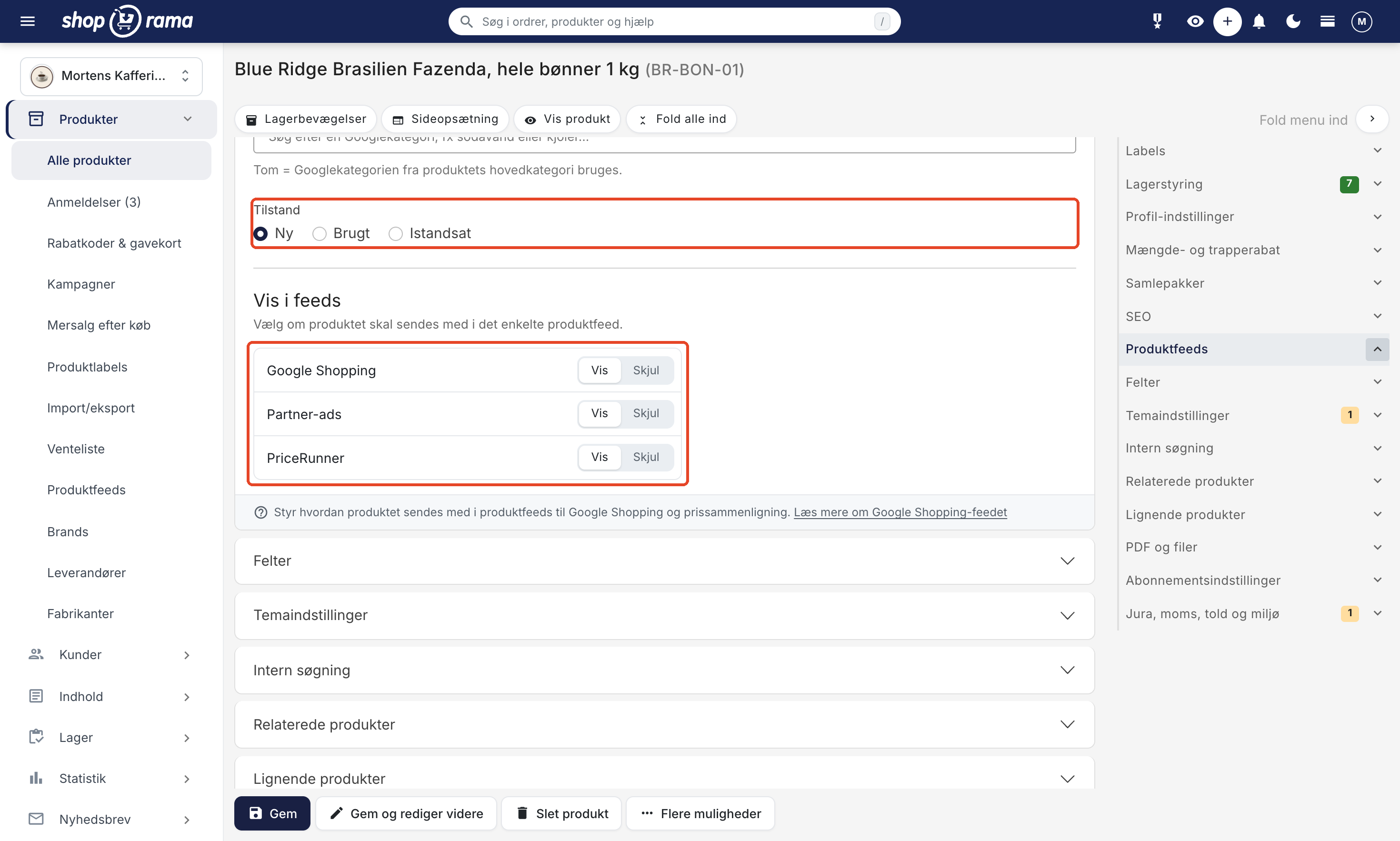
Condition
Under “Condition, ” select whether the item is “New,” “Used,” or “Refurbished.” “New” is selected by default, so you only need to change this for items that aren’t new. Use “Refurbished” for items that have been professionally restored, such as a refurbished cell phone. It is sent to Google as “refurbished.”
Show in Feeds
Under “Show in feeds,” select whether the product should be included in the individual product feed. There is one row per feed— Google Shopping, Partner Ads, and PriceRunner—and each row has Show and Hide buttons. If you select Hide next to Google Shopping, the product will not be included in the Google Shopping feed, but it will still be available in your online store and included in the feeds marked Show.
These buttons replace the old checkboxes under “Exclude from feeds.” Your previous selections have been preserved, so you don’t need to do anything.
Variants
If the product has variants, each variant is sent as a separate item, and the variants are grouped together under a single item_group_id so that Google knows they belong to the same product.
Which products are included in the feed?
The feed contains the products that are online in your store and that a customer can actually purchase. This is not the same as “products with stock greater than zero.” Three groups:
- Items with stock: are always included and listed as “in stock.”
- Items out of stock that customers can still order: are also included. These are the products for which you’ve checked the “Allow negative stock” box in the product’s Stock Management card. They’ve always been included in the feed.
- Items without stock that cannot be ordered: are excluded. If you want to include them anyway, check the box for “Include products that are out of stock ” in the “Feeds” section. They will then be listed as “out of stock.”
In addition, products for which you’ve selected “Hide from Google Shopping” under “Show in Feeds” in the Product Feeds tab, as well as gift cards and similar items, are excluded. If you’ve set a minimum markup requirement in the Feeds section, products that don’t meet that requirement and products with no cost price at all are excluded.
If your products have variants, each variant is included as a separate product. Variants that you’ve disabled for the product are excluded. This is useful if multiple products share a broad profile, so that empty variants without a price do not end up in the feed at 0 DKK. Read more in Active Variants.
Items that can be ordered but are not in stock
If you have items that customers can buy now and have delivered later, Google has a special inventory status for exactly that: backorder. This tells Google that the item can be ordered but isn’t currently in stock. Items with a backorder status are still eligible for both Shopping ads and free product listings.
You can enable this under Webshop → General in the Feeds section:
- Check the box for “Send backorder items as ‘backorder’ instead of ‘in stock.’”
- Fill in the Expected delivery time for backordered items (days). Google requires an expected delivery date for backorders, and we calculate it as today’s date plus the number of days you enter. If you enter 14, the item will be assigned a date 14 days from now, and it will automatically adjust so that the date never falls in the past.
- Save. The change will take effect in the feed with the next update.
Why this is beneficial: Google compares the inventory status you send in the feed with the inventory status listed on the product page itself. If the two don’t match, Google may deactivate the item, and it will disappear from both ads and free product listings. If you report “in stock” for an item that’s listed as sold out on the product page, that’s exactly what happens. With “backorder,” the feed and the page show the same information.
This setting is turned off by default, so you decide when to enable it. If you’re using one of Shoporama’s themes, the product page is already set up. If you have your own theme, you’ll need to update the stock status on the product page so that it also says “backorder.” This is described in “Implement Structured Data.”
Additional things you should know
Discounted products
If your product has both a price and a sale price, both will appear in the feed.
There will also be a label labeled “on sale” on the product.
If an item is part of a promotion offering a discount starting at 1 unit, the feed can also include the discounted price. You can enable this by checking the box “Use promotional prices in price feeds ” under “Promotional prices in feeds” in the “Feeds” section. This applies to Google Shopping, PriceRunner, Kelkoo, and Partner Ads. Only enable this if your theme displays the promotional price on the product page. Of the built-in themes, Montana does this, while the others display the regular price. If you enable this feature with a theme that displays the regular price, Google may reject the products because the price in the feed does not match the page.
Additional Information
If your product has a GTIN, an MPN, or a brand associated with it, these will also be extracted into the feed.
If you’ve marked a profile attribute with a “Special Purpose” (size, color, or gender), we’ll be able to extract this into the <g:size>, <g:color>, and <g:gender> fields. Note that for <g:gender>, there are only three valid values: Male, Female, and Unisex.
The product’s main category will appear as <g:product_type>
Custom Labels for Google Ads
The Google Shopping feed supports custom labels (custom_label_0 through custom_label_4). Custom labels are used in Google Ads and Google Merchant Center for rules and to segment your products into campaigns and manage bidding, so you can, for example, bid higher on bestsellers or discounted items.
Automatic Custom Labels
Shoporama automatically sets two custom labels for you:
- custom_label_0 is automatically set to “on sale” for products with a sale price lower than the regular price.
- custom_label_1 is automatically set to “bestseller” for the best-selling products, provided you’ve configured the bestseller count in the Feeds section (see the section on activation above).
You cannot fill in these two yourself. For your own values, you have custom_label_2, custom_label_3, and custom_label_4, which you can fill in in two ways: using product labels or using additional fields on the individual product.
Custom labels via product labels
- Go to Products → Product Labels in the menu.
- Create a new label (or edit an existing one).
- Select custom_label_2, custom_label_3, or custom_label_4 in the “Google Shopping custom label” field, and save.
- All products with that label will automatically have the label name as the custom label value in the feed. If a product has multiple labels that use the same custom label, the names are sent separated by commas.
You can easily apply labels to multiple products at once directly from the ABC Analysis and Inventory Statistics overview, so you can, for example, mark all your A-products or dead stock with a specific label. Learn more about labels in Product Labels.
Custom Labels via Extra Fields
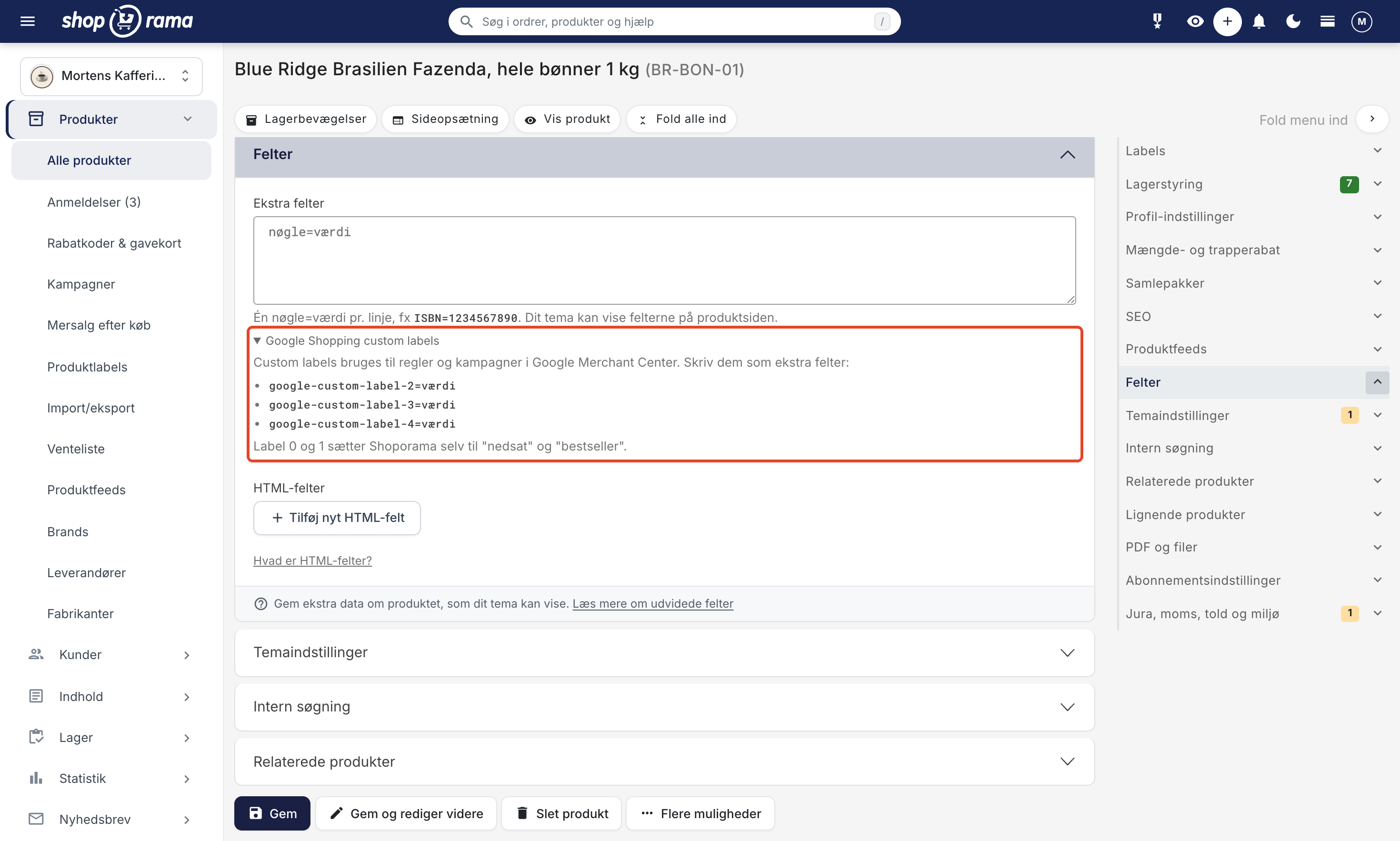
You can also enter custom labels directly on individual products. Expand the “Fields” tab and enter one line per custom label in the “Extra Fields” field:
google-custom-label-2=summer
google-custom-label-3=high-margin
google-custom-label-4=own-import
If you can’t remember the format, expand the “Google Shopping custom labels” box just below the field. It shows the three lines you can use.
Which takes precedence? If the product is associated with a product label that fills in the same custom label, the product label is used, and the extra field is ignored. This applies to each custom label individually, so you can, for example, manage `custom_label_2` with product labels and `custom_label_3` with extra fields.
Product labels are easiest to use when many products need to have the same value, because you can set and remove them for multiple products at once. Extra fields are useful for values that vary from product to product. Your theme may display extra fields on the product page, but the default themes do not display custom labels. For example, Montana and MontanaB2B display additional fields in the “Product Details” table but skip fields that start with “google-custom-label-”. If you have a custom theme that displays all additional fields, ask your developer to do the same.
Also display star ratings on your Shopping ads
In addition to product data, you can submit your product reviews to Google so that star ratings appear alongside your products in Google Shopping and Shopping ads. This is a separate feed that you sign up for under "Product reviews" in Merchant Center. Learn how in “Get stars in Google Shopping with product reviews.”
Frequently Asked Questions
How quickly will my changes appear in the feed and on Google?
You don’t need to press any buttons. The feed itself on Shoporama is typically updated within a few seconds to a few minutes after you save the product. If you change the Google category or the name of a category, it will appear in the feed within about two hours. Google Merchant Center and price bots usually fetch the feed once a day, and you can manage this in their systems. If a correction is urgent, use the “Fetch Now” option on your feed in Google Merchant Center.
Do I need to select a Google category for every single product?
No. Select a Google category for your categories, and the products will inherit it from their parent category. Only the parent category matters, and a Google category assigned to a parent category does not carry over to the subcategories. Only select a Google category for the product itself if it needs to be different from the category’s.
I can’t find the right Google category when I search. What should I do?
Use just a few words, because all the words must appear in the category or the path leading to it. Try searching for the beginning of the word, such as “dress,” and you’ll get both “dress” and “dresses.” If you know the Google ID, you can also search by the number, e.g., 1868. If you can’t find an exact category, select the closest parent category from the list.
When should I choose “Refurbished” instead of “Used”?
Select “Refurbished” when the item has been inspected and professionally refurbished so that it works like new, such as a refurbished phone. Select “Used” when the item is being sold “as is” after having been used. You don’t need to do anything for new items, as “New” is the default.
Can I exclude a product from PriceRunner but keep it in Google Shopping?
Yes. Expand the “Product Feeds” tab on the product page, then select “Hide” next to PriceRunner and “Show” next to Google Shopping. The product will still be online in your store. However, if you take the product offline, it will disappear from all feeds during the next update, because the feeds only include products that are online.
I have both a product label and an extra field in Custom Label 2. Which one is used?
The product label. If the product has a label that populates Custom Label 2, the label’s name is sent, and the line `google-custom-label-2` in Extra Fields is ignored. Custom labels 3 and 4 are determined individually in the same way, so an extra field is still used for a custom label that none of the product’s labels populate.
How long should my Google Shopping title be?
You can enter up to 150 characters, but Google only displays the first approximately 70. Therefore, put what customers search for at the beginning—for example, brand, product type, color, and size. The rest can come afterward and help Google understand the product.
Why aren’t my products being matched in Meta’s catalog?
Meta matches your tracking events against the catalog using the product ID, so the event ID must be identical to the feed ID. By default, the ID is the product’s numeric ID in Shoporama, and for country and language feeds, it’s the item number. Shoporama’s built-in tracking always sends the same ID as the feed. If you use country and language feeds, all products must have an item number; otherwise, the ID field will be empty. Read more in Product ID and Catalog Match.
I’ve started selling in Sweden using Lande. Do I need to create a new feed?
No. The country-specific feed is already available at the country’s URL, e.g., dinshop.dk/se/google-shopping.xml, in Swedish and with the country’s prices and currency. Submit it to Google Merchant Center as a separate feed with Sweden as the country and Swedish as the language. The products have the same IDs as in the main country’s feed. The feed only includes products that have been translated into Swedish, and new products are automatically added once they’ve been translated.
My products are in the feed, but Merchant Center shows far fewer active products. Why?
Count the number of products in the feed file itself and compare it to the number of active products in Merchant Center. If there’s a significant difference, the products have been submitted but rejected by Google. The most common reason is that the feed says “in stock,” while the product page says “out of stock.” Check under Diagnostics in Merchant Center for an error regarding a mismatched inventory status. The solution is the backorder setting described above.
We sell a lot on a made-to-order basis. Should we enable backorders?
If you have many products that customers can buy even when they’re out of stock, then yes. That’s the inventory status that fits the situation, and it keeps the products visible instead of risking Google deactivating them. If you don’t want to pay for ads on made-to-order items, manage this in Google Ads, and you’ll keep the free product listings.
Can my competitors see my cost prices if I include them in the feed?
Yes, if the feed doesn’t have a feed key. The URL is the same across all Shoporama stores, so it’s easy to guess. Therefore, enable a feed key for Google Shopping and submit the URL with the key in Google Merchant Center.
Do all my products need to have a cost price before I enable this feature?
No. Google Ads only shows gross profit for products that have a cost price, so the more you enter, the more accurate the figures will be. However, if you’ve selected “Include only products with the highest profit margin,” products without a cost price are already excluded from the feed.
I’m sending cost price data, but Google Ads isn’t showing any gross profit. What’s missing?
Check that tracking is enabled under Webshop → Tracking, that you’ve entered your Google Merchant Center ID in the same section, that your purchase conversion to Google Ads is set up, and that Merchant Center is linked to Google Ads. Google must also have retrieved the feed containing the cost price, and the items in a purchase are only included for purchases made after you’ve entered the Merchant Center ID. If you sell in a country with a different currency, that country’s feed will not include the cost price. Learn more in Google Ads conversion tracking.
I use my Google Shopping feed as a catalog on Facebook and Instagram. Do they also receive the square images?
Yes, if you’ve submitted the URL of your Google Shopping feed to Meta. It’s the same file, so Meta receives the same images. If you use one of your own feeds with Meta, the images remain unchanged.
My images are pretty small. Will they be enlarged in the feed?
No, images are never enlarged. If you want larger images on Google, upload them in a larger size.
Does checking the box make a difference if my images are already square?
No, a square image fills the entire space and looks the same as before. Only tall and wide images have a white border around them.
Can I choose a color other than white for the background?
No, the border is always white, and if an image has a transparent background, the background will also be white. If your images have a colored background, check the products in Google Merchant Center after you’ve checked the box, as the white border may look like a frame.
Need help? Contact us at support@shoporama.dk.
Related articles
Include color and size in Partner Ads feed
Guide to adding color, size and gender to your Partner Ads feed in Shoporama via product profiles and extra fields.
Set up Partner Ads in Shoporama: getting started
Introduction to Partner Ads in Shoporama. Understand what it is, what you get out of it, and get started quickly with product feed and tracking.
Google Shopping category ID on products
Select the correct Google category for your Google Shopping feed by searching directly in the field for products and categories, or enter the ID...
Build your own feeds
Guide to building your own product feeds in CSV, XML or JSON format with Shoporama's custom feed feature.
Google Ads conversion tracking
How to set up Google Ads conversion tracking in Shoporama. Target Add to Cart, Begin Checkout and Purchase with Conversion ID and labels, as well...
Product IDs and Catalog Match: How to Ensure Your Ads Match Your Product Feed
An explanation of which product ID Shoporama’s tracking sends, why it always matches the Google Shopping feed, what “catalog match” means for your...
Implement structured data (Schema.org) in your Shoporama theme
Complete guide to JSON-LD structured data in a Shoporama theme. Smarty examples for Product, Store, BreadcrumbList and AggregateRating with proper...
Active variants: Select which variants each product uses
Select which profile variants each product uses so that empty variants are excluded from Google Shopping and the other product feeds. Edit one...
Feed-nøgler: Beskyt dine produktfeeds med en hemmelig nøgle
Sådan slår du feed-nøgler til i Shoporama og beskytter dine produktfeeds, så kun Google, Pricerunner, og andre godkendte tjenester kan hente dine...
Translate your online store into other languages
How to translate your online store when selling in multiple countries: automatic translation, status by language, corrections, addresses in the...
Sell in multiple countries and in multiple languages
Here's how to sell in other countries in your customers' languages and currencies using "Countries": Add a country, set up the address, language,...
Related features
Feed
A product feed exports your product data to Google Shopping, PriceRunner, Facebook and other channels. Learn about feed types, important fields and...
Google Shopping feed is included in your Shoporama shop
Get an automatic Google Shopping feed with all required fields. Included for free in your Shoporama shop. Also Pricerunner and custom feeds.
Google Smart Shopping
Google Smart Shopping has been replaced by Performance Max. Learn how PMax works, what the requirements are and how to use it with your online store.
Agentic Trading with Google UCP
Get your online store ready for AI shopping. Shoporama supports Google's UCP, so Gemini and Google AI Mode can find and purchase your products...
Click Through Rate - CTR
CTR is the percentage of impressions that result in clicks. Learn about typical CTR levels in search, ads and emails and how to improve your...
CPC - Cost Per Click
CPC is the price you pay per click on your ad. Learn what CPC is, what affects the price and how to optimize your click price in Google Ads and...
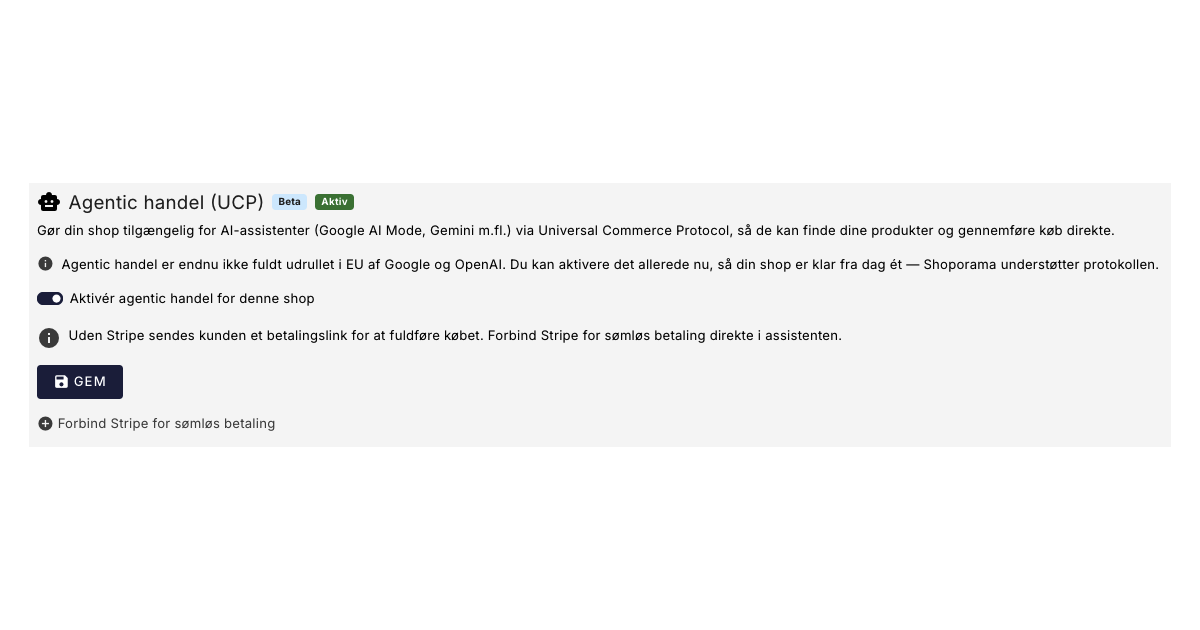
Dine kunder kan snart shoppe via AI: Shoporama er klar til Googles nye protokol (UCP)
Google has launched UCP, so AI assistants like Gemini can find and purchase your items directly. Shoporama already supports this feature. See how...
Google remarketing
Google remarketing shows ads to people who have visited your online store. Learn about dynamic remarketing, RLSA, audiences and Shoporama's Google...
GTIN
GTIN is the international standard number behind the barcode on products. Learn why GTIN is important for Google Shopping, price comparison sites...
Marketplace
A marketplace is a platform where multiple sellers offer products. Learn about the pros, cons and strategy for selling on marketplaces like Amazon...
MPN
MPN (Manufacturer Part Number) is the manufacturer's part number. Learn how MPNs are used in webshops, Google Shopping and product feeds.
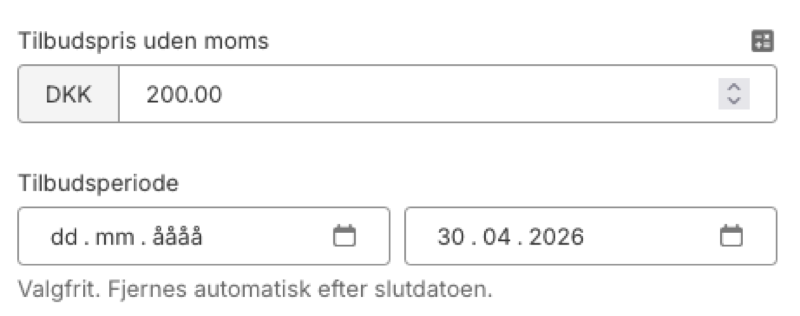
Plan Black Friday now: Deals that turn themselves on and off
Set start and end dates for your offers in Shoporama. The system automatically activates and stops the sale price, also in your Google Shopping feed.
PPC - Pay Per Click
PPC is an advertising model where you pay per click. Read about PPC, Google Ads, Facebook Ads and advertising for webshops.
Active variants
EAN
EAN (European Article Number) is a barcode standard for unique product identification. Read about how EAN is used in webshops and product feeds.
From analytics to advertising: label products directly from statistics
Label products directly from ABC analysis and dead stock - and use them automatically in your Google Shopping feed for targeted campaigns.
Product catalog
A product catalog is the complete overview of your products with titles, images, prices and variants. Learn about elements, SEO optimization and...
Feeds
Pre-built feeds for Google Shopping, Pricerunner, Partner Ads, Kelkoo, and TradeTracker. Or build your own custom feeds in XML, JSON, or CSV.
Countries: Sell in multiple countries from the same online store
Sell in multiple countries from the same online store, with your own language, currency, and prices for each country. Automatic translation of your...