Product labels
Learn how to use product labels in Shoporama to organize and categorize your products with color-coded labels.
Product labels are custom tags that you can create and assign to your products. They help organize your product catalog, can be used to link products to special content such as care instructions and size guides, and can send values to Google Shopping as custom labels.
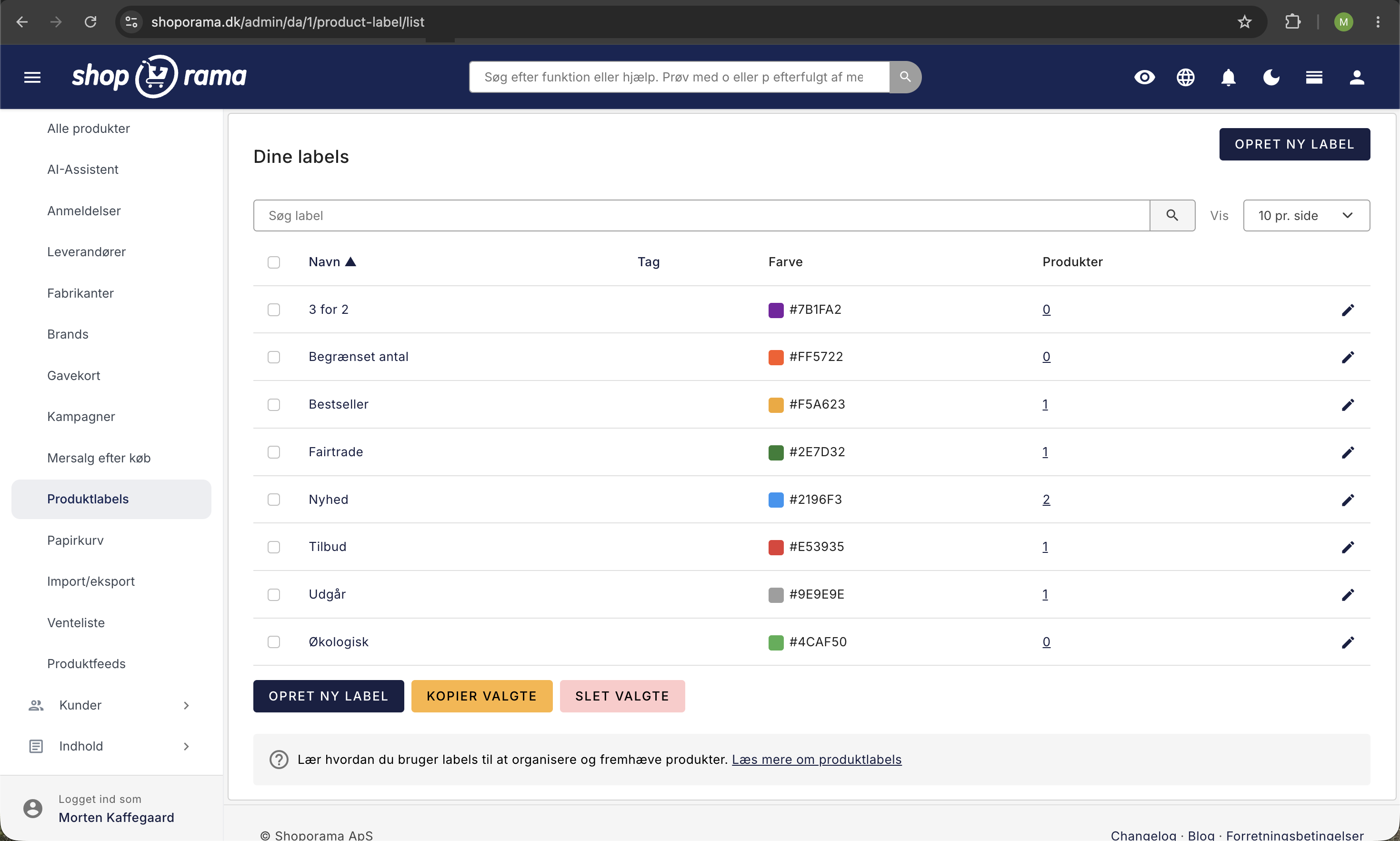
Create a label
- Go to Products → Product Labels in the admin panel
- Click Create New Label
- Enter a name for the label (e.g., “Organic” or “New Product”)
- Optionally, enter a tag (used to link the label to special content)
- Select a color code so the label is easy to recognize
- Optionally, select a Google Shopping custom label if the label name should be included in your Google Shopping feed (see below)
- Save
Assign labels to products
You can assign labels to a product from the product edit page:
- Open the product in edit mode
- Expand the " Labels " tab
- Check the labels you want to assign to the product
- Save the product
A product can have multiple labels at the same time. You can also create a new label directly in the "Labels" tab using the "Create New Label" link.
Filtering
In the product list, you can filter products by label. This makes it easy to find all products with a specific label, such as all organic products or all products on sale. In the label overview, you can see how many products each label is assigned to.
Special Content via Tags
The label’s tag field can be used to link products to special content in your theme. Typical examples:

- Care instructions: Products with a care instructions label automatically display the relevant care instructions
- Size guides: Products with a size label display the corresponding size guide
This functionality depends on your theme’s setup.
Use labels as custom labels in Google Shopping
Custom labels are additional values in your Google Shopping feed that you can use for rules and campaigns in Google Merchant Center and Google Ads—for example, to bid higher on seasonal items or your best-selling products. With product labels, you can manage them for many products at once:
- Create or edit a label under Products → Product Labels
- Select custom_label_2, custom_label_3, or custom_label_4 in the Google Shopping custom label field
- Save, and assign the label to the products it should apply to
All products with the label will have the label name as the value for the selected custom label in the feed. If a product has multiple labels that use the same custom label, the names are sent separated by commas. custom_label_0 and custom_label_1 cannot be selected because Shoporama uses them for “on sale” and “bestseller,” respectively.
Labels take precedence over extra fields: You can also enter custom labels as extra fields in the “Fields” tab for each individual product, e.g., google-custom-label-2=summer. If the product is associated with a label that matches the same custom label, the label is used and the additional field is ignored. This applies to each custom label individually.
Read more about custom labels and the feed in “Set Up Google Shopping Feed ” and about additional fields in “Extended Fields.”
Frequently Asked Questions
Can customers see my labels in the store?
That depends on your theme. Labels are primarily a tool for you in the admin panel, but a theme can use them—for example, for care instructions and size guides via the tag field. When a label is used as a Google Shopping custom label, only the name is included in the feed sent to Google.
What should I name a label that I’m using as a custom label?
The label name is what’s sent to Google, so choose a short name you’ll recognize in Google Ads, such as “Summer” or “High Margin.” If you rename the label, the value in the feed will also change, so be sure to update your rules and campaigns in Google if they use the old name.
What happens if a product has two labels under the same custom label?
In that case, both names are sent under the same custom label, separated by a comma, e.g., “Summer, High Margin.” If you want to manage them separately in Google Ads, assign the labels to different custom labels instead.
I entered “google-custom-label-2” in “Extra Fields,” but the feed shows something else. Why?
The product likely has a label that also uses `custom_label_2`. Labels take precedence over extra fields. Check the product’s Labels card and look in the label overview to see which labels have a Google Shopping custom label selected.
How do I assign a label to multiple products at once?
You can assign labels to multiple products at once from the ABC analysis and Inventory Statistics, such as all A-products or all items that haven’t sold in a while.
What happens to the products if I delete a label?
The products themselves remain unchanged. The label simply disappears from them, and if the label is a Google Shopping custom label, its value will no longer be included in the feed during the next update.
If you have any questions about product labels, feel free to contact us at support@shoporama.dk.
Related articles
Unsubscribe links in automatic emails
Give your customers the option to unsubscribe from automatic follow-up emails after purchases and product reviews - with a simple link in the email.
AI assistant in the text editor
Learn how to use Shoporama's built-in AI assistant to generate product texts, image descriptions and text suggestions.
Order list and inventory management
Learn how to use the Shoporama order list to keep track of inventory, generate shopping lists and receive goods efficiently.
Related features
Order labels - organize your orders with color-coded labels
Create color-coded order labels and automatically mark orders based on payment method, email, subscriptions and more.
Product Profiles and Variants: Set Up Your Product Types
Create product profiles, attributes, and variants in Shoporama with your own prices and inventory, and see how you can customize both color and size.
Theme Settings in Delaware: Store and Products
An explanation of all fields in Delaware's store and product theme settings: colors, badges, value propositions, filters, categories, product...