Log in with SFTP
Guide to logging in to your Shoporama online store with SFTP so you can edit your theme.
With SFTP access, you can log in directly to your Shoporama store and edit your theme, upload files, and work on your templates in your preferred program. Here’s everything you need to know to get started.
Note
SFTP access and editing of theme files are only available with the Pro subscription.
1. Find your SFTP credentials
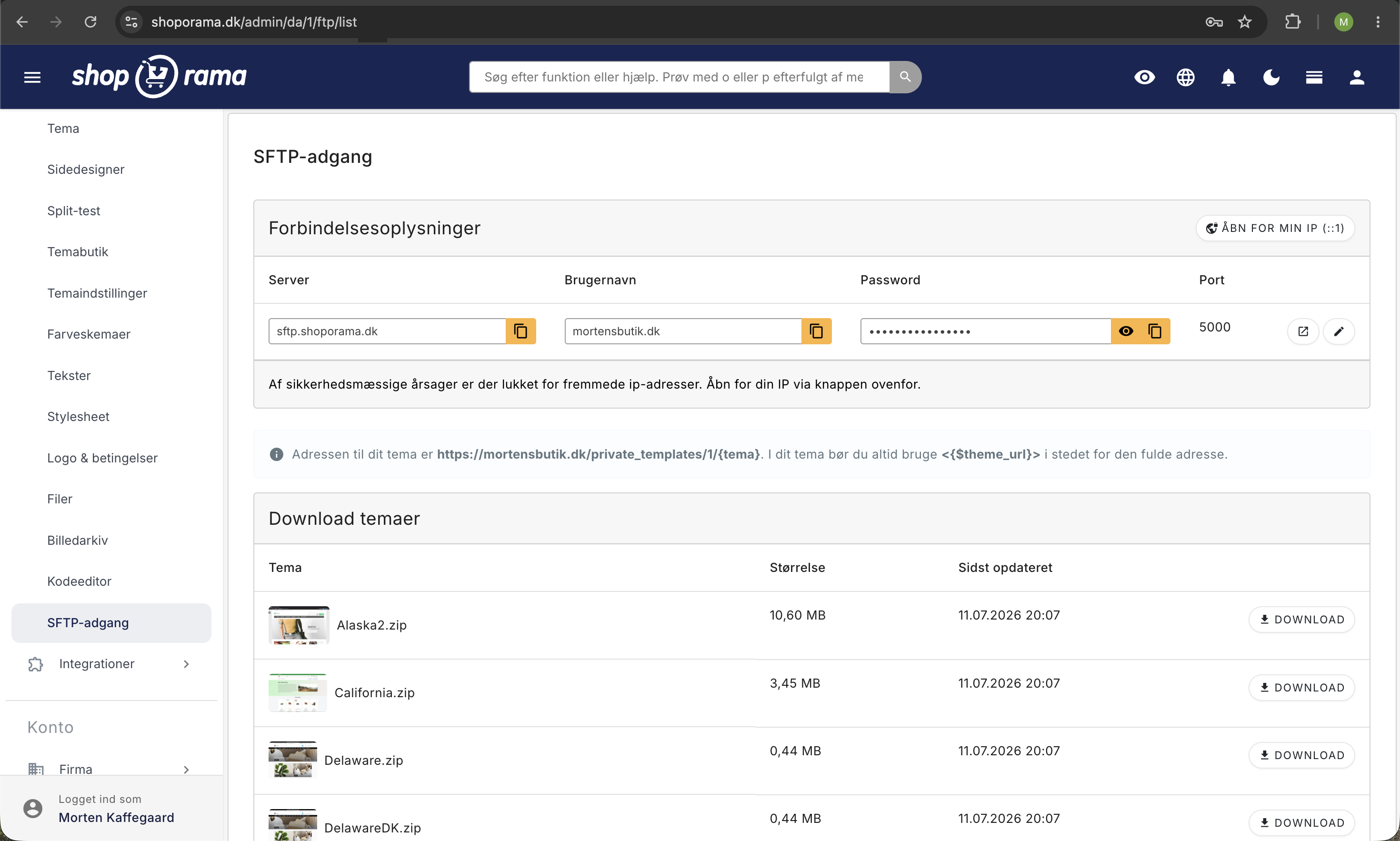
You can find your SFTP login credentials in your store’s admin panel under Design > SFTP Access. The following information is displayed there:
- Server: imali.pil.dk
- Port: 5000
- Username: Your unique SFTP username (automatically generated based on your store’s URL)
- Password: Your auto-generated password
Your username is automatically generated based on your shop’s URL. The password is automatically generated and can be changed under Design > SFTP Access.
2. Allow Access for Your IP Address
For security reasons, you must whitelist your IP address before you can connect via SFTP. Here’s how:
- Go to SFTP in your store’s admin panel
- Click the “Open for my IP (xx.xx.xx.xx)” button
- You’ll receive a confirmation that your IP has been added
Tip
If your internet service provider assigns you a dynamic IP address, you may need to whitelist your IP again when it changes. It only takes a few seconds to click the button again.
3. Connect with an SFTP client
You can use a program like Cyberduck, WinSCP, or FileZilla to connect. Create a new connection using these settings:
| Setting | Value |
|---|---|
| Protocol | SFTP (SSH File Transfer Protocol) |
| Server / Host | imali.pil.dk |
| Port | 5000 |
| Username | Your SFTP username from admin |
| Password | Your SFTP password from the admin |
Important
You must use SFTP —not regular FTP. The two protocols are not compatible. Be sure to select SFTP/SSH as the protocol in your client.
4. Folder Structure
Once you’re connected, you’ll see your store’s theme folder. The path to your theme is:
/private_templates/{webshop_id}/{theme_name}/Here you can edit:
- Templates — HTML files with Smarty syntax (e.g., the templates/ folder)
- Stylesheets — CSS files for your design
- JavaScript — Custom scripts
- Images — Logos, icons, and other theme images
Tip
Use the {$theme_url} variable in your templates to link to files in your theme. This ensures the paths work even if the theme folder is moved.
5. Alternative: Theme Editor in the Admin Panel
If you don’t need SFTP, you can use the built-in code editor directly in your admin panel. It lets you edit templates, CSS, and JavaScript right in your browser—without installing an SFTP client.
Troubleshooting
- Can’t connect? Make sure you’ve enabled your IP address under Design > SFTP Access
- Wrong protocol? Make sure to use SFTP (port 5000) and not FTP
- Having trouble with FileZilla? Some versions of FileZilla have issues with the SFTP connection. Try Cyberduck (macOS) or WinSCP (Windows) as alternatives
- New IP address? If your IP has changed (e.g., after restarting your router), you must whitelist the new IP
- Forgot your password? You can view and change your password under Design > SFTP Access in the admin panel
Download base themes
Under the SFTP menu item in the admin panel, you can also download base themes to use as a starting point for your own design. Each theme is listed with its name, file size, and last modified date.
Need help? Contact us at support@shoporama.dk.
Related articles
Notification under SFTP information
Learn how you as a theme developer can display a message on the admin page with SFTP login details.
Change the content of your emails
Guide to customize the content of the automatic emails your Shoporama webshop sends, either via admin or theme templates.
Checkout flow and shipping calculation
Guide for developers to implement shipping in the checkout flow of a Shoporama theme.
Related features
SFTP
SFTP is a secure protocol for file transfer. Read about SFTP, data exchange and how it is used for product feeds and integration.
Full design freedom - your design, your rules
Design your online store freely with full access to HTML, CSS and templates. Use templates, Page Builder or build from scratch.
Choose a theme and understand theme settings and the page builder
Select and change themes in Shoporama, and learn the difference between Webstore settings, theme settings, text, and the page designer before you...