Import products from Shopify
Guide to importing products, variants, categories, and images from Shopify to Shoporama via CSV file.
Do you want to move your online store from Shopify to Shoporama? With the Shopify import feature, you can transfer all your products, variants, prices, and images in a single process. You export a CSV file from Shopify and upload it to Shoporama.
Here’s how
- Export from Shopify — Log in to Shopify Admin, go to Products, and export all products as a CSV file
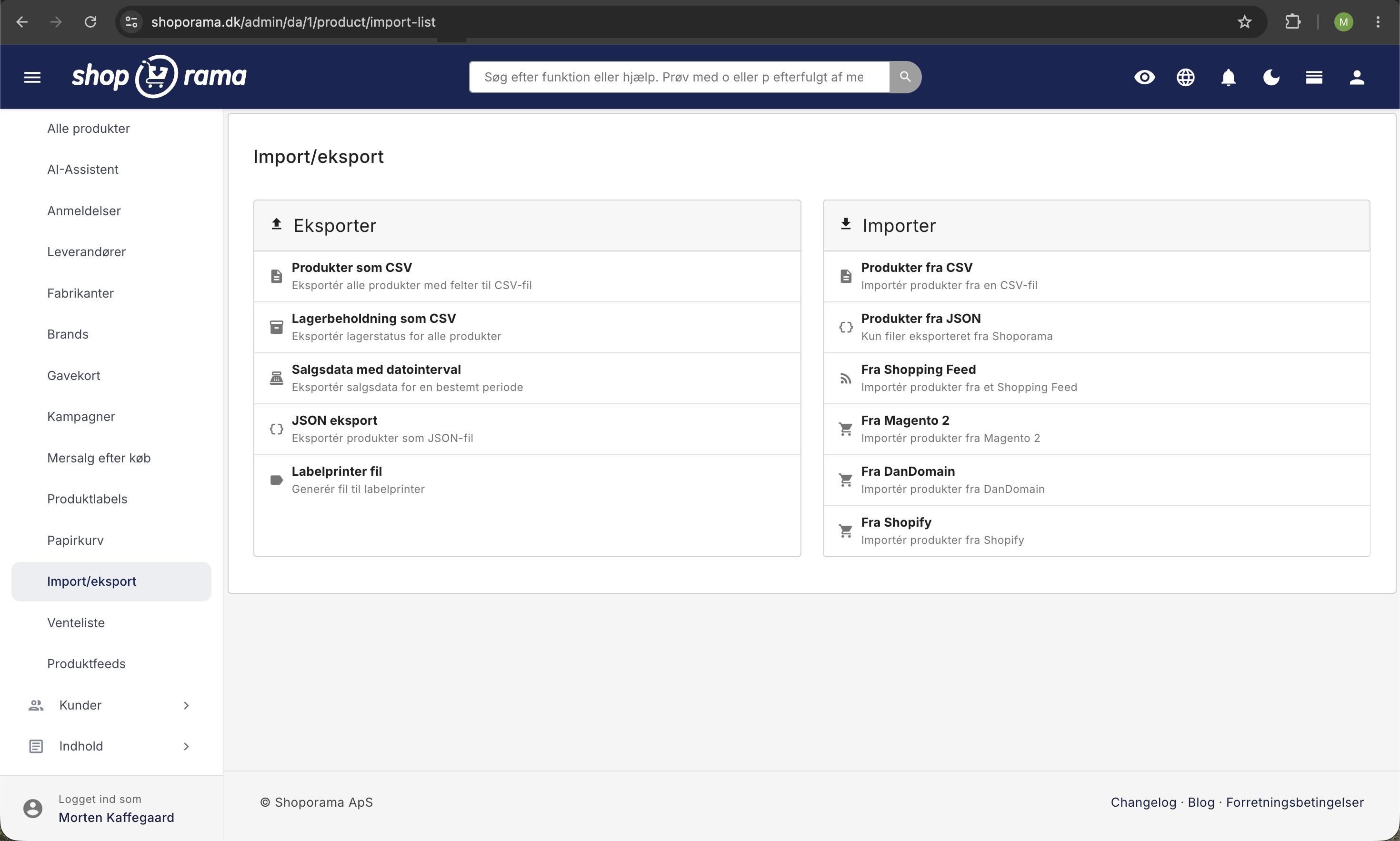
- Upload to Shoporama — Go to Products → Import/Export → Import products from Shopify in the Shoporama admin
- Select the CSV file and verify that the pricing is correct (with or without tax)
- Start the import — Click Upload. The import runs in the background, and you’ll receive an email when it’s complete
What is imported?
The following data is automatically imported from Shopify:
- Product names and descriptions
- Prices — List price, sale price, and cost price
- Variants — Sizes, colors, and other variant types with individual prices and item numbers
- SKUs — SKUs and barcodes (GTIN/EAN)
- Images — All product images are retrieved from Shopify
- Categories — Created automatically based on product types in Shopify
- Brands — Created automatically based on the supplier field
- SEO Data — Meta Titles and Descriptions
- Weight — Automatically converted from grams to kilograms
- Online/offline status — Published and draft products are retained
Variants
Shoporama automatically handles Shopify’s variant structure. Products with variants (e.g., different sizes or colors) are imported with the correct variant profiles, and each variant receives its own price, SKU, and barcode.
Products without actual variants are imported as standard products without variant configuration.
Promotional prices
If your Shopify products have a “compare-at price,” it is automatically imported as a promotional price in Shoporama. This means your promotions and campaigns are preserved after import.
Tips
- Check that the tax settings are correct before importing—this ensures that the prices are accurate
- The import runs in the background, so you can continue working while it’s in progress
- Images are automatically fetched from Shopify and saved in Shoporama
- Review products and categories after the import to ensure everything looks correct
Tip
If you need help migrating your store from Shopify, feel free to contact us at support@shoporama.dk.
Related articles
Import extra fields on products
Guide to importing extra fields via CSV import of products in Shoporama.
Import products from DanDomain
Guide to importing products, categories, variants and images from DanDomain to Shoporama via XML export.
Import products via CSV
Complete guide to importing products with a CSV file in Shoporama - including format, fields and tips.
Related features
Move your online store to Shoporama and keep your URLs
How to migrate your online store from DanDomain, Shopify, WooCommerce, or CSV using 301 redirects so your Google rankings can keep up. A...
Shopify alternative
Looking for a Shopify alternative? Shoporama is a Danish webshop platform with 0% transaction fees, Danish support and all features included.
Shoporama vs Shopify
Compare Shoporama and Shopify side by side. See the difference in price, transaction fees, Danish support, GDPR and features. Try free for 30 days.
Import your products from a CSV file or another platform
Import your products from a spreadsheet, Shopify, DanDomain, or Magento. Here's how to prepare the file, include images and inventory, and avoid...
Import features - move your shop or update thousands of products
Import via CSV or migrate from Shopify, DanDomain and Magento 2. Products, categories, prices, stock and extra fields.
Start an online store: complete guide to opening your own store
How to start an online shop in 2026: platform, payment, shipping, domain and price. Step-by-step guide. Try Shoporama free for 30 days without a...