Import products via CSV
Complete guide to importing products with a CSV file in Shoporama - including format, fields and tips.
You can easily import your products from a CSV file into Shoporama. In this article, you can learn how to do it and how it works.
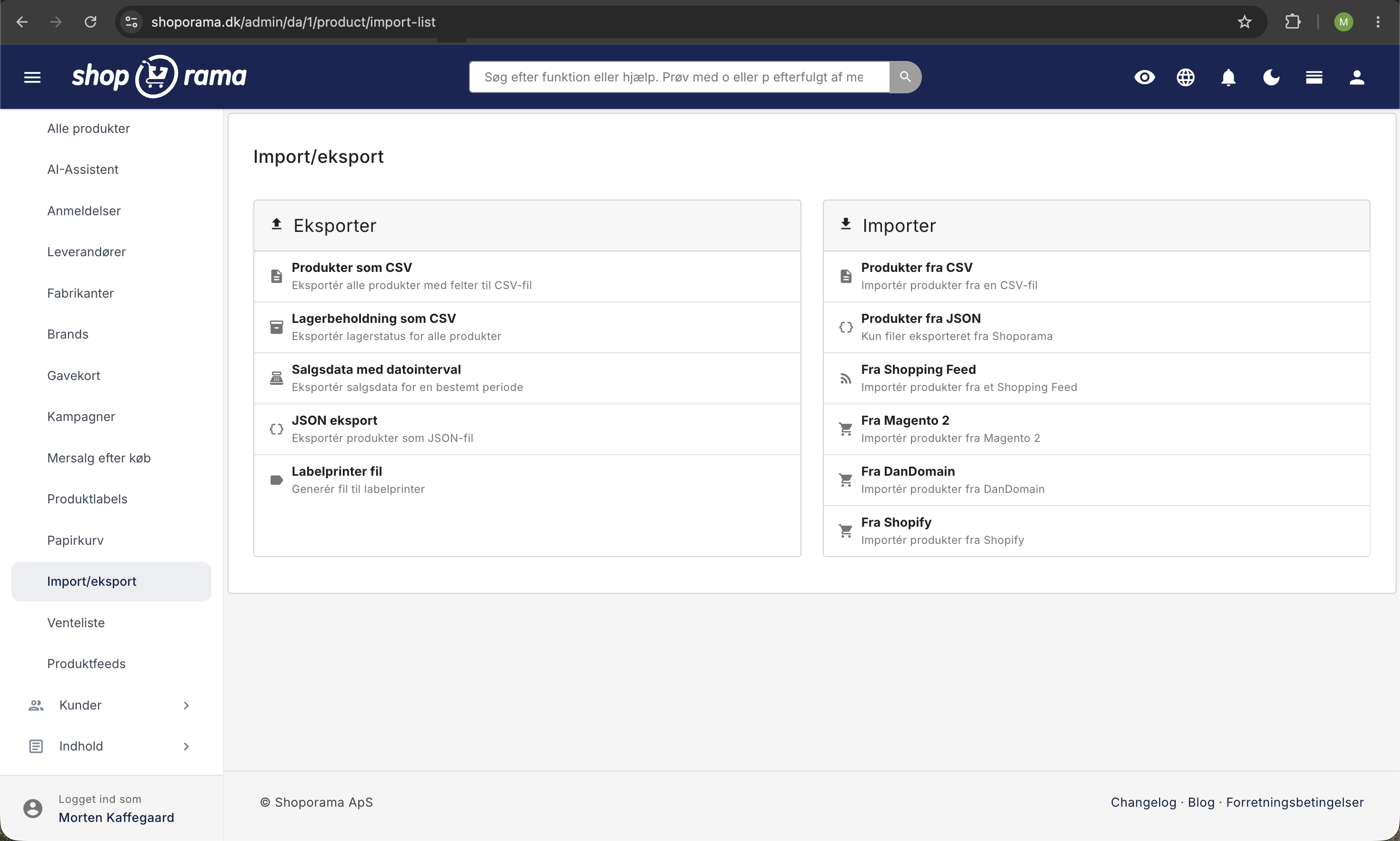
The Difference Between CSV and JSON Imports
Shoporama supports two types of imports. CSV refers to products imported from a comma-separated file (though in practice, they’re usually semicolon-separated). JSON is a different format where you can only import a file that you’ve previously exported from Shoporama. The rest of this article focuses exclusively on CSV imports.
What can CSV imports be used for?
CSV import is an easy way to create or edit many products in Shoporama. It’s typically used when you’re moving your store to Shoporama. You can then export the products from your old store and import them into Shoporama. It can also be used if you want to update your products.
How should the CSV file be formatted?
A CSV file is quite simple. For Shoporama to read it, it must be in a format like this:
own_id;price;name
334455;48.00;Brown T-shirt
667788;170;Black T-shirt
What you see above is the simplest format. The first line specifies which fields are included (in this case, SKU, price, and name). You may also structure the file like this:
product_id;price;name
334455;48.00;Brown T-shirt
667788;170;Black T-shirt
Shoporama also recognizes Danish column names. Price, Stock Status, Delivery Time, Category, Brand, Supplier, and Description work directly. Auto-matching is also case-insensitive and ignores extra spaces, so “Price,” “price,” “ price ,” and “PRICE” all yield the same result. If a field doesn’t match automatically, you can always select it manually from the import wizard’s dropdown menu.
How do you import images?
To import images, you must specify the URL for the image. Note that it must be an absolute URL that our server can access. It must start with https://www.ditdomæne.dk. You cannot simply enter /images/product533.jpg, because then our server won’t know where to look for the image. The image must also not be protected by a password.
Here is an example of an import that also includes images:
own_id;price;name;image
334455;48.00;Brown T-shirt;http://minshop.dk/img/brun-tshirt.jpg
667788;170;Black T-shirt;http://minshop.dk/img/sort-tshirt.jpg
How do you import a product’s profile attributes?
If you’ve created a profile where you need to specify, for example, the material and where it was manufactured, you can specify the product’s profile attributes as parameters in a URL. It will look like this if you have two profile attributes named “material” and “madein,” respectively:
material=cotton&madein=denmark
material=polyester&madein=portugal
If we reuse our example above, the file will look like this:
own_id;price;name;attributes
334455;48.00;Brown T-shirt;material=cotton&madein=denmark
667788;170;Black T-shirt;material=polyester&madein=portugal
Incidentally, this is the same way you specify extra fields and tiered discounts (i.e., in URL format). Extra fields are the ones you would otherwise enter in the Extra Fields field in the product’s Fields tab. Read more in Import Extra Fields for Products.
Do you use split values? If the import creates a new value for an attribute that already has split values, it is automatically linked to the split value with the same name. Upper- and lowercase letters are ignored, so “medium” is linked to “Medium.” This applies to both attributes and variants. If the attribute has no split values, or if the name does not exist as a split value, the value is created as a regular value, just as before. The import never creates new split values on its own.
The two “Profile” fields: what’s the difference?
On the import page, you’ll see “Profile” in two places, and they don’t do the same thing. The difference is important if you want to control exactly which product profile each individual product receives.
- The Profile column (mapping at the top): If you map a column in your CSV to the “profile” field, the profile is selected on a row-by-row basis. If the profile already exists in your store, it will be used. If it doesn’t exist, it will be created automatically. This works both when you create new products and when you update existing ones.
- Profile in the import settings (at the bottom): This dropdown contains only a default profile. It is used exclusively for new products, and only when the row itself does not have a value in the “Profile” column. This setting does not change the profile of existing products.
In short: If you want to select a specific profile for each product, add a column with the profile name to your CSV and map it to “Profile.” If you simply want all new products without a profile value to be assigned the same profile, just use the dropdown in the import settings.
Example with a “Profile” column for each product:
own_id;price;name;profile
334455;48.00;Brown T-shirt;T-shirts
667788;1200;Leather bag;Bags
How do you import products in practice?
- Click "Products."
- Click "Import/Export".
- Under "Import," click "Products from CSV."
- Scroll down to the bottom and click the "Select File" button under "Upload CSV File." Select the file on your computer.
- Before uploading, you must select a separator (whether your values are separated by commas, semicolons, or something else). You can also specify whether your fields are enclosed in "" or something else, as well as the file’s encoding. Leave it set to "auto" if you’re unsure; Shoporama will try to detect it automatically.
- Click "Upload".
- Map the individual values to the corresponding fields in Shoporama. If you’ve specified the first line with names we can recognize (see the list below), we’ll have selected them for you.
- Once all fields are selected, choose the product profile to use for creating the products, as well as how many lines you want to import. By default, all lines are imported. You can also specify whether prices include 25% VAT or not.
- Click “Import.” After a few minutes, your products will be in Shoporama. Note, however, that if the server needs to retrieve images from another server, it may take several minutes.
Which fields does the import recognize?
Below is a list of the fields Shoporama recognizes:
Fields with 1/0 values
Some fields expect a value of 1 or 0 (or an empty cell). Here’s what the values mean:
| Field | 1 | 0 or blank |
|---|---|---|
| online | The product is visible in the store | The product is hidden |
| offline | The product is hidden | The product is visible |
| auto_online | Automatically set to online when stock becomes available | Disabled |
| auto_offline | Automatically set to offline when stock is out | Turned off |
| allow_negative_stock | Stock may go negative | Stop sales when stock reaches 0 |
| no_shopping | Hide in the Google Shopping feed (same as "Hide" under "Show in feeds" in the "Product Feeds" tab) | Show in feed |
| remove | Delete the product | Keep the product |
Note that online and offline are two sides of the same coin. You only need one of the fields in your CSV. Choose the one that best matches your data structure.
Free-text fields
- related_products and similar_products: list of product IDs separated by commas
- category and main_category: multiple categories are separated by |; hierarchy is indicated by > (e.g., Clothing > T-shirts)
- image: multiple images separated by |
- extra_fields, attributes, and discount: URL format (e.g., material=cotton&madein=denmark). In extra_fields, you can also set Google Shopping custom labels, e.g., google-custom-label-2=summer
- google_category: Google’s category ID, e.g., 1868. You can find the ID by searching the “Google Category” field in the product card Product Feeds
- google_shopping_title: the title in the Google Shopping feed. Google allows a maximum of 150 characters
Environmental Data (EPR)
If you record environmental data for extended producer responsibility (EPR), you can import it along with your products. The columns correspond to the Environmental Data (EPR) section in the product’s “Legal, VAT, Customs, and Environment” card. You can read more about what the fields mean in Environmental Data on Products.
| Column | Content |
|---|---|
| env_enabled | 1 = Record environmental data for the product. Must be included; see below |
| env_packaging_paper, env_packaging_plastic, env_packaging_metal, env_packaging_glass, env_packaging_wood, env_packaging_other | The weight of the packaging in grams per unit for paper/cardboard, plastic, metal, glass, wood, and other materials |
| env_packaging_producer | shop = we are the manufacturer of the packaging (e.g., our own import or our name on the packaging), supplier = a Danish supplier is the manufacturer |
| env_weee_weight | Weight of the electronics in grams, excluding the battery and packaging |
| env_weee_category | WEEE category; see the table below |
| env_weee_end_user | business = sold only to businesses. If no value is specified, the product is considered sold to households |
| env_battery_category | portable = portable battery (e.g., AA, coin cell, phone), lmt = battery for light vehicles (e.g., electric bike, electric scooter), sli = vehicle starter battery, industrial = industrial battery, ev = battery for electric vehicles |
| env_battery_weight | Total weight of the batteries in grams |
| env_battery_type | Battery chemistry; see the table below |
| env_battery_integrated | 1 = integrated into the product, 0 = removable |
| env_battery_replaceable | 1 = the customer can replace the battery themselves, 0 = no |
| env_epr_registration_number | Registration number, e.g., with Dansk Producentansvar |
Valid WEEE Categories
In env_weee_category, use the 7 categories that have been in effect since August 15, 2018:
| Value | Category |
|---|---|
| temperature_exchange | 1. Temperature exchange equipment (e.g., refrigerators, heat pumps) |
| screens_over_100cm2 | 2. Screens and equipment with a screen area greater than 100 cm² |
| light_sources | 3. Light sources (e.g., LED bulbs) |
| large_over_50cm | 4. Large equipment (one exterior side larger than 50 cm) |
| small_under_50cm | 5. Small equipment (no side longer than 50 cm) |
| small_it_telecom | 6. Small IT and telecom equipment (no side longer than 50 cm) |
| photovoltaic_panels | 7. Solar panels |
The 10 old categories from before 2018 (large_equipment, small_equipment, it_telecom, consumer_equipment, lighting, electrical_tools, toys_leisure_sports, medical_devices, monitoring_control, and dispensers) are still accepted so that older files remain intact. On the product page, they appear as “Old category” and are retained until you select a new one. Shoporama does not automatically translate them because the old and new categories do not correspond, so please correct them to one of the 7 new ones.
Valid values for battery chemistry
In ` env_battery_type `, use one of these values:
| Value | Chemistry |
|---|---|
| li-ion | Lithium-ion |
| li-polymer | Lithium-polymer |
| lithium-primary | Lithium, non-rechargeable |
| NiMH | Nickel-metal hydride (NiMH) |
| NiCd | Nickel-cadmium (NiCd) |
| Alkaline | Alkaline |
| Zinc-carbon | Zinc-carbon |
| silver oxide | Silver oxide |
| zinc-air | Zinc-air |
| lead-acid | Lead-acid |
| Other | Other |
The old value “button cell” is still accepted and retained. “Button cell” refers to a form factor, not a chemistry, so please select the chemistry instead. To indicate a portable battery such as a button cell, use “portable” in the `env_battery_category` field.
Example and rules
own_id;env_enabled;env_packaging_paper;env_packaging_producer;env_weee_weight;env_weee_category;env_battery_category;env_battery_type;env_battery_weight;env_battery_integrated;env_battery_replaceable
EL-100;1;120;supplier;850;small_it_telecom;portable;li-ion;45;1;0
EL-200;1;300;shop;4200;large_over_50cm;;;;;
- Remember to set `env_enabled` to 1. If you import environmental data without this setting, the numbers will be saved, but the tracking will be disabled. As a result, the product will not be included in the environmental data export for orders, and if someone saves the product in the admin panel while the tracking is disabled, the environmental data will be deleted.
- Empty cells do not change anything. An empty cell does not delete an existing value, and a 0 in env_enabled does not disable environmental data. You do that on the product itself.
- Use the values from the tables. In env_weee_category and env_battery_type, uppercase and lowercase letters make no difference, so, for example, “Li-ion” is saved as li-ion. In env_packaging_producer, env_weee_end_user, and env_battery_category, you must enter the value exactly as it appears in the table, using lowercase letters. In all five columns, values that Shoporama does not recognize are ignored and will not be saved.
- If in doubt, export first. The CSV export under “Products as CSV” includes the same env columns, so you can view the format for your own products and make corrections directly in the file.
Frequently Asked Questions
Why are there two “Profile” fields, and which one should be used?
The “Profile” column (which you map at the top) determines the profile for each individual row and applies to both new and existing products. The “Profile” dropdown in the import settings is only a default profile for new products that do not have a profile value. If you want to select a profile for each product, you must use the column.
Do I need to use English column names, and what if a name doesn’t match?
Both Danish and English names work. Shoporama recognizes “Pris” and “price,” “Lagerstatus” and “stock,” “Leveringstid” and “delivery_time,” etc., and uppercase and lowercase letters make no difference. If a column isn’t recognized, select the field manually from the import wizard’s dropdown menu, or rename the column to one of the supported names and upload again.
Can I import without including all fields?
Yes. You only need the fields you want to update. However, you must include one unique field (SKU, ProductId, or URL) so that Shoporama knows which existing product to update. Otherwise, new products will be created.
What happens to products that aren’t in the CSV?
They are left untouched. The import only updates the products listed in the file. If you want to remove products, you can add a “remove” column and enter 1 in the rows you want to delete.
What file type should I upload?
CSV, which is a plain text file with comma- or semicolon-separated fields. You can export it from Excel, Numbers, Google Sheets, or your current store system. Shoporama automatically detects the separator, delimiters, and encoding if you leave the fields set to “auto.”
Should I make a backup before importing?
It’s a good idea if you’re updating many products at once. You can export a JSON file containing your current products under “Import/Export” and use it if something goes wrong.
I’ve imported environmental data, but the products aren’t included in the environmental data export. Why?
Most likely, the `env_enabled` column is missing the value 1. Without it, environmental data tracking is disabled for the product, so the export skips it. Re-import the file with `env_enabled` set to 1, and then check the product in the "Legal, VAT, Customs, and Environmental" tab.
Our file uses the old WEEE categories. Does it still work?
Yes. The old values are accepted and retained, and the product will display “Old category” with a prompt to select a new one. We do not automatically convert them because the old and new categories do not align. Please adjust the column to one of the 7 current categories the next time you import.
How do I find the correct battery category and chemistry?
The category refers to what the battery is used for: regular batteries and batteries in phones and small devices are “portable,” electric bikes and electric scooters are “lmt,” and car batteries are “sli” or “ev.” The chemistry is typically listed on the battery or in the supplier’s data sheet, e.g., Li-ion. In the file, enter “li-ion,” but if you enter “Li-ion,” the import process will automatically convert it to lowercase.
Can I also import the right of withdrawal and age restriction via CSV?
No, those two fields are not included in the CSV import. You can set exceptions to the right of withdrawal for multiple products at once using the bulk edit feature for products. You select the age verification (None, 15, 16, or 18 years) for each individual product in the “Legal, VAT, Customs, and Environment” tab.
Related articles
Import categories via CSV
Guide to importing categories as a CSV file in Shoporama.
Import extra fields on products
Guide to importing extra fields via CSV import of products in Shoporama.
Import products from DanDomain
Guide to importing products, categories, variants and images from DanDomain to Shoporama via XML export.
Shared values: consistent sizes across profiles
Use shared values so that, for example, "Medium" is the same value across all your product profiles, and customers can filter by "Medium" for all...
Related features
CSV
CSV is a file format for tabular data used for import and export in online shops. Read about CSV files, product import and order export.
Import your products from a CSV file or another platform
Import your products from a spreadsheet, Shopify, DanDomain, or Magento. Here's how to prepare the file, include images and inventory, and avoid...
Import features - move your shop or update thousands of products
Import via CSV or migrate from Shopify, DanDomain and Magento 2. Products, categories, prices, stock and extra fields.
Mass editing
Edit many products at once. Loop Edit, stock update, bulk actions and queued bulk edits in the background.
Export all your data - free and unlimited
Export products, orders, customers and discount codes in CSV format. Free, unlimited and always available. Your data belongs to you.
Move your online store to Shoporama and keep your URLs
How to migrate your online store from DanDomain, Shopify, WooCommerce, or CSV using 301 redirects so your Google rankings can keep up. A...