Theme settings for products and pages (theme extensions)
Learn how the Theme Settings tab works for products, categories, static pages, landing pages, and blog posts in Shoporama. The theme defines the fields—such as video, badge, and upsells in Montana—and the store owner fills them in. A guide for both store owners and theme developers.
What are Theme Settings for products and pages?
Theme extensions are additional fields that your theme makes available on products, categories, landing pages, static pages, and blog posts. In the admin panel, these fields are located in the Theme Settings tab, which was previously called “Extensions from your theme.” The theme developer defines the fields, and as a store owner, you fill them out directly in the admin panel, for example, on the product edit page.
Typical examples include a field for a YouTube video, a badge with text and color, add-ons for the product, or a list of attributes with a title, description, and icon. The theme uses the data you enter to display additional content in the online store.
Tip
The Theme Settings card appears only if your theme has fields for that specific type of page. If you can’t see the card on a product or category page, your current theme doesn’t have any fields there. Don’t confuse this tab with the Theme Settings page under Design, where you manage the entire theme, such as colors and text. That page is described in Theme Settings: How to Customize Your Theme.
For Store Owners: How to Use Theme Settings
When editing a product, you’ll find the Theme Settings tab between the Fields and Internal Search tabs, and as a shortcut in the right-hand menu. Click the tab to expand it. The fields are organized into groups with headings, such as Video, Badge, and Add-ons. On categories, static pages, landing pages, and blog posts, the tab is located directly below General.
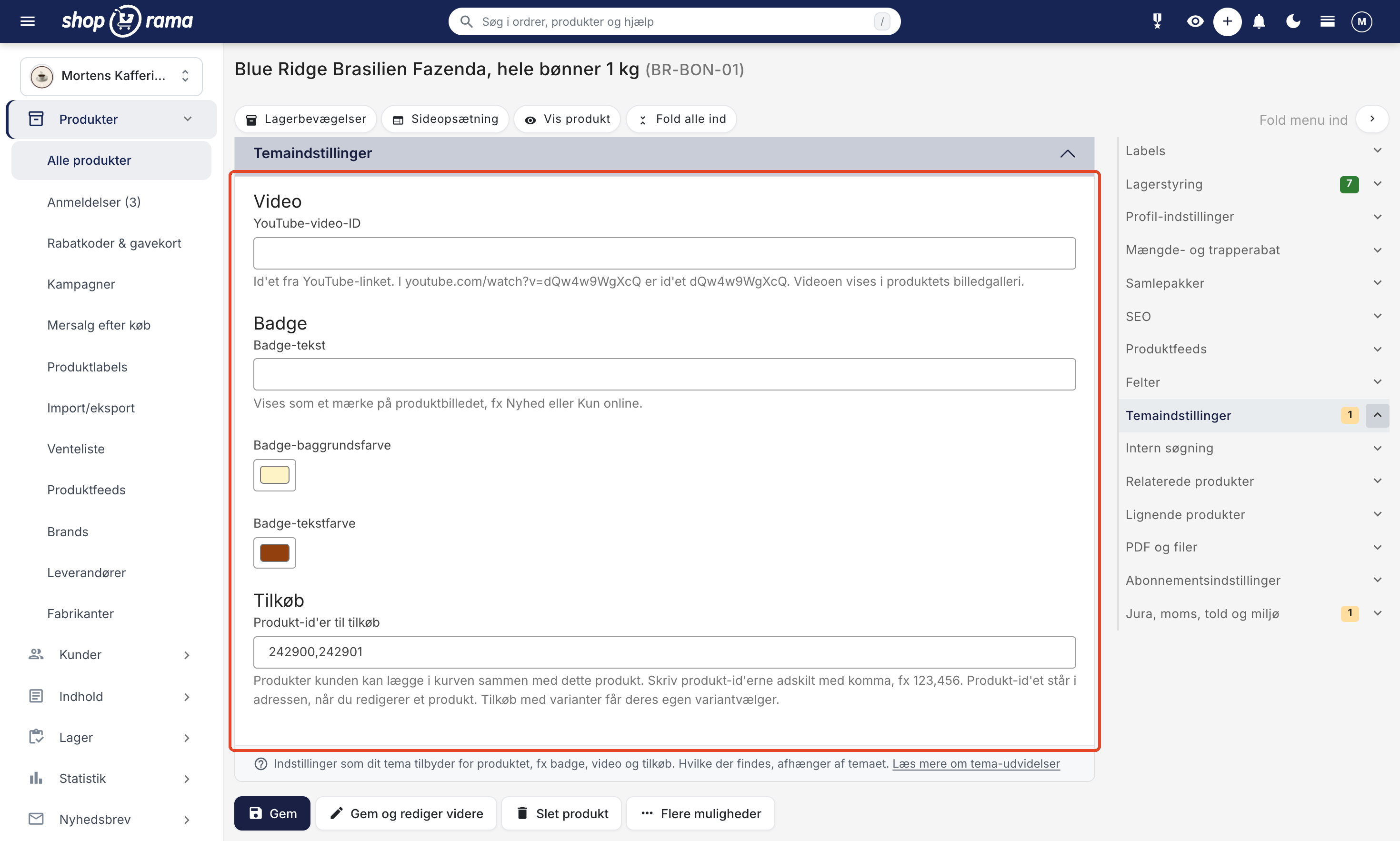
Fill in the fields as needed. Some fields are simple text fields, while others are color pickers, image uploads, or checkboxes. Each field has a title and typically an explanation describing its purpose.
When you save, the fields are saved along with the product or page, and the theme uses them to display the relevant content in the online store. For example, a filled-in YouTube video ID in Montana displays a video in the product’s image gallery. Text fields on products are also included in the store’s internal search, unless the theme developer has disabled this feature.
You can also use product fields on a landing page. Select the “Extended Product Field” rule, and the landing page will display the products that have a specific value in that field.
Theme Settings or Content Types?
The fields in Theme Settings come from your theme and apply to the pages you already have: products, categories, static pages, landing pages, and blog posts. If you need a completely new type of content—such as recipes, retailers, or hotels—with fields you define yourself, use Content Types under Content → Content Types instead. You can create content types yourself in the admin panel without a theme developer, and they belong to the store rather than the theme, so they’ll carry over if you switch themes. Six of Shoporama’s themes, such as Montana and Delaware, can display them without any changes. The two can also work together: for example, the theme can add a field to your blog posts where you select a recipe. Read more in the article about content types.
Theme Settings in Montana and MontanaB2B
In Montana and MontanaB2B, the fields are in Danish and explained directly in the admin panel. For products, there are three groups:
- Video: the YouTube video ID field. The ID is the last part of the YouTube link, so in youtube.com/watch?v=dQw4w9WgXcQ, the ID is dQw4w9WgXcQ. The video appears in the product’s image gallery.
- Badge: the Badge Text, Badge Background Color, and Badge Text Color fields. The badge appears as a label on the product image, e.g., New or Online Only.
- Add-ons: the Product IDs for add-ons field. Enter the IDs of the products that the customer can add to the cart along with this product, separated by commas, e.g., 123,456. The product ID appears in the address bar when you edit a product, and add-ons with variants have their own variant selector. Read more in Add-ons on the product page.
Fields that did not function as intended have been removed from Montana and MontanaB2B:
- Product comment field. If the customer needs to enter text for the item—such as for an engraving—use the “Customer Input” feature on products instead.
- "Pickup Only," which only displayed a stock status on the product page and did not hide the other shipping options at checkout.
- Hide the bundle display and hide price tables for volume discounts and variants.
- All fields on categories, static pages, blog posts, and landing pages. Therefore, Montana and MontanaB2B no longer display the “Theme Settings” tab there.
Data you previously saved in these fields will not be deleted, but it will no longer appear in the admin panel, and the theme will not use it. If you’re using your own customized copy of Montana, your fields remain unchanged, as Shoporama does not modify stores’ own themes. Other themes, such as Delaware, DelawareDK, California, and Alaska2, have their own fields.
Supported Field Types
Theme settings support a wide range of field types:
- text: a simple text field for short values (e.g., a video ID or badge text).
- richtext: an HTML editor with formatting options for longer texts, including bold, italics, links, and more.
- longtext: a large text field (textarea) for longer texts without HTML formatting.
- number: a numeric field for whole numbers starting at 0.
- decimal: a numeric field for decimal numbers, including negative numbers (e.g., a weight of 2.5 kg or a temperature of -18 degrees).
- link: a field for an address, either a full address starting with https:// or an address within the store starting with /. mailto: and tel: also work. If you enter www.eksempel.dk, Shoporama automatically adds https:// at the beginning. Anything else is not saved, and the field remains empty.
- bool: a checkbox for yes/no values (e.g., “Show badge”).
- color: a color picker for visually selecting colors (e.g., background color for a badge).
- list: a dropdown menu with predefined options.
- multi: multiple checkboxes to select multiple options at the same time.
- image: Upload a single image.
- images: Upload multiple images (e.g., a gallery).
- date: a date picker.
- datetime: a date and time picker.
- product and products: a reference to one or more products that you search for and select. If the field contains multiple products, you can reorder them by dragging them.
- category and categories: a reference to one or more categories that you search for and select.
- content_entry and content_entries: refers to one or more entries from one of the store’s content types, such as a recipe. The theme determines which content type the entries come from.
- repeater: repeat fields that allow you to add a dynamic number of groups of fields (see separate section below).
These references display only content that customers can see. If a selected product or category is offline, or if an entry has been set to offline, the store skips it until it is online again.
For theme developers: Defining fields
The fields are defined in JSON files in the theme’s `extensions/` folder. The file is named after the type of object the fields apply to:
- extensions/product.json: products
- extensions/category.json: categories
- extensions/landing_page.json: landing pages
- extensions/static_page.json: static pages
- extensions/blog_post.json: blog posts
If the file does not exist or contains only an empty array, [], the theme has no fields for that type, and the Theme Settings card will not appear in the admin panel. Montana and MontanaB2B, for example, have empty files for categories, landing pages, static pages, and blog posts.
The JSON file is an array of groups. Each group has a name, an optional description, and a list of fields. The name appears as the heading in the card, and a description appears after the name. Here is an excerpt from Montana:
[
    {
        "name": "Video",
        "description": "",
        "fields": [
            {
                "title": "YouTube video ID",
                "description": "The ID from the YouTube link. In youtube.com/watch?v=dQw4w9WgXcQ, the ID is dQw4w9WgXcQ. The video appears in the product's image gallery.",
                "id": "youtube_id",
                "type": "text"
            }
        ]
    },
    {
        "name": "Badge",
        "description": "",
        "fields": [
            {
                "title": "Badge Text",
                "description": "Displayed as a badge on the product image, e.g., New or Online Only.",
                "id": "badge",
                "type": "text"
            },
            {
                "title": "Badge Background Color",
                "id": "badge-bg",
                "type": "color",
                "default_value": "#fef3c7"
            },
            {
                "title": "Badge Text Color",
                "id": "badge-color",
                "type": "color",
                "default_value": "#92400e"
            }
        ]
    }
]
Each field supports the following properties:
- id (required): unique ID, used to retrieve the value in templates.
- title (required): label displayed in the admin panel.
- type (required): the field type (see the list above).
- description: tooltip text displayed below the field. Write this for the store owner so it’s clear what the field does in the store.
- placeholder: placeholder text in the input field.
- default: default value for text, longtext, richtext, number, decimal, link, date, and datetime.
- default_value: default value for color. Without a default value, the color picker starts at black.
- options: options for list and multi types (object with key/value pairs).
- searchable: applies only to products. Text, list, and multi-select fields are automatically included in the store’s internal search. Set "searchable": false to exclude a field.
- min and max: minimum and maximum values for number and decimal fields. A number field cannot be less than 0.
- content_type: only for content_entry and content_entries. The key of the content type from which entries should be selected, e.g., "content_type": "recipe". The key is defined on the content type in the admin panel and cannot be changed, so the theme will still work even if the store owner renames the type.
The default value is entered in the admin panel and is not saved until the product or page is saved. Until then, the field has no value in the templates, so make sure the theme also works when the field is empty.
For theme developers: Using data in templates
In Smarty templates, values are retrieved using the method ` getExtensionValue('field_id')`. This method is available for products, categories, landing pages, static pages, and blog posts. If the field is not filled in, it returns `false`. A bool field returns true or false, a number field returns an integer, a decimal field returns a decimal number, a link field returns the URL as text, an image field returns an image, and images and multi fields return a list. The reference fields return the selected content directly: `product`, `category`, and `content_entry` return a single object, and `products`, `categories`, and `content_entries` return a list in the order they were selected in the admin panel.
Simple text value:
<{$product->getExtensionValue('youtube_id')}>
Conditional display (boolean):
<{if $product->getExtensionValue('show_badge')}>
    <span style="background:<{$product->getExtensionValue('badge-bg')}>; color:<{$product->getExtensionValue('badge-color')}>">
        <{$product->getExtensionValue('badge')|escape}>
    </span>
<{/if}>
Single image:
<{if $img = $product->getExtensionValue('img')}>
    <img src="<{$img->getSrc(400, 400, 'fit')}>">
<{/if}>
Multiple images (gallery):
<{foreach $product->getExtensionValue('gallery') as $image}>
    <img src="<{$image->getSrc(200, 200, 'box')}>">
<{/foreach}>
Date with formatting:
<{$product->getExtensionValue('release_date')|date_format:'%d/%m/%Y'}>
Reference to an entry (e.g., a recipe selected from a blog post):
<{* extensions/blog_post.json: {"id": "recipe", "title": "Recipe", "type": "content_entry", "content_type": "recipe"} *}>
<{if $recipe = $blog_post->getExtensionValue('recipe')}>
    <h2><{$recipe->getTitle()|escape}></h2>
    <p>Cooking time: <{$recipe->getValue('prep_time')|escape}> min.</p>
    <{if $recipe->hasUrl()}>
        <a href="<{$opskrift->getUrl()}>">View the full recipe</a>
    <{/if}>
<{/if}>
More products:
<{if $accessories = $product->getExtensionValue('accessories')}>
    <{foreach $accessories as $p}>
        <a href="<{$p->getUrl()}>"><{$p->getName()|escape}></a>
    <{/foreach}>
<{/if}>
The post’s fields are retrieved using the field’s key via ` getValue('field_key')`. Read more about displaying content types in a theme in the developer documentation.
If you remove a field from the JSON file, the saved values remain. The field disappears from the admin panel and the REST API, but `getExtensionValue()` can still read the value. Therefore, also remove its use in templates if the field is no longer supposed to have any effect.
Repeater Fields
Repeater fields allow you to add a dynamic number of groups of fields. This is useful, for example, for a list of features, specifications, or benefits of a product, where each item can have its own title, description, and possibly an icon.
JSON definition of a repeater field:
{
  "title": "Features",
  "id": "features",
  "type": "repeater",
  "field_title": "Feature",
  "description": "Add features to the product",
  "fields": [
    { "id": "title", "type": "text", "title": "Title", "placeholder": "E.g., Waterproof" },
    { "id": "description", "type": "longtext", "title": "Description" },
    { "id": "icon", "type": "image", "title": "Icon" }
  ]
}
Repeater fields have these additional properties:
- fields: an array of subfields (supports text, richtext, longtext, number, and image).
- field_title: the title displayed for each element in the admin panel (e.g., "Feature").
In the admin panel, repeater fields appear as cards that can be added, deleted, and moved via drag-and-drop. As a store owner, click the "Add" button to create a new item and fill out the subfields.
Using repeater data in templates:
<{foreach $product->getExtensionValue('features') as $feature}>
    <h3><{$feature.title|escape}></h3>
    <p><{$feature.description|escape|nl2br}></p>
    <{if $feature.icon}>
        <img src="<{$feature.icon->getSrc(64, 64, 'fit')}>">
    <{/if}>
<{/foreach}>
Theme Settings for Other Object Types
The fields don’t just work on products. The theme can define fields for multiple object types, and the getExtensionValue() method is available on all supported objects:
- Categories: defined in extensions/category.json. Usage: $category->getExtensionValue('field_id')
- Landing pages: defined in extensions/landing_page.json. Usage: $landing_page->getExtensionValue('field_id')
- Static pages: defined in extensions/static_page.json. Usage: $page->getExtensionValue('field_id')
- Blog posts: defined in extensions/blog_post.json. Usage: $blog_post->getExtensionValue('field_id')
The JSON structure and field types are identical for all object types.
For developers: REST API
The fields can also be read and written via the REST API in the `extension_data ` field for products, categories, blog posts, static pages, and landing pages. Only fields defined in the theme’s JSON file are included. This is useful when many products need to have the same field filled out. Reference fields are read and written as IDs, and multi-select types as a list of IDs.
AJAX Filtering with Extension Fields
Products can be filtered by their values using AJAX filtering. This allows you to build filters in the online store based on theme-specific fields.
The syntax uses “extension.” as a prefix in the URL parameters:
?extension.youtube_id=abc123
?extension.show_badge=1
This allows theme developers to build advanced filtering experiences tailored to the needs of each individual online store.
Tip for theme developers
Use descriptive and unique IDs for your fields, such as ` youtube_id ` instead of just ` id`. Give the fields a title and a description in the store’s language so the store owner knows what the field is used for and where it appears. Read more about variables in Shoporama themes for a complete overview of available template data.
Frequently Asked Questions
Where has “Extensions from your theme” gone on the product page?
The tab is now called Theme Settings and is located between the Fields and Internal Search tabs. The name has been changed everywhere: on products, categories, static pages, landing pages, and blog posts. The fields and your saved values are the same as before, unless your theme has removed a field.
I’m using Montana and can’t see “Theme Settings” on my categories. Is something wrong?
No. Montana and MontanaB2B only have fields on products, and the tab only appears when the theme has fields for that type of page. The fields on categories and pages have been removed because the theme didn’t use them for anything. What you had previously saved there will not be deleted.
We had set some products to “Pickup Only” in Montana. What happens now?
The field only displayed the text “Pickup Only” next to the stock status on the product page. It didn’t hide the other shipping options at checkout, so customers could still choose delivery. That’s why the field has been removed, and the text no longer appears. If an item is available for pickup only, please state this clearly in the description, and contact support@shoporama.dk if you have any questions about your shipping setup.
Where can I find the YouTube video ID?
Open the video on YouTube and copy the part of the URL that comes after “v=”. In youtube.com/watch?v=dQw4w9WgXcQ, the ID is dQw4w9WgXcQ. Paste only the ID, not the entire link. In Montana, the video appears in the product’s image gallery.
Can I fill out Theme Settings for multiple products at once?
In the admin panel, you fill out the fields for each individual product. If multiple products need the same settings—such as the same badge—you can do this via the REST API or with Claude if you ’re managing the store with AI. If you duplicate a product, the fields are carried over to the copy.
I removed a field from my extensions file. Is the data gone?
No. The values remain, but the field no longer appears in the admin panel or in the REST API. Templates can still read the value using `getExtensionValue()`, so be sure to remove any references to it in the theme as well. If you add the field again with the same ID, the old values will reappear.
What’s the difference between Theme Settings and custom fields?
The fields in Theme Settings are predefined fields from the theme with a title, a description, and a fixed position in the store. Custom fields are your own keys and values that you enter in the Fields card and that only appear when a theme or feed retrieves them. Read more in Extended Fields.
Do you have questions about Theme Settings and theme extensions? Contact us at support@shoporama.dk.
Related articles
Theme Settings: How to Customize Your Theme
Theme settings are the theme's own control panel in Shoporama. Here, you can change colors, text, images, and enable or disable features without...
Extended fields
How to use the "Fields" tab for products in Shoporama: additional fields, Google Shopping custom labels, HTML fields, and the fields from your theme.
Themes: Create and edit your own theme templates
The Themes page lets you create your own versions of individual files in your theme and A/B test them. See how it works and why it's only available...
Code Editor: Edit theme files directly in the admin panel
The code editor lets you edit your theme's HTML, CSS, and JavaScript files directly in the admin panel. See what you can edit, how to save your...
Variables in a Shoporama theme
Overview of global and page-specific Smarty variables available in Shoporama themes.
Content Types: Create your own content with custom fields
Create your own content types—such as recipes with cooking times and ingredients—and customize the fields yourself. Learn how to add entries,...
Related features
Extrafelt
An extra field stores custom data on products. Read about extra fields, product feeds and customizing your online shop.
Full design freedom - your design, your rules
Design your online store freely with full access to HTML, CSS and templates. Use templates, Page Builder or build from scratch.
Extended fields (Extra fields)
Create custom fields on products in Shoporama. Save everything from ISBNs to YouTube links, Google Shopping labels and pricerunner categories as...